 ProMapRanker
How to Delete Google Reviews: What's Possible and What Isn't
As Md Shihab Mia, founder of ProMapRanker (promapranker.com), I've seen countless businesses struggle with negative feedback on Google. The straightforward answer to "how to delete Google reviews" is that businesses generally cannot delete legitimate reviews, whether positive or negative. Google maintains strict policies to ensure the integrity and authenticity of its review system. You can only successfully remove a Google review if it violates Google's content policies, or if you are the original reviewer who posted it. For businesses, the focus should almost always shift from deletion to proactive management, strategic response, and encouraging new positive feedback to mitigate the impact of less favorable reviews.
Understanding the precise boundaries of what's possible and impossible is critical for effective online reputation management. Attempting to improperly remove reviews can backfire, damaging your business's credibility and potentially violating Google's terms of service. This guide will walk you through the exact steps for reporting reviews that violate policies, how reviewers can remove their own posts, and most importantly, how to manage and respond to all reviews effectively, turning potential problems into opportunities for growth.
Can a Business Delete a Google Review?
A business cannot directly delete any Google review posted by a customer, regardless of its star rating or content, unless that review violates Google's specific content policies. Google's system is designed to provide an unfiltered platform for customer feedback, acting as a third-party arbiter. Your only recourse for an unwanted review is to report it for policy violation or to respond professionally to mitigate its impact.
This limitation is a cornerstone of Google's review system, ensuring that customers have a voice and businesses cannot simply erase negative feedback. The integrity of the review platform depends on its perceived fairness. For businesses, this means focusing less on removal and more on building a strong reputation through excellent service and proactive engagement.
What Kind of Google Reviews Can Be Removed?
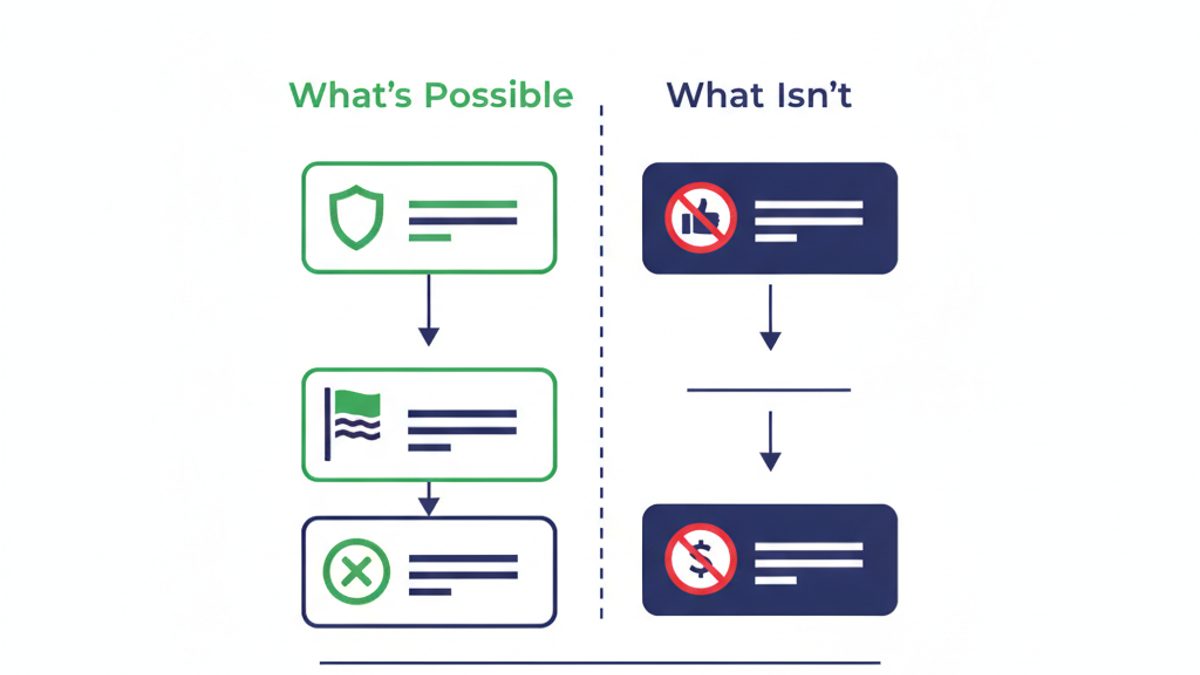
Only reviews that violate Google's content policies are eligible for removal. These policies are designed to prevent abuse and ensure reviews are helpful and relevant. Understanding these categories is crucial before attempting to report a review, as unsubstantiated reports are often rejected.
Common Violations That May Lead to Review Removal:
- Spam and Fake Content: Reviews that are obviously fake, posted by bots, or duplicated across multiple profiles. This includes reviews from competitors or employees disguised as customers.
- Off-Topic: Reviews that don't relate to the specific business or its services. For example, a review about traffic conditions outside your store, or a political rant unrelated to your product.
- Restricted Content: Reviews promoting illegal activities, prohibited goods, or services.
- Illegal Content: Reviews that depict or promote illegal acts, such as hate crimes, child sexual abuse material, or terrorism.
- Terrorist Content: Any content that promotes terrorism.
- Sexually Explicit Content: Reviews containing explicit sexual material.
- Offensive Content: Reviews containing hate speech, harassment, or bullying. This includes discriminatory language regarding race, ethnicity, religion, disability, gender, age, or sexual orientation.
- Dangerous & Derogatory Content: Content that threatens or advocates for physical harm, or promotes discrimination, degradation, or denigration of individuals or groups.
- Impersonation: Reviews posted by someone pretending to be another person, business, or entity.
- Conflict of Interest: Reviews posted by current or former employees, competitors, or anyone with a direct personal or financial interest in the business (e.g., a business owner reviewing their own business).
- Personal Information: Reviews that reveal private information about individuals, such as credit card numbers, medical records, or other non-public personal data.
It's important to note that a review simply being negative or unfair is generally not a reason for removal, as long as it adheres to Google's content policies. Your disagreement with the customer's experience or opinion does not constitute a policy violation.
How to Report a Google Review for Policy Violation (Business Owner)
If you believe a review violates one of Google's content policies, you can report it for review. Google will then assess the report and decide whether to remove the review. This process can take several days or even weeks.
Step-by-Step: Reporting a Review via Google Business Profile
This is the most common and recommended method for business owners.
- Sign In to Google Business Profile: Go to business.google.com and sign in with the Google account associated with your business profile.
- Select Your Business: If you manage multiple locations, select the specific business profile.
- Navigate to Reviews: From your dashboard, click on "Reviews" in the left-hand menu.
- Find the Review: Locate the specific review you want to report.
- Report the Review: Click the three vertical dots (menu icon) next to the review, then select "Report review" or "Flag as inappropriate."
- Choose Violation Type: Select the reason that best describes how the review violates Google's policies (e.g., "Off-topic," "Spam," "Conflict of interest"). Be specific and honest.
- Submit the Report: Click "Report" to submit your flag.
Step-by-Step: Reporting a Review via Google Maps
You can also report a review directly from Google Maps, which is accessible to anyone, including business owners.
- Open Google Maps: Go to maps.google.com or open the Google Maps app.
- Search for Your Business: Type your business name into the search bar.
- Access Your Business Profile: Click on your business listing in the search results to open its full profile.
- Go to Reviews: Scroll down to the "Reviews" section.
- Find and Report: Locate the problematic review, click the three vertical dots (menu icon) next to it, and select "Report review."
- Select Violation Type and Submit: Choose the appropriate reason for reporting and submit.
What Happens After You Report a Review?
Once you report a review, Google will initiate an internal investigation. There's no guaranteed timeline for a decision, but it typically takes a few business days to a week. You will generally not receive direct communication about the outcome unless Google requires more information. The review will either remain published or be removed. It's advisable to check your Google Business Profile periodically to see if the review is still present.
If your initial report is denied and you strongly believe the review violates policies, you can try contacting Google Business Profile support directly. Provide specific details and any evidence you have to support your claim. Remember, persistence can sometimes pay off, but only if your case is genuinely strong.
How to Remove a Google Review You Posted (As a Reviewer)
If you are the person who originally posted a Google review, you have full control over it and can delete it at any time. This is a simple and immediate process.
Step-by-Step: Deleting Your Own Review on Desktop
- Go to Google Maps: Open your web browser and navigate to maps.google.com. Make sure you are signed in to the Google account you used to post the review.
- Access Your Contributions: In the top-left corner, click the three horizontal lines (menu icon).
- Select "Your contributions": From the menu, click on "Your contributions."
- Go to "Reviews": On the "Your contributions" page, select the "Reviews" tab.
- Find and Delete: Locate the review you wish to remove. Click the three vertical dots (menu icon) next to that review.
- Choose "Delete review": Select "Delete review" from the options. Confirm your decision when prompted.
Step-by-Step: Deleting Your Own Review on Mobile (Google Maps App)
- Open Google Maps App: Launch the Google Maps app on your smartphone or tablet. Ensure you're signed in to the correct Google account.
- Access Your Contributions: Tap your profile picture or initial in the top-right corner.
- Select "Your profile": From the pop-up menu, tap "Your profile."
- Go to "Reviews": On your profile page, scroll down or tap the "Reviews" tab.
- Find and Delete: Locate the review you want to remove. Tap the three vertical dots (menu icon) next to that review.
- Choose "Delete review": Select "Delete review" and confirm your choice.
Once deleted, the review will immediately disappear from the business's profile and your contributions. This action is permanent, and the review cannot be recovered.
What Businesses Cannot Delete: Legitimate Negative Reviews
It's crucial to understand that a negative review, even a 1-star review, that is legitimate and expresses a genuine customer experience, cannot and will not be removed by Google. This holds true even if you believe the review is unfair, inaccurate, or damaging to your reputation. Google's stance is that these reviews are part of the public discourse and help other consumers make informed decisions.
Attempting to repeatedly report legitimate reviews without a valid policy violation can be seen as abuse of the system and may not be productive. Instead of fighting against these reviews, businesses should channel their efforts into effective online review management strategies.
The Power of Responding to Google Reviews (Even Negative Ones)
Since direct deletion of legitimate reviews isn't an option, your response becomes your most powerful tool. A thoughtful and professional response to a negative review can often mitigate its impact and even turn a bad experience into a positive perception of your business. Research indicates that 89% of consumers are highly likely to use a business that responds to all of its reviews, according to a 2023 BrightLocal study.
Best Practices for Responding to Negative Reviews:
- Respond Promptly: Aim to respond within 24-48 hours. A quick response shows you're attentive and care about customer feedback.
- Apologize and Empathize: Start with a sincere apology for their negative experience, even if you feel it's unwarranted. Use phrases like, "I'm sorry to hear you had this experience," or "We regret that we didn't meet your expectations."
- Acknowledge the Specifics: Refer to the details of their complaint. This shows you've read and understood their feedback.
- Offer a Solution (Offline): Don't try to resolve complex issues publicly. Offer to take the conversation offline to resolve the problem directly. Provide a clear contact method (e.g., "Please call us directly at [phone number] or email [email address] so we can make this right").
- Be Professional and Calm: Never get defensive or engage in an argument. Your response is public and reflects on your brand.
- Thank Them for Feedback: Even negative feedback provides an opportunity to improve. Thank them for bringing the issue to your attention.
- Sign Off Professionally: Use your name or the name of a manager to add a personal touch.
Example Response to a Negative Review:
"Dear [Reviewer Name], I'm truly sorry to hear about your experience on [date/time] regarding [specific issue]. That certainly doesn't reflect the quality of service we aim to provide. We would appreciate the opportunity to discuss this further and find a resolution. Please contact us directly at [phone number] or [email address] at your earliest convenience so we can make things right. Thank you for bringing this to our attention. Sincerely, [Your Name/Manager Name]"
Best Practices for Responding to Positive Reviews:
Don't neglect your positive reviewers! Acknowledging positive feedback reinforces customer loyalty and shows appreciation.
- Thank Them: Always start with a sincere thank you.
- Personalize the Response: Refer to something specific they mentioned in their review. Avoid generic, canned responses.
- Reinforce Your Brand: Briefly mention what makes your business great or invite them back.
- Be Brief: Keep positive responses concise and genuine.
For more detailed strategies on crafting effective responses, refer to our guide on how to respond to Google reviews.
Proactive Online Review Management Strategies
The best defense against negative reviews is a strong offense. Proactive online review management involves strategies to consistently generate positive feedback and monitor your online presence. This approach helps to bury the occasional negative review under a wave of positive ones, improving your overall star rating and reputation.
1. Deliver Exceptional Customer Service:
This is the foundation. Consistently providing high-quality products or services and excellent customer interactions minimizes the chances of negative reviews.
2. Actively Ask for Reviews:
Don't wait for reviews to happen organically. Encourage satisfied customers to leave feedback. You can do this via:
- In-store signage: QR codes linking directly to your Google Business Profile review page.
- Email follow-ups: Send a polite email after a purchase or service, asking for a review.
- Receipts: Print a short URL or QR code on physical receipts.
- Verbal requests: Train staff to politely ask customers for reviews at the point of sale or service.
3. Monitor Your Reviews Regularly:
Staying on top of your reviews allows for timely responses and quick identification of any policy-violating content. Tools like ProMapRanker can help you monitor your Google Business Profile reviews, track sentiment, and identify trends across your locations. Our geo-grid local rank tracker not only shows your visibility across search grids but also integrates with a robust Google Business Profile audit tool to give you a complete picture of your local presence, including review performance. This is a crucial aspect of how to track local rankings effectively.
4. Address Internal Issues Promptly:
Use feedback, both positive and negative, as an opportunity for internal improvement. If multiple reviews point to the same issue (e.g., slow service, product defect), address the root cause within your operations.
5. Build a Strong Local SEO Presence:
A comprehensive local SEO strategy, including optimized Google Business Profile listings and consistent NAP (Name, Address, Phone) information across directories, contributes to trust and visibility. This can indirectly influence review volume and quality. ProMapRanker offers a Google Business Profile audit checklist and geo-grid rank tracker to help you ensure your local presence is optimized.
Review Deletion vs. Management: A Strategic Comparison
This table highlights the fundamental differences and implications of attempting to delete reviews versus actively managing them.
| Aspect | Review Deletion Strategy | Review Management Strategy | ProMapRanker Relevancy |
|---|---|---|---|
| Primary Goal | Remove negative feedback from public view. | Improve overall online reputation, build trust, leverage feedback for growth. | Comprehensive local SEO and reputation tools. |
| Feasibility | Very limited; only for policy violations. High chance of failure for legitimate reviews. | Highly feasible and sustainable for all types of reviews. | Monitors review sentiment and volume for proactive management. |
| Effort & Time | Can be time-consuming with uncertain outcomes (reporting, follow-ups). | Ongoing effort, but yields consistent, positive results over time. | Automated monitoring and reporting for efficiency. |
| Impact on Reputation | If successful, removes a specific negative point. If unsuccessful, can be frustrating and perceived as avoiding criticism. | Builds trust, shows responsiveness, demonstrates commitment to customer satisfaction. Turns negatives into positives. | Provides insights into how your business is perceived across local search. |
| Google's Stance | Supports removal only for clear policy violations. Discourages attempts to remove legitimate reviews. | Strongly encourages businesses to respond to all reviews. | Adheres to Google's guidelines for ethical local SEO. |
| Long-term Value | Minimal long-term value beyond removing individual reviews. | Sustainable growth in reputation, improved customer relations, valuable insights for business improvement. | Essential for measuring local SEO performance and brand health. |
ProMapRanker, a product of rankite.com, is built to empower businesses with the tools needed for robust online reputation and local SEO. Our platform offers geo-grid scans to visualize your local search performance, Share of Local Voice (SoLV) and Average Rank Position (ARP) metrics, and detailed Google Business Profile audits. This gives you the insights to not just manage reviews, but to dominate your local market. Start your free trial today and take control of your local presence.
Frequently Asked Questions
How do I remove a 1 star review from Google?
You cannot directly remove a 1-star review from Google unless it violates one of Google's content policies, such as being spam, off-topic, or containing hate speech. If it's a legitimate, albeit negative, review, your best strategy is to respond professionally, address the customer's concerns, and work to generate more positive reviews to improve your overall average rating.
Can you remove yourself from Google reviews?
Yes, if you are the person who originally posted a Google review, you can remove it yourself at any time. Simply go to your "Contributions" section in Google Maps (either on desktop or the mobile app), find the review under the "Reviews" tab, and select the option to delete it. This action is immediate and permanent.
Can I delete all my Google reviews at once?
No, as a business owner, you cannot delete all your Google reviews at once. Reviews are managed individually. If you are a reviewer, you also cannot delete all your past reviews simultaneously; you must delete each review one by one through your Google Maps contributions.
How many 5 star reviews does it take to cancel out a 1 star review?
To "cancel out" a 1-star review and bring your average rating back up, the number of 5-star reviews needed depends on your current total number of reviews. For example, if you have one 1-star review, you would need four 5-star reviews to achieve an average of 4.2 stars ( (1+5+5+5+5) / 5 = 4.2 ). To reach a 4.5-star average, you'd need nine 5-star reviews to offset one 1-star review ( (1+5x9) / 10 = 4.6 ). The more reviews you have, the less impact a single negative review will have.
What if Google doesn't remove a reported review?
If Google reviews your report and decides not to remove the review, it means they found no violation of their content policies. At this point, your best course of action is to focus on responding professionally to the review, addressing any issues, and implementing proactive strategies to encourage more positive reviews. You can also try contacting Google Business Profile support directly if you have compelling evidence of a policy violation that might have been overlooked.
Is it legal to pay someone to remove negative Google reviews?
No, it is not legal or ethical to pay someone to remove negative Google reviews. This practice violates Google's terms of service regarding fake engagement and can lead to penalties for your business, including removal of your Google Business Profile. Furthermore, if discovered, it severely damages your credibility and reputation with potential customers.
Ultimately, successfully managing your online reputation on Google is less about deletion and more about strategic engagement and consistent effort. By understanding Google's policies, responding thoughtfully to feedback, and proactively encouraging positive reviews, your business can thrive in the local search landscape. ProMapRanker is here to provide the insights and tools you need to achieve just that. Request a free Google Business Profile audit to see where your business stands.
See where you really rank - block by block
ProMapRanker scans Google Maps across a grid of your service area. Simple monthly plans from $19, white-label on every plan.
Start free