 ProMapRanker
Which Software Is Best for PDF Page Removal in 2026

Key takeaways
- For a one off job, a free online page remover is usually fastest, but avoid uploading sensitive documents to a server you do not need.
- Adobe Acrobat is our pick for professional work because page removal sits inside a full editing and signing workflow.
- PDFgear and Apple Preview are strong free desktop options, with Preview limited to Mac.
- Smallpdf, iLovePDF, and Sejda suit quick browser jobs with thumbnail page selection.
- Always keep a copy of the original PDF before you delete pages, since deletion is permanent once you save over it.
Quick comparison
| Pick | Great for | Pricing starts at | Free tier | |
|---|---|---|---|---|
 Adobe Acrobat | Professional PDF work | See website | No | Visit |
 Smallpdf | Quick online removal | See website | Yes | Visit |
 iLovePDF | Simple browser edits | See website | Yes | Visit |
 UPDF | Desktop and mobile editing | See website | Yes | Visit |
 PDFgear | Free desktop editing | Free | Yes | Visit |
 PDF-XChange Editor | Windows power users | See website | Yes | Visit |
 Sejda | Online page tools | See website | Yes | Visit |
 Apple Preview | Mac users | Free with macOS | Yes | Visit |
The best software for PDF page removal
Removing a page sounds simple, but the right tool depends on whether the file is sensitive, how many pages you need to cut, and whether you also need to edit, sign, or reorder the rest of the document.
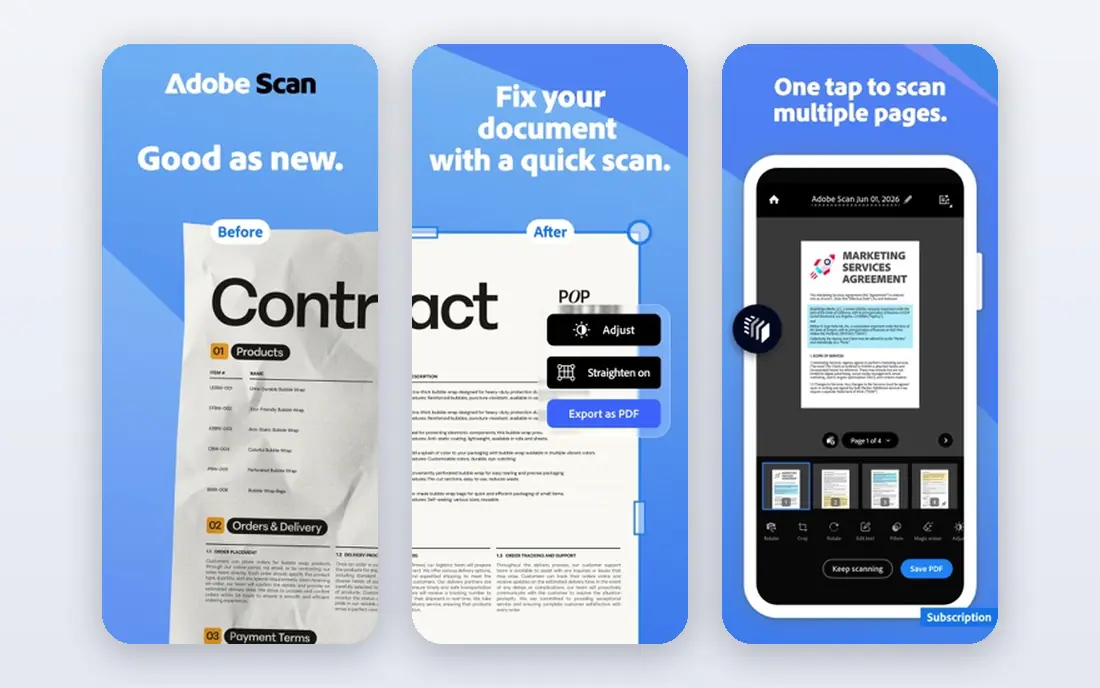
Adobe Acrobat is the standard many workplaces already use, and page removal is straightforward: open the page thumbnails, select the pages to drop, delete, and save. It also handles reorder, rotation, and extraction in the same view, which helps when a document needs more than a single cut.
The catch is cost. The free Acrobat Reader views and signs files but does not remove pages, so you need a paid Acrobat plan for this task. If you already pay for Acrobat, use it. If you only need to delete a page once, a free tool below will do the job.
- Reliable page deletion, reorder, and extract tools
- Full editing, signing, and form features
- Strong handling of large and complex files
- Page removal is a paid Pro feature, not in the free Reader
- Subscription cost is high for occasional use
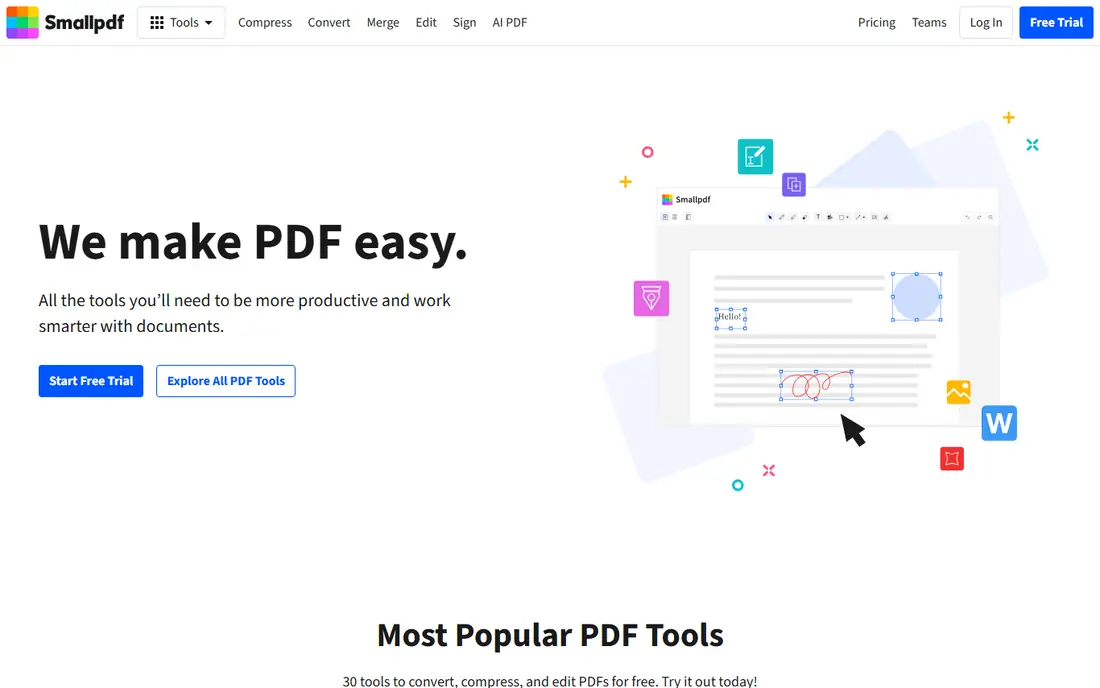
Smallpdf is a good first stop for a quick online job. Upload the PDF, click the page thumbnails you want to remove, and download the result. The interface is plain, and the surrounding tools make it easy to merge or compress the file in the same session.
Free use has limits, and the upload model matters for privacy. Do not use an online tool for contracts, medical records, or files with personal data unless you are comfortable with that file passing through a third party server. For a public flyer or a school handout, Smallpdf is fast and easy.
- Drag and drop page selection
- No install needed
- Merge, split, and compress tools nearby
- Simple interface
- Free tier has usage limits
- Files are uploaded to its servers, so avoid sensitive documents
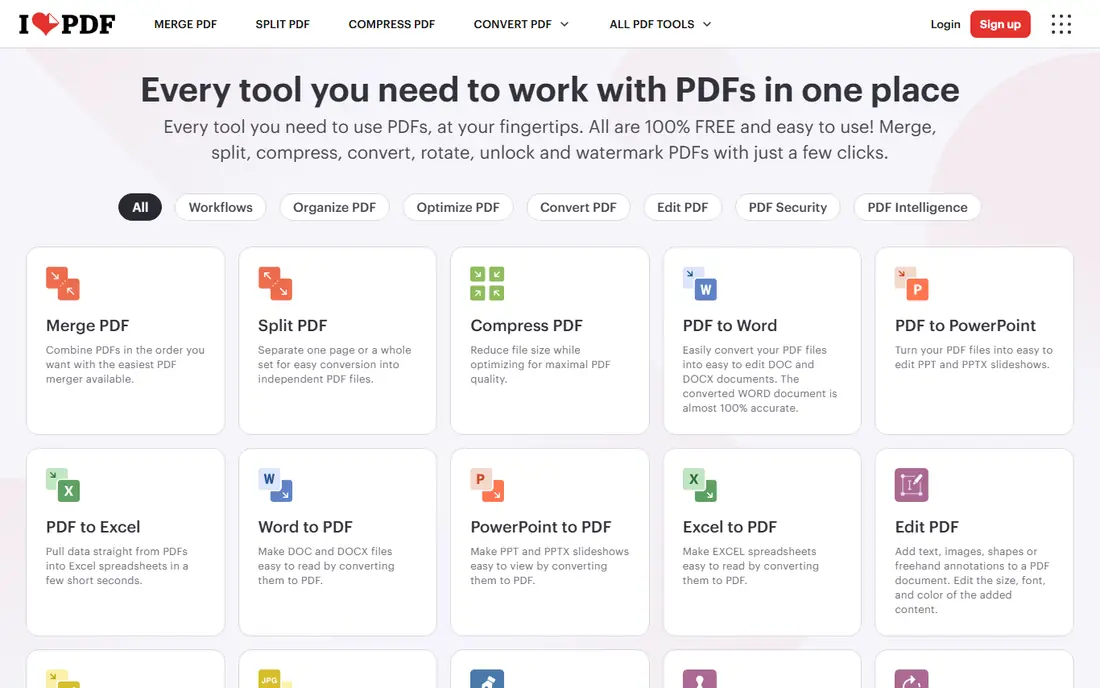
iLovePDF handles page removal through its Organize tool. Thumbnails appear in order, you click the delete icon on the pages you do not want, and you process the file to download the result. It is one of the easiest browser options for people who do not want to learn a desktop editor.
Like Smallpdf, it is an upload based service, so keep sensitive files offline. Its free tier also limits how often you can process files. For occasional, non sensitive jobs, it is a solid choice.
- Clear Organize view with page thumbnails
- Easy delete and reorder
- Wide set of PDF tools in one site
- No install needed
- Free tier has limits
- Uploads go to its servers
- Fewer advanced controls than a desktop editor
UPDF is a full PDF editor with page deletion as part of its organize tools. You can delete, reorder, rotate, and extract pages, then edit text or add annotations without switching apps. It works across desktop and mobile, which suits people who start a document on one device and finish it on another.
The free tier covers basic work, but advanced features sit behind a paid plan. If you edit PDFs often, UPDF is a good middle ground between a free single purpose tool and the cost of Acrobat.
- Page management on Windows, Mac, iOS, and Android
- Editing, annotation, and AI features in the same app
- Batch handling for repeat jobs
- Some features need a paid plan
- Interface packs in many tools, which can feel busy at first
PDFgear stands out because its desktop editor is free and works offline. You can delete pages without uploading the file, which is a real privacy advantage for work documents. It also covers text editing, annotation, and conversion, so it handles more than a single cut.
It will not match Acrobat for large enterprise workflows, and some advanced features are limited. For most readers who want a free, private, offline way to remove pages, PDFgear is our top free desktop pick.
- Free desktop editor with page deletion
- Works offline
- Text editing and annotation included
- No watermark on basic use in its free version
- Feature set is narrower than Acrobat
- Interface is less polished in places
PDF-XChange Editor is a Windows desktop editor with precise page management. You can delete pages one by one or by range, combine deletion with annotations and edits, and process files offline. Batch handling helps when several documents need the same treatment.
The interface is more technical than a browser tool, and there is no Mac version. For Windows users who handle PDFs often and want control without a subscription, it is a strong choice.
- Detailed page controls, including delete by range
- Offline processing
- Annotations and batch handling
- Free version covers many tasks
- Windows only
- Interface can feel technical for casual users
Sejda offers a clean browser workflow for page removal, with thumbnails, delete, reorder, and extract controls. It also offers a desktop version, which is useful if you like the interface but want to keep a sensitive file offline. That combination makes it flexible for both quick jobs and repeat work.
Free browser use has limits on file size and on how many tasks you can run per hour. If you hit those limits often, the desktop version or a paid plan is worth considering.
- Clear page selection in the browser
- Delete, reorder, and extract options
- Desktop version available for offline work
- Simple pricing for occasional use
- Free tier limits file size and hourly tasks
- Online processing means uploads for browser jobs
Apple Preview is the easiest option if you use a Mac. Open the PDF, show the thumbnail sidebar, select the page, press Delete, and save. Nothing is uploaded, nothing needs installing, and the job takes seconds.
The main caution is that Preview edits the file in place, so duplicate the PDF before you start if you want to keep the original. It also lacks the broader editing suite of Acrobat or UPDF. For a quick Mac page deletion, though, it is hard to beat.
- Free and built into macOS
- Page deletion from the thumbnail sidebar
- Fully offline
- No account or upload needed
- Mac only
- Edits the file in place unless you duplicate it first
- No advanced PDF editing suite
How we picked these
We compared official feature pages, pricing pages, and current guides to PDF page removal, and we kept only tools where page deletion is a clear, supported feature, not a workaround like printing selected pages. We favored tools with thumbnail selection, so you can see what you are removing, and we noted where a tool uploads files to a server, since that matters for sensitive documents. Where a price could not be confirmed from the vendor, we wrote See website.
How to remove pages safely
First, duplicate the original. Save a copy with a clear name, such as the original name plus the word original, and work on the copy. That way a mistaken deletion costs seconds, not the only version of a contract or report.
Next, check the result before you send it. Open the saved file, scroll through it, and confirm the right pages are gone and the page order still makes sense. Page numbers, headers, and cross references can shift after a deletion, so a quick read catches problems early.
Finally, match the tool to the file. Use an offline desktop tool for sensitive, legal, medical, or financial documents. Use a browser tool only for non sensitive files where an upload is acceptable. If a document is signed, note that deleting pages can affect signature validity, so check with the recipient if a signature must stay intact.
Frequently asked questions
Which software is best for PDF page removal?
For professional work, Adobe Acrobat is the strongest choice because page removal sits inside a full editing and signing suite. For free desktop work, PDFgear on Windows and Mac, and Apple Preview on Mac, are excellent. For a quick online job, Smallpdf or iLovePDF will finish it in a minute.
Can I delete PDF pages for free?
Yes. Apple Preview is free on Mac, PDFgear offers a free desktop editor, and Smallpdf, iLovePDF, and Sejda offer free tiers online. Free online tiers usually limit how often you can process files or how large a file can be, while free desktop tools avoid those limits.
Is it safe to delete pages online?
It depends on the file. Browser tools upload your PDF to their servers to process it, which is fine for public or low risk files but not ideal for sensitive documents. For contracts, medical records, or files with personal data, use an offline desktop tool such as PDFgear, PDF-XChange Editor, or Apple Preview.
How do I delete a page in a PDF on a Mac?
Open the PDF in Apple Preview, show the thumbnail sidebar, select the page you want to remove, and press Delete, then save. Duplicate the file first if you want to keep the original. That method is free, offline, and needs no extra software.
Can I delete multiple pages at once?
Yes, in most tools on this list. Thumbnail views let you select several pages, and desktop editors also let you delete by page range. Check the result after saving, since page order and numbering can shift once pages are gone.
Does deleting a page affect the rest of the PDF?
Usually the remaining pages keep their text, images, and formatting, but page numbers and cross references may shift. Some browser tools rebuild pages in a way that can affect selectable text, so use a desktop editor if you need the text layer to stay intact. Always open the saved file and check it before you share it.
Sources
- https://www.adobe.com/acrobat.html
- https://www.smallpdf.com
- https://www.ilovepdf.com
- https://www.updf.com
- https://www.pdfgear.com
- https://www.pdf-xchange.com
- https://www.sejda.com
- https://support.apple.com/guide/preview/welcome/mac
- https://updf.com/organize-pdf/delete-pages-in-pdf/
- https://www.pdfpresso.com/delete-pages-from-pdf.html
See where you really rank - block by block
ProMapRanker scans Google Maps across a grid of your service area. Simple monthly plans from $19, white-label on every plan.
Start freeKeep reading
 when i work alternatives
Best When I Work Alternatives in 2026
Looking for when i work alternatives? We compare 8 scheduling apps for hourly teams, covering pricing, free plans, time clocks and the best fit for business.
Read → the best tool for keyword analysis
The Best Tool for Keyword Analysis in 2026
Find the best tool for keyword analysis with our 2026 comparison of 10 keyword analysis software tools on data depth, difficulty scores and price today.
Read → best streaming services for kids
Best Streaming Services for Kids in 2026
Find the best streaming service for kids in 2026. We compare 9 services for age ranges, parental controls, ads, downloads, and family value for US families.
Read →