 ProMapRanker
Best VirtualBox Alternatives in 2026


Professional desktop VMs on Windows and Linux · Pricing starts at: Free
Key takeaways
- VMware Workstation Pro and Fusion are the closest professional replacements for everyday desktop virtual machines on Windows, Linux, and Mac.
- Parallels Desktop is the smoothest way to run Windows on a Mac, while UTM is the best free route on Apple Silicon.
- QEMU with KVM gives Linux users the most control, and GNOME Boxes gives the same users the simplest front end.
- Hyper-V suits Windows Pro and Enterprise users who want virtualization built into the operating system.
- Proxmox VE and Virtual Machine Manager suit servers and labs more than a single desktop, so match the tool to the host you actually use.
Quick comparison
| Pick | Great for | Pricing starts at | Free tier | |
|---|---|---|---|---|
| VMware Workstation Pro | Professional desktop VMs on Windows and Linux | Free | Yes | Visit |
 Parallels Desktop | Running Windows on a Mac with ease | $99.99 per year | Free trial | Visit |
 UTM | Free virtual machines on Apple Silicon Macs | Free | Yes | Visit |
 QEMU | Scriptable virtualization on Linux | Free | Yes | Visit |
 Hyper-V | Virtual machines built into Windows Pro | See website | No | Visit |
 GNOME Boxes | Simple virtual machines on Linux desktops | Free | Yes | Visit |
 Proxmox VE | Server virtualization and home labs | Free | Yes | Visit |
 Virtual Machine Manager | Managing KVM guests on Linux | Free | Yes | Visit |
The best VirtualBox alternatives
We kept this list to tools that run guest operating systems on a host machine or server, and that are live and supported in October 2026. VirtualBox itself is not listed, since this guide covers alternatives to it.
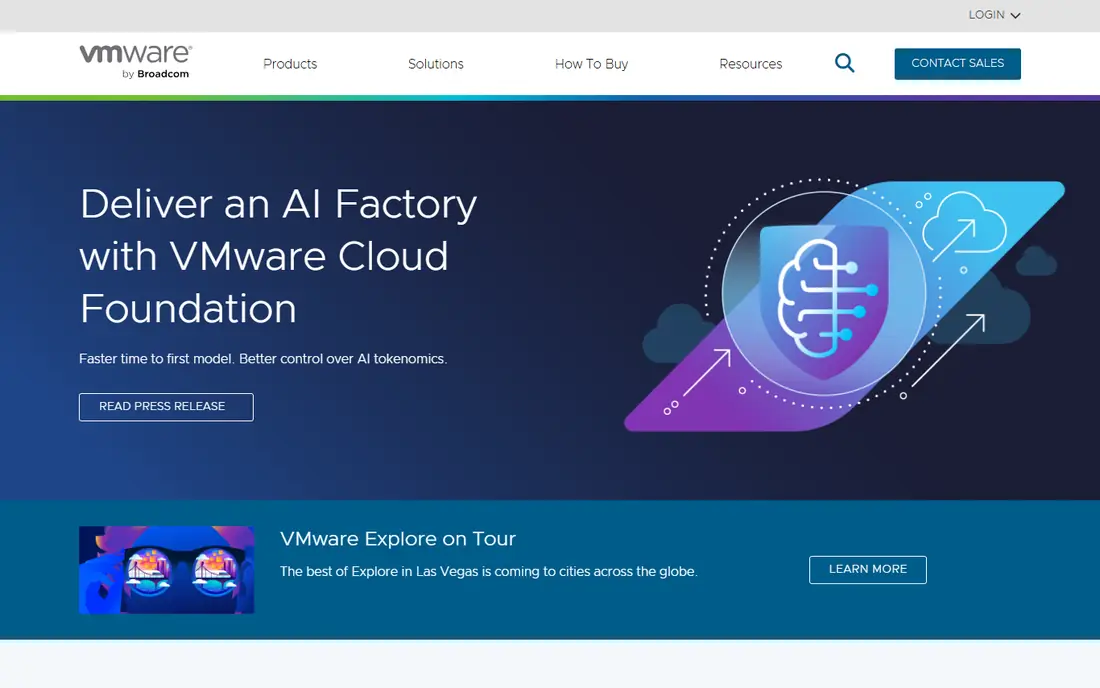
VMware Workstation Pro is the tool many VirtualBox users move to when they want faster guests and a more polished workflow. You can run Windows, Linux, and other guests side by side, take snapshots before a risky change, and clone a machine for testing. Shared folders, drag and drop, and USB support cover most daily tasks without extra setup.
The catch is that VMware licensing and product naming have shifted, so check the current download and terms on the vendor site before you plan a lab around it. For a single desktop with a few guests, the free availability in recent years makes it easy to test. For a team lab, confirm support and upgrade terms first.
- Strong performance
- Snapshots and clones
- Wide guest operating system support
- Interface and licensing have changed over time
- Some features suit Pro users more than casual users
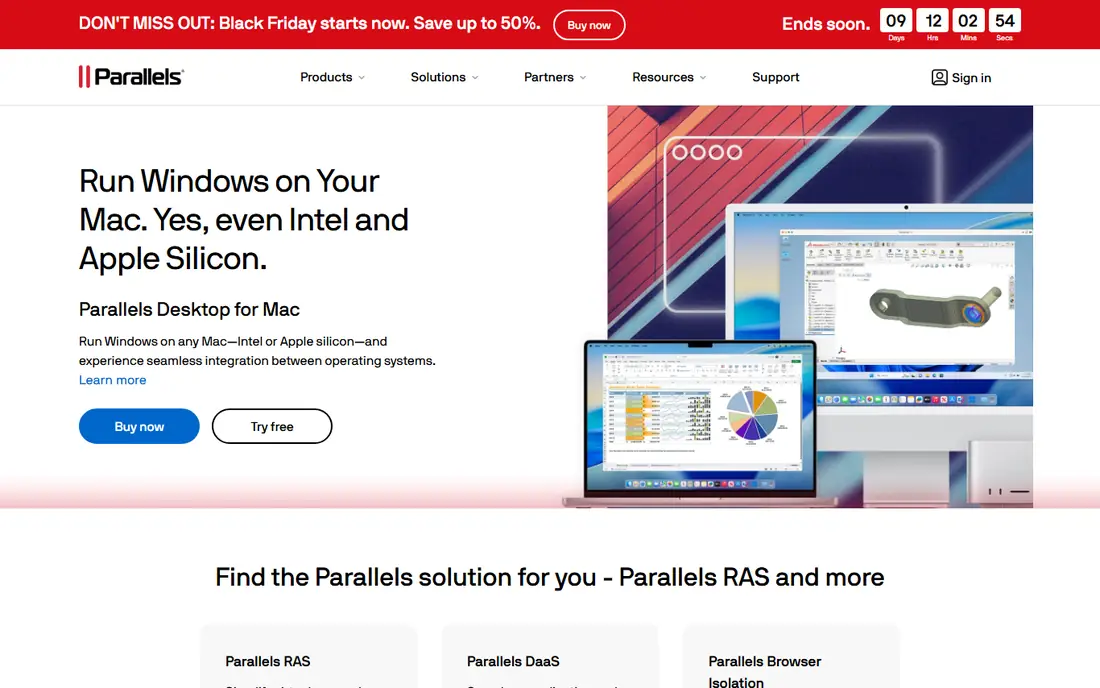
Parallels Desktop is built for one job: making Windows feel at home on a Mac. The setup wizard can download and install Windows, share files and clipboard with macOS, and run Windows apps alongside Mac apps in Coherence mode. For office work, testing, and cross platform apps, that polish saves real time.
The price is the trade-off. Parallels uses an annual subscription, with higher tiers for Pro and Business features, and you still need a Windows license. If you only need a Linux guest on a Mac, a free tool may be enough. If Windows on a Mac is a daily work tool, Parallels usually earns its price in setup time alone.
- Easiest Windows setup on Mac
- Strong Mac integration
- Good graphics performance
- Annual subscription
- Mac only
- Windows license is separate
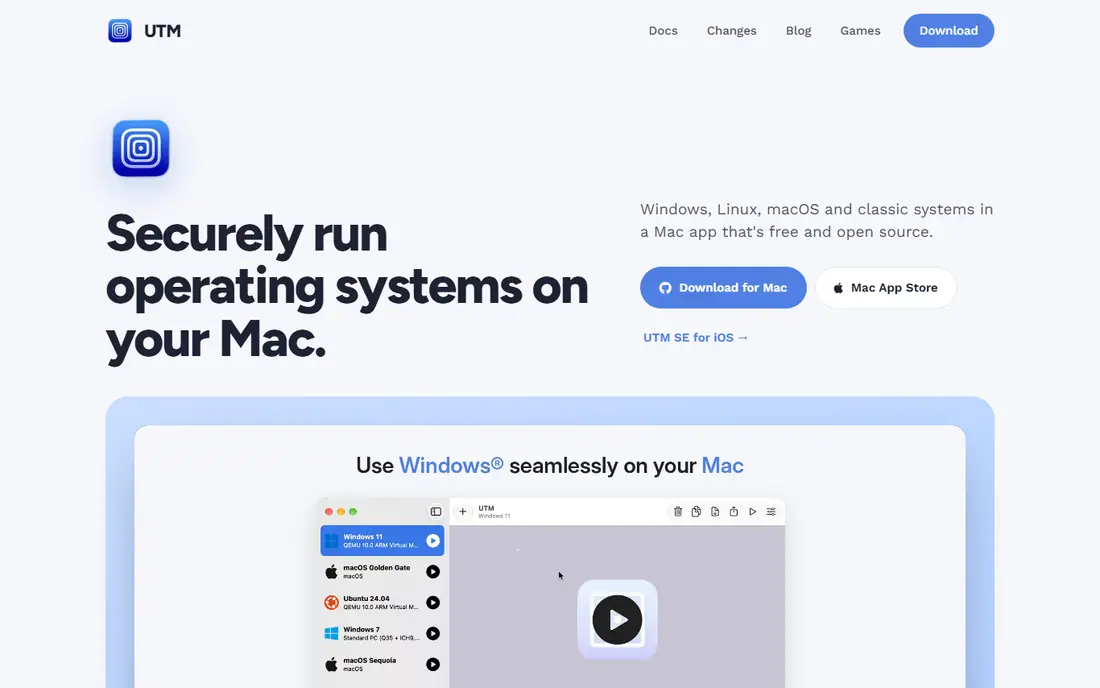
UTM uses QEMU under the hood and gives Mac users a free way to run virtual machines, including Windows on ARM and Linux guests. You download the app free from the project site, or pay a one time App Store price for automatic updates, and you configure each guest yourself. For developers and students, that freedom is the appeal.
Setup takes longer than Parallels, since you source the guest image and install guest tools by hand. Graphics performance and snapshot management are also more basic. UTM is the right pick when budget matters more than polish, or when you need an x86 emulation path that other Mac tools do not offer.
- Free from the project site
- Runs ARM and x86 guests
- No subscription
- Setup is more manual
- Snapshot tools are basic
- Graphics performance lags paid rivals
QEMU is the engine behind many other tools on this list, and using it directly gives you the most control. You can emulate different CPU architectures, pass through hardware, script machine creation, and pair it with KVM on Linux for near native speed. That control suits developers, test labs, and automation.
The cost is usability. QEMU alone has no friendly desktop interface, so you will write commands or use a front end such as Virtual Machine Manager or GNOME Boxes. If you want to click through setup, pick one of those front ends. If you want repeatable, scripted machines, QEMU is the foundation to learn.
- Very flexible
- Supports many architectures
- Works with KVM for speed
- Command line first
- Steep learning curve
- No polished desktop front end by itself
Hyper-V is Microsoft virtualization built into Windows Pro, Enterprise, and Server. If your PC already runs a supported edition, you can enable Hyper-V and create guests without installing a third party hypervisor. That makes it a clean choice for IT work, Windows testing, and labs that stay inside the Microsoft ecosystem.
The limits are worth noting. Hyper-V is not available in Windows Home, and its Linux guest experience is less smooth than a dedicated desktop hypervisor for everyday use. You also need to check hardware virtualization settings in firmware. For a Windows first household or office, though, the built in route is hard to beat on simplicity.
- Included with supported Windows editions
- Strong Windows guest support
- Good for IT labs
- Not in Windows Home
- Linux guest tools are less polished
- Host needs Pro, Enterprise, or Server
GNOME Boxes hides complexity. Open the app, point it at an installer image, and it creates a guest with sensible defaults, shared clipboard support, and a simple window. For a Linux user who needs a second operating system for testing or for one Windows app, Boxes removes the friction that stops many people from using virtual machines at all.
Advanced users will miss fine control over CPU pinning, complex networking, and device passthrough. That is by design. Use Boxes when you want a guest running in minutes, and move to Virtual Machine Manager or QEMU when a lab needs precise hardware and network settings.
- Very easy setup
- Clean interface
- Good for quick Linux and Windows guests
- Fewer advanced settings
- Less control than Virtual Machine Manager
- Linux focused
Proxmox VE is a different class of tool. It installs as a server platform and manages virtual machines and containers from a web browser, with backups, snapshots, templates, and clustering for larger labs. Home lab users and small IT teams use it to run several services on one server, with a clear view of every guest.
It is not a desktop replacement for VirtualBox in the usual sense, since it wants its own host machine rather than running inside your daily desktop. If you have a spare PC or a small server, Proxmox gives you a lab that stays running even when your laptop is off. If you need one guest on your work laptop, a desktop hypervisor is simpler.
- Web based management
- Containers and VMs in one place
- Snapshots, backups, and clustering
- Server product, not a desktop app
- Needs dedicated hardware or a server
- Learning curve for clustering
Virtual Machine Manager, often called virt-manager, is the desktop front end many Linux users pair with QEMU and KVM. It gives you detailed control over CPU, memory, storage, networking, and snapshots, without forcing you to write every command by hand. For a serious Linux lab, it is the balance point between power and usability.
Setup is more involved than GNOME Boxes, since you need KVM enabled and user permissions set correctly. The interface also assumes some comfort with virtualization terms. Once it is running, though, it handles everyday lab work well, from test servers to multi guest networks for training and development.
- Full KVM control with a desktop interface
- Good networking options
- Free and open source
- Linux only
- Setup needs KVM and permissions configured
- Interface feels technical
How we picked these
We compared vendor documentation, download pages, and recent virtualization guides, and we kept only tools that run guests on Windows, Mac, Linux, or a dedicated server host in October 2026. We covered desktop, Mac, Linux, and server use cases separately, because a tool that is excellent on a Mac may be a poor fit on a Linux server. We did not invent benchmark scores, and where pricing depends on edition or license terms, we used the vendor starting figure or wrote See website.
What to check before you switch
Start with your host operating system, since that narrows the list fast. Mac users choose mainly between Parallels and UTM, with VMware Fusion as another Mac option to check on the vendor site. Windows users choose between VMware Workstation Pro and Hyper-V. Linux users choose between QEMU front ends, with GNOME Boxes for simplicity and Virtual Machine Manager for control.
Check guest and hardware needs
List the guests you must run, including Windows on ARM versus Windows on x86, older operating systems, and any USB hardware you need to pass through. Not every hypervisor supports every guest equally, and graphics performance varies a lot. Test your heaviest guest first, not your lightest one, and check snapshot, clipboard, and shared folder behavior in that test.
Plan disk and memory honestly
Virtual machines need real disk space and memory, and a host with 8 GB of RAM will struggle with two modern guests at once. Give each guest only the memory and CPU it needs, keep host memory free for your main apps, and store guest disks on fast storage when you can. A slow disk is the most common reason a guest feels sluggish, even on a fast CPU.
Keep snapshots and backups separate
Snapshots are for quick rollback during testing, not for long term backup. Keep a separate backup of important guest data, and export a guest image before a major upgrade of the host or hypervisor. That habit saves a lab when a snapshot chain breaks or a host drive fails.
Frequently asked questions
What is the best VirtualBox alternative for Windows?
VMware Workstation Pro is the closest professional desktop replacement, and Hyper-V is the best built in option if you run Windows Pro, Enterprise, or Server. Choose VMware for the widest guest support and a polished desktop workflow, and Hyper-V when you want virtualization without extra software.
What is the best VirtualBox alternative for Mac?
Parallels Desktop is the smoothest paid option for Windows on a Mac, while UTM is the best free option, especially on Apple Silicon. Parallels wins on setup speed and Mac integration, while UTM wins on cost and flexibility for ARM and x86 guests.
Is there a free alternative to VirtualBox?
Yes, several tools here are free, including VMware Workstation Pro in its current free availability, UTM from the project site, QEMU, GNOME Boxes, Proxmox VE, and Virtual Machine Manager. Free does not always mean simple, so match the tool to your comfort with setup and configuration.
Can I move a VirtualBox VM to another hypervisor?
Often yes, by exporting the guest disk and importing it into the new tool, then installing the new guest tools. Some guests need driver or network changes after a move, and older guests may need extra steps. Test the imported guest fully before you delete the original VirtualBox machine.
Do I need a Windows license for a Windows guest?
Yes, in most cases you need a valid Windows license for a Windows guest, separate from the hypervisor price. Check the license terms for the edition you run, since virtualization rights differ by edition. Linux guests do not need a paid license.
Sources
See where you really rank - block by block
ProMapRanker scans Google Maps across a grid of your service area. Simple monthly plans from $19, white-label on every plan.
Start freeKeep reading
 wpforms alternatives
Best WPForms Alternatives in 2026
We compare 9 wpforms alternatives for WordPress forms, with free and paid options, current pricing notes, and honest limits for small business sites in 2026.
Read → windows task scheduler alternatives
Best Windows Task Scheduler Alternatives in 2026
Looking for Windows Task Scheduler alternatives? We compare 9 schedulers for Windows and cross-platform work, from free tools to enterprise automation.
Read → which ai video service is best
Which AI Video Service Is Best in 2026
which ai video service is best? We compare 10 legitimate AI video services on price, avatars, editing and output quality to help you pick the right tool.
Read →