 ProMapRanker
Top Video Trimming Software for Beginners in 2026

Key takeaways
- Start free if you are new: Clipchamp, iMovie, OpenShot, Shotcut, and DaVinci Resolve all let you trim without paying first.
- CapCut is the fastest route for short social clips, while iMovie is the simplest choice if you already use Apple devices.
- Filmora and Movavi are the clearest paid steps up when you want templates, stock media, and guided help.
- DaVinci Resolve is powerful for free, but it asks for more patience and a stronger computer than the other free picks.
Quick comparison
| Pick | Great for | Pricing starts at | Free tier | |
|---|---|---|---|---|
 Clipchamp | Windows and browser trimming | Free | Yes | Visit |
 CapCut | Short social videos | Free | Yes | Visit |
 iMovie | Apple device owners | Free | Yes | Visit |
 DaVinci Resolve | Ambitious free editing | Free | Yes | Visit |
 OpenShot | The simplest free timeline | Free | Yes | Visit |
 Shotcut | Free editing on any system | Free | Yes | Visit |
 Filmora | Template-led beginners | $49.99 per year | Yes | Visit |
 Movavi Video Editor | Friendly paid editing | $54.95 per year | Free trial | Visit |
 VEED | Browser editing and captions | $12 per month | Yes | Visit |
The best video trimming software for beginners
These picks focus on cutting clips cleanly, not on advanced effects. Each one lets a new editor remove dead air, split a long take, and export a finished video without a steep learning curve.
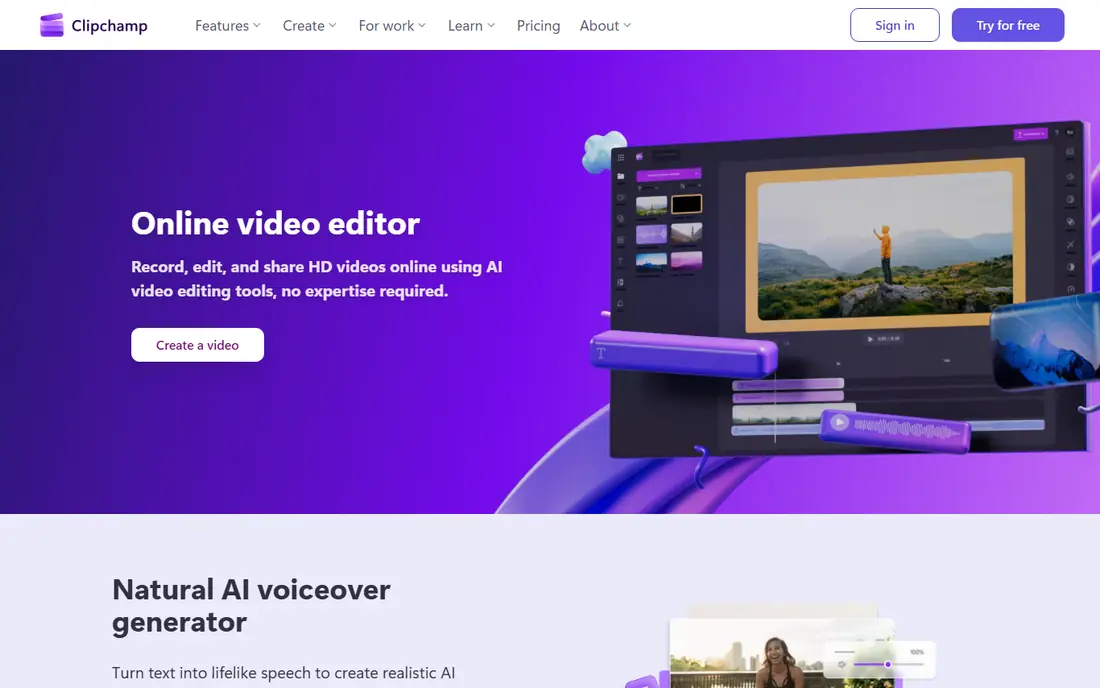
Clipchamp suits a beginner who wants to start in minutes. You import a clip, drag it to the timeline, drag the ends to trim, and split out the parts you do not need. The layout keeps the main controls in view, so you are less likely to get lost in menus. For school projects, work clips, and short social videos, that direct approach is enough.
The catch is the gap between free and paid. The free plan covers the core trimming job well, but premium stock, brand tools, and higher-resolution exports require a paid plan. If most of your work is simple cuts and captions, you may never notice that limit. Check your export settings before a long project, so a paid feature does not surprise you at the end.
- Built into Windows
- Simple drag and drop timeline
- Exports at 1080p on the free plan
- Some stock assets and 4K export sit behind paid plans
- Browser work needs a stable connection
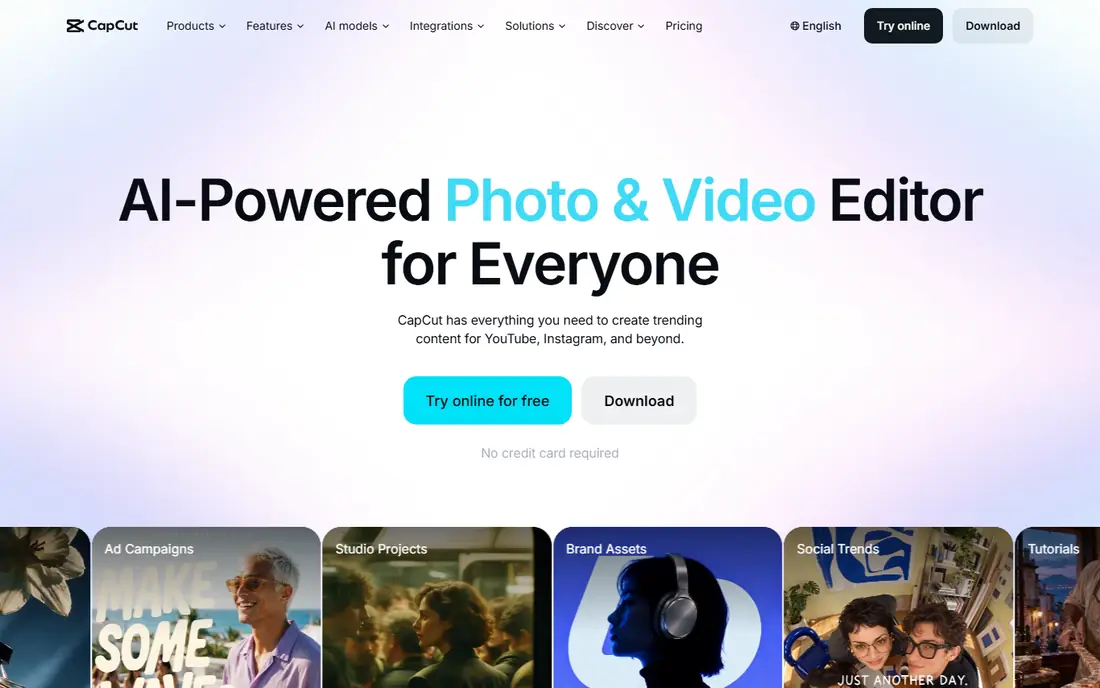
CapCut is built around the way short videos are actually made. You trim a clip, add captions, change the aspect ratio for a phone screen, and export for TikTok, Reels, or Shorts. Auto captions save a lot of time for talking-head clips, and the template library helps when you want a familiar look without designing from scratch.
The honest trade-off is the Pro line. Core trimming and many exports are free, but premium effects, stock, and some templates sit behind Pro. That matters most if you build a style around one paid template. Our pick for most social beginners is still the free tier first, with Pro only once you know which paid tools you use every week.
- Fast mobile and desktop trimming
- Auto captions
- Many social templates
- Some templates and effects require Pro
- Pro costs $19.99 per month when billed monthly
iMovie remains the easiest first editor for people who already own a Mac, iPhone, or iPad. Trimming is a matter of dragging clip ends or splitting at the playhead, and the magnetic timeline keeps gaps from opening by accident. Titles, basic transitions, and simple audio controls are all close at hand, and projects can move between phone and Mac.
The limit is scope. iMovie does not try to be a full professional editor, so multi-track control and fine color work are limited. That is a fair trade for a first editor. When you outgrow it, Final Cut Pro is the natural Apple step up, but many beginners will not need that move for a long time.
- Free with Apple devices
- Very simple timeline
- Clean 4K export
- Mac and iOS only
- Fewer advanced controls than desktop rivals
DaVinci Resolve gives beginners a free editor that does not force an upgrade for basic professional work. Trimming tools include ripple, roll, and slip edits, which sound technical but simply let you change a cut point without leaving gaps. The free version also exports without a watermark, which sets it apart from many free editors.
The catch is effort and hardware. The interface has several pages for editing, color, effects, and audio, and that breadth can feel heavy on a first project. Older or low-spec machines may run slowly, especially with 4K footage. If you plan to edit often and want room to grow, it is worth the learning time. If you only trim one clip a month, a simpler pick will serve you better.
- Professional tools at no cost
- No watermark on free exports
- Strong color and audio pages
- Steeper learning curve
- Needs a capable computer
- Studio costs $295 one time
OpenShot is a good choice when you want the least to learn. The timeline is plain, the trim handles are clear, and splitting a clip takes a couple of clicks. It handles the core beginner jobs, including titles, simple transitions, and basic audio, without asking you to learn a large effects library first.
Its weakness shows on bigger work. Very long timelines or many effects can feel slower than in paid editors, and there are fewer templates to lean on. For short clips, family videos, and class assignments, that is rarely a problem. OpenShot is best seen as a free, honest starting point, not as a long-term studio.
- Free and open source
- Plain timeline
- Works on Windows, Mac, and Linux
- Fewer guided templates
- Performance can lag on very large projects
Shotcut suits beginners who care more about format freedom than polish. It opens a wide range of video files, lets you trim and split on a clear timeline, and exports to common formats without a paywall. Filters, transitions, and audio tools cover the basics, and the lack of a subscription means you can return to it any time.
The interface is functional rather than pretty, and new users may need a short tutorial to find some tools. That is a small cost for a free editor with no watermark and no export lock. If you work with unusual file types or an older computer, Shotcut is one of the most practical free options here.
- Free and open source
- Wide format support
- Works on Windows, Mac, and Linux
- Interface feels plain
- Fewer templates and guided modes than paid editors
Filmora is our pick for beginners who want their first videos to look finished with little extra work. Templates, titles, transitions, and stock music give a project shape quickly, and trimming itself stays simple. Auto captions and noise cleanup help talking-head videos in particular, and direct sharing presets cover the main social platforms.
The free version is best treated as a trial, because exports carry a watermark. The annual plan at $49.99 removes that watermark and opens the full effects set. Some newer AI tools may also use credits on top of the plan, so check the tool you plan to use often before you rely on it for a series.
- Large template and effects library
- Auto captions
- Clear guided workflow
- Free exports carry a watermark
- Some advanced AI tools use credits
Movavi takes a calm approach to beginner editing. Menus are plainly labeled, trimming handles are easy to grab, and the program explains tools as you meet them. That matters when you are learning, because you spend less time searching and more time cutting. Titles, transitions, stickers, and basic color tools cover most personal and small business projects.
The paid plan is the real product here, since trial exports carry a watermark. At $54.95 per year, it sits close to Filmora, so the choice comes down to taste. Pick Movavi if you prefer a quieter interface and a simpler library. Pick Filmora if templates and a larger effects set matter more to you.
- Clean layout
- Simple trimming and titles
- Helpful built-in tips
- Trial exports carry a watermark
- Smaller stock library than Filmora
VEED is a browser editor, so you can trim on a borrowed computer or a Chromebook without installing software. Upload a clip, cut the start and end, split out pauses, and add captions in the same window. That single flow suits teams and creators who edit short clips often and share drafts by link.
The trade-off is dependence on your connection and on the plan. Large files upload more slowly, and the free plan has limits that push regular creators toward a paid plan at $12 per month when billed annually. For quick trims and captioned social clips, VEED is still one of the fastest options here.
- No install needed
- Strong captions and subtitles
- Easy sharing links
- Browser work needs a good connection
- Free plan has limits and watermark on some exports
How we picked these
We compared official feature pages, pricing pages, and app store listings, and we favored editors where trimming is easy to find, not buried in advanced menus. We checked that each free option actually exports a usable video, and we noted where a watermark or a paid feature changes that picture. We did not claim hands-on testing, and we kept the focus on tools that a new editor can learn in an afternoon.
What to check before you choose
Start with your device and your video length. Apple owners get the simplest start from iMovie, Windows users get a similar start from Clipchamp, and anyone on Linux or an older machine should look at OpenShot or Shotcut first. If your videos are short and social, CapCut or VEED will save time on captions and formats.
Next, test one real project before you pay. Trim a full clip, add titles, and export it at the size you actually publish. That test shows watermark rules, export speed, and whether your computer handles the editor well. Only then compare paid plans, and pay for the one whose templates or captions you used during the test, not for the largest library on paper.
Finally, keep your source files. Save the original clip and the project file in the same folder, with a clear name and date. When you need to re-cut a video later, that habit saves more time than any single feature.
Frequently asked questions
What is the best video trimming software for beginners?
For most beginners, iMovie on Apple devices and Clipchamp on Windows are the simplest free starts, because trimming is front and center and exports are clean. CapCut is the better pick for short social videos, while DaVinci Resolve suits beginners who want to grow into professional tools.
Is there a free video trimmer without a watermark?
Yes. iMovie, Clipchamp, DaVinci Resolve, OpenShot, and Shotcut all export without a watermark on their free tiers, subject to the limits noted above. Filmora and Movavi trial exports do carry a watermark, so treat those as trials rather than free finished editors.
What is the easiest way to trim a video?
Import the clip, drag it to the timeline, and drag the start or end handle to the point you want. To remove a middle section, split the clip at both sides of the unwanted part and delete that section. Most editors here let you do that in a few clicks, and the timeline will close the gap for you.
Do I need a powerful computer to trim video?
For short 1080p clips, most computers from recent years will cope, especially with Clipchamp, iMovie, OpenShot, or Shotcut. DaVinci Resolve and 4K editing ask for more memory and a stronger graphics card, so test a short 4K clip before you commit to a long project.
Can I trim video on my phone?
Yes. CapCut and iMovie on mobile handle trimming well, and VEED works in a mobile browser for quick cuts. Phone editing suits short clips best. For longer projects with many cuts, a desktop timeline is easier to control.
Sources
See where you really rank - block by block
ProMapRanker scans Google Maps across a grid of your service area. Simple monthly plans from $19, white-label on every plan.
Start freeKeep reading
 wpforms alternatives
Best WPForms Alternatives in 2026
We compare 9 wpforms alternatives for WordPress forms, with free and paid options, current pricing notes, and honest limits for small business sites in 2026.
Read → windows task scheduler alternatives
Best Windows Task Scheduler Alternatives in 2026
Looking for Windows Task Scheduler alternatives? We compare 9 schedulers for Windows and cross-platform work, from free tools to enterprise automation.
Read → which ai video service is best
Which AI Video Service Is Best in 2026
which ai video service is best? We compare 10 legitimate AI video services on price, avatars, editing and output quality to help you pick the right tool.
Read →