 ProMapRanker
Best PDF Viewing Software in 2026

Key takeaways
- Adobe Acrobat Reader and Foxit PDF Reader cover most everyday reading, form filling and commenting needs at no cost.
- PDFgear and SumatraPDF suit readers who want a light, free tool without a subscription prompt at every step.
- Windows users who annotate heavily may prefer PDF-XChange Editor, while Mac and iPad users often get good value from PDF Expert.
- Open source options such as Okular and Evince work well for basic reading, but they lack some paid support and cloud features.
Quick comparison
| Pick | Great for | Pricing starts at | Free tier | |
|---|---|---|---|---|
 Adobe Acrobat Reader | Everyday PDF reading and signing | Free | Yes | Visit |
 Foxit PDF Reader | Fast reading with Office style tools | Free | Yes | Visit |
 PDF-XChange Editor | Heavy annotation on Windows | $62 one-time | Yes | Visit |
 PDFgear | Free reading and basic editing | Free | Yes | Visit |
 Xodo PDF Reader | Cross platform reading and forms | Free | Yes | Visit |
 SumatraPDF | Lightweight Windows reading | Free | Yes | Visit |
 Okular | Open source reading and notes | Free | Yes | Visit |
 Evince | Simple reading on Linux and GNOME | Free | Yes | Visit |
 PDF Expert | Polished reading on Apple devices | See website | Free trial | Visit |
The best PDF viewing software
These readers open PDFs cleanly, handle forms and comments, and avoid turning a simple read into a paid upgrade. We compared official feature pages, pricing pages and app store listings for each tool below.
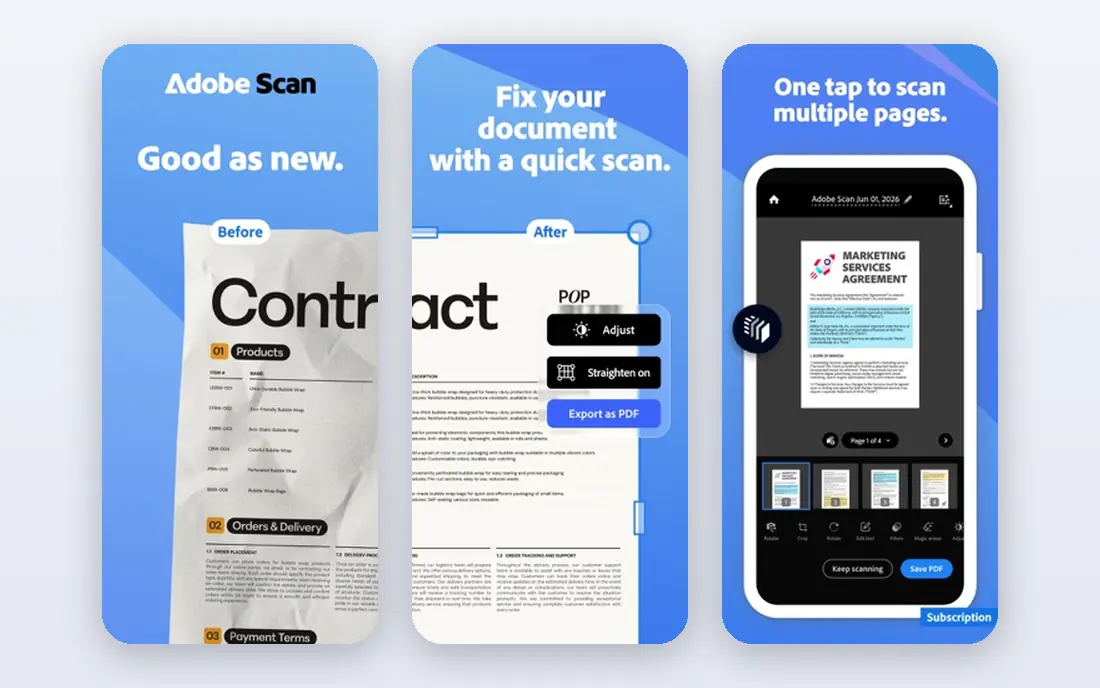
Adobe Acrobat Reader remains the safe default because it handles the widest range of PDFs, including forms, comments and signed files. Our pick for most people starts here when compatibility matters more than extra editing tools. It opens files as the author intended, which helps with contracts, manuals and school documents.
The free version covers viewing, printing, commenting, filling forms and basic signing. That covers a large share of daily work without paying. The catch is that text editing, conversion and advanced tools sit behind Acrobat Standard or Pro, so readers who edit often will hit a paywall.
- Wide format support
- Form filling and signing
- Annotation tools included
- Full editing needs a paid plan
- App can feel heavy on older machines
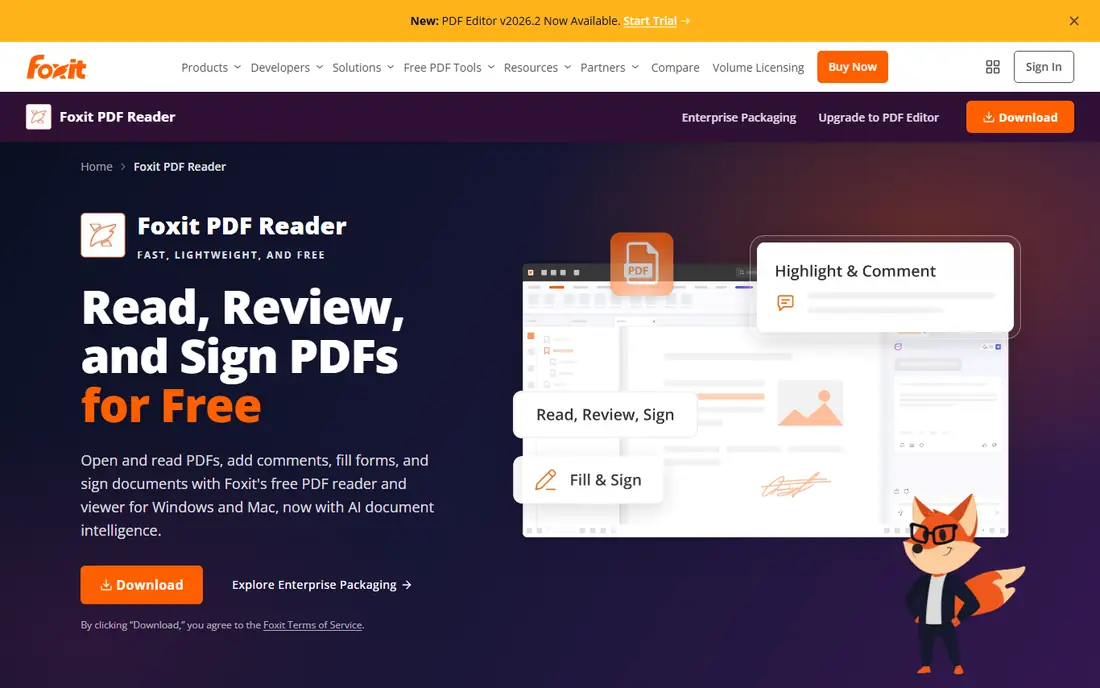
Foxit PDF Reader suits readers who want speed and a familiar toolbar. The Office style ribbon makes it easy to find highlight, comment and form tools without learning a new layout. It also opens standard PDF forms, including XFA forms in many cases, which some free readers struggle with.
For business use, Foxit adds deployment and security controls that matter to larger teams. The free reader itself stays useful for viewing, annotating, filling forms and signing. Readers who need to edit text, convert files or run OCR will need the paid Editor, and that split should be clear before you commit.
- Free viewing and annotation
- Familiar ribbon layout
- Works on desktop and mobile
- Full editing needs Foxit PDF Editor
- Upgrade prompts appear at times
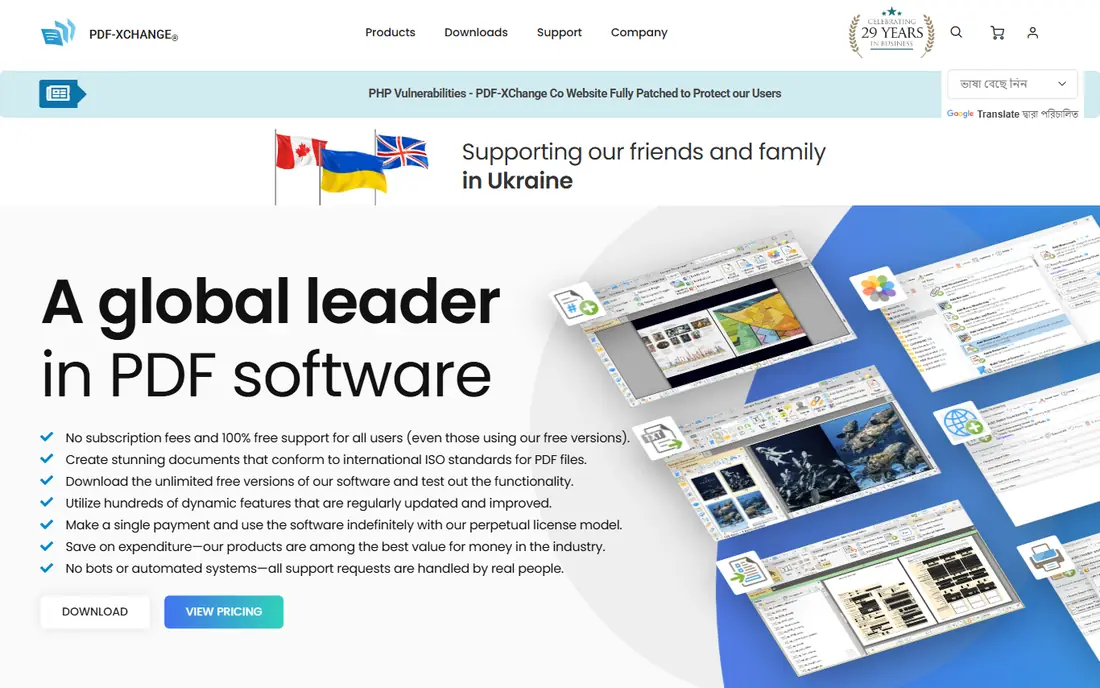
PDF-XChange Editor is the choice for Windows users who mark up documents all day. Its annotation, comment and measurement tools feel deeper than most free readers, and the free version leaves many features open for everyday use. That makes it a strong fit for students, reviewers and office staff.
The trade off is platform and licence detail. There is no Mac or Linux version, so mixed device households need another reader elsewhere. Paid features used without a licence can add watermarks, so check whether a tool is free before applying it to a final document.
- Strong annotation and markup tools
- One-time licence option
- Many features free
- Windows only
- Some paid features add watermarks in the free version
PDFgear stands out because it gives away far more than a basic viewer. Alongside reading, it offers text editing, conversion, merging, signing and OCR in its free desktop app. That breadth makes it attractive when you want one free tool rather than a viewer plus a separate editor.
We still advise caution with any free product that promises a full suite at no cost. Check the current terms when you download it, especially for AI features and online tools. For personal and small business reading and light editing, though, PDFgear currently offers clear value.
- Free desktop and mobile apps
- Editing and conversion included
- No sign up needed for core use
- Smaller vendor than Adobe or Foxit
- Future pricing for advanced tools is not guaranteed
Xodo PDF Reader covers the basics well across Windows, Mac, Linux and mobile. It handles viewing, comments, highlights, form filling and basic signing, and it links to common cloud storage services. That makes it a practical pick for people who move between a work computer and a phone.
The wider Xodo family includes paid web, Studio and mobile products, so read the plan name before you pay. If you only need to read, annotate and fill forms, the free Reader is enough. If you need full editing, conversion or OCR, compare the paid Studio plan rather than assuming the Reader includes it.
- Free reader for desktop and mobile
- Form filling and signing
- Cloud storage links
- Full editing and conversion need paid Xodo plans
- Product names can confuse buyers
SumatraPDF is built for speed. It opens quickly, uses little memory, and works well on older Windows machines that struggle with larger PDF suites. It also opens ePub, MOBI, XPS, DjVu, CHM and comic book formats, which helps readers who keep mixed document libraries.
That simplicity has limits. Annotation tools are basic, and it is not the right pick for heavy form work or document editing. Treat it as a fast reader first. Pair it with another tool when you need to comment, sign or edit, and you will get the best of both.
- Very fast and light
- Portable version available
- Supports ebooks and comics
- Limited annotation and form tools
- Windows only
Okular is a document viewer from the KDE project that reads PDFs alongside many other formats. It supports annotations, bookmarks and text selection, and it fits well into a Linux desktop workflow. Readers who value open source software will find its licence and community history reassuring.
On Windows and Mac, the experience depends on the build you install, so check the current download page for your system. It is not a full PDF editor, and users who need advanced editing should look elsewhere. For reading and notes on Linux, it is a strong free option.
- Free and open source
- Annotation support
- Broad format support
- Best experience on Linux and KDE
- Windows and Mac builds vary
Evince, also known as GNOME Document Viewer, keeps the focus on reading. Its interface stays out of the way, search and navigation work well, and it handles large documents without much fuss. That simplicity suits readers who open PDFs to read them, not to rebuild them.
Annotation and editing are thinner here than in Foxit or PDF-XChange Editor. If you need to add detailed comments or fill complex forms every day, another tool on this list will serve you better. For plain reading on a GNOME based Linux system, Evince remains a dependable pick.
- Free and open source
- Clean simple interface
- Good for large documents
- Fewer annotation features than rivals
- Limited platform range
PDF Expert from Readdle is designed around Apple devices, and it shows in its clean layout and touch friendly tools. Reading, annotating, filling forms and signing feel smooth on Mac and iPad, and pencil support makes handwritten notes practical. It is a good fit for students and professionals who live inside the Apple system.
Windows and Android users should skip it, since it is not built for those platforms. Some editing and advanced features also need a paid plan, so check the current pricing page before you rely on a feature for paid work. As a reader first, though, it earns its place here.
- Clean Apple focused design
- Strong annotation tools
- Good iPad pencil support
- Best on Mac, iPad and iPhone
- Paid features needed for full editing
How we picked these
We compared official product pages, pricing pages and app store listings for readers that are still available in October 2026. We kept tools that open standard PDFs, support common viewing needs, and state their price or free tier clearly. We left out tools that had closed, tools that only convert files, and tools whose official homepage could not be confirmed. Where a price was not published on the vendor site, we wrote See website rather than guessing.
What to check before you choose a PDF reader
Start with your device and your main task. A reader that works well on Windows may be weak or missing on Mac, and a mobile reader may lack the annotation depth you need on desktop. Check form support if you sign contracts, and check annotation export if you share comments with colleagues. A tool that traps your notes inside its own format will slow a review cycle.
Next, test a real file from your own work. Open a long manual, a scanned form and a document with images, then try searching, zooming and printing. That quick test reveals speed problems and layout faults faster than any feature list. Also confirm the price for the exact feature you need, since many readers are free to view but paid to edit. If you handle sensitive files, prefer a desktop app that processes files locally over an online tool that uploads them.
Frequently asked questions
Is a free PDF reader enough for most people?
Yes, for reading, printing, commenting, filling forms and basic signing, a free reader is usually enough. Paid plans mainly add text editing, conversion, OCR, redaction and advanced signing workflows. Start free and upgrade only when a specific task keeps hitting a paywall.
Which PDF reader is best for Windows?
Adobe Acrobat Reader and Foxit PDF Reader suit most Windows users, while PDF-XChange Editor suits heavy annotators and SumatraPDF suits older or slower machines. Your choice depends on whether you value compatibility, speed or markup depth most.
Which PDF reader is best for Mac?
Adobe Acrobat Reader and Foxit PDF Reader both work on Mac, and PDF Expert offers a more Apple focused design. If you also use an iPad with a pencil, PDF Expert may feel more natural for handwritten notes.
Can I fill and sign PDF forms for free?
Yes, most readers on this list let you fill forms and add a basic signature at no cost. Advanced signature requests, bulk sending and certified signatures often need a paid plan, so check the vendor page for the exact workflow you need.
Do open source PDF readers handle large files well?
SumatraPDF, Okular and Evince are often fast with large files because they stay focused on reading. Performance still depends on your device and the file itself, especially with scanned pages and embedded images.
Should I use an online PDF reader instead of a desktop app?
An online reader helps on a shared computer, but a desktop app usually works faster with large files and keeps sensitive documents on your device. Use an online tool for quick, non-sensitive reads, and a desktop app for regular or private work.
Sources
See where you really rank - block by block
ProMapRanker scans Google Maps across a grid of your service area. Simple monthly plans from $19, white-label on every plan.
Start freeKeep reading
 wpforms alternatives
Best WPForms Alternatives in 2026
We compare 9 wpforms alternatives for WordPress forms, with free and paid options, current pricing notes, and honest limits for small business sites in 2026.
Read → windows task scheduler alternatives
Best Windows Task Scheduler Alternatives in 2026
Looking for Windows Task Scheduler alternatives? We compare 9 schedulers for Windows and cross-platform work, from free tools to enterprise automation.
Read → which ai video service is best
Which AI Video Service Is Best in 2026
which ai video service is best? We compare 10 legitimate AI video services on price, avatars, editing and output quality to help you pick the right tool.
Read →