 ProMapRanker
Top Image Cropping Software in 2026


Full editing with precise cropping · Pricing starts at: $22.99 per month
Key takeaways
- Cropping is a basic feature in most editors, but ratio presets, straightening, and batch cropping separate a quick tool from a good one.
- Photopea and GIMP give you precise, free cropping without a subscription, while Canva and Fotor suit fast social and marketing crops.
- Photoshop and Affinity Photo are the right picks when cropping is part of a larger retouching or print workflow.
- Mobile cropping is best handled by Snapseed, which is free on phones, while desktop tools handle large files and batch jobs better.
Quick comparison
| Pick | Great for | Pricing starts at | Free tier | |
|---|---|---|---|---|
| Adobe Photoshop | Full editing with precise cropping | $22.99 per month | Free trial | Visit |
 GIMP | Free desktop cropping and editing | Free | Yes | Visit |
 Photopea | Browser cropping with PSD support | Free | Yes | Visit |
 Canva | Fast social crops with templates | Free | Yes | Visit |
 Pixlr | Quick browser crops and edits | Free | Yes | Visit |
 Fotor | Simple crops with one-tap fixes | Free | Yes | Visit |
 Affinity Photo | Full desktop editing at no cost with a free account | Free | Yes | Visit |
 Paint.NET | Light Windows cropping and edits | Free | Yes | Visit |
 BeFunky | Easy browser and mobile crops | Free | Yes | Visit |
 Snapseed | Free mobile cropping and tuning | Free | Yes | Visit |
The best image cropping software
Every editor on this list can crop, but they differ in how fast the crop feels, how exact the ratio control is, and what happens after the crop. We compared official product pages, pricing pages, and app store listings, and we did not claim hands-on testing we did not do. The best image cropping software for you depends on whether you crop one phone photo or hundreds of product shots.
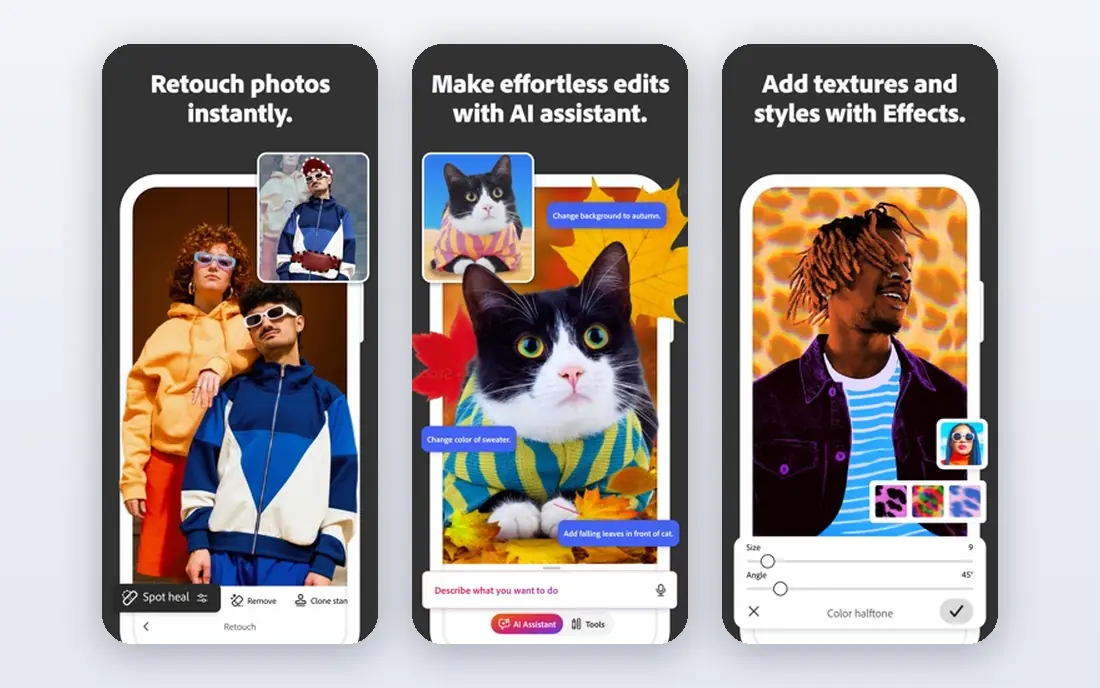
Photoshop remains the reference point for precise cropping because its crop tool pairs ratio presets with resolution settings, straightening, and perspective crop options. You can crop to an exact pixel size for print or web, keep the cropped pixels for later changes, or delete them to reduce file size. That control matters when a crop is part of a print layout or a product catalog with strict sizes.
The catch is cost and weight. Photoshop starts near $22.99 per month in recent pricing coverage, and it is more than most people need for a single social post. Choose it when cropping sits inside a wider retouching workflow, and choose a lighter tool when it does not.
- Precise ratio, resolution, and straighten controls
- Content-aware fill around a crop
- Strong batch actions
- Subscription cost for a basic task
- Heavier than a quick crop tool
GIMP, the GNU Image Manipulation Program, gives you a full desktop editor at no cost, and its crop tool supports fixed aspect ratios, fixed sizes, and guides for alignment. You can crop, straighten, and then continue into layers, masks, and color correction without switching apps. It runs on Windows, Mac, and Linux, which makes it a practical free choice for desktop users.
GIMP is not the fastest tool for a one-off crop, because its interface assumes you will do more than crop. If you crop often and want a free desktop tool that grows with your editing skills, that learning curve is worth it. If you only crop phone photos, a mobile or browser tool will feel faster.
- Free and open source
- Fixed ratio and size cropping
- Guides and grid for alignment
- Interface takes time to learn
- No official mobile app
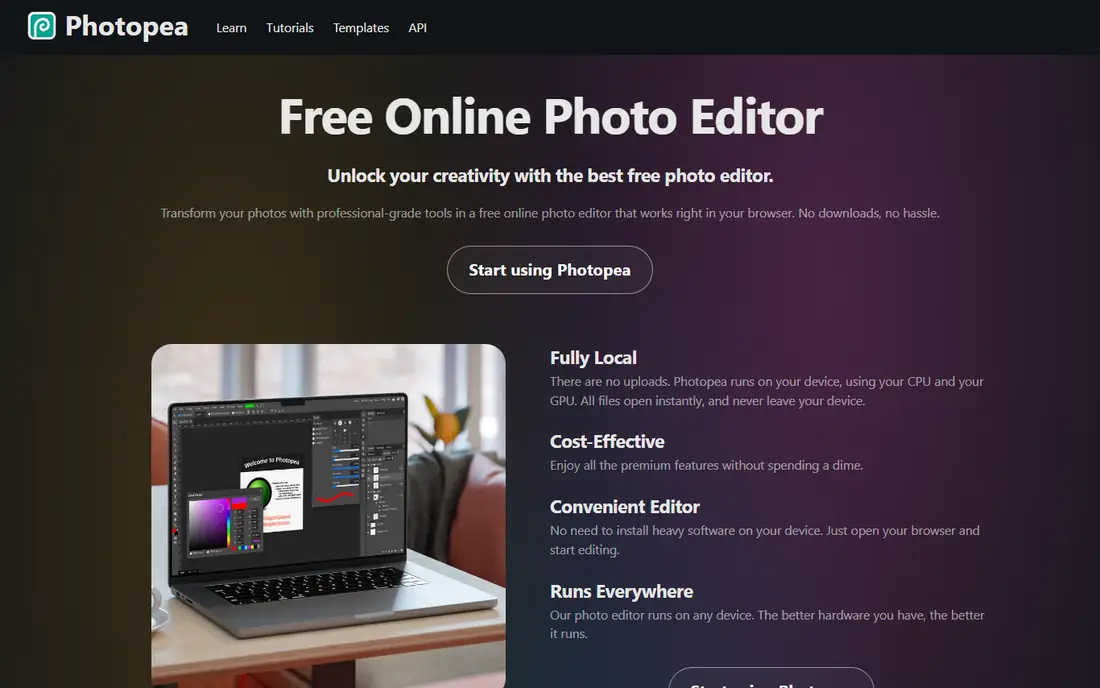
Photopea runs in a browser and looks familiar to Photoshop users, with a crop tool that supports ratios, resolution, and straightening. Its real strength is file support: it opens layered PSD files and other professional formats, so you can crop a file a designer sent you without installing desktop software. Premium costs $5 per month or $50 per year in published pricing, mainly to remove ads.
Browser editing has limits, and very large images can feel slower than in a desktop app. For most web crops, social sizes, and quick client edits, Photopea is the fastest free route that still feels professional.
- Opens PSD, AI, and other professional files
- No install needed
- Premium removes ads for $5 per month
- Free version shows ads
- Very large files can slow down in a browser
Canva treats cropping as part of design, not as a separate editing step. You pick a size for Instagram, a flyer, or a presentation, drop in a photo, and drag the crop to fit. That workflow suits small business owners who need a cropped image inside a finished post, not a standalone cropped file. The free plan covers a large template library, and Pro costs about $120 per year in published pricing.
Canva is not the tool for pixel-exact print crops or for batch cropping hundreds of files. It wins on speed for social and marketing work, where the crop and the design happen in the same place.
- Crop to social sizes in one click
- Templates for posts, flyers, and ads
- Easy sharing and export
- Less precise than a desktop editor
- Some features need Pro
Pixlr offers a quick browser editor for cropping, resizing, and light retouching, with presets for common social sizes. You can open a photo, crop it, apply a filter or a color fix, and export it without installing anything. Published pricing puts Plus near $1.99 per month billed yearly, which is low for a paid browser editor.
The free version pushes you toward upgrades and shows ads, and exports can carry limits. For a fast crop on a shared computer or a Chromebook, Pixlr is still a practical pick, especially when you do not want to learn a full editor.
- Fast browser editor
- Crop presets for social sizes
- Plus starts near $1.99 per month billed yearly
- Free version includes ads and limits
- Advanced editing is thinner than desktop tools
Fotor suits beginners who want a clean crop tool with a few helpful extras. Its editor includes crop presets, straightening, and one-tap enhancement for dull photos, plus collage tools if you want to combine cropped images. Published pricing puts Pro near $3.99 per month billed yearly, which keeps the paid step low.
Fotor will not match Photoshop for precise print work, and its free plan limits some features and exports. For everyday photos, blog images, and social posts, its simplicity is the point, and most users will finish a crop in under a minute.
- Simple crop and resize tools
- One-tap enhancement
- Collage and design options
- Pro features sit behind a paywall
- Less control than GIMP or Photoshop
Affinity Photo
Great for: Full desktop editing at no cost with a free account
Affinity Photo is a full desktop photo editor with layered editing, RAW support, and precise crop controls, and recent 2026 coverage notes that it is now free with a free Canva account. That change makes it a strong pick for users who want desktop power without a monthly subscription. Its crop tool supports ratios, straightening, and overlay guides for composition.
Affinity is not a pixel-for-pixel Photoshop clone, and some Photoshop-only plugins and effects will not carry over. If you want a free desktop editor that handles cropping as part of serious retouching, Affinity Photo is now one of the best values in this list.
- Full layered editing
- Precise crop and straighten tools
- Now free with a Canva account in 2026 coverage
- Smaller plugin ecosystem than Photoshop
- Workflow differs from Adobe tools
Paint.NET is a light, free Windows editor that opens fast and handles cropping, resizing, and basic retouching without fuss. Its crop tool is simple: select an area, crop to it, and export. That speed suits office and everyday use, where you need a cropped screenshot or product photo and you do not want to wait for a large app to load.
Paint.NET is Windows only, and it lacks the deep layer and color tools of GIMP or Affinity Photo. For Windows users who crop often and want a free, fast desktop tool, it is still a sensible default.
- Fast and light on Windows
- Simple crop and resize
- Free with an optional store version
- Windows only
- Fewer features than GIMP or Affinity Photo
BeFunky offers a browser photo editor, a collage maker, and a graphic designer in one account, with crop presets for common sizes. Its editor is aimed at non-designers, so the crop tool is easy to find and easy to use, and the mobile apps let you crop on a phone when you are away from a computer. Paid plans add more features, but basic cropping is available free.
BeFunky is not the pick for precise print crops or for heavy retouching. It fits users who want a friendly editor for social posts, blog images, and family photos, with cropping as one step in a quick edit.
- Simple browser editor
- Crop presets and batch options
- Mobile apps for on-the-go crops
- Advanced editing is limited
- Some features need a paid plan
Snapseed is Google's free mobile photo editor, and it has no standalone official homepage, so we link to Google's official Snapseed support page rather than an unofficial copy. Its crop tool includes ratio presets, and it pairs cropping with perspective correction, tuning, and selective edits that go beyond a basic phone editor. It is free, with no subscription and no ads in the app.
Snapseed is mobile only, so it will not handle batch desktop work or large print files as well as a desktop editor. For cropping and tuning phone photos before you post them, it remains one of the best free options, and its price is hard to argue with.
- Free on iOS and Android
- Crop presets plus perspective and tuning tools
- No ads or subscription
- No desktop version
- No standalone official homepage beyond Google support
How we picked these
We compared official product pages, pricing pages, and app store listings for editors that include a real crop tool, not just a resize button. We kept only tools that are live in October 2026, truly fit cropping work, and cover different needs: desktop power, browser speed, and mobile editing. Where a price could not be verified from the vendor, we wrote See website rather than guessing.
What to check before you buy
Start with your ratio needs. Social posts, print layouts, and product listings each use different sizes, and a tool with saved presets for those sizes will save you repeated manual work. Check whether the tool keeps cropped pixels or deletes them, because keeping them lets you reframe later, while deleting them keeps files smaller.
Next, check straightening and batch work. A photo that is slightly tilted needs a straighten tool, not just a crop, and a product catalog needs batch cropping or actions to keep sizes consistent. If you crop more than a few images a week, batch support matters more than any single filter.
Finally, check export quality. A crop that looks fine on screen can lose detail if the export compresses it heavily or limits resolution on a free plan. Export a test image at your real size, view it at full size, and confirm the result before you commit to a tool for client work.
Frequently asked questions
What is the best image cropping software for beginners?
Canva, Fotor, and BeFunky are the easiest starting points, because their crop tools sit inside a simple editor with presets for common sizes. Snapseed is the best free mobile pick. Beginners who want to grow into deeper editing should start with Photopea or GIMP instead.
What is the best free image cropping software?
Photopea is the best free browser pick for precise work, GIMP is the best free desktop pick, and Snapseed is the best free mobile pick. Affinity Photo is also now free with a Canva account in 2026 coverage, which makes it a strong free desktop option. The right free tool depends on whether you work in a browser, on desktop, or on a phone.
Can I crop images in batches?
Yes, with the right tool. Photoshop actions, GIMP batch plugins, and some browser tools with batch features can crop many images to the same size. Canva and Fotor are less suited to true batch work, so check batch support before you pick a tool for a product catalog.
Does cropping reduce image quality?
Cropping itself does not blur an image, but it reduces pixel count, so a heavy crop can look soft when printed large or viewed at full size. Export settings also matter: a low-quality export can add compression artifacts. Crop as little as you need, and export at the highest quality your platform allows.
What crop ratio should I use for social media?
Ratios vary by platform and placement, and they change over time, so check the current size guide for each platform before you export. Square, portrait, and wide ratios all have different uses, and a tool with saved presets for each platform will save you from guessing. When in doubt, crop from a larger original so you can reframe for each placement.
Sources
See where you really rank - block by block
ProMapRanker scans Google Maps across a grid of your service area. Simple monthly plans from $19, white-label on every plan.
Start freeKeep reading
 wpforms alternatives
Best WPForms Alternatives in 2026
We compare 9 wpforms alternatives for WordPress forms, with free and paid options, current pricing notes, and honest limits for small business sites in 2026.
Read → windows task scheduler alternatives
Best Windows Task Scheduler Alternatives in 2026
Looking for Windows Task Scheduler alternatives? We compare 9 schedulers for Windows and cross-platform work, from free tools to enterprise automation.
Read → which ai video service is best
Which AI Video Service Is Best in 2026
which ai video service is best? We compare 10 legitimate AI video services on price, avatars, editing and output quality to help you pick the right tool.
Read →