 ProMapRanker
Top GIF Creator Software in 2026

Key takeaways
- Ezgif is the best free browser tool for converting, resizing, and optimizing GIFs without installing anything.
- ScreenToGif is the best free desktop recorder for Windows, with frame-by-frame editing built in.
- Imgflip is a fast route to shareable GIFs, while Canva and Adobe Express suit branded, designed GIFs.
- GIF files stay large, so always optimize before you publish, especially for web pages and email.
Quick comparison
| Pick | Great for | Pricing starts at | Free tier | |
|---|---|---|---|---|
 Ezgif | Browser conversion and optimization | Free | Yes | Visit |
 ScreenToGif | Screen recording to GIF | Free | Yes | Visit |
 Imgflip | Fast meme and GIF sharing | Free | Yes | Visit |
 Canva | Designed GIFs and templates | Free | Yes | Visit |
 Adobe Express | Branded GIFs in Adobe tools | Free | Yes | Visit |
 Kapwing | GIFs inside video workflows | $16 per month | Yes | Visit |
 GIMP | Frame-by-frame animation | Free | Yes | Visit |
 Gifski | High-quality video to GIF on Mac | Free | Yes | Visit |
 LICEcap | Simple screen capture GIFs | Free | Yes | Visit |
The best gif creator software
GIFs work best when they are short, clear, and small. The tools below cover different starting points: a screen, a video clip, a set of photos, or a designed graphic. Pick by how you start, not by the longest feature list.
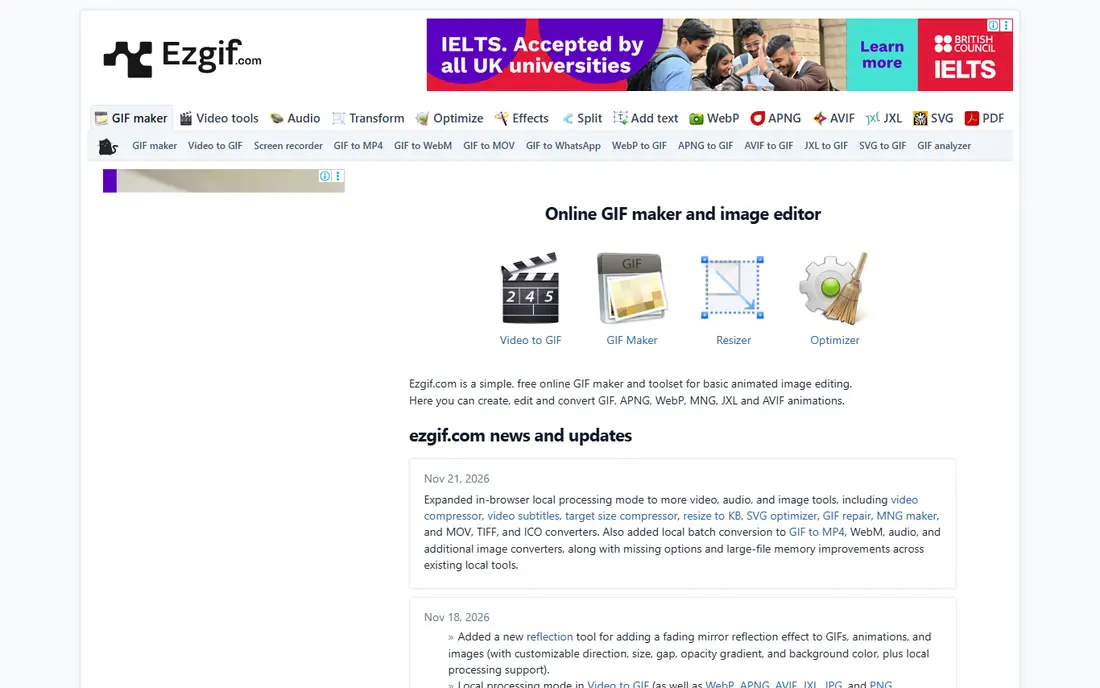
Ezgif is the tool to bookmark first. Upload a video or a set of images to make a GIF, or upload an existing GIF to crop, resize, reverse, change speed, add text, or cut its file size. The optimizer alone is worth the visit, because it can shrink a GIF a lot without an obvious loss in quality.
The interface is plain, and very large uploads can hit browser limits, so it suits short clips and web-ready GIFs best. For most everyday jobs, though, Ezgif covers the whole task in one tab, with no watermark and no account. Keep it as your finishing tool even if you create the GIF elsewhere.
- No install or account needed
- Strong optimizer
- Many conversion tools
- Browser limits on very large files
- Interface is plain
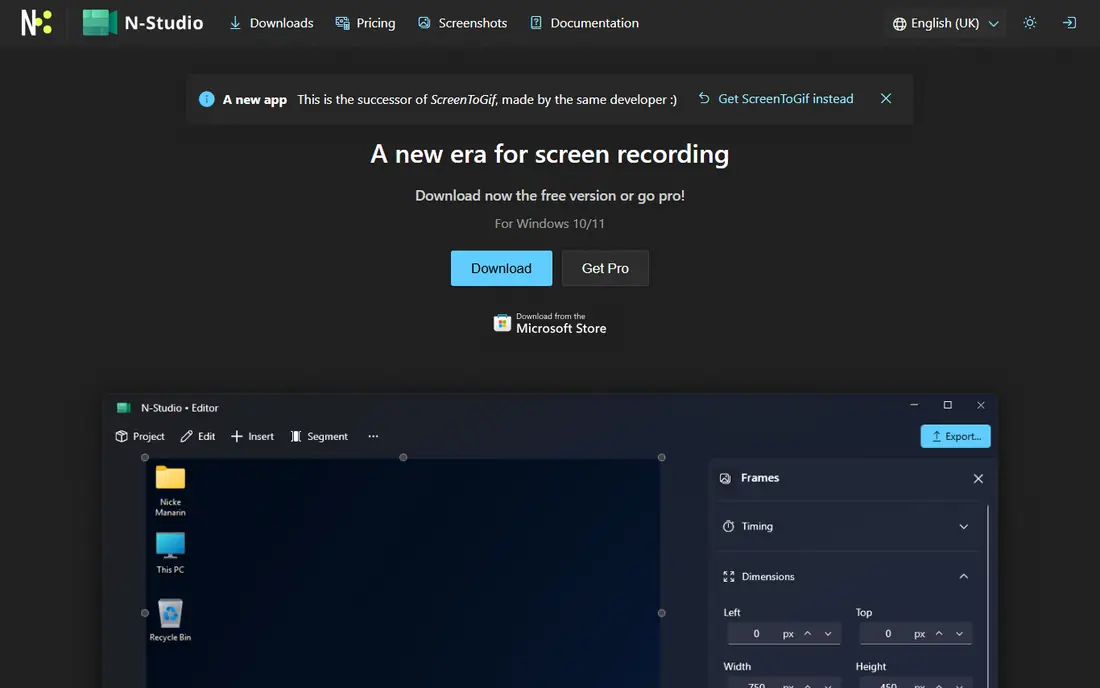
ScreenToGif is the best free way to turn a screen demo into a GIF. Select a screen area, record, and then edit the result frame by frame. You can delete frames where the cursor wandered, adjust timing on key frames, add captions, crop, and resize before export. That frame control is what separates it from simple recorders.
It is Windows only, which is its main limit, and the full editor takes a little learning. For documentation, tutorials, and bug reports, though, that control pays off fast. Export to GIF, APNG, or video, and run the result through Ezgif if you need a smaller file.
- Free and open source
- Records screen, webcam, or sketchboard
- Full frame editor
- Windows only
- Interface takes a short time to learn
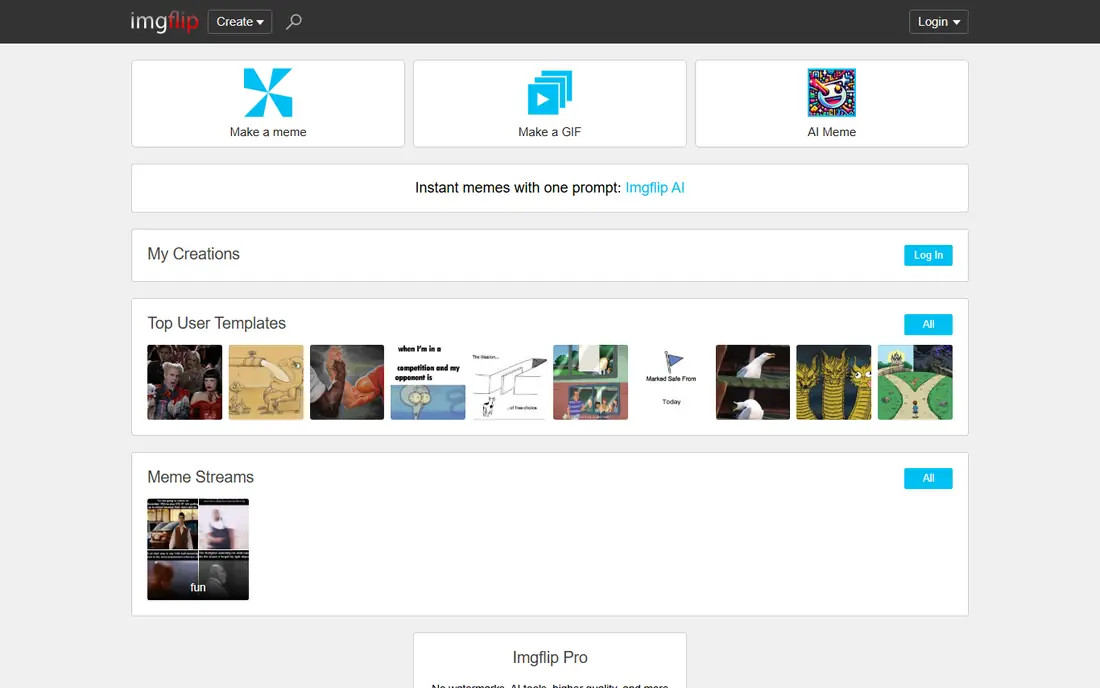
Imgflip is built for speed. Upload a video or a set of images, trim the section you want, add text, and share the result. The meme tools are a bonus when a GIF needs a caption that reads clearly at small sizes, and the sharing options cover the main social platforms without extra export steps.
The trade-off is control. You will not get the frame-by-frame editing of ScreenToGif or GIMP, and a low-quality source clip will still look low quality as a GIF. Use Imgflip when speed and sharing matter most, and use a desktop editor when the GIF must be precise.
- Very fast video to GIF flow
- Text and meme tools
- Easy sharing
- Less frame control than desktop editors
- Some features require Pro
Canva suits GIFs that start as designs, not as video. Build a social post, an ad, or a presentation slide with animated elements, then export it as a GIF. Templates, fonts, and brand tools help small teams keep a consistent look, and the learning curve is low for anyone who already uses Canva.
Frame-level control is limited compared with GIMP or ScreenToGif, so Canva is not the pick for careful frame animation. It is the pick when the GIF needs to look designed, with clean text and brand colors, and when the same design must also work as a static image or a video.
- Large template library
- Easy text and branding
- Exports animated designs as GIF
- Less precise frame control
- Some assets and features require Pro
Adobe Express fits teams that already work in Adobe tools or use Adobe fonts and stock. You can design an animated post, apply a brand kit, and export it as a GIF for social use. The free plan covers the core workflow, which makes it easy to test before paying.
Paid plans open more premium assets and features, so check whether the templates or stock you use often sit behind that line. Adobe Express is strongest for branded social GIFs, and weaker for frame-by-frame animation or screen recording, where ScreenToGif and GIMP do more.
- Free plan covers core design tools
- Brand kits
- Works with Adobe Stock and fonts
- Some premium features require a paid plan
- Web-first workflow
Kapwing treats a GIF as one output of a wider video workflow. Trim a clip on a timeline, add captions, resize for each platform, and export as a GIF or a video. That flow suits content teams who make a GIF, a short video, and a captioned clip from the same source in one session.
The free plan is useful for testing, but it adds a watermark, so regular creators need the Pro plan at $16 per month. If you only make occasional GIFs, a free tool will serve you better. If GIFs sit inside a weekly content routine, Kapwing saves the round trips between separate tools.
- Full timeline editor in the browser
- Captions and resizing
- Team sharing
- Free plan adds a watermark
- Paid plan needed for regular use
GIMP is an image editor first, and that is its strength for GIFs made from drawings or photos. Each layer can act as a frame, so you can draw, edit, and time a sequence with full control over color, text, and effects. For hand-made animation and careful edits, no browser tool here matches it.
The workflow is manual, and beginners may need a tutorial to set frame timing and export correctly. GIMP also lacks screen recording, so it pairs best with a recorder or a video source. Use it when the GIF is a crafted animation, not a quick clip conversion.
- Free and open source
- Layers become frames
- Full image editing power
- Steeper learning curve
- Animation workflow is manual
Gifski focuses on one job and does it well: turning video into a high-quality GIF on Mac. Drag in a clip, trim it, and export a GIF with smoother gradients and cleaner motion than many converters manage. That quality matters for product demos and design work, where banding and harsh colors show quickly.
It does not offer a full frame editor or screen recording, so it is a converter, not a complete studio. Pair it with a recorder for screen GIFs, or with Ezgif for final optimization. For Mac users who convert video to GIF often, Gifski is a strong, free addition.
- Free and open source
- High-quality conversion
- Simple drag and drop flow
- Mac focused
- Trimming only, no full frame editor
LICEcap is the simplest screen recorder here. Place a capture frame over the area you want, press record, and save the result as a GIF. There is almost nothing to learn, which makes it ideal for quick demos, bug reports, and short how-to clips.
The limit is editing. LICEcap does not offer the frame editor of ScreenToGif, so a mistake means re-recording or editing in another tool. For a clean, short capture, that trade is fine. For a polished tutorial GIF, record in LICEcap if you like, then trim and optimize in Ezgif or ScreenToGif.
- Free
- Very simple capture window
- Works on Windows and Mac
- No frame editor
- Limited editing after capture
How we picked these
We compared official feature pages, pricing pages, and documentation, and we favored tools that are still available and that export a usable GIF without forcing a paid plan for a basic job. We noted watermark rules and platform limits plainly, because those details decide whether a free tool is actually free for finished work. We did not claim hands-on testing, and we kept a mix of browser, desktop, design, and recording tools.
What to check before you choose
Start with your source. Screen work points to ScreenToGif on Windows or LICEcap for a simple capture. Video clips point to Ezgif, Gifski, or Imgflip. Designed graphics point to Canva or Adobe Express. Frame animation points to GIMP. Choosing by source avoids buying a full editor for a job a free converter handles.
Next, watch file size and length. Keep GIFs short, usually a few seconds, and trim ruthlessly before you export. A smaller frame size and fewer colors can cut size a lot, and Ezgif optimization should be the last step before publishing. Test the GIF on a phone and on a slow connection, because a GIF that looks fine on a desktop can still feel heavy on mobile.
Finally, check rights and context. Only turn clips and photos into GIFs when you own them or have permission to reuse them, and keep captions accurate when you share a clip out of context. A short GIF travels fast, so the source and the caption matter as much as the file itself.
Frequently asked questions
What is the best gif creator software for beginners?
Ezgif is the easiest start for converting and editing GIFs in a browser, with no install. ScreenToGif is the best free desktop start for screen GIFs on Windows, and Imgflip is the fastest for shareable social GIFs. Pick by whether your GIF starts as a screen, a video, or a design.
Can I make a GIF for free without a watermark?
Yes. Ezgif, ScreenToGif, GIMP, Gifski, and LICEcap all export without a watermark on their free versions. Kapwing free exports do carry a watermark, and some Canva and Adobe Express assets require a paid plan, so check the assets you use.
How long should a GIF be?
Keep it short, ideally a few seconds, and focused on one action or joke. Longer GIFs grow large quickly and lose attention. If the clip needs more time, a short video file is usually a better format than a long GIF.
How do I make a GIF file smaller?
Trim the length, reduce the frame size, lower the frame rate slightly, and use fewer colors where the image allows it. Then run the result through an optimizer such as Ezgif. Each step alone helps, and together they can cut a large GIF to a web-friendly size.
Can I turn a video into a GIF?
Yes. Upload the video to Ezgif, Imgflip, Kapwing, or Gifski, trim the section you want, and export as a GIF. Choose a clear, well-lit section with little camera movement for the cleanest result, and optimize the file before you share it.
Sources
See where you really rank - block by block
ProMapRanker scans Google Maps across a grid of your service area. Simple monthly plans from $19, white-label on every plan.
Start freeKeep reading
 wpforms alternatives
Best WPForms Alternatives in 2026
We compare 9 wpforms alternatives for WordPress forms, with free and paid options, current pricing notes, and honest limits for small business sites in 2026.
Read → windows task scheduler alternatives
Best Windows Task Scheduler Alternatives in 2026
Looking for Windows Task Scheduler alternatives? We compare 9 schedulers for Windows and cross-platform work, from free tools to enterprise automation.
Read → which ai video service is best
Which AI Video Service Is Best in 2026
which ai video service is best? We compare 10 legitimate AI video services on price, avatars, editing and output quality to help you pick the right tool.
Read →