 ProMapRanker
Best CapCut Alternatives in 2026


pro desktop editing on a budget · Pricing starts at: Free
Key takeaways
- DaVinci Resolve is the strongest free desktop editor, with a full professional toolset and no watermark on its free version.
- Filmora and PowerDirector are the easiest desktop paths for social and marketing videos, with templates and guided tools.
- KineMaster and InShot cover mobile-first editing, but their free exports carry watermarks unless you pay.
- Shotcut and Clipchamp are the best zero-cost or low-cost backups when you want to avoid a subscription.
Quick comparison
| Pick | Great for | Pricing starts at | Free tier | |
|---|---|---|---|---|
| DaVinci Resolve | pro desktop editing on a budget | Free | Yes | Visit |
 Adobe Premiere Pro | professional teams on Adobe tools | See website | Free trial | Visit |
 Wondershare Filmora | fast social and marketing videos | $9.99 per month | Yes | Visit |
 CyberLink PowerDirector | feature-packed desktop editing | $59.99 per year | Yes | Visit |
 KineMaster | mobile multi-layer editing | $8.99 per month | Yes | Visit |
 InShot | quick mobile edits | See website | Yes | Visit |
 Shotcut | free open source editing | Free | Yes | Visit |
 Microsoft Clipchamp | quick browser and Windows edits | Free | Yes | Visit |
The best capcut alternatives
The editors below are alternatives only, and CapCut itself is not listed as a product here. They cover the main reasons people look elsewhere: a desktop timeline, a free export without a watermark, more control over color and audio, or a simpler mobile workflow without a subscription trap.
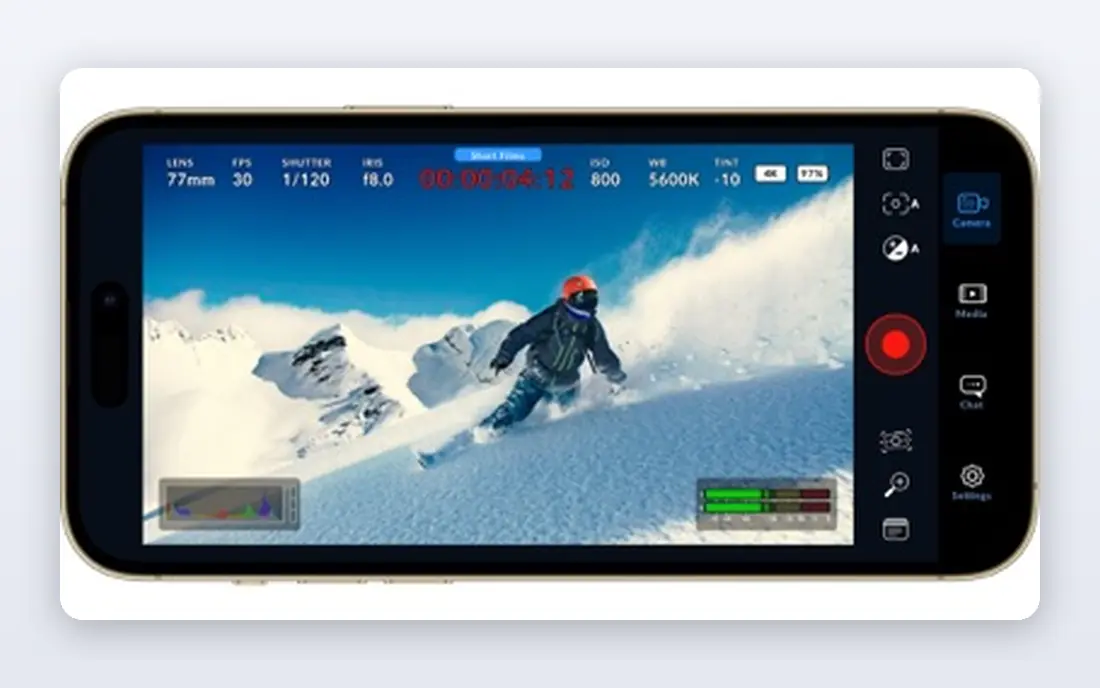
DaVinci Resolve is the editor we recommend first to anyone willing to learn a desktop timeline, because its free version is not a trial in disguise. It includes editing, color grading, visual effects, and audio post in one app, and it exports up to 4K without a watermark or time limit. That combination is unusual, and it means a creator can build a serious workflow without paying anything until a Studio-only feature becomes necessary.
The cost is time and hardware. Resolve asks you to learn its page-based workflow, and smooth 4K work benefits from a capable graphics card, so an older laptop may struggle. The paid Studio version costs $295 as a one-time purchase and adds noise reduction, extra effects, and higher-resolution delivery. If you edit regularly on a desktop and want room to grow, Resolve is the strongest free starting point on this list.
- Full editing, color, effects, and audio in one app
- Free version exports without a watermark
- Professional color tools
- Steep learning curve
- Needs a capable computer for smooth 4K work
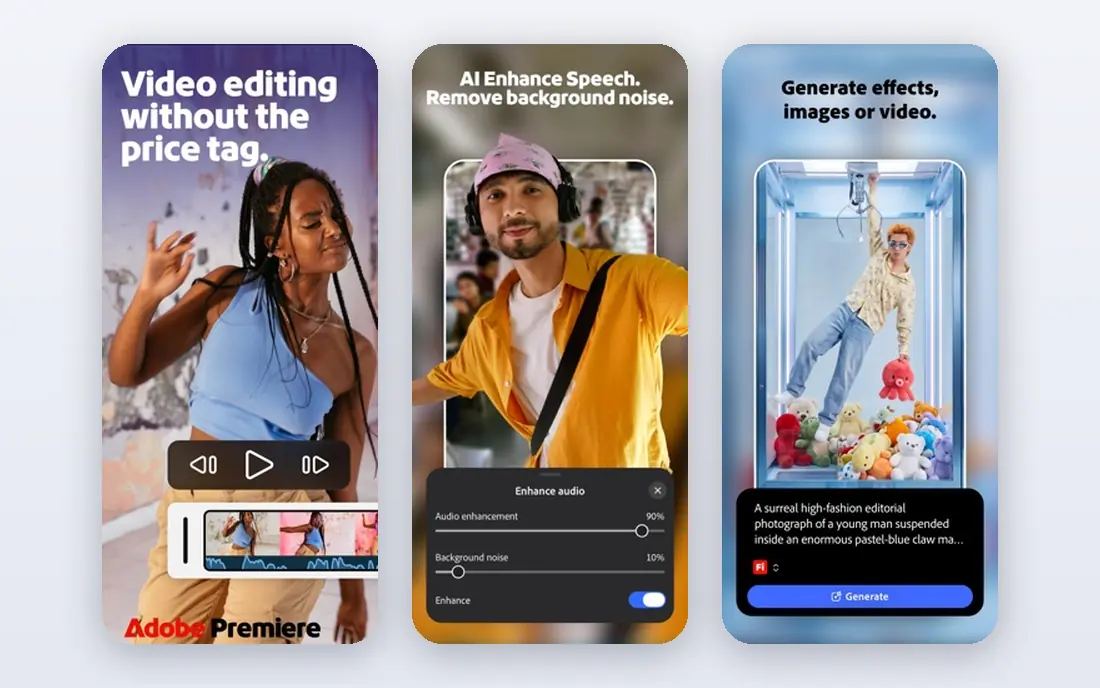
Premiere Pro is the professional default for teams already inside Adobe Creative Cloud, and that ecosystem is its main advantage. Projects move between Premiere, After Effects, Audition, and Photoshop without awkward exports, and caption, audio, and color tools are deep enough for client work. For a team that already pays for Creative Cloud, Premiere is often the path of least resistance, since the skills and file formats carry across projects.
The downside is the subscription and the learning curve. Premiere is not a casual mobile editor, and beginners may find its panels and settings dense at first. It also benefits from a strong computer, especially for 4K timelines with effects. Choose Premiere when you need professional output, team collaboration, and Adobe integration, and accept that you are buying into a subscription rather than a one-time purchase.
- Industry-standard timeline
- Deep Adobe ecosystem
- Strong audio and caption tools
- Subscription cost
- Heavier system requirements
- Learning curve for beginners
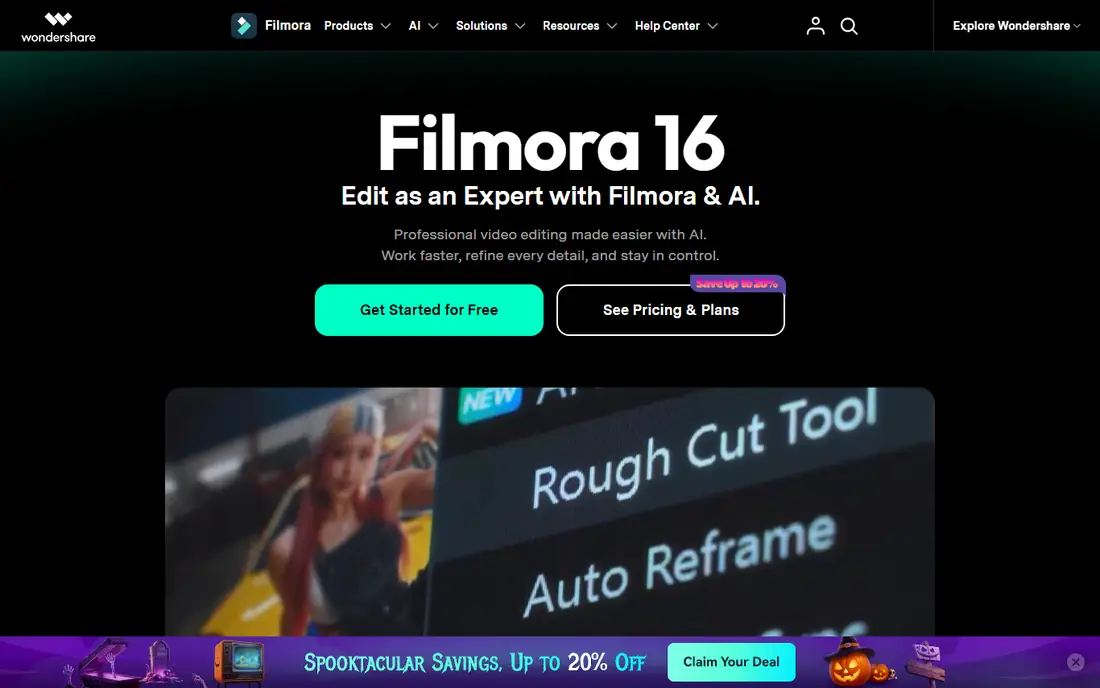
Filmora is built for speed, which is why it suits social and marketing videos that must ship often. Templates, transitions, titles, and stock-style effects help a beginner turn raw clips into a finished video without learning a professional timeline first. AI helpers for captions and editing steps shorten the routine parts, and the availability of both desktop and mobile versions means a project can start on one device and finish on another.
The free version is a trial of the workflow rather than a finished product, since exports carry a watermark until you pay. A perpetual license is also available for buyers who prefer a one-time payment over a subscription, though the exact terms vary by version. For creators who value a fast path to a polished short video, Filmora is a practical middle ground between a phone app and a professional editor.
- Easy timeline with templates and effects
- AI helpers for captions and cuts
- Desktop and mobile versions
- Free exports carry a watermark
- Some features need a paid plan
PowerDirector packs a lot into a desktop editor without asking a new user to learn professional jargon first. It offers a wide library of effects, transitions, and templates, plus tools for titles, motion graphics, and color adjustment, and it renders quickly on a typical Windows machine. The subscription version adds a steady stream of new effects and stock content, which suits creators who publish often and want fresh assets without hunting for them.
The main limits are platform and free tier. The experience is strongest on Windows, and the free version is limited, so serious use means paying for the subscription or a perpetual license. Mac users should check the current offering before committing, since the Windows version has historically been the fuller product. For Windows creators who want many features at a moderate price, PowerDirector is a strong pick.
- Many effects and templates
- Fast rendering on Windows
- Good value on subscription
- Windows-focused experience
- Free version is limited
KineMaster is the mobile editor for creators who have outgrown simple trim-and-filter apps but still edit on a phone. Its multi-layer timeline supports video over video, chroma key for green screen work, and precise keyframe animation, which is close to desktop control in a pocket-sized app. The asset library adds music, effects, and stickers, and the app supports 4K exports on capable devices, so a phone-shot video can look polished without a computer.
The free tier is the catch. Exports carry a watermark, and removing it plus opening the full asset library requires a Premium subscription, priced around $8.99 per month or $44.99 per year in recent listings. There is also no desktop version, so a project started on a phone stays on a phone. For mobile creators who want layered editing, KineMaster is worth the subscription, but test the free export first to see whether the watermark matters for your channel.
- Multi-layer timeline on a phone
- Chroma key and keyframe control
- Large asset library
- Free exports carry a watermark
- No desktop version
InShot is the editor for the quick job: trim a clip, change its aspect ratio for another platform, add music and text, and export. That focus is its strength, because it does not ask a casual creator to learn layers, keyframes, or color scopes. Aspect-ratio switching is especially useful for creators who post the same video to several platforms, and the app runs well on modest phones that would struggle with a heavier editor.
The limits are also clear. The free version adds a watermark and shows ads, and removing both requires a Pro subscription, whose price varies by store and region, so we list it as See website. Long projects with many layers or precise color work will also feel cramped. For fast social clips, InShot is our pick for simplicity, provided you accept the subscription for clean exports.
- Very fast for trims, ratios, and music
- Easy aspect-ratio switching
- Light on older phones
- Free version has a watermark and ads
- Limited for long or complex projects
Shotcut is the honest zero-cost option on this list, because it is open source, free to download, and exports without a watermark or subscription. It runs on Windows, Mac, and Linux, supports a wide range of video formats, and covers the core timeline tasks: trimming, filters, transitions, titles, and audio adjustment. For a creator on a tight budget, a student, or anyone who dislikes subscriptions, that combination is hard to beat.
The trade-off is polish. Shotcut has a plainer interface than Filmora or PowerDirector, fewer ready-made templates, and less hand-holding for beginners, so the first project takes longer. Heavy projects also benefit from proxy editing, a common trick for open source editors on modest hardware. If you want a free desktop editor and can learn its layout, Shotcut is the most cost-effective choice here.
- Completely free with no watermark
- Cross-platform
- Supports many formats
- Plainer interface
- Fewer templates and guided tools
Clipchamp suits the quick corporate or classroom edit, because it runs in a browser, comes built into Windows 11, and includes screen and webcam recording alongside its timeline. Templates and a simple layout help a non-editor turn a recording into a finished video without installing heavy software, and the free plan exports at 1080p, which is enough for most internal videos and social posts.
The free tier has clear ceilings. Higher-resolution exports, premium stock, and brand kit tools sit behind a paid plan, so creators who need 4K delivery or a large stock library should look at Resolve or Premiere instead. Clipchamp is also not a replacement for a professional timeline on long projects. For fast, simple edits on a Windows machine or in a browser, it is a convenient and genuinely free starting point.
- Works in a browser and on Windows
- Simple templates
- Screen and webcam recording built in
- Free exports limited to 1080p
- Premium stock and brand tools need a paid plan
How we picked these
We compared official product pages, pricing pages, and app store listings for each editor, and we favored tools that are still actively offered in October 2026. We checked whether the free version exports with a watermark, whether a desktop version exists, and what the paid tier actually adds, since those three facts decide most buying choices. Where a price varies by store or region, we wrote See website rather than quoting a figure that may not match your checkout.
How to choose the right editor
Match the editor to where you edit, not to the longest feature list. Phone-first creators should shortlist KineMaster and InShot and test their free exports on a real video. Desktop creators on a budget should start with DaVinci Resolve or Shotcut, since both are free and leave room to grow. Teams that publish daily and need templates fast should trial Filmora or PowerDirector, and professional teams already on Adobe should stay with Premiere Pro for consistency.
Frequently asked questions
What are the best free CapCut alternatives?
DaVinci Resolve and Shotcut are the strongest free alternatives, since both export without a watermark and run on desktop. Clipchamp is another free option for quick browser edits, though its free exports are limited to 1080p.
What is the best CapCut alternative for mobile?
KineMaster is the best mobile alternative for layered editing, with multi-layer timelines, chroma key, and keyframes. InShot is simpler and faster for quick trims and ratio changes, but both add a watermark on free exports.
Is there a CapCut alternative with no watermark for free?
Yes, DaVinci Resolve and Shotcut both export without a watermark on their free versions. Most mobile editors, including KineMaster and InShot, require a paid subscription to remove the watermark.
Can I edit on desktop and mobile with the same app?
Filmora offers both desktop and mobile versions, which makes it the easiest choice for a mixed workflow on this list. Most other editors here are stronger on one platform, so check the platform list before you commit to a project.
Do I need a paid editor for social videos?
Not always. For short social clips, a free editor such as Resolve, Shotcut, or Clipchamp can cover trimming, titles, music, and basic effects. Paid tools pay off when you need templates, stock assets, faster rendering, or watermark-free mobile exports at volume.
Sources
See where you really rank - block by block
ProMapRanker scans Google Maps across a grid of your service area. Simple monthly plans from $19, white-label on every plan.
Start freeKeep reading
 free alternatives to grok imagine
Free Alternatives to Grok Imagine in 2026
We compared the best free alternatives to grok imagine for image generation, from fast daily credits to design tools, so you can create without paying.
Read → best tools for instagram content creation
Best Tools for Instagram Content Creation in 2026
Compare the best tools for Instagram content creation, from Canva and CapCut to Later and Buffer, on design, video, planning, scheduling, and price in 2026.
Read → best tool to split pdf files
Best Tool to Split PDF Files in 2026
We compared the best tool to split pdf files on split modes, file limits, privacy and price, so you can split a PDF cleanly and keep every page in one go.
Read →