 ProMapRanker
Best Tools for Instagram Content Creation in 2026

Key takeaways
- Canva and Adobe Express cover most static design needs, while CapCut and InShot lead for short vertical video.
- Later and Planoly are built around visual Instagram planning, while Buffer suits simple scheduling across several networks.
- A free plan is enough to start in most of these tools, but watermark removal, brand kits, and higher video quality often need a paid plan.
- The best stack for many creators is one design tool, one video editor, and one planner, rather than one tool that claims to do everything.
- Check Instagram sizes, caption limits, and scheduling rules before you pay, since limits differ by plan and account type.
Quick comparison
| Pick | Great for | Pricing starts at | Free tier | |
|---|---|---|---|---|
 Canva | All round Instagram design | $12 per month | Yes | Visit |
 CapCut | Short form video editing | $19.99 per month | Yes | Visit |
 Adobe Express | Quick on brand graphics and video | $9.99 per month | Yes | Visit |
 Later | Visual Instagram planning | $18.75 per month | Free trial | Visit |
 Buffer | Simple cross network scheduling | $5 per channel per month | Yes | Visit |
 InShot | Mobile video editing | See website | Yes | Visit |
 Mojo | Animated stories and templates | See website | Yes | Visit |
 Unfold | Minimal story templates | See website | Yes | Visit |
 Planoly | Instagram grid and content planning | See website | Yes | Visit |
 VSCO | Photo editing and presets | See website | Yes | Visit |
The best tools for instagram content creation
We compared design, video, and planning tools that Instagram creators actually use in 2026, with attention to templates, sizes, scheduling, and the real limits of free plans.
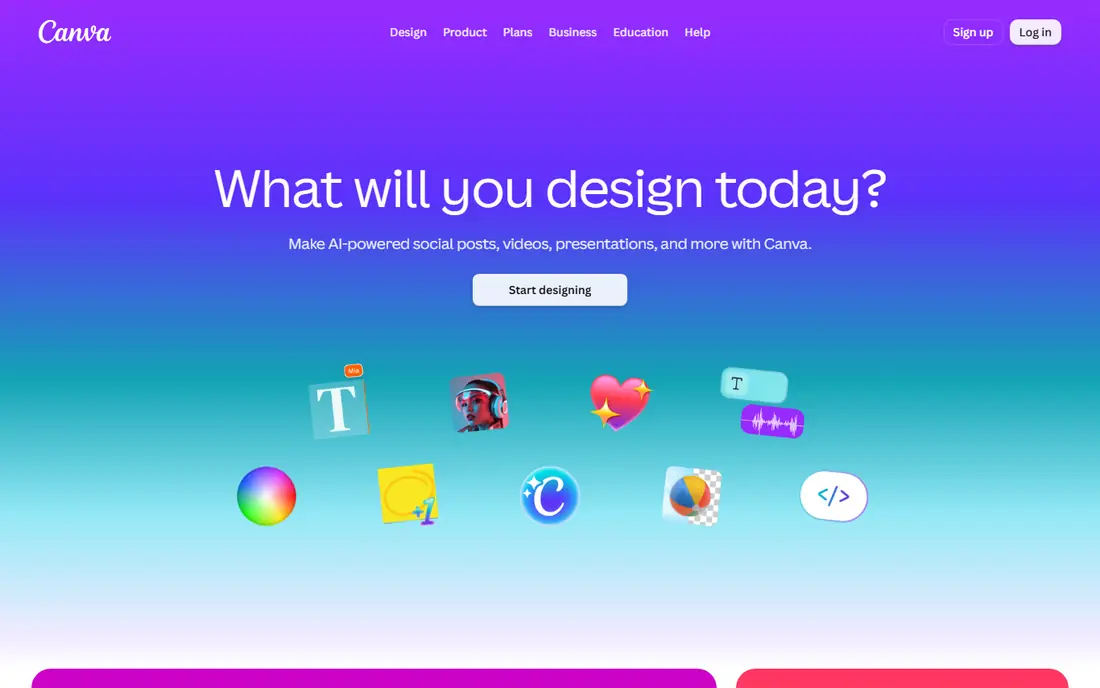
Canva is our pick for most people starting or scaling Instagram content, because it covers posts, stories, carousels, and reel covers in one place. Templates are sized for Instagram, and you can swap photos, fonts, and colors without learning a full design program. For small businesses, the brand kit on Pro keeps colors and logos consistent across a feed, which matters more than any single post.
The weakness is originality and video depth. A template used as is will look like many other accounts, so change layouts, photos, and type choices to make it yours. Video tools in Canva are useful for simple clips, but creators who edit reels daily will still want CapCut or InShot. Start free, move to Pro when brand tools and premium assets save real time each week.
- Huge template library for posts, stories, reels covers, and carousels
- Brand kit and resize tools on Pro
- Easy collaboration
- Pro price adds up for teams
- Some templates look generic without custom edits
- Video editing is lighter than CapCut
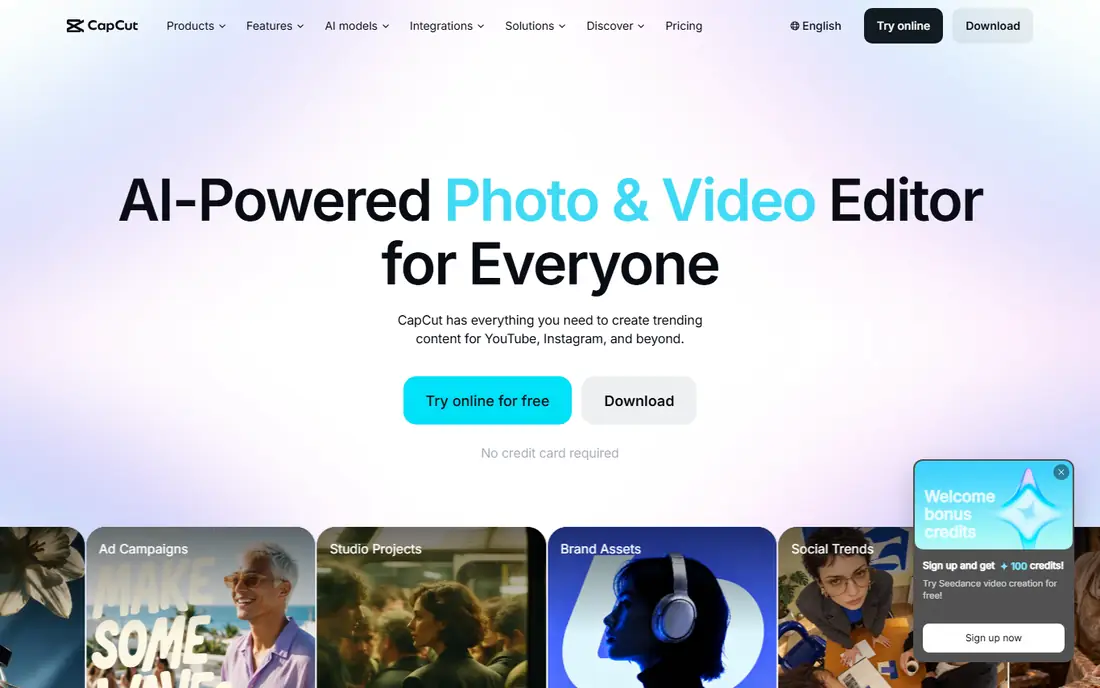
CapCut is the default video editor for many Instagram creators for a simple reason: it is fast on a phone and strong enough for polished reels. Auto captions save time, templates give a starting point for trends, and the timeline is easy to learn. Creators who post several reels a week will notice the speed gain over editing inside Instagram alone.
Free users should watch for Pro only effects, templates, and export limits, and check the current plan page before relying on a feature for client work. Paid Pro also brings more cloud storage and higher quality exports, which helps teams. If your content is mostly video, CapCut is the first paid tool to consider after a design app.
- Strong mobile and desktop editors
- Auto captions and templates for reels
- Effects, transitions, and sound tools
- Best features sit behind Pro
- Export quality and cloud storage limits apply on free
- Desktop and mobile features differ
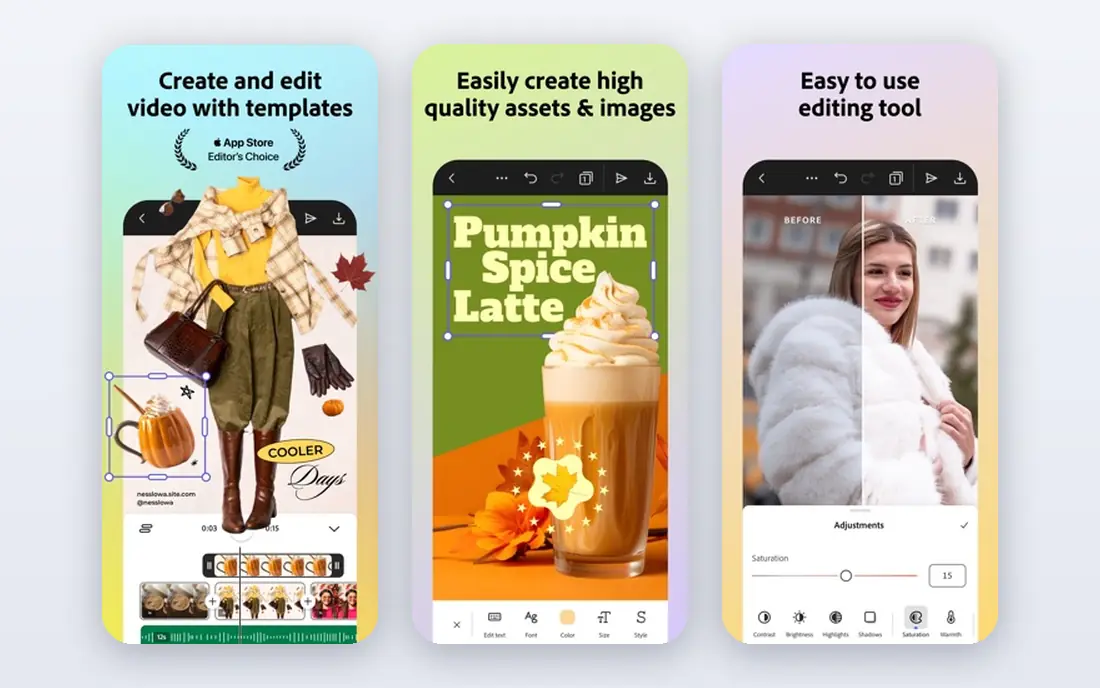
Adobe Express suits creators who want polished graphics without a steep learning curve, especially if they already use Adobe stock or fonts. The editor is quick for quote posts, announcements, sale graphics, and short clips, and brand controls help small teams stay consistent. It feels more design led than a scheduler with templates added on.
It is not a full planning suite, so most users will still pair it with Later, Buffer, or Meta tools for scheduling and analytics. Generative credits also need attention if you plan to use AI image and video features heavily. Choose Adobe Express when design quality matters most and you already live in the Adobe world.
- Clean templates and Adobe fonts
- Quick video and animation tools
- Useful for teams already using Adobe apps
- Template range is smaller than Canva
- Scheduling is limited
- Generative credit limits apply on paid plans
Later is built for the way Instagram creators plan: drag a post onto a calendar, check how it looks in the grid, and schedule it without juggling spreadsheets. The visual planner helps brands and creators keep a feed balanced across product shots, faces, quotes, and video. Link in bio tools also turn a profile link into a small landing page for offers and new posts.
The main catch is price structure. Later has moved away from a broad free plan, so budget for at least the Starter tier and check how many social profiles and posts it covers for your account mix. Analytics and team features sit on higher tiers. For Instagram first creators who plan weeks ahead, Later is still one of the clearest choices.
- Visual calendar and grid preview
- Link in bio tools
- Hashtag and caption help
- No permanent free plan in current pricing
- Post and profile limits vary by plan
- Analytics depth varies by tier
Buffer is our pick when scheduling matters more than design. Connect Instagram and other channels, build a queue, and keep posting consistent without opening each app daily. Per channel pricing makes costs easy to forecast for a small team, and the interface stays simple even as you add profiles. It is a good fit for businesses that create in Canva or CapCut and only need a dependable publisher.
Buffer will not replace a design tool or a deep Instagram planner. You will still design elsewhere, and grid preview is not its main strength. If you post mainly to Instagram and care deeply about grid layout, Later or Planoly may fit better. If you want simple, low fuss scheduling across networks, Buffer is hard to beat.
- Simple queue and calendar
- Per channel pricing is clear
- Useful analytics on paid plans
- Design tools are minimal
- Free plan limits scheduled posts per channel
- Instagram first visual planning is lighter than Later
InShot is a strong phone first editor for creators who shoot and post from one device. Trimming, splitting, speed changes, filters, and text are quick to apply, and exports suit vertical video well. Many creators use it for talking head clips, behind the scenes footage, and simple product videos where CapCut would feel heavy.
The free version carries a watermark and ads, so paid access is worth it if you post for a business. InShot also lacks planning, scheduling, and team tools, so treat it as an editor in a wider stack. For quick, clean mobile edits, it remains one of the easiest tools to learn.
- Fast phone editing for reels
- Trimming, speed, filters, and music tools
- Easy export for Instagram sizes
- Watermark and ads on free use
- Advanced features need a paid plan
- No desktop planner
Mojo fills a specific gap: animated stories that look designed rather than pasted together. Templates handle text motion, photo layouts, and music, which helps shops, coaches, and creators announce sales, events, and new posts quickly. A few minutes in Mojo can lift a story from plain text on a photo to something that stops a thumb.
It is not a full editor or planner, and feed carousels and long reels still need other tools. Check the current subscription price in the app store before committing, since mobile pricing can vary by region. Use Mojo when stories are a core part of your Instagram habit, not as your only creation tool.
- Animated story templates that look polished fast
- Text animation and music options
- Good for promotions and announcements
- Focused on stories more than feed posts or reels editing
- Full template set needs a subscription
Unfold appeals to creators who prefer a calm, editorial look over loud effects. Its story templates use clean frames, simple type, and generous space, which suits photographers, travel accounts, fashion brands, and personal brands. The app is quick to learn, and a consistent template set can make a whole story series feel like one brand.
The trade off is range. Unfold does not try to be a full design suite or video editor, and some of the best template collections are paid. If your style is minimal and stories matter, Unfold is a lovely addition. If you need carousels, reels editing, and scheduling, pair it with Canva, CapCut, and a planner.
- Clean, minimal story layouts
- Photo and video templates
- Easy for a consistent, calm feed style
- Narrower template range than Canva
- Limited editing depth
- Paid collections add cost
Planoly is a planner first tool with a clear focus on how a feed will look. Drag posts into place, rearrange the grid, and schedule ahead without guessing. That visual control helps brands that care about color balance and campaign order, and auto posting reduces manual work for eligible post types. Link in bio features add a simple shop and content hub.
Design is not the strength here, so create graphics and video in Canva or CapCut first, then plan in Planoly. Free limits also mean active accounts will likely need a paid tier. For Instagram first planning with a strong grid view, Planoly is a solid alternative to Later.
- Grid preview and drag and drop planning
- Auto posting for eligible content
- Link in bio tools
- Paid tiers needed for more profiles and posts
- Design tools are basic
- Analytics vary by plan
VSCO is best for photo led Instagram accounts that want a consistent look. Presets and editing tools help photographers, food accounts, and travel creators keep tone and color steady across a feed. The editing controls are more refined than a basic filter app, and the community side can inspire style choices without the noise of a full social feed.
VSCO will not plan, schedule, or design carousels, so it belongs in a stack rather than standing alone. A membership opens the full preset library, so check the current price in the app store. Use VSCO when photo quality and a steady visual style are the main goal.
- High quality photo presets and editing tools
- Clean photo focused community
- Useful for a consistent photo style
- Not a scheduler or design suite
- Video and template tools are limited
- Membership needed for full preset set
How we picked these
We compared official feature and pricing pages, app store listings, and current Instagram workflows for design, video editing, and planning. We favored tools with active Instagram sizes and templates, a usable free or trial option, and a clear role in a creator stack. Prices noted here reflect vendor pages and recent published checks, and we used See website where app store pricing varied by region or plan.
Building a simple Instagram stack
Start with the content you post most. Photo led accounts can start with Canva and VSCO, video led accounts with CapCut or InShot, and business accounts that plan campaigns with Later or Planoly. Add a second tool only when a clear gap appears, such as captions piling up, stories looking plain, or posting becoming inconsistent.
A weekly workflow that holds up
Batch design and editing on one or two days, then schedule the week in your planner and leave room for timely stories. Keep a small set of repeatable formats, such as one carousel, two reels, and three stories, so you are not inventing a new style for every post. Review Instagram Insights each week for saves, shares, and profile visits, not only likes, and repeat the formats that drive those actions.
Sizes, captions, and scheduling checks
Use vertical video for reels, square or portrait for feed posts, and vertical layouts for stories, and check text safety areas before export. Write captions with a clear first line, since only the start shows in the feed, and keep hashtags relevant rather than stuffing every post. Confirm whether your planner can auto post your format or needs a mobile reminder, since reels and stories have different rules.
Frequently asked questions
What is the best tool for Instagram content creation?
Canva is the best all round starting point for design, CapCut is the best choice for short video, and Later is a strong planner for Instagram first creators. The best overall tool depends on whether you post mostly photos, video, or planned campaigns.
Are there free tools for Instagram content creation?
Yes. Canva, CapCut, Adobe Express, Buffer, InShot, and VSCO all offer free plans or free tiers. Free plans usually limit premium templates, remove watermark options, or cap exports, so check limits before using them for client work.
What is the best content creation app for Instagram reels?
CapCut is the strongest general choice for reels, with auto captions, templates, and fast mobile editing. InShot is a simpler alternative for quick phone edits, while Adobe Express suits short branded clips.
Do I need a scheduler for Instagram?
Not at first, but a scheduler helps once you post several times a week or manage a business account. Later and Planoly suit visual Instagram planning, while Buffer suits simple scheduling across several networks.
Can I create Instagram content only with free apps?
Yes for many creators, especially with Canva free, CapCut free, and Instagram Insights for analytics. Paid plans become worth it when you need brand kits, watermark free video, more scheduled posts, or premium templates every week.
How do I keep my Instagram feed consistent?
Use a small set of colors, fonts, and photo presets, repeat a few formats each week, and preview posts in a grid planner before publishing. Consistency comes from repeatable choices, not from posting the same design every time.
Sources
See where you really rank - block by block
ProMapRanker scans Google Maps across a grid of your service area. Simple monthly plans from $19, white-label on every plan.
Start freeKeep reading
 free alternatives to grok imagine
Free Alternatives to Grok Imagine in 2026
We compared the best free alternatives to grok imagine for image generation, from fast daily credits to design tools, so you can create without paying.
Read → best tool to split pdf files
Best Tool to Split PDF Files in 2026
We compared the best tool to split pdf files on split modes, file limits, privacy and price, so you can split a PDF cleanly and keep every page in one go.
Read → best software engineering schools
Best Software Engineering Schools in 2026
We compare the best software engineering schools in the US, from large public programs to small private ones, to help you shortlist a strong fit for 2026.
Read →