 ProMapRanker
Best Tool to Split PDF Files in 2026

Key takeaways
- iLovePDF and Smallpdf are the easiest browser picks for a quick split, with clear page and range controls.
- PDFsam Basic is the best free desktop option when you want files to stay on your own computer.
- Adobe Acrobat suits professionals who already pay for a full PDF editor and need bookmark or size-based splits.
- For sensitive documents, prefer a local tool over an upload service, and check how long uploaded files are kept.
Quick comparison
| Pick | Great for | Pricing starts at | Free tier | |
|---|---|---|---|---|
 iLovePDF | Quick browser splits | Free | Yes | Visit |
 Smallpdf | Browser splits plus editing | Free | Yes | Visit |
 Adobe Acrobat | Professional PDF work | See website | No | Visit |
 PDF24 Tools | Free browser and desktop tools | Free | Yes | Visit |
 PDFsam Basic | Local desktop splitting | Free | Yes | Visit |
 Sejda | Advanced browser splits | Free | Yes | Visit |
 PDF2Go | Simple browser splits | Free | Yes | Visit |
 PDF Candy | Everyday browser PDF tools | Free | Yes | Visit |
The best tools to split pdf files
Splitting a PDF sounds simple until a file has hundreds of pages, bookmarks or a size limit. The tools below differ in where your file is processed, how you choose pages, and what the free plan actually allows.
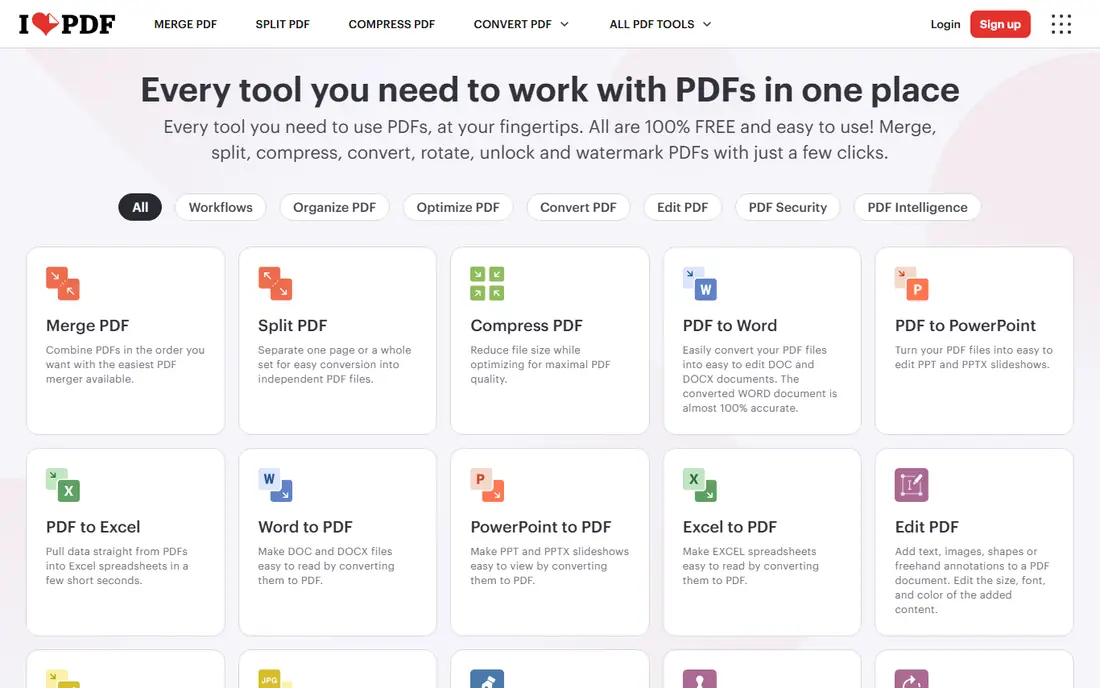
iLovePDF is the browser tool most people reach for first, because the split page is easy to read and hard to misuse. You upload a file, pick page ranges or extract chosen pages, and download the results as separate files. The same site also handles merging, compressing and converting, which helps when a split is only one step in a larger document job.
Free use covers occasional splits well, but limits appear with larger files or frequent jobs. Paid plans remove those limits and add larger file support. For a one-off split of a report, contract or school document, the free tier is usually enough, and the lack of an install keeps the whole job to a few minutes.
- Clear range and page controls
- Full PDF toolset beside splitting
- No install needed
- Free use has processing limits
- Paid plan needed for heavy daily use
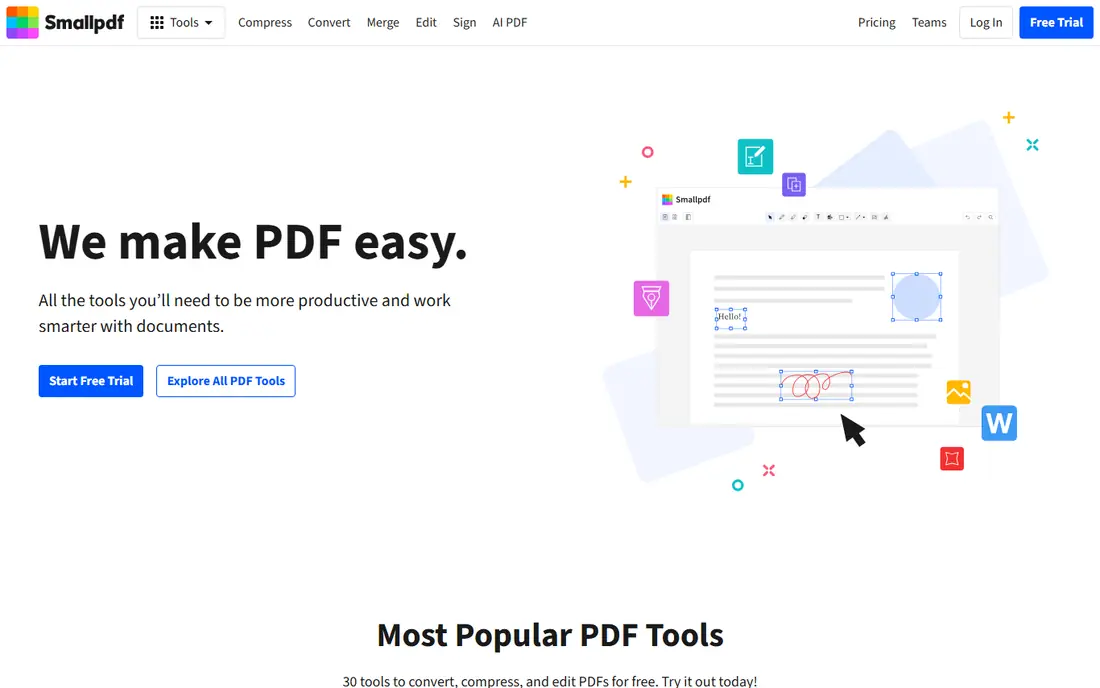
Smallpdf takes a clean, guided approach to splitting. You upload a PDF, choose the pages to extract or split the file into parts, and download the result without learning a desktop editor. Its mobile apps help when the file sits on a phone rather than a computer, and the wider toolset covers signing, compressing and converting.
The free plan limits how many tasks you can run per day, which can frustrate users with a batch of files. Paid plans lift those limits and add larger file handling. Smallpdf fits occasional users who value a tidy interface and a single account for many PDF jobs, rather than power users splitting files all day.
- Simple page extraction
- Mobile apps
- Document tools in one account
- Free use is limited per day
- Paid plan starts at a higher monthly price than rivals
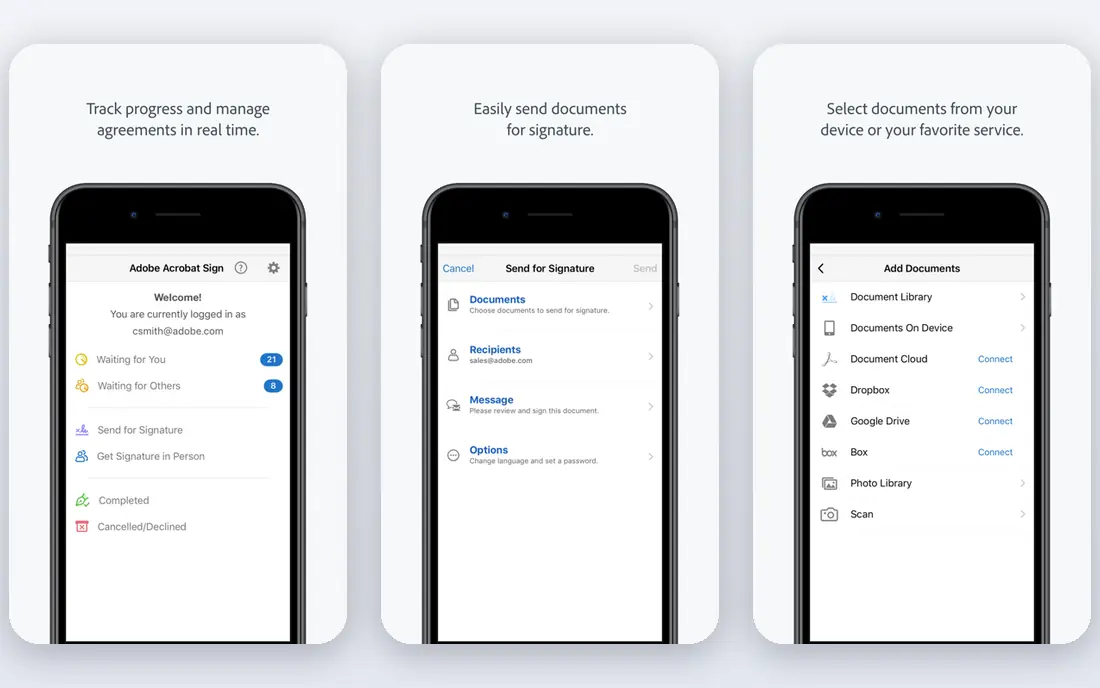
Adobe Acrobat is the professional choice, because splitting is one feature inside a complete PDF editor. On desktop, you can split by page count, file size or top-level bookmarks, which matters for long reports and manuals where bookmarks mark real chapters. Online split tools offer a lighter version of the same job for smaller files.
The cost is the main barrier. Acrobat is a subscription product, and buying it only to split PDFs rarely makes sense. It makes sense when you already edit, sign, compare or protect PDFs at work, and splitting becomes one more task inside a tool you already pay for. Check current pricing on Adobe's site, since plans and online limits change.
- Bookmark, page-count and size splits on desktop
- Trusted PDF handling
- Full editing suite
- Paid subscription
- Free online split use is limited
PDF24 Tools stands out for offering a broad PDF toolkit free in the browser, with a Windows desktop app for users who prefer offline work. Splitting by page ranges works in the browser, while the desktop Creator adds local processing for larger or more frequent jobs. That combination suits offices and students who split files often but do not want a subscription.
The design is practical rather than pretty, and Mac users will rely on the browser tools rather than a native app. For most splitting jobs, though, the browser version is enough, and the absence of a paywall for basic tools is a real advantage. PDF24 is a strong default when cost matters more than polish.
- Free online tools
- Windows desktop app for offline work
- Wide PDF toolset
- Desktop app is Windows only
- Interface is functional rather than polished
PDFsam Basic is the pick for privacy and control. It runs on your computer, so a sensitive contract or medical form never needs to be uploaded to a website. Split modes include page ranges, every set number of pages, bookmarks and target file size, which covers most real splitting jobs without a paid plan.
The trade-off is installation and a slightly technical interface. New users may need a few minutes to find the right split mode, and there is no browser shortcut for a phone-only job. For repeated splits, large files or private documents, PDFsam Basic earns that small setup cost many times over.
- Free and open source
- Files stay on your computer
- Split by pages, bookmarks or size
- Desktop install required
- Interface takes a short learning period
Sejda offers more split control than most browser tools, including splitting by bookmarks, page ranges and text found on pages. That text-based option helps when a long PDF repeats a heading at the start of each section, and you want one file per section without marking pages by hand. A desktop version adds local processing for users who want it.
Free use is generous for occasional jobs but capped by tasks per hour and file size, so a batch of large files may need waiting or a paid plan. The paid plan is modestly priced compared with full editors. Sejda suits users who need smarter splits than a simple page range, but who still prefer a browser tool.
- Range, bookmark and text-based splits
- Desktop option
- No watermark on many free jobs
- Free plan limits tasks per hour and file size
- Paid plan costs $7.50 per month
PDF2Go keeps splitting to the essentials, which is a virtue when you only need part of a file quickly. Upload a PDF, set the split points or page ranges, and download the pieces. Connections to cloud storage help when the source file lives in Drive or Dropbox rather than on your computer.
Advanced users may miss bookmark or text-based splitting, and larger files can hit free limits. For everyday jobs, such as pulling a chapter from a manual or separating a scanned bundle, PDF2Go is fast and easy to explain to a colleague. It works best as a simple browser tool rather than a full document system.
- Simple split workflow
- Optional cloud storage connections
- No install needed
- Free limits apply to larger files
- Fewer advanced split modes than Sejda
PDF Candy bundles splitting with a wide set of browser PDF tools, from merging and compressing to converting and editing. The split tool follows the same simple pattern as its rivals, with page selection and range options that cover common jobs. Having many tools in one place reduces the need to learn a new site for each document task.
Heavy users may hit limits that a paid plan removes, so check the current terms before a large batch. For occasional splitting alongside other PDF chores, PDF Candy is a practical all-rounder. It suits home and small office users who want one bookmark for most PDF jobs.
- Wide browser toolset
- Simple split and merge
- No install needed
- Some tools need a paid plan for heavy use
- Pricing details should be checked on site
How we picked these
We compared official feature pages, free plan limits and split modes for tools that can split a real PDF in 2026. We favored tools that state their limits clearly, handle page ranges, and remain maintained. We left out tools that only extract images, require a full office suite, or hide splitting behind an unclear paywall.
Choosing a split method that fits your file
Start by asking how you want the file divided. A report with chapters suits a bookmark split, a scanned bundle suits page ranges, and a file that is too large to email suits a size-based split. Picking the method first prevents a second split to fix the first one.
Browser or desktop for your document
Browser tools win for speed and for phones, while desktop tools win for privacy and large files. Sensitive documents belong on a local tool such as PDFsam Basic or PDF24 Creator, even when a browser tool looks easier. For public or low-risk files, a browser tool saves install time and works on any computer.
Check limits before a batch job
Free plans often cap file size, pages or tasks per hour, and those caps only appear when a batch is halfway done. Test one file first, note the limit, and plan the batch around it. A paid month can be cheaper than a lost afternoon when a deadline batch hits a free cap.
Frequently asked questions
What are the best tools to split pdf files?
iLovePDF and Smallpdf are the easiest browser picks, PDF24 Tools is the strongest free all-rounder, and PDFsam Basic is best for local, private splits. Adobe Acrobat suits professionals who already use it for editing. The best tool follows your file size, privacy needs and how often you split.
Can I split a PDF for free?
Yes, several tools in this list offer free splitting, including iLovePDF, PDF24 Tools, PDFsam Basic, Sejda and PDF2Go. Free plans usually limit file size, pages or tasks per hour. For a single small file, a free browser tool is usually enough, while large or repeated jobs may need a desktop tool or a paid plan.
How do I split a PDF by chapters?
Use a bookmark split when your PDF has bookmarks marking each chapter, which Adobe Acrobat and PDFsam Basic support. Without bookmarks, split by page ranges that match each chapter start. Check the first and last page of each output file, since a missed page is easy to overlook in a long document.
Is it safe to split a PDF online?
Browser tools use encrypted connections, but any upload still sends your file to a server, so avoid them for highly sensitive documents. Check how long the service keeps files and whether it deletes them after processing. For contracts, medical forms or legal files, use a local desktop tool instead.
Which tool splits large PDFs best?
Desktop tools such as PDFsam Basic and PDF24 Creator handle large files better than most free browser tools, because they avoid upload size caps. Browser tools can still work for large files on a paid plan, but upload time and limits vary. Test with your largest file before committing to a workflow.
Sources
See where you really rank - block by block
ProMapRanker scans Google Maps across a grid of your service area. Simple monthly plans from $19, white-label on every plan.
Start freeKeep reading
 free alternatives to grok imagine
Free Alternatives to Grok Imagine in 2026
We compared the best free alternatives to grok imagine for image generation, from fast daily credits to design tools, so you can create without paying.
Read → best tools for instagram content creation
Best Tools for Instagram Content Creation in 2026
Compare the best tools for Instagram content creation, from Canva and CapCut to Later and Buffer, on design, video, planning, scheduling, and price in 2026.
Read → best software engineering schools
Best Software Engineering Schools in 2026
We compare the best software engineering schools in the US, from large public programs to small private ones, to help you shortlist a strong fit for 2026.
Read →