 ProMapRanker
Best Video Upscaling Software in 2026

Key takeaways
- Topaz Video AI remains the quality reference for serious upscaling, but its subscription price is hard to justify for occasional use.
- HitPaw VikPea and AVCLabs offer strong desktop upscaling with simpler workflows and perpetual licence options.
- VideoProc Converter AI and Winxvideo AI suit general users who also need conversion, editing, and a lower annual price.
- Video2X is the best free path, but it needs a capable GPU and comfort with open-source setup.
- Upscaling creates plausible detail, it does not recover detail the original camera never recorded, so judge previews on your own footage.
Quick comparison
| Pick | Great for | Pricing starts at | Free tier | |
|---|---|---|---|---|
 Topaz Video AI | Professional quality | $299 per year | No | Visit |
 HitPaw VikPea | All-round desktop upscaling | $43.19 per month | Free trial | Visit |
 VideoProc Converter AI | Value for general users | $34.95 per year | Free trial | Visit |
 AVCLabs Video Enhancer AI | Batch desktop enhancement | $39.95 per month | Free trial | Visit |
 Aiarty Video Enhancer | Lifetime value | $79 per year | Free trial | Visit |
 UniFab Video Upscaler AI | DVD and file upscaling | See website | Free trial | Visit |
 Winxvideo AI | Simple, low-cost upscaling | $34.95 per year | Free trial | Visit |
 DaVinci Resolve Studio | Upscaling inside editing | $295 one-time | No | Visit |
 Video2X | Free open-source upscaling | Free | Yes | Visit |
The best video upscaling software
Video upscalers use AI models to enlarge low-resolution footage, reduce noise, sharpen detail, and sometimes add frames or stabilise shaky clips. Results vary a lot by source footage, model choice, and GPU power. These nine tools cover professional, general, and free paths.
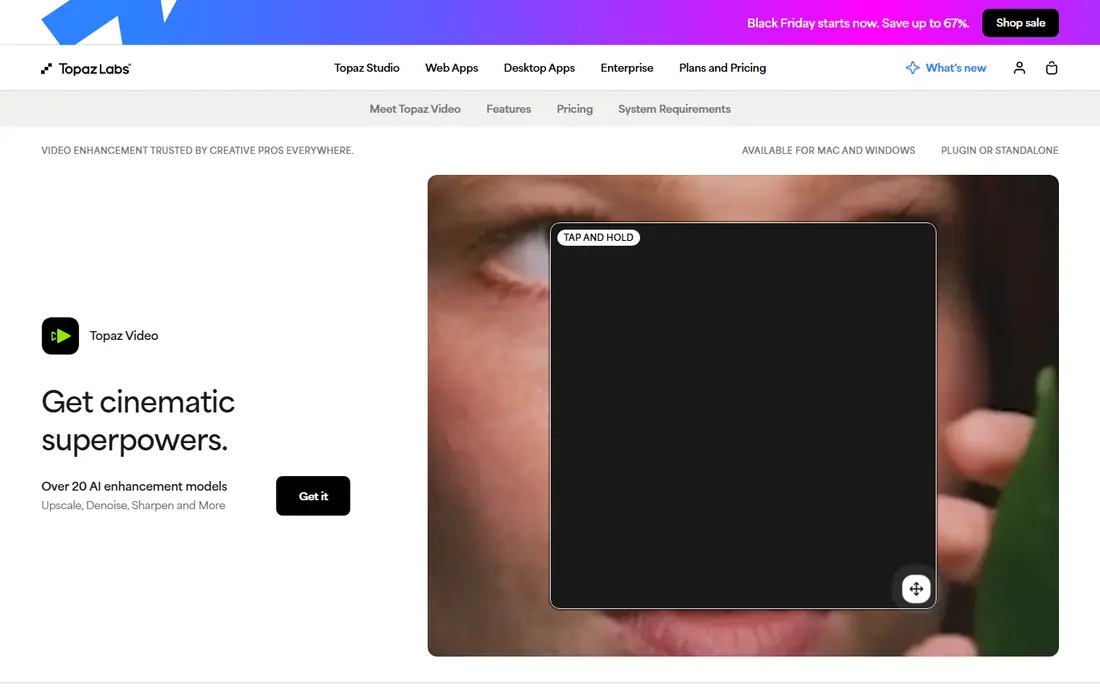
Topaz Video AI is the tool most professionals compare others against. It offers many models tuned for different footage, from old home video to animation, and it handles upscaling, denoising, frame interpolation, and stabilisation in one desktop app. For film restoration and client work where quality matters most, that model range is a real advantage.
The price is the main barrier. At $299 per year for a personal plan, occasional users will struggle to justify it, and the split between desktop plans and cloud models adds confusion. Local rendering also needs a capable GPU, or jobs will run slowly. If you upscale often and quality is the priority, Topaz still leads. If you upscale rarely, a cheaper tool will do.
- Broad model library for different footage types
- Upscaling to 4K and 8K
- Frame interpolation and stabilisation
- Subscription pricing
- No free plan
- Needs a strong GPU for fast local rendering
- Cloud models use credits
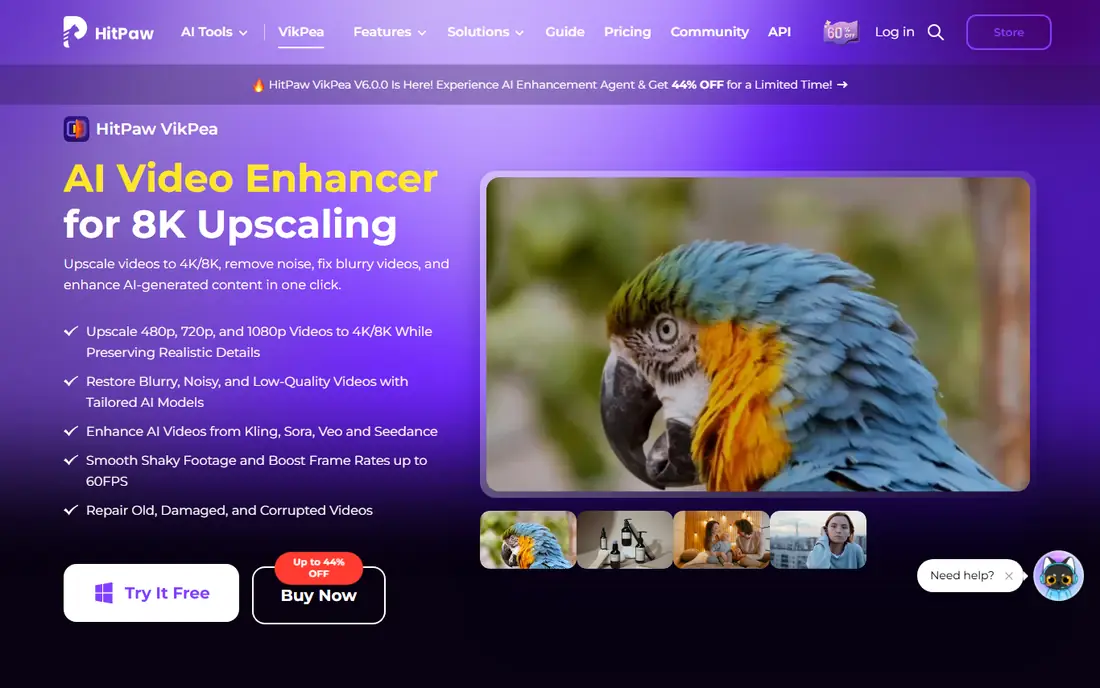
HitPaw VikPea is easier to pick up than Topaz, with models for general restoration, portraits, animation, and colourisation of black-and-white footage. It upscales to 4K and 8K, previews results side by side, and adds stabilisation and repair tools in the same app. For creators who want good results without deep tuning, that simplicity helps.
Pricing needs a careful read. Monthly billing is costly, while yearly and perpetual licences are better value for regular users. The trial also limits export, so judge quality from previews and short tests before paying. For all-round desktop use, VikPea is a strong middle option between Topaz and budget tools.
- Many AI models for different video types
- Upscaling to 4K and 8K
- Colourisation and stabilisation beside upscaling
- Monthly price is high
- Flagship models use credits in some plans
- Trial is preview-only for export
VideoProc Converter AI is the value pick for general users. It combines format conversion, basic editing, and AI upscaling in one tool, at a yearly price well below Topaz. For someone who mainly wants to clean up old clips, convert files, and upscale to 4K, that bundle is practical.
It does not match Topaz for model depth or maximum quality on difficult footage. The interface also packs many tools into one window, which can feel crowded. If you need a general video tool with decent upscaling, rather than a specialist restoration suite, VideoProc is hard to beat on price.
- Low annual price
- Conversion and editing beside AI upscaling
- Works on modest hardware better than some rivals
- Max output is lower than Topaz for some workflows
- AI models are fewer
- Interface is busy
AVCLabs Video Enhancer AI focuses on batch enhancement. You can queue several clips, upscale them, reduce blur, restore faces, and stabilise footage without babysitting each job. That batch flow suits archivists and creators with many clips to process.
The pricing is the drawback. Monthly billing adds up fast, and the perpetual licence costs more than Aiarty or Winxvideo. The trial also watermarks short outputs, so test on your own footage and check the result closely. For batch work on a desktop, AVCLabs is still a capable choice.
- Upscaling to 4K and 8K
- Face restoration and stabilisation
- Batch processing for multiple clips
- Monthly price is high
- Perpetual price is higher than some rivals
- Free trial output is watermarked and short
Aiarty Video Enhancer appeals to users who dislike subscriptions. Its yearly price is modest, and a lifetime licence for several machines offers long-term value for regular users. It upscales imperfect footage to high-definition clarity, with models for general video and faces.
It does not offer the model breadth of Topaz, and very difficult footage may still favour a specialist tool. The trial is limited, so short tests matter. For a user who upscales steadily and wants to avoid a yearly Topaz bill, Aiarty is a sensible middle ground.
- Yearly and lifetime options
- Upscaling to 4K
- Commercial use included on paid plans
- Model range is smaller than Topaz
- Trial is watermarked and limited
- Needs a decent GPU
UniFab Video Upscaler AI is often used for digitised DVD and file collections, where very high output resolutions are useful. It offers modular licences, so users can buy the upscaler module rather than a full suite, and trial terms have been generous in past listings. For archive work, that focus fits well.
Pricing is the problem. Current prices are not published clearly on the vendor site, so we wrote See website rather than guessing. Modular add-ons also need care, since extra features can raise the total. Check the current licence terms before buying, and trial it on your own digitised footage.
- Very high maximum output for digitised files
- Modular licences
- Trial with no watermark for 30 days in some listings
- Pricing is not published clearly
- Modular add-ons can confuse costs
- Interface suits file work more than editing
Winxvideo AI is a simple, low-cost desktop tool that combines upscaling with conversion, compression, and basic editing. Its yearly price matches VideoProc, and its workflow is easy for beginners: import, pick a model, preview, and export. For casual users cleaning up phone or camera clips, that simplicity is enough.
Limits are clear. The trial allows only a few exports per feature, and model depth is less than Topaz or HitPaw. Very noisy or very low-resolution footage may not improve as much as a specialist tool would manage. For everyday upscaling on a budget, Winxvideo is a fair pick.
- Low yearly price
- Simple workflow
- Conversion and editing tools beside upscaling
- Trial exports are limited per feature
- Model depth is less than Topaz
- Output quality varies by source
DaVinci Resolve Studio is not a dedicated upscaler, but its Super Scale feature makes it a strong choice for editors already using Resolve. You can upscale clips inside your edit, colour grade them, and export without leaving the timeline. The one-time price also appeals to users tired of subscriptions.
The free edition of Resolve does not include Super Scale, so this pick only applies to the paid Studio version. Resolve itself also has a learning curve, and 4K work needs solid hardware. For editors who already live in Resolve, Studio upscaling is convenient and cost-effective over time.
- One-time purchase
- Super Scale upscaling inside a full editor
- Professional colour and editing tools
- No free edition Super Scale
- Learning curve for new editors
- Needs strong hardware for 4K work
Video2X is the free path for users comfortable with open-source software. It supports several upscaling engines, costs nothing, and gives full control over settings. For anime, old footage, and general clips, it can produce strong results when set up well.
Setup is the barrier. Video2X needs a capable GPU, driver setup, and patience with settings, and there is no vendor support desk to call. Beginners may prefer a paid desktop tool with a simpler interface. For technical users on a zero budget, Video2X is the best free upscaler in this list.
- Free and open source
- Supports several upscaling engines
- No subscription or credits
- Setup needs technical skill
- Needs a capable GPU
- Results depend on engine and settings
How we picked these
We compared official product pages, pricing pages, and public comparisons for upscalers that are still sold or maintained in October 2026. We kept tools that upscale video with AI models or, in the case of Resolve, with a dedicated upscaling feature inside an editor. Where pricing was unclear or changed often, we wrote See website rather than repeating a sale price.
How to get better upscaling results
Start with the best source you have. Upscaling cannot invent detail that was never recorded, so a clean, stable source will always beat a heavily compressed clip, no matter which tool you use. Avoid upscaling a file that has already been compressed several times if an earlier version exists.
Test models on a short clip before processing a whole archive. Different models suit faces, animation, and general footage, and the wrong model can create waxy skin or odd textures. Check faces, text, and fine patterns closely, since those areas show AI artefacts first. Also check your GPU and export settings early, since a long job with the wrong settings wastes hours.
Finally, judge the result at your real viewing size. A clip that looks good on a phone may show artefacts on a large TV, and a clip meant for social media may not need 4K at all. Upscale to the size you will actually watch, not the largest size a tool offers.
Frequently asked questions
What is the best video upscaling software?
Topaz Video AI leads on quality for professional work, while HitPaw VikPea and AVCLabs suit general desktop use. VideoProc and Winxvideo offer good value, and Video2X is the best free option for technical users.
Can AI upscaling really turn 1080p into true 4K?
No, not in the strict sense. Upscaling enlarges the image and creates plausible detail, but it cannot recover detail the original camera never captured. Results can look much better, especially for viewing, but they are not the same as native 4K footage.
Do I need a powerful GPU for video upscaling?
For desktop tools, yes, a capable GPU makes a large difference to speed. Cloud tools avoid that need but charge per use or per credit. Check the GPU requirements on the vendor site before you buy a desktop licence.
Is there a free video upscaler that works well?
Video2X is free and open source and can work well, but it needs setup and a good GPU. DaVinci Resolve free edition does not include Super Scale, so it is not a free upscaling path in the same way.
Which upscaler is best for old home videos?
Topaz Video AI and HitPaw VikPea both offer models for old and noisy footage, with denoising and stabilisation. Test a short clip in each trial first, since old footage varies a lot in quality.
Should I upscale to 8K?
Only if you have a real need, such as large-screen display or archive work. For most viewing, 4K is enough, and 8K jobs take far longer and need far more storage. Upscale to the size you will watch.
Sources
- https://www.topazlabs.com/topaz-video-ai
- https://www.hitpaw.com/video-enhancer.html
- https://www.videoproc.com/
- https://www.avclabs.com/video-enhancer-ai.html
- https://www.aiarty.com/ai-video-enhancer/
- https://www.unifab.ai/video-upscaler-ai.htm
- https://www.winxdvd.com/winxvideo-ai/
- https://www.blackmagicdesign.com/products/davinciresolve/studio
- https://github.com/k4yt3x/video2x
See where you really rank - block by block
ProMapRanker scans Google Maps across a grid of your service area. Simple monthly plans from $19, white-label on every plan.
Start freeKeep reading
 wpforms alternatives
Best WPForms Alternatives in 2026
We compare 9 wpforms alternatives for WordPress forms, with free and paid options, current pricing notes, and honest limits for small business sites in 2026.
Read → windows task scheduler alternatives
Best Windows Task Scheduler Alternatives in 2026
Looking for Windows Task Scheduler alternatives? We compare 9 schedulers for Windows and cross-platform work, from free tools to enterprise automation.
Read → which ai video service is best
Which AI Video Service Is Best in 2026
which ai video service is best? We compare 10 legitimate AI video services on price, avatars, editing and output quality to help you pick the right tool.
Read →