 ProMapRanker
Best Time Blocking App in 2026

Key takeaways
- Reclaim is the best default for most calendar users, because it protects focus time and habits around existing meetings.
- Motion suits people who want tasks placed on the calendar automatically, but its price is high for solo users.
- Sunsama suits people who want a calm daily planning ritual rather than full automation.
- A free calendar can handle manual time blocking well, so pay only when automation saves you real planning time each week.
Quick comparison
| Pick | Great for | Pricing starts at | Free tier | |
|---|---|---|---|---|
 Reclaim | Automatic focus and habit blocks | Free | Yes | Visit |
 Motion | Full auto-scheduling | $19 per seat per month | No | Visit |
 Sunsama | Guided daily planning | $20 per month | No | Visit |
 Akiflow | Fast manual planning | See website | No | Visit |
 TickTick | Tasks plus calendar blocks | Free | Yes | Visit |
 Structured | Simple visual day timeline | Free | Yes | Visit |
 Google Calendar | Free manual blocking | Free | Yes | Visit |
 FlowSavvy | Automatic blocking for individuals | Free | Yes | Visit |
The best time blocking apps
Time blocking means giving work a place on the calendar, instead of letting it float on a task list. Some apps place blocks for you, others give you a better canvas to place them yourself, and the right choice depends on how much control you want.
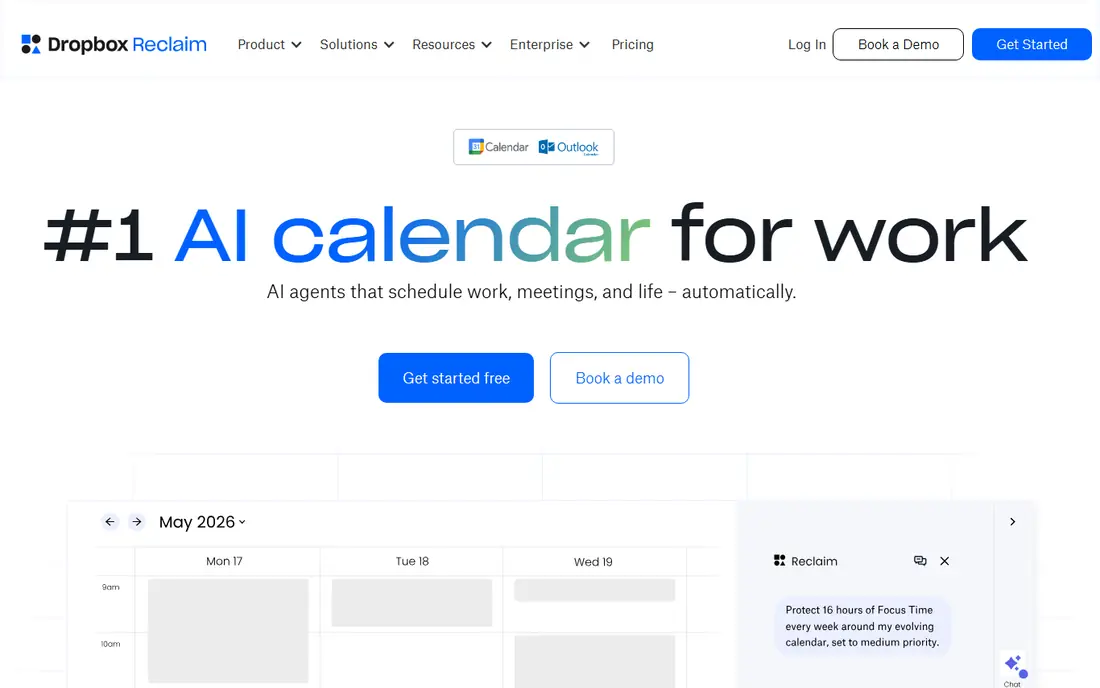
Reclaim works as a layer on top of the calendar you already use, which is why it feels less disruptive than a full replacement. You define focus time, habits, lunch breaks and task blocks, and Reclaim finds open slots and moves them when meetings change. That automatic defense matters most for people whose calendars fill up with other people's priorities.
The free plan covers core habit and focus blocking, while paid plans add task scheduling and team features. Reclaim asks for calendar access to do its job, so privacy-minded users should read its permissions before connecting a work calendar. For most busy professionals, it is the easiest way to keep deep work from disappearing.
- Protects focus time around meetings
- Habit and task blocks
- Google and Outlook sync
- Paid plans start at $10 per user per month for fuller features
- Setup needs calendar access
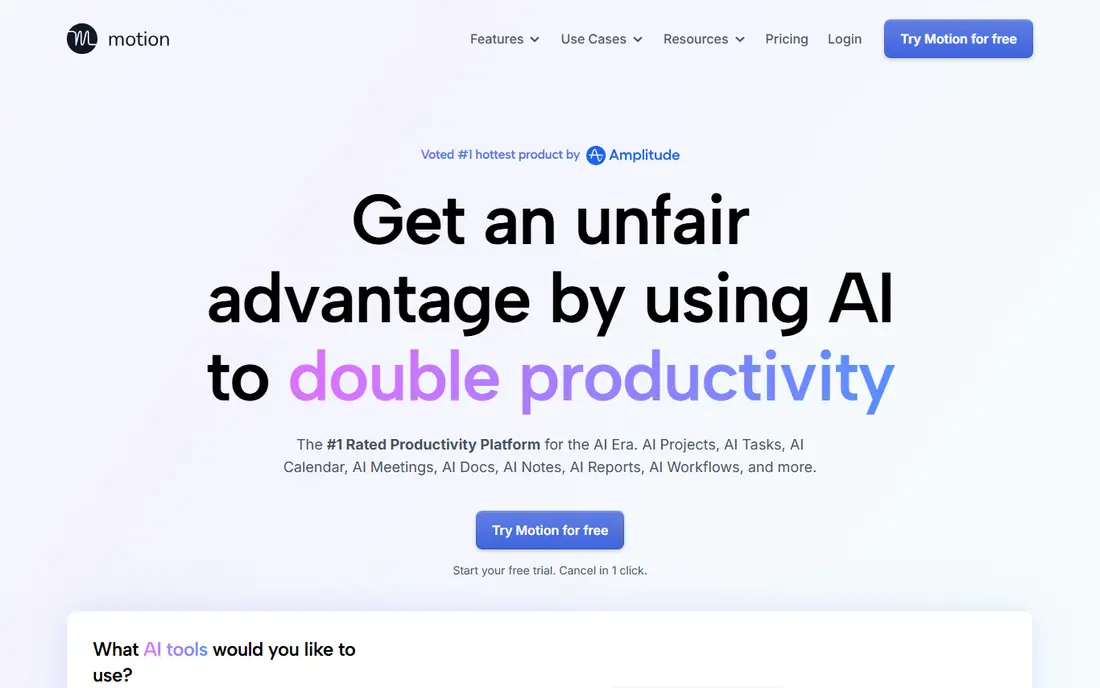
Motion takes the strongest automation stance in this list. You add tasks with deadlines and durations, and Motion builds a schedule around meetings, priorities and available time. When a meeting moves, the plan reshuffles, which saves the daily replanning that manual blocking demands. Project and meeting features sit in the same workspace, so work does not need a second app.
That power comes with cost and complexity. Solo pricing is high compared with a free calendar, and teams pay per seat. Motion suits people with many tasks, shifting deadlines and a calendar that changes daily. If your week is stable and your task list is short, a simpler planner will do the same job for less.
- Places tasks, projects and meetings automatically
- Reschedules when plans change
- Built-in project tools
- High price for individuals
- Can feel like too much system for simple calendar needs
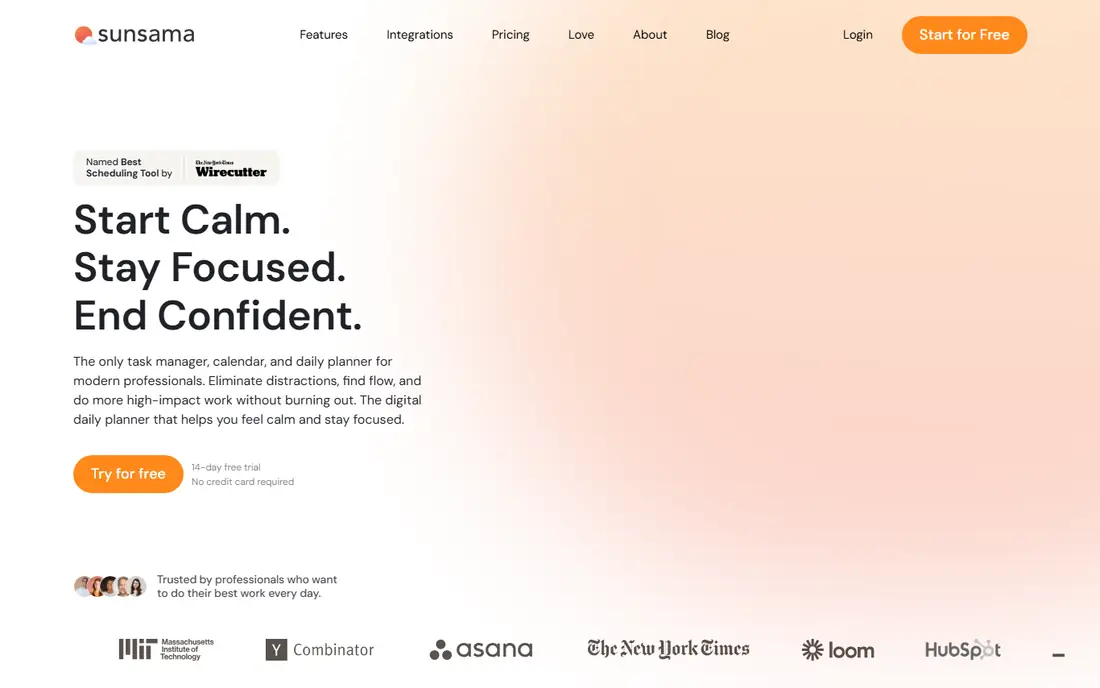
Sunsama treats planning as a short daily ritual, not a background algorithm. Each morning you pull tasks into the day, estimate how long they take, and place them beside calendar events until the day looks realistic. That honest check prevents the common error of planning ten hours of work into an eight-hour day.
The guided flow suits people who feel overwhelmed by an open task list, because it forces a choice about what fits today and what waits. Sunsama has no free plan, and the monthly price is high for a manual planner, so it needs to earn its place by changing how you start the day. Users who love that ritual often stay, while automation fans may find it slow.
- Calm guided daily review
- Task and calendar view in one screen
- Google and Outlook sync
- No free plan, only a trial
- Manual planning takes a few minutes each morning
Akiflow is built for speed. You capture tasks with keyboard shortcuts, drag them onto the calendar, and clear the day without touching the mouse much. Integrations pull tasks from other tools, so the planning screen can become a single inbox for work scattered across apps. That speed appeals to power users who plan every day and hate slow interfaces.
Akiflow does not auto-schedule like Motion or Reclaim, so the planning work stays yours. The price also sits above simpler planners, which makes it a poor fit for casual users. For professionals who live in their calendar and value a fast, keyboard-driven workflow, the time saved each morning can justify the cost.
- Keyboard-first task capture
- Calendar and tasks in one view
- Many integrations
- No free plan
- Price is high for a manual planner
TickTick is the budget all-rounder for time blocking. Tasks can carry dates and durations, appear on the calendar, and run with a built-in Pomodoro timer while you work. That combination covers manual blocking, focus sessions and habit tracking without a second app, and the free plan handles the basics well.
TickTick will not auto-place your whole day the way Reclaim or Motion can, so you still decide where each block goes. For many users that control is a plus, not a flaw. Premium adds calendar subscriptions and fuller features at a modest yearly price, making TickTick a strong value pick for students and freelancers.
- Tasks, calendar and Pomodoro timer together
- Habit tracking
- Affordable Premium plan
- Premium plan costs $35.99 per year
- Auto-scheduling is limited compared with Reclaim
Structured turns the day into a visual timeline, which helps people who think in blocks rather than lists. You add tasks with times, see gaps and overlaps at a glance, and check items off as the day moves. The design is calm and simple, which suits users who find full project tools overwhelming.
Project management, team features and heavy automation are outside its scope. Structured works best for personal days, school schedules and solo work, where a clear timeline beats a complex system. If you need team planning or auto-scheduling, pair it with a calendar app or choose Reclaim instead.
- Clear visual timeline for the day
- Simple task entry
- Good on mobile
- Less depth for projects and teams
- Paid features vary by platform
Google Calendar remains a valid time blocking tool, because blocking itself needs only a calendar and discipline. You create events for deep work, admin, exercise and breaks, color-code them, and set recurring blocks for weekly habits. Sharing makes it easy to protect time visibly, since colleagues see a booked calendar rather than an empty one.
The limits are obvious. Google Calendar will not place tasks for you, estimate durations or reshuffle when meetings move. That manual work suits stable weeks and users who enjoy planning by hand. Before paying for a specialist app, try two weeks of manual blocks here, and note exactly which steps feel slow.
- Free
- Works everywhere
- Easy sharing and recurring blocks
- No auto-scheduling
- Task features are basic
FlowSavvy aims at individuals who want automatic blocking without a team price tag. You add tasks and priorities, and the app places them into open calendar time, adjusting as the day changes. A free plan gives solo users a real way to test automation before paying, which sets it apart from several rivals here.
The ecosystem is smaller, with fewer integrations and team features than Motion or Reclaim. For a solo user with a Google or Outlook calendar and a growing task list, that may not matter. FlowSavvy is worth testing when you want automation, but your budget or team size rules out the larger platforms.
- Automatic time blocking
- Free plan for individuals
- Works on web and mobile
- Smaller ecosystem than Motion or Reclaim
- Paid plan costs $14 per month
How we picked these
We compared official feature pages, pricing pages and calendar integrations for apps that support time blocking in 2026. We favored apps that work with Google Calendar or Outlook, state their pricing clearly, and remain available. We left out apps that discontinued service in 2026, or that only offer a timer without calendar blocking.
Choosing between manual and automatic blocking
Manual blocking gives you full control and costs little, but it needs a daily habit to stay useful. Automatic blocking saves planning time, but it needs calendar access and trust in its choices. Test both styles for two weeks, and keep the one you actually maintain when work gets busy.
Start with a realistic day
Block deep work first, then meetings, then admin, and leave gaps for overruns. A day packed edge to edge will break at the first delay, while a day with buffers survives. Review the plan at the end of the day, and move unfinished blocks rather than letting them vanish from the calendar.
Protect focus time visibly
Name focus blocks clearly, such as writing or planning, so colleagues see a booked time rather than free time. Share only what your workplace needs, and keep personal blocks private where possible. A protected block that others respect is worth more than a perfect schedule that no one can see.
Frequently asked questions
What is the best time blocking app?
Reclaim is the best default for most calendar users, because it protects focus time automatically around meetings. Motion suits heavy auto-scheduling needs, Sunsama suits a guided daily ritual, and Google Calendar suits free manual blocking. The best app follows how much automation you want and what you will pay for it.
What are the best time blocking apps for teams?
Reclaim and Motion both offer team features, with Reclaim focused on calendar protection and Motion on full task and project scheduling. Google Calendar and TickTick work for small teams that need shared visibility without heavy automation. Check per-seat pricing before rolling a tool out to a whole team.
What is the best app for time blocking on a budget?
Google Calendar is free and handles manual blocking well, while TickTick and FlowSavvy offer free plans with more task features. Reclaim also has a free plan for core focus blocking. Start free, and pay only when automation or a specific feature saves you measurable planning time.
Does time blocking work for students?
Yes, time blocking helps students by giving revision, assignments and breaks a fixed place in the week. Structured and TickTick suit student schedules, while Google Calendar covers manual blocking at no cost. Keep blocks short, add breaks, and move unfinished study to the next open slot rather than dropping it.
How long should a time block be?
Most focus blocks work well at 50 to 90 minutes, with a break after each block, though the right length depends on the task. Short admin tasks suit 25-minute blocks, while writing and planning often need a longer stretch. Test a few lengths, and keep the one that leaves you finishing blocks rather than abandoning them.
Sources
See where you really rank - block by block
ProMapRanker scans Google Maps across a grid of your service area. Simple monthly plans from $19, white-label on every plan.
Start freeKeep reading
 free alternatives to grok imagine
Free Alternatives to Grok Imagine in 2026
We compared the best free alternatives to grok imagine for image generation, from fast daily credits to design tools, so you can create without paying.
Read → best tools for instagram content creation
Best Tools for Instagram Content Creation in 2026
Compare the best tools for Instagram content creation, from Canva and CapCut to Later and Buffer, on design, video, planning, scheduling, and price in 2026.
Read → best tool to split pdf files
Best Tool to Split PDF Files in 2026
We compared the best tool to split pdf files on split modes, file limits, privacy and price, so you can split a PDF cleanly and keep every page in one go.
Read →