 ProMapRanker
Best Software for Opening PDFs in 2026


Maximum PDF compatibility and forms · Pricing starts at: Free
Key takeaways
- Most people do not need to buy anything to open a PDF, since browsers, Windows, and Mac already include a capable viewer.
- Adobe Acrobat Reader is the safest choice for complex forms and shared documents, while SumatraPDF is the fastest lightweight option on Windows.
- PDFgear and Foxit PDF Reader add free editing and annotation without a subscription, which suits students and small teams.
- If you only need to read, search, and print, pick the lightest tool that opens your files correctly and skip the paid editor.
Quick comparison
| Pick | Great for | Pricing starts at | Free tier | |
|---|---|---|---|---|
| Adobe Acrobat Reader | Maximum PDF compatibility and forms | Free | Yes | Visit |
 Foxit PDF Reader Foxit PDF Reader | Cross-platform reading with forms and annotation | Free | Yes | Visit |
 SumatraPDF SumatraPDF | Fast, lightweight reading on Windows | Free | Yes | Visit |
 PDFgear PDFgear | Free reading plus light editing | Free | Yes | Visit |
 Okular Okular | Open source reading on Windows, Mac, and Linux | Free | Yes | Visit |
 Apple Preview Apple Preview | Mac users who need no extra install | Free | Yes | Visit |
 Microsoft Edge Microsoft Edge | Quick PDF reading in a browser on Windows | Free | Yes | Visit |
 PDF-XChange Editor PDF-XChange Editor | Feature-rich reading on Windows | Free | Yes | Visit |
The best software for opening pdfs
Opening a PDF should be boring, fast, and reliable, and the best tool is usually the simplest one that handles your files correctly. The eight options below range from the full Adobe standard to tiny open source readers and built-in viewers, so you can stop paying for features you never use.
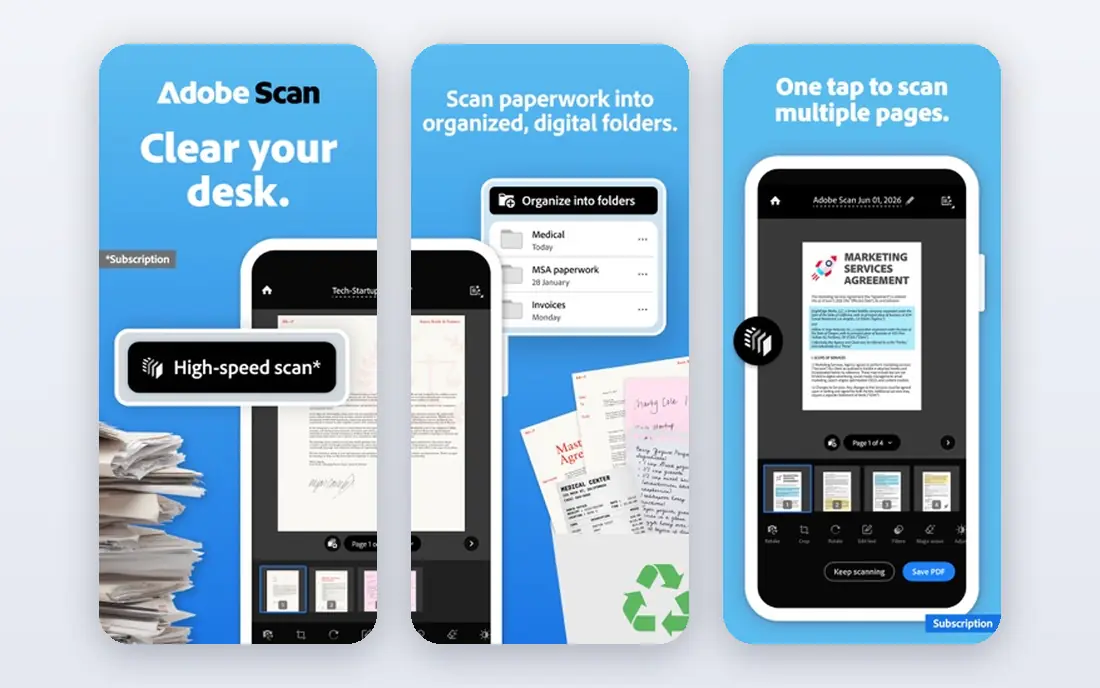
Adobe Acrobat Reader is the free standard for viewing PDFs, and it remains the safest choice when compatibility matters. Since Adobe created the PDF format, Reader handles complex forms, signed documents, multimedia, and unusual layouts more reliably than many rivals. It also covers reading, highlighting, commenting, filling forms, and signing for free, with cloud sync across devices through an Adobe account.
The downside is weight and upselling. Reader is larger and slower to open than SumatraPDF or a browser viewer, and it regularly prompts you to subscribe to Acrobat Pro for editing, conversion, and advanced features. Acrobat Pro starts at about $19.99 per month on annual plans in recent comparisons, so check the Adobe site before upgrading. If you share documents with clients, courts, or employers, Reader is still the low-risk default.
- Best compatibility with complex PDFs, forms, and multimedia
- Free reading, commenting, filling, and signing
- Available on desktop and mobile
- Larger and slower to launch than lightweight readers
- Frequent prompts to upgrade to paid Acrobat Pro
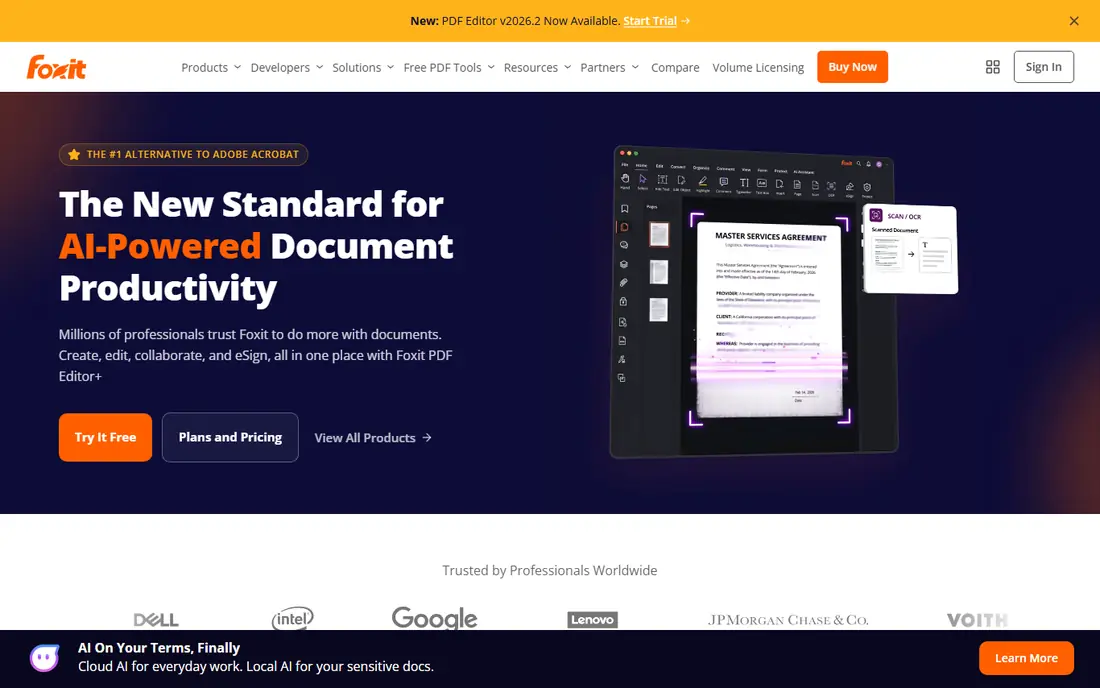
Foxit PDF Reader is a strong free alternative to Adobe, especially for teams that switch devices. It runs on Windows, macOS, Linux, Android, and iOS, uses a familiar ribbon interface, and includes reading, annotation, form filling, and signing without a subscription. For a small team that needs consistent PDF handling across platforms, Foxit is easier to standardize than a mix of built-in viewers.
The catch is the line between Reader and Editor. Advanced editing, OCR, and some security features sit in the paid Foxit PDF Editor, which starts around $14 per month in recent comparisons, so check the Foxit site for current pricing. For opening, reading, and annotating PDFs, the free Reader is enough for most users, and it feels lighter than Adobe in daily use.
- Free reader on Windows, Mac, Linux, Android, and iOS
- Office-style interface many users find familiar
- Form filling and annotation included
- Full editing requires the paid Foxit PDF Editor
- Installer may offer extra software if you rush through setup
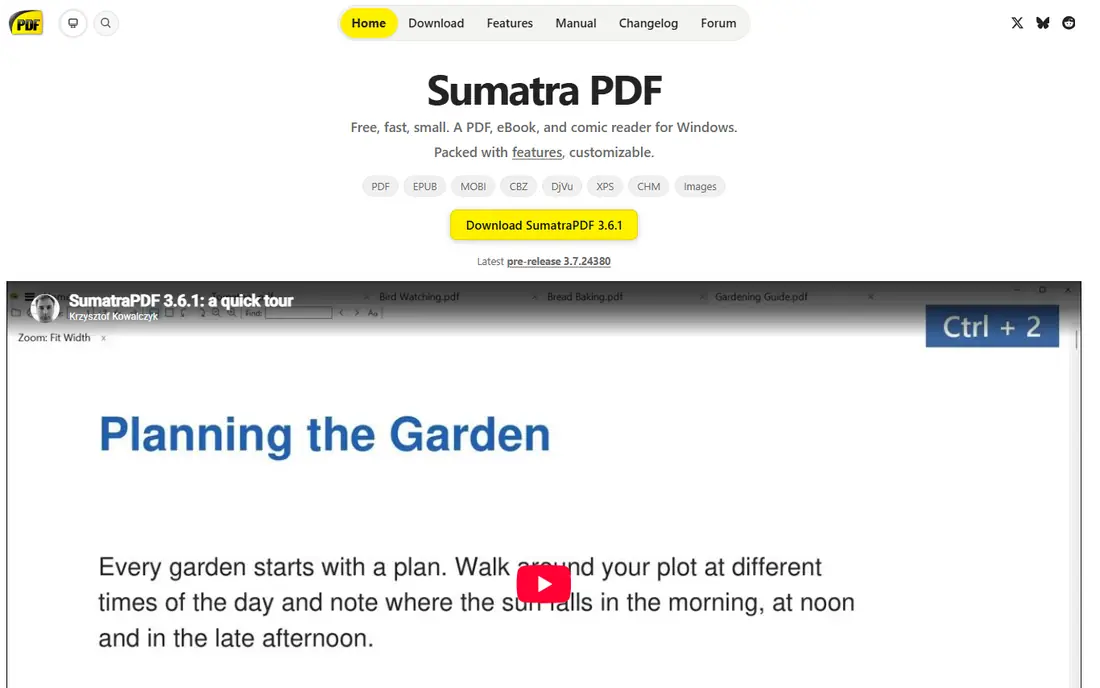
SumatraPDF is the reader to install when speed matters more than editing. Its installer is only a few megabytes, it opens large books quickly even on older PCs, and it has no account, ads, or upgrade prompts. It also reads EPUB and MOBI ebook files, which makes it a good single reader for students with mixed document libraries. A portable version can run from a USB drive without installing anything.
The trade-off is features. SumatraPDF focuses on reading, searching, and printing, with far less annotation, form, and editing support than Adobe or Foxit. If you mainly open manuals, textbooks, and reports to read them, that simplicity is a strength. If you fill complex forms daily, keep Adobe Reader or Foxit as a second tool.
- Very small and fast, with no account or ads
- Opens PDFs, EPUB, and MOBI files
- Portable version runs from a USB drive
- Windows only
- Fewer annotation and form features than Adobe or Foxit
PDFgear stands out because it gives away more than most free readers. You can open and read PDFs, edit text and objects, split and merge documents, convert files, add signatures, and reorder pages, all without creating an account or paying a subscription for the core desktop app. For students and small businesses that occasionally need to fix a PDF, that free editing is genuinely useful.
The interface is busier than SumatraPDF, and the optional AI chatbot features require internet access, while core reading and editing work offline. PDFgear is available on Windows, Mac, and iOS, so check the current platform list on the vendor site before installing on Linux or Android. If you want one free tool that both opens and lightly edits PDFs, PDFgear is the best value on this list.
- Free desktop reader and editor with no account required
- Split, merge, convert, and annotate PDFs
- Works offline for core tasks
- AI chat features need an internet connection
- Interface is busier than a simple reader
Okular, from the KDE community, is the best open source all-rounder for opening PDFs. It runs on Windows, macOS, and Linux, reads PDFs plus EPUB and comic formats, and includes annotation, bookmarks, and navigation tools that suit students and researchers. Because it is fully free and open source, there are no upgrade prompts, trials, or locked features to work around.
The honest catch is polish. Okular interface and rendering can feel less refined than Adobe or Foxit, and very complex commercial PDFs may look slightly different than in Adobe Reader. For everyday reading, study, and annotation, those differences rarely matter. If you value open source software and cross-platform support, Okular is an excellent default reader.
- Free and open source with no ads or account
- Reads PDFs, EPUB, and comics
- Strong annotation and navigation tools
- Interface feels less polished than commercial readers
- Some advanced PDF features may render differently
Apple Preview is the answer for most Mac users, and it is already on your computer. It opens PDFs instantly, supports searching, printing, form filling, signatures, and Markup annotation, and it integrates with macOS sharing and iCloud. For reading contracts, manuals, and forms on a Mac, Preview covers the job without installing anything or creating an account.
The limit is platform and depth. Preview is Mac only, so it does not help Windows or Linux users, and it lacks the advanced editing, redaction, and enterprise features of Acrobat Pro. Most Mac users will never need those features for opening and annotating PDFs. If a file renders oddly in Preview, open it in Adobe Reader as a second check before assuming the file is broken.
- Built into macOS, so no download needed
- Fast opening with Markup for annotation
- Forms and signatures built in
- Mac only
- Less suited to complex enterprise PDF workflows than Adobe
Microsoft Edge is the fastest way to open a PDF on most Windows PCs, since it is already installed and opens a file in a browser tab with search, zoom, print, and basic annotation. For a quick check, a downloaded report, or a form you need to read before deciding what to do with it, Edge is often enough, and it avoids installing another app entirely.
Edge is not a full replacement for Adobe Reader or Foxit for heavy PDF work. Large documents, complex forms, and advanced annotation are handled better in a dedicated reader, and Edge features change with browser updates. Treat Edge as your quick viewer and keep a dedicated reader installed for important documents, forms, and long reading sessions.
- Built into Windows, so no install needed
- Fast for quick reading, searching, and printing
- Annotation and form support for common files
- Less powerful than a dedicated reader for large or complex documents
- Features vary by Edge version
PDF-XChange Editor is a Windows favorite for users who want more than a simple viewer without paying for Acrobat. The free version handles reading, searching, annotation, and many basic editing tasks, with a tabbed interface that suits people who work with many documents at once. Performance is strong, and the tool feels more complete than a browser viewer for daily document work.
The main limit is platform. PDF-XChange is Windows focused, so Mac and Linux users should choose Foxit, Okular, or PDFgear instead. Full Pro features, including advanced OCR and editing, require a paid license, with perpetual licenses reported from about $62 in recent comparisons, so check the vendor site for current pricing. For Windows users who open PDFs all day, it is a strong free starting point.
- Free version covers reading, annotation, and many editing basics
- Fast performance on Windows
- Strong tabbed interface for many documents
- Windows focused, with less Mac and Linux support
- Full Pro features require a paid license
How we picked these
We compared official vendor pages and recent 2026 reader guides for software that is actively available and genuinely opens PDFs, rather than editors that only convert files. We included the Adobe standard, cross-platform free readers, lightweight and open source options, and built-in viewers, since readers searching this topic have very different devices and needs. Where paid upgrade pricing varied across sources, we noted the approximate figure in the text and listed the free reader as the starting price, so readers can check the current plan before paying.
How to choose the right PDF reader
Start with what you already have. On a Mac, try Preview first. On Windows, try Edge for quick files and SumatraPDF or PDFgear for longer reading. Only install Adobe Reader if you handle complex forms, signed documents, or files shared with clients and employers, since compatibility matters more there than speed.
Then match features to your real tasks. If you annotate and fill forms daily, Foxit or PDFgear will save time. If you read large books on an older PC, SumatraPDF will feel fastest. If you need full editing, OCR, or redaction regularly, compare paid editors such as Acrobat Pro, Foxit PDF Editor, and PDF-XChange Pro on current pricing, rather than assuming the reader you like also edits well. For most people, a free reader plus a browser viewer is all they will ever need.
Frequently asked questions
What is the best software for opening pdfs on Windows?
For most Windows users, Adobe Acrobat Reader is the safest choice for compatibility, SumatraPDF is the fastest lightweight choice, and PDFgear is the best free choice if you also want light editing. Microsoft Edge is fine for quick reading without installing anything. Pick Reader for important forms, SumatraPDF for speed, and PDFgear for editing.
What is the best free PDF reader?
Adobe Acrobat Reader, Foxit PDF Reader, SumatraPDF, PDFgear, and Okular are all free for reading, with different strengths. Reader wins on compatibility, SumatraPDF wins on speed, PDFgear wins on free editing, and Okular wins as an open source cross-platform option. There is no single best free reader for every device and task.
Do I need Adobe Acrobat to open a PDF?
No, every modern browser and operating system includes a PDF viewer, and free readers such as Foxit, SumatraPDF, and PDFgear open most files correctly. Adobe Reader is useful when a file uses complex forms, signatures, or multimedia, or when you need maximum compatibility with files shared by others. For simple reading, a built-in viewer is enough.
What is the lightest PDF reader?
SumatraPDF is the lightest mainstream reader on this list, with a very small installer and fast opening even on older hardware. Browser viewers such as Edge are also light, since they need no extra install. If your PC is slow, start with SumatraPDF or your browser before installing a larger reader.
Can I open PDFs on a Mac without extra software?
Yes, Apple Preview is built into macOS and opens PDFs with search, annotation, forms, and signatures. It covers most everyday reading and form tasks without a download. Install Adobe Reader only if a specific file renders incorrectly in Preview or you need Acrobat-specific features.
What is the best PDF reader for students?
PDFgear and Okular suit students well, since both are free and support annotation for study notes, while SumatraPDF suits fast reading on older laptops. Adobe Reader is still useful for official forms and shared course documents. Pick the reader that handles your textbooks and lecture files fastest, and keep Reader as a backup for tricky files.
Sources
See where you really rank - block by block
ProMapRanker scans Google Maps across a grid of your service area. Simple monthly plans from $19, white-label on every plan.
Start freeKeep reading
 zoom alternatives
Best Zoom Alternatives in 2026
Compare Zoom alternatives in 2026, with free meeting limits and prices, so you can pick the best alternative to Zoom for your team, class, or community.
Read → which software is best for remote work
Which Software Is Best for Remote Work in 2026
Answering which software is best for remote work, we compare Slack, Zoom, Asana, Notion, Teams and more, with pricing and honest tradeoffs in 2026 now.
Read → which ai tool is best for content writing
Which AI Tool Is Best for Content Writing in 2026
Wondering which ai tool is best for content writing? We compare ChatGPT, Claude, Jasper, Grammarly, and more on price, quality, and best use in 2026 now.
Read →