 ProMapRanker
Best Remote PC Software in 2026


General remote access with compliance · Pricing starts at: $24.90 per month
Key takeaways
- Splashtop and RemotePC give the lowest entry prices for reaching your own computers from elsewhere.
- TeamViewer and AnyDesk lead on recognition and speed, but their paid plans cost more than the budget picks.
- Chrome Remote Desktop is free for personal use and is enough for many single-computer setups.
- Only connect to computers you own or have clear permission to access, and turn on two-factor authentication on every account.
Quick comparison
| Pick | Great for | Pricing starts at | Free tier | |
|---|---|---|---|---|
| TeamViewer | General remote access with compliance | $24.90 per month | Free trial | Visit |
 AnyDesk | Speed-first remote sessions | $28.90 per month | Free trial | Visit |
 Splashtop | Affordable remote work access | $5 per month | Free trial | Visit |
 RemotePC | Cheapest unattended access | $2.95 per month | Free trial | Visit |
 Zoho Assist | Helpdesk-style remote support | $12 per month | Yes | Visit |
 ConnectWise ScreenConnect | MSPs and IT teams | See website | Free trial | Visit |
 Chrome Remote Desktop | Free personal access | Free | Yes | Visit |
 Parsec | Low-latency creative work | $9.99 per month | Yes | Visit |
The best remote pc software
Remote PC software lets you control another computer from your laptop, tablet, or phone. Some tools suit reaching your own office machine, while others suit helping customers or managing many computers without anyone present. We compared them on price, performance, security controls, and ease of setup.
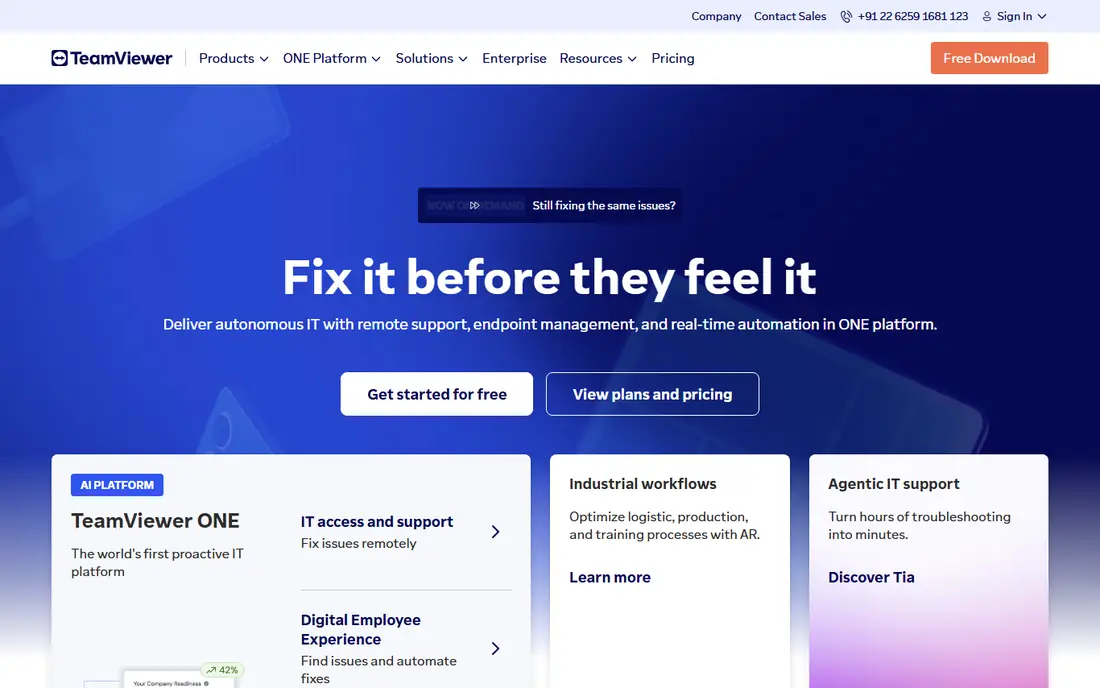
TeamViewer remains the name most people recognise, and that recognition helps when you support customers who already know it. It covers remote support, unattended access, and access across Windows, Mac, Linux, mobile, and many connected devices. Security controls include two-factor authentication, device approval, and session logging, which matter for regulated work.
The price is the main drawback. Commercial use needs a paid licence, and the cost climbs as you add users and features. For a business that needs a widely trusted tool with compliance paperwork, that premium can be worth it. For one person reaching one home computer, a cheaper or free tool usually does the job.
- Wide device support
- Unattended access and remote support in one tool
- Strong compliance coverage
- Higher price than budget tools
- Free version is for personal use only
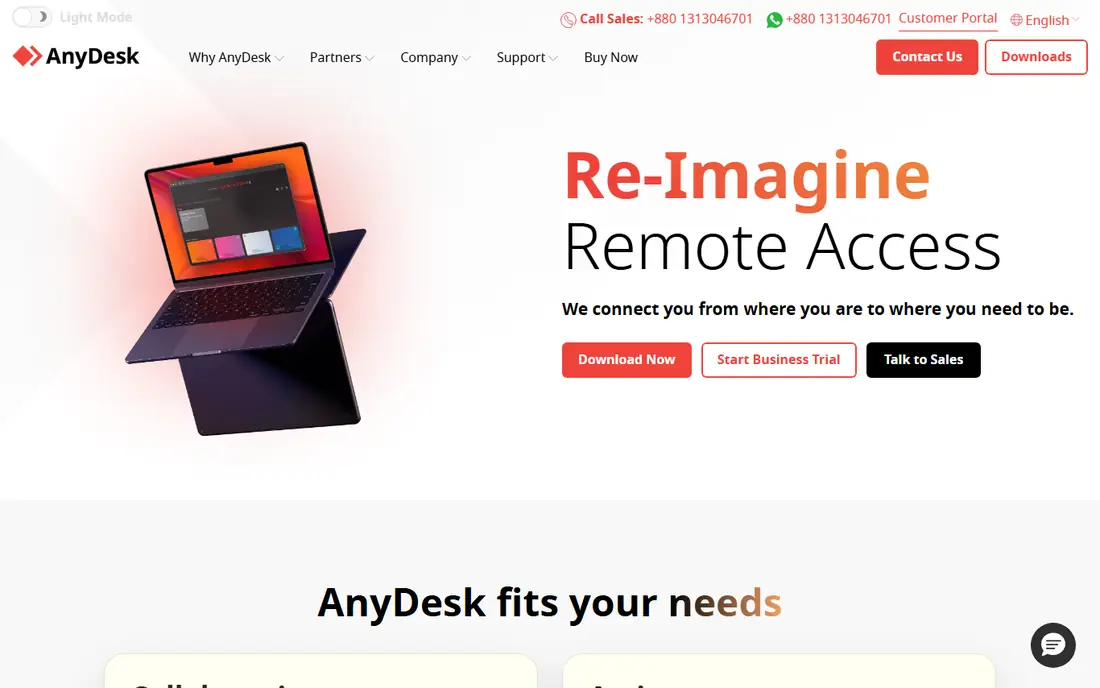
AnyDesk built its name on speed. Its lightweight client starts quickly, and sessions stay responsive on weaker connections, which helps when you work with graphics, video, or large files. It supports unattended access, file transfer, and remote printing, and it runs on desktop and mobile platforms.
Pricing is less simple than it once was, and the entry plan varies by region and billing choice, so check the current price for the United States before you budget. The free option suits personal use, while business use needs a paid licence. Pick AnyDesk when session speed matters more than saving a few dollars a month.
- Fast, low-latency connections
- Lightweight client
- Works across major platforms
- Pricing has changed and varies by region
- Commercial features need a paid plan
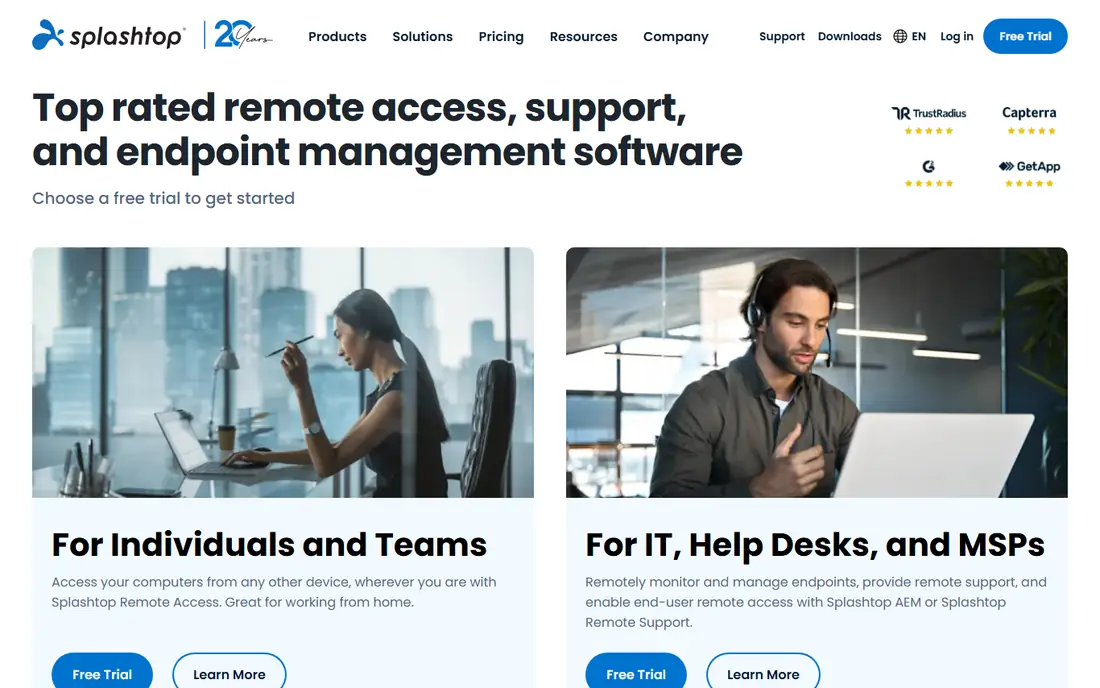
Splashtop is our value pick for remote work. The Solo plan starts at a low monthly price when billed annually, and it covers file transfer and remote printing for a small number of devices. Higher plans add multi-monitor support, session recording, and central management for teams.
The Solo limits are the catch. If you need many devices per licence or on-demand customer support, you will move to a higher plan, and the price rises accordingly. Even then, Splashtop usually stays cheaper than the big enterprise names. For remote workers and small teams, it is hard to beat on price and performance together.
- Very low entry price
- Fast streaming
- Strong security controls
- Solo plan limits devices
- Support features sit on higher plans
RemotePC is the cheapest way we found to reach your own computers unattended. The entry plan covers a single computer at a low monthly price when billed annually, and higher plans add more computers at a modest step up. Setup is simple, and the core features cover most remote work needs.
It is less suited to a busy helpdesk. On-demand support, ticketing links, and technician controls are thinner than in Zoho Assist or ScreenConnect. If your main need is your own office PC, a home server, or a small set of machines you manage yourself, RemotePC is the sensible budget choice.
- Very low price per computer
- Simple unattended setup
- File transfer and remote printing
- Support workflow is thinner than helpdesk tools
- Interface feels plain
Zoho Assist suits support teams because customers can join from a browser without installing software first. Technicians get unattended access, file transfer, chat, and session controls, and the tool fits naturally if you already use Zoho products for CRM or helpdesk work. A free option covers basic use.
Per-technician pricing is the thing to model. A team of five or ten technicians will pay several times the headline price, so compare that total with a flat team plan elsewhere. For a small support team that wants a clean, web-based workflow, Zoho Assist is a strong middle ground between free tools and enterprise platforms.
- Browser-based customer sessions
- Unattended access
- Fits the wider Zoho suite
- Per-technician pricing adds up for larger teams
- Some advanced controls need higher plans
ScreenConnect, formerly ConnectWise Control, is built for IT providers and internal IT teams rather than for one person. It handles many simultaneous sessions, technician roles, automation, and integrations with ticketing and monitoring tools. That structure pays off when support is a daily job, not an occasional favour.
The drawback is complexity and price. Some plans are quote based, and the setup takes more time than a personal remote tool. Small teams may find it more than they need. If you support many clients or many staff machines, ScreenConnect is one of the most capable options in this list.
- Built for multi-technician support
- Strong automation and integrations
- Session management at scale
- Quote-based pricing on some plans
- More setup than personal tools
Chrome Remote Desktop is the simplest free option, and for many people it is all they need. You install the extension, set a PIN on the computer you want to reach, and connect from another computer or phone. It covers the common case of reaching a home or office PC while travelling.
It is not a support product. There are no technician queues, ticketing links, or advanced session controls, and it ties you to a Google account. If you need to help many customers, pick a paid support tool instead. If you need your own computer, start here and spend nothing.
- Free for personal use
- Simple setup with a Google account
- Works in a browser
- No helpdesk features
- Needs a Google account and a Chrome browser setup
Parsec started in gaming, and that low-latency focus now helps designers, video editors, and engineers who need a remote machine to feel local. Streaming stays smooth at high frame rates, and the Teams plan adds the admin controls a studio needs. A free tier covers personal use.
General IT support is not its strength. Ticketing, unattended fleet management, and helpdesk workflows are thinner than in ScreenConnect or Zoho Assist. Choose Parsec when the work itself is visual and latency-sensitive, and choose a support tool when the work is fixing other people's machines.
- Very low latency for design and video work
- Smooth streaming
- Good for creative teams
- Paid Teams plan needed for full controls
- Less suited to general IT support
How we picked these
We compared official pricing pages, product documentation, and public feature lists for remote desktop tools that are live in October 2026. We kept tools that cover Windows and Mac access, that support unattended or on-demand sessions as stated, and that fit either personal remote work or IT support. Where pricing varies by region or plan, we wrote See website rather than guessing a single number.
What to check before you buy
First, decide whether you need personal access, on-demand support, or unattended fleet access, because the best tool for one job is often weak at another. Count computers and technicians separately, since some tools charge per computer and others charge per technician, and the totals diverge fast. Then check security: two-factor authentication, device approval, session logging, and the ability to revoke access quickly should be non-negotiable.
Also test on your real connection. A tool that feels fast on office broadband may lag on hotel Wi-Fi, and a tool that handles documents well may struggle with video editing. Use the free plan or trial on the actual machines and networks you will use, and only connect to computers you own or have clear permission to access. Never use remote access to reach someone else's computer without their knowledge and agreement, and keep your account credentials private.
Frequently asked questions
What is the best remote pc software for personal use?
Chrome Remote Desktop is free and simple for reaching your own computer, while Splashtop Solo and RemotePC are low-cost paid options with more features. Pick the free tool if you only need one computer, and pick a paid tool if you want multi-monitor support, session recording, or central management.
Is remote access software safe?
It is safe when you use strong passwords, two-factor authentication, and device approval, and when you only grant access to people you trust. Risk rises when accounts share passwords, when unattended access stays on machines that no longer need it, and when sessions run without logging. Review access lists regularly and remove old devices.
Do I need permission to access someone else's computer?
Yes. Only connect to a computer you own or where the owner has given clear permission for that session, and stay within what they agreed to. Remote support tools are built for that consent-based workflow, with session codes and on-screen approval, and you should use those controls rather than bypassing them.
What is unattended remote access?
Unattended access lets you connect to a computer when nobody is sitting at it, using a pre-approved agent and credentials. It suits your own office PC or a server you manage, but it needs extra care: strong authentication, limited account rights, and a way to audit every session.
Which remote tool is best for IT support teams?
Zoho Assist and ConnectWise ScreenConnect are built for support teams, with technician sessions, unattended access, and workflow controls. Splashtop Remote Support is also worth comparing if price matters. The right choice depends on team size, ticketing links, and whether you charge per technician or per computer.
Sources
See where you really rank - block by block
ProMapRanker scans Google Maps across a grid of your service area. Simple monthly plans from $19, white-label on every plan.
Start freeKeep reading
 free alternatives to grok imagine
Free Alternatives to Grok Imagine in 2026
We compared the best free alternatives to grok imagine for image generation, from fast daily credits to design tools, so you can create without paying.
Read → best tools for instagram content creation
Best Tools for Instagram Content Creation in 2026
Compare the best tools for Instagram content creation, from Canva and CapCut to Later and Buffer, on design, video, planning, scheduling, and price in 2026.
Read → best tool to split pdf files
Best Tool to Split PDF Files in 2026
We compared the best tool to split pdf files on split modes, file limits, privacy and price, so you can split a PDF cleanly and keep every page in one go.
Read →