 ProMapRanker
Best Remote App in 2026: 9 Apps Compared

Key takeaways
- TeamViewer remains the best known all rounder, with broad device support and compliance features for larger teams.
- Splashtop and RemotePC offer the best value for individuals and small teams that mainly need access to their own computers.
- AnyDesk leads on speed over weak connections, thanks to a lightweight client and efficient streaming.
- Chrome Remote Desktop is the best free option for personal use, with a simple browser based setup.
- Zoho Assist and ConnectWise ScreenConnect suit support teams, with per technician pricing built for helpdesks.
Quick comparison
| Pick | Great for | Pricing starts at | Free tier | |
|---|---|---|---|---|
 TeamViewer | General remote access | See website | Yes | Visit |
 AnyDesk | Speed over weak connections | See website | Yes | Visit |
 Splashtop | Affordable team access | See website | Free trial | Visit |
 Chrome Remote Desktop | Free personal access | Free | Yes | Visit |
 Microsoft Remote Desktop | Windows based access | Free | Yes | Visit |
 Zoho Assist | Small support teams | See website | Yes | Visit |
 ConnectWise ScreenConnect | MSPs and IT teams | See website | Yes | Visit |
 RemotePC | Cheap unattended access | See website | Free trial | Visit |
 RealVNC Connect | Cross platform VNC access | See website | Free trial | Visit |
The best remote apps
This article covers remote-control and remote-access apps for computers and devices. These tools let you view and control another computer from your own device, reach your own machines while away, or support someone else machine with their permission. They are not general remote work tools, and they should only be used with consent from the device owner.
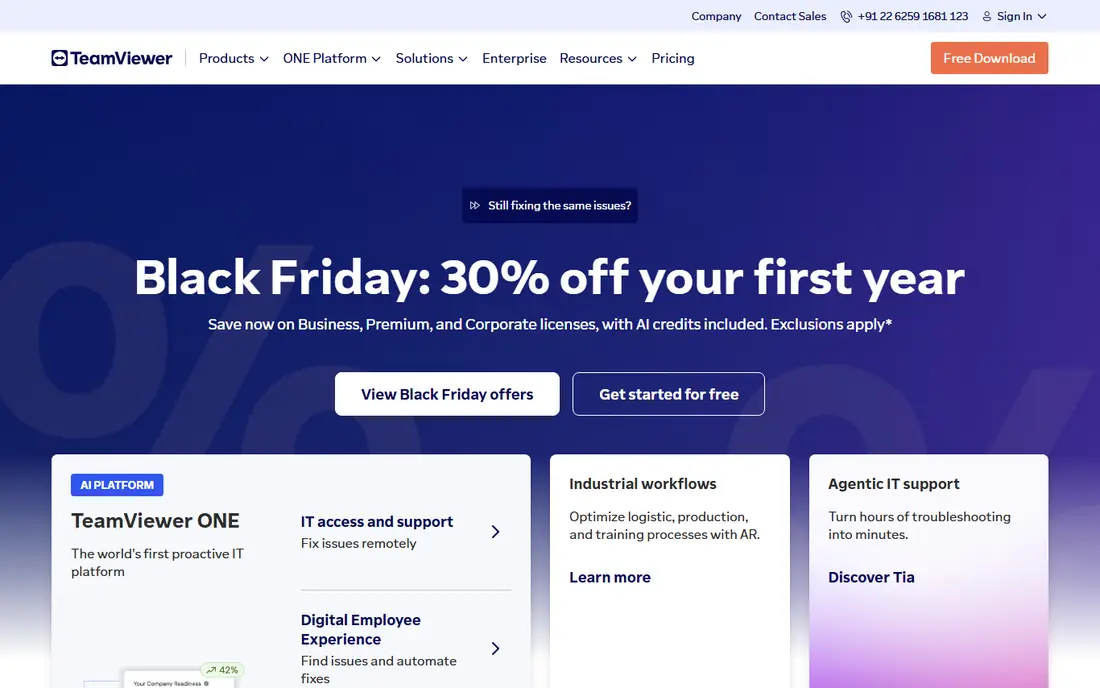
TeamViewer is our pick for most teams because it covers almost every use case in one product. You can support a colleague, reach your office computer from home, transfer files, and manage a fleet of devices from a central console. Business plans add audit logs, device groups and policy controls that larger organisations need.
The catch is price and the free tier rules. Personal use is free, but TeamViewer actively flags sessions it suspects are commercial, which can interrupt a session. If you need reliable business access, budget for a paid plan rather than relying on the free tier for work.
- Broad Windows, Mac, Linux, iOS and Android support
- Unattended access and file transfer
- Compliance and audit features on business plans
- Business pricing is high
- Free tier flags suspected commercial use
- Setup can feel heavy for a single personal connection
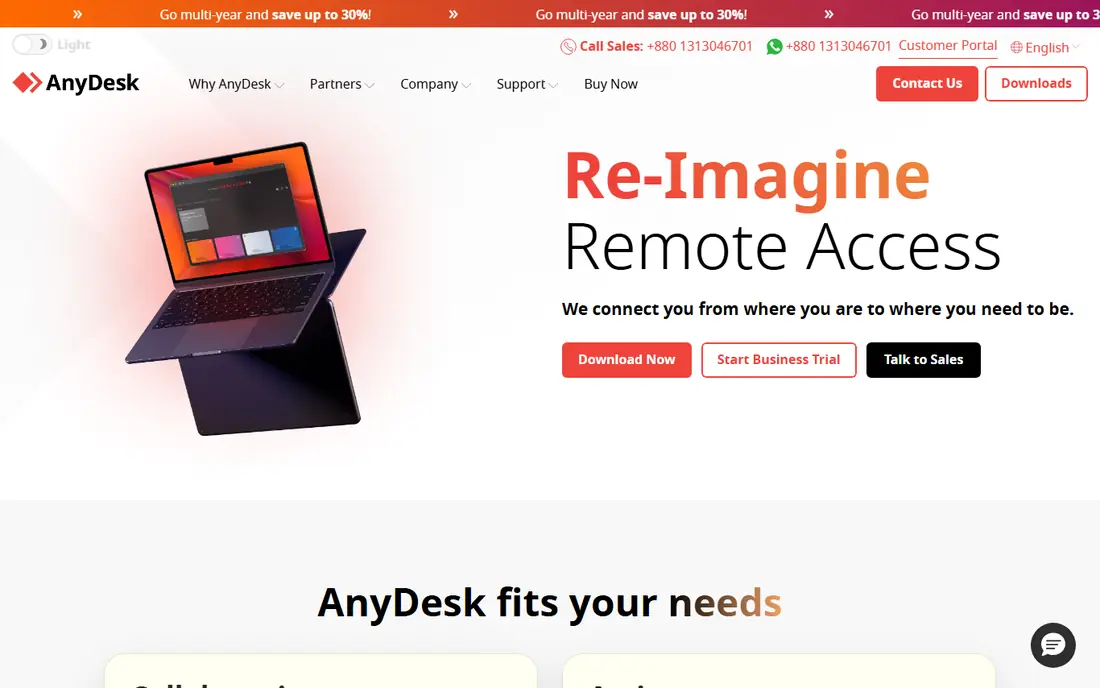
AnyDesk suits anyone who works over slow or unstable connections. Its lightweight client starts fast, streams smoothly on limited bandwidth, and still offers file transfer, remote printing and unattended access. IT teams like it for quick support sessions where downloading a large client would waste time.
The trade off is polish and pricing structure. The interface is functional rather than pretty, and business plans need careful checking for seat and device limits. If speed is your main pain, AnyDesk earns its place. If you need deep fleet management, TeamViewer or ScreenConnect may fit better.
- Lightweight client that installs quickly
- Fast streaming over low bandwidth
- Unattended access and file transfer
- Paid plans are priced per user or device
- Free personal use is limited for business
- Interface is plainer than rivals
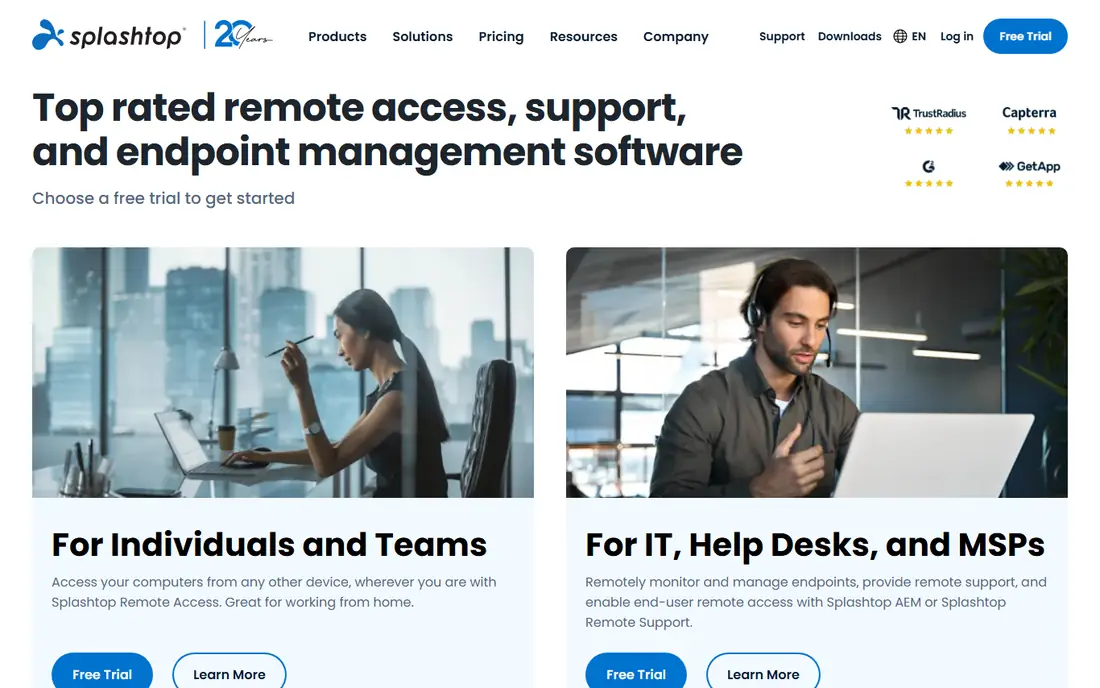
Splashtop is the value pick for small businesses and remote workers. Business Access covers your own computers, while SOS covers on demand support for other people machines, so you buy only the product you need. Streaming quality is strong for the price, with multi monitor support that remote workers appreciate.
The limit is that the cheapest plans do not include every compliance and session recording feature. Check which product line matches your use, since Splashtop sells several related products. For straightforward remote work access, it undercuts the big names without a noticeable quality drop.
- Strong streaming quality for the price
- Multi monitor and 4K support on higher plans
- Separate products for access and support
- Advanced compliance features sit on higher tiers
- Less name recognition in some corporate environments
- Pricing varies by product line
Chrome Remote Desktop is the simplest free way to reach your own computer from elsewhere. Install the extension, set a PIN for unattended access, and connect from a browser or mobile app. It is ideal for reaching a home computer from a laptop, or helping a family member with a one off session.
Expect basics only. There is no multi user fleet console, no detailed audit trail, and no advanced support queue. For personal use, that simplicity is a virtue. For business support, choose a paid tool with proper controls.
- Free for personal use
- Browser based, no large client
- Simple setup with a Google account
- Basic feature set
- No advanced fleet management
- Requires a Google account and Chrome
Microsoft Remote Desktop, using the RDP protocol, is the natural pick for Windows based offices. It is built into Windows Pro and Enterprise, performs well on office networks, and clients exist for Mac, iOS and Android. For an IT team standardising on Windows, it avoids another vendor entirely.
The catch is setup and scope. Host support is Windows centred, and reaching machines over the internet needs VPN or gateway configuration, which takes IT care. It is not a general support desk tool. It is a solid, free protocol for Windows environments that already have network controls in place.
- Native Windows integration
- Good performance on local networks
- Free with Windows Pro and Enterprise editions
- Windows focused, with limited host support elsewhere
- Setup needs network and firewall care
- No built in cross internet support desk
Zoho Assist suits small support teams that want per technician pricing without enterprise complexity. A free plan covers a single technician with a small number of unattended computers, and paid plans add more technicians, session recording and integrations. Customers join from a browser, which keeps support calls simple.
The limit is scale. Larger MSPs will want ScreenConnect or BeyondTrust style fleet controls, and Zoho reporting is lighter. For a small business support desk, or a team already using Zoho products, Zoho Assist is a strong, affordable fit.
- Free plan for small teams
- Unattended access and on demand support
- Browser based sessions for customers
- Advanced features sit on paid plans
- Ecosystem works best inside Zoho
- Reporting is lighter than enterprise rivals
ConnectWise ScreenConnect, formerly ConnectWise Control, is a favourite with managed service providers. It supports many endpoints, offers unattended access, session grouping and automation, and can be self hosted or run in the cloud. That flexibility matters for MSPs with varied client networks.
The trade off is complexity. ScreenConnect is an IT tool, not a consumer app, and it rewards a proper setup. Small teams with one or two machines will find it heavy. Teams supporting dozens or hundreds of endpoints will value its control and automation.
- Free single technician option
- Self hosted or cloud deployment
- Unattended access and session management
- Interface rewards training
- Pricing rises with technicians
- Setup takes more care than consumer tools
RemotePC is the cheapest way to keep always on access to your own computers. Plans price by computer count rather than by user in many cases, which suits individuals and small businesses with several machines. You get unattended access, file transfer and remote printing from a browser or app.
The catch is that RemotePC is an access tool first, not a support desk. It lacks the queue, branding and automation depth of ScreenConnect or Zoho Assist. Check the renewal price, since first year promos can rise, and confirm the computer limit on your plan before you add machines.
- Low cost per computer pricing
- Unattended access and file transfer
- Web based access from a browser
- Interface is functional rather than polished
- Support features are lighter than helpdesk tools
- First year promos can rise at renewal
RealVNC Connect suits mixed operating system environments and Raspberry Pi fleets, where the VNC standard matters. It offers cloud connections for easy remote access, plus direct connections for networks that need tighter control. That dual model appeals to technical teams and hobbyists alike.
The downside is that RealVNC feels technical compared with TeamViewer or Splashtop. Setup, permissions and network options need attention, and the free options are limited to personal use. If you run mixed systems or Pi devices, it is a strong pick. If you want one click support, choose a simpler tool.
- Long standing VNC standard
- Windows, Mac, Linux and Raspberry Pi support
- Cloud and direct connection options
- Setup needs more care than consumer tools
- Advanced features sit on paid plans
- Interface feels technical
How we picked these
We compared official product pages, pricing models and platform support in October 2026, and favoured remote access tools that are live, actively sold, and clearly built for controlling computers and devices. We included free personal tools alongside paid business tools, because the best remote app for a home user and for an MSP are different products. We left out general video meeting tools, since they do not provide remote control, and any tool that required a download from an unofficial source.
What to check before you choose a remote app
Start with who you will connect to. Personal access to your own machines needs unattended access and a PIN or strong authentication. Supporting other people needs on demand sessions, consent prompts and session logs. Fleet management needs device groups, permissions and audit trails. Those three uses point to different products, so be clear before you buy.
Security checks matter more here than in most categories. Use two factor authentication, strong unique passwords, and allow lists where available, and never share a session code publicly. Test performance on your real connection, especially over weak home broadband, and confirm which platforms each side uses. A tool that works well on Windows to Windows may behave differently to a phone or a Mac.
Frequently asked questions
What is the best remote app for personal use?
Chrome Remote Desktop is the best free personal option, since it is browser based and simple to set up. TeamViewer and AnyDesk also offer free personal tiers with more features, but they may flag commercial use. For always on access to several of your own computers, RemotePC is a low cost paid alternative.
What is the best remote app for IT support teams?
Zoho Assist suits small support teams, while ConnectWise ScreenConnect suits MSPs and larger IT departments. TeamViewer is the best known all rounder for mixed support and access work. Choose based on technician count, endpoint count, and whether you need self hosting.
Is remote access software safe?
Reputable remote access tools use encryption and authentication, but safety depends on your settings. Use two factor authentication, strong passwords, and only accept sessions from people you trust. Never install remote access software at the request of an unknown caller, since that is a common scam pattern.
Can I control a computer from my phone?
Yes. TeamViewer, AnyDesk, Splashtop, Chrome Remote Desktop and RealVNC all offer mobile apps for viewing and controlling computers. Touch controls work best for simple tasks, while keyboard heavy work is easier from a laptop. Check that the mobile app supports file transfer if you need it.
Do I need to install software on both computers?
For most tools, yes, the host computer needs an agent or app, and the viewer needs an app or browser session. Chrome Remote Desktop and Zoho Assist reduce this with browser based access, but unattended access still needs a host install. On demand support usually needs only a small temporary session app.
What is the difference between remote access and remote support?
Remote access means reaching your own computers at any time, usually unattended. Remote support means joining another person computer for a one off session, with their consent and a session code. Some tools do both, but pricing and features differ, so check which mode your plan covers.
Sources
See where you really rank - block by block
ProMapRanker scans Google Maps across a grid of your service area. Simple monthly plans from $19, white-label on every plan.
Start freeKeep reading
 wpforms alternatives
Best WPForms Alternatives in 2026
We compare 9 wpforms alternatives for WordPress forms, with free and paid options, current pricing notes, and honest limits for small business sites in 2026.
Read → windows task scheduler alternatives
Best Windows Task Scheduler Alternatives in 2026
Looking for Windows Task Scheduler alternatives? We compare 9 schedulers for Windows and cross-platform work, from free tools to enterprise automation.
Read → which ai video service is best
Which AI Video Service Is Best in 2026
which ai video service is best? We compare 10 legitimate AI video services on price, avatars, editing and output quality to help you pick the right tool.
Read →