 ProMapRanker
Best Rated Windows Backup Software in 2026


Backup plus security · Pricing starts at: $49.99 per year
Key takeaways
- Acronis Cyber Protect Home Office is the fullest paid package, combining imaging, cloud storage, and anti-malware in one subscription.
- Macrium Reflect X suits Windows users who care most about reliable scheduled imaging and clean restores.
- EaseUS Todo Backup and AOMEI Backupper offer strong free tiers for home users who want scheduled images without paying.
- Veeam Agent for Windows gives enterprise-grade free imaging, but its interface assumes more technical confidence.
- Backblaze suits hands-off cloud backup, while local imaging tools suit full system recovery after a drive failure.
Quick comparison
| Pick | Great for | Pricing starts at | Free tier | |
|---|---|---|---|---|
| Acronis Cyber Protect Home Office | Backup plus security | $49.99 per year | Free trial | Visit |
 Macrium Reflect X | Reliable scheduled imaging | See website | Free trial | Visit |
 EaseUS Todo Backup | All-round home backup | $39.95 per year | Yes | Visit |
 AOMEI Backupper | Budget all-rounder | See website | Yes | Visit |
 Veeam Agent for Windows | Free whole-PC imaging | Free | Yes | Visit |
 Backblaze | Hands-off cloud backup | $99 per year | No | Visit |
 IDrive | Multi-device cloud backup | See website | Free trial | Visit |
 Paragon Backup and Recovery | Free imaging, no account | Free | Yes | Visit |
 NovaBACKUP | Local plus cloud in one | See website | Free trial | Visit |
The best rated windows backup software
Backup covers two different jobs: restoring a whole PC after a drive failure, and keeping versioned copies of files off-site. Imaging tools do the first job best, cloud tools do the second, and a few tools try to do both. These nine cover that range for Windows homes and small offices.
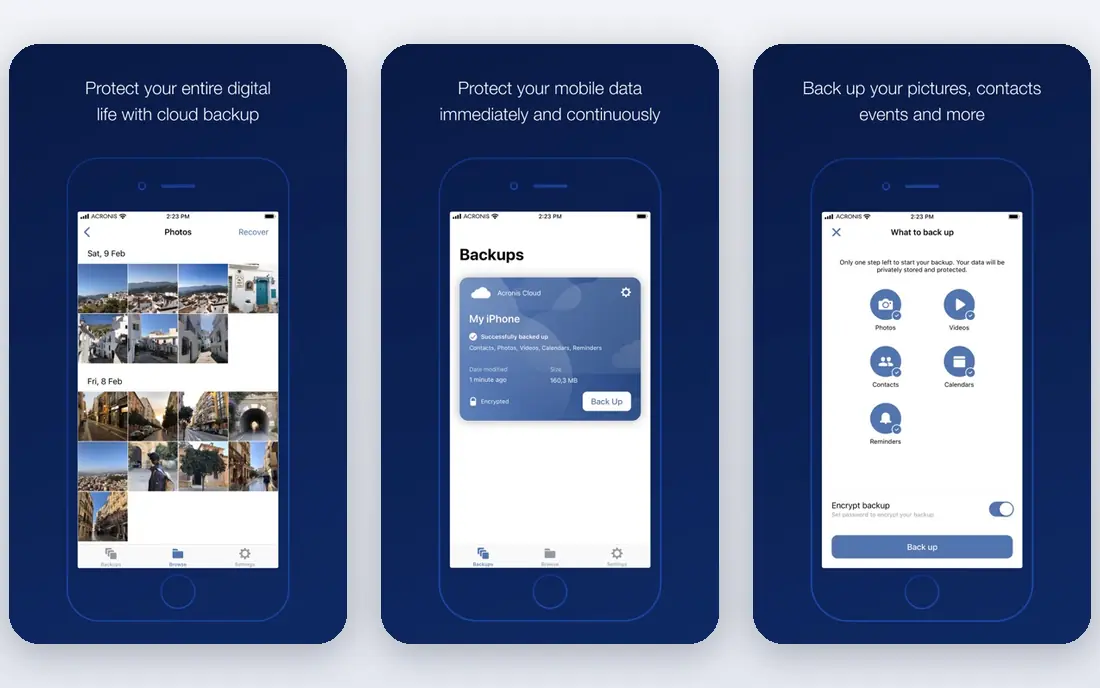
Acronis Cyber Protect Home Office, formerly Acronis True Image, is the fullest package here. It creates full disk images for bare-metal recovery, backs up files and folders, and adds anti-malware and anti-ransomware protection in the same subscription. Cloud storage plans let you keep an off-site copy without a second vendor.
The cost is the main drawback. It is subscription-only, and larger cloud storage tiers raise the price. The interface also feels busy, since backup and security share one app. For households that want one product to cover imaging, cloud backup, and security, Acronis is a strong, if pricey, pick.
- Full disk imaging
- Cloud storage options
- Anti-malware and anti-ransomware protection included
- Subscription only
- Higher plans add cost for more cloud storage
- Interface packs many features into one app
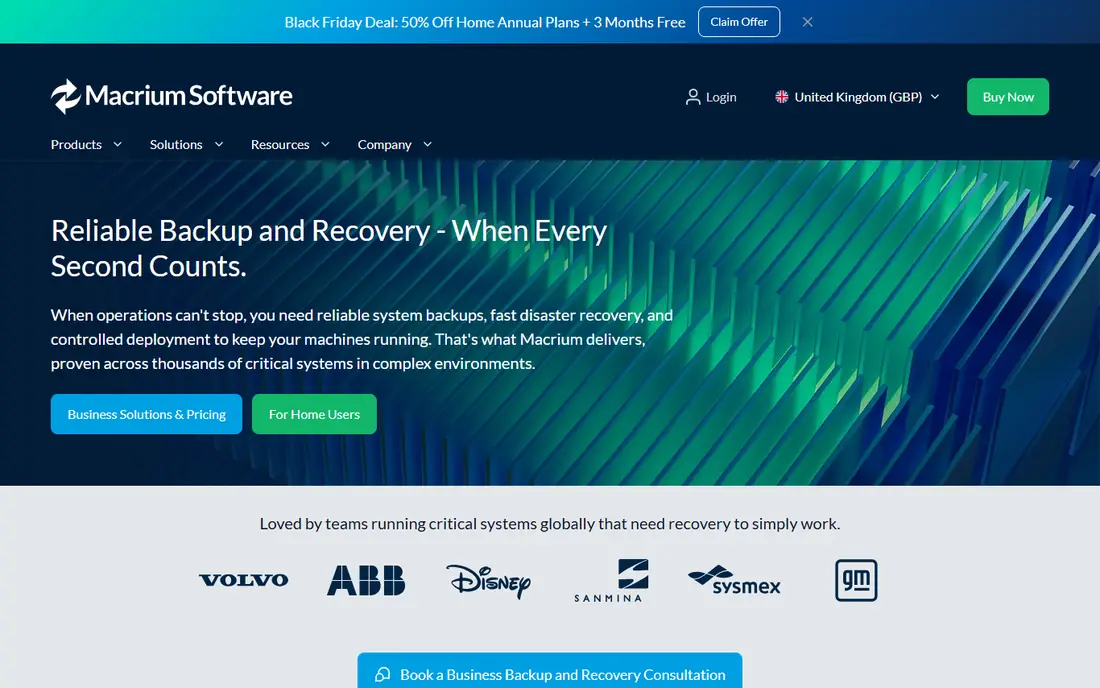
Macrium Reflect X is the imaging-first pick. It schedules full, incremental, and differential images, builds bootable rescue media, and restores a whole PC or selected files with clear options. Windows users who have restored a PC with Macrium often stay loyal, because the restore step is where backup software earns its keep.
It does not bundle cloud storage, so off-site copies need a separate drive or cloud folder. Pricing is now subscription-based, which some long-time users dislike. For a home user whose main fear is a dead drive, Macrium remains one of the most dependable choices.
- Reliable scheduled imaging
- Bootable rescue media
- Strong restore options for Windows
- No bundled cloud storage
- Subscription pricing
- Interface suits confident Windows users
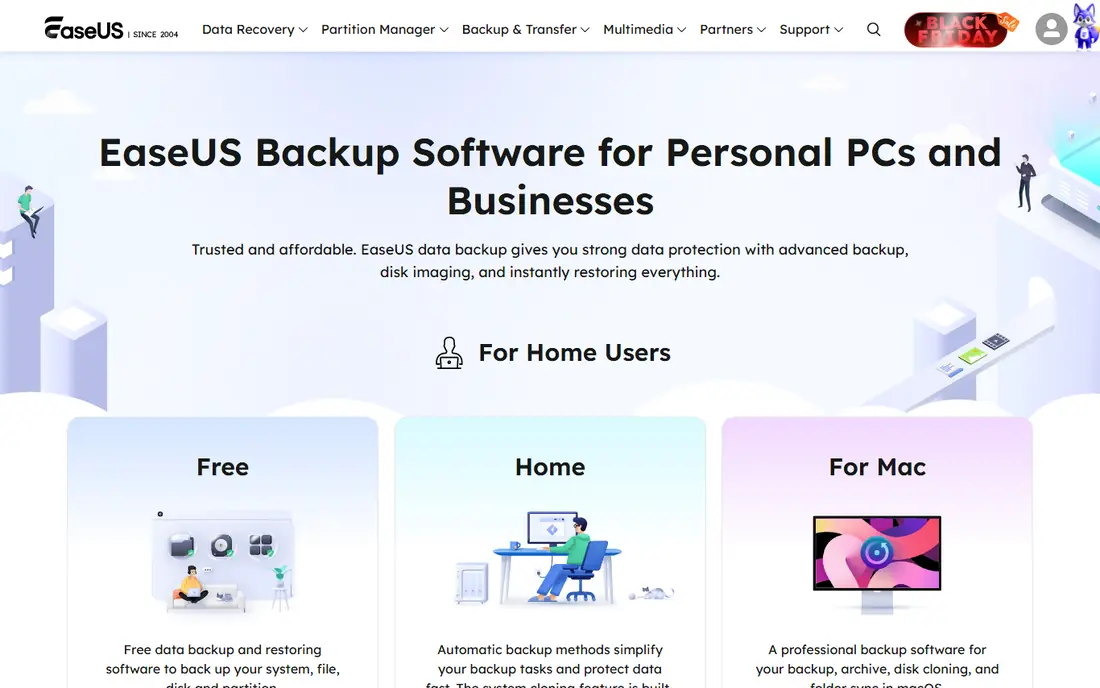
EaseUS Todo Backup is the best all-round home choice for many users. It covers disk imaging, file and folder backup, sync, and disaster recovery, with a clear interface that explains each job. A free edition covers basic scheduled imaging, while paid plans add more features and cloud storage.
The limits are cloud-related. EaseUS cloud storage needs a yearly plan, and direct support for third-party cloud storage is limited. Paid pricing has also varied between yearly and perpetual options, so check the current page. For a home PC that needs imaging plus file backup in one tool, EaseUS is hard to beat on value.
- Imaging, file backup, and sync in one tool
- Free edition for basic use
- Perpetual licence options have been offered
- Cloud storage needs a yearly plan
- No third-party cloud support directly
- Interface can feel busy
AOMEI Backupper is a budget favourite because its free Standard edition is genuinely useful. It backs up system, disks, partitions, and files, clones disks, and schedules jobs without payment. Home users who want free scheduled imaging will find it covers the basics well.
Cloud backup is less direct than Acronis, since it works through cloud folders rather than a built-in cloud service. Paid editions also spread features across tiers, so check which edition includes the feature you need. For free, capable Windows backup, AOMEI is a solid pick.
- Strong free Standard edition
- System, disk, and file backup
- Disk cloning included
- Cloud backup works via cloud folders, not a built-in cloud
- Paid features are spread across editions
- Support varies by plan
Veeam Agent for Windows brings enterprise backup technology to a single PC, free. It creates whole-PC images, backs up volumes and files, and restores to bare metal or to individual files. For technicians and confident users, it is one of the most capable free tools available.
The interface is less friendly than EaseUS or AOMEI, and there is no bundled cloud storage. Paid Veeam licences add central management and other business features that home users may not need. If you are comfortable with backup concepts and want free, reliable imaging, Veeam is excellent.
- Free whole-PC imaging
- Enterprise-grade backup engine
- Bare-metal and file-level restore
- Interface assumes technical confidence
- No bundled cloud
- Paid features need a Veeam licence
Backblaze does a different job from the imaging tools above. It backs up files from one PC to the cloud with no storage limit, quietly, in the background. For users whose main fear is losing documents, photos, and work files, that hands-off cloud copy is ideal.
It is not a disk image. After a drive failure, you reinstall Windows, then restore files from Backblaze, which takes longer than restoring an image. It also covers one PC per licence, so multi-PC homes pay per machine. Pair Backblaze with a local image tool if you want both fast recovery and off-site safety.
- Unlimited cloud backup for one PC
- Simple set-and-forget operation
- Version history for files
- Not a disk imaging tool
- Restore of a whole PC needs reinstall plus download
- One PC per licence
IDrive suits homes and small offices with several devices. One plan can cover multiple PCs, Macs, and mobile devices, with file versioning and, on suitable plans, disk image backup. That multi-device coverage makes it better value than per-PC cloud backup for a household with several machines.
The interface is less polished than Backblaze, and large restores still depend on internet speed. Pricing also varies by storage tier, so check the current plans against your total data size. For multi-device cloud backup with image options, IDrive is a practical choice.
- Backs up multiple PCs and devices on one plan
- File versioning
- Disk image backup options on some plans
- Interface is less polished than Backblaze
- Restore speed depends on internet
- Pricing varies by storage tier
Paragon Backup and Recovery Community Edition offers capable free imaging for personal use, without requiring an account. It handles disk and partition backup, restores, and rescue media, which covers the core needs of a home user who wants a free image tool.
It is more technical than EaseUS or AOMEI, and business use needs a paid licence. Cloud features are also thinner than Acronis or Backblaze. For a personal user who wants free imaging and does not mind a technical interface, Paragon is a sound option.
- Free Community Edition for personal use
- Capable imaging without an account
- WinPE rescue media options
- Interface is more technical than EaseUS
- Business use needs a paid licence
- Fewer cloud features
NovaBACKUP combines local backup with cloud storage in one product, which suits small offices that want an off-site copy without a second vendor. Scheduling is straightforward, and the product has a long history in small-business backup.
Pricing is not published clearly for every plan, so we wrote See website. The interface also feels dated next to EaseUS and Acronis. For a small office that wants local plus cloud in a single purchase, NovaBACKUP is still worth a trial.
- Local backup plus cloud storage in one product
- Set-and-forget scheduling
- Small-office friendly
- Pricing is not published clearly for all plans
- Interface feels dated
- Smaller community than Acronis
How we picked these
We compared official product pages, pricing pages, and public reviews for Windows backup tools that are still sold or maintained in October 2026. We kept tools that back up Windows PCs, whether by imaging, file backup, or cloud backup, and we favoured a mix of free, paid, imaging, and cloud options. Where pricing was unclear, we wrote See website.
How to set up backup that actually restores
Follow the 3-2-1 rule in plain form: keep three copies of important data, on two different media types, with one copy off-site. A local image plus a cloud file backup covers most home needs. Schedule images weekly and file backups daily, or more often for work files that change fast.
Test the restore, not just the backup. Build rescue media once, boot from it, and restore a test file. An image you cannot boot from is just a large file. Also check version history: a backup that only keeps the latest copy will not help if a file was corrupted weeks ago. Finally, encrypt backups that leave your home, and store the rescue media and passwords where you can find them during a real failure.
Frequently asked questions
What is the best Windows backup software overall?
Acronis Cyber Protect Home Office is the fullest paid package, while EaseUS Todo Backup is a strong all-round home pick. Macrium Reflect X suits imaging-first users, and Backblaze suits hands-off cloud backup. The best pick depends on whether you need imaging, cloud, or both.
Is free Windows backup software good enough?
For many home users, yes. Veeam Agent, AOMEI Backupper Standard, EaseUS Todo Backup Free, and Paragon Community Edition all back up to local drives at no cost. Paid tools add cloud storage, security, and support.
Do I need both local imaging and cloud backup?
Ideally yes. Local imaging gives fast full-PC recovery, while cloud backup protects against theft, fire, and flood. A local image plus a cloud file backup is a practical setup for most homes.
How often should I back up Windows?
Schedule a full image weekly and file backups daily for active work files. If you work on important files all day, use continuous or hourly file backup where the tool offers it.
Can I restore Windows to a different PC?
Some tools support restore to dissimilar hardware, including Acronis with its universal restore feature. Check the vendor docs, since driver and licence issues can still arise when moving Windows to very different hardware.
What is the difference between imaging and file backup?
Imaging copies a whole drive, including Windows, programs, and settings, so you can restore a PC exactly. File backup copies selected files and folders, which is simpler and better for version history, but it does not restore Windows itself.
Sources
- https://www.acronis.com/en-us/homeoffice/
- https://www.macrium.com/
- https://www.easeus.com/backup-software/
- https://www.aomeitech.com/ab/standard.html
- https://www.veeam.com/windows-endpoint-backup.html
- https://www.backblaze.com/
- https://www.idrive.com/
- https://www.paragon-software.com/home/br-free/
- https://www.novabackup.com/
See where you really rank - block by block
ProMapRanker scans Google Maps across a grid of your service area. Simple monthly plans from $19, white-label on every plan.
Start freeKeep reading
 wpforms alternatives
Best WPForms Alternatives in 2026
We compare 9 wpforms alternatives for WordPress forms, with free and paid options, current pricing notes, and honest limits for small business sites in 2026.
Read → windows task scheduler alternatives
Best Windows Task Scheduler Alternatives in 2026
Looking for Windows Task Scheduler alternatives? We compare 9 schedulers for Windows and cross-platform work, from free tools to enterprise automation.
Read → which ai video service is best
Which AI Video Service Is Best in 2026
which ai video service is best? We compare 10 legitimate AI video services on price, avatars, editing and output quality to help you pick the right tool.
Read →