 ProMapRanker
Best Rated PDF Merging Software in 2026

Key takeaways
- Smallpdf and iLovePDF are the easiest online choices for quick merges without installing software.
- PDF24 and PDFgear suit frequent users who want desktop tools without a monthly fee for basic merging.
- Adobe Acrobat and Foxit PDF Editor fit teams that need full editing, signing, and document controls beyond merging.
- Free plans often cap file size or daily tasks, so check limits before you rely on a tool for work.
- For sensitive files, a desktop tool that processes locally is safer than uploading to a web service.
Quick comparison
| Pick | Great for | Pricing starts at | Free tier | |
|---|---|---|---|---|
 Adobe Acrobat | Large or complex PDF files | See website | Free trial | Visit |
 Smallpdf | Quick online merges | $12 per month | Yes | Visit |
 iLovePDF | Simple online PDF tools | See website | Yes | Visit |
 PDF24 | Free Windows desktop merging | Free | Yes | Visit |
 Foxit PDF Editor | Professional PDF editing | See website | Free trial | Visit |
 Nitro PDF | Business PDF workflows | See website | Free trial | Visit |
 Sejda | Privacy focused occasional merging | See website | Yes | Visit |
 PDFgear | Frequent free merging | Free | Yes | Visit |
 PDF Expert | Mac and iOS PDF work | See website | Free trial | Visit |
The best rated PDF merging software
We compared official feature pages, pricing pages, and free-tier limits for tools that combine PDF files and let you reorder pages. The list covers online tools, desktop suites, and mobile-friendly editors, so you can pick by how often you merge and how sensitive your files are.
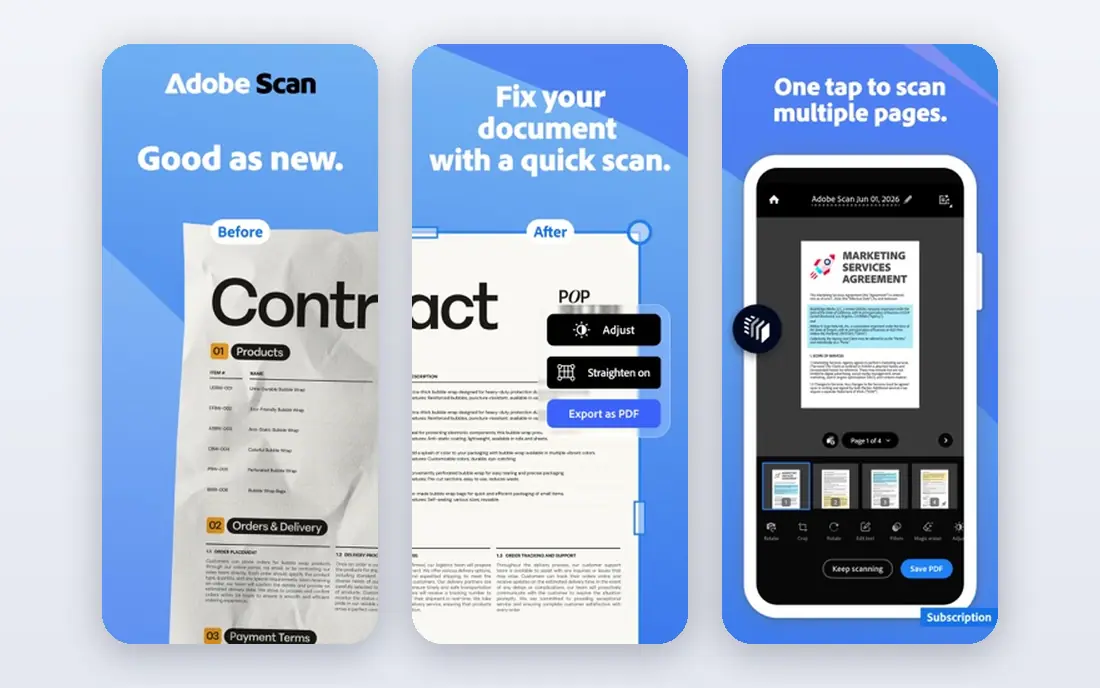
Adobe Acrobat is the standard many offices already use, and its merging tools reflect that depth. You can combine files, reorder pages, and then edit, sign, or protect the result without switching apps. Compatibility is also strong, since Acrobat handles complex PDFs that simpler tools may struggle with.
The cost is the main drawback. A subscription makes sense if you edit PDFs often, but it is hard to justify for merging alone. Use Acrobat when merging is one step in a larger document workflow, and use a free tool when merging is the only job.
- Strong compatibility
- Full editing and signing
- Page organisation tools
- Subscription cost
- Full desktop app is more than casual users need
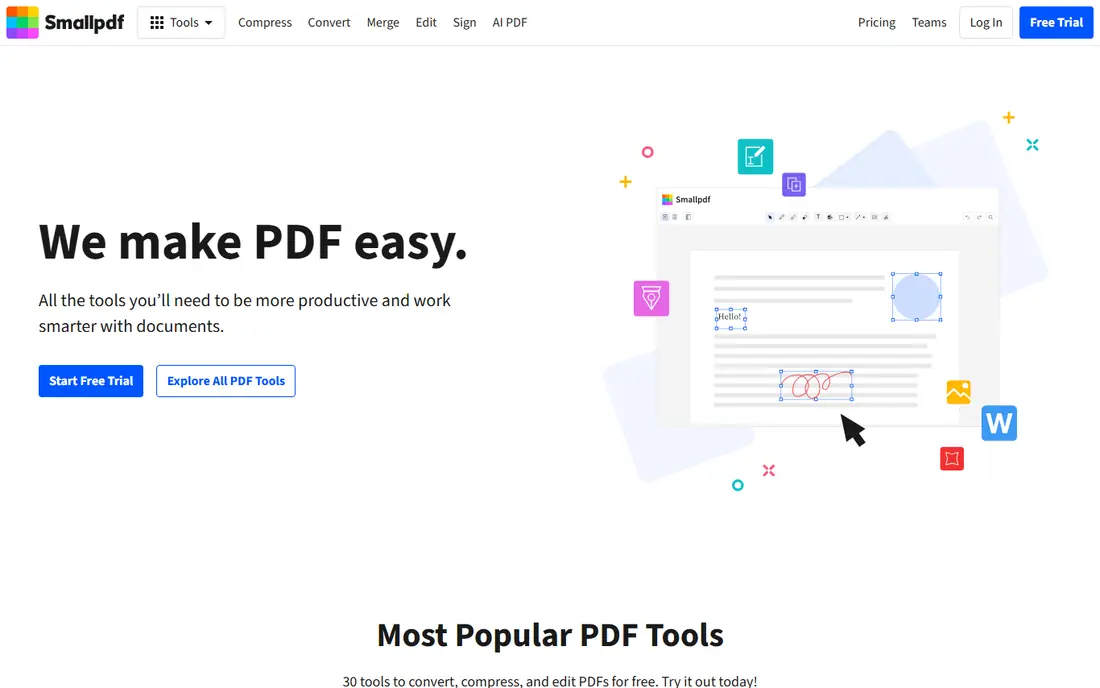
Smallpdf is built for speed. Upload files in a browser, drag pages into order, merge, and download the result. The same account covers compression, conversion, and signing, which helps when a merged file also needs to be smaller or signed. Mobile apps extend that workflow to phones and tablets.
Free use is limited by daily tasks and file handling, so frequent users will hit the cap. The paid plan removes those limits and adds desktop tools. Pick Smallpdf for occasional to regular online merging with a simple interface.
- Clean online interface
- Merge, split, and compress in one place
- Mobile apps
- Free plan caps daily tasks
- Heavy users need a paid plan
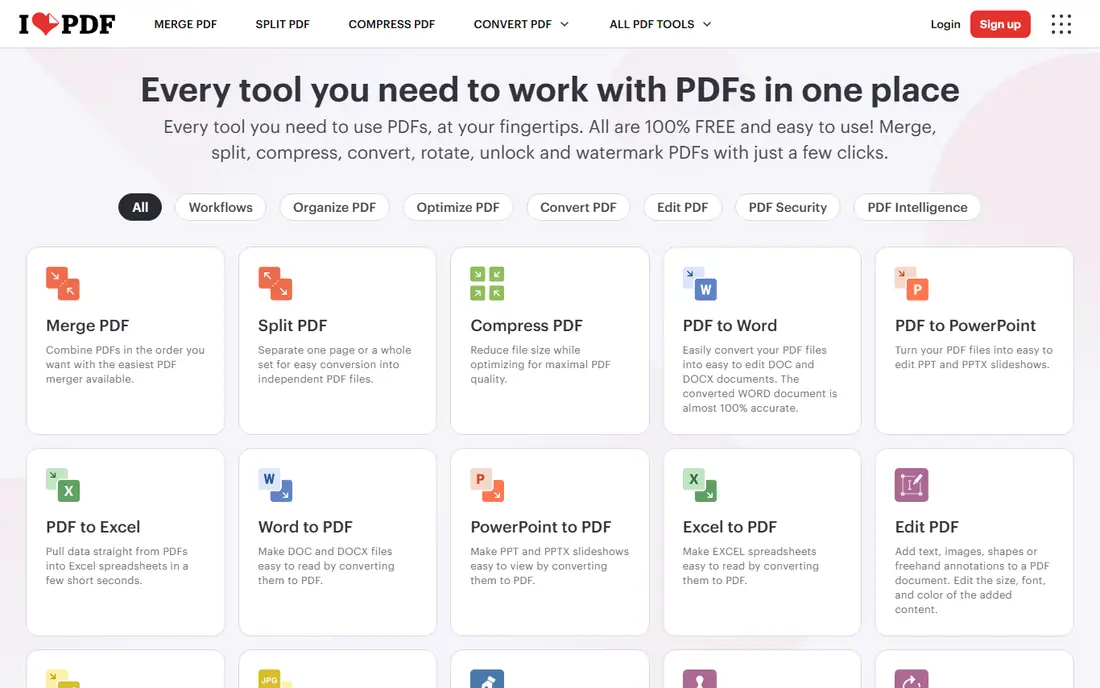
iLovePDF offers a straightforward merge tool alongside split, compress, convert, and edit options. The layout is easy to follow, even for users who rarely work with PDFs. You can reorder pages before merging, which avoids the need to redo a merge when one page is out of place.
Like Smallpdf, the free tier limits how much you can do each day. That is fine for one-off jobs, but not for a team merging files all day. iLovePDF is a good default when you want a browser tool with no install and no learning curve.
- Clear merge and split tools
- Many PDF utilities
- Easy interface
- Free plan limits tasks
- Advanced features need a paid plan
PDF24 Creator is a free Windows suite that includes a visual merger, editor, compressor, and OCR tools. Because processing happens on your computer, you avoid uploading sensitive files to a web service. The page arranger lets you drag pages into place before export, which is useful for reports and scanned packs.
The main limit is platform. The full desktop suite is Windows focused, while Mac and Linux users will rely on the online tools, which have size limits. For Windows users who merge often, PDF24 is hard to beat on value.
- Free desktop suite
- Visual page arranging
- Offline processing
- Full suite is Windows only
- Online tools have size limits
Foxit PDF Editor is a full editor with merging, page organisation, annotation, forms, and signing. It suits professionals who need more than a merge button, such as lawyers, accountants, and office teams handling contracts. Performance is generally fast, even with larger files.
The trade-off is cost and complexity. Casual users may find the full editor more than they need, and the best features sit behind paid plans. Choose Foxit when merging is part of regular document work, not a rare task.
- Strong editing tools
- Good performance
- Business features
- Paid plans needed for full tools
- Interface takes time to learn
Nitro PDF, sold as Nitro Pro, combines editing, conversion, merging, and e-signatures for business users. It is positioned as a lower-cost alternative to Acrobat for teams that still need a full desktop editor. Admin tools and deployment options help larger teams roll it out in a standard way.
It is not a free tool, and pricing details depend on the plan and team size, so check the vendor site for your case. Pick Nitro when your team needs a full editor and wants an Acrobat alternative with business controls.
- Editing and conversion
- E-signatures
- Team deployment options
- Quote and plan details vary
- Less suited to one-off free use
Sejda appeals to users who care about what happens to uploaded files. It states that files are deleted after processing, and its merge tool lets you pick pages and ranges with care. That combination suits occasional merges of personal documents, such as applications or tax forms.
Free use is limited by daily tasks and file size, so it is not built for high volume. If you merge a few sensitive files a week and want a browser tool with clear privacy handling, Sejda is a solid pick.
- Clear page tools
- Files deleted after processing
- No install needed
- Tight free limits
- Larger jobs need a paid plan
PDFgear offers core PDF tools, including merging and splitting, without a paywall for basic use. That makes it useful for students, freelancers, and small teams who merge often but do not want a subscription. Desktop apps allow local processing, which is a plus for privacy.
It does not match Acrobat or Foxit for advanced editing, forms, and enterprise controls. If your needs are merging, splitting, compressing, and basic editing, PDFgear covers them well at no cost. Check the current feature list on the vendor site before relying on it for a specific advanced task.
- Free core tools
- Desktop and online options
- Merge and split included
- Fewer advanced business features
- Interface is simpler
PDF Expert is a popular PDF app for Mac, iPhone, and iPad, with merging, editing, annotation, and signing. Its reading experience is clean, and page management is easy on a trackpad or touch screen. For Apple users who already work in that system, it feels natural.
Windows and Android users will get less value, since the app is Apple focused. Full features also require a paid plan. Choose PDF Expert if you work mainly on Mac or iOS and want a fast, well-designed PDF tool that includes merging.
- Fast on Apple devices
- Clean reading and editing
- Good annotation tools
- Best on Apple platforms
- Full features need a paid plan
How we picked these
We compared official feature pages, pricing pages, and free-tier descriptions, and we kept only tools that were still available in October 2026 and that let you combine files and reorder pages. We favoured tools with clear free limits, a working desktop or online option, and a reputation for producing clean output without breaking formatting. Where a price was not clearly published on the vendor site, we wrote See website rather than repeating a third-party figure.
What to check before you merge
Start with how often you merge and how sensitive the files are. A student merging lecture notes once a month needs a different tool from an office merging contracts every day. Frequency decides whether a free plan is enough, and sensitivity decides whether local processing matters.
Free limits and file size
Free online tools often limit tasks per day, file size, or number of pages. Check those limits before you start a large job, and test with a copy of your files first. If a tool caps at a small size, a desktop tool such as PDF24 or PDFgear will save you from splitting work across days.
Page order and output quality
Good merging is not just joining files. You need to reorder pages, remove blank or duplicate pages, and preview the result. Test the output for broken fonts, missing images, or wrong page sizes, especially with scanned PDFs. A tool that looks fast but breaks formatting will cost more time than it saves.
Privacy and storage
If a file contains personal, financial, or client information, prefer a desktop tool that processes locally, or check how long an online service keeps uploads. Look for a clear deletion policy and secure transfer. When in doubt, merge locally and only upload a final, non-sensitive version if you must share it online.
Frequently asked questions
What is the best rated PDF merging software for most people?
Smallpdf or iLovePDF suit most quick online jobs, while PDF24 suits Windows users who merge often and want a free desktop tool. Adobe Acrobat or Foxit suit professionals who also edit and sign PDFs regularly.
Can I merge PDFs for free?
Yes. PDF24 and PDFgear offer free core merging, and Smallpdf, iLovePDF, and Sejda offer free tiers with limits. Free tools work well for occasional jobs, but check daily caps and file size limits before a large merge.
Is it safe to merge PDFs online?
It depends on the file. For public or low-sensitivity files, a reputable online tool is fine. For sensitive files, use a desktop tool that processes locally, and check the service deletion policy if you must upload.
Can I reorder pages when merging?
Yes, most tools on this list allow page reordering before you export. PDF24, Smallpdf, iLovePDF, and Sejda all provide visual page tools. Check that feature before you buy, since some very basic mergers only join files in upload order.
Which tool is best for Mac users?
PDF Expert is the strongest Apple-focused pick, with fast performance on Mac and iOS. Smallpdf and iLovePDF also work well in a browser on a Mac, and Foxit offers a desktop option if you need full editing.
Sources
See where you really rank - block by block
ProMapRanker scans Google Maps across a grid of your service area. Simple monthly plans from $19, white-label on every plan.
Start freeKeep reading
 best resource management software
Best Resource Management Software in 2026
We compared the best resource management software for scheduling, capacity and utilization, with current pricing and free trials, to help teams choose well.
Read → best reporting tools
Best Reporting Tools in 2026
Compare the best reporting tools for dashboards, scheduled reports, and business insights, from Power BI and Tableau to Looker Studio for every team size.
Read → best remote support software
Best Remote Support Software in 2026
Looking for the best remote support software? We compare 9 tools on price, security, session controls, and fit for helpdesks, MSPs, and small teams in 2026.
Read →