 ProMapRanker
Best Photo Scanner Apps in 2026


Free glare-free scans of a few prints · Pricing starts at: Free
Key takeaways
- The best photo scanner app for most people is Google PhotoScan for small batches, or Photomyne for large albums.
- Glare control matters most for glossy prints, while multi-photo capture matters most for boxes of loose prints.
- Slides and negatives need a dedicated app or lightbox method, because a standard print scanner will not handle film well.
- Keep an untouched master scan before you restore or colorize a photo, so you can always go back to the original.
Quick comparison
| Pick | Great for | Pricing starts at | Free tier | |
|---|---|---|---|---|
| Google PhotoScan | Free glare-free scans of a few prints | Free | Yes | Visit |
 Photomyne | Digitising whole albums and large batches | $59.99 per year | Yes | Visit |
 SlideScan | Scanning slides with a phone | Free | Yes | Visit |
 FilmBox | Scanning film negatives with a phone | Free | Yes | Visit |
 Pic Scanner Gold | One-time purchase scanning on iPhone and iPad | $9.99 one-time | No | Visit |
 MyHeritage Reimagine | Family history photos and AI enhancement | See website | Yes | Visit |
 PhotoScanRestore | Scanning prints plus restoring favourites | Free | Yes | Visit |
 Adobe Scan | General capture that also handles photos | Free | Yes | Visit |
The best photo scanner apps
We compared apps that scan printed photos, not just documents, using app store listings, vendor pages, and 2026 photo scanning comparisons. All eight apps below are live in 2026 for iPhone, Android, or both, unless noted.
Google PhotoScan remains the best free starting point for old photos, because it solves the most common phone scanning problem: glare on glossy prints. The app guides you to capture a photo from several angles, then combines the shots into one image with far less reflection than a single phone photo. Auto-crop trims the background, and the result can be saved to Google Photos for backup and sharing. For a drawer with twenty favourite prints, PhotoScan is simple, free, and good enough for sharing with family.
The limit is speed. PhotoScan handles one print at a time, with several captures per print, so a box of hundreds of photos will take many hours. It also scans prints only, with no slide or negative mode, and it does not organise scans into albums with names, dates, and notes. Use PhotoScan for your best prints, especially glossy ones, and switch to Photomyne when the job grows into an album project.
- Free with no subscription
- Guided multi-shot capture reduces glare
- Auto-crop and backup with Google Photos
- One photo at a time, so large batches are slow
- No built-in restoration or album organisation tools
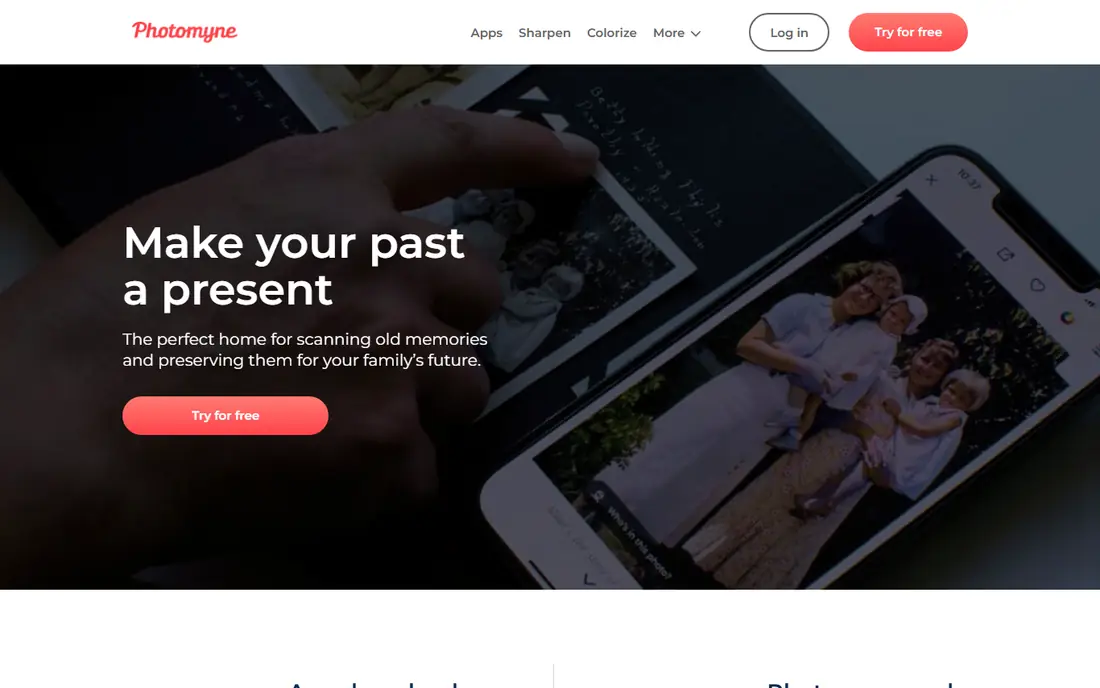
Photomyne is built for speed. Point your phone at an album page or a group of loose prints, and the app detects each photo, crops it, rotates it, and saves it as a separate image. That multi-photo capture turns a weekend album project into a much shorter job, and the built-in album tools let you add dates, names, and locations as you go. The wider Photomyne suite also covers slides and negatives through companion apps, so one membership can handle several kinds of old media.
The paid membership is the catch. Basic scanning is free to try, but unlimited scanning, high-resolution exports, and the full suite need a subscription, with a yearly plan as the best value. Glare handling is also less guided than PhotoScan, so glossy prints need good, even lighting. If you have albums or boxes to work through, Photomyne is worth the cost. If you only have a handful of prints, PhotoScan will do the job for free.
- Scans several photos in one shot
- Auto-crop, rotation, and album organisation
- Includes slide and negative tools in the suite
- Full features need a paid membership
- Glossy prints still need careful lighting
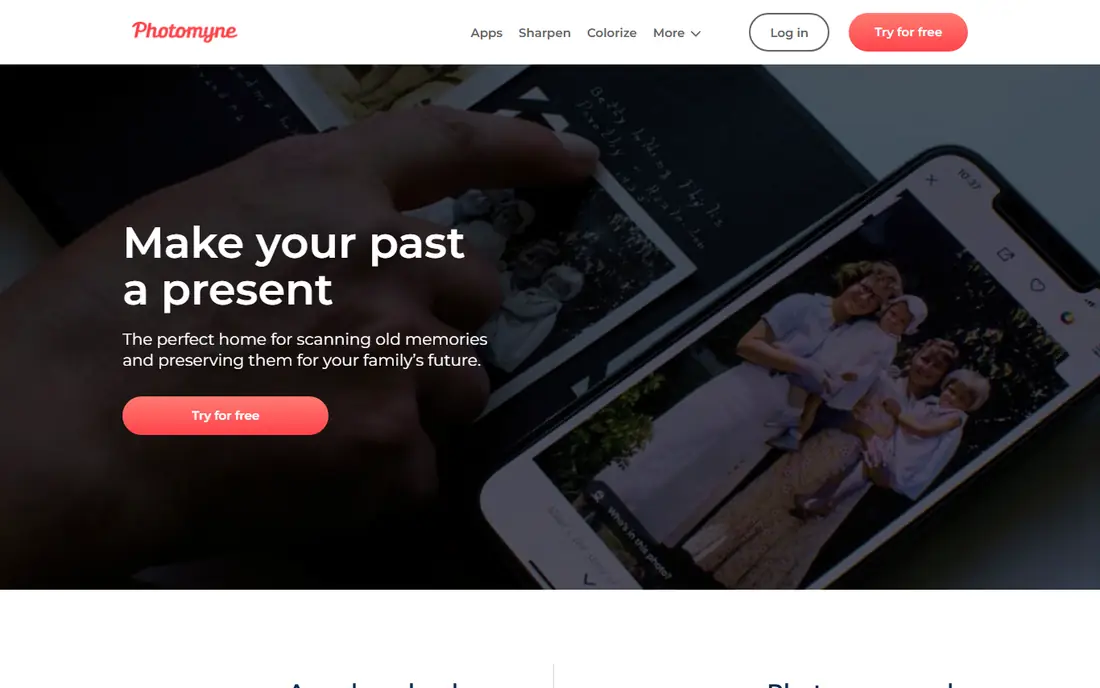
SlideScan, from Photomyne, is made for the specific job of digitising slides, which a standard print scanner handles poorly. The app guides slide capture and saves the result as a digital image you can share or store. That focus matters, because slides are small, often stored in boxes for decades, and easy to damage if handled with a flatbed scanner you do not own. For a family with a slide collection, a phone app is often the most practical first step.
Slide quality depends on light. You will get the best results with a steady light source behind the slide and a stable phone position, and some trial runs will help you find the right setup. SlideScan is free to download, but unlimited or full-suite use may need a Photomyne membership, so check the in-app terms before a large project. For a first pass through a slide box, SlideScan is a low-cost and practical tool.
- Designed for slide capture
- Free to download
- Part of the Photomyne family for sharing and organisation
- Needs a light source or viewer for best results
- Full features tie into a Photomyne membership
FilmBox, also from Photomyne, turns film negatives into viewable positive images using your phone camera and a light source. The live preview lets you frame a negative and check the result before saving, which is far easier than guessing with a generic camera app. For a family that found rolls of negatives in an attic, FilmBox can reveal images that have not been seen in decades, and it does so without buying a dedicated film scanner.
As with slides, light and stability matter. A bright, even backlight and a steady hand or stand will give cleaner results than a handheld shot in a dim room. FilmBox is free to download with a limited number of trial scans, and unlimited use needs a subscription. If you have only a few negatives, the trial may be enough to test the app. If you have many rolls, plan for a subscription month and work through them in batches.
- Converts negatives to positive images on a phone
- Live preview helps framing
- Free scans to try before subscribing
- Needs a backlight for clean results
- Unlimited scanning needs a subscription
Pic Scanner Gold suits iPhone households that dislike subscriptions. You pay once, then scan several photos in one capture, with automatic cropping and saving to your photo library. On-device processing is a privacy plus, because scans do not need to pass through a cloud service to be cropped. For a moderate batch of prints on an iPhone, Pic Scanner Gold is a simple, low-cost alternative to a yearly membership.
The limits are platform and scope. Pic Scanner Gold is iOS only, so Android users need another app, and it does not scan slides or negatives. Its editing and restoration tools are also basic compared with dedicated restoration apps. If you want a one-time purchase for prints and you use an iPhone, Pic Scanner Gold is a good buy. If you need film scanning or Android support, look at Photomyne or PhotoScan instead.
- One-time purchase, no subscription
- Multi-photo capture
- On-device processing for privacy
- IPhone and iPad only
- No slide or negative mode
- Restoration tools are basic
MyHeritage Reimagine is the best pick for a genealogy project, because it connects scanned photos to family history research rather than treating them as loose files. You can scan prints, enhance faded images, colorize black and white photos, and share results with relatives who may add names and stories. For a family historian, that link between a photo and a person in a tree is more valuable than raw scanning speed alone.
The subscription is the trade-off. Limited free use lets you test the app, but unlimited scanning, enhancement, and colorization need a paid plan. MyHeritage Reimagine also works best as part of a wider MyHeritage account, so a buyer who does not want family tree features may prefer a simpler scanner. If your goal is to preserve family stories, not just files, Reimagine is a strong choice.
- Links scans to family tree research
- AI enhancement and colorization options
- Easy sharing with relatives
- Unlimited scanning and enhancement need a subscription
- Best value is for MyHeritage users
PhotoScanRestore covers two steps in one place: scanning a print and restoring it. The iPhone app scans one print at a time for free, keeps the original untouched, and lets you restore only the photos worth the effort, such as faded portraits or scratched favourites. That workflow suits a family that wants to share a few restored photos, rather than digitise every print in a box. Keeping the original untouched is also good practice, because restoration is easier to redo than to undo.
The limits are speed and cost. Single-print scanning is slow for large batches, and restoration uses paid credits, so costs rise if you restore many photos. PhotoScanRestore is not a replacement for Photomyne on a large album job. It is best as a second step: scan in bulk elsewhere, then use PhotoScanRestore for the handful of photos that deserve careful restoration and sharing.
- Free iPhone scanning for single prints
- Keeps originals untouched
- Optional paid restoration for damaged photos
- One print at a time
- Restoration credits cost extra
- Narrower batch workflow than Photomyne
Adobe Scan is a document scanner first, but it is useful in a photo project for a simple reason: most people already have it, and it captures, crops, and cleans up images quickly. If you need to scan a photo that sits beside a letter, a certificate, or a newspaper clipping, Adobe Scan handles the whole set in one app. Export to PDF and integration with Adobe tools also help when you want to assemble a family history document.
The catch is that Adobe Scan is not designed for old photo restoration, glare control, or album organisation. Glossy prints may show reflections, and faded colors will stay faded unless you edit them elsewhere. Premium features need an Adobe subscription, though basic scanning is free. Use Adobe Scan for mixed document and photo jobs, and use PhotoScan or Photomyne for a dedicated old photo project.
- Free capture with auto-crop and cleanup
- Strong text and document tools
- Easy export to PDF and Adobe apps
- Built for documents first, not old photo restoration
- Premium features need an Adobe subscription
How we picked these
We compared apps that scan printed photos, slides, or negatives on a phone in 2026, using app store listings, vendor pages, and 2026 photo scanning comparisons. We kept only apps with a live listing and a clear scanning function, and we mixed free, one-time, and subscription options. We favoured apps that handle glare, multi-photo capture, or film, because those are the real pain points in an old photo project.
What to check before you start
Clean and sort before you scan. Remove photos from sticky album pages with care, sort by person or year if you can, and set aside fragile or curled prints for a flatbed scan or a professional service. Good lighting matters more than a fancy app: use even, indirect light, avoid flash on glossy prints, and keep the phone steady. Scan at the highest quality your app offers for favourites, because you can always make a smaller copy later, but you cannot add detail back to a low-quality scan.
Prints, slides, or negatives
Prints are the easiest job, and PhotoScan or Photomyne will cover most of them. Slides need a slide app such as SlideScan and a light source, while negatives need FilmBox and a backlight. Do not expect a print scanner to handle film well, and do not throw away originals after scanning, because a future scan with better tools may beat your first attempt. Label scans with names and dates as you go, or the digital pile will be as hard to search as the physical box was.
Backup and sharing
Save scans in at least two places, such as your phone and a cloud service or an external drive, before you share them widely. Use a clear folder structure by year, family branch, or event, and keep one untouched master copy of each favourite. When sharing, check privacy settings on any app that stores photos in the cloud, and ask relatives before posting identifiable family photos in public galleries.
Frequently asked questions
What is the best photo scanner app for old photos?
For a small batch, Google PhotoScan is the best free pick, because its multi-shot capture reduces glare on glossy prints. For a large album or box, Photomyne is better, because it scans several photos in one shot and organises them into albums. Choose based on batch size, not on features alone.
Can I scan slides and negatives with my phone?
Yes, with the right app and light source. SlideScan handles slides, and FilmBox handles negatives, both from Photomyne, using a backlight to reveal the image. Results will not match a professional film scanner, but they are good enough for sharing and for deciding which slides deserve a professional scan.
Is Google PhotoScan still available in 2026?
Yes, PhotoScan by Google Photos remains listed on iPhone and Android app stores in 2026, and it is free. Its last major updates were several years ago, so check that it installs and runs on your phone before a large project. If it does not suit your device, Photomyne and Pic Scanner Gold are current alternatives.
How do I scan photos without glare?
Use even, indirect light, avoid direct flash, and tilt the print slightly away from bright windows or lamps. Google PhotoScan helps by combining several angled captures into one glare-reduced image. For very glossy prints, a matte copy or a professional scan may still give a cleaner result than any phone app.
Should I restore old photos after scanning?
Restore only your favourites, and always keep an untouched master scan first. Restoration can improve faded colors, scratches, and soft faces, but aggressive edits can also change a face or lose detail. Use a restoration tool for a few important photos, and leave the rest as clean scans for family sharing.
Sources
See where you really rank - block by block
ProMapRanker scans Google Maps across a grid of your service area. Simple monthly plans from $19, white-label on every plan.
Start freeKeep reading
 free alternatives to grok imagine
Free Alternatives to Grok Imagine in 2026
We compared the best free alternatives to grok imagine for image generation, from fast daily credits to design tools, so you can create without paying.
Read → best tools for instagram content creation
Best Tools for Instagram Content Creation in 2026
Compare the best tools for Instagram content creation, from Canva and CapCut to Later and Buffer, on design, video, planning, scheduling, and price in 2026.
Read → best tool to split pdf files
Best Tool to Split PDF Files in 2026
We compared the best tool to split pdf files on split modes, file limits, privacy and price, so you can split a PDF cleanly and keep every page in one go.
Read →