 ProMapRanker
Best Photo Restoration App in 2026

Key takeaways
- Remini is the fastest phone option for faces, while VanceAI and Fotor suit browser-based restoration without installing software.
- Topaz Photo AI and Adobe Photoshop give the most control, but they cost more and need more skill than one-click tools.
- Free tiers are useful for a handful of photos, yet most are capped by credits, daily limits, or watermarks, so check limits before a large archive project.
- Always keep a copy of the original scan, since restoration changes pixels and a re-do is much easier from the untouched file.
Quick comparison
| Pick | Great for | Pricing starts at | Free tier | |
|---|---|---|---|---|
 Remini | quick mobile face restoration | See website | Yes | Visit |
 VanceAI Photo Restorer | one-click browser restoration | $9 per month | Yes | Visit |
 MyHeritage Photo Repair | family archive photos | See website | Yes | Visit |
 Topaz Photo AI | photographers who want control | $199 one-time | Free trial | Visit |
 Fotor | budget browser editing and repair | $39.99 per year | Yes | Visit |
 Adobe Photoshop | manual retouching and repair | $22.99 per month | Free trial | Visit |
 AKVIS Retoucher | manual scratch and damage repair | $87 one-time | Free trial | Visit |
 Photomyne | digitising whole albums by phone | $59.99 per year | Free trial | Visit |
 PicWish | batch enhancement and cleanup | $6.99 per month | Yes | Visit |
The best photo restoration apps
Old photos fade, tear, and lose detail, and the best restoration tool depends on whether you have a phone, a browser, or a desktop editor. These nine options cover quick phone fixes, one-click web tools, and full manual control.
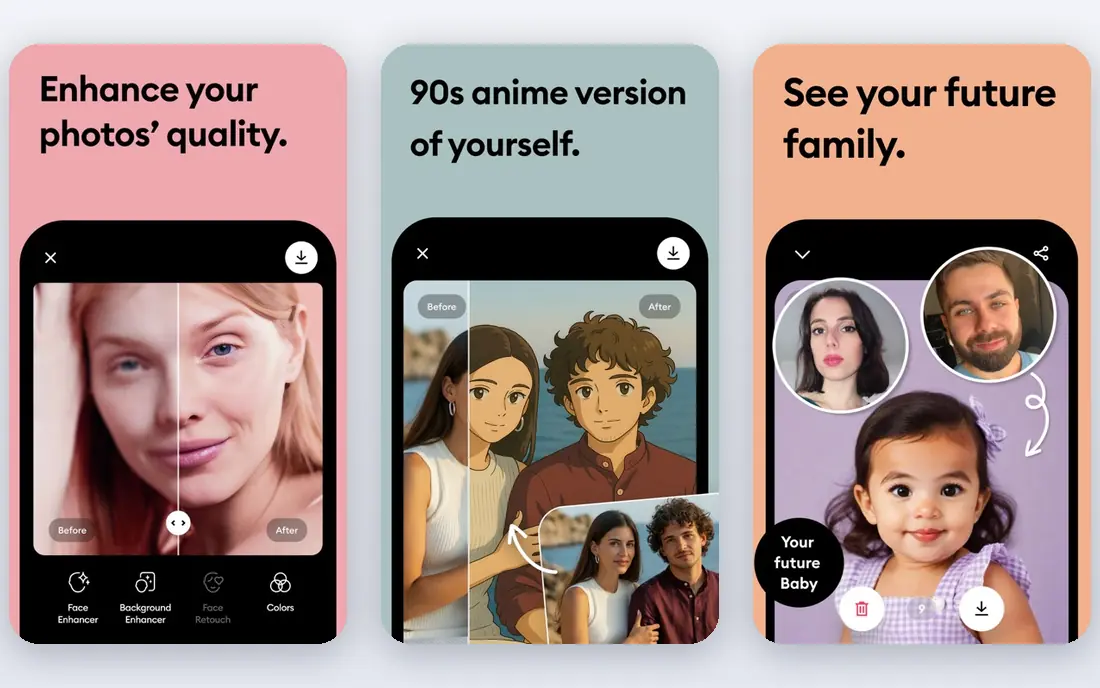
Remini is the phone-first pick in this list. You open a photo, run enhancement, and get a sharper version with clearer facial detail, which is exactly what most people want from a single old portrait. The app is built for one photo at a time, so it suits rescuing a handful of important family pictures rather than processing a whole album.
The catch is pricing and control. Paid plans are framed weekly in app stores, which makes a month of use more expensive than it first looks, and there is little fine control over how much smoothing or sharpening is applied. If you have ten key portraits and a phone, Remini is a good start, but for hundreds of scans a browser or desktop tool will be cheaper per photo.
- Strong face detail recovery on phones
- Simple one-photo workflow
- Colourisation available
- Weekly pricing can add up
- No batch workflow for large archives

VanceAI Photo Restorer runs in a browser, so there is nothing to install and it works on most computers. Upload a scan, run restoration, and preview the result before downloading, with options for scratch removal and face enhancement. That simple flow makes it a good middle ground between a phone app and a full editor, especially for people who do not want to learn retouching.
Credit pricing is the point to check. A small monthly plan covers occasional photos, but a large archive can burn through credits faster than expected. Heavily torn or missing sections may still need manual work in an editor. For faded, scratched, and blurry prints that need a clean one-click pass, VanceAI is a practical choice.
- Restoration-specific workflow in a browser
- Scratch removal and face enhancement
- Credits can suit occasional use
- Credit costs rise with large batches
- Results vary with heavily damaged originals
MyHeritage Photo Repair makes sense if you are already building a family tree or plan to. Photos restored in MyHeritage can sit alongside names, dates, and relatives, which helps when an archive is also a research project. The tools cover repair, enhancement, and colourisation, and the interface is aimed at non-technical users.
The limit is the bundle. If you only want photo repair and have no interest in genealogy, the subscription may cost more than a standalone tool. Free use is limited to a small number of photos, so it is best for testing on a few key images before deciding whether the wider MyHeritage service is worth it for your family history work.
- Ties restoration to family tree research
- Colourisation and enhancement in one place
- Familiar for genealogy users
- Full features sit inside a genealogy subscription
- Limited free photos
Topaz Photo AI is aimed at photographers who want to control denoising, sharpening, and upscaling rather than accept a single automatic result. The free trial lets you preview the full output before paying, which is useful when you are deciding whether the extra detail is worth the price. A one-time purchase also avoids an ongoing monthly bill, which suits people who restore photos in bursts.
The trade-off is hardware and skill. Topaz runs best on a modern computer, and getting natural results takes some trial with settings, since over-sharpening can look artificial. For photographers with a large library of scanned prints and camera files, it is the strongest desktop option in this list.
- One-time purchase rather than a subscription
- Denoise, sharpen, and upscale in one app
- Preview before buying
- Needs a fairly capable computer
- Learning curve for best results
Fotor is a general photo editor with enhancement and repair features, which makes it a good budget pick when you also need cropping, colour adjustment, and basic edits. The browser version means no install, and the yearly Pro price is lower than many specialist tools. For lightly faded or slightly blurry photos, the one-click enhancement is often enough.
Fotor is not a dedicated restoration app, so torn prints, deep scratches, and missing faces will push past what it can do cleanly. Think of it as the everyday editor that also handles simple restoration, rather than the tool for a badly damaged heirloom print. If budget matters and most of your photos need a light clean-up, it is good value.
- Low yearly price
- Browser-based editing plus enhancement
- Useful for light damage
- Not built only for restoration
- Heavy damage still needs a specialist tool
Photoshop is the manual option, and for a badly damaged print it remains hard to beat. Healing brushes, clone stamps, and content-aware tools let you rebuild torn areas, remove scratches one by one, and adjust colour with precision. Neural Filters add AI enhancement and colourisation inside the same editor, so you can combine automatic help with manual fixes.
The cost is both money and time. A monthly subscription is overkill if you only restore a few photos a year, and beginners will need tutorials to use the repair tools well. If you already subscribe for photography or design, Photoshop is the obvious restoration workspace, and for a single irreplaceable print it gives the most careful result.
- Full manual control with healing, cloning, and Neural Filters
- Batch actions for repeat work
- Industry standard output
- Subscription cost
- Steep learning curve for beginners
AKVIS Retoucher focuses on one job: removing scratches, stains, dust, and small tears from scanned photos. You mark the damaged area and the tool fills it from surrounding detail, which is more precise than a general enhancement filter. The one-time licence suits people who restore in bursts and do not want another subscription.
The interface is less polished than newer web tools, and AKVIS does not replace a full editor for colour work or cropping. It works best as a specialist step in a workflow, for example after scanning and before a final touch in another editor. For prints with visible physical damage, it is a useful, focused purchase.
- Focused scratch, stain, and tear repair
- One-time Home licence
- Works as a standalone app or plugin
- Interface feels dated
- Not a general photo editor
Photomyne solves a different problem from the other tools here: getting a whole album off paper and onto a phone quickly. Point the camera at a page, and it detects and crops individual photos, then lets you enhance, colourise, and organise them into albums. That batch scanning saves a lot of time compared with scanning one print at a time on a flatbed scanner.
Phone scan quality depends on light and angle, so a treasured print may still deserve a proper flatbed scan before restoration. The yearly price also makes less sense for a single weekend project than for an ongoing family archive. If you have boxes of albums to digitise, Photomyne is the fastest route to a searchable digital collection.
- Scans multiple photos in one shot
- Album organisation and sharing
- Colourisation and enhancement included
- Phone scans vary with lighting
- Yearly price for a one-off project
PicWish is a web tool that handles enhancement, cleanup, and restoration-style fixes with a simple upload workflow, and it supports batch work better than most phone apps. That makes it useful when you have a folder of scans that all need a similar clean-up, rather than one hero portrait. The free tier gives a small number of enhancements per day for testing.
The free limit is the catch for larger jobs, and PicWish will not rebuild a torn section as carefully as Photoshop or AKVIS. For everyday restoration tasks such as sharpening, denoising, and light scratch cleanup across many photos, it is a fast and affordable option.
- Batch enhancement for many photos
- Simple web workflow
- Free daily enhancements
- Free tier is limited per day
- Heavy damage needs manual repair
How we picked these
We compared official pricing pages, app store listings, and product documentation for tools that restore, enhance, colourise, or repair old photos in October 2026. We kept tools that are currently available, that clearly state a free tier or trial, and that fit a distinct use case, from phone faces to manual print repair. Where a vendor did not publish a clear price, we wrote See website rather than guessing.
How to get a better restoration
Start with the best scan you can make, at a high resolution, and save the original file untouched. Work on a copy, and test a tool on three photos that represent your archive: one faded, one scratched, and one blurry portrait. Compare the outputs at full size, not just on a phone screen, and watch for over-smoothed skin or invented detail in faces. If a tool adds detail that was not in the original, treat that version as an interpretation, not a true copy.
When to pay and when to stop
Use a free tier for a handful of photos. Pay for a month or a credit pack when you have a clear batch, and cancel when the batch is done. For a single damaged heirloom, a manual editor or a professional restorer may give a more faithful result than any one-click tool, especially where a face or a torn section is missing.
Frequently asked questions
What is the best photo restoration software for old family photos?
For most family photos, Remini works well on a phone for faces, VanceAI works well in a browser for a quick pass, and MyHeritage fits if you also keep a family tree. For badly damaged prints, Photoshop or AKVIS Retoucher gives more manual control. Pick based on how many photos you have and how much damage they show.
Is there a free photo restoration app that works well?
Yes, for small jobs. Fotor, PicWish, and VanceAI all offer free tiers, and Remini offers limited free use. Free tiers usually cap daily photos, credits, or exports, so they suit testing or a few photos rather than a whole archive. Check whether exports carry a watermark before you commit time to a large batch.
Can AI restore a torn or missing part of a photo?
AI can fill small scratches and gaps by guessing from surrounding pixels, but it cannot recover detail that is truly gone. Large missing faces or torn sections will be an approximation, and the result may look plausible without being accurate. Keep the original scan and note where the tool filled in detail.
What is the best app for photo restoration on a phone?
Remini is the strongest phone pick for face detail, and Photomyne is the best phone pick for scanning whole albums quickly. Picsart and Fotor also offer mobile restoration, but for a single old portrait Remini usually gives the clearest face result with the least effort.
Should I scan photos before using a restoration app?
Yes. Scan at the highest resolution your scanner allows, save the file as an uncompressed copy, and work on a duplicate. A good scan gives every tool more detail to work with, and it protects the original print from repeated handling.
Sources
See where you really rank - block by block
ProMapRanker scans Google Maps across a grid of your service area. Simple monthly plans from $19, white-label on every plan.
Start freeKeep reading
 free alternatives to grok imagine
Free Alternatives to Grok Imagine in 2026
We compared the best free alternatives to grok imagine for image generation, from fast daily credits to design tools, so you can create without paying.
Read → best tools for instagram content creation
Best Tools for Instagram Content Creation in 2026
Compare the best tools for Instagram content creation, from Canva and CapCut to Later and Buffer, on design, video, planning, scheduling, and price in 2026.
Read → best tool to split pdf files
Best Tool to Split PDF Files in 2026
We compared the best tool to split pdf files on split modes, file limits, privacy and price, so you can split a PDF cleanly and keep every page in one go.
Read →