 ProMapRanker
Best PDF to Excel Converter Software in 2026

Key takeaways
- Adobe Acrobat suits established Adobe workflows and native PDFs, while PDFelement suits desktop users who need OCR and batch work.
- Able2Extract and PDF2XL suit users who need finer control over which tables, rows, and columns are extracted.
- Smallpdf and iLovePDF suit occasional native PDF conversions in a browser, with free limits for light use.
- Scanned PDFs need OCR, so free tools without OCR will fail on image-based pages even if they handle native PDFs well.
- For sensitive financial documents, prefer desktop conversion or a vendor with clear deletion and privacy terms over an unknown free site.
Quick comparison
| Pick | Great for | Pricing starts at | Free tier | |
|---|---|---|---|---|
 Adobe Acrobat | Adobe workflows and native PDFs | See website | Free trial | Visit |
 PDFelement | Desktop OCR and batch conversion | See website | Free trial | Visit |
 Able2Extract | Precise table extraction control | See website | Free trial | Visit |
 PDF2XL | Deep table and column control | See website | Free trial | Visit |
 Smallpdf | Quick browser conversions | See website | Yes | Visit |
 iLovePDF | Free browser batch conversion | See website | Yes | Visit |
 Lido | Structured data extraction | See website | Free trial | Visit |
 Tabula | Free open source table extraction | Free | Yes | Visit |
 Convertio | Browser conversion across formats | See website | Yes | Visit |
The best pdf to excel converter software
A good PDF to Excel converter does more than create a spreadsheet file. It must recognise tables, keep rows and columns aligned, preserve numbers for formulas, handle scanned pages where needed, and process more than one file at a time. We compared official feature pages, pricing pages, documentation, privacy policies, and public reviews, with a focus on table accuracy and OCR.
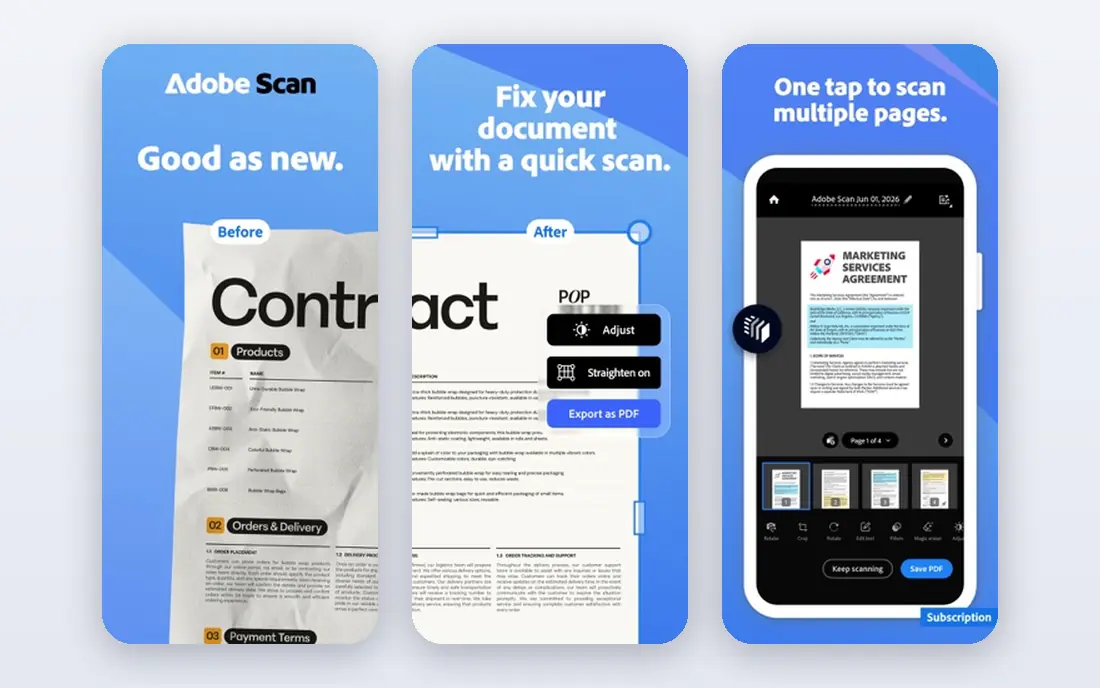
Adobe Acrobat is the familiar choice for business users who already work in Adobe tools. Its export maps detected tables into Excel rows and columns, which suits native PDFs such as reports, statements, and invoices created from software rather than scans. An online converter also handles a single file without installing software, which is useful for a quick task.
Scanned pages need care. Acrobat can apply OCR, but results depend on scan quality, and a poor scan may still need manual cleanup. For a business user who converts native PDFs regularly and values a trusted workflow, Acrobat is a solid default. For heavy scanned work or deep table control, a specialist below may be better.
- Strong table detection for native PDFs
- Trusted Adobe workflow
- Online converter for single files
- Scanned PDFs need OCR steps
- Subscription cost for full desktop use
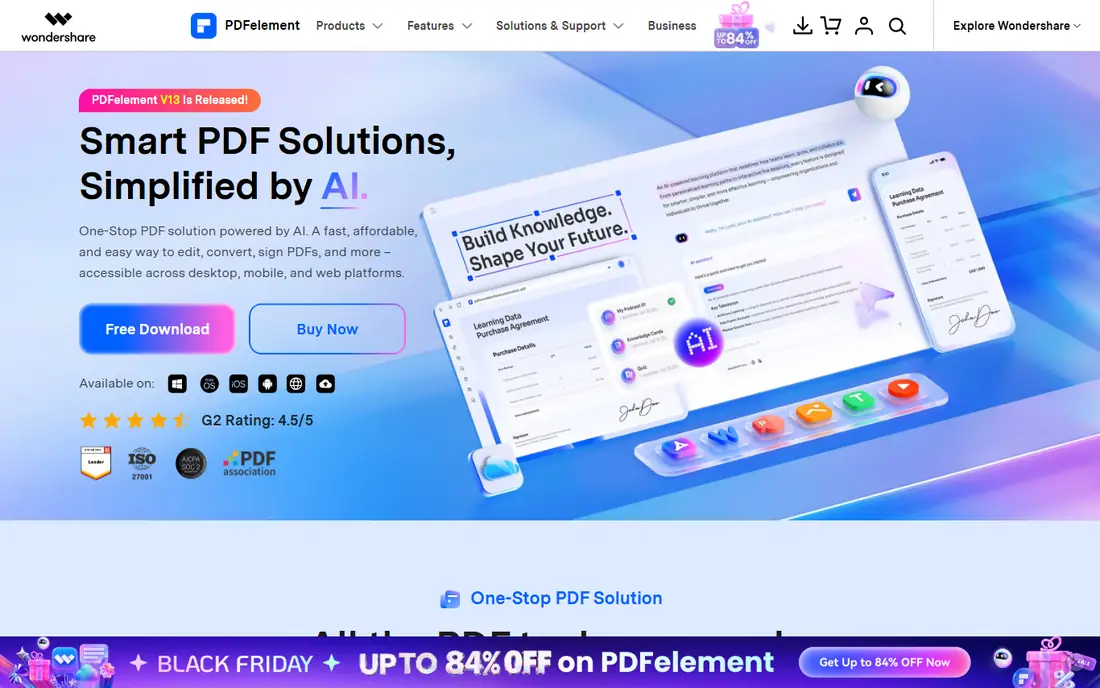
PDFelement suits desktop users who convert often and want control in one place. OCR handles scanned pages, batch conversion handles folders of files, and page-range and output settings help when only part of a long PDF matters. Broader PDF editing tools mean the same app can also fix a page, add a signature, or merge files before conversion.
The breadth can feel heavy for a one-off browser conversion, where Smallpdf or iLovePDF would be faster. For regular office work, though, PDFelement gives a strong balance of accuracy, OCR, and batch handling. Test it with your own statement or report format, since table styles vary widely.
- Desktop OCR and batch conversion
- Page-range and Excel output controls
- Broader PDF editing tools
- Full features need a paid plan
- Interface can feel broad for a single conversion task
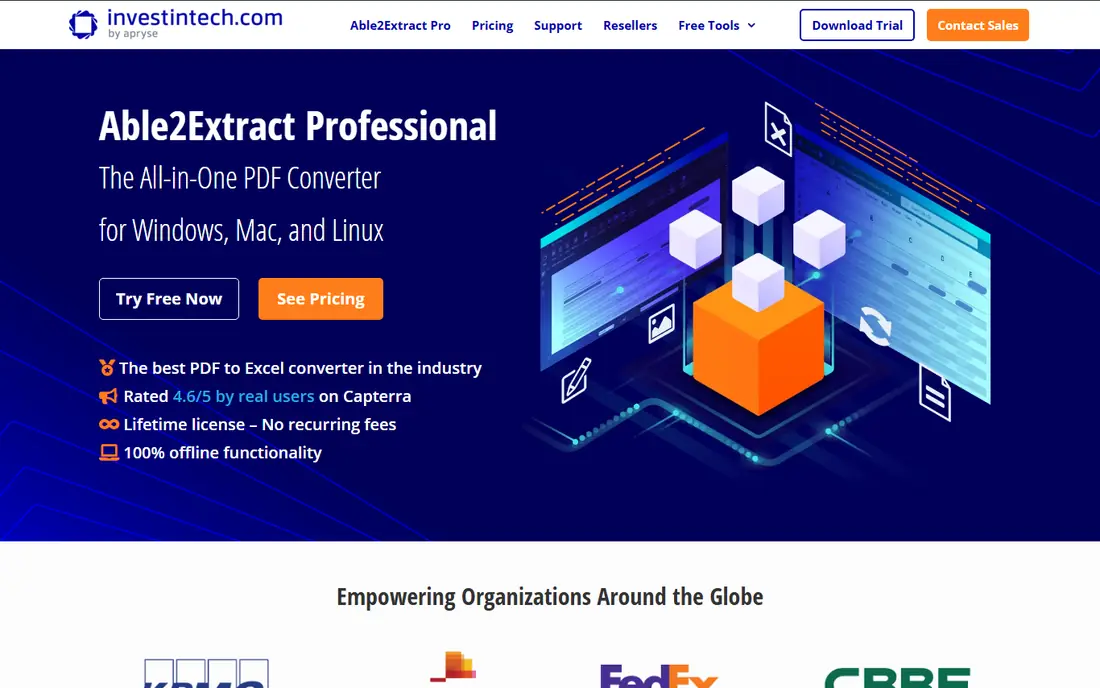
Able2Extract appeals to users who need to choose exactly what to extract. Instead of converting a whole page blindly, a user can select tables, adjust rows and columns, and preview output before creating the spreadsheet. That control helps with messy reports where a full-page conversion would merge unrelated sections.
The desktop interface feels more functional than modern, and pricing should be checked on the vendor site for the current plan. For accountants, analysts, and office staff who convert varied PDFs daily, that control often matters more than a slick interface. It is a specialist tool for accuracy, not a casual browser converter.
- Fine control over table selection
- OCR for scanned PDFs
- Strong Excel output options
- Desktop focus may feel dated
- Pricing needs a vendor check
PDF2XL is built for users who convert the same kinds of tables again and again and need them to land cleanly. Its controls over rows, columns, and selected tables help when a report has headers, footers, or multi-page tables that a simple converter would split badly. Template-style workflows can save time on repeated monthly reports.
That depth brings a learning curve. A first-time user may need time to set up a conversion correctly, and pricing should be confirmed on the vendor site. For a team that converts statements, price lists, or survey tables on a schedule, PDF2XL offers control that browser tools rarely match.
- Detailed table, row, and column control
- Useful for complex or repeated reports
- Template-style workflows
- Learning curve for complex layouts
- Pricing needs a vendor check
Smallpdf suits the occasional converter who wants a file done in minutes. Upload a native PDF in a browser, convert it, and download the spreadsheet without installing software. That simplicity is its main strength, and the free tier covers light use well.
Limits appear with volume and complexity. Free conversions are limited per day, and scanned or complex tables may not convert as cleanly as in a desktop OCR tool. For sensitive documents, check Smallpdf's privacy and deletion terms before uploading, and prefer desktop conversion for highly confidential files.
- Simple browser workflow
- No install for occasional files
- Clear free tier for light use
- Free conversions are limited
- Scanned PDFs and complex tables may need a desktop tool
iLovePDF is a practical browser choice for batch conversion of native PDFs. Several files can be processed together, and the broader tool set covers merging, splitting, and compressing PDFs as well. That breadth makes it a handy bookmark for general office PDF work, not just Excel conversion.
Scanned PDFs are the gap. Without OCR, an image-based PDF will not yield usable table data, no matter how clean the interface looks. For native PDFs, iLovePDF is fast and free for light use. For scanned statements or reports, use PDFelement, Able2Extract, or Adobe Acrobat with OCR instead.
- Free batch conversion for native PDFs
- Simple interface
- Broad PDF tool set
- No OCR for scanned PDFs in free flow
- Free tier has limits
Lido takes a different approach from layout converters. Instead of trying to copy how a PDF looks, it identifies fields and table structures and outputs clean, structured data ready for formulas and downstream work. That approach suits business documents such as invoices, statements, and reports where the spreadsheet must be usable, not just readable.
Cost and scope need checking. Lido is a subscription product, and its best value appears when document volume is regular rather than occasional. For a single simple PDF, a free browser tool may be enough. For repeated business extraction where data quality drives decisions, Lido is worth a trial with your own documents.
- Structured extraction for business documents
- OCR for scanned pages
- Clean data for formulas and workflows
- Subscription cost for regular use
- Best value is for business document volumes
Tabula is the free, open-source option for extracting tables from native PDFs. It runs locally, which avoids uploading sensitive files to a website, and it lets a user select table areas and export them to CSV or Excel-friendly formats. For journalists, analysts, and researchers working with public reports, that local, free approach is valuable.
It does not handle scanned PDFs, since it has no OCR, and its setup is more technical than a browser converter. Casual users may prefer Smallpdf or iLovePDF for a quick file. Analysts who need repeatable, local extraction from native PDFs will find Tabula a capable, no-cost tool.
- Free and open source
- Good for native PDF tables
- No upload needed for local use
- No OCR for scanned PDFs
- Technical setup suits analysts and developers more than casual users
Convertio suits users who convert many file types, not just PDF to Excel. Its browser workflow is simple, and it handles a wide range of formats, which helps when a team receives PDFs, images, documents, and spreadsheets in one project. For a quick PDF to Excel task, it works without an install.
Table accuracy varies with PDF style, and free limits on file size and volume apply. Complex or scanned tables may need a desktop specialist instead. For occasional, mixed-format conversion, Convertio is a flexible bookmark. For sensitive or high-volume business work, prefer a desktop tool or a vendor with clear privacy terms.
- Broad format support
- Simple browser workflow
- Useful for mixed file types
- Free tier has size and volume limits
- Table accuracy varies by PDF style
How we picked these
We compared official feature pages, pricing pages, documentation, privacy policies, and public reviews for PDF to Excel converters that are live in 2026. We kept tools that create usable Excel output from native or scanned PDFs, that cover desktop, browser, and open-source routes, and that offer distinct control levels from simple conversion to structured extraction. We used See website where pricing varies by plan, and we noted free tiers and trials where vendors state them.
How to get a clean spreadsheet
Start by checking whether your PDF is native or scanned. Select text in the PDF: if you can select table text, it is native and most tools will work. If you cannot, it is scanned and you need OCR from PDFelement, Able2Extract, Adobe Acrobat, or Lido. That single check prevents most failed conversions.
Then test with one real file before a batch. Convert it, check that numbers are numbers rather than text, check that totals still add up, and check that multi-page tables did not split badly. For sensitive files, prefer desktop conversion and check deletion terms for any browser tool. A short test with your worst file, not your cleanest, gives the most honest result.
Frequently asked questions
What is the best PDF to Excel converter software?
Adobe Acrobat suits native PDFs in an Adobe workflow, PDFelement suits desktop OCR and batch work, and Able2Extract or PDF2XL suit precise table control. Smallpdf and iLovePDF suit occasional browser conversions. The best pick depends on whether your PDFs are native or scanned, and how much table control you need.
What are the best PDF to Excel converter tools?
The strongest set on this list is Adobe Acrobat, PDFelement, Able2Extract, PDF2XL, Smallpdf, iLovePDF, Lido, Tabula, and Convertio. Each covers a different balance of accuracy, OCR, batch handling, and cost. Test your own document type before committing, since table styles vary widely.
Can PDF to Excel converters handle scanned PDFs?
Only tools with OCR can handle scanned PDFs well, including PDFelement, Able2Extract, Adobe Acrobat with OCR, and Lido. Free tools such as Smallpdf, iLovePDF, and Tabula generally handle native PDFs only. If your documents are scans, OCR support is essential, and scan quality still affects accuracy.
Are free PDF to Excel converters safe for financial documents?
Free browser converters can be fine for public or low-sensitivity files, but check privacy and file deletion terms before uploading financial documents. For sensitive statements, prefer desktop conversion with PDFelement, Able2Extract, or Acrobat, which keeps files local. Never upload a document you would not want stored by a third party without reading its terms.
Why do some converted spreadsheets look messy?
Messy output usually comes from complex layouts, merged cells, headers and footers, or scanned pages without OCR. A converter that copies layout will look different from one that extracts structured data. Try a specialist such as Able2Extract or PDF2XL for control, clean the source scan if needed, and expect some manual cleanup on complex reports.
Sources
See where you really rank - block by block
ProMapRanker scans Google Maps across a grid of your service area. Simple monthly plans from $19, white-label on every plan.
Start freeKeep reading
 wpforms alternatives
Best WPForms Alternatives in 2026
We compare 9 wpforms alternatives for WordPress forms, with free and paid options, current pricing notes, and honest limits for small business sites in 2026.
Read → windows task scheduler alternatives
Best Windows Task Scheduler Alternatives in 2026
Looking for Windows Task Scheduler alternatives? We compare 9 schedulers for Windows and cross-platform work, from free tools to enterprise automation.
Read → which ai video service is best
Which AI Video Service Is Best in 2026
which ai video service is best? We compare 10 legitimate AI video services on price, avatars, editing and output quality to help you pick the right tool.
Read →