 ProMapRanker
Best PDF Splitting App for Mobile in 2026

Key takeaways
- Adobe Acrobat, iLovePDF and Smallpdf cover most mobile splitting needs, with page ranges and single-page extracts.
- Mobile browser tools work well for a quick split, while dedicated apps suit frequent use and offline work.
- Check free task limits before you rely on an app, since several tools limit free splits per day.
- Keep the original PDF until you check the split files, because page order and file names matter.
- Avoid uploading sensitive documents to a web tool when an on-device app can do the same job.
Quick comparison
| Pick | Great for | Pricing starts at | Free tier | |
|---|---|---|---|---|
 Adobe Acrobat | Full PDF work on mobile | Free | Yes | Visit |
 iLovePDF | Quick splits in a browser or app | Free | Yes | Visit |
 Smallpdf | Simple online splits | Free | Yes | Visit |
 Foxit PDF Editor | Editing plus splitting | Free | Yes | Visit |
 PDF Expert | iPhone and iPad PDF work | Free | Yes | Visit |
 Xodo | Lightweight mobile PDF tools | Free | Yes | Visit |
 PDFelement | Splitting plus editing | Free | Yes | Visit |
 PDF2Go | Browser-based splitting | Free | Yes | Visit |
 Sejda PDF | Browser splits with page picks | Free | Yes | Visit |
The best pdf splitting app for mobile
Splitting a PDF on a phone usually means one of three jobs: pulling out a few pages to share, breaking a long file into chapters, or saving each page as its own file. These nine apps and mobile tools handle those jobs on iPhone, Android or a mobile browser. We compared vendor feature pages, app store listings and current PDF guides, and we favored tools with a clear split feature on mobile rather than desktop-only software.
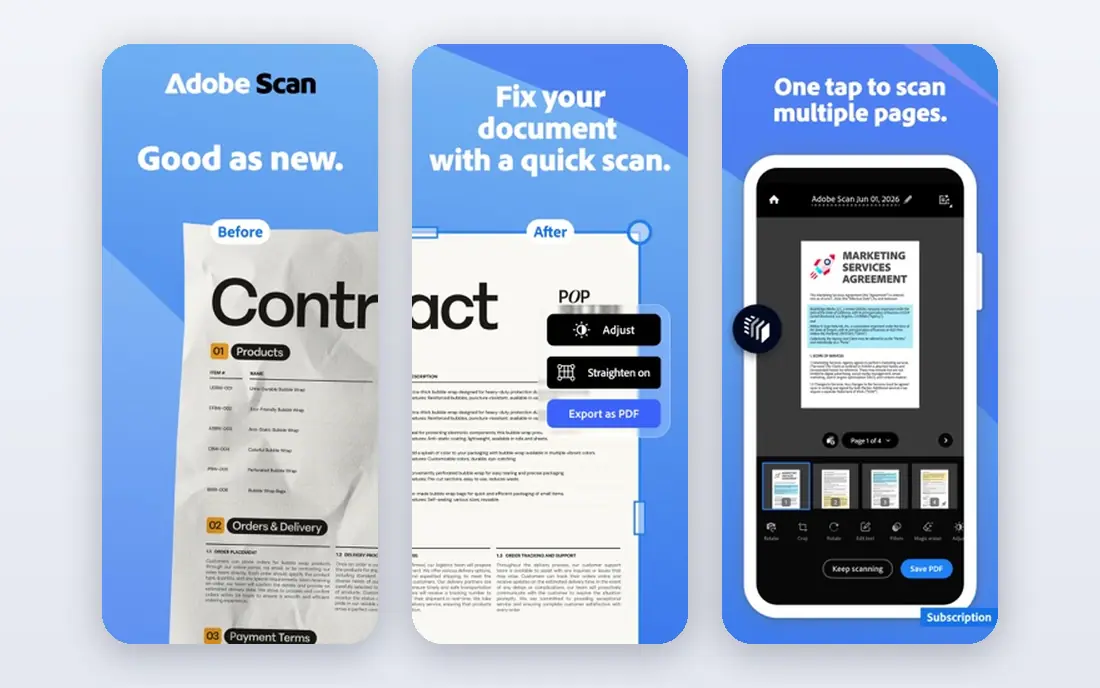
Adobe Acrobat is the safest default for mobile PDF work. The mobile app opens PDFs fast, lets you view pages as thumbnails, and offers Organize Pages tools for reordering, deleting and splitting pages. Premium plans add the full set of split and editing options, while the free app covers viewing, commenting and basic tasks.
For a student or office worker who already uses Acrobat on a computer, the mobile app keeps the same files and habits. You can open a PDF from email or cloud storage, split out the pages you need, and share the result without moving to a desktop.
The catch is cost. Splitting beyond basic use sits behind Premium, so check the current subscription price before you rely on it daily. If you only split occasionally, a free browser tool below may be cheaper.
- Organize Pages with split options
- Strong mobile reader
- Syncs with Adobe cloud storage
- Full split and editing features need a Premium subscription
- Interface has many menus
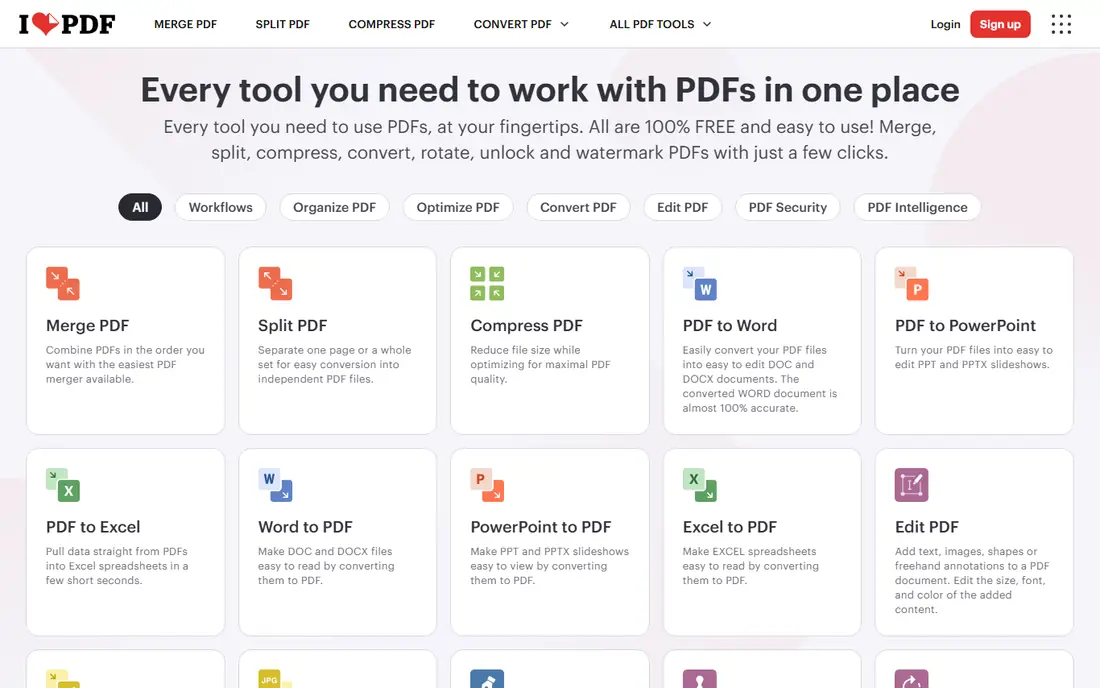
iLovePDF makes splitting simple. Open the Split PDF tool, upload a file from your phone or cloud storage, and choose custom ranges, fixed ranges or single-page extracts. You can also merge extracted ranges into one PDF, which helps when you need pages 1 to 3 and 7 to 9 as a single file.
The mobile browser version works well on iPhone and Android, so you do not always need to install an app. Files can be saved back to Google Drive or Dropbox, which suits shared work. Premium adds a third split mode by file size, plus higher limits.
The limit is free usage. Free accounts face daily task limits, so a heavy day of splits may need a pause or a paid plan. For occasional splits, iLovePDF is our pick for speed.
- Split by custom ranges, fixed ranges or single pages
- Works in a mobile browser and app
- Merge option for extracted ranges
- Free use has task limits
- Splitting by file size needs Premium
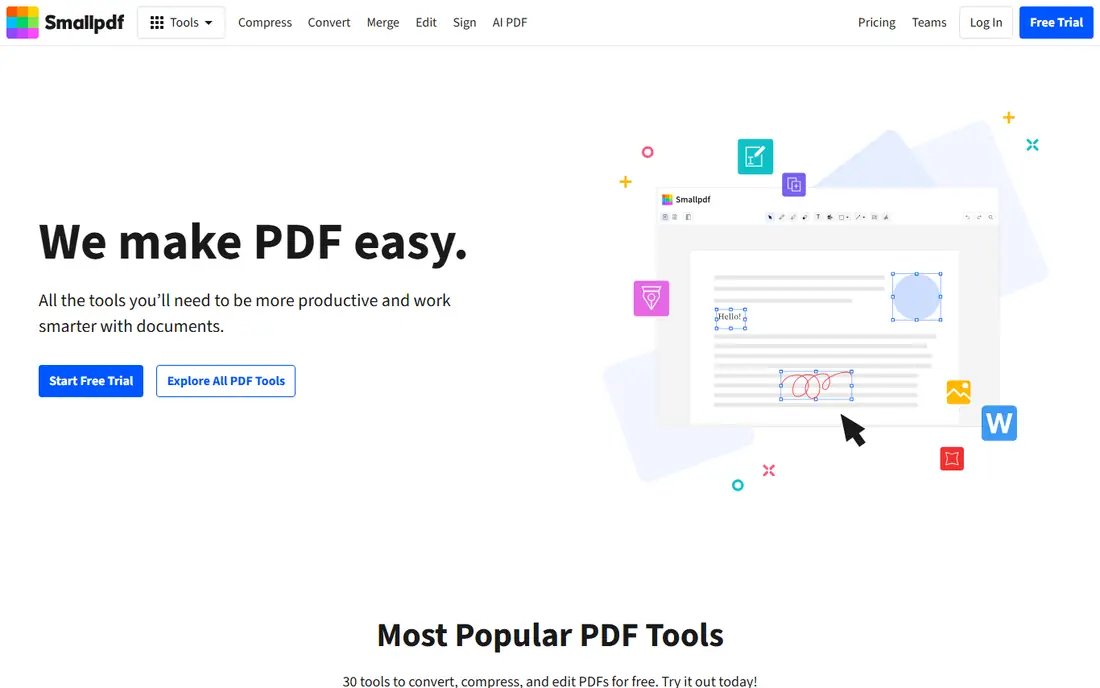
Smallpdf suits people who want a split with no learning curve. Upload a PDF in a mobile browser, pick pages by thumbnail or range, and download the split files. The interface is clean, and the steps are the same on phone and computer.
The tool also covers merge, compress and convert tasks, so a split file can be compressed or changed to another format without a second app. That breadth helps when a split is only one step in a larger document job.
The catch is the free limit. Smallpdf limits free tasks per day, and Pro removes those limits. If you split PDFs every day for work, check the Pro price. If you split a few times a month, the free tier should cover you.
- Clean split interface
- Page selection by thumbnail
- Works on mobile browsers
- Free tasks limited per day
- Some features need a Pro plan
Foxit PDF Editor is a good choice when splitting is part of editing. The mobile app lets you view, annotate, sign and organize PDF pages, with split and extract options alongside editing tools. That combination suits contracts, forms and reports that need a change as well as a split.
The app syncs across devices, and it handles large PDFs reasonably well on modern phones. Annotation tools help when you need to mark pages before you split them, such as flagging a chapter to extract later.
The limit is price and screen size. Advanced features need a paid plan, and dense menus feel cramped on a small phone. On a tablet, Foxit feels more comfortable, and the extra editing tools earn their place.
- Mobile editor with page tools
- Annotation and signing
- Works on iPhone, Android and desktop
- Advanced editing needs a paid plan
- Interface can feel dense on a small screen
PDF Expert is the strongest Apple-focused option here. On iPhone and iPad, it opens PDFs quickly, shows pages as thumbnails, and lets you split, extract, delete and reorder pages with simple gestures. Annotation, signing and form filling sit in the same app, so a split rarely needs a second tool.
The iPad version is especially useful, because a larger screen makes page selection easier. Files can come from iCloud, Google Drive, Dropbox and other cloud services, and the app keeps recent files easy to find.
The main limit is platform. PDF Expert does not cover Android, so teams with mixed phones need a cross-platform tool such as iLovePDF or Adobe Acrobat. Full features also need Premium, so check the current price for your use.
- Fast page handling on Apple devices
- Split, extract and reorder pages
- Strong annotation tools
- Apple only, so Android users need another app
- Full features need a Premium subscription
Xodo is a lightweight option that covers reading, annotation and page work without a heavy install. The mobile app opens PDFs from local storage or cloud drives, and it offers extract and page management tools alongside highlighting and signing. That mix suits students and field workers who need a quick extract on the go.
The app feels fast on older phones, which matters when a PDF is large or a connection is weak. Cloud sync keeps files available across phone and computer, and sharing a split file is straightforward.
The catch is focus. Xodo is a general PDF editor, so its split workflow is less guided than iLovePDF or Smallpdf. If you split PDFs often, a dedicated split tool may save time. If you want one light app for many PDF jobs, Xodo is a good fit.
- Fast mobile PDF viewer
- Page extract and editing tools
- Syncs with cloud storage
- Split options are part of a broader editor, not a dedicated split workflow
- Some features need a paid plan
PDFelement from Wondershare covers splitting through its online tools and mobile app. The online splitter lets you upload a PDF, choose custom ranges, and download the result, while the app adds editing, annotation and conversion. That breadth helps when a split leads to further edits.
The online tool is handy on a phone browser, since it needs no install. File size and page limits apply, with recent guides noting a 100 MB limit for many online tools and a 260-page limit for AI features. Check the current limits for the split tool itself before a large job.
The main limit is free usage. Many online tools allow one free use per day for free users, so frequent splits will need a paid plan or a second tool. For occasional splits plus editing, PDFelement is still worth considering.
- Online and mobile split tools
- Page range and single-page options
- Editing and conversion tools
- Free online use limited to one task per day for many tools
- Full mobile features need a paid plan
PDF2Go is a browser tool that works on any phone without an install. Open the site, upload a PDF, choose pages or ranges, and download the split files. That simplicity suits a one-off split on a borrowed phone or a device with little storage.
The tool also covers merge, compress, convert and edit tasks, so a split file can be adjusted in the same session. Optional cloud connections let you pull files from Google Drive or Dropbox and save results back.
The limits are connection and privacy. You need internet access, and uploaded files go to a web server for processing. Avoid sensitive documents here, and use an on-device app when privacy matters more than convenience.
- Works in any mobile browser
- Split by range or single pages
- No install needed
- Needs an internet connection
- Free use has limits
- Uploads go to a web server
Sejda PDF offers a clean browser split workflow. You upload a PDF, pick pages visually or by range, and choose whether to split into single pages, ranges or selected pages only. That visual picking helps when you need pages 2, 5 and 9, but not the pages between them.
The mobile browser experience is straightforward, and results download as separate files or a zip archive. Sejda also covers merge, edit and convert tasks, so a split can be followed by a quick fix without a new app.
The catch is free limits. Sejda limits free tasks per day, and larger files may need a paid plan. For a few careful splits a day, it works well. For bulk work, a desktop tool or a paid mobile plan will be faster.
- Clear page selection
- Split into single pages or ranges
- Works on mobile browsers
- Free use limited per day
- Large files may need a paid plan
How we picked these
We compared vendor feature pages, app store listings and current PDF guides for October 2026. We kept only tools with a split feature that works on a phone, either as an app or in a mobile browser. We favored tools with clear page range and single-page options, and we noted free task limits where guides reported them. We did not claim hands-on testing, and we based prices on vendor pages, using See website where a price could not be verified.
How to split a PDF on your phone without mistakes
Start by duplicating the original file. Keep one untouched copy, then work on the copy, so a wrong page range never loses the source. Name split files clearly, such as chapter 1 pages 1 to 12, rather than accepting default names that blur together.
Check page order before you share. Open each split file, scroll through the first and last pages, and confirm the range is correct. A single missing page can change a contract, a form or a chapter, and it is easier to catch on your phone than after sending.
Think about privacy too. Browser tools upload files to a server, while on-device apps may process files locally. For contracts, medical forms or financial documents, prefer an app that processes on your device, and delete uploaded files from a web tool when the job is done.
Frequently asked questions
Can I split a PDF on my phone for free?
Yes. Adobe Acrobat, iLovePDF, Smallpdf, Xodo, PDF2Go and Sejda all offer free splitting, but most limit free tasks per day or reserve advanced options for paid plans. For occasional splits, the free tiers are enough.
What is the easiest way to split a PDF into single pages?
Use iLovePDF, Smallpdf or Sejda in a mobile browser, choose the single-page split option, and download the results as separate files or a zip archive. Check the page count before you share, since a long PDF creates many files.
Can I split a password-protected PDF on mobile?
You usually need to enter the password first, and some tools cannot split a file with owner-level restrictions on page extraction. Remove the restriction in the original app when you have permission, then split the unprotected copy.
Is it safe to split PDFs with an online tool?
Reputable tools use secure processing, but uploaded files still leave your device. Avoid sensitive documents on web tools, read the privacy policy, and prefer an on-device app for contracts, medical forms and financial files.
Do I need an app, or can I use a mobile browser?
A mobile browser works well for occasional splits with iLovePDF, Smallpdf, PDF2Go or Sejda. An app suits frequent use, offline work and larger files, and it keeps your PDFs in one place.
What should I do if I split the wrong pages?
Use your untouched original copy and split again with the correct range. Keep the original until you have checked every split file, and name files clearly so a second split does not overwrite the first.
Sources
See where you really rank - block by block
ProMapRanker scans Google Maps across a grid of your service area. Simple monthly plans from $19, white-label on every plan.
Start freeKeep reading
 best resource management software
Best Resource Management Software in 2026
We compared the best resource management software for scheduling, capacity and utilization, with current pricing and free trials, to help teams choose well.
Read → best reporting tools
Best Reporting Tools in 2026
Compare the best reporting tools for dashboards, scheduled reports, and business insights, from Power BI and Tableau to Looker Studio for every team size.
Read → best remote support software
Best Remote Support Software in 2026
Looking for the best remote support software? We compare 9 tools on price, security, session controls, and fit for helpdesks, MSPs, and small teams in 2026.
Read →