 ProMapRanker
Best PDF Software for Small Business in 2026

Key takeaways
- Most small businesses need editing, forms, signing and conversion, not every enterprise compliance feature.
- Adobe Acrobat is the most complete option, while Foxit and PDFelement give most of the same daily tools for less.
- Free tools like PDFgear and Sejda are fine for occasional jobs, but batch work and OCR usually need a paid plan.
- Our pick for most small businesses is Foxit PDF Editor for value, with PDFgear as the free starting point.
Quick comparison
| Pick | Great for | Pricing starts at | Free tier | |
|---|---|---|---|---|
 Adobe Acrobat | Complete PDF work and compliance | See website | Free trial | Visit |
 Foxit PDF Editor | Professional features at a lower price | See website | Free trial | Visit |
 Nitro PDF Pro | Office style editing for teams | See website | Free trial | Visit |
 PDFelement | Affordable all round editing | $79.99 per year | Free trial | Visit |
 Smallpdf | Quick online PDF jobs | $12 per month | Yes | Visit |
 PDFgear | Free desktop and online editing | Free | Yes | Visit |
 Sejda | Simple online edits | See website | Yes | Visit |
 UPDF | Low cost cross platform editing | Free | Yes | Visit |
 PDF-XChange Editor | Windows users wanting speed | See website | Yes | Visit |
 Soda PDF | Browser and desktop PDF work | See website | Yes | Visit |
The best pdf software for small business
Small businesses live in PDFs. Invoices, contracts, forms, quotes and client files all arrive as PDFs, and someone has to edit, sign, combine or convert them without breaking the layout. The right tool depends on how often that work happens and whether it needs redaction, OCR or formal e-signatures.
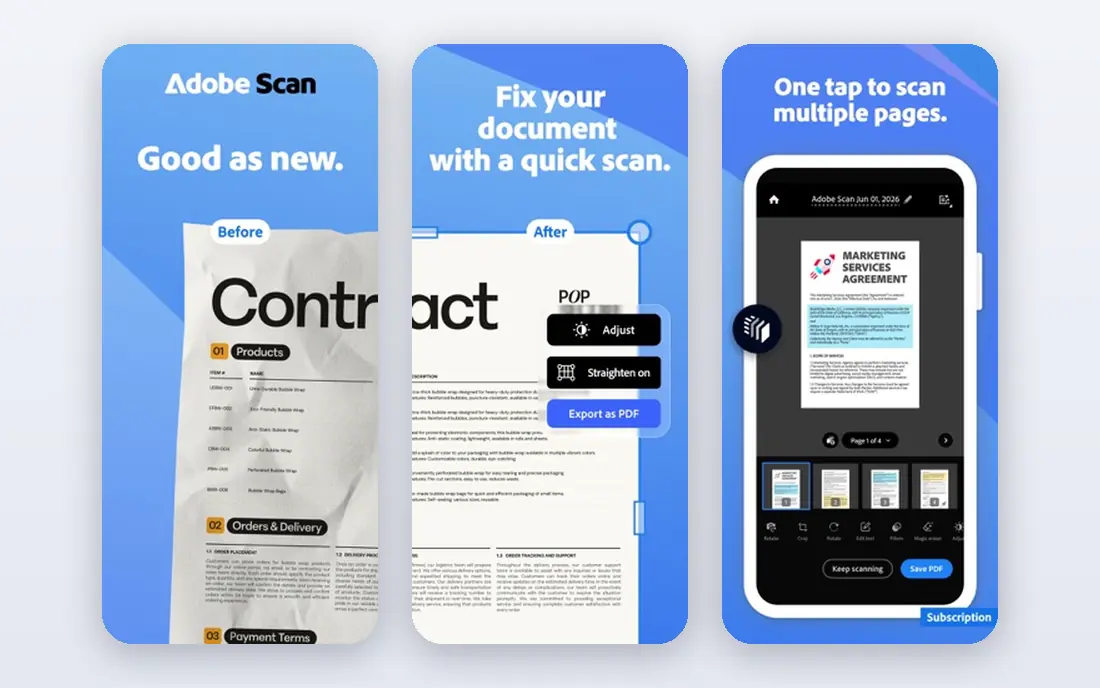
Adobe Acrobat is the reference point for PDF work because Adobe created the format and most businesses build workflows around it. It covers text and image editing, OCR, page organization, form creation, comparison, redaction and e-signatures on desktop, web and mobile. For legal, accounting and compliance heavy work, that depth still matters.
The price is the main reason to look elsewhere. Small teams that edit a few PDFs a week may not use enough of Acrobat to justify the subscription. If your work involves redaction, accessibility checks or client signatures every day, Acrobat is easier to justify. Otherwise, test a lower cost editor first.
- Widest feature set
- Strong redaction and accessibility tools
- Trusted e-signature workflows
- Highest subscription cost in this list
- Some features are more than small teams need
- Plans vary by region and billing
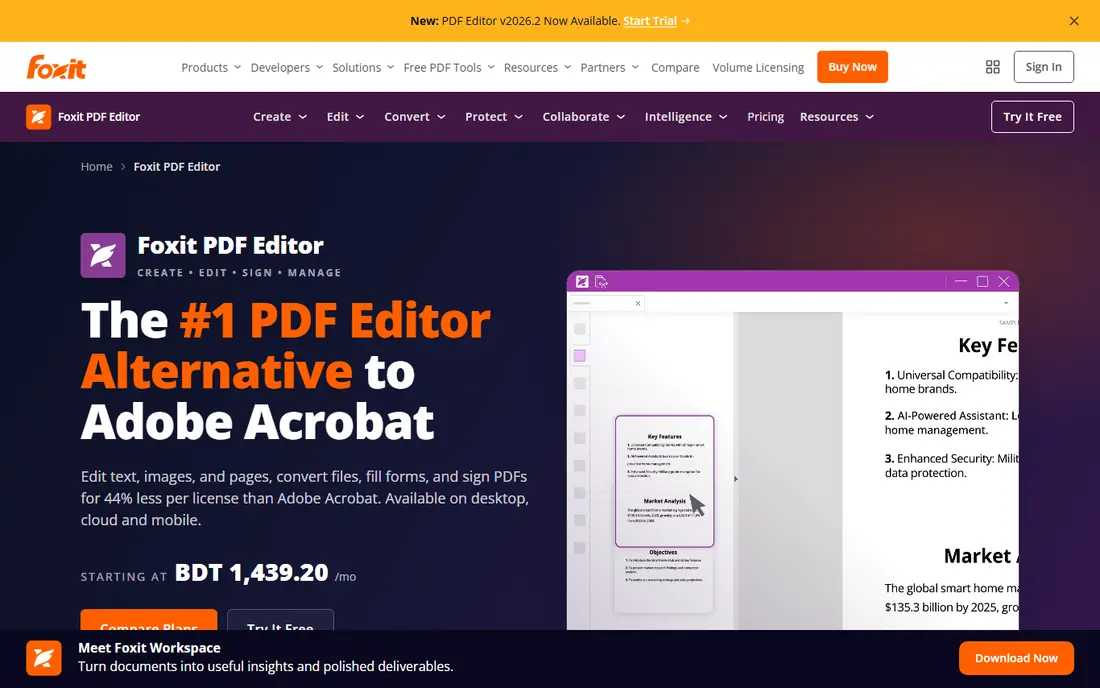
Foxit PDF Editor is the strongest value alternative to Acrobat for many small businesses. It handles daily editing, page management, OCR, forms, signing and security in a familiar office style interface, and it runs across desktop and mobile. Teams that want professional tools without Adobe pricing usually start here.
The gap is at the top end. Foxit does not match every Acrobat enterprise compliance workflow exactly, and its interface packs many options into one screen. For normal small business work, that trade off is easy to accept, and the saving over a year is real.
- Most Acrobat style features for less
- Editing, OCR and security tools
- Works on Windows, Mac, mobile and web
- Advanced enterprise compliance tools differ from Acrobat
- Interface can feel busy
- Some AI features need higher plans
Nitro PDF Pro appeals to teams that live in Microsoft Office. Its ribbon style interface feels familiar, and it covers editing, conversion, page organization, forms and signing without a steep learning curve. Bulk digital signatures are useful for businesses that send many documents for signature each week.
Buyers should check the plan terms carefully, since Nitro pricing has been sold in different terms and bundles over time. The Windows experience is the strongest, so Mac heavy teams should test it first. For Office centered small businesses, Nitro is a comfortable middle option.
- Familiar Microsoft Office style interface
- Editing, conversion and signing
- Bulk signature tools
- Pricing varies by plan and term
- Mac experience differs from Windows
- Some features need the higher suite
PDFelement, from Wondershare, is a one stop PDF tool that suits individuals and small businesses that want a predictable yearly price. It edits text and images, converts files, runs OCR on scans, builds and fills forms, adds watermarks and signatures, and handles batch processing for repetitive jobs.
It is not quite as deep as Acrobat for compliance work, and some AI and advanced tools require a higher tier. For everyday editing, invoicing and form work, however, PDFelement gives a small team most of what it needs at a price that is easy to budget.
- Yearly plan under many rivals
- Editing, OCR, forms and batch work
- Desktop, mobile and online versions
- Some advanced features sit in higher plans
- Interface can feel crowded
- Support quality varies by channel
Smallpdf is built for speed in the browser. A team member can compress a file, merge pages, convert a document, add a signature or protect a PDF in a few steps, without installing a desktop app. That simplicity makes it a good shared tool for staff who only touch PDFs occasionally.
The free tier limits how much you can do, and Pro is needed for unlimited work and batch jobs. Sensitive contracts should also be handled with care in any online tool. Check the privacy and retention policy before uploading client or legal files, and keep desktop editing for the most sensitive work.
- Simple browser tools
- Compress, convert, merge, sign and protect
- Works without installing software
- Free use is limited
- Heavy or batch work needs Pro
- Online only work raises privacy questions for sensitive files
PDFgear is the best free starting point in this list. Its core editor lets a small business edit text, annotate, merge, split, compress and convert PDFs without paying a subscription. That is enough for many shops that only need occasional edits, invoice fixes or form filling.
The limit appears with heavier work. Batch processing, deep OCR and advanced security features are lighter than in paid editors. Still, PDFgear is a smart first install. Use it until you hit a clear limit, then pay only for the feature you actually miss.
- Free editor with editing and conversion
- No subscription for core tools
- Works on desktop and online
- Advanced business features are lighter
- OCR and AI tools are limited compared with paid rivals
- Support is lighter
Sejda suits quick, minor edits done online. Staff can edit text, fill forms, merge or split files, compress documents and add signatures without learning a desktop suite. Its stated practice of deleting online uploads after two hours is a useful privacy point for occasional work.
Free online use is limited to a few documents per hour and to files under a size cap, so it is not a bulk tool. Teams that edit PDFs all day should choose a desktop editor instead. For a one off fix, Sejda is fast and easy to share with non technical staff.
- Easy online editor
- Merge, split, compress and sign
- Uploaded files are deleted after a short period online
- Free online use has hourly and size limits
- Desktop version is separate
- Batch work is limited on free tier
UPDF is a clean, cross platform editor that works well for teams using a mix of Windows, Mac and mobile devices. It edits text and images, annotates, organizes pages, and reads PDFs in a simple interface that new staff can learn quickly. A free tier lets a business test it before paying.
Paid plans add the deeper OCR, conversion and AI tools that power users need. UPDF is less of a full business document system than Acrobat or Foxit, but for editing and reading across devices at a low price, it is a strong small business choice.
- Free starting tier
- Editing and annotation across Windows, Mac, iOS and Android
- Simple interface
- Advanced OCR and AI features need paid plans
- Business management tools are lighter
- Some features vary by platform
PDF-XChange Editor is a long standing Windows favorite for speed. It opens large PDFs quickly, offers detailed annotation and markup tools, and covers viewing, editing and form filling well. The free version handles many daily jobs, which makes it easy to trial with real work.
Windows focus is the main limit. Teams that mix Mac and mobile devices will find other tools more consistent. For a Windows based small business that values speed and markup, PDF-XChange Editor remains a practical, low cost option.
- Fast on Windows, even with large files
- Strong annotation and markup
- Free version covers many daily jobs
- Windows focused
- Mac and mobile support is weaker
- Full feature set needs a paid license
Soda PDF gives small businesses both a desktop app and online tools for everyday PDF work. Staff can edit, convert, merge, sign and protect files, and the interface is approachable for people who do not edit PDFs often. That mix suits teams that want one tool for the office and for quick browser jobs.
As with other vendors, the best value depends on the plan chosen, so compare the desktop and online bundles before buying. For sensitive files, prefer the desktop version and check retention rules for any online uploads. Soda PDF is a solid generalist when ease of use matters more than top end compliance.
- Desktop and online versions
- Editing, conversion, signing and forms
- Easy interface for general staff
- Pricing and plan details need checking
- Advanced features are in higher plans
- Online work needs privacy care
How we picked these
We compared official product pages, pricing pages and app store listings for PDF editors that are still sold in October 2026 and that fit small business work: editing, forms, signing, conversion and OCR. We favored tools with clear free or trial options, cross platform support and honest limits. Where a vendor did not publish a stable price, we wrote See website rather than copying a third party estimate.
What to check before you buy
Start with your three most common jobs. If they are editing invoices, signing contracts and converting scans, test those exact files in each trial. Watch for layout shifts, font changes and OCR errors, since a tool that looks good on a simple file can struggle with a scanned, multi page contract.
Next, decide how you handle sensitive files. Desktop editors keep files local, while online tools upload them for processing. If you handle legal, medical or financial documents, prefer desktop editing, check retention policies, and confirm whether e-signatures meet your legal needs in your state.
Finally, count seats and years, not just months. A yearly plan that looks cheap for one user can grow quickly across a team, and a perpetual license may cost more upfront but less over three years. Add OCR, AI and signature add-ons to the total before you compare.
Frequently asked questions
What is the best pdf software for small businesses?
For most small businesses, Foxit PDF Editor offers the best balance of features and price, while Adobe Acrobat is best for compliance heavy work. PDFgear is the best free start, and PDFelement is a strong low cost yearly option. The right pick depends on how often you edit and whether you need redaction or formal signatures.
Is there good free PDF software for small business?
Yes. PDFgear offers free desktop and online editing for core jobs, and Sejda and Smallpdf offer limited free online tools. Free tools work well for occasional edits, but batch work, OCR and unlimited use usually need a paid plan.
Do small businesses need Adobe Acrobat?
Not always. Acrobat is worth it when you need deep redaction, accessibility checks, comparison or enterprise signature workflows every week. Many small businesses get the same daily editing, forms and signing from Foxit, Nitro or PDFelement for less.
What is OCR and do I need it?
OCR, or optical character recognition, turns scanned images of text into searchable, editable text. You need it if you regularly work with scanned contracts, receipts or paper forms. Check OCR accuracy on your own scans in a trial, since quality varies by tool and document type.
Can I sign PDFs legally with these tools?
Most of these tools support electronic signatures, but legal validity depends on the signature type, the document, and local law. For high value contracts, use a tool with a clear audit trail and check whether you need an advanced or qualified signature rather than a simple drawn signature.
Should I choose a subscription or a one time license?
A subscription usually includes updates and cloud features, while a one time license can cost less over several years but may stop receiving major updates. Choose a subscription if you want continuous updates, and a perpetual license if your needs are stable and you want predictable long term cost.
Sources
See where you really rank - block by block
ProMapRanker scans Google Maps across a grid of your service area. Simple monthly plans from $19, white-label on every plan.
Start freeKeep reading
 wpforms alternatives
Best WPForms Alternatives in 2026
We compare 9 wpforms alternatives for WordPress forms, with free and paid options, current pricing notes, and honest limits for small business sites in 2026.
Read → windows task scheduler alternatives
Best Windows Task Scheduler Alternatives in 2026
Looking for Windows Task Scheduler alternatives? We compare 9 schedulers for Windows and cross-platform work, from free tools to enterprise automation.
Read → which ai video service is best
Which AI Video Service Is Best in 2026
which ai video service is best? We compare 10 legitimate AI video services on price, avatars, editing and output quality to help you pick the right tool.
Read →