 ProMapRanker
Best PDF Software in 2026: 9 Tools Compared


Complete professional editing · Pricing starts at: $19.99 per month
Key takeaways
- Adobe Acrobat remains the most complete PDF editor, but its monthly price is the highest in this list.
- Foxit PDF Editor and Wondershare PDFelement give you most of the same editing power for less money.
- PDF-XChange Editor and Sejda suit people who want a strong free tier or a one-time purchase.
- Smallpdf and Sejda are the quickest options for browser-based edits, while desktop editors handle large files better.
- If you need redaction, accessibility checks or form building for work, pay for a full editor rather than a free web tool.
Quick comparison
| Pick | Great for | Pricing starts at | Free tier | |
|---|---|---|---|---|
| Adobe Acrobat | Complete professional editing | $19.99 per month | Free trial | Visit |
 Foxit PDF Editor | Acrobat-level features for less | $10.99 per month | Free trial | Visit |
 Wondershare PDFelement | Budget editing with AI tools | $9.08 per month | Free trial | Visit |
 Nitro PDF Pro | Office-style editing for teams | $15 per month | Free trial | Visit |
 PDF-XChange Editor | Generous free desktop tier | $62 one-time | Yes | Visit |
 Smallpdf | Quick browser edits | $12 per month | Yes | Visit |
 Sejda | Lightweight web and desktop editing | See website | Yes | Visit |
 PDF Expert | Fast Mac and iOS editing | See website | Free trial | Visit |
 UPDF | Low-cost cross-platform editing | $49.99 per year | Free trial | Visit |
The best pdf software
These are the best pdf editing software options and top pdf software picks we found for everyday work, from signing a form to editing a long report.
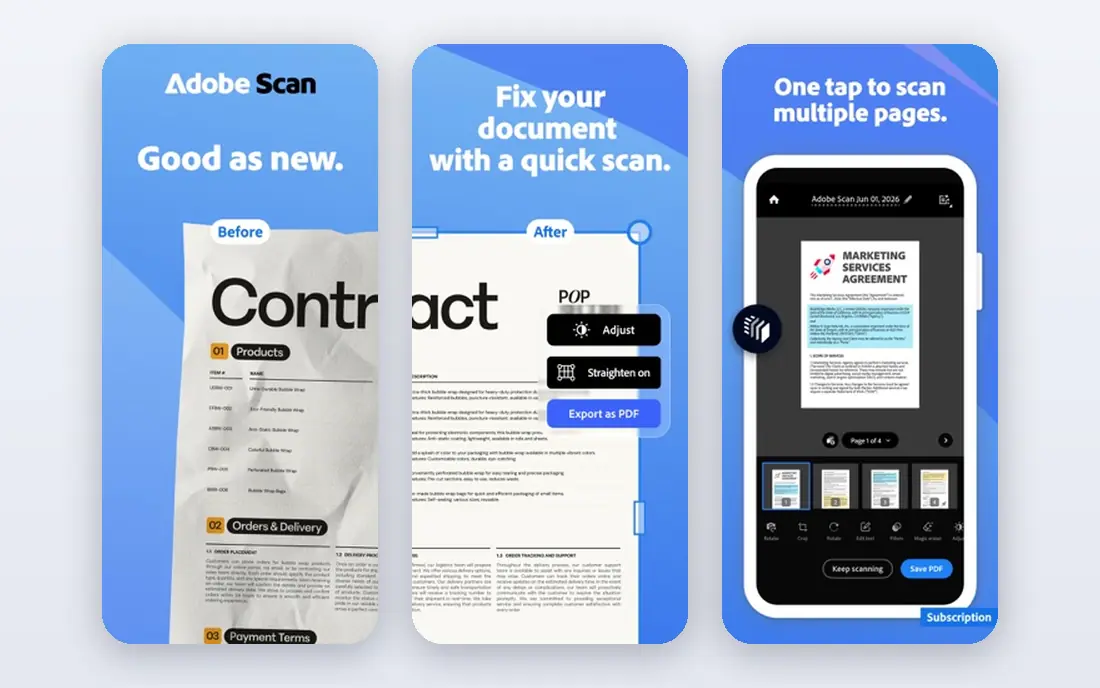
Adobe Acrobat sets the standard that other editors are measured against. Text editing, page handling, form creation, e-signatures, redaction, accessibility checks and OCR all sit in one program, and files made in Acrobat open reliably elsewhere. For legal, finance and compliance work, that reliability matters more than saving a few dollars a month.
The price is the main drawback, and the AI Assistant is an extra cost on top of the base plan. If you edit PDFs daily for work, Acrobat is still our pick for most people. If you only sign forms and merge pages a few times a month, a cheaper editor will cover you.
- Widest feature set
- Strong OCR and redaction
- Trusted for legal and regulated work
- Highest subscription price
- Some features need an AI add-on
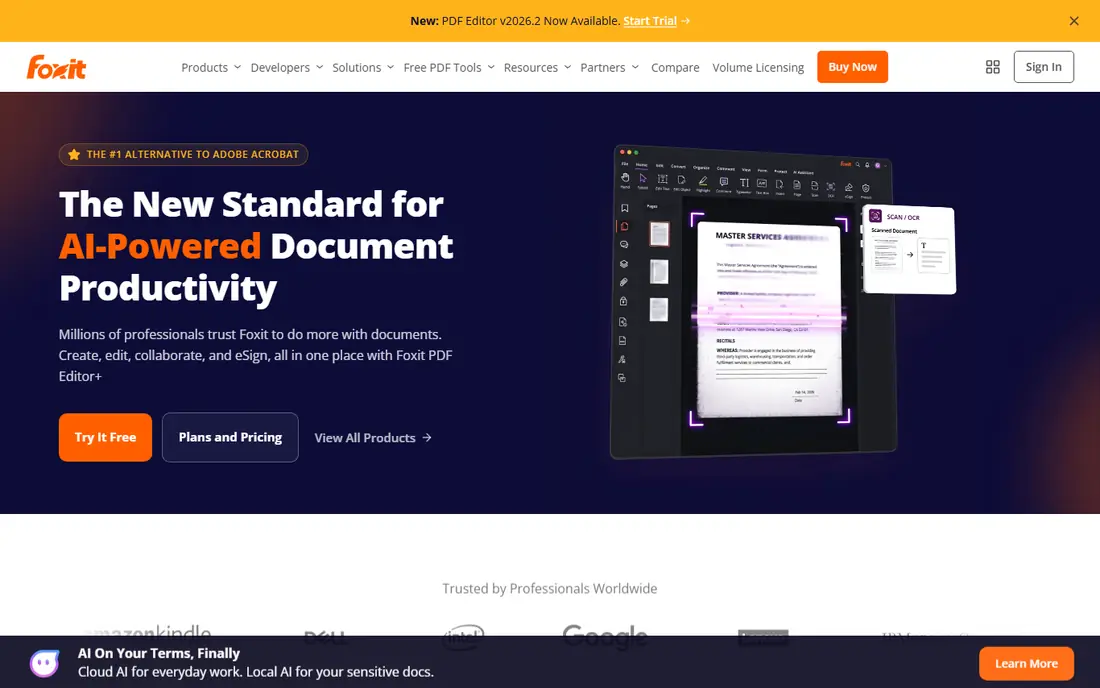
Foxit PDF Editor feels familiar to anyone who uses Microsoft Office, since it uses a similar ribbon layout. Editing text, adding comments, filling forms, signing documents and converting files are all straightforward, and the program runs lightly on modest hardware. That combination makes it a strong best pdf software choice for small businesses.
Foxit also sells a perpetual license in some regions, which appeals to buyers who dislike subscriptions. Check the current plan details on the Foxit site, since tiers differ by platform and region. For most office work, the subscription tier covers everything you need.
- Familiar ribbon interface
- Fast performance
- Lower price than Acrobat
- Mobile features need a higher tier
- AI credits are limited on the base plan
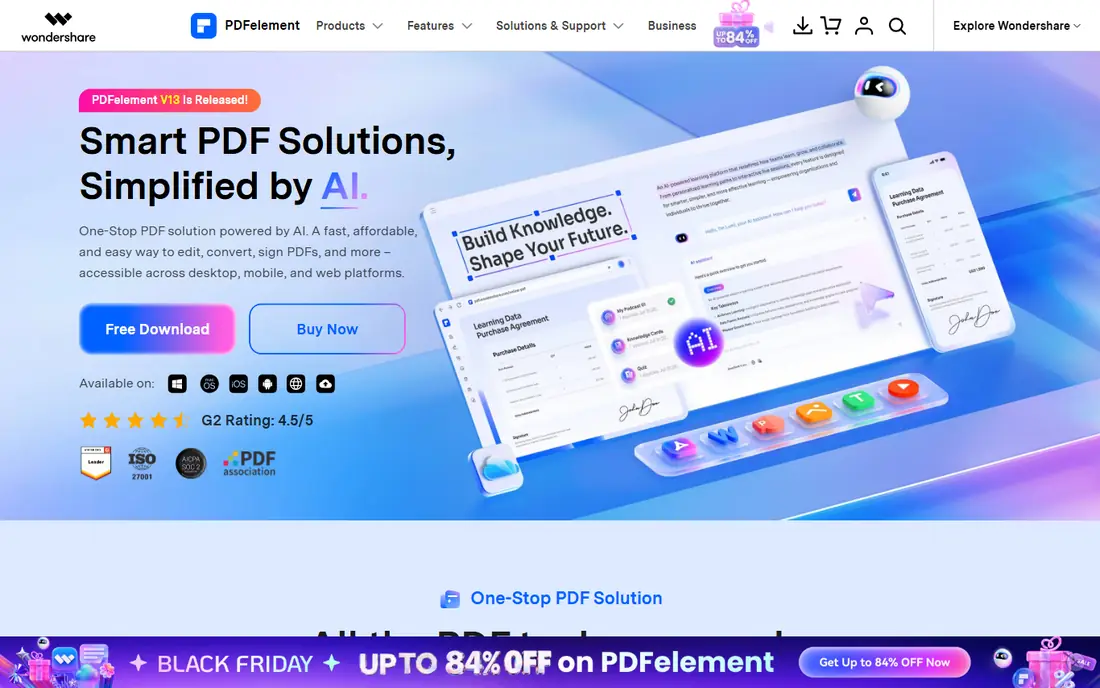
Wondershare PDFelement wins on value. It covers editing, annotation, conversion, forms, signatures and OCR at a lower monthly price than Acrobat or Foxit, and it runs on desktop and mobile. AI features for summaries and document help are included in current plans, which is unusual at this price.
The interface packs in many tools, so new users may need time to find the feature they want. Mobile and desktop versions also differ in depth, so check that the feature you need is present on your platform. For the best free pdf software alternative with a low paid tier, PDFelement is hard to ignore.
- Low subscription price
- Works on Windows, Mac, iOS and Android
- AI tools included
- Interface feels busier than Acrobat
- Advanced features vary by platform
Nitro PDF Pro is built for teams that live in Word and Excel. Its ribbon interface feels natural, conversion to Office formats works well, and signing, commenting and page handling cover daily office needs. Collaboration tools help small teams review the same document without emailing copies back and forth.
Pricing transparency has been a weakness, since Nitro does not always publish a simple list price for every plan. Request a quote if your team needs several seats, and confirm whether the Mac version covers the features your team uses. For Windows-heavy offices, Nitro is a solid Acrobat alternative.
- Familiar Office-style ribbon
- Good conversion tools
- Team features included
- Pricing is not always published clearly
- Mac version differs from Windows
PDF-XChange Editor is the pick for Windows users who want to buy once and keep the software. The free version handles viewing, annotation and many edits, while the paid version adds OCR and advanced tools for a one-time fee. It also handles large, image-heavy PDFs with less lag than many browser tools.
The limits are clear. There is no Mac version, and the interface looks older than Acrobat or Foxit. If you work only on Windows and you value a one-time purchase, those limits are easy to accept. For top 10 pdf software lists that rank value, PDF-XChange Editor usually appears near the top for this reason.
- Strong free version
- One-time purchase option
- Fast with large files
- Windows only
- Interface looks dated
- OCR needs the paid Plus version
Smallpdf is the fastest route to a finished task when you do not want to install software. Open the site, drop in a file, merge pages, compress a large PDF, convert it to Word, or add a signature, then download the result. The tools are plain and easy to follow, which suits occasional users.
Heavy editing is not its strength. Rewriting long passages, building forms or redacting sensitive text belongs in a desktop editor. Free use also has limits on tasks per day. For quick jobs, though, Smallpdf is one of the best pdf tools you can open in a browser.
- Simple browser tools
- No install needed
- Good compression and conversion
- Deep editing needs the paid plan
- Free use has daily limits
Sejda keeps things simple. Its web editor covers text edits, annotations, page handling, forms and signatures without a cluttered interface, and its desktop app lets you edit without uploading files to a server. That local option matters if you handle sensitive documents and prefer to keep them on your own machine.
The trade-off is depth. Sejda does not match Acrobat or Foxit for OCR, redaction or large-scale form work, and free web use is limited per hour. For the best free pdf app experience with a privacy-friendly desktop option, Sejda is a strong pick. Check current pricing on the Sejda site, since it offers weekly and yearly options.
- Clean simple editor
- Desktop app keeps files local
- Week passes available
- Feature set is narrower than full editors
- Free web use has hourly limits
PDF Expert is the editor many Mac and iPad users choose first. It opens quickly, annotation feels natural with a trackpad or Apple Pencil, and signing, form filling and page edits are easy to reach. Sync across Apple devices makes it handy for people who review documents on an iPad and finish them on a Mac.
Windows users should look elsewhere, since PDF Expert is built around Apple platforms. Pricing also differs between Mac, iOS and bundle plans, so check the PDF Expert site for the plan that matches your devices. For Apple-only workflows, it is one of the best pdf app options available.
- Fast and polished on Apple devices
- Good annotation tools
- Reliable signing
- Windows and Android support is limited
- Pricing varies by platform
UPDF offers a low-cost way to edit PDFs on Windows, Mac, iOS and Android under one license. Editing, annotation, conversion, forms and AI summaries are covered, and the yearly price undercuts most rivals. That cross-platform license suits people who switch between a laptop, a tablet and a phone.
UPDF is younger than Acrobat or Foxit, so its advanced toolset is still catching up in places, and support resources are thinner. For everyday editing, conversion and signing, it already covers the basics well. If price matters more than brand history, UPDF deserves a trial.
- Low yearly price
- Works on four platforms
- AI features included in paid plans
- Newer brand than Adobe or Foxit
- Some advanced features are still maturing
How we picked these
We compared official feature pages and pricing pages for each editor, and we checked app store listings and public reviews for recurring complaints about exports, OCR quality and billing. We favored editors with a working free tier or trial, a current version, and a clear statement of what each plan includes. We did not claim hands-on testing, and we left out tools that only view PDFs or that no longer receive updates.
Which pdf software is the best for your work
Start with how often you edit and what kind of files you handle. Occasional signing and merging needs only a browser tool, while daily editing of contracts, reports or forms needs a full desktop editor. Match the tool to the task, and you will spend less and wait less.
Choose by platform and file size
Windows users have the widest choice, including PDF-XChange Editor and Nitro, while Mac users should shortlist PDF Expert, Acrobat and Foxit. Large scanned files need a desktop editor with good OCR, since browser tools can slow down or cap file size. Test your largest typical file during the trial.
Check exports, signatures and security
Confirm that exports keep fonts, images and layout intact, and that signatures meet your employer's requirements. If you handle sensitive files, prefer a desktop editor or a tool that states plainly where files are processed. Redaction must truly remove text, not just cover it, so test that feature before relying on it for work.
Frequently asked questions
Which pdf software is the best overall?
Adobe Acrobat is the most complete editor, with the widest feature set for professional work. Foxit PDF Editor and Wondershare PDFelement are close alternatives that cost less per month.
What is the best free pdf software?
PDF-XChange Editor offers the strongest free desktop tier on Windows, while Smallpdf and Sejda offer useful free browser tools. Free tiers usually limit OCR, batch work or daily tasks.
What is the best pdf app for Mac?
PDF Expert is built for Mac and iOS and feels fast and polished there. Adobe Acrobat and Foxit PDF Editor also run well on Mac and offer deeper features for professional work.
Can I edit a PDF in a browser without installing software?
Yes. Smallpdf and Sejda both edit PDFs in a browser, covering text edits, page handling, compression and signatures. For large files or sensitive documents, a desktop editor is usually safer and faster.
Is a one-time purchase pdf editor still available?
Yes. PDF-XChange Editor sells a one-time license on Windows, and Foxit offers perpetual options in some regions. Most major editors have moved to subscriptions, so check the vendor site for current license terms.
Do I need OCR in a pdf editor?
You need OCR if you work with scanned pages or image-only PDFs and want to search or edit the text. Acrobat, Foxit, PDFelement and the paid version of PDF-XChange Editor all include OCR, while most free browser tools do not.
Sources
See where you really rank - block by block
ProMapRanker scans Google Maps across a grid of your service area. Simple monthly plans from $19, white-label on every plan.
Start freeKeep reading
 best resource management software
Best Resource Management Software in 2026
We compared the best resource management software for scheduling, capacity and utilization, with current pricing and free trials, to help teams choose well.
Read → best reporting tools
Best Reporting Tools in 2026
Compare the best reporting tools for dashboards, scheduled reports, and business insights, from Power BI and Tableau to Looker Studio for every team size.
Read → best remote support software
Best Remote Support Software in 2026
Looking for the best remote support software? We compare 9 tools on price, security, session controls, and fit for helpdesks, MSPs, and small teams in 2026.
Read →