 ProMapRanker
Best PDF Compression Services in 2026

Key takeaways
- PDF24 is the strongest free option for frequent use, with online tools and a desktop app that can work locally.
- iLovePDF and Smallpdf are the easiest browser choices for occasional compression, with clear quality levels.
- Sejda suits moderate use with a desktop option, while Adobe Acrobat suits users who already need a full PDF editor.
- Compression always trades file size against image quality, so test one file at each level before batch processing.
- For sensitive files, prefer a desktop tool or a browser side tool that does not upload the document to a server.
Quick comparison
| Pick | Great for | Pricing starts at | Free tier | |
|---|---|---|---|---|
 iLovePDF | Easy browser compression | See website | Yes | Visit |
 Smallpdf | Simple compression with a full suite | See website | Yes | Visit |
 PDF24 Tools | Free frequent compression | Free | Yes | Visit |
 Sejda | Moderate use with desktop option | See website | Yes | Visit |
 Adobe Acrobat | Full PDF editing plus compression | See website | Free trial | Visit |
 Soda PDF | Online PDF suite with compression | See website | Yes | Visit |
 Foxit PDF Editor | Desktop editing and batch work | See website | Free trial | Visit |
 PDF2Go | Quick online compression and edits | See website | Yes | Visit |
 PDFelement | Desktop suite with compression | See website | Free trial | Visit |
The best pdf compression services
We compared online and desktop PDF compression services on ease of use, quality controls, file limits, privacy, and price, with a focus on real everyday files such as resumes, scans, contracts, and slide decks.
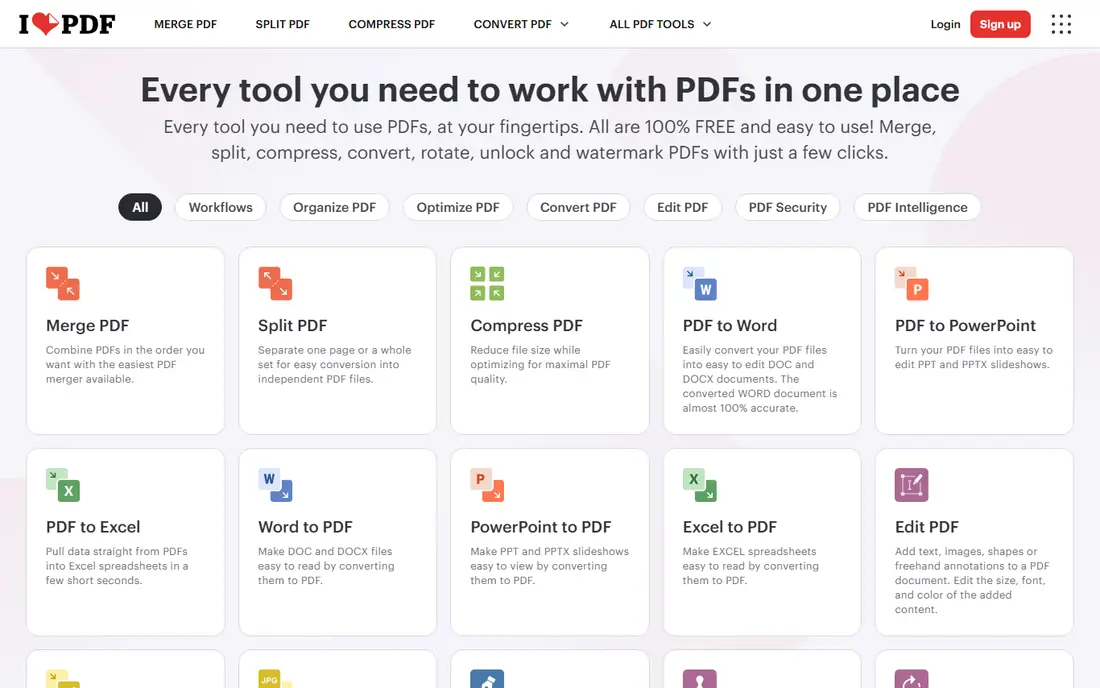
iLovePDF is our first suggestion for occasional users who want a quick result without installing software. Upload a PDF, pick a compression level, and download a smaller file in a few clicks. The levels help you choose between light compression for print quality and stronger compression for email and upload limits. That clarity matters, since a single strong setting can blur scanned pages.
The trade off is cloud processing and plan limits. Sensitive documents should not go through any online compressor unless you have checked its retention policy, and frequent users may hit free limits. For everyday files, though, iLovePDF is fast, clean, and easy to teach to a colleague. Keep an original copy before you compress, so you can try a lighter setting if quality drops.
- Very easy upload and download flow
- Compression levels for size versus quality
- Mobile apps and batch tools on paid plans
- Files are uploaded to a server
- Advanced batch and larger file handling need Premium
- Free limits can change
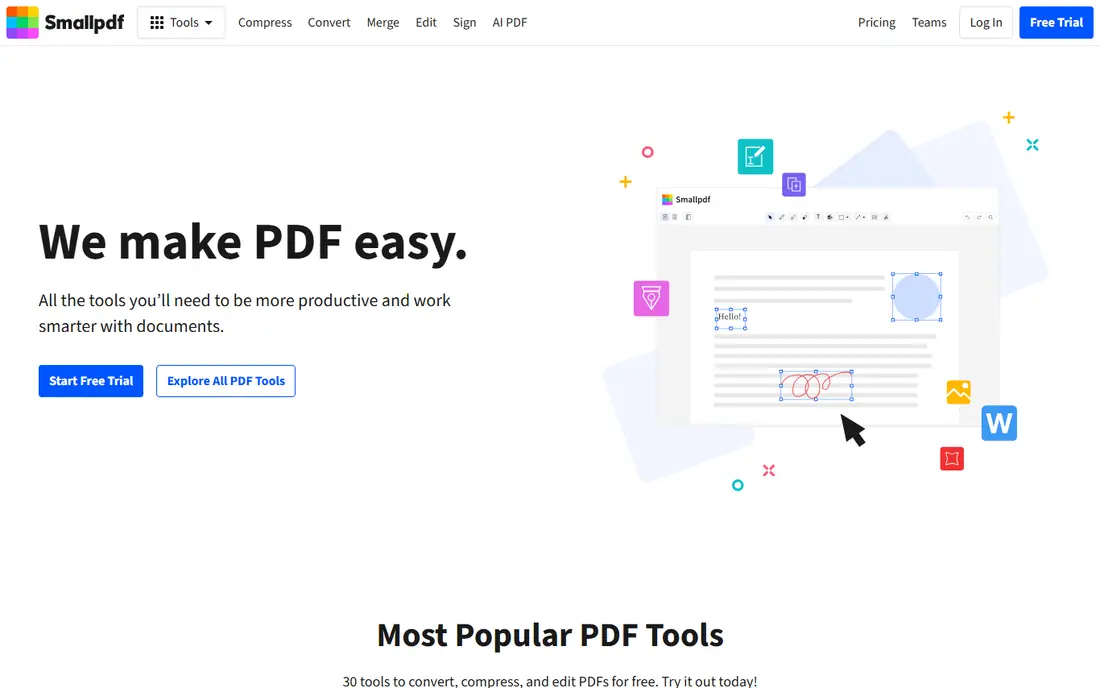
Smallpdf suits people who want compression inside a wider PDF toolkit. The same account can merge, split, convert, sign, and compress, which reduces the need to jump between sites. Basic compression keeps quality higher for documents you still need to print, while strong compression helps when an upload form has a strict size cap. Cloud storage links also make it easy to pull files from Drive or Dropbox.
Free use is limited, so daily users will need Pro. That makes Smallpdf a better fit for occasional or team use than for someone compressing dozens of files a week on a free plan. If you already use Smallpdf for other PDF jobs, adding compression to the same workflow is a natural step.
- Clean interface
- Basic and strong compression options
- Integrates with Google Drive and Dropbox
- Free use is limited per day
- Batch compression needs Pro
- Files are processed on a server
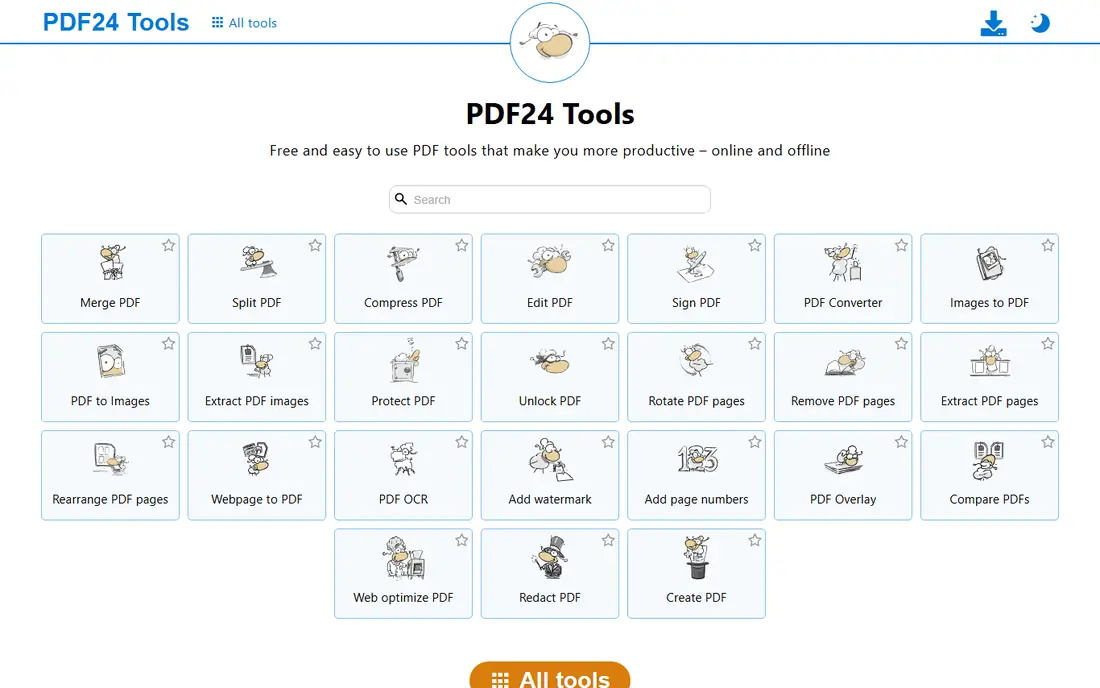
PDF24 Tools is the strongest free choice for frequent compression. The online compressor handles everyday files without a subscription, and the desktop app lets you process files locally when privacy matters. That combination is rare at this price, and the wider tool set covers merging, splitting, converting, and signing as well. For students, small offices, and anyone with regular PDF work, PDF24 removes the daily limit worry found in many free tiers.
The design is functional rather than polished, and first time users may need a minute to find the right tool. Online processing still means uploads for the web version, so use the desktop app for sensitive files. If free, frequent, and practical matter most, start here.
- Free online tools with generous use
- Desktop app for local processing
- Wide PDF tool set beyond compression
- Interface is plainer than rivals
- Online files are still uploaded
- Support is lighter than paid suites
Sejda is a balanced middle option for users who compress a few files a week and sometimes edit PDFs too. The online tool is straightforward, with options that let you balance size and quality, and the desktop app gives a local route for more private files. That makes it a good fit for freelancers and small teams who do not need a full enterprise editor.
Free limits are the main constraint, with hourly task caps and file size limits on the web version. If you compress in bursts, plan around those caps or move to the desktop app and a paid plan. For moderate, mixed PDF work, Sejda is dependable and easy to use.
- Clear compression options
- Desktop app for local work
- Useful editing and form tools in the same suite
- Free online use is capped by tasks and file size
- Batch work is easier on paid plans
Adobe Acrobat is the right choice when compression is one part of serious PDF work. It can optimize PDFs with finer control over images, fonts, and embedded content, and it pairs that with editing, signing, redaction, and form tools. For legal, finance, and design teams that already rely on Acrobat, using it for compression keeps everything in one trusted workflow.
For compression alone, Acrobat is overkill and expensive. Occasional users will get the same file size result from PDF24 or iLovePDF for free. Choose Acrobat when you also need editing, compliance features, or team administration, and check the current Pro price on the Adobe site before budgeting.
- Strong PDF editing, signing, and optimization tools
- Trusted for professional and legal documents
- Desktop and mobile apps
- Highest price in this list
- Compression is part of a large suite, not a cheap single tool
- Online free use is limited
Soda PDF works well for users who want a full online PDF suite without Adobe pricing. Compression sits beside editing, conversion, merging, and signing, so you can fix a document and shrink it in one session. The interface is approachable for non technical users, and the desktop app gives an alternative when you prefer local work.
As with other suites, free use has limits, and the best value depends on how often you use the non compression tools. If you only compress, a free specialist tool will cost less. If you edit and convert often, Soda PDF can replace several single purpose sites.
- Browser based suite with compression, editing, and conversion
- Desktop app available
- Simple pricing tiers
- Free plan is limited
- Some advanced features need higher tiers
- Online processing uploads files
Foxit PDF Editor suits offices that process many PDFs on desktop computers. Batch optimization can shrink a folder of files with consistent settings, which helps when preparing reports, scans, or client packs. Editing, commenting, signing, and form tools are also strong, so compression does not require a separate app.
The downside is complexity and cost for casual users. A browser tool is faster for one file, and Foxit makes sense only when desktop editing and batch work are regular needs. Check the current plan on the Foxit site, since pricing varies by platform and team size.
- Strong desktop editor
- Batch optimization for many files
- Good for Windows and Mac teams
- Learning curve is higher than browser tools
- Full price needs a subscription
- Mobile experience is lighter
PDF2Go is a handy browser option for a quick shrink and a small edit. Upload, choose compression settings, and download, with conversion and page tools nearby if a document needs more work. It is a good bookmark for occasional users who do not want another account or app for a one off file.
Free limits and server processing are the usual caveats. Keep originals, avoid sensitive files on any online compressor, and move to a desktop tool for bulk or private work. For speed and simplicity, PDF2Go earns its place.
- Fast browser workflow
- Compression plus editing and conversion
- No install for occasional use
- Free limits apply
- Files are uploaded to a server
- Batch features are limited on free
PDFelement is a desktop alternative to Acrobat for users who need more than compression. It can optimize files, edit text and images, run OCR on scans, and handle forms, which suits small offices that process varied documents. The interface is more approachable than some enterprise editors, and the price is usually below Acrobat.
For compression alone, it is more tool than you need, and trial limits mean you should test with a non critical file first. Choose PDFelement when desktop editing, OCR, and batch handling are part of your weekly work, not just an occasional shrink.
- Full desktop PDF suite
- Compression with editing, OCR, and forms
- Windows and Mac apps
- Trial output can carry limits
- Subscription cost for full use
- Heavier than a browser compressor
How we picked these
We compared official feature pages, pricing pages, and published limits for online and desktop PDF tools that are available in October 2026. We favored services with a working compression tool, clear quality settings, and a usable free or trial option, and we noted where files are uploaded versus processed locally. Prices change often in this category, so we used See website where vendor pricing differed by plan, region, or billing period.
Choosing the right compression level
Start with the job for the file. Email and web uploads can take stronger compression, while print, legal, and archive copies should stay at a light or recommended setting. Scanned pages suffer most from heavy compression, since text and handwriting can blur, while text heavy PDFs from a word processor usually shrink well with little visible change.
A safe workflow for important files
Always keep the original PDF in a separate folder before you compress, and name the compressed copy clearly, such as with a suffix for web use. Test one representative file at each level, open the result, and check small text, signatures, and images at full size. For a batch, compress a sample of three files first, then run the rest only if quality holds up.
Privacy and file size checks
For contracts, medical forms, financial statements, and other sensitive files, use a desktop app or a tool that processes files in your browser without upload. Check the retention policy of any online service, and delete uploads when a service offers that option. After compression, confirm the new file size meets your email or form limit, and confirm the file still opens on the device where it will be read.
Frequently asked questions
What is the best PDF compression service?
PDF24 Tools is the best free choice for frequent use, iLovePDF is the easiest browser choice for occasional files, and Adobe Acrobat is best when you also need full editing. Pick by how often you compress and whether files are sensitive.
What is the best PDF compression software for large files?
Desktop tools such as PDF24 Creator, Foxit PDF Editor, and PDFelement handle large files better than free browser tools, which often cap file size. For very large scans, try a light setting first, since heavy compression can blur text.
Can I compress a PDF for free?
Yes. PDF24 Tools, iLovePDF, Smallpdf, Sejda, and PDF2Go all offer free compression with limits on tasks, file size, or batch use. Free plans suit occasional files, while frequent users save time with a paid plan or a desktop app.
How much can PDF compression reduce file size?
It depends on images, scans, and fonts inside the file. Text heavy PDFs may shrink modestly, while image heavy scans can shrink a lot at the cost of image quality. Test each level on a copy, rather than trusting a percentage claim.
Is it safe to compress a PDF online?
For everyday files, reputable online tools are generally safe, but files are uploaded and stored briefly on a server. For sensitive files, use a desktop app or a browser side tool, keep the original, and check the service retention policy.
Will compression damage my PDF quality?
Strong compression can blur images and scanned text, while light compression usually keeps quality close to the original. Always check the result at full size, especially signatures, small print, and charts, before sending it on.
Sources
See where you really rank - block by block
ProMapRanker scans Google Maps across a grid of your service area. Simple monthly plans from $19, white-label on every plan.
Start freeKeep reading
 best resource management software
Best Resource Management Software in 2026
We compared the best resource management software for scheduling, capacity and utilization, with current pricing and free trials, to help teams choose well.
Read → best reporting tools
Best Reporting Tools in 2026
Compare the best reporting tools for dashboards, scheduled reports, and business insights, from Power BI and Tableau to Looker Studio for every team size.
Read → best remote support software
Best Remote Support Software in 2026
Looking for the best remote support software? We compare 9 tools on price, security, session controls, and fit for helpdesks, MSPs, and small teams in 2026.
Read →