 ProMapRanker
Best PDF Annotation App in 2026


Free viewing and basic annotation on any device · Pricing starts at: Free
Key takeaways
- Adobe Acrobat Reader is the best free start for highlights, notes and signing
- PDF Expert leads on Apple devices, Drawboard PDF leads for pen use on Windows
- LiquidText is the pick for research reading with linked excerpts
- Most readers do not need a paid plan just to annotate
Quick comparison
| Pick | Great for | Pricing starts at | Free tier | |
|---|---|---|---|---|
| Adobe Acrobat Reader | Free viewing and basic annotation on any device | Free | Yes | Visit |
 PDF Expert | Fast annotation and editing on Apple devices | $79.99 per year | Yes | Visit |
 GoodNotes | Handwritten notes on PDFs for students | $11.99 per year | Yes | Visit |
 Notability | Lecture notes with audio linked to ink | $19.99 per year | Yes | Visit |
 PDFelement | Full PDF editing with annotation at a lower price | See website | Yes | Visit |
 Foxit PDF Editor | Annotation and editing for work teams | See website | Free trial | Visit |
 Xodo | Cross-platform annotation with cloud sync | See website | Yes | Visit |
 Drawboard PDF | Pen-first markup for Windows tablets | See website | Yes | Visit |
 LiquidText | Research reading with linked notes and excerpts | See website | Yes | Visit |
The best PDF annotation apps
We compared annotation tools, platform coverage, handwriting quality and price, and we kept the focus on marking up PDFs rather than general note apps. Adobe Acrobat Reader is the free default, PDF Expert leads on Apple devices, and LiquidText leads for research reading.
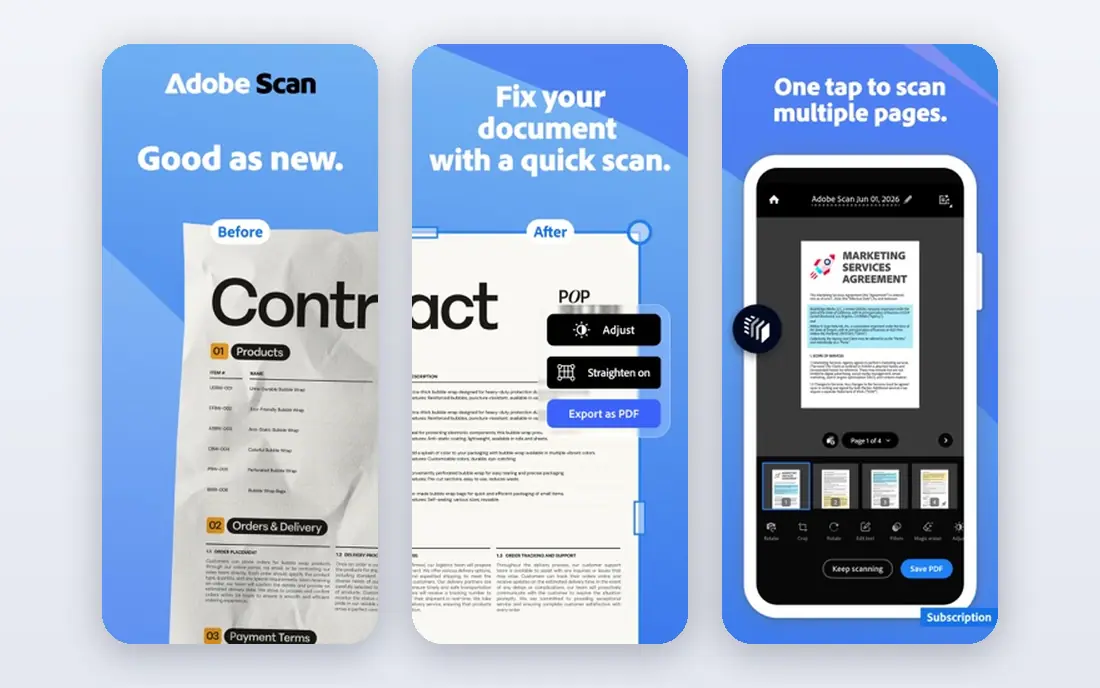
For readers who want free viewing and basic annotation on any device, Adobe Acrobat Reader is a strong place to start. Acrobat Reader is the safe default for reading, highlighting, adding sticky notes and signing forms without paying anything.
It opens forms and multimedia PDFs reliably, and files sync through Adobe cloud storage when you sign in. The catch is the upgrade path, because text and image editing, merging and conversion sit in paid Acrobat plans. That trade-off is worth weighing against what you will actually use each week, rather than paying for a long feature list you may never open.
- Free highlights, notes and signing
- Opens almost any PDF correctly
- Desktop and mobile apps
- Text editing needs a paid Acrobat plan
- Interface can feel heavy
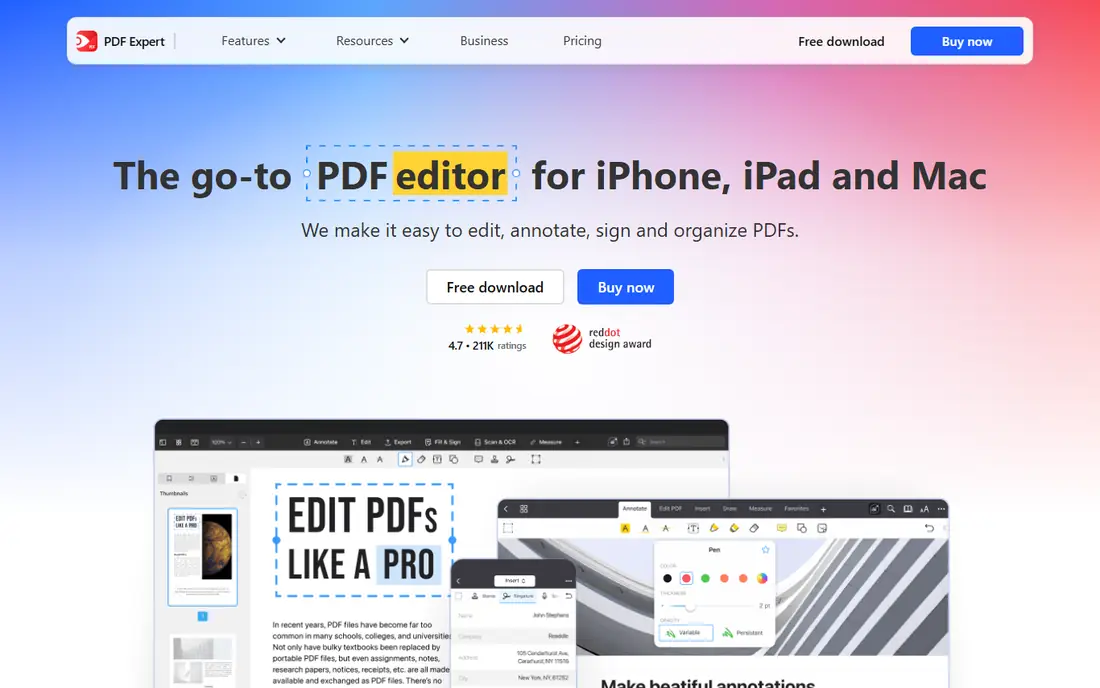
If fast annotation and editing on Apple devices is your main need, PDF Expert deserves a close look. PDF Expert is built for Mac, iPad and iPhone, with highlight, pen, text and stamp tools close at hand and smooth page handling.
Premium is listed at $79.99 per year in recent 2026 pricing reports, with a lifetime option also reported, and a free tier covers viewing and light markup. The catch is platform range, because Windows and Android users will need a different pick from this list. That trade-off is worth weighing against what you will actually use each week, rather than paying for a long feature list you may never open.
- Clean Apple-first design
- Annotation, signing and OCR in Premium
- Lifetime option reported
- Best experience is Apple only
- Full features need Premium
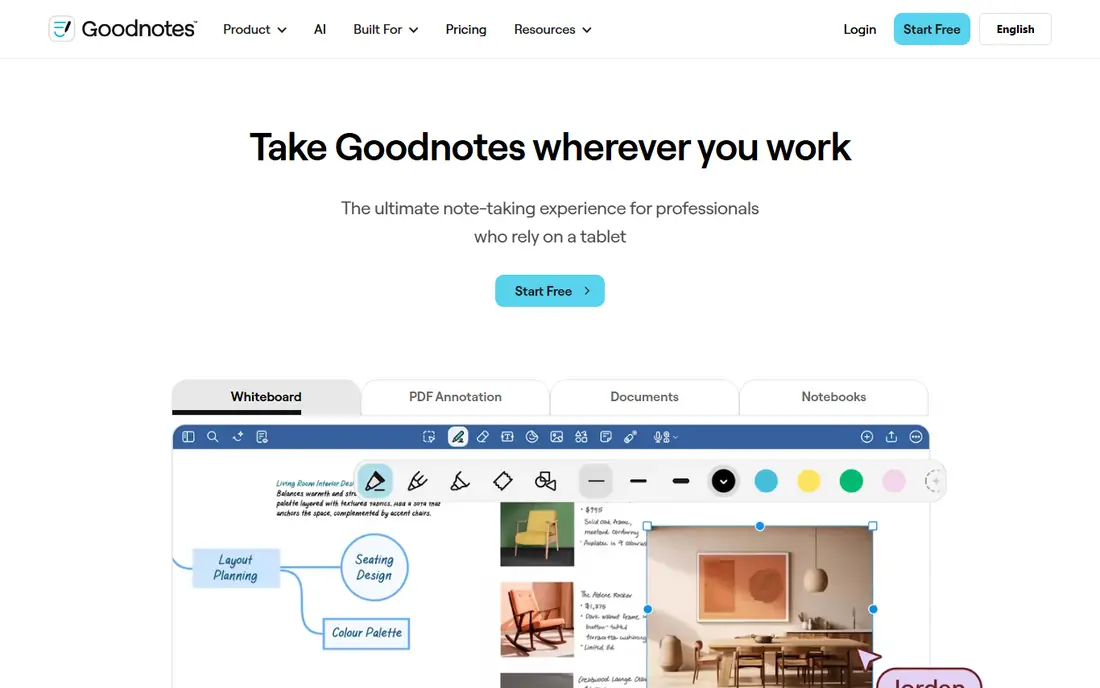
GoodNotes stands out for handwritten notes on PDFs for students, and it keeps the core job simple. GoodNotes treats a PDF like a paper notebook, so you can write in the margins, add shapes and keep pages organised in folders.
Its Essential plan is reported at $11.99 per year, with a Pro tier at $35.99 per year and a one-time Special Edition option on Apple devices. The catch is that it is a notebook first, so heavy text editing and form building are better done elsewhere. That trade-off is worth weighing against what you will actually use each week, rather than paying for a long feature list you may never open.
- Natural handwriting feel
- Folders and outlines
- One-time purchase option on Apple
- PDF editing is lighter than a full editor
- Best with a stylus
A good fit for lecture notes with audio linked to ink, Notability covers the basics without piling on extras. Notability pairs handwriting on PDFs with audio recording, so tapping a note can replay what was said at that moment.
Its Plus plan is reported at $19.99 per year, with a free starter tier that limits editing, and a higher Pro tier adds live transcription features. The catch is cost at the top tier, so most PDF annotators should start with Plus and only move up if live transcription is essential. That trade-off is worth weighing against what you will actually use each week, rather than paying for a long feature list you may never open.
- Audio recording synced to notes
- Strong handwriting tools
- Simple layout
- Apple only for the full experience
- Top tier is costly
PDFelement is worth shortlisting when full PDF editing with annotation at a lower price matters most to you. PDFelement covers the full editing job as well as annotation, with highlight, comment, stamp and drawing tools beside text and image editing.
It suits small teams and students who want one app for marking up and changing PDFs, rather than two separate tools. The catch is pricing clarity, because plans differ by platform, so check the official pricing page for the version you need. That trade-off is worth weighing against what you will actually use each week, rather than paying for a long feature list you may never open.
- Editing, annotation, OCR and forms in one app
- Windows, Mac, mobile and web
- Pricing varies by plan and platform, so confirm before buying
When annotation and editing for work teams is the priority, Foxit PDF Editor makes a clear case for itself. Foxit PDF Editor is a work-focused choice, with shared review, comments and markup tools that fit document approval flows.
It also handles forms, redaction and signing, which matters when a marked-up file must move through a team. The catch is that the free reader will not cover full editing, so budget for the editor plan if you need to change text. That trade-off is worth weighing against what you will actually use each week, rather than paying for a long feature list you may never open.
- Strong comment and review tools
- Good form and security options
- Windows and Mac
- Free reader is lighter than the editor
- Paid plans are quote-based for some teams
For cross-platform annotation with cloud sync, Xodo offers a focused set of tools that are easy to follow. Xodo is useful when you move between devices, because it runs on the web as well as on mobile and desktop.
Its annotation set covers highlights, freehand drawing, text notes and signatures, and it connects to common cloud storage services. The catch is consistency, because the feel and feature set shift a little between web and app versions. That trade-off is worth weighing against what you will actually use each week, rather than paying for a long feature list you may never open.
- Works on web, mobile and desktop
- Annotation and signing
- Cloud storage links
- Some advanced editing is paid
- Interface varies by platform
If you care most about pen-first markup for Windows tablets, Drawboard PDF is one of the steadier choices here. Drawboard PDF is built for pen use on Windows, so marking up plans, drawings and long reports with a stylus feels natural.
It adds measurement tools that help with technical documents, plus radial menus that keep pen tools within reach. The catch is platform focus, because Mac and mobile users will get more from another app on this list. That trade-off is worth weighing against what you will actually use each week, rather than paying for a long feature list you may never open.
- Pen and touch friendly
- Measurement and calibration tools
- Good for plans and drawings
- Windows focused
- Full features need a paid plan
Readers focused on research reading with linked notes and excerpts will find LiquidText easy to settle into. LiquidText is different from a simple highlighter, because you can pull passages into a side workspace and link each note back to its exact page.
That design suits research, legal reading and long reports where a note only makes sense beside its source. The catch is the learning curve, since the workspace takes a session or two to feel natural. That trade-off is worth weighing against what you will actually use each week, rather than paying for a long feature list you may never open.
- Pull excerpts into a workspace
- Link notes to source pages
- Good for long documents
- Learning curve is steeper
- Pricing varies by platform
How we picked these
We reviewed official feature pages, pricing pages and app store listings, and compared annotation tools, platform support and free tiers. We did not claim hands-on testing, and where pricing varied by platform or region we wrote See website rather than guessing a figure. Our shortlist favours tools that keep annotations inside the PDF file so notes travel with the document.
How to pick an annotation app without overpaying
Match the app to the device you actually use. Apple users get the most from PDF Expert, GoodNotes or Notability, while Windows users should look at Foxit or Drawboard PDF, and cross-device readers should test Xodo first. Next, decide if you need handwriting, since stylus apps differ a lot from mouse and keyboard editors. Finally, check export: annotations should stay readable when you open the file in another reader, and flattened copies are safer for sharing finished work.
Frequently asked questions
What is the best pdf annotation software for free?
Adobe Acrobat Reader is the strongest free start, because it covers highlights, notes and signing at no cost. Xodo and GoodNotes also offer free tiers, though their full editing sets are paid.
What is the best app for annotating PDFs on iPad?
PDF Expert and GoodNotes lead on iPad, with Notability close behind when audio-linked notes matter. Choose PDF Expert for editing, GoodNotes for handwriting, and Notability for lectures.
What are the best pdf annotation tools for research?
LiquidText stands out for research, because it links notes and excerpts to source pages. For simpler reading and review, Acrobat Reader or Foxit cover highlights and comments well.
Can I annotate a PDF and keep the notes in the file?
Yes, in most tools here, if you save and export the annotated PDF rather than keeping notes only inside the app. Test this with one file before marking up a long document.
Do I need a paid plan to highlight a PDF?
No. Free tiers from Acrobat Reader, Xodo and others cover highlights and notes. Paid plans add editing, OCR, conversion and advanced review tools.
Sources
See where you really rank - block by block
ProMapRanker scans Google Maps across a grid of your service area. Simple monthly plans from $19, white-label on every plan.
Start freeKeep reading
 wpforms alternatives
Best WPForms Alternatives in 2026
We compare 9 wpforms alternatives for WordPress forms, with free and paid options, current pricing notes, and honest limits for small business sites in 2026.
Read → windows task scheduler alternatives
Best Windows Task Scheduler Alternatives in 2026
Looking for Windows Task Scheduler alternatives? We compare 9 schedulers for Windows and cross-platform work, from free tools to enterprise automation.
Read → which ai video service is best
Which AI Video Service Is Best in 2026
which ai video service is best? We compare 10 legitimate AI video services on price, avatars, editing and output quality to help you pick the right tool.
Read →