 ProMapRanker
Best Online Tools to Protect PDF Files in 2026

Key takeaways
- For the strongest privacy, prefer a tool that encrypts in your browser or a desktop app, since most online tools upload your file to a server.
- Smallpdf, iLovePDF, and Sejda offer the easiest online password protection for everyday files, with free tiers that suit occasional use.
- PDF24 and PDFgear offer strong free options, while Adobe Acrobat online suits users already in the Adobe ecosystem.
- Password protection stops casual opening, but it does not make a file safe to send to untrusted recipients if the password travels with it.
- Always keep an unprotected backup in a safe place, since a lost PDF password usually cannot be recovered.
Quick comparison
| Pick | Great for | Pricing starts at | Free tier | |
|---|---|---|---|---|
 Smallpdf | Easy online PDF protection | See website | Yes | Visit |
 iLovePDF | Wide tool range with protection | See website | Yes | Visit |
 Sejda | No account protection for occasional files | See website | Yes | Visit |
 PDF2Go | Simple protection plus editing tools | See website | Yes | Visit |
 PDF24 Tools | Free protection with desktop options | Free | Yes | Visit |
 Adobe Acrobat online | Acrobat protection in the browser | See website | Yes | Visit |
 Soda PDF | Protection plus full PDF editing | See website | Yes | Visit |
 PDF Candy | Simple protection in a large toolset | See website | Yes | Visit |
 PDFgear | Free protection with desktop apps | Free | Yes | Visit |
 Foxit PDF Editor online | Business PDF protection and editing | See website | Free trial | Visit |
The best online tools to protect PDF files
We compared official tool pages, pricing pages, encryption options, and privacy handling for online PDF tools available in October 2026. Most tools in this list upload files to a server for processing, so we note that limit plainly and point to browser based or desktop options where privacy matters most. Keep a safe backup before you protect a file, since a forgotten password can lock you out.
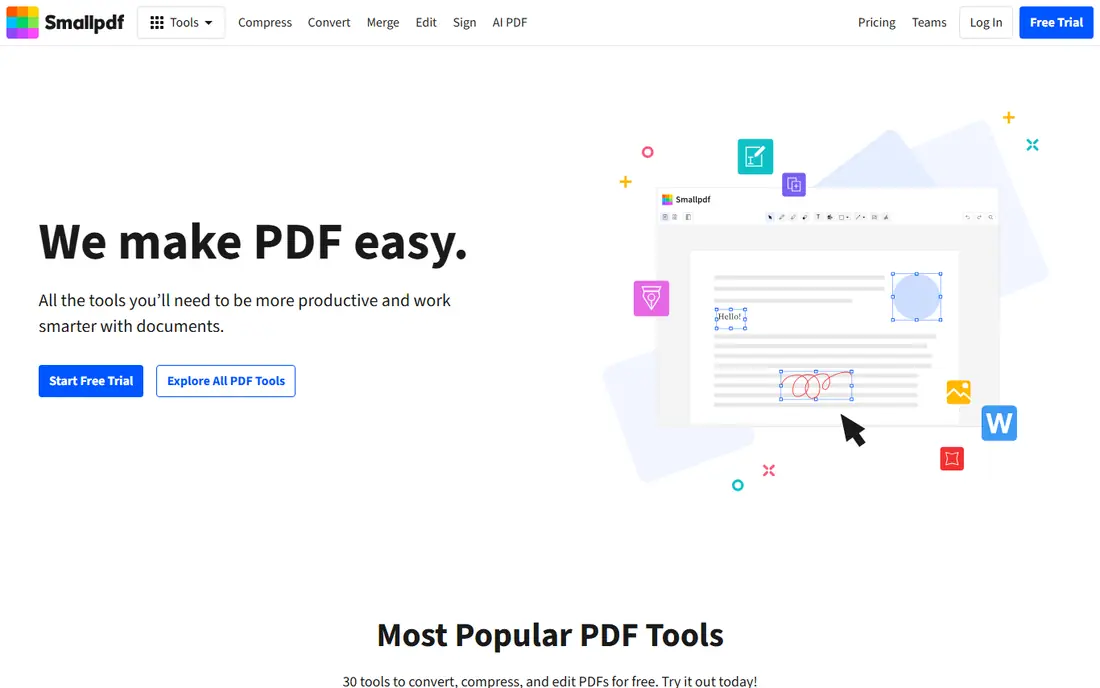
Smallpdf is the easiest online route to password protecting a PDF. Upload a file, set a password, download the protected version, and you are done in under a minute. The interface is clean, and related tools for compressing, signing, and converting PDFs sit in the same account, which helps when a protected file also needs a signature or a smaller size.
The free tier limits how many tasks you can run per day, so daily users will need a paid plan. Files are also uploaded to Smallpdf servers, so avoid this route for highly sensitive documents unless you trust the vendor retention policy. For everyday files that need a simple password, Smallpdf is fast and friendly.
- Very easy protect workflow
- Clean interface
- Strong related tools for compress and sign
- Free tier limits tasks per day
- Files are uploaded to Smallpdf servers
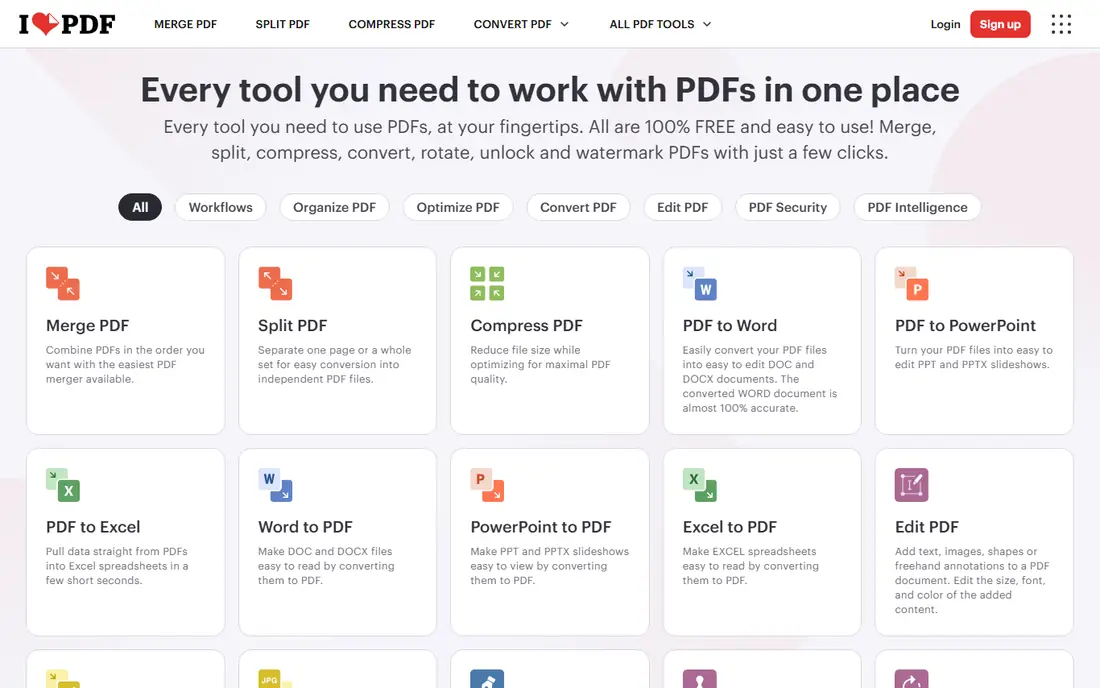
iLovePDF pairs PDF protection with more than 20 related tools, from merging and splitting to converting and compressing. That range means one account can handle most PDF jobs, and basic tasks do not always need an account. Mobile and desktop apps extend the same tools beyond the browser.
Free use has limits on file size and daily tasks, and ads appear for free users. As with Smallpdf, files upload to servers for processing, so highly sensitive files deserve a browser based or desktop route instead. For everyday protection inside a broad PDF toolkit, iLovePDF is a practical choice.
- Large toolset in one place
- No account needed for many basic tasks
- Mobile and desktop apps
- Free tier has file size and usage limits
- Files are uploaded to iLovePDF servers
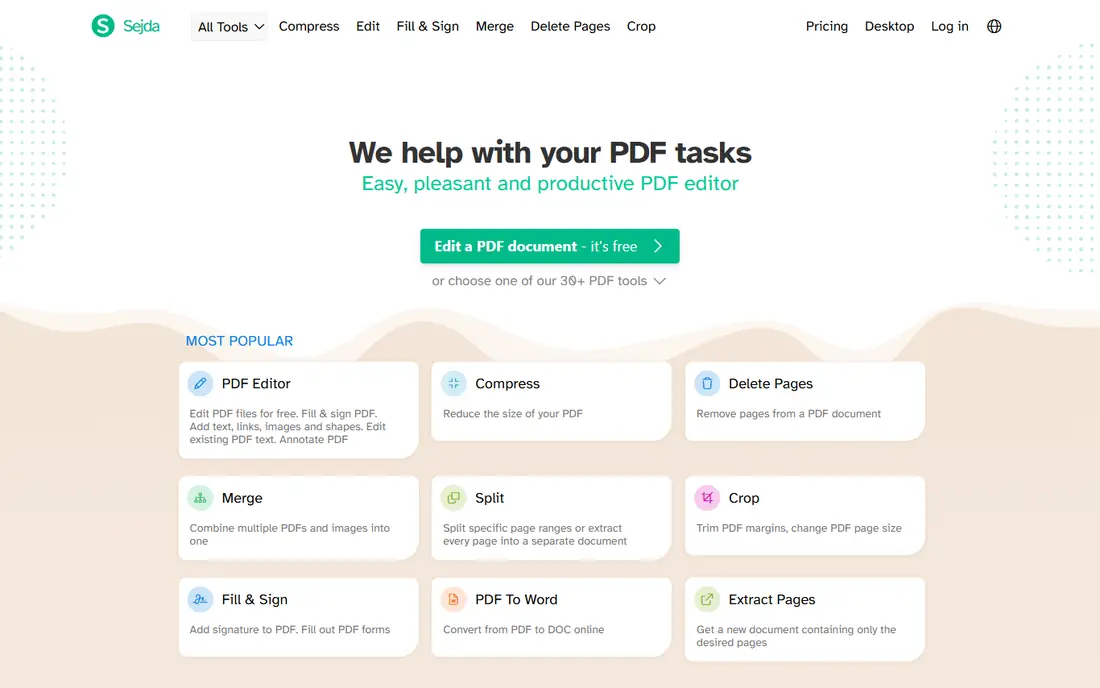
Sejda suits occasional users who want to protect a PDF without creating an account. The protect tool lets you set an owner and user password and control permissions such as printing, copying, and editing, which goes beyond a simple open password. The workflow is direct and easy to follow for first time users.
Free use limits tasks per hour, so it is not ideal for bulk work. Paid plans raise file sizes and remove limits. For a one off contract, report, or application that needs permission controls, Sejda offers a clean free path without account friction.
- No account needed for basic protection
- Permission controls for print and edit
- Clear workflow
- Free tier limits tasks per hour
- Larger files and batch work need a paid plan
PDF2Go offers a straightforward protect tool inside a broader online PDF suite. You can protect a file, then edit, convert, or compress it without switching vendors, which helps when a document needs several fixes before sending. No install is needed, and the tool works in a standard browser.
Free limits on file size and tasks apply, and server upload is part of the model, so sensitive files need extra care. For simple protection plus light editing in one browser session, PDF2Go is a handy option.
- Simple protect tool
- Editing, converting, and compressing tools nearby
- No install needed
- Free tier limits file size and tasks
- Files upload to PDF2Go servers
PDF24 Tools stands out because its online suite is free for most everyday use, including PDF protection, without the tight daily caps found on some rivals. A desktop app is also available, which helps when you want to process files locally rather than uploading them. That combination makes PDF24 a strong free choice for individuals and small teams.
The interface is functional rather than refined, and online tools still involve server upload, so the desktop app is the better route for sensitive files. For free, no account protection with a local option available, PDF24 is hard to beat.
- Free online tools with no strict task cap for many users
- Desktop app available
- No account needed for many tools
- Interface is functional rather than polished
- Server upload applies to online tools
Adobe Acrobat online brings Adobe protection tools to the browser, with password settings and permission controls that match the PDF standard closely. Users already in the Adobe ecosystem benefit from consistent behavior between online and desktop Acrobat, including how protected files open in other readers. That consistency matters when recipients use different PDF software.
Free online use is limited, and full editing and protection features need a paid plan. Pricing varies by plan, so check the current Acrobat page. For business users who already pay for Acrobat, the online tools are a natural extension. For occasional free protection, PDF24 or Sejda may be simpler.
- Trusted PDF standard from Adobe
- Password and permission options
- Integrates with Acrobat desktop
- Free online use is limited
- Full features need a paid Acrobat plan
Soda PDF suits users who need protection as part of a fuller editing workflow, not as a one off task. You can protect a file, edit text, add forms, and collect signatures in one suite, online or on desktop. Permission controls let you limit printing and editing in addition to setting an open password.
The free tier is limited, and the full interface can feel busy when you only want to set a password. For teams that edit PDFs daily and need protection built into that workflow, Soda PDF offers good breadth. For a single quick protection, a simpler tool will be faster.
- Full PDF editing suite online and on desktop
- Protection with permissions
- E sign tools
- Free tier is limited
- Interface can feel busy for a single protect task
PDF Candy offers a simple protect tool inside a large online PDF toolkit, with converting, merging, splitting, and editing tools nearby. Many tasks do not need an account, which keeps a quick protection job fast. A desktop app option also exists for users who prefer local processing.
Free use has task limits, and online files upload to servers, so sensitive documents need the desktop route or a browser based tool. For occasional protection inside a broad toolkit, PDF Candy is a clean and accessible choice.
- Large toolset with a simple protect tool
- No account needed for many tasks
- Desktop app option
- Free tier limits tasks
- Server upload applies to online tools
PDFgear offers free PDF protection and editing across desktop and online tools, without requiring a paid subscription for core features. That makes it a strong free alternative to paid suites, especially for users who want to protect files on their own computer rather than relying only on a browser upload. The interface is clean for a free tool.
The brand is smaller than Adobe or Smallpdf, and some advanced features live only on desktop, so check the tool you need before starting. For free protection with a local desktop option, PDFgear deserves a place on the shortlist.
- Free desktop and online tools
- PDF protection and editing without a subscription
- Clean interface
- Smaller brand than Adobe or Smallpdf
- Some advanced features are desktop only
Foxit suits business users who need protection alongside redaction, editing, and form tools in a professional suite. The desktop editor is the core product, with online tools extending common tasks to the browser. Protection options cover passwords and permissions, and redaction helps when sensitive content must be removed, not just hidden.
Full features need a paid plan, and online tools do not match the desktop editor in depth. For businesses already using Foxit, online protection is a useful add on. For a single free protection, a simpler free tool will be faster and cheaper.
- Business focused PDF suite
- Protection, redaction, and editing tools
- Strong desktop editor
- Full features need a paid plan
- Online tools are less complete than desktop
How we picked these
We compared official tool pages, pricing pages, encryption and permission options, and privacy handling for online PDF tools available in October 2026. We favored tools with a clear protect function, active maintenance, and a usable free or trial path. We did not claim hands on testing we did not do, and we used See website where pricing could not be verified cleanly. For highly sensitive files, we recommend a browser based encryption tool or a desktop app that never uploads your file.
How to protect a PDF safely
Choose the right level of protection for the file. An open password stops casual readers from opening it. Permission settings can also limit printing, copying, and editing, though determined users with other tools may bypass weak permissions. For the strongest result, use a strong, unique password and share it through a separate channel from the file itself, such as a phone call or a secure message, never in the same email.
Also think about where the file goes. Online tools upload your file to a server, even when they delete it quickly, so avoid them for medical, legal, or financial documents unless you trust the vendor policy. For those files, use a desktop app or a browser based tool that encrypts locally, keep a safe backup before protecting, and test the protected file by opening it yourself before you send it.
Frequently asked questions
What is the best online tool to protect a PDF for free?
PDF24 Tools and PDFgear offer strong free protection, with desktop options for local processing. Sejda offers a clean free path without an account for occasional files. Smallpdf and iLovePDF also protect files for free, but daily task limits apply, so free choice depends on how often you protect files.
How do I protect a PDF with a password online?
Upload the file to a protect tool, set a strong password, choose permission settings if offered, then download the protected version. Test the file by opening it with the password before sending it. Keep a backup of the original in a safe place, since a lost password usually cannot be recovered.
Is it safe to protect a PDF online?
Online protection is safe enough for everyday files, but most online tools upload your file to a server for processing. For sensitive files, prefer a desktop app or a browser based tool that encrypts on your device without uploading. Always check the vendor retention policy and share the password separately from the file.
What is the difference between an open password and permissions?
An open password is needed to open the file at all. Permissions control what a reader can do after opening, such as printing, copying text, or editing. Permissions add useful friction, but they are weaker than an open password, since other software may ignore them. Use both when the tool offers them.
Can a protected PDF still be opened without the password?
A well encrypted PDF with a strong password is hard to open without it, but weak passwords can be guessed, and permission only protection is easier to bypass. Use a long, unique password for sensitive files, and do not rely on protection alone for highly sensitive information. For the highest sensitivity, use encrypted file sharing or a secure portal instead.
What is the best online tool to protect a PDF for business use?
Adobe Acrobat online and Foxit suit business users who need protection, redaction, and editing in a professional suite. Smallpdf and iLovePDF suit teams that need simple protection plus related tools. Business buyers should check retention policies, admin controls, and data processing terms before choosing a vendor for sensitive documents.
Sources
See where you really rank - block by block
ProMapRanker scans Google Maps across a grid of your service area. Simple monthly plans from $19, white-label on every plan.
Start freeKeep reading
 top rated pdf scanner software
Best PDF Scanner Software in 2026
Looking for top rated pdf scanner software? We compare 8 scanner apps on scan quality, OCR, price, watermarks and privacy to find your best fit for daily use.
Read → expensify alternatives
Best Expensify Alternatives in 2026
Looking for expensify alternatives? We compare 8 top expense tools on price, cards, receipts and approvals to help your team pick the right one in 2026.
Read → best tools for drawing diagrams
Best Tools for Drawing Diagrams in 2026
Compare the best tools for drawing diagrams, from Lucidchart and Miro to free diagrams.net. See pricing, templates, and collaboration features for teams.
Read →