 ProMapRanker
Best Online Service to Insert PDFs in 2026

Key takeaways
- This article is about inserting pages into an existing PDF, not merging whole files end to end and not translating a PDF.
- PDF24 Tools and iLovePDF Organize are the clearest picks for inserting blank pages or pages from another PDF at an exact spot.
- Sejda and Smallpdf suit occasional inserts, but free plans limit daily tasks, file size, or page counts.
- For private documents, use a desktop tool so the file never uploads to a server.
- Always preview the page order after inserting, and check that headers, page numbers, and forms still read correctly.
Quick comparison
| Pick | Great for | Pricing starts at | Free tier | |
|---|---|---|---|---|
 PDF24 Tools | Free insert pages tool | Free | Yes | Visit |
 iLovePDF Organize | Blank pages and reordering | Free | Yes | Visit |
 Sejda | Insert pages with privacy care | Free | Yes | Visit |
 Smallpdf | Simple page editing | Free | Yes | Visit |
 PDF2Go | Quick online page edits | Free | Yes | Visit |
 PDFgear | Frequent free page edits | Free | Yes | Visit |
 PDF Candy | Insert plus full toolbox | Free | Yes | Visit |
 Lumin | Insert inside a workflow | Free | Yes | Visit |
 PDFsam Basic | Offline page organizing | Free | Yes | Visit |
The best online services to insert PDFs
Inserting pages means adding a new page, or pages from another file, into the middle, start, or end of an existing PDF. That is different from merging, which joins whole files together, and different from translating a PDF into another language. The tools below let you pick the exact insertion point, preview the result, and download a single updated file.
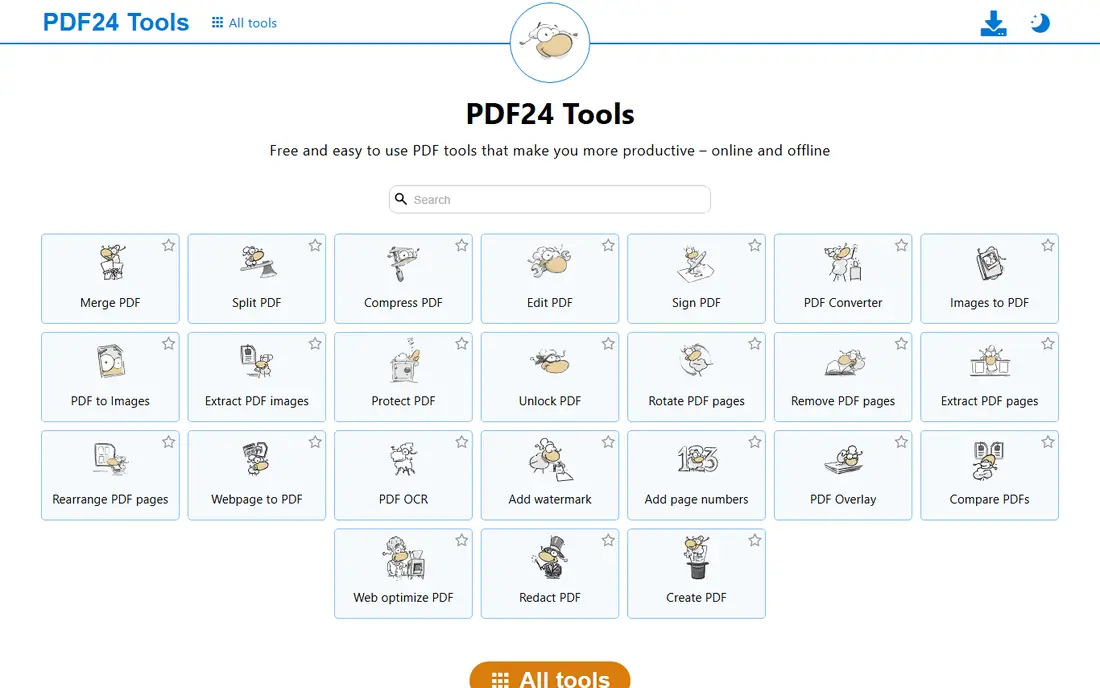
PDF24 Tools offers a dedicated Insert Pages tool, which makes it the clearest pick for this job. Upload the main PDF, choose where the new page should go, upload or create the page, apply changes, and download the result. The workflow is built around insertion, not adapted from a merge tool, so the insertion point is easy to set.
PDF24 also offers a desktop Creator app for Windows, which is worth using for private or large files. Online use is free and needs no account for basic tasks, though other PDF24 tools sit nearby if you also need to split, compress, or convert. For a free, focused insert tool, start here.
- Dedicated insert pages tool
- Free online use
- No account needed for basic use
- Files upload to a server
- Large files can be slow in a browser
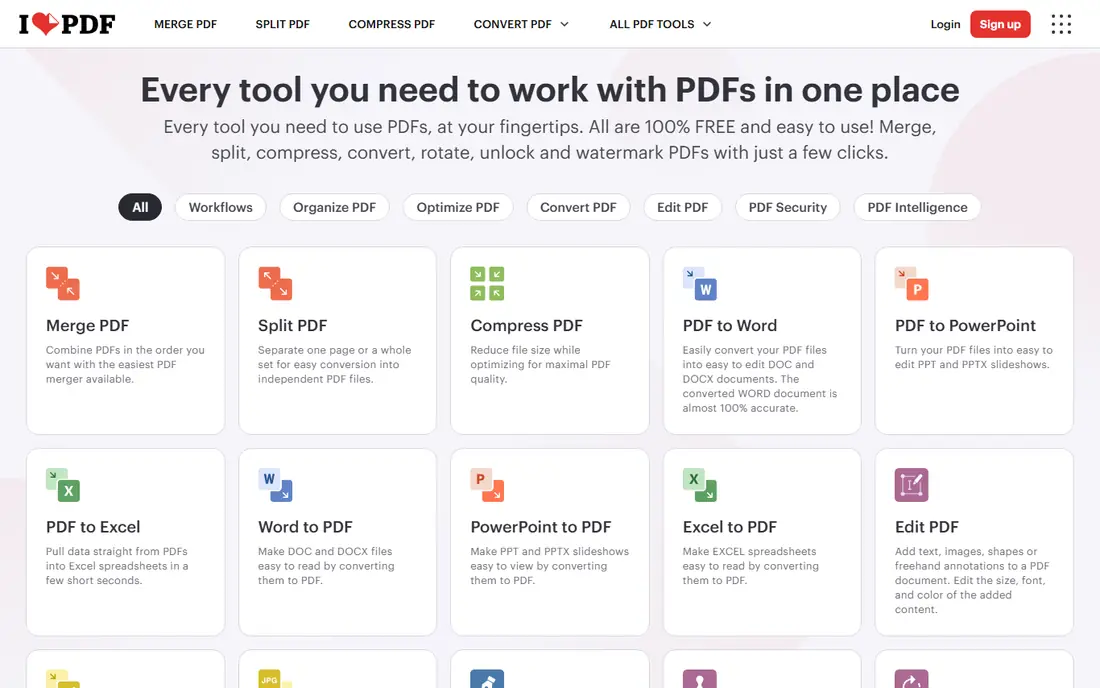
iLovePDF Organize is built for page-level work. Open a PDF, drag pages into order, delete unwanted pages, rotate single pages, and insert a blank page by placing the cursor between two pages and choosing the plus icon. Pages from additional files can be added and rearranged in the same view, which covers both blank inserts and inserts from another document.
Free use is limited per day, and premium plans remove those limits and raise file sizes. The interface is visual and forgiving, which helps when a document has many pages and the insertion point is easy to miss. For regular page organizing with occasional inserts, iLovePDF is a dependable browser choice.
- Add blank pages between existing pages
- Drag and drop ordering
- Add pages from other files
- Free plan has daily limits
- Some tools need a paid plan for heavy use
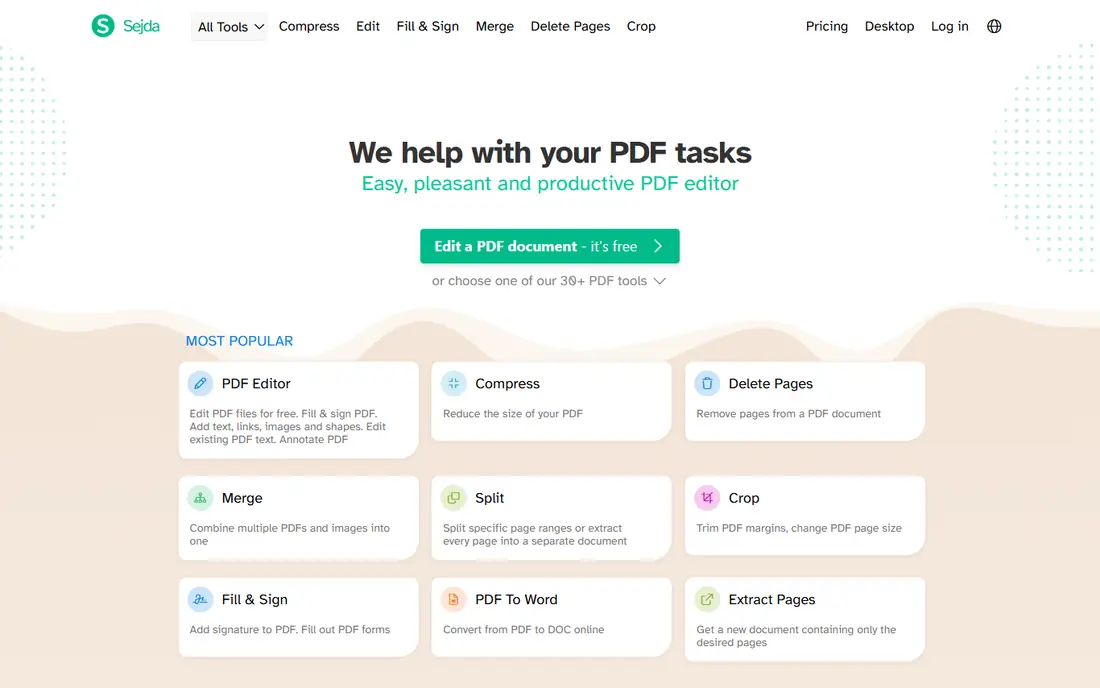
Sejda offers an online PDF editor with page management, including inserting pages, deleting pages, and reordering. The free web plan allows a small number of tasks per day, with limits on file size and page count, which suits occasional inserts. The editor shows page thumbnails, so the new page can be placed exactly where it belongs.
Sejda desktop is the better route for sensitive files, since it processes locally and avoids uploads. Paid options include a week pass for short bursts of work. If you insert pages a few times a month and want a tool that is clear about file deletion, Sejda is a strong pick.
- Page editing and insertion online
- Desktop version processes files locally
- No account needed to start
- Free plan allows only a few tasks per day
- Size and page limits apply
Smallpdf covers inserting pages through its Edit and Organize tools, with a clean thumbnail view that makes placement simple. Upload a PDF, add or reorder pages, and download the updated file. The interface is one of the simplest on this list, which helps on a phone or a shared computer where time is short.
Free use is limited per day, so a second insert on the same day may need a paid plan or another tool. Smallpdf is best for a quick, one-off insert rather than a full day of document assembly. Keep PDF24 or Sejda as a backup for days when the Smallpdf free limit is reached.
- Clean page editor
- Drag and drop ordering
- Works in a mobile browser
- Free plan has daily limits
- Page editing sits inside a wider paid suite
PDF2Go is a browser-based PDF suite that includes page editing, merging, splitting, and conversion. Inserting pages follows the same pattern as other tools here: upload, choose the position, add the page, and download. Files can come from a computer, Google Drive, or Dropbox, which helps when the page to insert is stored in the cloud.
Free use covers basic jobs, while larger files and frequent use sit behind a subscription. PDF2Go is a useful second option when a first-choice tool hits a limit, and its broad tool set means an inserted file can also be compressed or converted without switching sites.
- Online page tools with no install
- Edit, insert, and reorder in a browser
- Cloud storage links
- Free use is basic
- Larger files and heavy use need a paid plan
PDFgear suits people who insert pages often and keep hitting daily caps elsewhere. Its online and desktop tools cover page organizing, editing, merging, and conversion without the tight daily limits found on some freemium rivals. Desktop apps help with larger files, since browser uploads can be slow.
Check the output on a test file first, especially for forms and scanned pages, since page insertion can shift layout in complex documents. For frequent, no-cost page work, PDFgear is a practical main tool or backup, and it pairs well with PDF24 for a fully free workflow.
- Free core tools with fewer daily caps
- Desktop apps for larger files
- Editing included
- Newer brand than some rivals
- Some features vary between web and desktop
PDF Candy treats page insertion as part of a larger toolbox, alongside conversion, compression, splitting, and protection tools. That breadth helps when an inserted page also needs to be resized, converted from an image, or protected before sharing. The workflow is simple: upload, edit pages, and download.
Free web use is limited, and heavier users will need a paid plan or the desktop version. PDF Candy is best for offices that do many kinds of PDF work and want one bookmark for all of them, rather than a single-purpose insert tool. For insert-only work, PDF24 remains simpler and fully free.
- Wide PDF tool set
- Page editing in a browser
- Desktop version available
- Free web use has limits
- Heavy use needs a paid plan
Lumin fits people who insert a page as one step in a longer review. A PDF can be pulled from Google Drive or OneDrive, edited in the browser, and saved back, with annotation and signing available in the same session. That flow saves downloads when a document needs an added cover page, then a signature, then a return to a shared folder.
The free plan covers light use, while regular page editing needs a paid plan. Lumin is not the cheapest route to a single insert, but it is efficient when insertion leads straight into editing or signing. Use it when the workflow around the insert matters as much as the insert itself.
- Browser editing with page tools
- Google Drive and OneDrive links
- Edit and sign after inserting
- Free plan is limited
- Heavy page work sits behind paid plans
PDFsam Basic is the offline pick for page work. It runs on Windows, Mac, and Linux, and its modules cover merging, splitting, rotating, and extracting pages, which together allow pages to be inserted by combining a main file with an insert file in the right order. Because files never upload, it is the right choice for private documents.
Setup takes a download, and the workflow is less direct than a dedicated web insert button, since insertion is done by assembling files in order. For regular or sensitive page work, that extra step is worth it. PDFsam Basic gives a free, private, no-limit backup to every browser tool on this list.
- Free and open source
- Files stay on your computer
- No daily limits
- Requires download and install
- Page insertion is via organizing and merging modules
How we picked these
We compared official tool pages, page-editing features, free limits, and privacy handling for services that insert pages into PDFs in October 2026. We favored tools with a clear insertion point, a page preview, and support for blank pages or pages from another file. We left out tools that only merge whole files with no page-level control, tools that could not be verified as active, and tools that watermark edited files on their free plan. Limits change, so check the tool page before a large or time-sensitive job.
What to check before you insert
Start by saving a copy of the original PDF, so a misplaced insert can be undone without rebuilding the file. Open the page thumbnails and confirm the insertion point, since page numbers in a viewer can differ from the order shown in an editor. After inserting, preview the pages around the insert for blank gaps, duplicated pages, or rotated content.
Next, think about file type. A blank page insert is simple, while a page from a scanned PDF may need rotation or OCR to read well. If the inserted page comes from another PDF, check that fonts and images carry over cleanly. Finally, consider privacy. For contracts, health forms, or financial documents, use PDFsam Basic or another desktop tool, and for everyday files a browser tool is fine if you download the result promptly.
Frequently asked questions
How do I insert a page into a PDF for free?
Use PDF24 Tools Insert Pages, iLovePDF Organize, or PDFsam Basic. Upload the main PDF, choose the insertion point, add a blank page or a page from another file, preview the order, and download the updated PDF.
Can I insert pages in the middle of a PDF, not only at the end?
Yes. The tools on this list let you choose the exact position, at the start, between two pages, or at the end. Use the thumbnail view to confirm the new page sits where you intended before downloading.
Can I insert multiple pages at once?
Yes, most tools allow several pages to be inserted in one job, either by uploading a multi-page PDF or by adding pages one by one in the editor. Check the free plan page limit first for large inserts.
Will inserting a page change my page numbers or headers?
It can shift page numbers in the document body, since a new page moves later pages forward. Headers and footers printed on each page stay with their original pages, so check the pages after the insert if numbering matters.
Is it safe to insert pages into a confidential PDF online?
For ordinary files, reputable browser tools encrypt uploads and delete them after processing. For confidential files, use a desktop tool such as PDFsam Basic so the file never leaves your computer.
What is the difference between inserting pages and merging PDFs?
Merging joins whole files end to end into one file. Inserting adds pages at a chosen spot inside an existing file, which is the right job when you need a cover page, an appendix, or a missing page in the middle of a document.
Sources
See where you really rank - block by block
ProMapRanker scans Google Maps across a grid of your service area. Simple monthly plans from $19, white-label on every plan.
Start freeKeep reading
 which software is best for pdf page removal
Which Software Is Best for PDF Page Removal in 2026
Find which software is best for pdf page removal, from free online tools to desktop editors, with page controls, privacy, safety, and pricing compared.
Read → when i work alternatives
Best When I Work Alternatives in 2026
Looking for when i work alternatives? We compare 8 scheduling apps for hourly teams, covering pricing, free plans, time clocks and the best fit for business.
Read → the best tool for keyword analysis
The Best Tool for Keyword Analysis in 2026
Find the best tool for keyword analysis with our 2026 comparison of 10 keyword analysis software tools on data depth, difficulty scores and price today.
Read →