 ProMapRanker
Best Local AI Image Generation Tools in 2026

Key takeaways
- ComfyUI gives the most control for repeatable work, while Fooocus is the simplest first local generator.
- InvokeAI suits canvas-led editing, and AUTOMATIC1111 still has the widest extension library for classic Stable Diffusion work.
- Every tool here runs locally, but you still need to download models first, and larger models need a capable graphics card.
- Only generate images of real people with their clear consent, and check the license of each model before commercial use.
Quick comparison
| Pick | Great for | Pricing starts at | Free tier | |
|---|---|---|---|---|
 ComfyUI | Full workflow control | Free | Yes | Visit |
 Fooocus | Simplest first generator | Free | Yes | Visit |
 InvokeAI | Canvas editing | Free | Yes | Visit |
 AUTOMATIC1111 | Largest extension library | Free | Yes | Visit |
 Stable Diffusion WebUI Forge | Faster classic interface | Free | Yes | Visit |
 DiffusionBee | Mac-first local generation | Free | Yes | Visit |
 Draw Things | Apple devices | Free | Yes | Visit |
 Easy Diffusion | Beginner-friendly install | Free | Yes | Visit |
 Stability Matrix | Managing several interfaces | Free | Yes | Visit |
The best local ai image generation tools
Local tools keep prompts and source images on your own machine once models are downloaded, which suits private client work and offline use. The trade-off is setup: you provide the hardware, storage, and model files, and you are responsible for how the output is used. The picks below are all free and open source at their core.
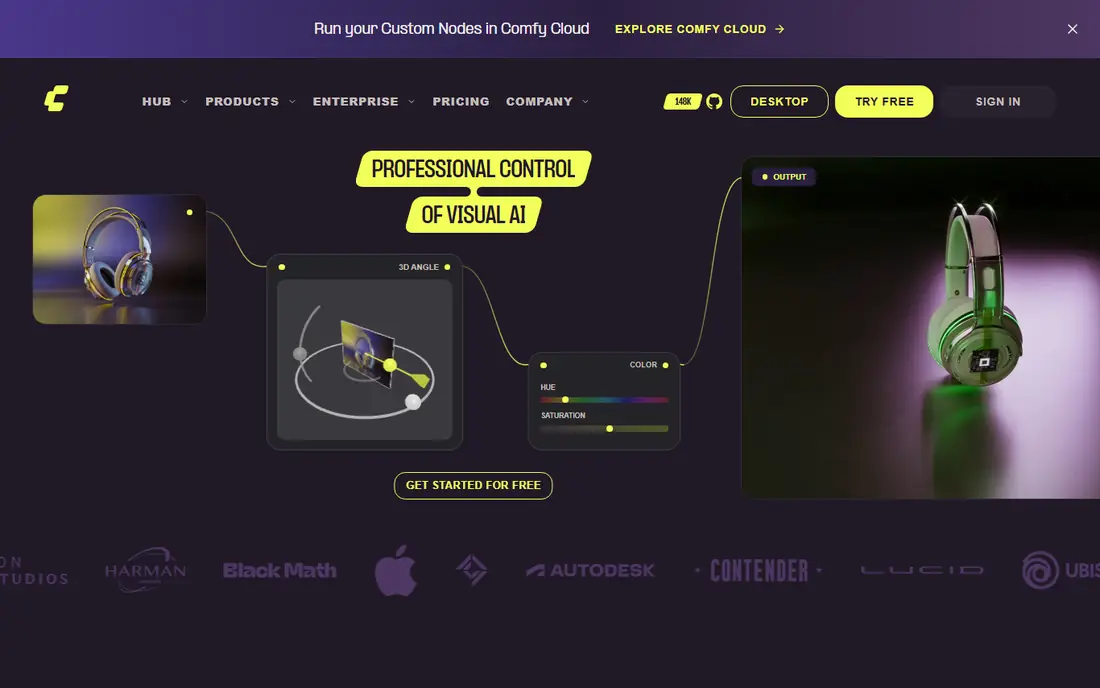
ComfyUI is the pick for people who want repeatable image work. You build a workflow from nodes for the model, prompt, sampler, and upscaler, then save that workflow and run it again with new prompts. That structure suits a house style, a product series, or any job where the same settings must hold across many images. It also tends to support new model types early.
The cost is complexity. A first node graph looks more like a diagram than a simple prompt box, and finding the right nodes takes time. Beginners should start from a shared workflow or a simple template, then change one node at a time. Once that clicks, ComfyUI is hard to beat for control.
- Node-based workflows you can save and reuse
- Strong support for new models
- Runs offline by default
- Steepest learning curve here
- Node graphs can feel technical at first
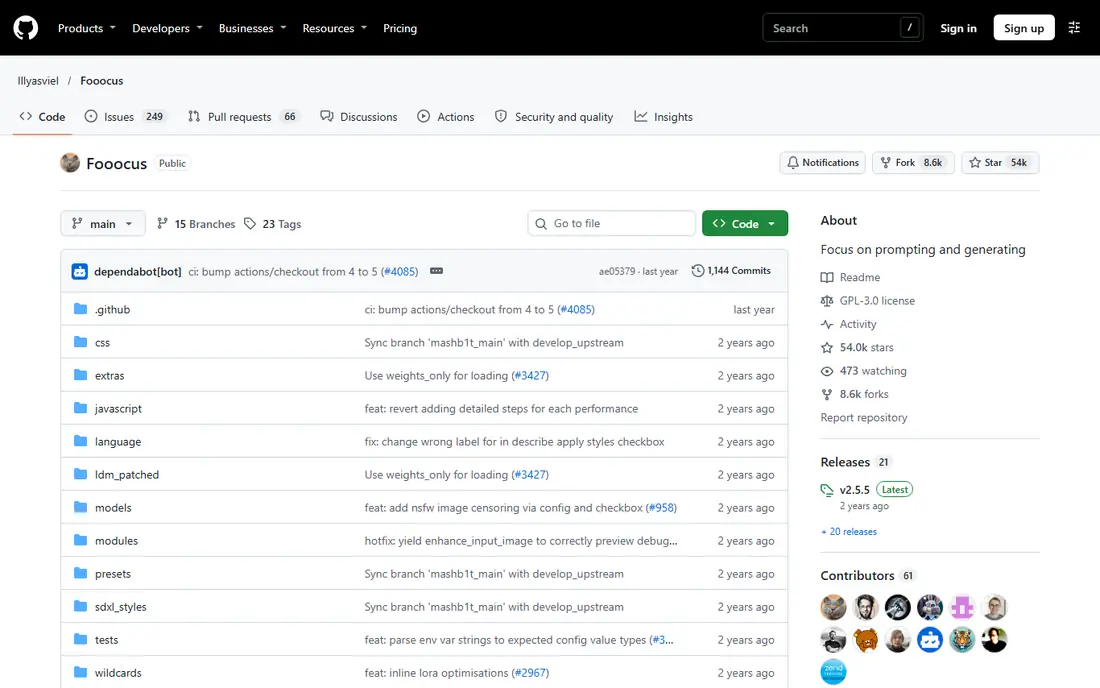
Fooocus is the easiest way to try local generation. You type a prompt, pick a style if you want one, and generate. There are few settings to learn, and the defaults produce clean SDXL images for most general prompts. That simplicity makes it a good first install for anyone who wants to test local generation before learning a larger tool.
The limit is depth. Fooocus does not offer the same workflow control, masking, or extension range as ComfyUI or InvokeAI, and its core updates have slowed compared with newer tools. Treat it as a strong starting point, and move on when you need finer control over models, inpainting, or batch work.
- Minimal setup
- Prompt-first interface
- Good SDXL results with little tuning
- Fewer advanced controls than ComfyUI
- Project updates have slowed
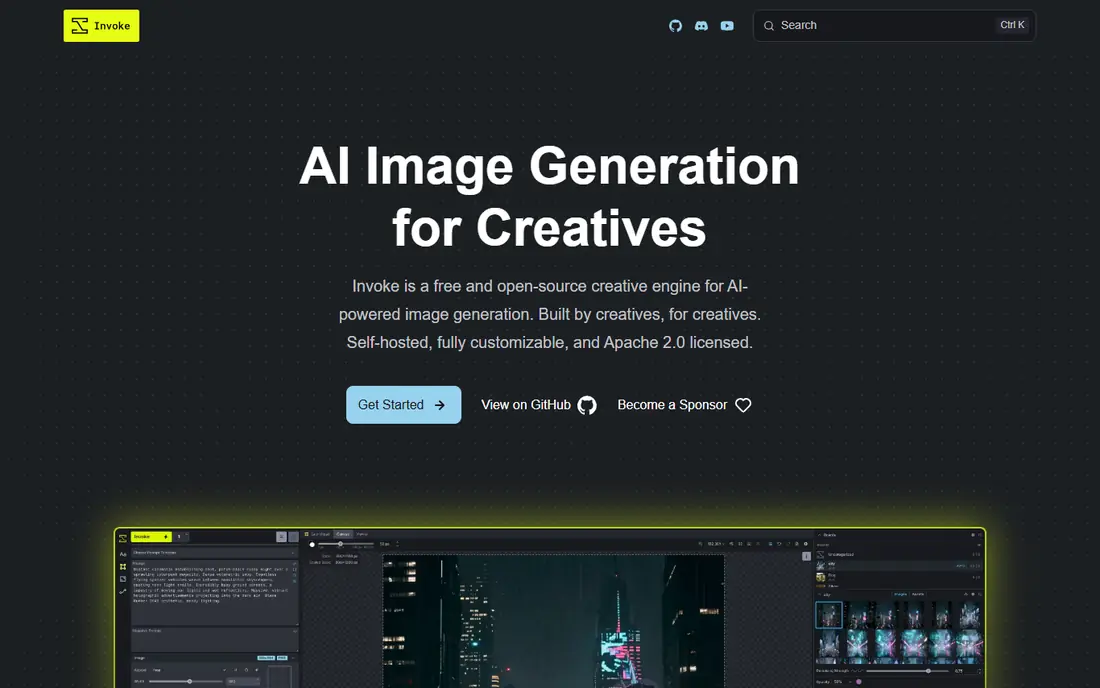
InvokeAI suits creators who edit as much as they generate. Its canvas lets you paint, erase, inpaint, and outpaint parts of an image, which helps when a generated image is close but not right. Model management is also clearer than in some older interfaces, so switching between models for different styles is less fiddly.
Setup is heavier than Fooocus, and generation speed still depends on your hardware. A modest card will work for smaller models, but larger models will be slow. If your work is mostly editing and refining images, InvokeAI is the most balanced local pick here.
- Polished canvas for editing and inpainting
- Model manager
- Layers and masking
- Needs more setup than Fooocus
- Larger models still need a good graphics card
AUTOMATIC1111, often called A1111, is the classic Stable Diffusion web interface, and its size is still its strength. Extensions cover ControlNet, inpainting, upscaling, batch work, and many niche tools, and years of tutorials cover almost every common problem. If you search for a local generation how-to, it will often assume this interface.
The drawback is pace. Core development has slowed, and newer model types may arrive in ComfyUI or Forge first. The interface also shows its age, with many tabs and settings that can overwhelm a new user. Still, for classic Stable Diffusion work and extension breadth, A1111 remains a practical choice.
- Huge extension and tutorial base
- Familiar tabbed interface
- Wide model support
- Core updates have slowed
- Interface feels dated beside newer tools
Forge keeps the familiar A1111 layout but aims for faster generation and lower memory use, which helps on cards with limited video memory. It is a natural move for A1111 users who want better speed without learning a node graph. Support for newer models, including quantized Flux workflows, is a further reason to try it.
The trade-off is community size. A1111 still has more extensions and tutorials, and a few A1111 extensions may not work cleanly in Forge. Test the extensions you rely on before you switch a working project. For many users, the speed gain is worth that check.
- Familiar A1111-style layout
- Faster runs and lower memory use in many cases
- Good Flux support
- Smaller community than A1111
- Some extensions need checking for Forge support
DiffusionBee gives Mac users a native app instead of a browser interface and a Python install. You download a model, type a prompt, and generate, with basic controls for size, steps, and guidance. That simplicity suits Mac owners who want local generation without terminal setup.
The limit is platform and depth. DiffusionBee is Mac only, and it does not match ComfyUI for reusable workflows or InvokeAI for canvas editing. If you only need straightforward local images on a Mac, it is one of the cleanest options. If you need complex pipelines, pair it with ComfyUI later.
- Native Mac app
- Simple prompt workflow
- Models run on the device
- Mac only
- Less workflow control than ComfyUI or InvokeAI
Draw Things brings local generation to the whole Apple range, including iPhone and iPad. That matters for sketching ideas away from a desk, or for a small studio that already works on Apple hardware. Models can run on the device, with optional cloud modes if you choose them, and the app covers text-to-image, image-to-image, and inpainting basics.
Phone generation is best for drafts, not for long batch jobs, because speed and screen space are limited. For serious production work, the Mac version is the stronger base. Draw Things is still the easiest Apple-first route into local generation, especially if you want the same tool on phone and desktop.
- Runs on Mac, iPhone, and iPad
- Local and optional cloud modes
- Many models
- Smaller screen workflow on phones
- Advanced work still suits a desktop tool
Easy Diffusion focuses on getting a first local generator running with as little friction as possible. The installer bundles what you need, and the interface keeps prompts, models, and basic settings in one place. That helps beginners who are put off by manual Python installs or node graphs.
Advanced users will hit its limits sooner, because it does not offer the same workflow, extension, or canvas depth as the larger tools. Treat Easy Diffusion as a low-friction on-ramp: learn prompts and models here, then move to InvokeAI or ComfyUI when you need more control.
- One-click style installer
- Simple interface
- Good for first Stable Diffusion runs
- Fewer advanced features than ComfyUI
- Less suited to complex pipelines
Stability Matrix solves a different problem: managing installs. Instead of setting up ComfyUI, A1111, and Fooocus separately, with separate Python setups, you manage them from one app, with shared model handling. That saves time and avoids the broken-install problems that put many beginners off local generation.
It does not generate images by itself, so you still need to pick an interface inside it and download models. It also needs plenty of disk space, because models are large. If you plan to try more than one local tool, Stability Matrix is the cleanest way to keep them organized.
- Installs and manages several local tools in one place
- Model and package handling
- Avoids conflicting Python setups
- It is a manager, not a generator on its own
- Still needs disk space and downloads
How we picked these
We compared official project pages, documentation, and community guides, and we kept only tools that genuinely run models locally on your own machine. Cloud-only generators were left out, even when they are popular, because they do not fit a local brief. We checked that each project is still available and maintained in a usable form, and we noted where updates have slowed. We did not claim hands-on testing, and we favored tools with clear install routes for beginners as well as depth for advanced users.
What to check before you choose
Start with your hardware. Check your graphics card memory, free disk space, and operating system before you download anything, because model files are large and larger models need more video memory. A smaller or quantized model on a modest card will give faster, more useful results than a large model that barely runs.
Next, pick one interface and learn it well. Fooocus or Easy Diffusion suit a first week, InvokeAI suits editing work, and ComfyUI suits repeatable production. Download only the models you will actually use, and check each model license before commercial work, because the tool license and the model license are separate. Keep prompts, seeds, and model names with each finished image, so you can reproduce a style later.
Finally, use local tools with care. Do not generate images of real people without their clear consent, and do not use generated media to mislead, impersonate, or harass anyone. Local control means you carry that responsibility yourself, with no cloud filter in between.
Frequently asked questions
What is the best local ai image generation software for beginners?
Fooocus is the simplest start, with a prompt-first interface and little tuning. Easy Diffusion is a close alternative when you want a guided installer. Move to InvokeAI for editing or ComfyUI for workflows once you know which features you actually need.
Do local AI image tools work without the internet?
Yes, once the tool and models are downloaded. Generation itself runs on your machine, so you can work offline. You will need a connection again to download new models, updates, or extensions.
How much hardware do I need for local image generation?
A dedicated graphics card with at least 8 GB of video memory gives a comfortable start for SDXL and smaller models, while larger models benefit from more memory. CPU-only generation is possible with small models, but it is much slower. Check the model page for its own memory guidance before you download.
Can I use local AI images commercially?
It depends on the model license, not just the tool. Many open models allow commercial use, but some do not, and community models vary. Check the license page for the exact model you used, and keep a record of it with the project.
Is local generation private?
Generation on your own machine keeps prompts and source images off a cloud server, which suits private work. That privacy does not cover everything: optional cloud features, shared workflows, or extensions that call outside services can still send data out, so check those settings before private work.
Sources
- https://www.comfy.org
- https://github.com/lllyasviel/Fooocus
- https://invoke.ai
- https://github.com/AUTOMATIC1111/stable-diffusion-webui
- https://github.com/lllyasviel/stable-diffusion-webui-forge
- https://diffusionbee.com
- https://drawthings.ai
- https://easydiffusion.github.io
- https://github.com/LykosAI/StabilityMatrix
See where you really rank - block by block
ProMapRanker scans Google Maps across a grid of your service area. Simple monthly plans from $19, white-label on every plan.
Start freeKeep reading
 wpforms alternatives
Best WPForms Alternatives in 2026
We compare 9 wpforms alternatives for WordPress forms, with free and paid options, current pricing notes, and honest limits for small business sites in 2026.
Read → windows task scheduler alternatives
Best Windows Task Scheduler Alternatives in 2026
Looking for Windows Task Scheduler alternatives? We compare 9 schedulers for Windows and cross-platform work, from free tools to enterprise automation.
Read → which ai video service is best
Which AI Video Service Is Best in 2026
which ai video service is best? We compare 10 legitimate AI video services on price, avatars, editing and output quality to help you pick the right tool.
Read →