 ProMapRanker
Best Linux Apps in 2026: 10 Apps Compared

Key takeaways
- Most of the best Linux desktop apps are free and open source, with no subscription needed.
- LibreOffice, GIMP, VLC, and Firefox cover the everyday jobs most new Linux users need first.
- Visual Studio Code and OBS Studio give Linux users professional-grade coding and recording tools at no cost.
- Check your distro software center first, since most apps here install with one click from there.
- A few apps, such as DaVinci Resolve, need stronger hardware, so match the app to your machine.
Quick comparison
| Pick | Great for | Pricing starts at | Free tier | |
|---|---|---|---|---|
 LibreOffice | office documents | Free | Yes | Visit |
 GIMP | photo editing | Free | Yes | Visit |
 Krita | digital painting | Free | Yes | Visit |
 VLC | media playback | Free | Yes | Visit |
 Firefox | web browsing | Free | Yes | Visit |
 Thunderbird | Free | Yes | Visit | |
 Visual Studio Code | coding | Free | Yes | Visit |
 OBS Studio | recording and streaming | Free | Yes | Visit |
 Audacity | audio editing | Free | Yes | Visit |
 Inkscape | vector graphics | Free | Yes | Visit |
The best linux apps
These apps run on common Linux distros, install easily, and cover work, creativity, and everyday use without subscriptions.
LibreOffice is the default office suite on many Linux distros, and it is the first app most new Linux users should install if it is not already there. Writer handles documents, Calc handles spreadsheets, and Impress handles slides, with Draw and Base for diagrams and databases. It opens and saves Microsoft Office formats, so sharing files with Windows and Mac users usually works fine.
Complex Office files with heavy formatting, tracked changes, or advanced spreadsheet features can shift slightly when opened in LibreOffice, so check important shared documents before sending them. For everyday writing, budgeting, and slides, though, LibreOffice does the job without a subscription, and it runs well on older hardware that would struggle with heavier suites.
- Writer, Calc, and Impress included
- Opens Microsoft Office files
- No subscription
- Complex Office formatting can shift
- Interface looks older than paid suites
GIMP is the long-standing free photo editor on Linux, and it handles photo retouching, graphic design, and web images with layers, masks, selection tools, and filters. It opens PSD files with good fidelity for layers and common adjustments, though complex smart objects may not survive the move perfectly. Plugins and scripts extend it further for tasks such as batch editing and advanced color work.
New users often find GIMP harder to learn than a simple editor, because its tools are powerful and its layout differs from Photoshop. Give it a few sessions with a simple project, such as editing photos for a website, before judging it. For free, full-featured photo editing on Linux, there is no stronger option, and it runs on almost any distro.
- Layers, masks, and filters
- Opens Photoshop files
- Large plugin range
- Learning curve is steep
- Interface feels less polished than paid editors
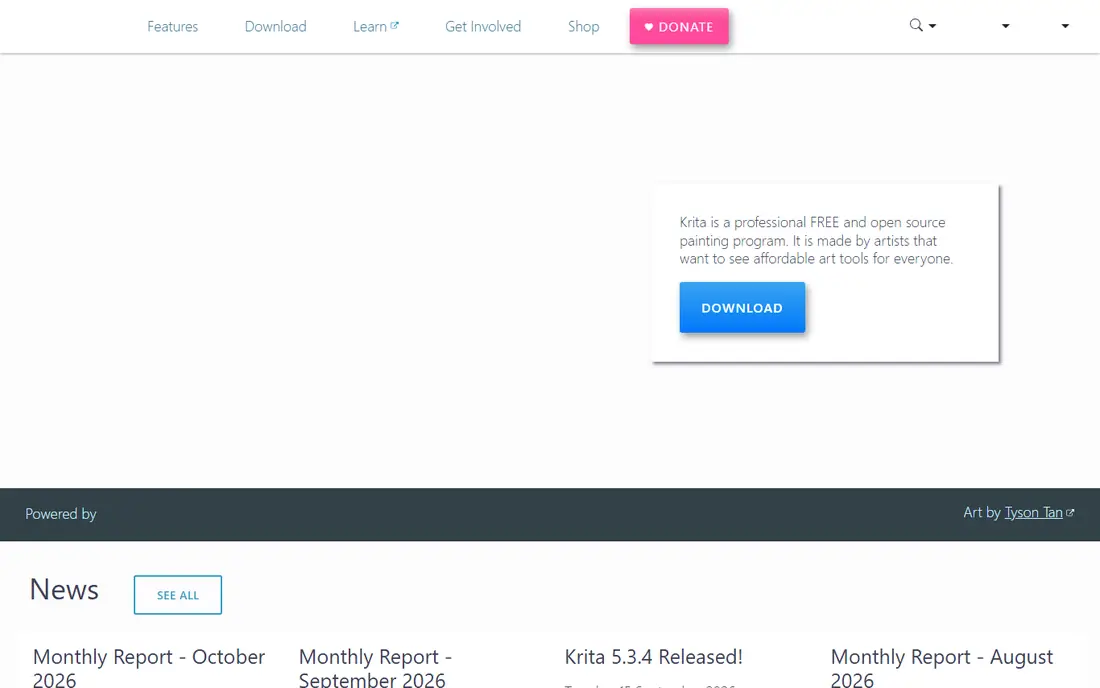
Krita is built for digital painting and illustration, and it is the app to pick if you draw, paint, or make comics on Linux. Its brush engine offers a wide range of brushes for inking, painting, and texture, with stabilizers that help smooth lines. Animation tools, comic templates, and layer management make it useful for illustrators and animators, not just casual sketchers.
Krita is not the best choice for heavy photo retouching, where GIMP fits better, and very large canvases with many layers need a capable machine. For painting and illustration, though, it stands alongside paid art software in quality, and it is free and open source. Many Linux artists use Krita for finished work, not just for practice.
- Brush engine built for painting
- Animation tools
- Comic and illustration templates
- Not a photo editor replacement
- Large canvases need decent hardware
VLC plays almost any video or audio file you throw at it, without the codec downloads that used to plague media playback on Linux. It handles local files, DVDs in many cases, network streams, and subtitles, and it includes conversion and streaming tools for more advanced users. If a file will not play in your distro default player, VLC usually will play it.
The interface is plain and its library features are basic compared with a music-focused app, so it is not the best music collection manager. As a player, though, it is the safest default on Linux. Install it early, set it as your default video player, and you will rarely think about file formats again.
- Plays almost any video or audio file
- No codec hunting
- Streaming and conversion tools
- Interface is plain
- Playlist and library features are basic
Firefox is the default browser on many Linux distros, and it remains the best general browser choice for most Linux users. It supports a wide range of extensions, syncs bookmarks and passwords across devices with a free account, and offers stronger privacy controls than many mainstream browsers. It also handles modern web apps, video, and web-based office tools well.
Some websites still optimize for Chrome first, so a rare site may look or behave slightly differently in Firefox, though this is less common than it once was. Heavy use with many tabs open will still need enough memory, as with any browser. For everyday browsing, banking, and web work on Linux, Firefox is a solid, free default that needs no extra setup.
- Private by default compared with many browsers
- Huge extension range
- Included by many distros
- Some sites optimize for Chrome first
- Heavy tab use needs enough memory
Thunderbird is a full desktop email client that suits users who want their mail, calendar, and contacts in one local app rather than only in a browser tab. It supports common mail providers, works offline, and lets you organize mail with folders, filters, and search. For users with several accounts or large mail archives, a local client is often faster and more reliable than webmail alone.
The interface looks traditional next to modern webmail, and initial setup takes a few minutes per account, especially with two-factor authentication. Once set up, though, Thunderbird is stable and practical, and it keeps working when your browser is closed. It is the best desktop email pick for most Linux users who prefer local mail.
- Full desktop email client
- Calendar and contacts
- Works offline
- Interface feels traditional
- Setup takes a few minutes per account
Visual Studio Code, often called VS Code, is the most popular code editor on Linux, and it suits beginners and professionals alike. Extensions add support for almost every programming language, along with debugging, linting, and formatting tools. Git is built in, a terminal sits inside the editor, and remote workflows let you work on servers or containers from the same window.
VS Code is heavier than a plain text editor such as Kate or Nano, so on a very old machine a lighter editor may feel faster. Privacy-conscious users should also check the telemetry settings on first run and turn off what they do not want. For most coding work on Linux, though, VS Code is the practical default, with the largest extension range and the most tutorials.
- Huge extension range
- Git built in
- Terminal and remote workflows
- Electron-based, so heavier than a plain text editor
- Microsoft telemetry settings need checking
OBS Studio is the standard free tool for screen recording and live streaming on Linux, Windows, and Mac. You can build scenes from your screen, webcam, and audio sources, switch between them live, and record or stream without a watermark or time limit. It is used by streamers, teachers, and businesses alike, and its plugin range extends it further.
The first setup takes some learning, especially around audio sources, resolution, and encoding settings, so expect to spend time on a test recording before a real session. High-quality recording also needs decent hardware, particularly for games or 4K video. Once configured, OBS Studio gives Linux users a professional recording tool at no cost, which is rare in this category.
- Professional recording and streaming
- Scenes and sources
- No watermark or time limit
- Setup takes learning
- Needs decent hardware for high-quality recording
Audacity is the most accessible audio editor on Linux, and it suits podcast editing, voice recording, music cleanup, and simple multi-track projects. You can record, cut, fade, apply noise reduction, and export to common audio formats, with effects and plugins for more advanced work. Its workflow is straightforward enough for a beginner to edit a podcast episode in an afternoon.
Audacity is not a full digital audio workstation for complex music production, where Ardour fits better, and its interface looks dated next to paid audio tools. For spoken audio, simple music edits, and classroom projects, it is the right tool and it costs nothing. Check the current privacy settings on first run, since past versions raised questions about data collection.
- Multi-track audio editing
- Noise reduction and effects
- Simple podcast workflow
- Not a full music production studio
- Interface looks dated
Inkscape is the free vector graphics editor on Linux, used for logos, icons, diagrams, posters, and illustrations that need to scale cleanly. It works natively with SVG, the web vector format, and offers path tools, text on paths, gradients, and alignment features that cover most design work. For print and web graphics that must stay sharp at any size, vector editing beats raster editing, and Inkscape is the Linux standard for it.
Vector drawing has its own concepts, such as nodes, paths, and fills, which take time to learn if you are used to painting or photo editing. Very large files with many objects can also feel slow on modest hardware. For logos, diagrams, and scalable graphics, though, Inkscape is a strong free tool that many designers use for finished client work.
- Professional vector drawing
- SVG native format
- Logo and diagram tools
- Learning curve for vector concepts
- Large files can feel slow
How we picked these
We compared distro software centers, official project pages, and Linux guides, and kept only apps that run well on common distros such as Ubuntu, Fedora, and Linux Mint in 2026. We favored apps that install easily, cover a real everyday job, and have an active project behind them, rather than famous names that are hard to install or poorly maintained. All apps in this list are free, so price was not a deciding factor beyond noting any paid extras.
Getting started on Linux without app overload
Install the basics first: LibreOffice, Firefox, VLC, and Thunderbird cover work, web, media, and mail. Add GIMP or Krita for images, VS Code for coding, and OBS Studio or Audacity only when you have a project that needs them. Use your distro software center or Flatpak store for installs, since that keeps updates simple and avoids random downloads from the web.
Keep your system updated and back up before major changes. A tool such as Timeshift, available in many distro stores, takes system snapshots you can restore if an update or experiment goes wrong. That safety net makes trying new Linux apps far less stressful, especially for new users still learning how their distro works.
Choosing between similar apps
When two apps overlap, pick by your main job. GIMP edits photos, Krita paints, and Inkscape draws vectors, even though each can do a little of the others. VS Code codes, while a plain text editor suits quick config edits. VLC plays media, while a music app suits a large music library. Matching the app to the job matters more than collecting every popular app.
Frequently asked questions
What are the best Linux apps for a new user?
Start with LibreOffice, Firefox, VLC, and Thunderbird for everyday work, web, media, and mail. Add GIMP for photo editing and VS Code if you code. Those six apps cover most daily needs on a new Linux desktop without subscriptions or complex setup.
Are Linux apps really free?
Many of the best Linux desktop apps are free and open source, including every app in this list. Some projects accept donations, and a few offer paid extras or support, but the core apps here cost nothing to download and use. Always download from your distro store or the official project site.
Can Linux apps open Microsoft Office files?
Yes, LibreOffice opens Word, Excel, and PowerPoint formats and can save in those formats. Simple and medium-complexity files usually open well, while very complex formatting, macros, or advanced spreadsheet features may shift. Check important shared files before sending them, and use PDF for final documents when layout must stay fixed.
Which Linux app is best for photo editing?
GIMP is the best free photo editor on Linux for retouching, layers, and graphic work. Krita is better for digital painting and illustration, while Inkscape suits logos and vector graphics. Pick GIMP for photos, Krita for painting, and Inkscape for scalable design work.
Do I need the terminal to install Linux apps?
No. Most apps in this list install from your distro software center with a search and a click. The terminal is useful for advanced tasks, but everyday app installs, updates, and removals work fine through the graphical store on Ubuntu, Fedora, Linux Mint, and similar distros.
What Linux distro should I use with these apps?
Ubuntu and Linux Mint are the easiest starting points for most new users, with Fedora a good choice for users who want newer software. All apps in this list run on these distros, so pick the distro whose desktop feels most comfortable and whose community support you find clearest.
Sources
See where you really rank - block by block
ProMapRanker scans Google Maps across a grid of your service area. Simple monthly plans from $19, white-label on every plan.
Start freeKeep reading
 free alternatives to grok imagine
Free Alternatives to Grok Imagine in 2026
We compared the best free alternatives to grok imagine for image generation, from fast daily credits to design tools, so you can create without paying.
Read → best tools for instagram content creation
Best Tools for Instagram Content Creation in 2026
Compare the best tools for Instagram content creation, from Canva and CapCut to Later and Buffer, on design, video, planning, scheduling, and price in 2026.
Read → best tool to split pdf files
Best Tool to Split PDF Files in 2026
We compared the best tool to split pdf files on split modes, file limits, privacy and price, so you can split a PDF cleanly and keep every page in one go.
Read →