 ProMapRanker
Best Image Editing Software in 2026


Professional retouching and compositing · Pricing starts at: $22.99 per month
Key takeaways
- Affinity is now free, which makes it the first tool most people should try before paying for a subscription.
- Adobe Photoshop still leads for deep retouching, compositing and its large plugin ecosystem, but it costs $22.99 per month on an annual plan.
- GIMP and Photopea cover serious layered editing at no cost, while Canva and Pixlr suit fast social and marketing edits.
- RAW photographers should weigh Lightroom, Capture One and DxO PhotoLab by library tools and color handling, not by price alone.
Quick comparison
| Pick | Great for | Pricing starts at | Free tier | |
|---|---|---|---|---|
| Adobe Photoshop | Professional retouching and compositing | $22.99 per month | Free trial (7 days) | Visit |
 Adobe Lightroom | Photo organizing and RAW editing | $11.99 per month | Free trial (7 days) | Visit |
 Affinity | Free professional layered editing | Free | Yes | Visit |
 GIMP | Free open source editing | Free | Yes | Visit |
 Photopea | Browser-based PSD editing | Free | Yes | Visit |
 Canva | Fast design and social edits | Free | Yes | Visit |
 Pixlr | Quick browser and mobile edits | Free | Yes | Visit |
 Capture One | Studio color and tethered shooting | See website | Free trial | Visit |
 DxO PhotoLab | RAW quality and noise reduction | See website | Free trial | Visit |
The best image editing software
We compared official feature pages, pricing pages and app store listings for these editors, and we focused on what each one does well, what it charges and where it falls short. Here are the nine that earned a place.
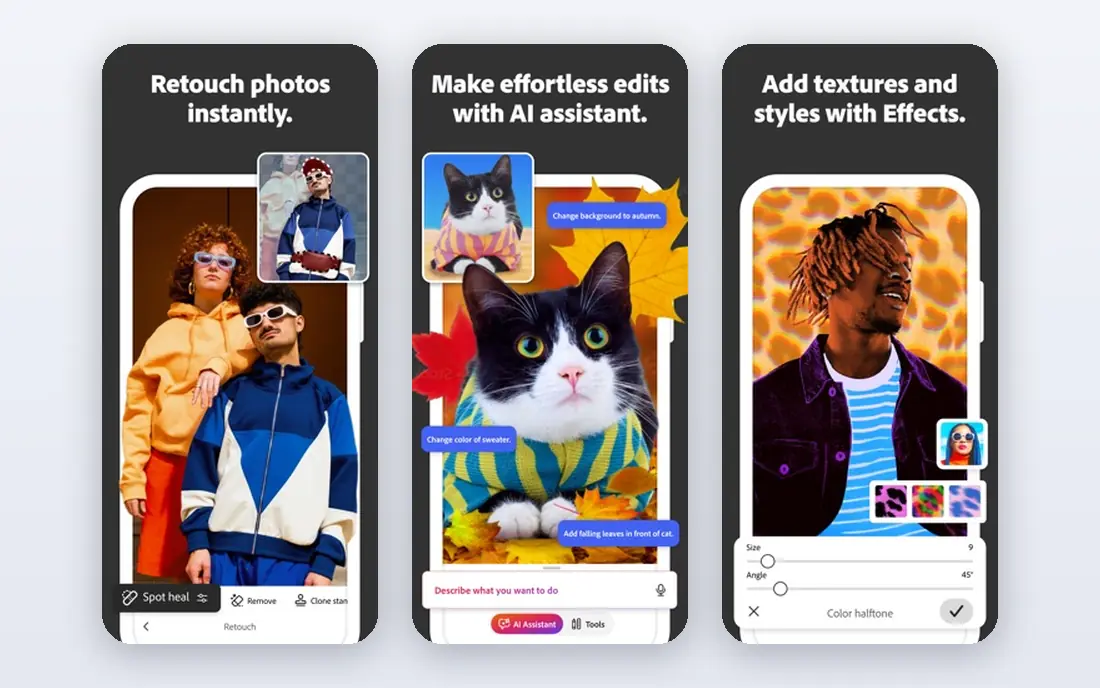
Photoshop remains the reference point for image editing because almost every other editor is measured against it. Layers, masks, smart objects and selection tools give editors fine control over complex composites, and the plugin library covers retouching, 3D type and print preparation. For professionals who exchange PSD files with clients and studios, that compatibility alone often settles the choice.
The trade-off is cost and complexity. At $22.99 per month on an annual plan, it is a recurring bill, and new users can spend weeks learning the interface. Casual editors who only crop, adjust color and remove a background will rarely use its full range. Our pick for most people is to start with a free editor first and move to Photoshop only when a specific job demands it.
- Deepest layer, mask and selection tools
- Large plugin and brush ecosystem
- Strong generative fill features
- Subscription only
- Steep learning curve for beginners
- More power than most casual editors need
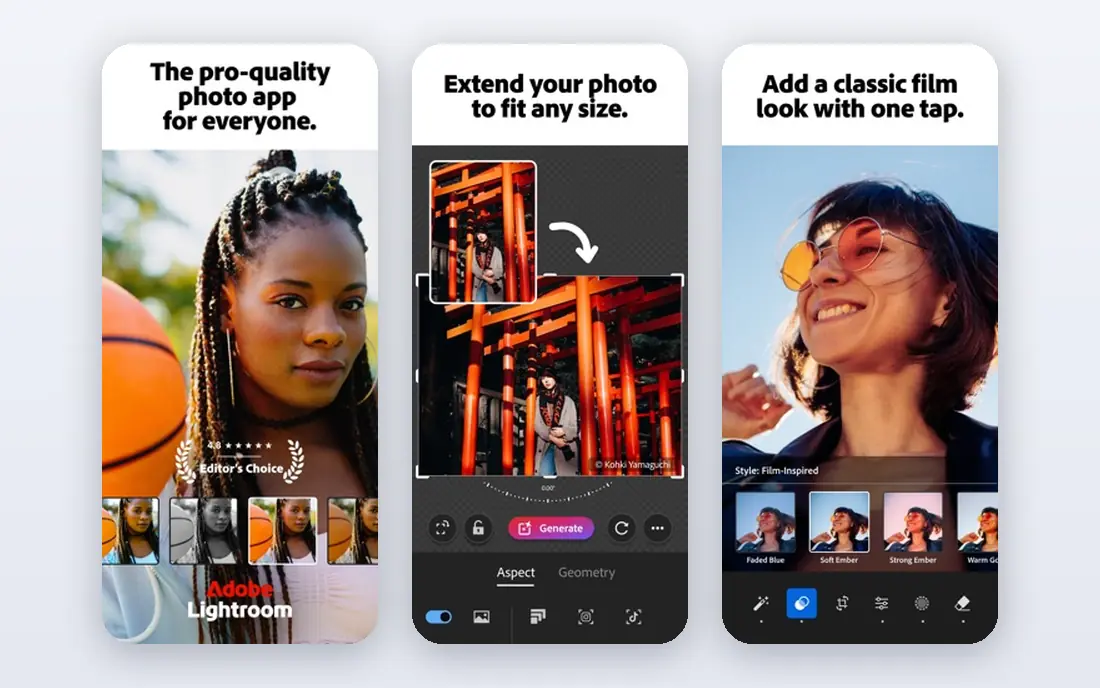
Lightroom suits photographers who shoot in volume and need to sort, rate and edit hundreds of images quickly. Edits are non-destructive, so the original file stays untouched, and presets speed up a consistent look across a shoot. The mobile app also makes it practical to cull and adjust photos away from a desk.
Lightroom is not a full pixel editor, so heavy compositing, complex text layouts and detailed retouching still call for another tool. The $11.99 per month plan includes cloud storage, which helps for syncing, but photographers with large local libraries may prefer a desktop catalog tool. For most photo-first users, though, Lightroom covers the daily work well.
- Strong library and catalog tools
- Non-destructive RAW edits
- Cloud sync across desktop and mobile
- Limited layered pixel editing
- Subscription only
- Some advanced edits need Photoshop
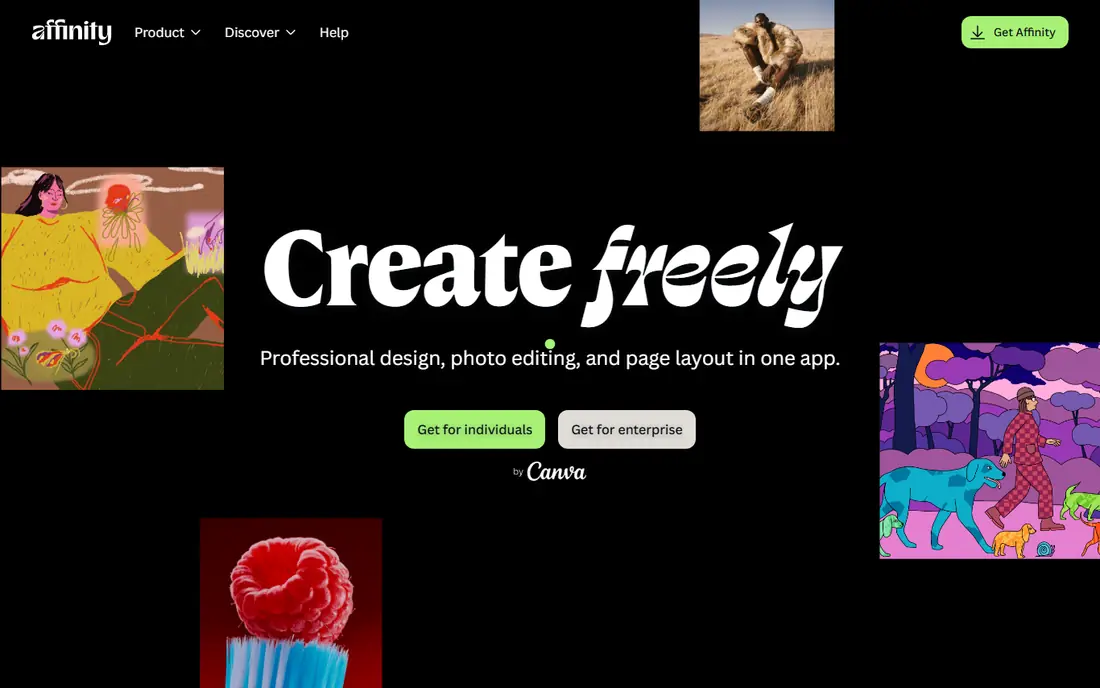
Affinity changed this market when Canva relaunched it as a free all-in-one app, folding together photo editing, design and publishing tools that once cost about $70. It handles layers, masks, RAW files and PSD files with a polish that feels closer to paid software than to a typical free tool. For many former Photoshop users, it now covers everyday professional work at no cost.
The honest catch is the ecosystem around it. Photoshop plugins, actions and community tutorials are far more numerous, so editors with a plugin-heavy workflow should check compatibility before switching. Some newer AI features sit behind a paid Canva plan rather than the free app. Even with those limits, Affinity is the strongest free starting point we found.
- Full layered editing with RAW support
- No subscription
- Clean modern interface
- Smaller plugin ecosystem than Photoshop
- Some AI tools need a paid Canva plan
- IPad version still maturing
GIMP has been the free alternative to Photoshop for years, and it remains the most customizable option on this list. It supports layers, masks, advanced selection tools and a wide plugin library, and its open source license means no account, subscription or vendor lock-in. Editors who like to tailor menus, shortcuts and scripts will find plenty to work with.
New users should expect a rougher first week. The interface is less polished than Affinity or Photoshop, and RAW files need an extra plugin rather than opening directly. GIMP also lacks the built-in AI retouching tools that paid editors now bundle. If you value control and zero cost over polish, it is hard to beat.
- Completely free and open source
- Large plugin and script library
- Runs on Windows, Mac and Linux
- Interface feels dated
- RAW support needs a plugin
- Learning curve for new users
Photopea is the tool we recommend when someone needs to open and edit a PSD file on a borrowed computer. It runs entirely in a browser, supports layers and masks, and its layout will feel familiar to Photoshop users. That makes it useful for quick client revisions, school computers and Chromebooks where installing software is not an option.
The free version is supported by ads, and a paid plan removes them and adds more history steps. It is not a full replacement for desktop software on very large files, and offline work is not its strength. For occasional edits and file compatibility, though, few tools are as convenient.
- Opens PSD, XCF and Sketch files in a browser
- No install needed
- Familiar Photoshop-style layout
- Free version shows ads
- Advanced AI tools are limited
- Needs an internet connection
Canva is best thought of as a design tool with solid photo editing, rather than a pure photo editor. Templates, stock photos, text tools and brand kits let small businesses turn a photo into a social post, flyer or ad in minutes. Its photo editor covers crops, filters, adjustments and background removal, which is enough for most marketing work.
Editors who need precise retouching, layered compositing or CMYK print control will hit its limits quickly. The free plan is generous for templates and basic edits, but background removal and other AI tools sit behind the Pro plan at about $15 per month. For speed and teamwork, Canva still earns its place.
- Huge template library
- Easy background remover on Pro
- Simple sharing and team tools
- Limited deep pixel editing
- Best AI tools need Pro
- Print color control is basic
Pixlr suits people who want a fast edit without installing anything. It offers layered editing in the browser, one-click AI tools and mobile apps, so a quick background swap or filter pass takes minutes. Beginners tend to find it easier to pick up than GIMP or Photoshop, and the free tier covers casual use.
Heavy users will notice the limits. AI features run on credits, and the free plan shows ads and restricts some exports. It also lacks the depth needed for print work or complex composites. Treat Pixlr as a quick-edit tool, and keep a desktop editor for serious projects.
- Fast browser editing with AI tools
- Mobile apps included
- Low learning curve
- Free tier meters AI credits
- Ads on the free plan
- Less depth than desktop editors
Capture One is built for studio and commercial photographers who judge an editor by color accuracy first. Its color editor, skin tone tools and tethered shooting let photographers review shots on a large screen as they work, which matters for product and portrait sessions. Layered adjustments on RAW files also give more control than a simple preset pass.
That power comes with a learning curve and a premium price, whether bought as a subscription or a perpetual license. Beginners may find Lightroom easier, and casual editors will not need tethered shooting at all. For studio work where color is the product, Capture One is worth the effort.
- Precise color grading and skin tone tools
- Tethered shooting support
- Layered RAW adjustments
- Steep learning curve
- Subscription or perpetual price is high
- IPad app lacks some desktop features
DxO PhotoLab earns its place on image quality alone. Its DeepPRIME noise reduction cleans up high ISO shots while keeping fine detail, and its lab-tested lens profiles correct distortion and vignetting automatically for a wide range of cameras and lenses. Photographers who shoot RAW in low light will notice the difference on their first batch.
It is less appealing as an all-in-one library tool, since its browsing and catalog features feel less smooth than Lightroom. Creative AI effects like sky replacement are also thinner here. Buyers who want the best RAW conversion and a one-time purchase, rather than a subscription, will find it a strong fit.
- Excellent DeepPRIME noise reduction
- Large lens correction database
- One-time purchase option
- Library tools feel less polished than Lightroom
- Limited creative AI effects
- Film and plugin extras cost more
How we picked these
We compared official feature pages, pricing pages and app store listings, and we checked which editors still exist, receive updates and work on current systems in October 2026. We favored tools with clear pricing, real file compatibility and a distinct audience, rather than listing every editor with a similar feature set. Prices that varied across sources are listed as See website, so readers can confirm the current figure before paying.
What to check before you choose
Match the tool to the job
Start by naming the job: quick social edits, RAW photo batches, layered design work or studio color. A fast browser editor wins for the first job, while RAW batches favor Lightroom, Capture One or DxO PhotoLab. Layered compositing favors Photoshop, Affinity or GIMP. Buying the most powerful editor for a simple job wastes money and learning time.
Check file compatibility and export
If clients send PSD files, confirm the editor opens and saves them cleanly before you commit. Photopea and Affinity handle PSD files well, while Canva and Pixlr are weaker here. Also check export options for print, web and social sizes, and confirm whether the free tier limits resolution or adds a watermark.
Try the free tier on a real project
Open three of your own files, including your largest one, and complete one full edit end to end. That test reveals slowdowns, missing tools and export limits faster than any feature list. If a free tool passes that test, there is little reason to pay for a subscription until a specific feature earns it.
Frequently asked questions
What is the best image editing software for beginners?
Canva and Pixlr are the easiest starting points, since both run in a browser and need little setup. Affinity is the better free pick once you want layers and RAW editing, and it stays free after the learning curve. Start simple, then move up only when you hit a real limit.
What is the best free image editing software?
Affinity is our free pick for full layered editing, with GIMP close behind for customization and Photopea for browser-based PSD work. All three are free, and each suits a different workflow. Try Affinity first if you want a modern desktop app.
What is the best image editing app for phones?
Canva, Pixlr and Lightroom all offer mobile apps, with Lightroom strongest for photo quality and Canva strongest for design. Snapseed is another free mobile option, but it is outside this desktop-focused list. Pick based on whether you edit photos or design posts more often.
What is the best software for image editing on a Mac or Windows PC?
Photoshop, Affinity, GIMP, Capture One and DxO PhotoLab all run on Mac and Windows, so the choice comes down to budget and workflow. Affinity covers most needs free, while Photoshop suits professionals who need its ecosystem. Check system requirements for older machines before buying.
Is Affinity really free now?
Yes, Canva relaunched Affinity as a free app, combining photo, design and publishing tools that were previously paid. Some AI features inside Affinity need a paid Canva plan, but core editing is free. Confirm the current terms on the Affinity site before relying on a specific AI feature.
Do I still need Photoshop if free tools are this good?
Many editors do not, since Affinity, GIMP and Photopea cover layers, masks and retouching. Photoshop still earns its price for heavy compositing, its plugin library and studio file exchange. If none of those apply to your work, a free editor is the smarter spend.
Sources
- https://www.adobe.com/products/photoshop.html
- https://www.adobe.com/products/photoshop-lightroom.html
- https://affinity.studio
- https://www.gimp.org
- https://www.photopea.com
- https://www.canva.com
- https://pixlr.com
- https://www.captureone.com
- https://www.dxo.com
- https://colorlib.com/wp/free-photoshop-alternatives/
- https://www.on1.com/blog/choose-best-non-subscription-photo-editors/
See where you really rank - block by block
ProMapRanker scans Google Maps across a grid of your service area. Simple monthly plans from $19, white-label on every plan.
Start freeKeep reading
 free alternatives to grok imagine
Free Alternatives to Grok Imagine in 2026
We compared the best free alternatives to grok imagine for image generation, from fast daily credits to design tools, so you can create without paying.
Read → best tools for instagram content creation
Best Tools for Instagram Content Creation in 2026
Compare the best tools for Instagram content creation, from Canva and CapCut to Later and Buffer, on design, video, planning, scheduling, and price in 2026.
Read → best tool to split pdf files
Best Tool to Split PDF Files in 2026
We compared the best tool to split pdf files on split modes, file limits, privacy and price, so you can split a PDF cleanly and keep every page in one go.
Read →