 ProMapRanker
Best Image Cropper Apps in 2026

Key takeaways
- The best cropper depends on the job: social sizes, print sizes, exact pixels, or batch work each favor a different tool.
- Browser tools suit quick one-off crops, while desktop and mobile editors suit repeated work and offline use.
- Exact pixel export matters for profile images, banners, and marketplace listings, so check output size, not just the crop box.
- A crop cannot add detail that was not in the photo, so start with the highest resolution source you have.
- Free tools cover most cropping needs, but batch, high-resolution, and watermark-free exports sometimes need a paid plan.
Quick comparison
| Pick | Great for | Pricing starts at | Free tier | |
|---|---|---|---|---|
 iLoveIMG | Quick browser crops and batch tools | Free | Yes | Visit |
 Fotor | Simple cropping plus editing | Free | Yes | Visit |
 Pixlr | Browser cropping with templates | Free | Yes | Visit |
 Photopea | Precise browser cropping with layers | Free | Yes | Visit |
 Pixelied | Design cropping in the browser | Free | Yes | Visit |
 Canva | Social sizes and design layouts | Free | Yes | Visit |
 Adobe Express | Quick crops inside designs | Free | Yes | Visit |
 BeFunky | Casual cropping and photo fixes | Free | Yes | Visit |
 Kapwing | Cropping for video and social content | Free | Yes | Visit |
The best image cropper apps
We compared official feature pages and export options for tools that crop still images with clear size controls. The list covers browser tools, design apps, and editors for more precise work.
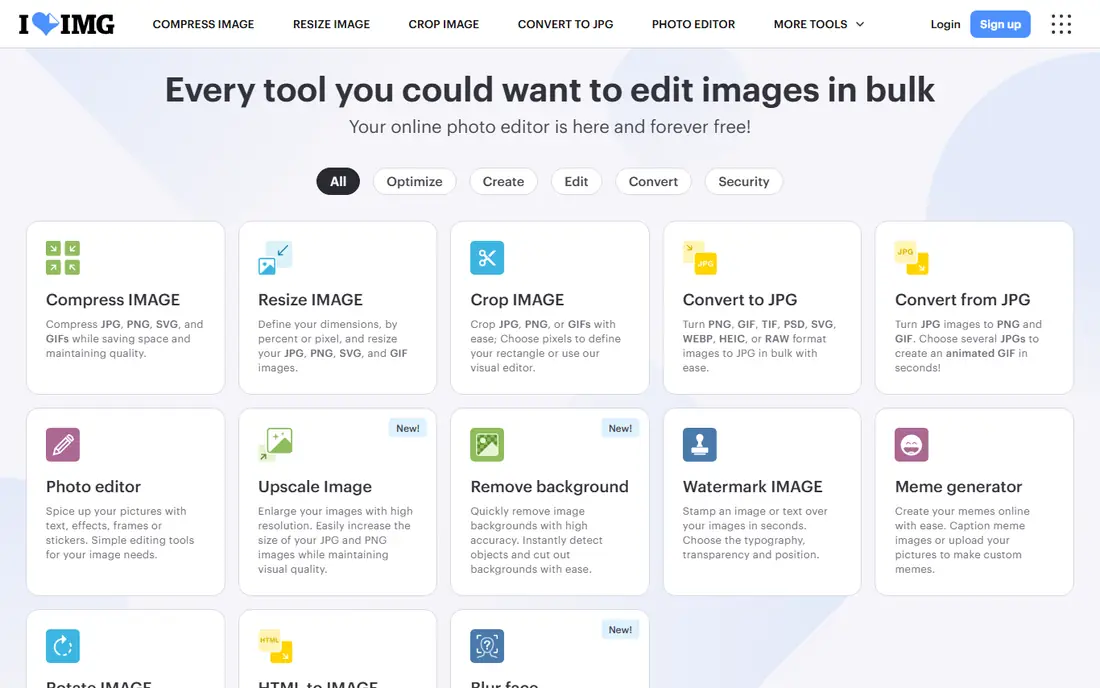
iLoveIMG is a good first stop for a fast crop. Upload an image, drag the crop box or enter a size, and download the result without installing software. It also groups related tools such as resize, compress, and convert, so a crop for a listing or a post can move straight to the next step.
The free tier handles most one-off jobs, but file size and batch limits can matter for large shoots. Paid plans raise those limits and add more batch capacity. For a single image or a small set, iLoveIMG keeps the job short and simple.
- Fast browser cropping
- Batch and resize tools
- No install needed
- Advanced batch features need a paid plan
- Free file size limits apply
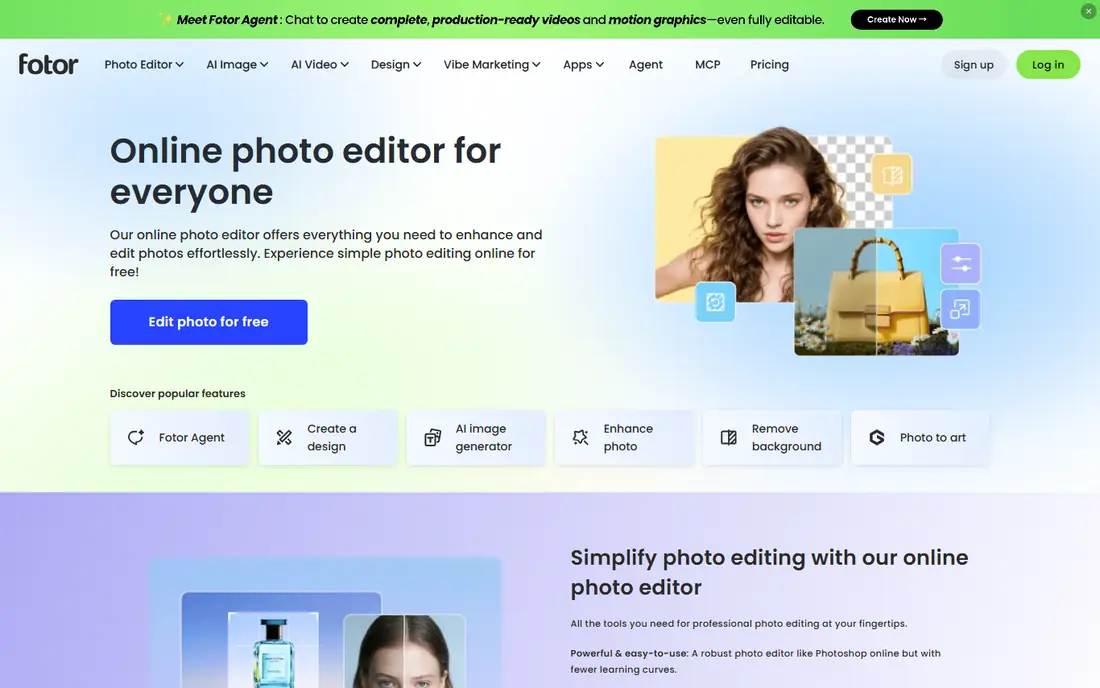
Fotor pairs cropping with everyday editing, so you can crop, straighten, adjust light, and add text in one session. Ratio presets cover common social and print shapes, and a freeform crop handles the rest. That combination suits bloggers, sellers, and social creators who edit many images in a similar way.
The paid plan adds higher resolution exports and more features, so check free export quality before using it for print. For web images and social posts, the free tier usually covers the job. Fotor is a friendly middle ground between a bare crop tool and a full editor.
- Clear ratio presets
- Basic editing in the same place
- Web and mobile versions
- Some export features need a paid plan
- Free tier has limits
Pixlr gives you a light editor for quick crops and a deeper editor for layered work, both in a browser. Cropping is straightforward in either mode, with ratio options and freeform control. Templates help when a cropped image also needs to become a post, banner, or thumbnail.
Free use includes ads, and some premium tools need a subscription. Pixlr suits creators who want browser convenience without a steep learning curve. For pixel-perfect print work, a desktop editor with exact size controls may still be preferable.
- Two editor levels
- Templates and filters
- Fast browser workflow
- Ads on the free tier
- Some exports need a paid plan
Photopea is the strongest browser choice when a crop must be exact. You can set canvas size in pixels, use guides, keep layers intact, and export in several formats. That control matters for designers who crop for a layout, a print file, or a set of matching images.
Beginners may find the interface busy at first, since it mirrors professional desktop software. The payoff is precision and flexibility at no software cost. Photopea also works well when a crop is part of a larger edit, such as removing a background or fixing perspective after cropping.
- Exact pixel control
- Layers and guides
- PSD support
- No install
- Learning curve for beginners
- Ads on the free tier
Pixelied offers a plain browser crop tool inside a design editor. Upload a photo, use the crop control, and add text, icons, or mockup elements if the image needs more than a crop. Exports cover common formats, which helps when one image serves a post, a listing, and a presentation.
Pixelied does not match Photopea for deep editing, but it is faster to learn and less cluttered. It suits small business owners and content creators who crop often and want a design step in the same place. Check current plan limits if you crop in large batches.
- Simple crop tool
- Design templates
- Multiple export formats
- Smaller feature set than full editors
- Some features need a paid plan
Canva is built for content, so cropping usually happens inside a design sized for a platform. Pick an Instagram, YouTube, or presentation size, drop in a photo, and crop it to fit the frame. That flow removes guesswork about aspect ratios and keeps text and graphics aligned.
Canva is less ideal when you need a standalone cropped file at an exact pixel size for print, since its strength is layout rather than raw image editing. For social and marketing work, however, it is often the fastest route from a raw photo to a finished post.
- Social size presets
- Huge template library
- Easy drag and drop
- Exact pixel control is less direct
- Some features need a paid plan
Adobe Express lets you crop a photo as part of building a post, flyer, or video thumbnail. The crop controls are simple, and templates set the size for common platforms. Brand kits and fonts help small teams keep a consistent look across cropped images.
Free users get a solid set of tools, while premium assets and some exports need a paid plan. Adobe Express suits beginners and small teams who want a polished result without a full editor. For a single exact crop, a dedicated browser tool may be quicker.
- Templates and brand tools
- Simple crop controls
- Adobe asset access
- Some premium features need a paid plan
- Mobile and web features differ
BeFunky is a friendly browser editor for people who crop photos for personal use, blogs, or small shops. Crop presets, straightening, and basic fixes sit in one place, and collage tools help when several cropped images belong together. The workflow stays short, which matters for quick edits.
Paid plans add more tools and higher resolution options. Free users should check export quality for their intended use. BeFunky is a good pick for casual editors who want more than a bare crop box but do not need professional software.
- Easy crop and resize
- Photo editor and collage tools
- Batch options
- Some features need a paid plan
- Interface shows upgrade prompts
Kapwing is best known for video, but its browser studio also crops still images for social sizes and thumbnails. That helps creators who prepare a video cover, a post image, and a clip from the same shoot. Presets for common platforms keep aspect ratios consistent.
The main caution is the free export watermark, which applies to some free outputs. Check current terms for still images before using a free export for client work. Paid plans remove the watermark and raise resolution limits, making Kapwing a practical choice for regular content creators.
- Social size presets
- Video and image tools in one place
- Browser based
- Free exports can carry a watermark
- Higher resolution needs a paid plan
How we picked these
We compared official feature pages, pricing pages, and export options for image crop tools live in October 2026. We favored tools with clear ratio or pixel controls, usable free tiers, and a real official homepage. We left out tools that only resize without cropping, tools with no clear export path, and mobile-only apps that could not be verified from an official source.
How to crop without losing quality
Crop from the largest original file you have, and export at the size the destination actually needs. Cropping a small web image for a large banner will look soft, no matter which tool you use. Keep the subject clear of the edge unless you intend a tight crop, and leave room for platform cropping, since some apps trim images further on display.
Use a locked ratio when a platform requires one, and use freeform cropping when composition matters more than exact size. Save the original before cropping, so you can re-crop for another platform later. For a set of images, use the same ratio and export size to keep a feed or catalog looking consistent.
Frequently asked questions
What is the best image cropper tool for social media?
Canva, Adobe Express, and Kapwing suit social work best, since they offer platform size presets. For a single standalone image, iLoveIMG or Fotor is faster.
Can I crop an image to an exact pixel size for free?
Yes. Photopea and iLoveIMG offer pixel controls in a browser at no software cost, and several other tools include exact sizes on free tiers. Check the export size before downloading, since some tools only show the ratio during cropping.
Does cropping reduce image quality?
Cropping itself does not add blur, but it removes pixels, so a heavy crop from a small file will look softer at large sizes. Start with a high-resolution original and avoid repeated saves in lossy formats when quality matters.
What ratio should I use for Instagram?
Common choices include square, portrait, and wide formats for different placements, and the right choice depends on feed, story, or reel cover use. Pick the preset in your tool for the exact placement, and preview the crop on a phone before posting.
Can I crop many images at once?
Some tools offer batch cropping and resizing, often on paid plans. For a large set with the same ratio, a batch tool saves time, but check each result, since a single crop box rarely fits every photo well.
Is a browser cropper safe for private photos?
Browser tools vary in how they handle uploads, so read the privacy policy before uploading sensitive images. For private photos, a desktop editor such as GIMP keeps files on your device, while many browser tools process uploads on a server.
Sources
See where you really rank - block by block
ProMapRanker scans Google Maps across a grid of your service area. Simple monthly plans from $19, white-label on every plan.
Start freeKeep reading
 wpforms alternatives
Best WPForms Alternatives in 2026
We compare 9 wpforms alternatives for WordPress forms, with free and paid options, current pricing notes, and honest limits for small business sites in 2026.
Read → windows task scheduler alternatives
Best Windows Task Scheduler Alternatives in 2026
Looking for Windows Task Scheduler alternatives? We compare 9 schedulers for Windows and cross-platform work, from free tools to enterprise automation.
Read → which ai video service is best
Which AI Video Service Is Best in 2026
which ai video service is best? We compare 10 legitimate AI video services on price, avatars, editing and output quality to help you pick the right tool.
Read →