 ProMapRanker
Best Free Vector Graphics Software in 2026

Key takeaways
- Inkscape is our pick for most people who want a full desktop vector editor at no cost, with strong path tools and wide file support.
- Penpot is the strongest free browser option for teams, because it allows shared files and self hosting without a paid account for basic use.
- Figma works best when vector work sits inside interface design, while Linearity Curve suits Apple users who want a polished drawing app.
- Free plans differ in important ways, so check export limits, file caps and commercial terms before you build client work in any tool.
- Keep master files in an open format such as SVG when you can, so a change in pricing or a plan limit does not lock you out of your own work.
Quick comparison
| Pick | Great for | Pricing starts at | Free tier | |
|---|---|---|---|---|
 Inkscape | Full desktop vector editing | Free | Yes | Visit |
 Penpot | Free browser based team design | Free | Yes | Visit |
 Figma | Interface design with vector tools | Free | Yes | Visit |
 Linearity Curve | Apple devices and illustration | Free | Yes | Visit |
 Boxy SVG | Simple browser SVG editing | Free | Yes | Visit |
 Vectr | Quick browser graphics and sharing | Free | Yes | Visit |
 SVGator | Animated SVG graphics | Free | Yes | Visit |
 Adobe Express | Fast templates and social graphics | Free | Yes | Visit |
 Affinity | Professional desktop design at no cost | Free | Yes | Visit |
The best free vector graphics software
Free vector tools now cover logos, icons, posters and interface graphics. The list below focuses on tools with a genuine free plan or a free product, not only a short trial.
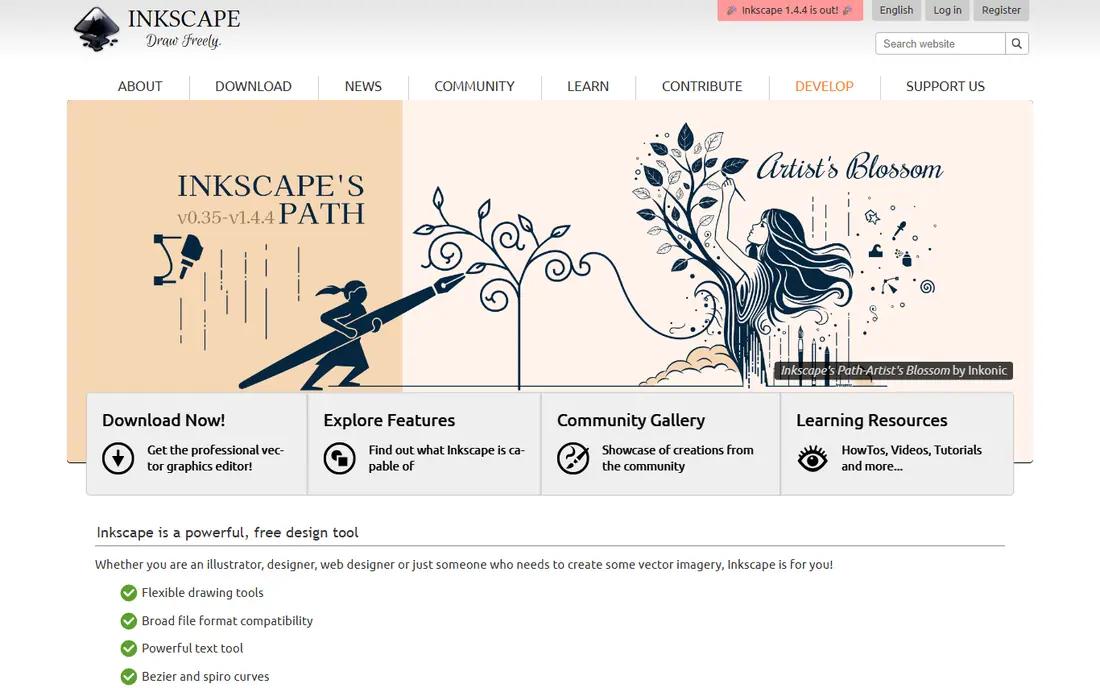
Inkscape is the closest free match to a traditional desktop illustration program. You can draw with the pen and shape tools, edit nodes directly, work with layers, and build detailed logos, icons and print artwork. It handles SVG as its native format, and it can export PNG, PDF and other common formats for print and web use.
The trade off is polish rather than power. Menus and panels take time to learn, and there is no shared online workspace for live co editing. For a single designer, a student, or a small business owner who wants a complete tool without a subscription, that trade is easy to accept. Save often, keep your SVG masters, and use Inkscape for work that needs precise paths rather than quick templates.
- Full path and node editing
- Wide SVG support
- Runs on Windows, Mac and Linux
- Interface feels dated in places
- No built in cloud collaboration
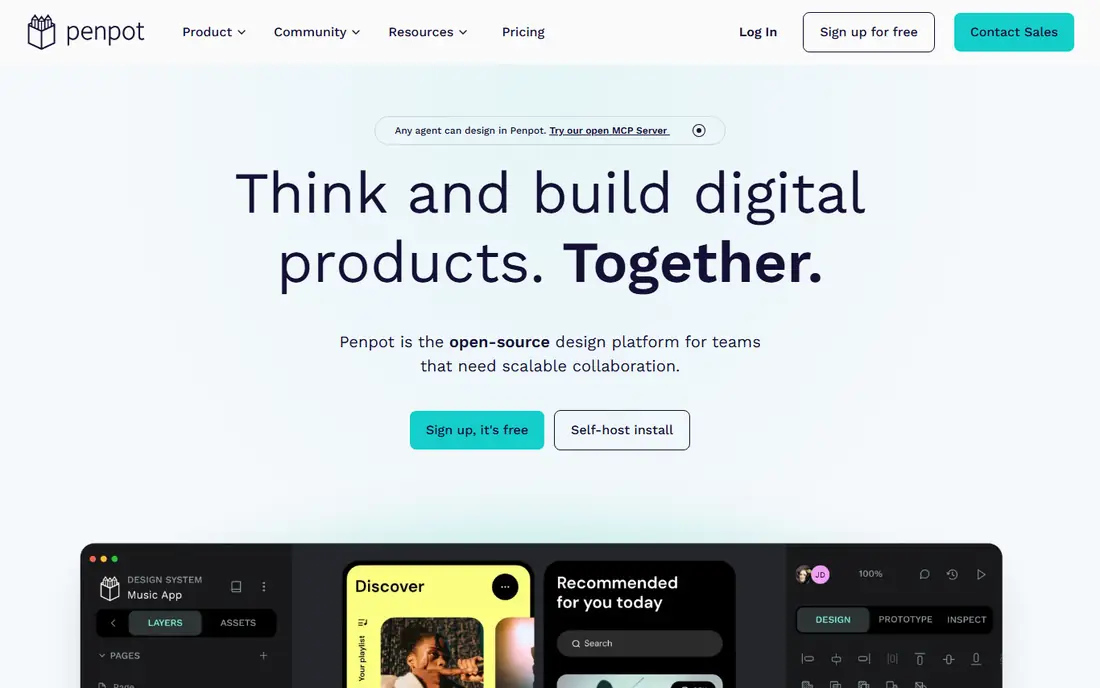
Penpot is an open source design tool that runs in the browser and covers interface design, illustration and layout. You can draw vector shapes, use boolean operations, manage components and share files with teammates. Because the project is open source, teams with technical help can also run their own copy, which gives more control over files and access.
Penpot suits small teams and freelancers who want collaboration without paying for seats. It is less strong for complex print production, where a desktop editor still has an edge. Try it on a real client file first, especially if you rely on advanced effects, gradients or precise print export, and keep SVG copies of finished work.
- Works in the browser with no install
- Supports shared files and teams
- Can be self hosted
- Smaller template and plugin range than larger rivals
- Print focused tools are thinner
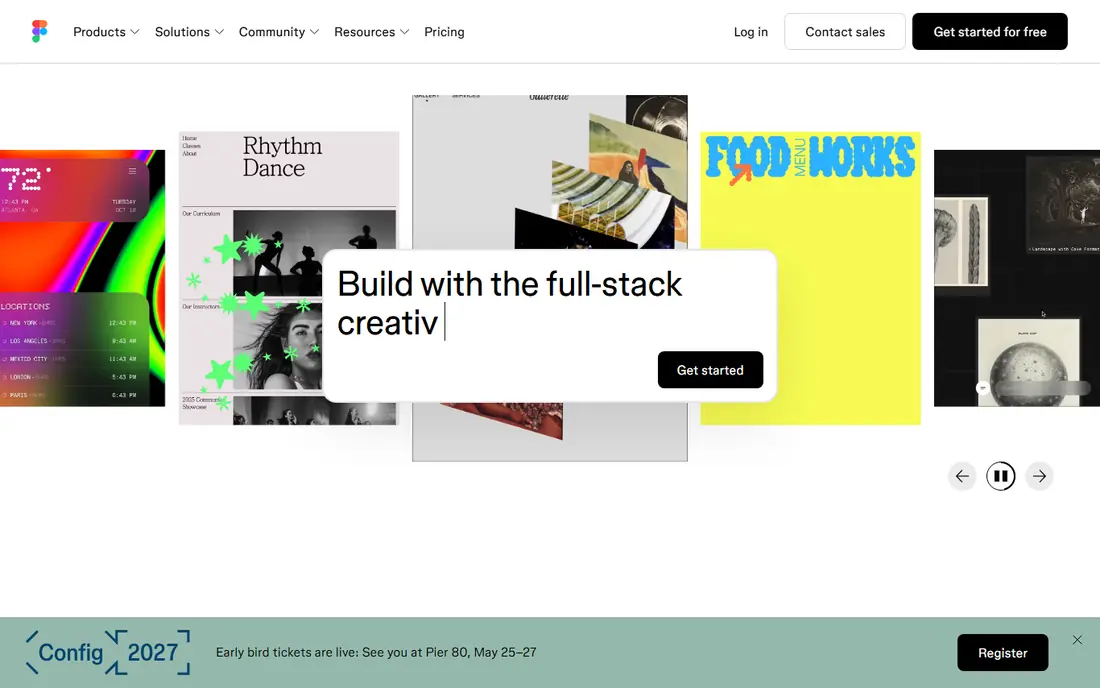
Figma is best known for interface design, but its vector tools are solid for icons, logos and simple illustrations. The pen tool, boolean operations, auto layout and component system make it easy to reuse shapes across screens and marketing graphics. Real time collaboration is a clear strength, and the community offers many free templates and plugins.
The free Starter plan is generous for learning and solo work, but it caps co edited files and pages, so larger team projects can hit limits. Figma also works best online, which may not suit everyone. Pick Figma when your vector work feeds websites and apps, and pair it with a desktop editor if you need heavy print work.
- Strong collaboration and components
- Large plugin and template community
- Runs in the browser
- Free Starter plan limits files and pages for co editing
- Needs an internet connection for full use
Linearity Curve, formerly Vectornator, is a polished vector editor for Apple devices. It offers pen tools, shape building, masks, brushes and layers in an interface that feels made for touch and stylus work. The free plan covers core drawing and export, which makes it a good choice for illustrators who work on iPad or Mac.
The main limit is platform. If your team uses Windows, Linearity Curve will not fit. Paid tiers also add features that heavy users may want, so check the current plan page before you rely on a specific tool. For Apple only designers, though, the free tier is one of the most pleasant ways to draw vectors without paying.
- Polished drawing tools on Mac, iPad and iPhone
- Good Apple Pencil support
- Exports SVG, PNG, PDF and AI
- No Windows or Android version
- Some advanced features sit behind paid tiers
Boxy SVG is a focused SVG editor that keeps the interface simple. You can draw shapes, edit paths, arrange layers and export SVG, PNG, JPG, WebP and PDF files. It suits people who need to clean up an icon, adjust a logo, or build a simple web graphic without learning a large program.
It is not a full replacement for a professional illustration suite. Complex artwork, advanced brushes and deep print controls are thinner here. Use Boxy SVG for quick edits and web graphics, and move to Inkscape or Affinity when a project grows into detailed illustration or print production.
- Runs in the browser and on desktop
- Clean SVG editing
- Low learning curve
- Fewer advanced illustration features
- Some exports and features need a paid plan
Vectr is a simple, free vector editor that runs in the browser. You can create shapes, add text, layer elements and share a link so others can view your work. That simplicity makes it a good first step for beginners, students and small teams who need a logo draft or a social graphic in a hurry.
Do not expect deep illustration power. Path editing, effects and print controls are limited, and larger projects can feel cramped. Vectr earns its place here as a fast, free starting point, not as a studio replacement. Export your SVG file early so you can move the work elsewhere if it grows.
- Free and easy to start in a browser
- Real time sharing
- Simple shape and text tools
- Feature set is basic compared with desktop editors
- Advanced path work is limited
SVGator stands out because it focuses on motion. You can import or draw vector shapes, then animate them on a visual timeline and export the result as animated SVG, GIF or video. That makes it useful for website icons, loaders, product illustrations and social clips that need movement rather than a still image.
The free tier lets you learn the tool and export still graphics, but animated exports and advanced features are limited until you pay. Check the current free export terms before you promise a client an animated file. Pair SVGator with Inkscape or Penpot for drawing, and use SVGator only for the animation stage, if that split keeps costs down.
- Animates SVG without code
- Exports animated SVG, GIF and video
- Visual timeline
- Free exports are limited
- Full animation features need a paid plan
Adobe Express is a template led design tool with a free plan, and it includes vector style graphics, shapes and text tools. It is fastest when you need a poster, social post or flyer from a template, and you can resize work for different channels. Brand tools and stock assets help small businesses keep a consistent look.
It is not a precision vector editor. You cannot edit paths with the same control as Inkscape or Linearity Curve, and some premium templates and assets sit behind a paid plan. Use Adobe Express for speed and marketing output, and use a dedicated vector editor for a logo master file that must scale cleanly and stay editable.
- Large template library
- Easy text and layout tools
- Good for social posts
- Vector control is limited compared with dedicated editors
- Some assets and features need a paid plan
Affinity, from Serif and now part of Canva, offers professional grade desktop design tools, including vector drawing through Affinity Designer. The suite became free to use, which makes it a strong option for designers who want desktop power without a subscription. You can draw precise vector artwork, work with layers and effects, and export for print and web.
The catch is change. Offers, included apps and terms can shift, so confirm the current free terms on the official Affinity site before you plan client work around it. Affinity also lacks the live browser collaboration that Figma and Penpot provide. For solo desktop work and print ready illustration, though, it is one of the strongest free options in this list.
- Professional desktop tools for vector, photo and layout work
- One time free download model in its current free offer
- Strong file compatibility
- Collaboration features are thinner than browser tools
- Availability and terms should be checked on the official site
How we picked these
We compared official product pages, pricing pages and app listings for tools with a genuine free plan or free product in October 2026. We kept only tools that truly edit vector graphics, rather than template tools with no path or shape control, and we checked that each tool is still available and working. We favoured a mix of desktop editors, browser tools and animation focused options, so readers with different devices and projects can find a fit. Where a price or limit was not clear from the vendor site, we used the free plan label and advised readers to check the current page, rather than guessing a number.
What to check before you pick a free vector tool
Start with the job, not the feature list
A logo master file needs clean paths, layers and SVG export. A social graphic needs templates and fast resizing. An interface icon set needs components and shared libraries. Write down your top three jobs, then test each shortlisted tool on one real file for each job. A tool that looks strong on a feature page can still frustrate you on your actual artwork.
Check the free limits that matter
Free plans often limit file counts, pages, storage, exports or commercial use. Figma limits co edited files on its free Starter plan, SVGator limits animated exports, and template tools may reserve premium assets for paid users. Open the pricing page, note the limits that touch your work, and test an export before you commit to a tool for client delivery.
Think about file portability
SVG is the safest master format for vector work, because it stays editable in many tools. Keep a clean SVG copy of every logo and icon, even if you also save a native project file. Avoid building your only copy in a tool that exports only flattened images on its free plan, since that makes later edits much harder.
Match the tool to your device
Desktop editors such as Inkscape and Affinity suit detailed illustration and print work. Browser tools such as Penpot and Figma suit teams and shared files. Apple only tools such as Linearity Curve suit iPad illustrators. If your team mixes devices, a browser tool will cause fewer file and version problems than a platform locked app.
Plan for growth
Free is a good starting point, not always a final home. Ask what happens when you need more files, more seats, or a specific export. A tool with a clear paid upgrade path is easier to grow with than one that forces a full switch. Keep your masters portable, and you can upgrade or move without rebuilding your library.
Frequently asked questions
What is the best free vector graphics software for most people?
Inkscape is our pick for most people who want a complete free editor, because it covers path editing, layers and print export at no cost. Penpot is a better pick if you need browser based team work, and Figma fits interface design best. Try two tools on the same logo or icon before you settle.
Is Figma really free for vector graphics?
Figma has a free Starter plan that includes vector drawing, components and browser collaboration, with limits on co edited files and pages. Solo learning and small projects fit well. Larger team projects may need a paid plan, so check the current Starter limits on the Figma pricing page.
What is the best vector software for free on Mac and iPad?
Linearity Curve is a strong free choice for Mac, iPad and iPhone, with polished pen tools and Apple Pencil support. Inkscape and Affinity also run on Mac and offer deeper desktop features. If you work across Mac and Windows as well, Inkscape or Penpot will be easier to share.
Can I use free vector software for client work?
In most cases yes, but read the licence and plan terms first. Open source tools such as Inkscape and Penpot allow commercial use, while template tools may restrict premium assets. Keep your own original artwork in SVG form, and confirm that any stock shapes or templates you use are cleared for commercial work.
Which free tool is best for animated SVG files?
SVGator is the clearest pick in this list for animated SVG, because it offers a visual timeline and animated exports without code. Its free tier has export limits, so check those terms for your project. Draw the base artwork in Inkscape or Penpot, then animate it in SVGator if you want to keep costs low.
What is the best free vector graphics software for beginners?
Vectr and Boxy SVG are the easiest starting points, because they keep tools simple and run in the browser. Inkscape takes longer to learn but rewards that effort with far more control. Beginners who plan to do regular design work should start simple, then move to Inkscape or Penpot as projects grow.
Sources
See where you really rank - block by block
ProMapRanker scans Google Maps across a grid of your service area. Simple monthly plans from $19, white-label on every plan.
Start freeKeep reading
 wpforms alternatives
Best WPForms Alternatives in 2026
We compare 9 wpforms alternatives for WordPress forms, with free and paid options, current pricing notes, and honest limits for small business sites in 2026.
Read → windows task scheduler alternatives
Best Windows Task Scheduler Alternatives in 2026
Looking for Windows Task Scheduler alternatives? We compare 9 schedulers for Windows and cross-platform work, from free tools to enterprise automation.
Read → which ai video service is best
Which AI Video Service Is Best in 2026
which ai video service is best? We compare 10 legitimate AI video services on price, avatars, editing and output quality to help you pick the right tool.
Read →