 ProMapRanker
Best Free Tools to Edit Photo Background in 2026

Key takeaways
- Every tool on this list has a genuine free tier for background removal, with no payment needed to try it.
- Adobe Express and Canva suit people who want to remove a background and keep editing in the same app.
- Remove.bg gives sharp one click cutouts, but full resolution downloads on its free tier are limited.
- GIMP suits users who want full manual control and offline editing, with a steeper learning curve.
- For product photos, PhotoRoom and Pixlr add templates and batch options around the free removal tool.
Quick comparison
| Pick | Great for | Pricing starts at | Free tier | |
|---|---|---|---|---|
 Remove.bg | One click cutouts | Free | Yes | Visit |
 Adobe Express | Free editing suite | Free | Yes | Visit |
 Canva | Design after removal | Free | Yes | Visit |
 PhotoRoom | Product photos | Free | Yes | Visit |
 Pixlr | Browser photo editing | Free | Yes | Visit |
 GIMP | Manual offline control | Free | Yes | Visit |
 PhotoScissors | Simple web removal | Free | Yes | Visit |
 Cutout.pro | Quick AI cutouts | Free | Yes | Visit |
The best free tools to edit photo background
Editing a photo background usually means one of three jobs: removing it for a transparent cutout, replacing it with a solid color or a new scene, or cleaning up edges so the subject looks natural. The free tools below cover all three, with different strengths.
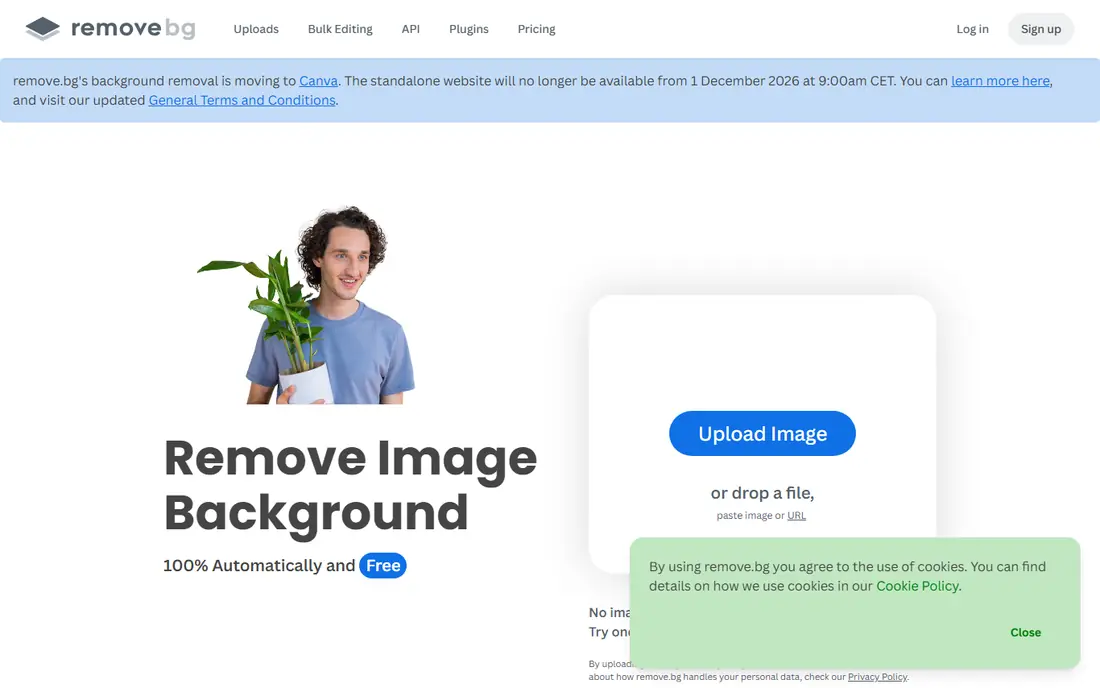
Remove.bg is the fastest way to get a clean cutout. Upload a photo, and the tool detects the subject and removes the background in seconds. It handles hair and product edges well for a one click tool, which is why it remains popular despite its free limits.
The free tier is the catch. You can try it free and download a lower resolution preview, but full resolution downloads need payment. For social posts, thumbnails, and drafts, the free output is often enough. For print or large product images, plan to pay or use another free tool on this list.
- Very fast one click removal
- Sharp edges on people and products
- Web, desktop, and app options
- Simple interface
- Free downloads are limited to lower resolution previews
- Full resolution images need credits or a paid plan
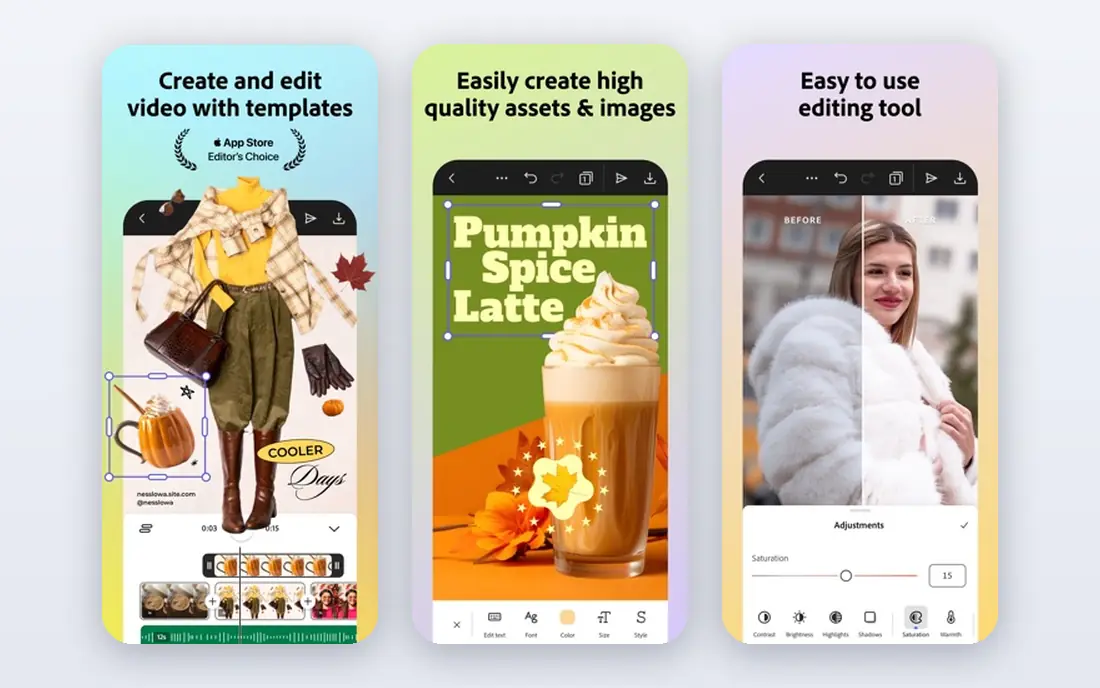
Adobe Express pairs background removal with a real design editor. Remove the background, then place the cutout on a new background, add text, resize for social media, and export, all without leaving the app. That workflow suits social posts, slides, and simple marketing images.
You need a free Adobe account, and premium content sits behind a paid plan. For background removal itself, though, the free plan is generous and practical. If you want one free place to cut and design, start here.
- Background removal inside a full free editor
- Unlimited removals reported on the free plan
- Templates, text, and design tools nearby
- No watermark on free removals in its basic editor
- Needs a free Adobe account
- Some premium templates and features need a paid plan
Canva is included because it is the design tool many readers already use, but its background remover terms need care. In Canva, background removal is generally a Pro feature, while the editor itself is free. That means you can design free, but you may need a Pro trial or plan to remove backgrounds inside Canva.
If you already pay for Canva Pro, its remover is convenient and the template library is a real advantage. If you need a strictly free remover, use Adobe Express or Remove.bg first, then bring the cutout into Canva free for design.
- Background remover inside a huge template library
- Easy to place cutouts into designs
- Collaboration and export options
- Works in browser and apps
- Background remover itself is a paid Pro feature for most users, with free trials and limited free access in some cases
- Check current plan terms
PhotoRoom is built around product photography. Remove a background, drop the product onto a clean white background or a styled scene, and export a listing ready image. The mobile app makes it easy to shoot, cut, and list from a phone, which suits small sellers.
Free use covers basic removal and editing, but resolution and some templates are limited. For a single product photo for a marketplace, the free tier is often enough. For bulk listings, a paid plan removes those limits.
- Built for product photos
- AI backgrounds and templates
- Batch handling on paid plans
- Mobile app for shooting and editing on the go
- Free tier limits resolution and some templates
- Batch and high resolution exports sit on paid plans
Pixlr is a full photo editor in the browser, with background removal as one tool among many. That matters when a cutout needs touch ups: you can refine edges, adjust color, add a new background, and export, without switching apps. It suits users who want more than a single click remover.
The free tier includes ads and some limits, and the interface can feel crowded at first. For free, full editing in a browser, though, Pixlr is one of the strongest options.
- Full browser editor with background removal
- No install needed
- Layers, filters, and retouch tools
- Works on desktop and mobile browsers
- Free tier shows ads and limits some features
- Interface packs in many tools, which can feel busy
GIMP is the free desktop editor for users who want control. You can select a subject by hand, refine a mask, feather edges, and place the result on any background, all offline and without an account. For tricky images where AI tools struggle, manual masking often gives the cleanest result.
The trade off is time and learning. GIMP does not offer the same one click AI removal as the web tools, so a complex photo can take minutes rather than seconds. If you edit photos often and want a free, private, offline tool, GIMP is worth learning.
- Fully free and open source
- Full manual selection and masking control
- Works offline
- No account, ads, or upload needed
- Steeper learning curve
- No one click AI removal built in
- Manual work takes longer for complex edges
PhotoScissors is a simple web remover with a useful manual brush for fixing edges. The automatic tool does the first pass, and you can mark areas to keep or remove if the result is not clean. That manual step helps with images where the subject and background share similar colors.
Free use is practical for quick jobs, but high resolution downloads and some features need payment. For a fast web cutout with a chance to fix edges, it is a solid free start.
- Simple web interface
- Automatic removal with manual touch up
- No install needed
- Works for people, products, and objects
- Free downloads may be limited in resolution
- Advanced features need a paid plan
Cutout.pro offers AI background removal alongside other photo tools, such as enhancement and portrait retouching. Upload a photo, remove the background, and download a transparent cutout for design or listing use. The workflow is simple and fast.
Free use runs on credits, so heavy users will hit limits. For occasional cutouts, the free tier is enough to try it and get usable results. Check the credit balance before a batch job, so you do not run out halfway through.
- Fast AI background removal
- Photo enhancement and other AI tools nearby
- Simple web workflow
- Useful for portraits and products
- Free tier uses credits and limits downloads
- Some tools need a paid plan for full use
How we picked these
We compared official feature and pricing pages, app listings, and current roundups of free background tools, and we kept only tools with a genuine free tier for background removal in October 2026. Tools that only offer a short trial or a watermarked preview with no usable free output were left out, except where the limit is clearly stated, as with Remove.bg. Where a free tier limit could not be confirmed, we described it in general terms rather than inventing a number.
How to get a clean cutout
Start with a good source photo. A clear subject, good light, and contrast between subject and background help every tool, free or paid. A blurry photo or a subject that blends into its background will challenge even the best AI remover.
Next, check edges at full size before you export. Zoom in on hair, fur, jewelry, and thin objects, and fix rough edges with a manual brush or eraser where the tool offers one. A cutout that looks fine as a thumbnail can look rough at full size, which matters for product listings and print.
Finally, choose the right export. Use a transparent PNG when you need to place the subject on a new background, and use a solid white or colored background for marketplace listings that require it. Keep the original photo, so you can redo the cutout if the background choice does not work.
Frequently asked questions
What is the best free tool to edit photo background?
Adobe Express is a strong all round free choice because it pairs background removal with a full editor. Remove.bg is fastest for a one click cutout, while GIMP gives the most manual control offline. The best pick depends on whether you need speed, design tools, or precise edge control.
Can I remove a photo background for free without a watermark?
Yes, several tools on this list offer free removal without a watermark on basic output, including Adobe Express, Pixlr, GIMP, and PhotoScissors for standard use. Remove.bg free downloads are lower resolution previews, so check the export before you use it for print or large images.
How do I edit a photo background after removing it?
After removal, place the cutout on a new background in the same editor. Adobe Express, Canva, Pixlr, and PhotoRoom all let you add a solid color, a photo, or a styled scene behind the subject. Export as a transparent PNG if you want to reuse the cutout later in another design.
Is GIMP good for background removal?
Yes, for users who want manual control and offline editing. GIMP is free and open source, with selection and masking tools that handle tricky edges well. It takes longer to learn than a one click web tool, but it gives a clean result without uploads, accounts, or fees.
Can I remove backgrounds in bulk for free?
Bulk removal is usually a paid feature. PhotoRoom and Pixlr offer batch handling on paid plans, and Cutout.pro uses credits for volume work. For a small batch, you can process images one by one on a free tier, but for hundreds of product photos, a paid plan will save time.
Does background removal work well on hair and fur?
It works well on many photos, but hair and fur remain the hardest test for AI tools. Remove.bg and Adobe Express handle them better than most free tools, yet fine strands can still look rough. For a critical image, refine edges manually in GIMP or Pixlr, or reshoot with better light and contrast.
Sources
- https://www.remove.bg
- https://www.adobe.com/express/
- https://www.canva.com
- https://www.photoroom.com
- https://pixlr.com
- https://www.gimp.org
- https://photoscissors.com
- https://www.cutout.pro
- https://www.shopify.com/my/blog/194970057-remove-background-product-photography-image
- https://www.lilachbullock.com/where-to-remove-image-background-for-free/
See where you really rank - block by block
ProMapRanker scans Google Maps across a grid of your service area. Simple monthly plans from $19, white-label on every plan.
Start freeKeep reading
 which software is best for pdf page removal
Which Software Is Best for PDF Page Removal in 2026
Find which software is best for pdf page removal, from free online tools to desktop editors, with page controls, privacy, safety, and pricing compared.
Read → when i work alternatives
Best When I Work Alternatives in 2026
Looking for when i work alternatives? We compare 8 scheduling apps for hourly teams, covering pricing, free plans, time clocks and the best fit for business.
Read → the best tool for keyword analysis
The Best Tool for Keyword Analysis in 2026
Find the best tool for keyword analysis with our 2026 comparison of 10 keyword analysis software tools on data depth, difficulty scores and price today.
Read →