 ProMapRanker
Best Free Tool to View PDFs in 2026


Default compatibility for most users · Pricing starts at: Free
Key takeaways
- This guide is only about viewing PDFs, not about reducing file size, so every tool below must open and display PDFs for free.
- Adobe Acrobat Reader is the safest default for compatibility, while SumatraPDF is the fastest lightweight choice on Windows.
- Most users do not need to install anything, because browsers and built-in apps already open PDFs well for basic reading.
- If you annotate, fill forms or sign documents, choose Foxit PDF Reader, PDFgear or PDF-XChange Editor over a bare viewer.
- Check platform support first, because some excellent free readers are Windows-only or Mac-only.
Quick comparison
| Pick | Great for | Pricing starts at | Free tier | |
|---|---|---|---|---|
| Adobe Acrobat Reader | Default compatibility for most users | Free | Yes | Visit |
 Foxit PDF Reader | Annotations, forms and signing | Free | Yes | Visit |
 SumatraPDF | Fast lightweight Windows reading | Free | Yes | Visit |
 PDF-XChange Editor | Power reading with annotation tools | Free | Yes | Visit |
 Microsoft Edge | Built-in Windows viewing with no install | Free | Yes | Visit |
 Apple Preview | Built-in Mac viewing with no install | Free | Yes | Visit |
 Okular | Free cross-platform document viewing | Free | Yes | Visit |
 PDFgear | Free viewing with editing extras | Free | Yes | Visit |
 Xodo PDF Reader | Viewing and annotation across devices | Free | Yes | Visit |
The best free tool to view PDFs
Viewing a PDF means opening it, reading it, searching inside it, printing it and, for many users, highlighting or filling a form. The tools below do that job for free, without requiring a paid editor. We compared official download pages, feature lists and public documentation, and we focused on speed, compatibility, annotation and platform support. This guide is distinct from compression guides: none of these picks is here only because it can shrink a file.
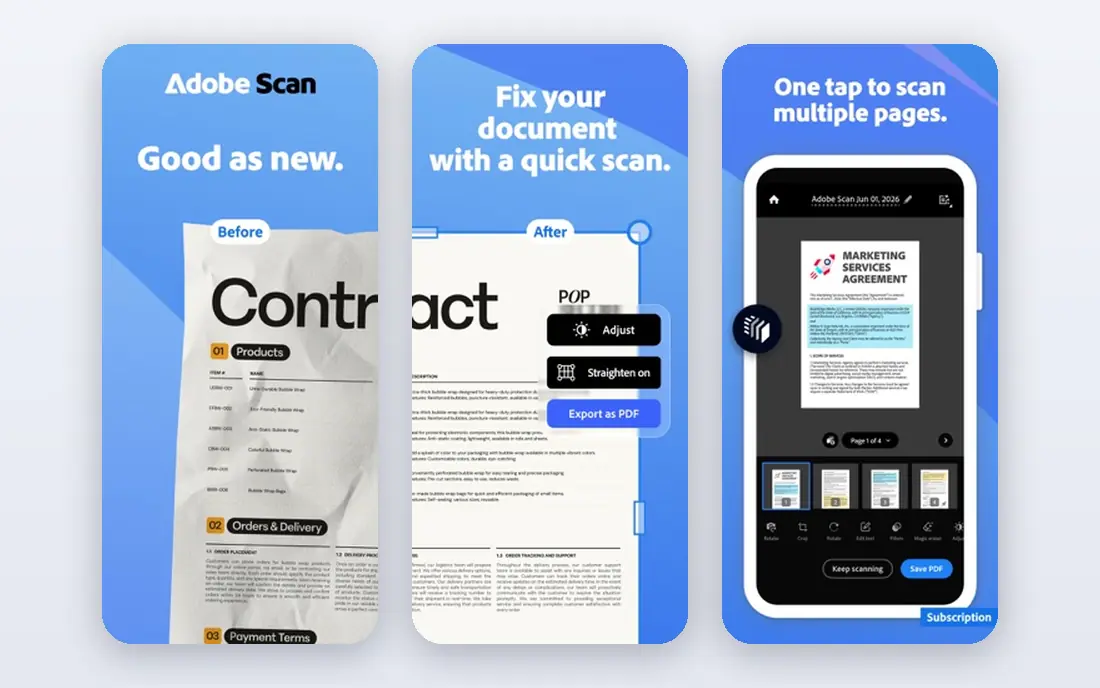
Adobe Acrobat Reader is the default free PDF viewer for a reason: it is made by the company behind PDF, so complex forms, signatures and layouts usually display as intended. It supports highlighting, comments, form filling and basic signing for free, which covers most everyday needs beyond simple reading. It is also available on Windows, Mac and mobile, so the same workflow works across devices.
The downside is weight. Acrobat Reader launches more slowly and uses more memory than SumatraPDF or a browser viewer, especially with large files. For a quick read of a short document, a built-in viewer may be faster. For a long contract, a government form or a file that must display exactly, Acrobat Reader remains the safest free choice.
- Best compatibility with complex PDFs
- Free annotation and form filling
- Widely available on desktop and mobile
- Heavier and slower to launch than lightweight readers
- Advanced editing needs a paid Acrobat plan
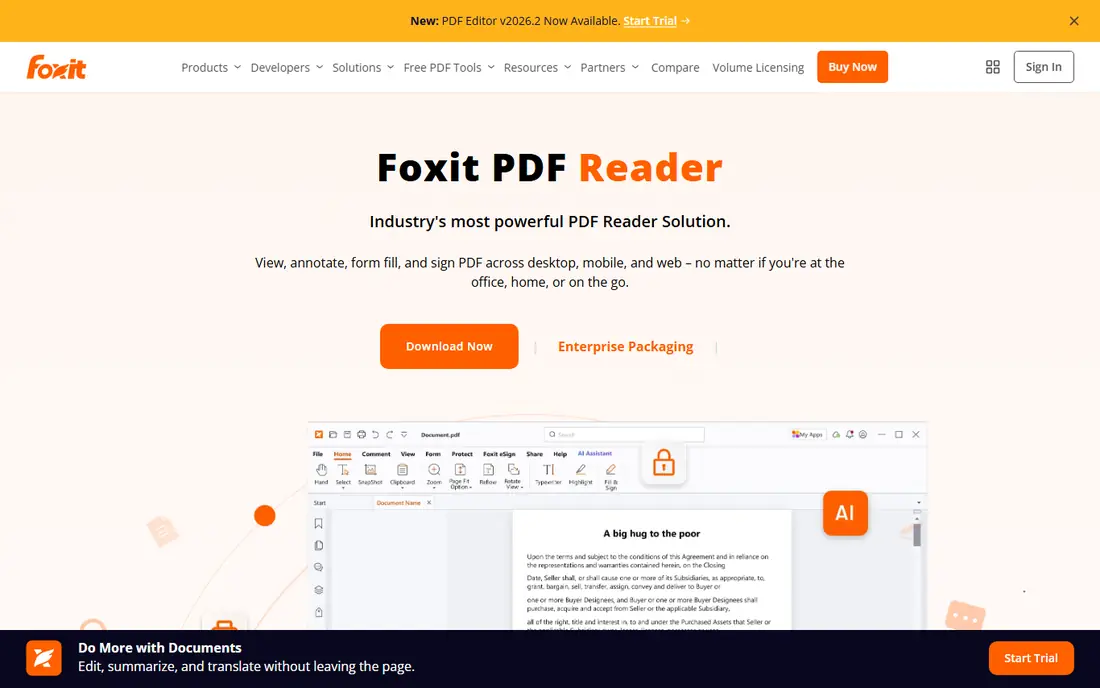
Foxit PDF Reader is a strong free alternative to Acrobat Reader, especially for users who annotate and fill forms often. It offers highlights, notes, form filling and basic signing in the free reader, with tabbed windows that make it easy to switch between documents. It also feels lighter than Acrobat Reader on many machines, which helps when several PDFs are open at once.
The trade-off is that Foxit is a gateway to a paid editor, so some deeper editing features are not in the free reader. For pure viewing and annotation, that rarely matters. For users who want a full-featured free reader without Adobe weight, Foxit is an excellent default.
- Lighter than Acrobat Reader
- Strong annotation and form tools
- Tabbed viewing for multiple documents
- Some advanced features need a paid editor plan
- Interface can feel busy for simple reading
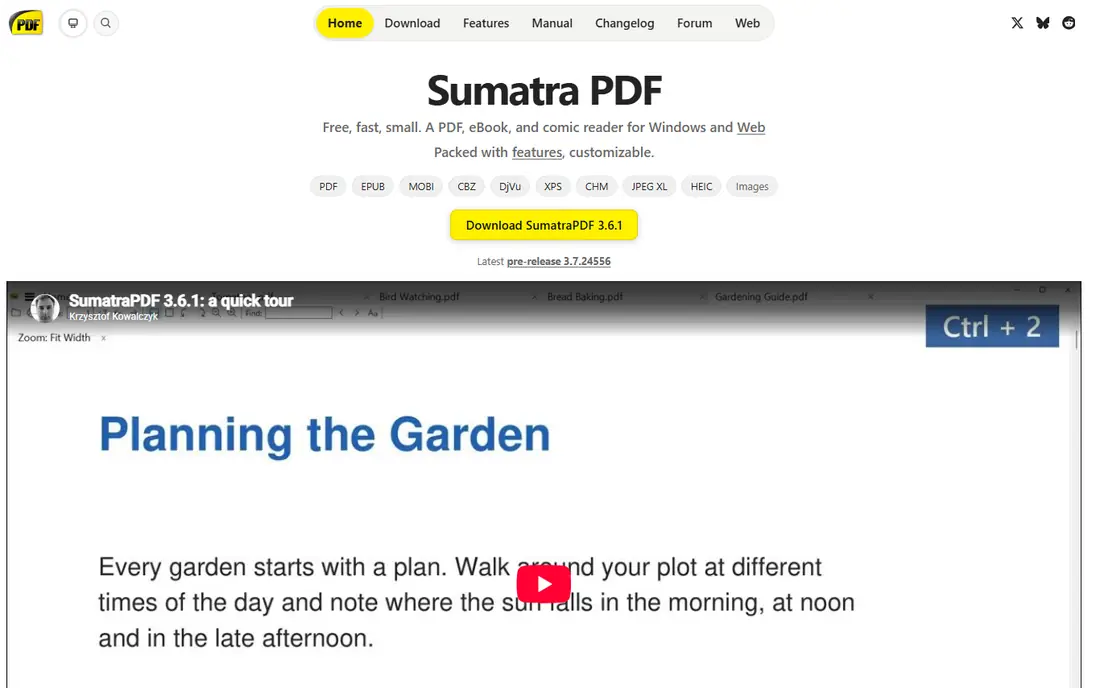
SumatraPDF is the fastest free viewer in this list for Windows users who only need to read. It opens quickly, uses little memory and handles large PDFs with less lag than heavier readers. Its interface is minimal, with keyboard shortcuts and a clean reading view that suits students, researchers and anyone reading long manuals.
The limit is clear: SumatraPDF does not offer annotation, form filling or editing. If you need to highlight, comment or sign, choose Foxit, PDFgear or Acrobat Reader instead. For pure reading speed on Windows, especially on older hardware, SumatraPDF is hard to beat.
- Very fast launch and low memory use
- Simple clean interface
- Supports PDF, EPUB and other formats
- Windows-only
- No annotation or editing tools
PDF-XChange Editor offers more annotation power than most free readers, with markup, measurement and comment tools that suit technical documents and plans. Search is fast, even in long files, and tabbed viewing helps when comparing several documents. For engineers, reviewers and office users who mark up PDFs daily, that depth is valuable.
The free version covers viewing and many annotation tools, but some editing and export features require a paid license. It is also primarily a Windows tool, so Mac users should look at Preview, Foxit or PDFgear instead. For Windows power readers, PDF-XChange Editor is a strong free pick.
- Rich annotation and markup tools in the free version
- Fast search
- Tabbed documents
- Windows-focused
- Some export and editing features are paid
Microsoft Edge includes a capable PDF viewer, so many Windows users never need to install a separate reader. It opens local and online PDFs, supports search, zoom, page navigation, highlighting, ink annotations and basic form filling. That covers everyday reading, school work and simple forms without any setup.
The limit is depth. Edge does not match Foxit or PDF-XChange Editor for advanced markup, signing workflows or document comparison. It is best for occasional reading and quick form fills. If you read PDFs for hours each day, a dedicated reader will feel more comfortable and offer better navigation.
- Already installed on Windows
- Search, highlight and form filling built in
- No extra download needed
- Fewer advanced annotation tools than dedicated readers
- Tied to the browser experience
Apple Preview is the built-in viewer on Mac, and it covers far more than basic reading. It opens PDFs quickly, supports annotation, highlights, form filling and signatures, and integrates with macOS features such as Markup and Continuity. For most Mac users, Preview is enough, and installing another reader adds little.
Preview is Mac-only, so it does not help a Windows or Android user, and a few complex forms designed for Acrobat may display or behave slightly differently. For everyday Mac reading, signing and annotation, Preview is the simplest free choice, and it is already on the machine.
- Built into macOS
- Fast and simple
- Annotation, form filling and signing tools included
- Mac-only
- Less suited to complex Windows-centric forms in some cases
Okular is a free, open-source document viewer from the KDE project, supporting PDF alongside EPUB, images and other formats. It offers annotations, bookmarks, text selection and a clean reading view, and it runs on Linux, Windows and Mac with varying levels of polish. For Linux users, Okular is often the best free viewer available.
The trade-off is polish and consistency. Okular can feel less refined than Acrobat Reader or Foxit, and installation steps differ by operating system. For a user who values open-source software and multi-format support, those trade-offs are acceptable. For a user who wants the simplest install on Windows or Mac, a dedicated reader may be easier.
- Free and open source
- Supports PDF and many other formats
- Annotation and bookmark tools
- Interface feels less polished than commercial readers
- Setup varies by platform
PDFgear is a free PDF reader and editor that covers viewing, annotation, form filling and basic editing without a subscription for core features. Its modern interface is easy to learn, and it runs on Windows, Mac, iOS and Android, so a reader can move between devices. For a user who wants more than a bare viewer but does not want to pay for Acrobat, PDFgear is a practical option.
As a newer product, PDFgear does not have the long track record of Adobe or Foxit, and some advanced workflows may still be maturing. For everyday viewing, annotation and light editing, that matters little. For complex enterprise forms, Acrobat Reader remains the safer compatibility choice.
- Free viewing, annotation and basic editing
- Works on desktop and mobile
- Clean modern interface
- Newer brand than Adobe or Foxit
- Some advanced features are still maturing
Xodo PDF Reader suits users who read and annotate PDFs on more than one device. It runs on the web, desktop and mobile, with annotation, form filling and collaboration tools that help a team or class mark up the same document. That cross-device flow is useful for students and remote workers who switch between a phone, a tablet and a computer.
Some advanced features sit behind paid plans, and the web-first design means offline use needs a downloaded app rather than a browser tab. For basic viewing and annotation across devices, the free tier covers a lot. For a single-device, offline-first reader, SumatraPDF or Preview may be simpler.
- Works on web, desktop and mobile
- Annotation and collaboration tools
- Sync across devices in paid and free use
- Some advanced features need a paid plan
- Web-first workflow may not suit offline-only users
How we picked these
We compared official download pages, feature lists and public documentation for free tools that open and display PDFs, and we kept only tools still offered in October 2026. We favored compatibility, speed, annotation support and platform coverage, and we mixed built-in viewers with dedicated readers so readers can see when no install is needed. We did not claim hands-on testing. Check system requirements on the vendor page before installing.
What to check before you buy
Start with your platform and your main task. A Windows user who only reads should try SumatraPDF or Edge first. A Mac user should try Preview first. A user who annotates daily should try Foxit, PDFgear or PDF-XChange Editor. Installing a heavy reader for a job a built-in viewer already does well wastes time and disk space.
Next, test with your real documents. Open a long manual, a scanned PDF and a complex form, and check search speed, text selection and form behavior. A reader that feels fast on a short file can feel slow on a 500-page manual, and a form that works in Acrobat Reader may behave differently in another viewer. A ten-minute test with real files prevents a frustrating switch later.
Finally, think about annotation and signing needs. If you only read, a lightweight viewer is best. If you highlight, comment, fill forms and sign, choose a reader with those tools built in, and check whether signed output opens correctly for the recipient. Free readers vary most in this area, so do not assume every viewer handles signing the same way.
Frequently asked questions
Do I need to install a PDF reader at all?
Often, no. Windows users have Edge, Mac users have Preview, and most browsers open PDFs for basic reading. Install a dedicated reader only when you need better annotation, form handling, speed with large files, or compatibility with complex documents.
What is the best free PDF reader for Windows?
For pure speed, SumatraPDF is the fastest lightweight choice. For annotation, forms and signing, Foxit PDF Reader or PDFgear are stronger. For maximum compatibility with complex files, Adobe Acrobat Reader is the safest default. The best choice depends on whether speed, annotation or compatibility matters most to you.
What is the best free PDF reader for Mac?
Apple Preview is the best starting point, because it is built in, fast and includes annotation, form filling and signing. Foxit PDF Reader and PDFgear are good alternatives if you need cross-platform consistency or features Preview does not offer. Acrobat Reader is best for complex forms that must match Adobe behavior.
Can free PDF readers fill forms and sign documents?
Yes, several free readers in this list can fill interactive forms and add basic signatures, including Acrobat Reader, Foxit PDF Reader, Preview and PDFgear. Certified digital signatures and advanced signing workflows may need a paid editor, so check the exact signing type your document requires.
Are free PDF readers safe?
Reputable free readers from Adobe, Foxit, Microsoft, Apple and open-source projects are safe when downloaded from the official vendor site. Avoid downloading a reader from an unknown mirror, because bundled software is a common risk with free downloads. Always use the vendor link, not a search ad.
Why does a PDF look different in different readers?
PDF rendering depends on fonts, form features and viewer support, so a complex file can display slightly differently across readers. Acrobat Reader usually matches the intended layout most closely, because it is made by the company behind PDF. If a file must look exact for a client or authority, test it in Acrobat Reader before sending.
Sources
See where you really rank - block by block
ProMapRanker scans Google Maps across a grid of your service area. Simple monthly plans from $19, white-label on every plan.
Start freeKeep reading
 which software is best for pdf page removal
Which Software Is Best for PDF Page Removal in 2026
Find which software is best for pdf page removal, from free online tools to desktop editors, with page controls, privacy, safety, and pricing compared.
Read → when i work alternatives
Best When I Work Alternatives in 2026
Looking for when i work alternatives? We compare 8 scheduling apps for hourly teams, covering pricing, free plans, time clocks and the best fit for business.
Read → the best tool for keyword analysis
The Best Tool for Keyword Analysis in 2026
Find the best tool for keyword analysis with our 2026 comparison of 10 keyword analysis software tools on data depth, difficulty scores and price today.
Read →