 ProMapRanker
Best Free Tool to Recolor Image in 2026

Key takeaways
- Fotor is our pick for most people because its AI recolor tool changes a chosen object by description and color, with no editing skill needed.
- Photopea suits users who want full manual control, with hue replacement, layers and masks in a free browser editor.
- Pixlr and Canva suit quick social and design jobs, where speed matters more than pixel-level control.
- Recoloring works best on clear, well-lit photos, and you should always work on a copy, not your only original.
Quick comparison
| Pick | Great for | Pricing starts at | Free tier | |
|---|---|---|---|---|
 Fotor | AI object recolor by description | Free | Yes | Visit |
 Photopea | Manual control with layers | Free | Yes | Visit |
 Pixlr | Fast browser recolor and filters | Free | Yes | Visit |
 Canva | Design recolor for posts and graphics | Free | Yes | Visit |
 Lunapic | Simple free hue and color tools | Free | Yes | Visit |
 BeFunky | Easy recolor for beginners | Free | Yes | Visit |
 Adobe Express | Quick design recolor | Free | Yes | Visit |
 GIMP | Free desktop power editing | Free | Yes | Visit |
 PicMonkey | Guided recolor for photos | Free | Free trial | Visit |
The best free tools to recolor image
These nine tools all let you recolor an image for free, from AI object recolor to manual hue controls, and all run in a browser or as a free download.
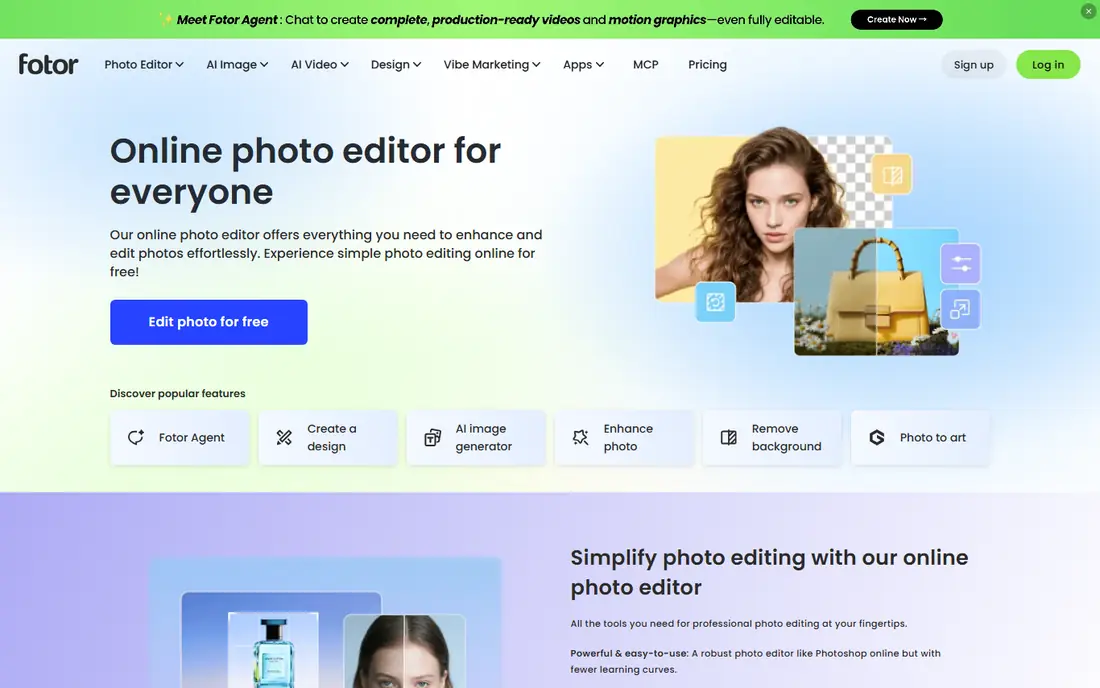
Fotor Image Color Changer lets you upload a photo, describe what you want to recolor, pick a new color and apply the change in seconds. The tool identifies the main object, so you can change a shirt, a car or a wall without painting a mask by hand, and it aims to keep texture, lighting and shadows natural. That description-based workflow is why it tops this list for most people.
The catch is wording. A vague description can select the wrong area, so you may need to try a more specific phrase, such as naming the object and its position. Fotor also offers a separate replace-color tool for swapping one color for another across an image. For a fast, realistic recolor with no editing background, Fotor is the easiest starting point.
- AI identifies the object you describe
- Realistic color changes keep texture and shadows
- No watermarks on the free color tool in vendor coverage
- AI results vary with description wording
- Some advanced features need a paid plan
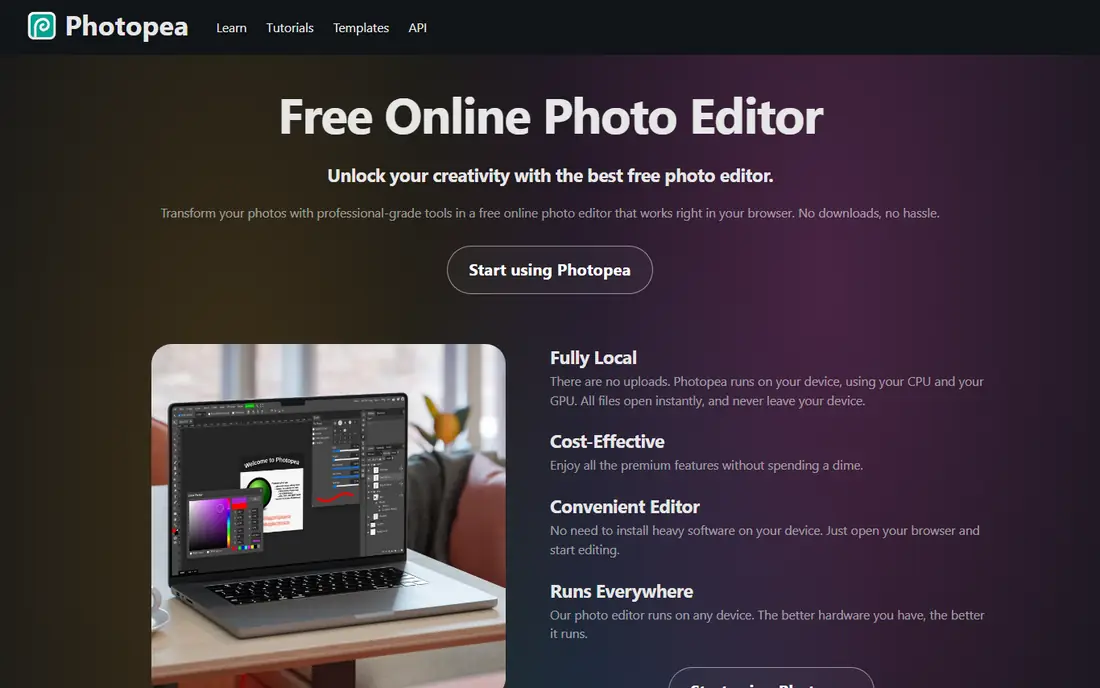
Photopea is a free browser editor that gives you the full manual toolkit for recoloring: hue and saturation adjustments, selective color, layer masks and blending modes. You can select one object, change its hue while keeping shadows, or replace a color range across the whole image. It opens PSD, AI, PDF and RAW files as well as common image formats, so it fits users who already work with layered files.
The trade-off is skill and ads. Photopea has no account requirement, but the free version shows ads, and a paid Premium plan at around $5 per month in current coverage removes them. Beginners may need a short tutorial for masks and selections. For precise recolor work where AI guesses are not enough, Photopea is the strongest free option.
- No account needed
- Photoshop-style layers, masks and hue controls
- Opens PSD and many formats
- Free version shows ads
- Learning curve for complete beginners
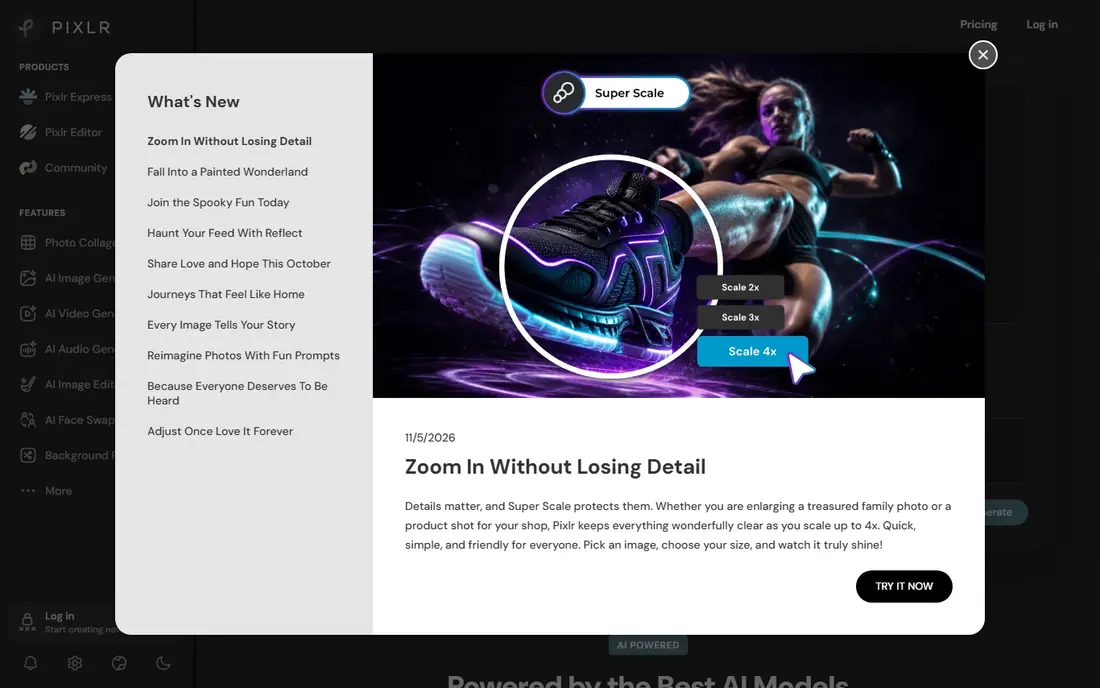
Pixlr is a free online editor that lets you recolor images with hue and color balance controls, plus a large filter set for quick looks. It runs in any major browser and on mobile, so you can recolor a photo on a phone without installing desktop software. The interface is simpler than Photopea, which helps when you want a quick change rather than a layered project.
The free tier meters AI features with credits, and paid plans start around $4.90 per month billed yearly in current coverage. For basic hue recoloring, the free tier is enough. For heavy AI use, check credit limits before you start a large batch, and consider Photopea for unlimited manual recoloring instead.
- Fast browser editing
- Hue, color balance and filters in one place
- Mobile apps available
- AI features use credits on the free tier
- Ads and upgrade prompts appear
Canva is best known for design, but its free plan includes photo editing and recolor options that suit social posts, presentations and product graphics. You can adjust colors, apply filters and recolor design elements, then place the result straight into a template. That end-to-end flow, from recolor to finished post, is why many small business owners pick Canva first.
Precision is the limit. Canva is not a pixel-level photo editor, and its most powerful photo tools sit behind the Pro plan, listed around $15 per month in current coverage. For a product photo that needs an exact color swap for a catalog, Photopea or Fotor will give better control. For a social graphic that needs a fresh color fast, Canva is hard to beat.
- Very easy for social posts and graphics
- Recolor tools for design elements
- Huge template library
- Some photo tools, such as background remover, need Pro
- Photo recolor is less precise than Photopea
Lunapic is a long-running free online editor with a wide range of recolor options, including hue, saturation, brightness and contrast controls plus selective color tools for specific areas. It needs no install and no account for basic use, and it covers the core recolor jobs: shifting a color, warming or cooling an image, or changing one area while leaving the rest alone.
The interface looks older than Fotor or Canva, and it lacks AI object selection, so selective work takes manual selection. That simplicity is also a strength, since Lunapic loads fast and does not push a subscription for basic color work. For a quick free hue change with no sign-up, Lunapic remains a dependable choice.
- Free with no install
- Hue, saturation and selective color tools
- Many filters and effects
- Older interface
- No modern AI object selection
BeFunky is an online photo editor aimed at beginners, with color adjustment, filters and effects presented in a clear, guided interface. Recoloring a photo is a matter of opening the editor, adjusting hue and saturation or applying a color effect, and exporting the result. The same account also covers collages and simple graphic design, which helps for social content.
Advanced features and some effects sit behind a paid plan, listed around $4.99 per month billed yearly in current coverage, but basic recoloring is available free. Selective precision is lower than Photopea, since BeFunky favors speed over masks. For beginners who want a friendly editor without a learning curve, BeFunky is a good pick.
- Beginner-friendly editor
- Color and filter tools in one place
- Collage and design features
- Some features need a paid plan
- Less precise than Photopea for selective work
Adobe Express is the free, browser-based design tool from Adobe, with photo editing, color adjustments and templates for social posts, flyers and presentations. You can recolor a photo, adjust its look and drop it into a design without leaving the tool. That makes it useful for small business owners who already use Adobe templates or who want a clean, professional finish.
It is not Photoshop, and users who need masks, selective color ranges or layered retouching should use Photopea or GIMP instead. Some premium templates, assets and features need a paid plan, but basic recoloring and design work are free. Adobe Express suits quick, polished recolor jobs inside a design, rather than deep photo retouching.
- Free plan for quick edits
- Adobe design templates
- Easy color and filter adjustments
- Full Adobe photo power needs Photoshop
- Some premium assets and features need a paid plan
GIMP is a free, open source desktop editor with the full toolkit for recoloring: hue and saturation, colorize, selective color, layers, masks and channel tools. You can change one color range, recolor a masked object, or rebuild the color of an entire image with precise control. There is no subscription, no credit system and no watermark, and it runs on Windows, Mac and Linux.
The cost is learning time and an install. GIMP is a desktop program, not a browser tool, and its interface is denser than Fotor or Canva. For users who recolor often and want a free tool with no limits, that learning time pays off. For a one-off quick recolor, a browser tool will be faster.
- Completely free and open source
- Hue, colorize and selective color tools
- Layers and masks
- Desktop install required
- Interface takes time to learn
PicMonkey offers a guided photo editing workflow with color adjustment, touch-up and design templates, aimed at small business owners and social creators. The editor walks you through adjustments in a clear order, which helps users who find a full editor overwhelming. Recolor work covers hue and color adjustments for photos that need a fresh look for a listing or post.
The limit is the free path. PicMonkey offers a free trial rather than a permanent free plan, so ongoing use needs a paid subscription. That makes it a weaker pick than the truly free tools above for casual use. It still earns a place for users who want guided editing and are willing to trial it before paying.
- Guided photo editing workflow
- Color and touch-up tools
- Templates for social and business use
- No permanent free plan in current coverage
- Subscription needed for ongoing use
How we picked these
We compared vendor pages and current editor coverage for free recolor capability, including AI object recolor, hue controls, selective color and mask support, and we only included tools with a real free path for recoloring. We favored a mix of AI tools, browser editors and a desktop editor, so readers can match a tool to their skill level. We did not claim hands-on testing, and we treated pricing as starting figures that vary by plan and promotion.
How to recolor an image well
Work on a copy and keep the original safe. Start by deciding whether you need an object recolor, such as a shirt or a car, or a whole-image color shift, such as warming a photo. For an object, an AI tool such as Fotor is fastest, while a mask in Photopea or GIMP gives the cleanest edge. For a whole image, a hue shift is usually enough, and a small shift looks more natural than a large one.
Check edges, shadows and skin tones after every change. A recolor that looks flat usually lost its shadows, so keep the original luminance and change hue only where possible. Zoom in on edges, since color bleeding at the border of an object is the most visible flaw. Finally, export at the resolution you need, and avoid re-saving a JPEG many times, since each save loses quality.
Frequently asked questions
What is the best free tool to recolor an image?
Fotor is the best free pick for most people, because its AI recolor changes a described object without manual masking. Photopea is the best free pick for precise manual work, and Pixlr is the best pick for a fast browser job. Try Fotor first for objects, and Photopea first for exact color matching.
Can I recolor just one object in a photo for free?
Yes. Fotor lets you describe the object and pick a new color, while Photopea and GIMP let you mask the object and change its hue. AI selection is faster but can miss edges, while manual masking takes longer and gives cleaner results. For product photos, manual masking is usually worth the extra time.
Does recoloring damage photo quality?
Recoloring itself does not have to damage quality if you work on a copy and export once at high resolution. Repeated JPEG saves, heavy saturation and low-resolution exports will degrade a photo. Work in the highest resolution available, keep shadows intact, and save a master copy before you export for the web.
Is there a free tool that needs no sign-up?
Yes. Photopea and Lunapic both work in a browser with no account for basic editing, and GIMP is free to download with no account. Fotor and Canva work best with a free account, though some tools are available without one. If privacy matters, a no-account browser tool or a desktop tool such as GIMP keeps your photo off a server.
What is the difference between recoloring and colorizing?
Recoloring changes colors that already exist in a color photo, such as turning a red shirt blue. Colorizing adds plausible color to a black-and-white photo that never recorded color. The tools overlap, but colorizers are built for black-and-white originals, while recolor tools are built for changing existing colors in a color photo.
Sources
See where you really rank - block by block
ProMapRanker scans Google Maps across a grid of your service area. Simple monthly plans from $19, white-label on every plan.
Start freeKeep reading
 free alternatives to grok imagine
Free Alternatives to Grok Imagine in 2026
We compared the best free alternatives to grok imagine for image generation, from fast daily credits to design tools, so you can create without paying.
Read → best tools for instagram content creation
Best Tools for Instagram Content Creation in 2026
Compare the best tools for Instagram content creation, from Canva and CapCut to Later and Buffer, on design, video, planning, scheduling, and price in 2026.
Read → best tool to split pdf files
Best Tool to Split PDF Files in 2026
We compared the best tool to split pdf files on split modes, file limits, privacy and price, so you can split a PDF cleanly and keep every page in one go.
Read →