 ProMapRanker
Best Free Tool to Invert Image Color in 2026

Key takeaways
- PineTools and LunaPic are the fastest free online options for a single image inversion with no install.
- Photopea, GIMP, and Paint.NET invert colors and also let you adjust, crop, and export the result in a fuller editor.
- Online tools upload your image to a server unless stated otherwise, so avoid them for private or sensitive photos.
- For film negatives and scanned slides, a desktop editor gives better control over levels and color balance after inversion.
Quick comparison
| Pick | Great for | Pricing starts at | Free tier | |
|---|---|---|---|---|
 PineTools | Fastest one-click online inversion | Free | Yes | Visit |
 Photopea | Full online editing with inversion | Free | Yes | Visit |
 GIMP | Free desktop editing and batch work | Free | Yes | Visit |
 Paint.NET | Simple Windows editing | Free | Yes | Visit |
 LunaPic | No-account online inversion | Free | Yes | Visit |
 Pixelied | Quick online edits with filters | Free | Yes | Visit |
 Fotor | Online editing with extra filters | Free | Yes | Visit |
 iPiccy | Simple online photo editing | Free | Yes | Visit |
The best free tool to invert image color
We compared official tool pages, help documentation, and public reviews to find tools that truly invert image colors and are free to use. Every tool here can turn dark areas bright, bright areas dark, and hues into their complements. Tools that only flip an image left to right, or only invert a selection, were left out.
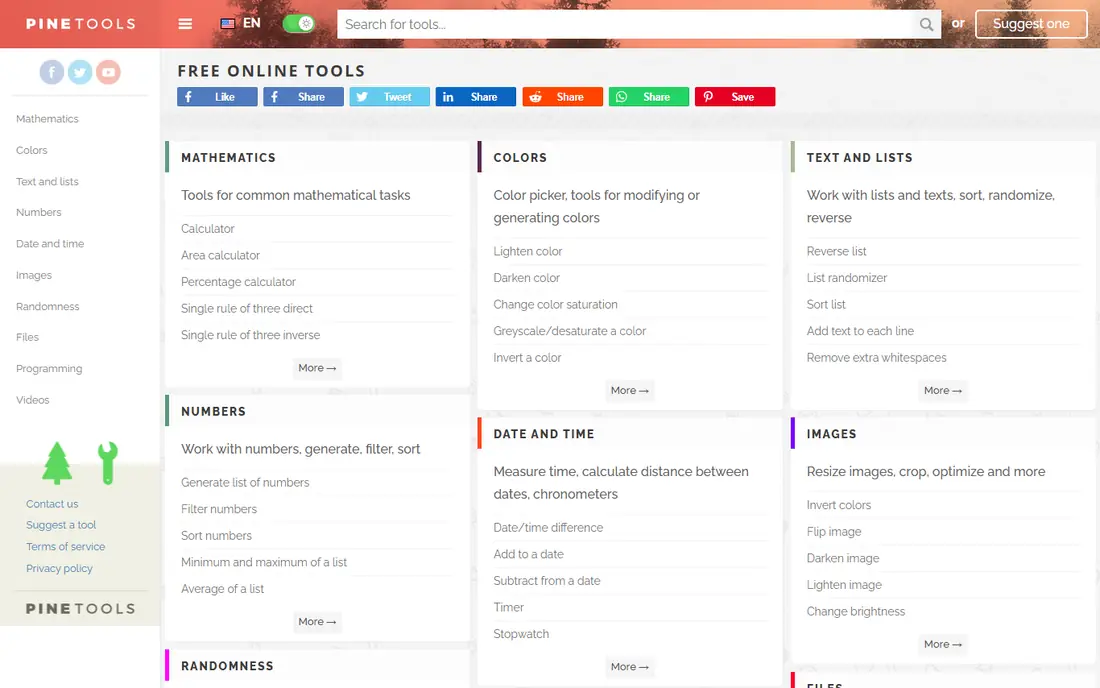
PineTools is the tool to open when you want the inverted image and nothing else. Upload a file, choose the invert colors tool, and download the result in a common format such as PNG or JPG. The site also lists a bulk invert tool, which helps when several images need the same treatment.
The simplicity is the point, and also the limit. PineTools will not help much with color balance after inversion, so a scanned negative that looks washed out may need a second tool. For a quick negative effect, a meme, or a test, it is hard to beat for speed.
- No install or account needed for basic use
- Dedicated invert colors tool
- Bulk invert option for several images
- Plain interface
- Fewer editing controls than a full editor
- Needs an internet connection
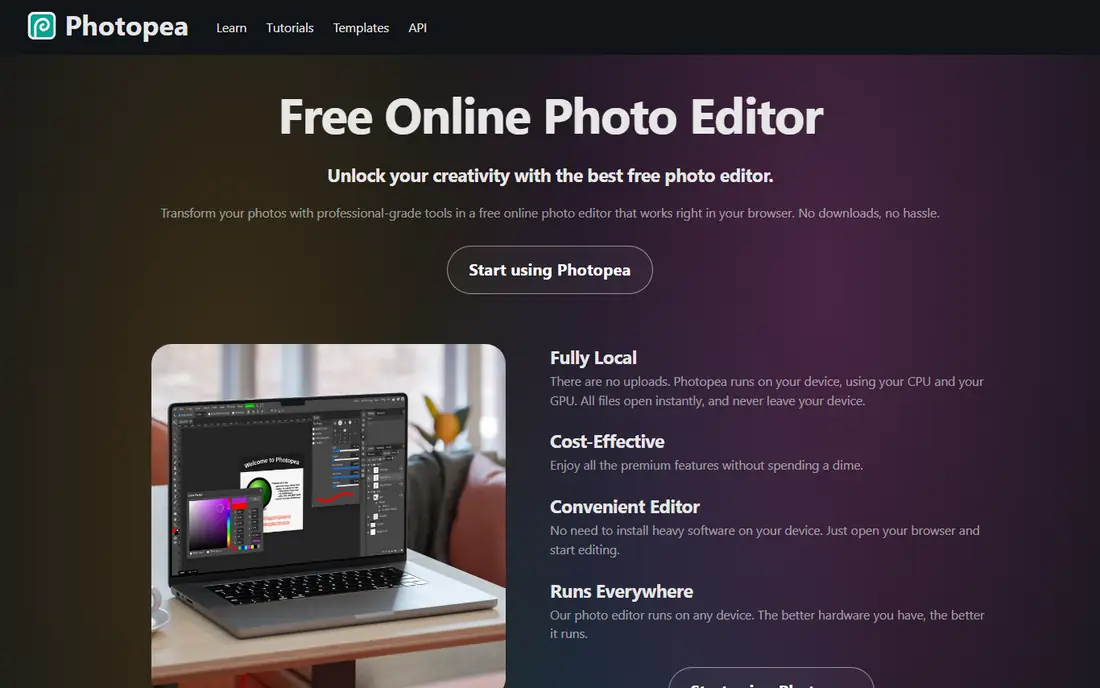
Photopea is the closest free online match to a desktop editor. Open an image, choose Image, then Adjustments, then Invert, and the colors flip across the whole layer. Because it is a full editor, you can then fix brightness, contrast, or color balance, and export in several formats.
That power brings a learning curve. A first-time user may need a few minutes to find menus and layers, and the free tier shows ads. For anyone who inverts images often, or who needs to clean up a scanned negative afterward, Photopea is the best free online choice here.
- Full layer-based editor in the browser
- Invert adjustment plus levels and curves
- Opens PSD, XCF, and common image formats
- Ads on the free tier
- Interface takes time to learn
- Large files can feel slow in a browser
GIMP is the free desktop editor most often recommended for this job, and the reason is simple: inversion is a single menu command. Open an image, choose Colors, then Invert, and every pixel flips to its complement. You can then use levels or curves to restore contrast, which matters for film negatives.
GIMP also handles repeat work well. Batch processing and scripts can invert a folder of scans without opening each file by hand. The interface is denser than PineTools or LunaPic, so a beginner should expect a short learning period. For regular or serious use, that effort pays off.
- Free and open source
- One-click Colors and Invert command
- Batch and script options for many files
- Interface can feel crowded for beginners
- Install size is larger than a web tool
Paint.NET suits Windows users who want a desktop tool without the weight of a full suite. Open an image, choose Adjustments, then Invert Colors, and the result is ready to save. Layers, selection tools, and basic adjustments cover most follow-up fixes after inversion.
The main limits are platform and depth. Paint.NET runs on Windows, so Mac and Linux users should pick GIMP or Photopea instead. Advanced color work, such as channel-level inversion, is also easier in GIMP. For a quick, free Windows inversion, Paint.NET is a clean pick.
- Free for Windows users
- Simple Invert Colors adjustment
- Fast and light compared with larger editors
- Windows only
- Fewer advanced color tools than GIMP or Photopea
LunaPic has offered free online photo editing for many years, and its Negative effect inverts image colors. Upload an image, apply the effect, and save the result without creating an account for basic use. The same editor also covers brightness, contrast, and other filters, so a simple cleanup is possible in one visit.
The interface looks dated next to newer editors, and the large effect list can slow a first visit. Once you know where the Negative effect sits, though, the workflow is quick. LunaPic is a good backup when PineTools is unavailable or when you want extra filters in the same session.
- Free online editor with a Negative effect
- No account needed for basic edits
- Many filters and adjustments in one place
- Dated interface
- Inversion sits among many effects, so it takes a moment to find
Pixelied is a browser editor that includes an Invert filter among its adjustment options. Upload an image, open Filters, choose Invert, and download the negative version in formats such as JPG or PNG. The editor also covers blur, brightness, contrast, and saturation, so small fixes after inversion are easy.
The free plan is the constraint. Recent listings note a limit of a few downloads per month on the free tier, plus limited cloud storage. For occasional inversion, that is fine. For frequent work, a truly unlimited free tool such as PineTools, GIMP, or Paint.NET will be less frustrating.
- Browser editor with an Invert filter
- Easy upload and export
- Extra filters and adjustments beyond inversion
- Free plan limits downloads per month in recent listings
- Some features need a paid plan
Fotor is a general online photo editor that includes color inversion among its editing options, alongside filters, adjustments, and templates. That breadth suits a user who inverts an image as part of a larger design, such as a social post or a poster, rather than as a standalone task.
Fotor leans toward a freemium model, so some tools and exports sit behind an account or a paid plan. Check whether your inversion and export work on the free tier before starting a large job. For a single inverted image with light design around it, the free tier is usually enough.
- Online editor with inversion options
- Templates and filters for social images
- Easy sharing and export
- Some features need an account or a paid plan
- Interface promotes paid features
iPiccy is a straightforward browser editor for users who want basic photo fixes without learning a full suite. Inversion-style color effects sit among its filters and adjustments, and the workflow follows a familiar pattern: upload, adjust, save. That simplicity suits a one-off edit on a shared or school computer.
Advanced users will miss the precision of GIMP or Photopea, such as channel control and batch work. iPiccy is best treated as a quick online option, not as a replacement for a desktop editor. For a fast, free inversion with a few extra tweaks, it earns its place here.
- Simple browser editor
- Invert-style color effects among its filters
- No install needed
- Fewer advanced controls than Photopea or GIMP
- Free tier includes limits and prompts for paid features
How we picked these
We compared official tool pages and help documentation, plus public guides that describe each inversion command, to confirm that every tool listed truly inverts image colors and is free to use in October 2026. We favored tools with a clear invert command or filter, not tools that only flip, rotate, or adjust brightness. We mixed online tools for speed with desktop apps for privacy and batch work, and we noted free-tier limits where recent listings showed them. Prices here mean the cost to invert and export a basic image, not the cost of every premium feature.
How to invert an image well, not only quickly
Start by working on a copy. Inversion is easy to undo in an editor, but a saved-over original is not. Keep the original file, invert the copy, and compare the two side by side before you share or print the result.
Next, check contrast after inversion. A straight inversion often looks flat, especially with scanned negatives, because shadows and highlights swap places. A small levels or curves adjustment usually restores depth. In a full editor, adjust the black and white points first, then fine-tune color balance if skin tones or skies look wrong.
Online tools and privacy
Online inverters are convenient, but they usually upload your image to a server. Avoid them for identity documents, private photos, medical images, or client work unless the tool states that processing happens in your browser. For sensitive images, use GIMP or Paint.NET on your own computer, where the file never leaves your device.
Film negatives and scanned slides
Inverting a film negative needs more than a single flip. After inversion, the image often needs a color cast removed and contrast restored, since film dyes do not invert evenly. A desktop editor with levels and curves gives the control needed for that cleanup. Work in a lossless format such as PNG or TIFF during editing, and export a JPG only at the end.
Frequently asked questions
What is the best free tool to invert image colors online?
PineTools is the fastest free online choice for a single inversion, with no install or account needed for basic use. Photopea is better when you also need to fix contrast or color after inversion. LunaPic is a solid no-account backup with extra filters in the same editor.
What is the best tool to invert image colors on a desktop computer?
GIMP is the best free desktop choice overall, since it is free, open source, and inverts with one menu command plus full levels and curves control. Paint.NET is simpler and faster on Windows. Both keep your files on your own computer, which suits private images.
How do I invert image colors in Photopea?
Open your image in Photopea, choose Image, then Adjustments, then Invert. The whole layer flips to its negative. You can then use levels or curves to restore contrast, and export the result as PNG or JPG. Photopea runs in a browser, so no install is needed.
Can I invert image colors in bulk for free?
Yes. PineTools lists a bulk invert tool for several images online, and GIMP supports batch processing and scripts for larger sets. For a handful of images, online bulk tools are fine. For hundreds of scans, a desktop batch workflow in GIMP is more reliable and keeps files local.
Does inverting colors damage image quality?
A straight inversion does not lose detail by itself, but repeated saving in JPG can degrade quality. Edit in PNG or TIFF where possible, and save a JPG only for final sharing. Also keep the original file, since an inverted copy cannot always be restored perfectly after compression.
Is there a free tool to invert image colors on a phone?
Yes. PineTools, Photopea, LunaPic, and Pixelied all run in a mobile browser, so you can upload, invert, and download without installing an app. For repeated phone work, a mobile photo editor with an invert or negative filter may be more convenient, but check that the filter truly inverts colors rather than only applying a dark effect.
Sources
See where you really rank - block by block
ProMapRanker scans Google Maps across a grid of your service area. Simple monthly plans from $19, white-label on every plan.
Start freeKeep reading
 free alternatives to grok imagine
Free Alternatives to Grok Imagine in 2026
We compared the best free alternatives to grok imagine for image generation, from fast daily credits to design tools, so you can create without paying.
Read → best tools for instagram content creation
Best Tools for Instagram Content Creation in 2026
Compare the best tools for Instagram content creation, from Canva and CapCut to Later and Buffer, on design, video, planning, scheduling, and price in 2026.
Read → best tool to split pdf files
Best Tool to Split PDF Files in 2026
We compared the best tool to split pdf files on split modes, file limits, privacy and price, so you can split a PDF cleanly and keep every page in one go.
Read →