 ProMapRanker
Best Free Service to Merge PDFs in 2026

Key takeaways
- PDF24 Tools and PDFsam Basic are the strongest fully free picks, with no daily merge caps on their core free tools.
- iLovePDF, Smallpdf, and Sejda are easier for quick browser merges, but free plans have daily task or file size limits.
- Merging itself does not need to reduce quality, since pages are combined rather than re-rendered, though compression is a separate step.
- For contracts or files with personal data, a desktop tool keeps files on your computer instead of uploading them.
- Always check page order in the preview before downloading, since a merged file is harder to fix after it is sent onward.
Quick comparison
| Pick | Great for | Pricing starts at | Free tier | |
|---|---|---|---|---|
 PDF24 Tools | Unlimited free merging | Free | Yes | Visit |
 iLovePDF | Quick browser merges | Free | Yes | Visit |
 Smallpdf | Simple one-off merges | Free | Yes | Visit |
 Sejda | Privacy-minded occasional merges | Free | Yes | Visit |
 PDFsam Basic | Offline desktop merging | Free | Yes | Visit |
 PDFgear | Frequent free merging | Free | Yes | Visit |
 PDF Candy | Merging plus other PDF tools | Free | Yes | Visit |
 CombinePDF | No-account merging | Free | Yes | Visit |
 Lumin | Merging inside a document workflow | Free | Yes | Visit |
The best free services to merge PDFs
This article covers free tools that combine whole PDF files into one file. It is about merging, not translating a PDF and not inserting single pages into an existing document, though some tools on this list can do those jobs too. If you only need to join two or three files, a browser tool is enough. If you merge often, a free desktop tool saves time and keeps files private.
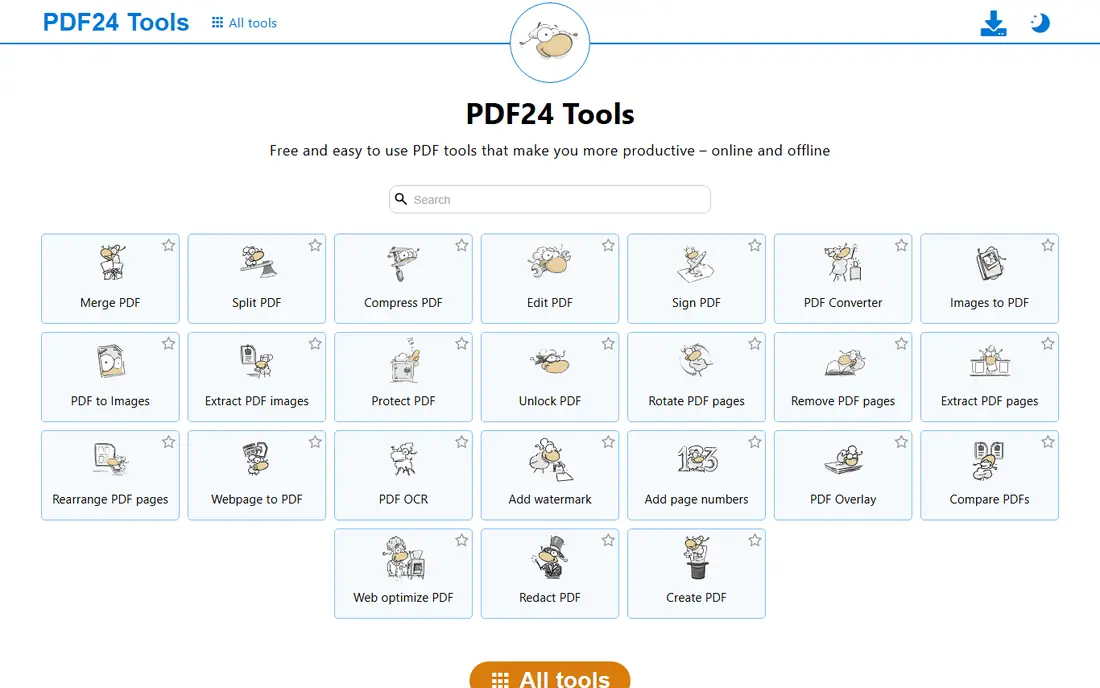
PDF24 Tools is our first pick for most free merging because the online merge tool is free and straightforward. Upload the files, drag them into order, and download the combined result. The site also offers split, compress, convert, and edit tools, so a merged file can be tidied up without moving to another service.
The main limit is the browser itself. Uploading is fine for everyday documents, but sensitive files deserve more care, and huge files may take time to process. PDF24 also offers a desktop Creator app for Windows, which is worth installing if you merge large or private files often. For a free, no-account merge, this is the simplest starting point.
- Free online merge tool
- No account needed for basic use
- Many other PDF tools in the same place
- Files are uploaded to a server
- Very large files can be slow in a browser
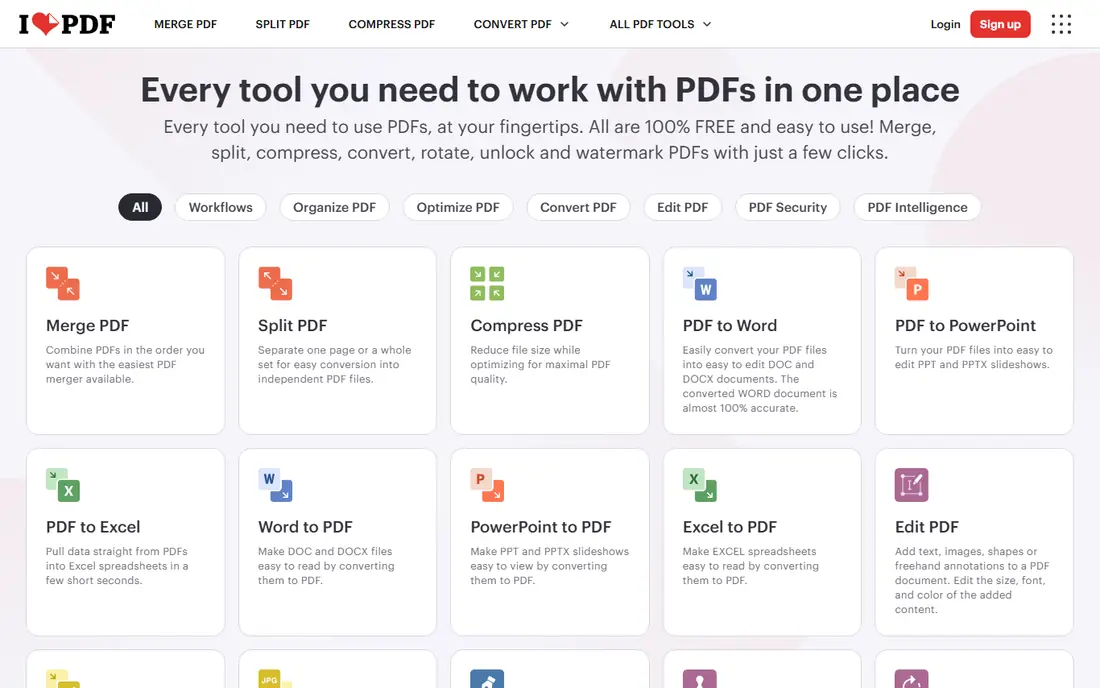
iLovePDF is one of the easiest browser tools to explain to someone else. The Merge PDF page shows each file as a block, and blocks can be dragged into the right order before merging. Pages can also be reordered inside the Organize tool, which helps when a scanned document arrives out of order.
Free use is generous for occasional jobs but limited per day, and premium plans start at a monthly fee for unlimited tasks and larger files. Files are uploaded for processing, so avoid it for highly sensitive documents unless you use the desktop app. For a quick merge of application forms, receipts, or class handouts, iLovePDF is fast and hard to get wrong.
- Clear drag and drop ordering
- Works in a mobile browser
- Connects to Google Drive and Dropbox
- Free plan has daily task limits
- Some tools need a paid plan for heavy use
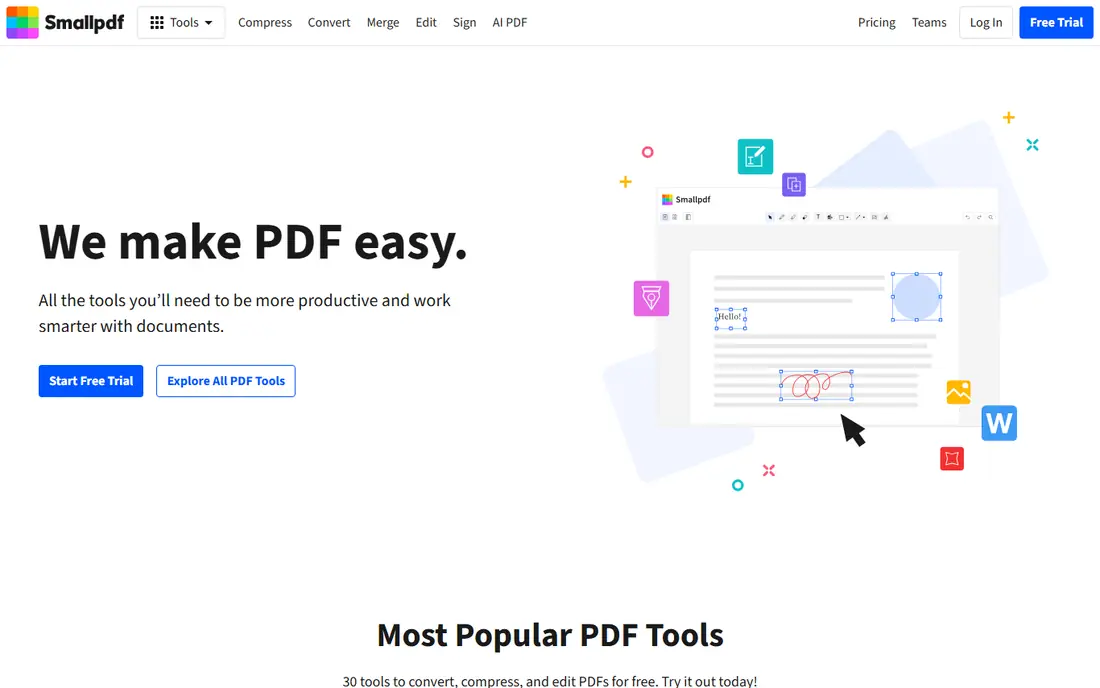
Smallpdf suits people who want the fewest steps between upload and download. The merge tool accepts files from a computer, Google Drive, or Dropbox, shows a preview, and lets files be reordered before combining. The design is calm and uncluttered, which helps when merging on a phone or a shared computer.
The free plan is best for occasional use, with a daily task limit that can block a second merge on a busy day. Paid plans remove those limits and add larger files and desktop access. As with other browser tools, sensitive documents are better handled offline. For one clean merge, Smallpdf remains a dependable choice.
- Very clean interface
- Good page previews
- Broad set of PDF tools
- Free plan has daily limits
- Paid plan is needed for frequent use
Sejda is a good pick when privacy matters and merging is occasional. The free web plan allows a small number of tasks per day, with limits on file size and page count, and no account is needed to start. The merge tool lets files be ordered, and pages can be selected, which is useful when only part of a document should be included.
Sejda also offers a desktop app, which processes files locally and removes the upload concern for sensitive work. The paid web week pass and monthly plans suit short bursts of heavy use. If you merge a few times a month and want a tool that is upfront about deletion and processing, Sejda earns its place here.
- Free merges without an account
- Clear privacy approach
- Desktop version available
- Free plan allows only a few tasks per day
- File size and page limits apply on the free plan
PDFsam Basic is the best free desktop merger for regular use. It runs on Windows, Mac, and Linux, and its Merge module combines files, reorders them, and can keep bookmarks and forms where supported. Because nothing is uploaded, it is the right choice for contracts, tax forms, medical records, and other private documents.
The trade-off is setup. PDFsam Basic must be downloaded and installed, and its look is more practical than polished. Paid PDFsam Enhanced adds editing, OCR, and other features, but merging itself is free in Basic. If you merge every week, installing PDFsam Basic once will save repeated upload waits and daily limit frustrations.
- Free and open source
- No daily limits
- Files stay on your computer
- Requires a download and install
- Interface is plainer than browser tools
PDFgear is useful for people who hit daily limits elsewhere. Its online and desktop tools cover merging, splitting, converting, and basic editing without the tight daily caps found on some freemium rivals. The desktop apps are a bonus for larger files, since they avoid browser upload limits.
PDFgear is less established than iLovePDF or Smallpdf, so check the output on a test file before trusting it with a long document. Formatting should carry over in a normal merge, but a quick preview check costs little. For frequent, no-cost merging, PDFgear is a practical addition to the shortlist.
- Free core tools with fewer daily caps
- Desktop apps for Windows and Mac
- Editing and conversion included
- Newer brand than some rivals
- Some advanced features are paid or in desktop apps
PDF Candy bundles merging with conversion, compression, splitting, editing, and security tools, so one bookmark can cover many document jobs. The merge tool follows the familiar pattern: upload, order, combine, download. That consistency matters when several people in a household or office need to merge files without training.
Free web use is limited, and heavier users will need a paid plan or the desktop version. PDF Candy is best viewed as a general PDF toolbox with a solid merger, rather than a merger alone. If you also convert, compress, or protect PDFs, keeping it alongside a fully free tool like PDF24 gives you both flexibility and a no-limit backup.
- Wide tool set in one site
- Simple merge workflow
- Desktop version available
- Free web use has limits
- Some tools need a paid plan for heavy use
CombinePDF does one job with little fuss. Upload PDFs, arrange them, and download a single file, with support for combining images into a PDF as well. There is no account to create and no software to install, which makes it handy on a borrowed computer or a Chromebook.
The site is plainer than the larger suites, and it lacks the editing, signing, and cloud storage links those suites offer. It also processes files online, so it is not the pick for sensitive documents. For a fast, free merge with no sign-up, CombinePDF is a clean, low-friction option.
- No account needed
- Simple interface
- Combines PDFs and images
- Fewer extra tools
- File handling is basic compared with larger suites
Lumin fits people who merge as one step in longer document work. A merged file can be edited, annotated, or signed in the same browser session, and files can be pulled from Google Drive or Microsoft OneDrive and saved back there. That flow saves downloads and re-uploads when a document needs several passes.
The free plan covers light use, while regular merging and editing sit behind paid plans. Lumin is not the cheapest route to a single merge, but it is efficient when merging leads straight into review or signing. Use it when the document workflow matters as much as the merge itself.
- Browser-based merging, editing, and signing
- Google Drive and OneDrive links
- Page preview before merging
- Free plan is limited
- Merging is part of a larger paid workflow for heavy users
How we picked these
We compared official tool pages, free plan limits, and privacy handling for services that merge PDFs in October 2026. We favored tools that are free for real use, not only for a trial, and that keep page order and formatting intact on normal files. We left out tools that could not be verified as active, tools that only merge as a paid feature, and tools that add watermarks to merged files on their free plan. Prices and limits change, so check the tool page before a large job.
What to check before you merge
Start by sorting files in the order you want them to appear, and rename them clearly if the tool sorts by name. Open the preview and check that no file is upside down, duplicated, or missing pages. Merging is easy to undo by splitting again, but it is simpler to catch an error before the file is emailed or uploaded.
Next, think about privacy. If a document contains financial details, health information, or signatures, use a desktop tool such as PDFsam Basic or PDF24 Creator so the file never leaves your computer. For everyday files, a browser tool is fine, but download the result and delete the upload if the tool offers that option. Finally, test a large or complex file first. Scanned pages, forms, and files with bookmarks can behave differently across tools, and a small test merge will show whether formatting survives.
Frequently asked questions
Is it really free to merge PDFs?
Yes, for everyday use. PDF24 Tools and PDFsam Basic are free for core merging, while iLovePDF, Smallpdf, Sejda, and others offer free plans with daily or size limits. You only need to pay for frequent merging, very large files, or advanced editing features.
Will merging PDFs reduce their quality?
No, not on its own. Merging combines pages without re-rendering them, so text and images keep their original quality. Quality drops only if you also compress the file or if a tool re-encodes images, so merge first and compress second if file size matters.
Can I merge password-protected PDFs?
Most mergers need the password first. Open the file with its password, remove protection if you are authorized to do so, and then merge the file once protection is removed. Tools cannot crack encryption, and they should not be used to bypass protection you do not own.
Are online PDF mergers safe for confidential documents?
They are reasonably safe for ordinary files, since reputable tools encrypt uploads and delete them after processing. For confidential work, use a desktop tool instead, so the file never travels to a third-party server.
Can I merge PDFs on my phone?
Yes. iLovePDF, Smallpdf, Sejda, PDF24 Tools, and PDFgear all work in a mobile browser without an app install. Browser merging suits quick jobs, while larger or sensitive files are better handled on a desktop.
Do I need Adobe Acrobat just to merge PDFs?
No. Acrobat is a strong full editor, but merging alone is covered well by the free tools on this list. Pay for Acrobat only when you also need advanced editing, forms, redaction, or enterprise controls.
Sources
See where you really rank - block by block
ProMapRanker scans Google Maps across a grid of your service area. Simple monthly plans from $19, white-label on every plan.
Start freeKeep reading
 best rank tracking software
Best Rank Tracking Software in 2026
Searching for the best rank tracking software? We compare 8 tools for daily keyword tracking, local rankings, client reports, and competitor checks in 2026.
Read → best platform for ecommerce website
Best Platform for Ecommerce Website in 2026
Find the best platform for ecommerce website builds in 2026. We compare Shopify, WooCommerce, BigCommerce, Wix and more on price, fees and scale for stores.
Read → best math apps
Best Math Apps in 2026: 8 Apps Compared
Find the best math apps for homework, revision, and deeper study in our 2026 comparison of 8 free and paid solvers, courses, and visual tools for students.
Read →