 ProMapRanker
Best Free Image to Video AI Tools in 2026

Key takeaways
- Free tiers change often, and in October 2026 several tools that once offered generous free credits now offer only a one time trial or no free generation at all.
- Kling AI, PixVerse and Google Flow offer the most usable recurring free access, while Runway and Hailuo style trials suit a one off test.
- Almost every free tier adds a watermark, caps resolution, and blocks commercial use, so check the licence before you post a clip for a business.
- Short clips are the norm on free plans, usually around five seconds, and longer or higher resolution output usually requires a paid plan.
- Start with a clear still image and a short motion prompt, since vague prompts produce vague movement on every tool on this list.
Quick comparison
| Pick | Great for | Pricing starts at | Free tier | |
|---|---|---|---|---|
 Kling AI Kling AI | Realistic human motion | Free | Yes | Visit |
 PixVerse PixVerse | Fast social clips | Free | Yes | Visit |
 Google Flow Google Flow | Cinematic clips with sound | Free | Yes | Visit |
 Adobe Firefly Adobe Firefly | Commercially safer clips | Free | Yes | Visit |
 Canva Canva | Marketing clips in Canva | Free | Yes | Visit |
 Runway Runway | Creative control and editing | Free | Yes | Visit |
 Vidu AI Vidu AI | Character consistency | Free | Yes | Visit |
 Dreamina Dreamina | Cinematic and realistic shots | Free | Yes | Visit |
 Krea Krea | Many models in one place | Free | Yes | Visit |
 Meta AI Meta AI | Phone only quick clips | Free | Yes | Visit |
The best free image to video AI tools
We compared free allowances, watermark rules, commercial use terms and image to video support, and we kept only tools with a working free tier in October 2026. Free tiers change without notice, so check the credit counter inside each app before you plan a project around it.
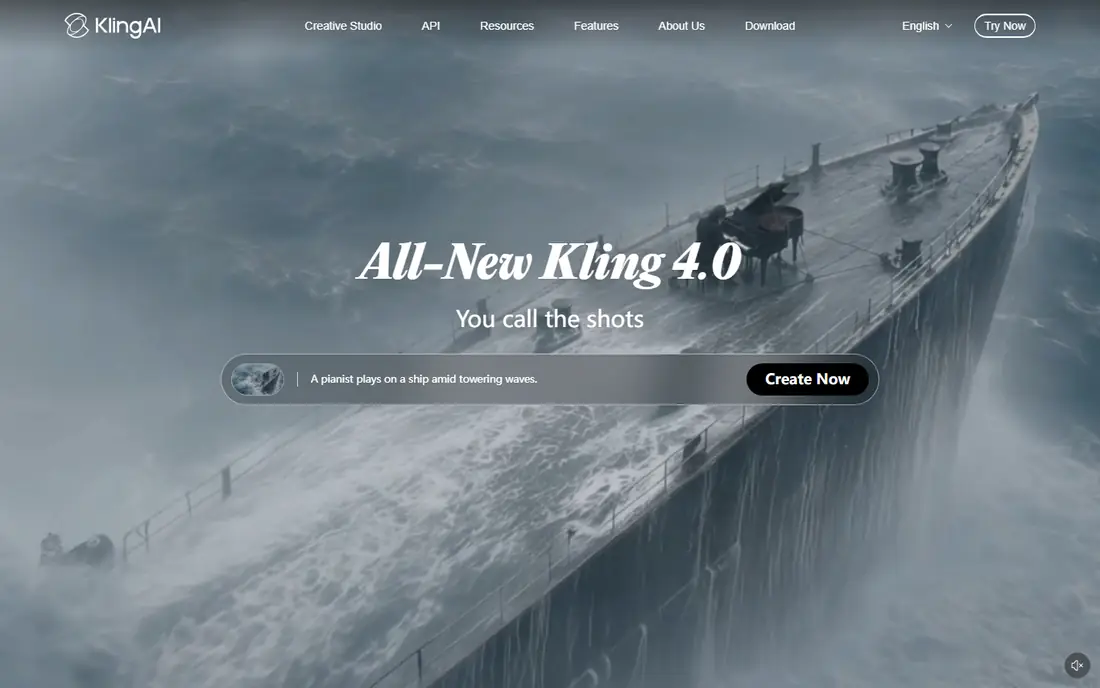
Kling AI is our first pick for turning a photo into a believable moving clip. It handles walking, gestures and camera movement better than most free tools, and its multi shot and reference controls help keep a character looking similar across clips. The free tier is limited in ways that matter for real work. Free clips are watermarked, capped below the top resolutions, and not licensed for commercial use. Recent reports also differ on whether free credits refresh daily or monthly, because Kling has changed its free allowance during 2026. Treat the free tier as a test bench, and pay for a plan before you use a clip for a client or a monetised channel.
- Strong realistic movement
- Image to video with reference controls
- Paid plans start with a first month offer
- Free output is watermarked and not for commercial use
- Free credits and resolution limits change often
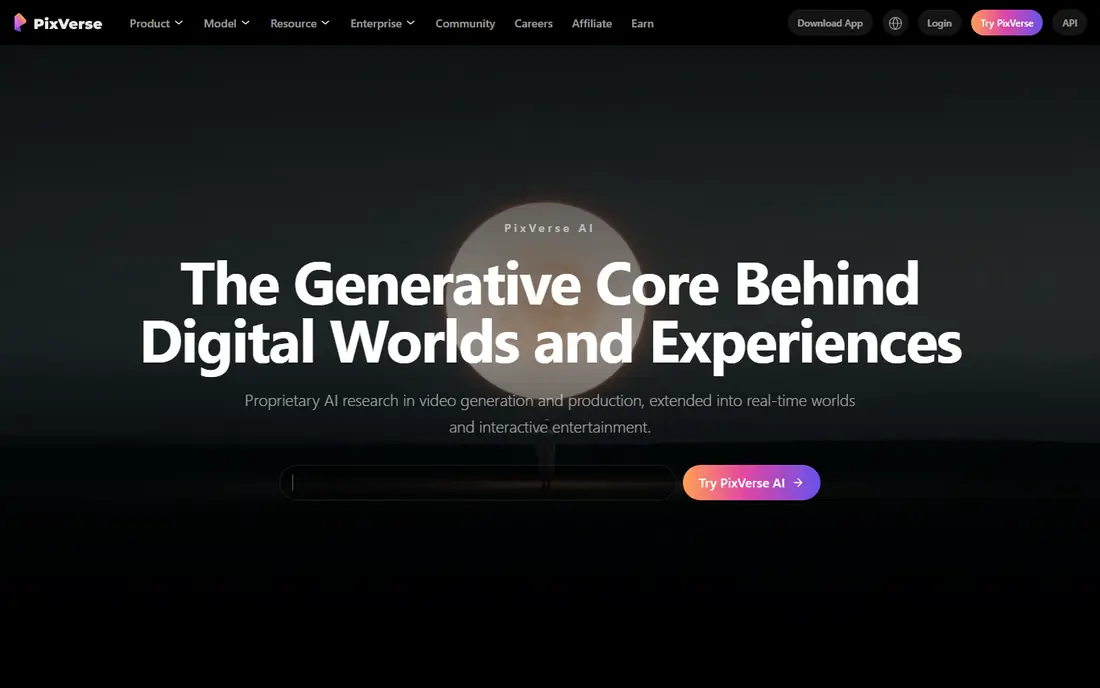
PixVerse suits short social clips where speed matters more than cinema quality. You upload a photo, pick an effect or write a motion prompt, and you get a short clip quickly. Daily credits mean you can return each day and try new ideas, rather than burning a one time allowance in a single afternoon.
The limits are familiar for a free tool. Free resolution is capped, a watermark appears on free exports, and commercial use is not included. PixVerse is best for learning what works, testing an effect, or making a fun clip for personal use. For a brand post, budget for a paid plan or a tool with a commercial licence.
- Daily free credits on the free plan
- Fast generation
- Effects and templates for social video
- Free clips are watermarked and lower resolution
- Free output is not for commercial use
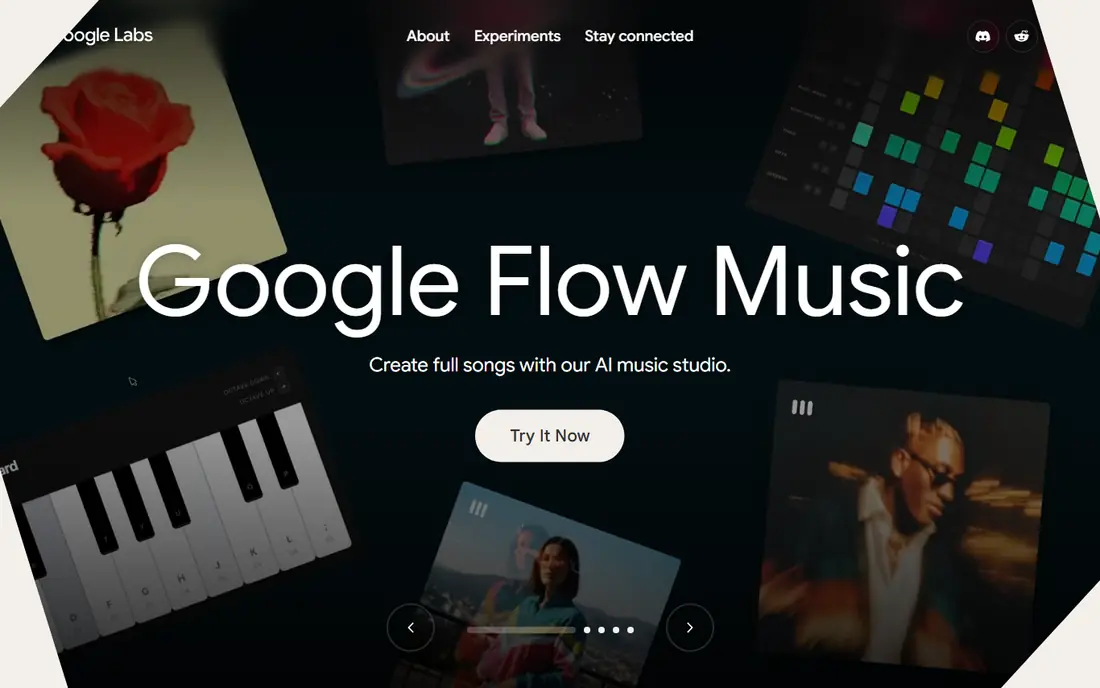
Google Flow is the filmmaking workspace built around Google Veo models, and its free tier gives every eligible Google account a daily credit allowance. Veo clips can include sound, which most free tools cannot match.
Free access is not a guarantee at every hour. Google notes that non paying users may be unable to generate during peak demand, and higher quality generations cost far more credits than the basic option. Flow also has regional and age eligibility rules. Use it for learning and personal projects, and check the credit cost shown before each generation.
- Daily free credits for Veo models
- Cinematic quality with sound on supported models
- No visible watermark, with an invisible identifier
- Free capacity can be limited at peak times
- Availability and age rules vary by region
- Higher quality options cost more credits
Adobe Firefly is the safest feeling choice when you care about where training content came from. Adobe positions its own models as trained on licensed content, and its commercial use terms are clearer than most free tools. Firefly also gives access to partner video models, including Veo and Kling options, from one workspace.
The free tier is vague in a frustrating way. Adobe describes it as limited daily generations, but it does not publish the exact daily number, so you cannot plan a large project around it. Paid plans start at $9.99 per month for 2,000 credits, which buys a clearer allowance. Firefly suits a designer already in Adobe apps who wants occasional video from an image, not a high volume free pipeline.
- Daily free generations on selected models
- Adobe models trained on licensed content
- Clear commercial terms for many outputs
- Adobe does not publish the exact daily free count
- Partner video models are capped on the free tier
Canva is the practical pick for a marketer who already makes social posts in Canva. You can turn an image into a short clip, add text, brand colours and a template layout, and export a finished post without learning a separate video tool. That all in one workflow saves time for a small team.
Canva is not a dedicated video model, and its free AI video is limited. Free clips are short, silent in the basic option, and the yearly AI use allowance is modest. For a polished product video, a dedicated tool such as Kling or Flow will look better.
- AI video inside a familiar design tool
- Templates, text and branding in the same project
- Free plan includes limited AI uses
- Free AI clips are short and silent in the basic Magic Media option
- Advanced video features need a paid plan
Runway is the most capable editor on this list, and that is why it still earns a place despite a thin free tier. Its image to video tools include camera controls, and its wider platform supports editing, upscaling and sound work that social tools do not offer. For a creator who wants control over how a still animates, Runway is instructive even on a trial.
The free allowance is the catch. Runway gives a one time set of credits, reported as 125 credits, rather than a monthly or daily refresh. Once those credits are gone, you must pay to continue. Paid plans start from about $12 per month when billed annually. Try Runway to learn its controls, but do not build a regular free workflow around it.
- Strong camera controls and editing tools
- Gen models with image to video support
- Professional workflow features
- Free tier is a one time credit allowance, not a recurring plan
- Free output is watermarked and not for commercial use
Vidu AI suits creators who want the same character to appear across several clips. Its reference tools help hold a face, outfit or style steady, which is hard for many video models. Anime and stylised clips are a particular strength, and the tool offers login credits that make a first test easy.
Free resolution is capped, and free clips carry a watermark with no commercial licence. Vidu is best for a personal series, a storyboard test, or a social experiment. If you need a consistent character for a paid project, check the paid plan and its commercial terms before you generate the final clips.
- Reference based generation for characters
- Anime and stylised looks
- Recurring login credits
- Free clips are capped in resolution
- Free output is watermarked and not for commercial use
Dreamina, from the CapCut family, gives a daily free credit allowance and access to Seedance models that handle realistic shots well. It is a good middle ground between a social effects tool and a cinema focused tool, and its prompt controls are clear enough for a beginner to use without a tutorial.
The free tier still has the usual limits: watermark, lower resolution, and no commercial use on free output. Paid plans are also dearer than Kling or PixVerse at entry level, according to recent guides. Dreamina suits a creator who wants a daily free test with realistic results, and who may later pay for a CapCut linked workflow.
- Daily free credits
- Seedance models for realistic motion
- Image to video with prompt controls
- Free clips are watermarked
- Paid plans start higher than some rivals
- Terms change often
Krea is useful when you do not want to commit to a single video model. One account gives access to a library of models, so you can compare how different models animate the same photo. The free tier offers daily compute units, which is enough for a few short tests each day.
Video eats those units fast, so Krea is not a high volume free tool. You also need to learn which model suits which job, since results vary widely. Krea suits an experimenter who wants to compare models before paying, rather than a creator who needs many clips from one reliable model.
- Access to many image and video models in one account
- Daily free compute units
- Real time canvas for images
- Free daily units run out quickly on video
- Model availability varies
- Video quality depends on the model you pick
Meta AI offers free image to video features, often called vibes, inside its app. For a phone user who wants to animate a photo quickly and share it, that is the lowest friction option on this list. There is no credit system to learn and no desktop workflow to set up.
Control is the trade off. You get fewer camera, duration and style controls than Kling, Runway or Flow, and the best features are phone based. Meta AI suits a casual user making a fun clip for friends or social posts. For a controlled product shot or a longer scene, use a dedicated tool instead.
- Free image to video features on a phone
- No separate video subscription needed for basic use
- Simple prompt flow
- Phone only for the main video features
- Control is limited compared with dedicated tools
- Terms and availability vary
How we picked these
We checked free tier terms reported from vendor pricing and help pages in October 2026, and we kept only tools with a working free tier for image to video generation. We excluded tools whose free tier had ended, whose free credits were listed as zero, or whose video generation was closed to new users. We also left out tools that only edit existing video, since this article is about turning a still image into a moving clip. Free allowances, watermarks and commercial rules change often, so the credit counter inside each app is the final authority on the day you generate.
How to get better clips from a free plan
Start with a strong still image
A sharp, well lit photo with a clear subject animates better than a busy or blurry image. Crop out distractions before you upload, and pick an image where the subject has room to move. A portrait with space around the head, or a product shot with a clean background, gives the model more to work with.
Write a short motion prompt, not a story
Free models handle one clear action better than a paragraph of directions. Write the subject, the action and the camera move in one or two sentences. For example, name the person, say they turn and smile, and say the camera moves slowly closer. If the first clip fails, change one element at a time instead of rewriting the whole prompt.
Expect short clips, and plan around them
Most free clips last around five seconds. Plan a series of short shots rather than one long scene, and use an editor to join them if you need a longer video. That approach also saves credits, since a failed long clip costs more than a failed short one.
Check the licence before you publish
Free output usually carries a watermark and a personal use only licence. If a clip will appear in an ad, a client project or a monetised channel, read the commercial terms and consider a paid plan. Removing a watermark from a free clip without permission can breach the tool terms, so do not treat a screen recording workaround as a licence.
Frequently asked questions
What is the best free image to video AI tool?
Kling AI is our first pick for realistic motion, PixVerse is best for fast social clips, and Google Flow is best for cinematic clips with sound. The right choice depends on whether you value realism, speed or sound most. Try two tools with the same photo and prompt, then compare the results before you commit.
What are the best free AI image to video tools with no watermark?
Most genuinely free tiers add a watermark, and tools that claim no watermark often require a paid plan for clean exports. Google Flow uses an invisible identifier rather than a visible watermark on supported models, but free capacity is limited. If you need clean, commercial clips, budget for a paid plan rather than hunting for a free loophole.
What is the best free AI image to video app for a phone?
Meta AI and PixVerse both work well on a phone, and Canva also offers mobile AI video inside its app. Meta AI is simplest for a quick fun clip, while PixVerse offers more effects and templates. For controlled, higher quality work, use a desktop browser tool such as Kling or Flow instead.
How long are free AI image to video clips?
Most free clips are short, usually around five seconds, with some tools reaching up to ten seconds on a trial. Length, resolution and sound all cost credits, so a longer or higher resolution clip uses more of your free allowance. Check the credit cost shown before you generate, since it varies by model and settings.
Can I use free AI video clips for commercial work?
Usually not on a free tier. Most free plans limit output to personal use, add a watermark, and reserve commercial rights for paid plans. Adobe Firefly has clearer commercial terms for many outputs, but even there you should read the current terms for the model you used. When in doubt, pay for the plan that includes commercial use.
Why did a tool that was free last year stop giving free credits?
Free tiers are marketing and capacity decisions, not permanent promises. Providers change allowances when demand rises, when model costs change, or when they shift to paid plans. That is why several tools that offered daily credits in early 2026 now offer only a one time trial. Check the live pricing page before you rely on any free tier.
Sources
- https://www.kling.ai
- https://www.pixverse.ai
- https://labs.google
- https://firefly.adobe.com
- https://www.canva.com
- https://www.runwayml.com
- https://www.vidu.studio
- https://dreamina.capcut.com
- https://www.krea.ai
- https://www.meta.ai
- https://www.datacamp.com/blog/best-free-image-to-video-ai?utm_source=chatgpt.com
- https://techpilot.ai/ai-text-to-video-generator-free/
- https://www.theaitools.tech/2026/10/best-free-ai-video-generators-2026.html
See where you really rank - block by block
ProMapRanker scans Google Maps across a grid of your service area. Simple monthly plans from $19, white-label on every plan.
Start freeKeep reading
 zoom alternatives
Best Zoom Alternatives in 2026
Compare Zoom alternatives in 2026, with free meeting limits and prices, so you can pick the best alternative to Zoom for your team, class, or community.
Read → which software is best for remote work
Which Software Is Best for Remote Work in 2026
Answering which software is best for remote work, we compare Slack, Zoom, Asana, Notion, Teams and more, with pricing and honest tradeoffs in 2026 now.
Read → which ai tool is best for content writing
Which AI Tool Is Best for Content Writing in 2026
Wondering which ai tool is best for content writing? We compare ChatGPT, Claude, Jasper, Grammarly, and more on price, quality, and best use in 2026 now.
Read →