 ProMapRanker
Best Free File Transfer Software for PC in 2026

Key takeaways
- LocalSend is the easiest free choice for sending files between PCs on the same Wi-Fi network, with no account and no cloud upload.
- Syncthing and FreeFileSync suit ongoing PC to PC sync, with Syncthing for continuous sync and FreeFileSync for controlled folder comparisons.
- FileZilla and WinSCP remain the free standards for FTP and secure server transfers, while Snapdrop and Send Anywhere suit quick one-off sends.
- Our pick for most PC users is LocalSend for quick sends, with Syncthing for folders that must stay in step across PCs.
Quick comparison
| Pick | Great for | Pricing starts at | Free tier | |
|---|---|---|---|---|
 LocalSend | Quick local PC to PC sends | Free | Yes | Visit |
 Syncthing | Continuous PC to PC sync | Free | Yes | Visit |
 FreeFileSync | Controlled folder sync and backup | Free | Yes | Visit |
 FileZilla | Free FTP transfers | Free | Yes | Visit |
 WinSCP | Secure Windows file transfer | Free | Yes | Visit |
 Snapdrop | Browser-based local sharing | Free | Yes | Visit |
 Send Anywhere | Sends without an account | Free | Yes | Visit |
 Resilio Sync | Fast peer-to-peer sync | Free | Yes | Visit |
 KDE Connect | PC and phone sharing | Free | Yes | Visit |
The best free file transfer software for PC
Free PC transfer tools fall into three groups: quick local sends, ongoing folder sync, and server transfers. The nine tools below cover all three, and every one offers a genuinely free option for PC users. None requires a paid plan for the core transfer use described here, though some offer paid extras for larger teams or cloud features.
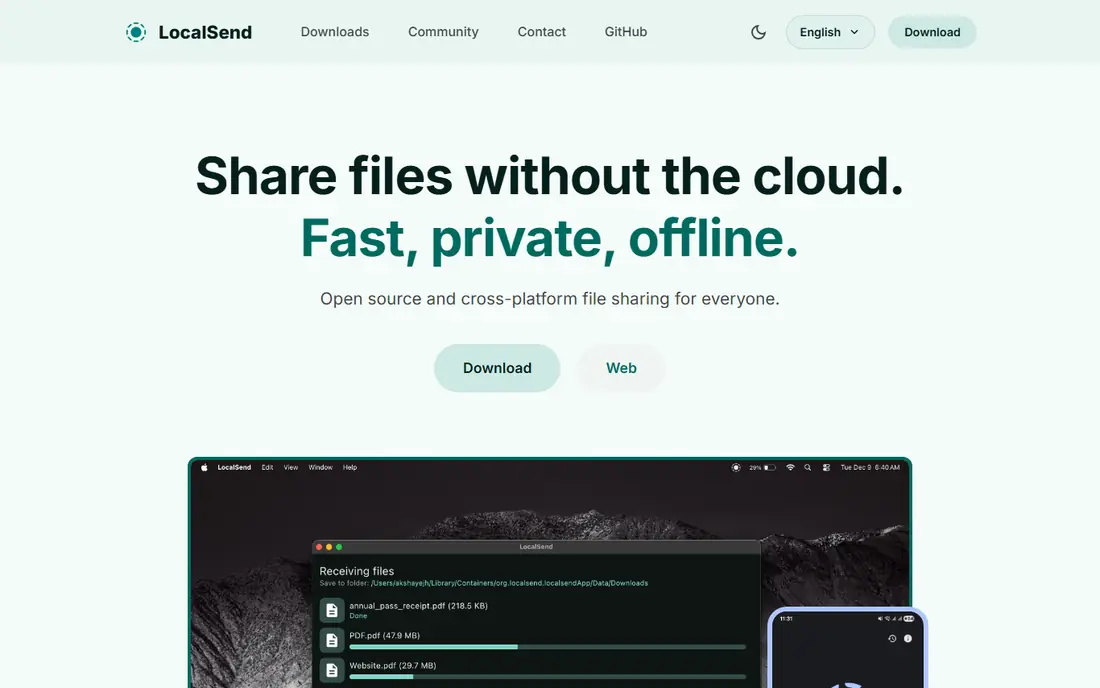
LocalSend works like a cross-platform AirDrop for PCs. Install it on two PCs, and they discover each other on the same Wi-Fi network. You pick files or folders, pick the other device, and the transfer runs over your local network with TLS encryption. There is no account, no cloud storage and no upload to a third-party server.
The limit is the local network. LocalSend is not the tool for sending files to a PC in another city, since both devices need to share the same network. For a home or office move, a desk-to-laptop transfer, or sharing large videos without cloud limits, it is the simplest free option in this list.
- Free and open source
- No account and no cloud upload
- Encrypted transfers over local Wi-Fi
- Both PCs must be on the same local network
- Speeds depend on your router and Wi-Fi
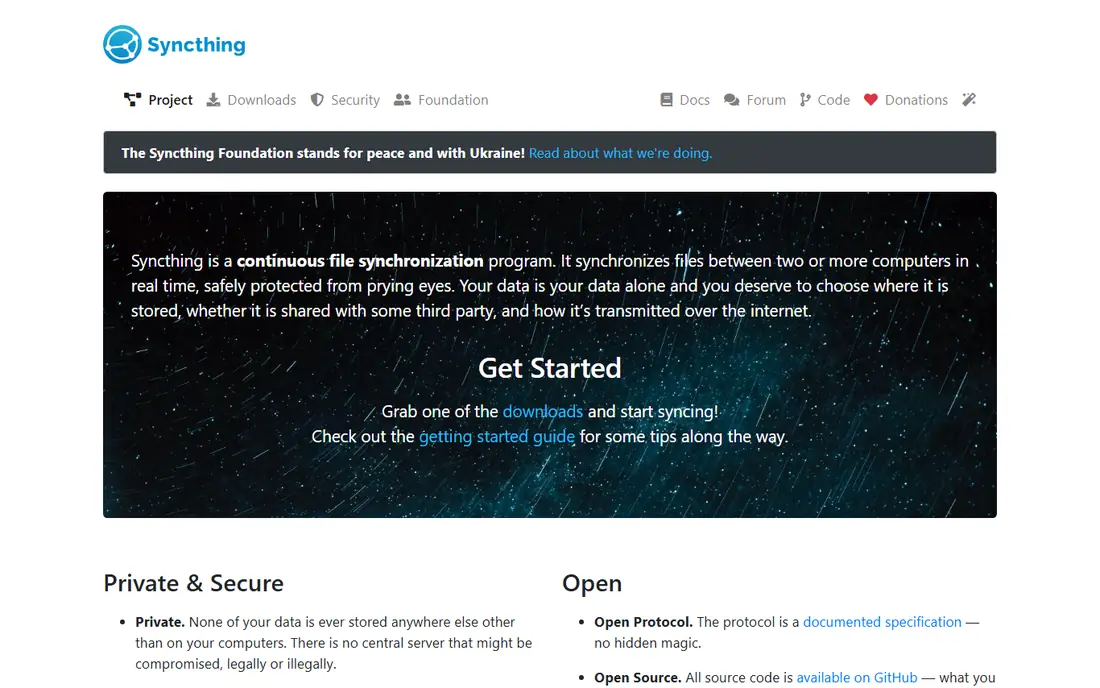
Syncthing keeps chosen folders in step across PCs continuously. Once you pair devices and share a folder, changes flow between them in the background, with encrypted peer-to-peer transfers and no central server holding your files. That makes it a strong choice for a desktop and laptop that must hold the same project folders.
Setup demands a little patience: you pair device IDs, approve shared folders, and check firewall settings if a PC does not appear. It is also worth remembering that sync mirrors deletions, so keep a separate backup for important work. For users who want private, ongoing sync without a cloud account, Syncthing is excellent.
- Free and open source
- Private peer-to-peer sync
- Encrypted transfers with no central server
- Setup takes more care than a simple send tool
- Sync is not a substitute for a separate backup
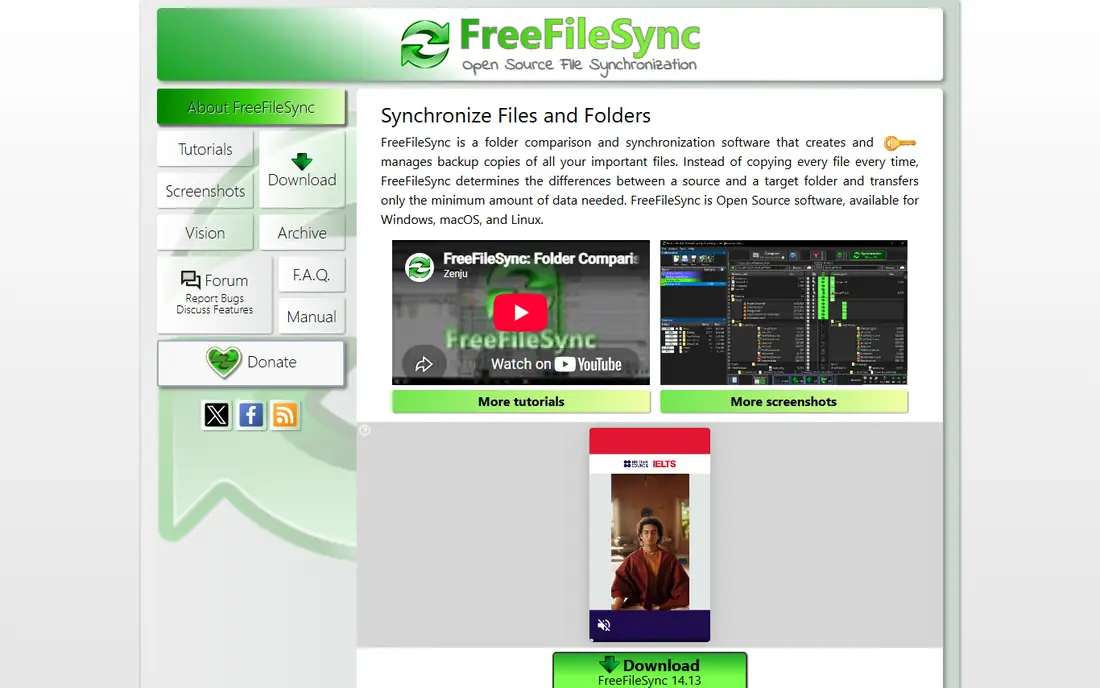
FreeFileSync gives you control before anything moves. It compares two folders by size, time or content, shows exactly what will change, and then syncs in two-way, mirror or update mode. That preview matters when you move a large project from an old PC to a new one and want to avoid overwriting newer files by mistake.
The interface is practical rather than polished, and scheduling needs a batch job or the RealTimeSync companion. For a one-time PC to PC migration or a regular backup to an external drive, that control is a strength. Check the preview every time, especially in mirror mode, which deletes target files that are not in the source.
- Free and open source
- Compare folders before syncing
- Two-way, mirror and update modes
- Interface looks technical to new users
- Real-time sync needs the companion tool and setup
FileZilla is the long-running free standard for FTP transfers on PC. It connects to FTP, FTPS and SFTP servers, shows local and remote folders side by side, and queues transfers with resume support for interrupted moves. Web developers, server admins and anyone moving files to a hosted server will find it familiar.
FileZilla is not a PC to PC send tool on its own: you need a server to connect to, or a FileZilla Server setup on the other PC. For server work, that is normal. For a quick transfer between two home PCs, LocalSend or Syncthing will be faster to set up.
- Free and open source
- FTP, FTPS and SFTP support
- Drag-and-drop with queue and resume
- Interface feels dated
- Server setup is needed before you can transfer
WinSCP is a free Windows tool for secure transfers to servers, with SFTP, SCP, FTP and WebDAV support. It offers a dual-pane view, drag-and-drop, synchronisation options and scripting for repeat jobs. Windows admins who move files to Linux servers or cloud instances often keep WinSCP open all day.
It is Windows only, and it expects you to know host, username and key details, so it is less friendly for a first-time user than LocalSend. For secure server transfers from a Windows PC, WinSCP is one of the best free tools available, and its scripting support helps automate nightly moves.
- Free and open source for Windows
- SFTP, SCP, FTP and WebDAV support
- Scripting and automation options
- Windows only
- Interface rewards users who know server details
Snapdrop is the fastest way to send a file when you do not want to install anything. Open the site in a browser on two PCs on the same network, and each PC appears on the other. Drop a file onto the device icon, accept it on the other PC, and the transfer runs locally. It is handy for a guest PC or a borrowed laptop.
The trade-off is that both browsers must stay open on the same network, and very large transfers can be less steady than a dedicated app. Snapdrop is best for quick, one-off sends, not for keeping folders in sync. For that job, use Syncthing or FreeFileSync.
- No install needed, runs in the browser
- Free local sharing
- Works across PC and phone browsers
- Both devices must be on the same network and have the page open
- Large transfers depend on browser and network
Send Anywhere solves the other-city problem that LocalSend cannot. You pick files on one PC, get a short numeric key or a link, and enter that key on the other PC to receive them. No account is needed for basic sends, and the service works across PC and mobile. That makes it useful for sending files to a colleague or a second PC at home.
Check the current free limits before a very large transfer, since size and link expiry rules change. Transfers also pass through the service rather than staying purely local, so avoid sending highly sensitive files this way without encryption of your own. For everyday sends to another location, it is simple and effective.
- Free sends with a short key or link
- Works across PC and mobile
- No account needed for basic sends
- Free tier has size and link limits that change over time
- Transfers go through its service, not only your local network
Resilio Sync uses peer-to-peer technology to keep folders in step across PCs quickly, even for large media folders. The free personal tier covers the core sync use, with encrypted transfers and no central cloud copy. Users with large video or photo folders often pick Resilio for speed when a cloud sync tool feels slow.
Team and business features, such as central management, sit in paid tiers, so check the plan if you deploy it across a company. For personal PC to PC sync, the free tier is enough for most users. Resilio suits people who want Syncthing-style sync with a more polished setup flow.
- Fast peer-to-peer sync for large folders
- Free personal use
- Encrypted transfers
- Advanced team features are paid
- Setup is heavier than a one-off send tool
KDE Connect is best known for linking a phone to a PC, but it also handles file sharing well. Once devices are paired on the same network, you can send files, share clipboard content and see phone notifications on the PC. That makes it useful for moving photos from a phone to a PC for editing, then back again.
PC to PC sharing is possible in the wider KDE Connect ecosystem, but the main strength is phone to PC. If your transfer problem is really phone to PC, KDE Connect is a strong free pick. If it is strictly PC to PC, LocalSend or Syncthing will feel more direct.
- Free and open source
- Share files, clipboard and notifications between PC and phone
- Local network transfers
- Phone features vary by platform
- PC to PC use is less central than phone to PC use
How we picked these
We compared official product pages, open-source project pages and public user feedback for free PC transfer tools live in October 2026. We kept only tools with a genuinely free PC option that transfers files between PCs, to a server, or between PC and phone where that fits PC workflows. We included local sends, continuous sync and server transfers, and we avoided paid-only tools and cloud storage services that merely sync through a paid account.
What to check before you buy
There is nothing to buy for the core uses here, but there is still a fit to check. Start with distance: same network or different location. LocalSend, Snapdrop and KDE Connect suit the same network, while Send Anywhere suits different locations. Syncthing, FreeFileSync and Resilio Sync suit ongoing sync, while FileZilla and WinSCP suit server transfers.
Test with a real folder first
Move a small test folder before you move a full photo library or project. Check that filenames, folder structure and timestamps survive the move, and check what happens if the transfer is interrupted. A tool that resumes cleanly will save you time on large moves.
Check security for sensitive files
Local and peer-to-peer tools keep files off a central server, which helps privacy, but they still need a trusted network. Avoid public Wi-Fi for sensitive transfers unless the tool encrypts the transfer and you trust the network. For highly sensitive files, encrypt the files themselves before sending, whatever tool you use.
Keep a backup separate from sync
Sync tools mirror changes, including accidental deletions, across PCs. That is useful for access, but it is not a backup. Keep at least one separate backup copy, on an external drive or another service, for files you cannot afford to lose. FreeFileSync in mirror mode to a backup drive is a simple way to add that layer.
Frequently asked questions
What is the best free file transfer software for PC?
LocalSend is our pick for quick PC to PC sends on the same network, and Syncthing is our pick for folders that must stay in step. FileZilla leads for server transfers. The best choice follows whether you need a one-off send, ongoing sync or server access.
What is the best free PC to PC file transfer software?
For a one-off move on the same network, LocalSend is the simplest free PC to PC option. For ongoing sync between a desktop and laptop, Syncthing or Resilio Sync work better. For a PC in another location, Send Anywhere lets you send with a short key and no account.
Can I transfer files between PCs without a USB drive or cloud account?
Yes. LocalSend and Snapdrop move files over your local Wi-Fi with no account and no cloud upload, as long as both PCs share the same network. Syncthing and Resilio Sync keep folders in step over the internet without a central cloud account, using peer-to-peer transfers.
Is Syncthing really free?
Yes, Syncthing is free and open source, with no paid tier for its core sync features. There is no central server holding your files, and transfers are encrypted peer to peer. Costs are limited to your own PCs, network and storage, plus time to set it up.
What is the difference between sync and a one-off transfer?
A one-off transfer moves files once, which suits a migration or a single share. Sync keeps folders in step over time, so a change on one PC appears on the other. Sync is better for active projects across two PCs, while a one-off send is better for sharing a finished file set.
Are free FTP tools safe for server transfers?
FileZilla and WinSCP support secure protocols such as SFTP and FTPS, which encrypt transfers. Avoid plain FTP for sensitive files, since it does not encrypt credentials or data. Use key-based login where your server supports it, and keep the tools updated.
Sources
See where you really rank - block by block
ProMapRanker scans Google Maps across a grid of your service area. Simple monthly plans from $19, white-label on every plan.
Start freeKeep reading
 wpforms alternatives
Best WPForms Alternatives in 2026
We compare 9 wpforms alternatives for WordPress forms, with free and paid options, current pricing notes, and honest limits for small business sites in 2026.
Read → windows task scheduler alternatives
Best Windows Task Scheduler Alternatives in 2026
Looking for Windows Task Scheduler alternatives? We compare 9 schedulers for Windows and cross-platform work, from free tools to enterprise automation.
Read → which ai video service is best
Which AI Video Service Is Best in 2026
which ai video service is best? We compare 10 legitimate AI video services on price, avatars, editing and output quality to help you pick the right tool.
Read →