 ProMapRanker
Best Free Disk Cloning Software in 2026

Key takeaways
- Clonezilla and Rescuezilla are the only fully free, open source options in this list, with no feature gates on cloning.
- Hasleo Disk Clone is the easiest free Windows-native option, since it runs inside Windows without a bootable USB.
- AOMEI Backupper and EaseUS Todo Backup offer free tiers, but system disk cloning often needs a paid licence, so check that limit first.
- Always back up irreplaceable files separately before you clone, and verify the new drive boots before you wipe the old one.
Quick comparison
| Pick | Great for | Pricing starts at | Free tier | |
|---|---|---|---|---|
 Clonezilla | Free expert-grade cloning | Free | Yes | Visit |
 Rescuezilla | Free graphical cloning | Free | Yes | Visit |
 Hasleo Disk Clone | Free Windows-native cloning | Free | Yes | Visit |
 AOMEI Backupper | Free Windows backup plus cloning | See website | Yes | Visit |
 EaseUS Todo Backup | Friendly Windows backup and cloning | See website | Yes | Visit |
 DiskGenius | Cloning plus partition and recovery tools | $69.90 | Yes | Visit |
 Samsung Data Migration | Samsung SSD owners | Free | Yes | Visit |
 Veeam Agent | Free single-machine backup and imaging | Free | Yes | Visit |
The best free disk cloning software
Disk cloning software copies a whole drive to another drive so the new drive can boot and work just like the old one. That is the core job when you upgrade from a hard drive to an SSD, replace a failing drive or move Windows to a new disk. We compared official product pages, feature lists and public documentation for tools live in October 2026, and we kept only tools with a genuinely usable free tier.
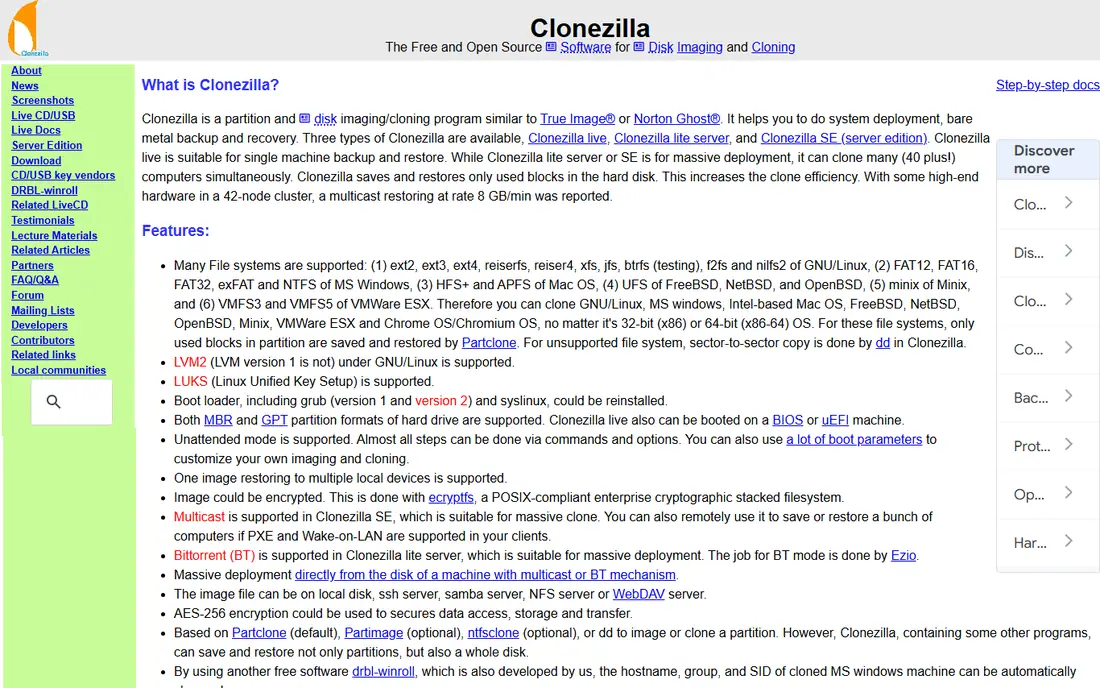
Clonezilla is the most capable free cloning tool, and it is also the least friendly. It runs from a bootable USB, uses text menus, and can clone disks, partitions and whole systems, including deployment to many machines for technicians. It supports a wide range of file systems and offers imaging as well as direct cloning, which makes it a strong tool for advanced users.
The catch is usability and the size rule. Clonezilla often requires the destination partition to be equal to or larger than the source partition, which complicates a move to a smaller SSD. If you are comfortable with boot media and menus, Clonezilla gives you professional power for free. If you are not, start with Rescuezilla.
- Fully free and open source
- Handles many file systems
- Supports imaging and deployment
- Text-based menus only
- Destination partition must be equal or larger in many cases
- Steeper learning curve
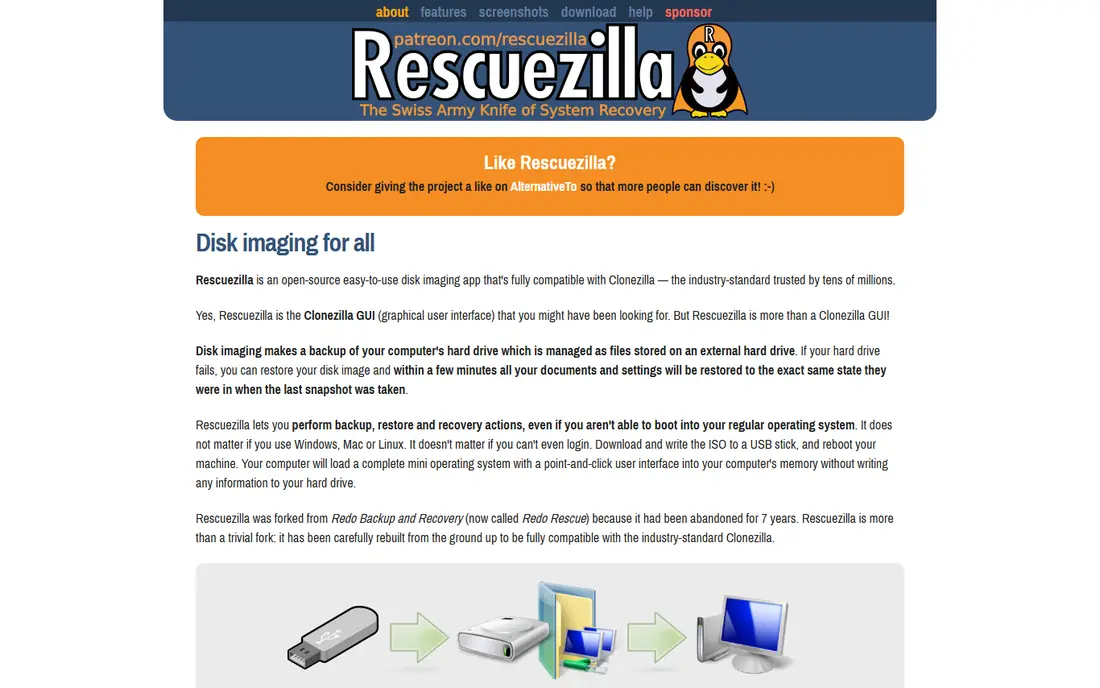
Rescuezilla is often called the graphical version of Clonezilla, and that description fits well. It is free and open source, boots from USB, and walks you through cloning and imaging with a clear wizard instead of text menus. That makes it the best free choice for a home user who wants Clonezilla power without learning a text interface.
It is not a full backup suite, so it lacks the scheduling, incremental imaging and cloud features of paid tools. You also need to create boot media and boot from it, which takes a few extra steps. For a one-time SSD upgrade, Rescuezilla is the easiest genuinely free path.
- Fully free and open source
- Point-and-click wizard
- Boots from USB for any system
- Fewer scheduling and backup features than paid suites
- Needs a bootable USB
- Slower for some large clones
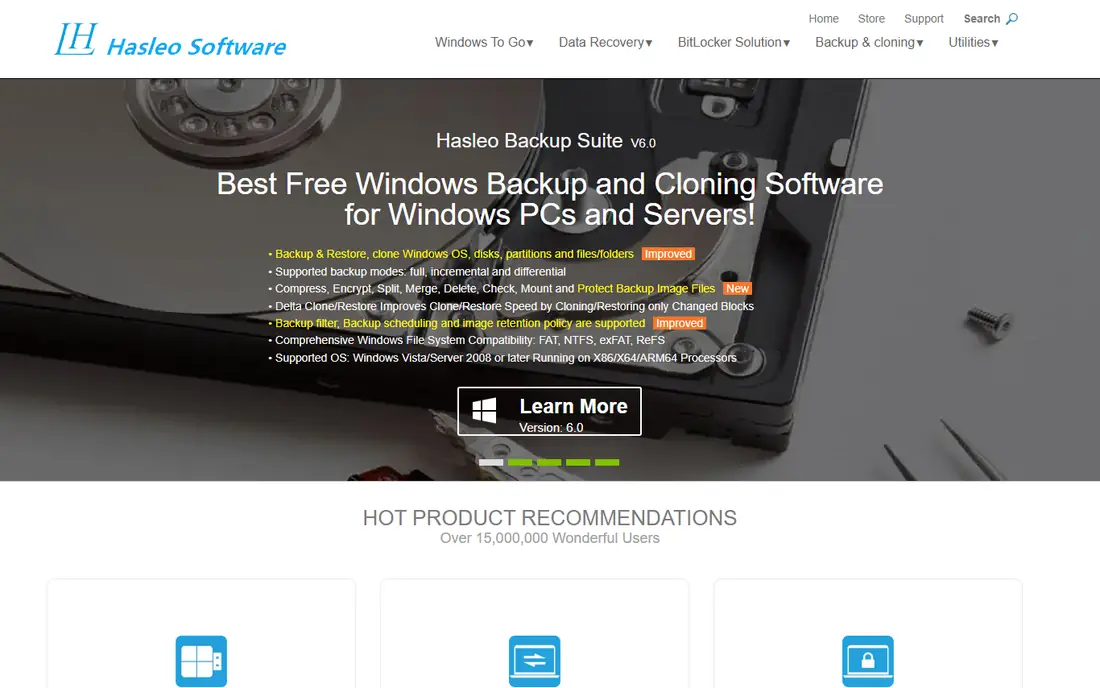
Hasleo Disk Clone is the best free option that runs inside Windows, without boot media for most jobs. The wizard covers system disk cloning, data disk cloning and partition cloning, with a simple interface that suits a first-time cloner. For a Windows user upgrading to an SSD, it removes the boot USB step that puts many people off.
It is Windows only, and it is a cloning tool rather than a full backup suite, so ongoing scheduled imaging is not its strength. The free scope is personal use, so business users should check the licence. For a personal SSD upgrade on Windows, Hasleo is a fast, clear choice.
- Free for personal use
- Runs inside Windows
- Simple wizard for system and data disks
- Windows only
- Fewer imaging and backup features than full suites
- Free scope is personal use
AOMEI Backupper Standard is a popular free Windows tool that combines backup, sync and cloning in one polished interface. The free edition handles data disk cloning, imaging and basic backup well, and the paid editions add system cloning, scheduling and more advanced features. For a user who wants one tool for backup and cloning, it is a practical pick.
The key limit is system disk cloning. The free edition lets you clone data disks but requires a paid licence for the Windows system disk, which is the job most SSD upgraders actually need. Check that limit before you download, or use Clonezilla, Rescuezilla or Hasleo for a free system clone.
- Polished Windows interface
- Backup, sync and cloning in one tool
- Free edition for basic jobs
- System disk cloning needs a paid licence
- Free edition has feature limits
- Windows only
EaseUS Todo Backup is a friendly home backup tool that also handles disk and partition cloning. The interface is clear, the wizard steps are simple, and the tool covers imaging, scheduled backup and recovery alongside cloning. For a home user who wants backup and cloning together, it is easy to recommend on usability alone.
As with AOMEI, the free edition has limits, and system disk cloning generally needs a paid licence. That means a free SSD upgrade for a Windows boot drive may stop at the payment step. For data disks and imaging, the free edition is useful. For a free boot drive clone, choose one of the fully free tools in this list.
- Consumer-friendly interface
- Backup, cloning and recovery in one tool
- Good for home users
- System cloning needs a paid licence
- Free edition has limits
- Windows and Mac editions differ
DiskGenius is the dark horse in this list, since it combines cloning with partition management and data recovery. The free edition clones and manages partitions, while the paid Pro edition adds full features for a one-time price. Partition resizing helps when moving to a smaller SSD, as long as the used data fits on the destination.
The interface is denser than AOMEI or EaseUS, and the free edition does not cover everything. For a user who also needs to resize, recover or manage partitions, DiskGenius offers more in one tool than a pure cloner. For a simple one-time clone, a simpler free tool will be faster.
- Cloning plus partitioning and recovery in one tool
- Handles partition resizing
- Useful for technicians
- Paid Pro price for full features
- Interface is dense
- Free edition has limits
Samsung Data Migration is free software for owners of Samsung SSDs, and it is the simplest tool in this list for that specific job. It clones your current drive to a Samsung SSD with a short wizard, handles the common cases automatically, and is made for exactly one task. If your new drive is a Samsung SSD, there is little reason to use a more complex tool.
The limit is obvious: it only works when the destination is a Samsung SSD, and it is Windows only. It is not a general backup tool. For a Samsung SSD upgrade on Windows, it is the easiest free option. For any other brand, use one of the general tools above.
- Free with a Samsung SSD
- Very simple migration wizard
- Designed for Samsung drives
- Only works with Samsung SSDs as the destination
- Windows only
- No general backup features
Veeam Agent for Microsoft Windows, in its free edition, offers reliable imaging and backup for a single machine, built on technology used in enterprise backup. It creates full system images, scheduled backups and recovery media, which suits a user who wants a restorable backup as well as a migration path. The interface is businesslike but clear once you learn the layout.
It is an imaging tool first, so the workflow differs from a direct clone: you create an image, then restore it to the new drive. Registration is required for the free edition. For a user who wants a free, dependable system image with scheduling, Veeam Agent is a strong choice, while direct cloners suit a one-time drive swap better.
- Free for one machine
- Enterprise-grade imaging technology
- Scheduled backup and recovery media
- Imaging rather than direct cloning focus
- Registration needed
- Businesslike interface
How we picked these
We compared official product pages, feature lists and public documentation for cloning tools live in October 2026. We favoured tools with a genuinely usable free tier, and we noted plainly where a free tier stops at system disk cloning. We did not claim hands-on testing, and we wrote See website where a vendor does not publish a clear price.
Cloning safely: a short guide
Back up first, even when you are cloning. Cloning writes over the destination drive completely, and the most common accident is picking source and destination the wrong way round. Keep a separate copy of anything you cannot replace before you start, and double-check the drive names and sizes on the confirmation screen.
Next, check the size rule. Most tools can clone to a smaller SSD as long as the used data fits, but some tools need you to shrink the source partition first. Clonezilla in particular often needs a destination partition equal to or larger than the source. Shrink the source partition in Windows Disk Management before you start if you are moving to a smaller drive.
Verify before you wipe
After the clone finishes, boot from the new drive while the old drive is still safe. Check that Windows starts, your files open and your apps run. Only wipe or reuse the old drive after that test passes. A clone that looks complete can still fail to boot, and the old drive is your safety net until the new one proves itself.
Free versus paid
Free tools cover a one-time clone well, especially Clonezilla, Rescuezilla and Hasleo. Paid tools earn their keep when you clone regularly, need scheduling, incremental imaging or support. If you upgrade drives once every few years, free is enough. If you manage several machines, a paid suite saves time and reduces risk.
Frequently asked questions
What is the best free disk cloning software?
Clonezilla is the most capable fully free option, and Rescuezilla is the easiest fully free option, since both are open source with no feature gates. Hasleo Disk Clone is the easiest free Windows-native choice. The best pick depends on your comfort with boot media and text menus.
What is the best software to clone a hard drive to an SSD?
For a direct clone, Rescuezilla or Hasleo Disk Clone suit most home users, while Samsung Data Migration suits Samsung SSD owners. Check that the used data fits on the smaller SSD, and verify the new drive boots before you wipe the old one. Paid suites add scheduling and support for regular cloning.
Can I clone my drive to a smaller SSD?
Usually yes, as long as the data on the source drive fits on the destination. Most modern tools resize partitions automatically, but some tools need you to shrink the source partition first. Clonezilla requires the destination partition to be equal or larger in many cases, so check that rule before you start.
Is cloning the same as backing up?
No. Cloning copies a drive to another drive for immediate use, typically when upgrading hardware. Imaging creates a compressed backup file you store and restore later. Imaging supports scheduled and incremental updates, while cloning is usually a one-time operation. Use imaging for ongoing protection and cloning for a drive swap.
Do I need to pay for disk cloning software?
Not for a one-time clone. Clonezilla, Rescuezilla and Hasleo Disk Clone are free, and Samsung Data Migration is free for Samsung SSD owners. AOMEI Backupper and EaseUS Todo Backup have free tiers, but system disk cloning usually needs a paid licence. Paid tools are worth it for regular cloning, scheduling and support.
What happened to Macrium Reflect Free?
Macrium discontinued the free edition, so Reflect is now paid-only with a free trial. Old free installers still exist but receive no security or compatibility updates, so they are not a safe recommendation. If you need a free Windows alternative, Hasleo, Rescuezilla and Clonezilla cover the core jobs.
Sources
See where you really rank - block by block
ProMapRanker scans Google Maps across a grid of your service area. Simple monthly plans from $19, white-label on every plan.
Start freeKeep reading
 free alternatives to grok imagine
Free Alternatives to Grok Imagine in 2026
We compared the best free alternatives to grok imagine for image generation, from fast daily credits to design tools, so you can create without paying.
Read → best tools for instagram content creation
Best Tools for Instagram Content Creation in 2026
Compare the best tools for Instagram content creation, from Canva and CapCut to Later and Buffer, on design, video, planning, scheduling, and price in 2026.
Read → best tool to split pdf files
Best Tool to Split PDF Files in 2026
We compared the best tool to split pdf files on split modes, file limits, privacy and price, so you can split a PDF cleanly and keep every page in one go.
Read →