 ProMapRanker
Best Free Caption Apps for YouTube Videos in 2026

Key takeaways
- YouTube Studio is the only truly free, built-in option here, since it can generate and edit captions for your own uploads at no cost.
- Clipchamp offers free auto captions with no watermark, which makes it the best free desktop and browser option for many creators.
- CapCut gives the most usable free auto captions on a phone, while Kapwing and VEED suit browser-based team editing with free trials of their paid features.
- Descript is the best pick if you want to fix captions by editing the transcript, rather than fixing words on a timeline.
- Free plans differ sharply on watermarks, export resolution, and subtitle file downloads, so check those limits before you start a project.
Quick comparison
| Pick | Great for | Pricing starts at | Free tier | |
|---|---|---|---|---|
 YouTube Studio | Built-in YouTube captions | Free | Yes | Visit |
 CapCut | Free phone captions | Free | Yes | Visit |
 Kapwing | Browser team editing | $16 per member per month | Yes | Visit |
 VEED | Browser subtitles and files | $12 per user per month | Yes | Visit |
 Clipchamp | Free captions on Windows | Free | Yes | Visit |
 Descript | Transcript-based caption editing | $16 per month | Yes | Visit |
 Submagic | Animated short-form captions | $19 per month | Free trial | Visit |
 Captions | Phone-first talking-head videos | $9.99 per month | Free trial | Visit |
 Happy Scribe | Subtitle files and transcripts | $17 per month | Free trial | Visit |
The best free caption apps for youtube videos
Captions help viewers who watch with sound off, viewers who are deaf or hard of hearing, and viewers who speak another language. They also help YouTube understand your video. These nine tools all offer a free plan or free trial, and they cover built-in YouTube captions, phone editing, browser editing, and subtitle files.
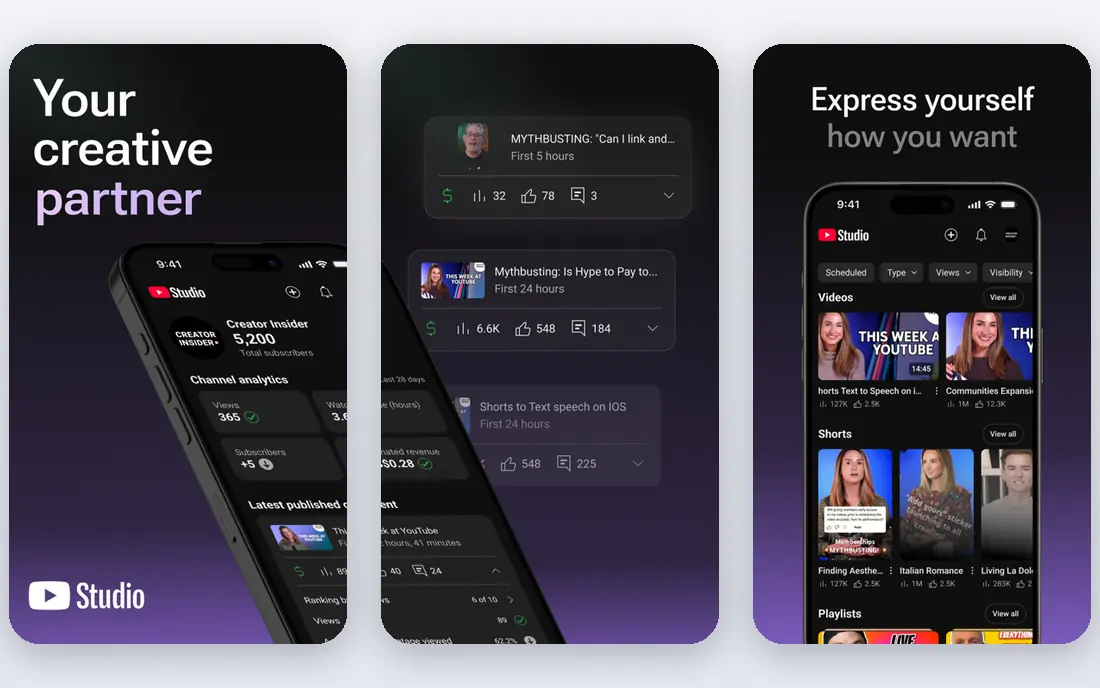
YouTube Studio is the starting point for most creators, because it is already part of YouTube and costs nothing extra. Upload a video, and YouTube can generate automatic captions, which you can then edit in the built-in editor, correct word by word, and publish as a caption track. You can also upload your own subtitle file or add captions in more than one language.
The limits are accuracy and style. Automatic captions still make mistakes, especially with names, technical terms, and overlapping speech, so a careful review pass is essential. YouTube captions also look plain compared with animated captions in a dedicated editor. For accessibility and search on YouTube itself, though, Studio is the most direct free option.
- Free for your own uploads
- Automatic captions plus manual editing
- Supports multiple caption tracks and languages
- Automatic captions need checking for errors
- Styling options are limited compared with dedicated editors
CapCut is our pick for creators who edit mainly on a phone and want free auto captions without a steep learning curve. Its auto-caption feature transcribes speech, places timed captions on the video, and lets you restyle them with templates. The free tier covers core editing, and Pro starts at $19.99 per month where shown in the app.
CapCut is geared toward short-form, trend-led video, so its caption styles can feel loud for a calm, long-form YouTube tutorial. Some premium templates and effects also sit behind Pro. For free, fast captions on short and medium YouTube videos, it is hard to beat.
- Free auto captions in the editor
- Large template and style library
- Phone, web, and desktop versions
- Some advanced styles and effects need Pro
- Export and feature limits vary by platform
Kapwing is a browser editor that suits small teams captioning a steady stream of videos together. Its subtitle tool generates captions, lets you edit them on a timeline, and supports translation, so one video can serve more than one audience. Pro starts at $16 per member per month billed annually.
The free plan is for trying things out: exports are watermarked, limited to 720p and shorter lengths, and subtitle minutes are capped. That makes Kapwing a good free test, but a paid plan is needed for regular YouTube publishing. If your team already collaborates in a browser, it is a natural fit.
- Full browser editor with subtitle tools
- Translation into many languages
- Team collaboration features
- Free exports are watermarked and limited to shorter videos
- Subtitle minutes are limited on the free plan
VEED is a strong browser alternative to Kapwing, with a focus on clean subtitles and subtitle files. You can generate auto subtitles, edit them, burn them into the video, or download them as SRT or VTT files for YouTube. Paid plans start at $12 per user per month billed annually, with higher tiers for longer videos and more features.
Free exports carry a watermark and are limited in resolution and length, and subtitle file downloads are restricted on the free tier. That matters if you plan to upload an SRT to YouTube rather than burning captions in. For browser captioning with a clear upgrade path, VEED is a solid pick.
- Auto subtitles with SRT, VTT, and text export
- Browser editing with templates
- Translation and clean-up tools
- Free exports are watermarked
- Longer videos and subtitle downloads need a paid plan
Clipchamp is the best free option for many Windows users, because its auto captions are free, exports up to 1080p carry no watermark, and you can download an SRT file. It runs in the browser and on Windows, and its interface is simpler than a full professional editor. Premium features arrive with Microsoft 365 Personal, which starts at $9.99 per month.
Clipchamp handles one spoken language per video, so mixed-language videos need extra work, and caption processing happens online. For a straightforward YouTube video in one language, its free tier is more generous than most rivals here.
- Auto captions free for all users with SRT download
- No watermark on free exports up to 1080p
- Simple interface
- One spoken language per video
- Premium features need Microsoft 365
- Audio is processed online
Descript takes a different approach: it transcribes your video, and you edit the video by editing the text. Delete a sentence in the transcript, and that part of the video is removed. Captions follow the transcript, so fixing a caption is as simple as fixing a word in the text. Paid plans start at $16 per month billed annually.
The free plan is useful for learning the workflow, but exports are limited and watermarked, so regular publishing needs a paid plan. Descript also suits talking-head and interview videos more than fast-cut short-form content. If you caption long YouTube tutorials or podcasts, its transcript workflow can save a lot of time.
- Edit video by editing the transcript
- Dynamic captions included
- Good for interviews, podcasts, and tutorials
- Free exports are limited to 720p and carry a watermark
- Learning curve for transcript editing
Submagic specialises in the animated, word-by-word caption style that performs well on Shorts, TikTok, and Reels, and it can also be used for YouTube Shorts. It generates captions quickly, applies a style, and lets you adjust words and timing before export. Plans start at $19 per month, with higher tiers for more videos and longer content.
Submagic does not offer a full free plan, only a trial, and its Starter plan caps videos at shorter lengths. That makes it a paid tool for creators who publish short-form video regularly, rather than a free tool for occasional use. If animated captions are central to your channel's look, it is worth the trial.
- Animated, word-by-word caption styles
- Many caption languages
- Fast workflow for short videos
- Starter plan caps video length
- Pricing is per video quota rather than time
- No full free plan
Captions, formerly known as Captions.ai, is a phone app built for creators who film, caption, and post talking-head videos quickly. It transcribes speech, applies styled captions, and handles the export for social platforms including YouTube Shorts. Paid plans start at $9.99 per month for Pro on some listings, with higher tiers for more features.
The free plan is limited, with only one caption template, so the app's real appeal shows on a paid plan. It is also phone-first, which suits creators who film on a phone but is less ideal for long desktop edits. For fast, styled captions on short YouTube videos, it is a strong contender.
- Phone-first workflow for filming and captioning
- Many caption templates on paid plans
- Fast for talking-head clips
- Free plan offers only one caption template
- Full features need a paid subscription
Happy Scribe is the pick when you need a clean subtitle file or transcript, rather than a styled video editor. It transcribes audio and video in many languages, lets you edit the text and timing, and exports SRT, VTT, and other subtitle formats for YouTube. Plans start at $17 per month billed monthly on its Basic tier, with other options for occasional use.
Happy Scribe does not edit video itself, so you will still need an editor to burn captions in or to cut footage. Its trial is also limited compared with a full free plan. For long-form YouTube videos where an accurate, uploadable subtitle file matters most, it is a reliable choice.
- Accurate transcription and subtitle files in many languages
- Pay-as-you-go options on some plans
- Good for long-form content
- Not a full video editor
- Free trial is limited
- Best for files rather than styled burned-in captions
How we picked these
We compared official feature pages, pricing pages, and app listings for caption and subtitle tools with a free plan or free trial, and we kept only tools that exist and work today and genuinely help caption YouTube videos. We weighed auto-caption quality, subtitle file export, watermark and resolution limits, language support, and ease of editing. We did not claim hands-on testing we did not do; this comparison reflects published features, pricing, and public reviews.
Getting captions right for YouTube
Start with accuracy, not style. Generate auto captions, then read them against the audio and fix names, numbers, and technical terms, since those are where auto captions fail most. Break captions into short lines that fit on screen, and keep them on screen long enough to read at normal speed.
Next, decide between burned-in captions and an uploaded subtitle file. Burned-in captions always show, which suits Shorts and social clips, while an SRT uploaded to YouTube lets viewers turn captions on or off and choose a language. For most standard YouTube videos, an uploaded caption track is the better accessibility choice, with burned-in captions reserved for short-form clips.
For a free, no-fuss workflow
YouTube Studio plus Clipchamp covers most needs at no cost: Studio for YouTube-native captions, Clipchamp for a free SRT and a clean export.
For styled short-form captions
CapCut is the best free starting point, with Submagic and Captions as paid upgrades when animated styles become part of your channel's look.
For long-form and team publishing
Descript suits transcript-led editing, while Kapwing and VEED suit browser teams that need collaboration, translation, and subtitle files.
Frequently asked questions
Are auto captions on YouTube accurate enough to publish as-is?
Usually not. Auto captions give a good first draft, but they still miss names, accents, and technical terms. Review and correct them before publishing, especially if viewers rely on captions for access.
Can I add captions to a YouTube video for free?
Yes. YouTube Studio lets you generate and edit captions for your own uploads at no cost, and Clipchamp and CapCut offer free auto captions with their own limits. For a subtitle file you can upload, Clipchamp's free SRT download is a useful option.
What is the difference between captions and subtitles?
Captions usually include dialogue plus important sounds, while subtitles usually show dialogue only, often translated. On YouTube, the caption track you upload can serve both purposes, and you can add tracks in more than one language.
Should I burn captions into the video or upload an SRT file?
Upload an SRT or use YouTube's caption track for standard videos, so viewers can turn captions on or off and pick a language. Burn captions into the video for Shorts and social clips, where viewers often watch with sound off and captions need to show by default.
Which free caption app has no watermark?
Clipchamp offers free exports up to 1080p with no watermark, which makes it stand out here. CapCut's free exports also avoid a watermark on core edits, while Kapwing, VEED, and Descript watermark free exports.
Do these apps support languages other than English?
Yes, most support many languages, with Kapwing, VEED, Submagic, and Happy Scribe offering broad language coverage. Check that your language is supported for auto transcription, since translation and transcription language lists differ by tool.
Sources
See where you really rank - block by block
ProMapRanker scans Google Maps across a grid of your service area. Simple monthly plans from $19, white-label on every plan.
Start freeKeep reading
 best resource management software
Best Resource Management Software in 2026
We compared the best resource management software for scheduling, capacity and utilization, with current pricing and free trials, to help teams choose well.
Read → best reporting tools
Best Reporting Tools in 2026
Compare the best reporting tools for dashboards, scheduled reports, and business insights, from Power BI and Tableau to Looker Studio for every team size.
Read → best remote support software
Best Remote Support Software in 2026
Looking for the best remote support software? We compare 9 tools on price, security, session controls, and fit for helpdesks, MSPs, and small teams in 2026.
Read →