 ProMapRanker
Best Screen Record Apps in 2026


Free professional recording and streaming · Pricing starts at: Free
Key takeaways
- OBS Studio is free and the most capable option if you are willing to learn its settings.
- Loom and ScreenPal suit quick sharing, while Camtasia suits polished tutorials with real editing.
- Snagit and ShareX are better when most of your captures are short clips or annotated images.
- Free plans often cap recording length or add watermarks, so check those limits before you rely on one.
Quick comparison
| Pick | Great for | Pricing starts at | Free tier | |
|---|---|---|---|---|
| OBS Studio | Free professional recording and streaming | Free | Yes | Visit |
 Loom | Quick team video messages | $15 per user per month | Yes | Visit |
 Camtasia | Polished tutorials with editing | $179.88 per year | Free trial | Visit |
 ScreenPal | Affordable recording and hosting | $4 per month | Yes | Visit |
 Snagit | Annotated captures and short clips | $39 per year | Free trial | Visit |
 ShareX | Free Windows capture and sharing | Free | Yes | Visit |
 Bandicam | High frame rate game capture | See website | Free trial | Visit |
 Movavi Screen Recorder | Simple everyday recording | $34.95 per year | Free trial | Visit |
 Screencastify | Browser based classroom recording | $7 per user per month | Yes | Visit |
The best screen record apps
These nine tools cover free capture, fast team sharing, and full tutorial production. Pick by how much editing you need and how you plan to share the finished video.
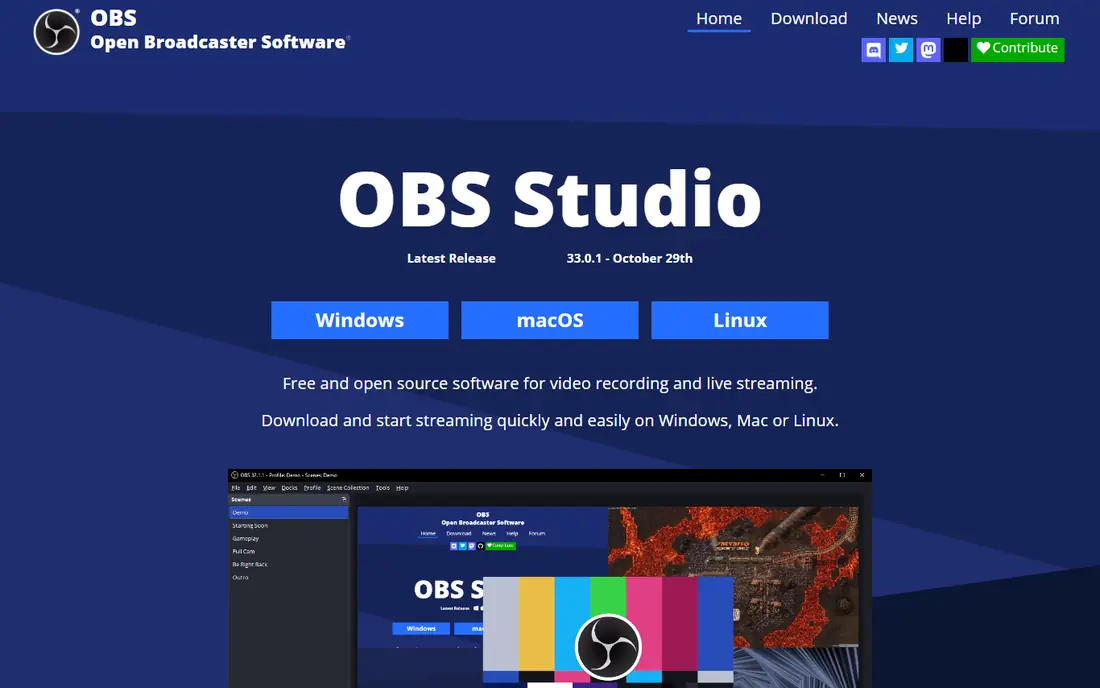
OBS Studio gives you a level of control that most paid recorders charge for, and it does so without a subscription. You can combine a screen, a webcam, images, and several audio sources in one scene, then switch between scenes while you record or stream. That setup suits live presentations, software demos, and gameplay where the layout matters as much as the capture itself.
The trade is time. The first setup takes patience, because OBS Studio expects you to choose sources, audio tracks, and output settings yourself, and there is no editor waiting at the end. If you want to trim or annotate, you will pair it with a separate editor. For anyone on a zero budget who is happy to learn, it is hard to beat.
- No cost and no watermark
- Multi-source scenes, filters, and audio mixing
- Works on Windows, Mac, and Linux
- Steep learning curve for beginners
- No built-in video editor
Loom is built around speed. You record your screen and webcam, stop, and send a link, which makes it a good fit for feedback, bug reports, and short explanations that would take too long to type. Team members can comment at a timestamp, so the conversation stays attached to the exact moment you meant.
The free plan works for occasional use, but its limits show up fast if you record daily. Paid plans lift those caps and add longer recordings and more controls. If your videos are mostly disposable messages rather than keepers, Loom keeps the whole process short.
- Records and shares with a link in seconds
- Webcam and screen in one clip
- Viewer comments and reactions
- Free plan caps video count and length
- Deeper editing needs another tool
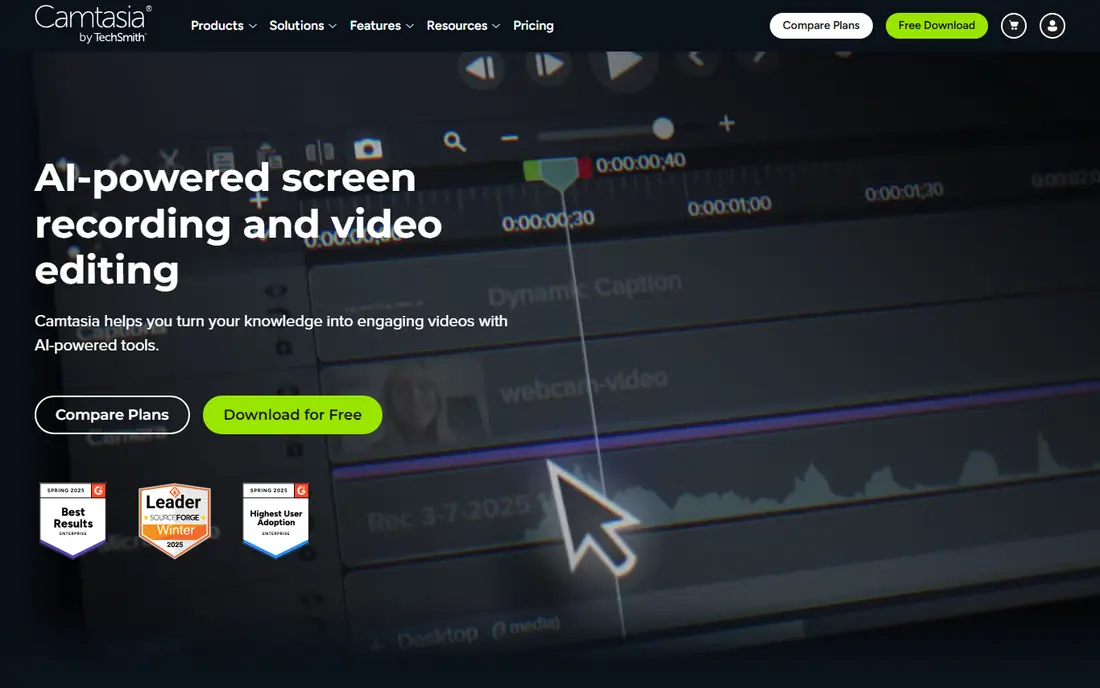
Camtasia suits people who publish training videos and courses on a regular schedule. You record once, then cut mistakes, add zooms and callouts, and tidy the audio on a timeline without moving files between apps. Separate tracks for narration, screen, and webcam make small fixes far easier than re-recording a whole lesson.
The price is the main barrier, and the app asks for more memory than a lightweight recorder. Casual users who record twice a year will not get their money back. For weekly tutorial makers, the time saved in editing is the reason to pay.
- Recorder and multi-track editor in one app
- Callouts, zooms, and captions built in
- Records screen, webcam, and audio on separate tracks
- Yearly price is high for casual use
- Needs a fairly capable computer
ScreenPal is a sensible middle ground between a free recorder and a full editing suite. Teachers, trainers, and small teams can record, make basic edits, add captions, and host the result without juggling three subscriptions. The interface stays plain and approachable, which matters when many people on a team need to record.
Its editing tools will not satisfy a professional video editor, and the free tier is best treated as a trial for regular use. Paid plans stay cheap by recorder standards, though, and for short how-to videos that balance matters more than advanced effects.
- Low paid price
- Recording, editing, and hosting in one place
- Works on desktop, web, and Chromebook
- Free plan caps recording length and hosted videos
- Editing is lighter than Camtasia
Snagit earns its place when your real need is showing, not filming. A screenshot with arrows, numbered steps, and a short note often answers a question faster than a five minute video, and Snagit makes that markup quick. It also records short clips, so you can switch to video when a moving cursor explains the step better.
Think of it as a communication tool first and a recorder second. Long tutorials, multi-track editing, and polished production belong elsewhere. For support replies, documentation, and quick how-tos, its speed is the point.
- Excellent screenshot annotation
- Quick short video capture
- Scrolling capture for long pages
- Not a full video editor
- Yearly cost for a mostly simple job
ShareX is the pick for Windows users who like control and do not want to pay for it. It captures regions, windows, scrolling pages, and full screens, records video, and can upload the result to a destination you choose. Custom workflows and hotkeys let power users capture and share with very few clicks.
The interface is the catch. New users may find the menus and options dense, and there is no hosted sharing service of its own in the way Loom provides. If you are comfortable with settings and you live on Windows, ShareX covers a lot of ground for nothing.
- Free and open source
- Many capture modes and upload options
- Screen recording plus GIF and image tools
- Windows only
- Interface feels technical and crowded
Bandicam focuses on one job and does it well: recording games and demanding apps without dragging performance down. It supports high frame rates and hardware acceleration, which matters when a choppy recording would ruin the footage. The controls stay simple, so you can start and stop without digging through menus mid-game.
It is less useful as an all-purpose business recorder, since it lacks the sharing, hosting, and editing depth of Loom or Camtasia. Windows-only support also rules it out for Mac users. For gameplay and graphics-heavy apps on Windows, it is a strong specialist choice.
- Light performance hit during game capture
- High frame rate recording
- Simple interface for a focused job
- Windows only
- Free trial adds a watermark and a time cap
Movavi Screen Recorder suits people who want to press record and get a usable file without a manual. It captures the full screen or a selected area, adds webcam and microphone audio, and lets you draw on screen while you record. Scheduled recording helps when you need to capture a live session at a set time.
The trial is limited by a watermark, so treat it as a test drive rather than a free plan. Editing stays basic, and heavy tutorial work will still need a dedicated editor. For everyday captures, meetings, and simple demos, its plain design is an advantage.
- Easy to learn
- Scheduled recording
- Webcam, audio, and drawing tools included
- Trial exports carry a watermark
- Editing features are basic
Screencastify is popular in schools because it removes installation friction. Students and teachers on Chromebooks can record a tab, a desktop view, or a webcam clip from the browser and share it quickly. Basic editing, captions, and annotation cover most classroom needs without a separate app.
The browser focus is also its limit. If your team uses other browsers or needs desktop-grade editing, a desktop recorder fits better. For Chrome-based classrooms and quick demos, though, the low setup cost is a real benefit.
- Runs in Chrome with no desktop install
- Simple sharing for classrooms
- Annotation and basic editing tools
- Chrome focused, so other browsers are a weaker fit
- Free plan limits videos and length
How we picked these
We compared official feature pages, pricing pages, and app store listings, plus public user reviews, and kept only tools that still exist and work in October 2026. We favored a mix of free, budget, and full-featured options, and we dropped tools that were discontinued, limited to a single narrow trick, or priced without a clear published plan. Prices here reflect published starting plans at the time of writing, and vendors change them, so check the pricing page before you buy.
What to check before you choose
Start with the end use, not the feature list. A tool for daily team messages needs fast sharing and a link workflow, while a tool for a paid course needs editing, captions, and clean exports. Write down how long your typical video runs, because free plan caps on length and video count are the most common surprise.
Next, check your computer and your audience. Windows-only tools rule out Mac and Chromebook users, and browser tools suit classrooms better than heavy desktop editors. Try the free plan or trial with a real task, not a test clip, and watch for watermarks, export limits, and audio quality. If system audio matters, test it early, since some tools handle microphone audio well but need extra setup for sound coming from the computer itself.
Audio and editing matter more than effects
System audio, microphone clarity, and simple cuts decide whether a recording feels professional. Fancy transitions do not rescue muffled narration or a missing audio track. Pick a tool that records the sources you need on separate tracks when you plan to edit.
Sharing and storage add up
A recorder with hosting saves upload steps but may charge for storage or viewer seats later. A local recorder keeps files under your control but leaves sharing to you. Match that choice to how often your videos need to be watched by other people.
Frequently asked questions
What is the best free screen record tool?
OBS Studio and ShareX are the strongest free options. OBS Studio suits streaming and multi-source recording, while ShareX suits fast Windows captures and uploads. Both need more setup than a paid tool, but neither charges for the core recorder.
Which screen record app is best for tutorials?
Camtasia is our pick for polished tutorials because recording and multi-track editing live in one app. ScreenPal is a cheaper alternative for shorter lessons, and Screencastify works well for classroom videos made in Chrome.
Do free screen recorders add watermarks?
Some do, and some do not. OBS Studio and ShareX record without watermarks, while trials of Movavi Screen Recorder and Bandicam add one. Always check the free plan terms before you record something you plan to publish.
Can I record system audio and my microphone together?
Most tools on this list can, but setup varies. OBS Studio, Camtasia, and ScreenPal handle both sources, while browser tools may need permission or extra steps for system audio. Test a short clip with both sources before a real session.
What is the best screen record app for gaming?
Bandicam is a strong Windows choice for high frame rate game capture with a light performance cost. OBS Studio is the free alternative, and it also streams, but it takes longer to configure for the same result.
Sources
See where you really rank - block by block
ProMapRanker scans Google Maps across a grid of your service area. Simple monthly plans from $19, white-label on every plan.
Start freeKeep reading
 best resource management software
Best Resource Management Software in 2026
We compared the best resource management software for scheduling, capacity and utilization, with current pricing and free trials, to help teams choose well.
Read → best reporting tools
Best Reporting Tools in 2026
Compare the best reporting tools for dashboards, scheduled reports, and business insights, from Power BI and Tableau to Looker Studio for every team size.
Read → best remote support software
Best Remote Support Software in 2026
Looking for the best remote support software? We compare 9 tools on price, security, session controls, and fit for helpdesks, MSPs, and small teams in 2026.
Read →