 ProMapRanker
Best Drawing Software for PC in 2026

Key takeaways
- Krita is the strongest free starting point for digital painting on PC, with brushes, animation, and layer tools at no cost.
- Clip Studio Paint is the best fit for manga and comic work, thanks to panel tools, inking brushes, and page management.
- Adobe Photoshop remains the widest-ranging choice when photo editing and illustration must live in one app.
- Free tools such as GIMP, Inkscape, and MediBang Paint cover most hobby and many freelance jobs without a subscription.
- Pick by job first: painting, comics, vector logos, or photo work each point to a different winner.
Quick comparison
| Pick | Great for | Pricing starts at | Free tier | |
|---|---|---|---|---|
 Krita | Free digital painting | Free | Yes | Visit |
 Adobe Photoshop | Photo editing plus illustration | See website | Free trial | Visit |
 Clip Studio Paint | Manga and comics | See website | Free trial | Visit |
 Affinity | Vector and raster design | See website | See website | Visit |
 GIMP | Free photo editing and painting | Free | Yes | Visit |
 Inkscape | Free vector illustration | Free | Yes | Visit |
 MediBang Paint | Free comics and manga | Free | Yes | Visit |
 Corel Painter | Traditional-media painting | See website | Free trial | Visit |
 FireAlpaca | Simple line art for beginners | Free | Yes | Visit |
The best drawing software for pc
We compared official product pages, pricing, and public reviews for drawing apps that run well on Windows PCs in October 2026. The list mixes free painting apps, paid illustration tools, and vector editors, so you can match the app to the work you actually do.
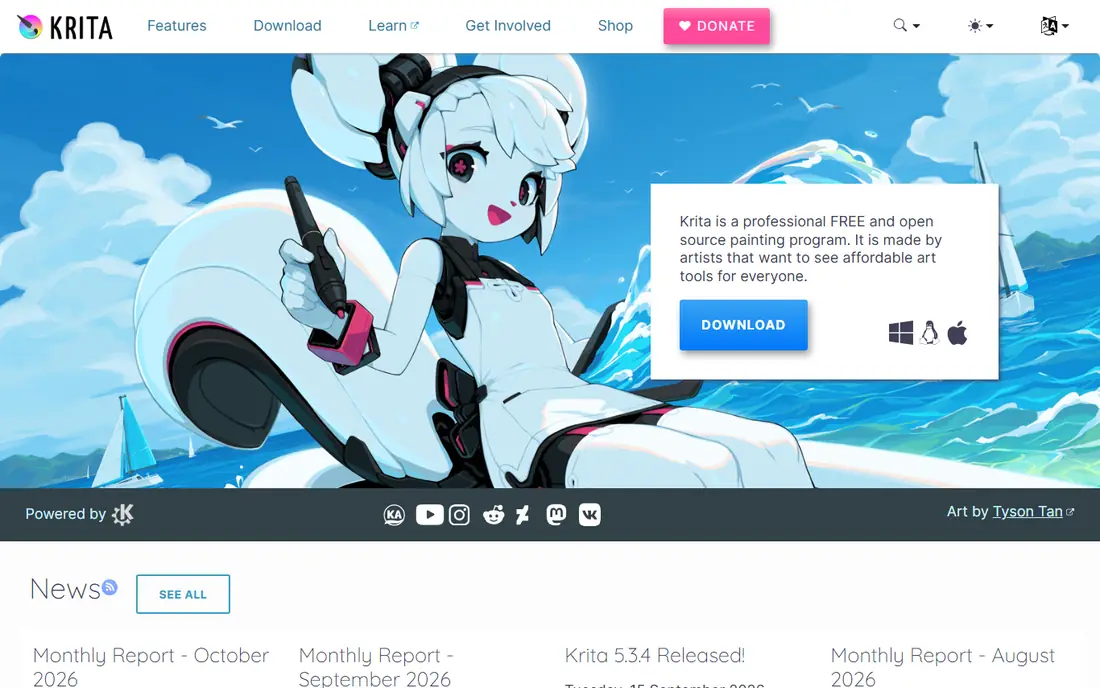
Krita is our pick for most people who want the best free drawing software for PC. It was built for painters, so brushes, stabilisers, and colour tools feel central rather than added on. Layers, masks, and animation timelines cover illustration and short 2D animation in one free app, and it opens common file types including PSD files.
The interface packs a lot in, so new users may need a few sessions to find their preferred layout. Vector tools exist but are not as deep as a dedicated vector editor. On a modest PC, large canvases with many layers can slow down, so keep canvas size sensible while learning. For painting at zero cost, Krita is hard to beat.
- Strong brush engine
- Animation tools included
- No subscription cost
- Weaker for vector work
- Can feel slow on older PCs
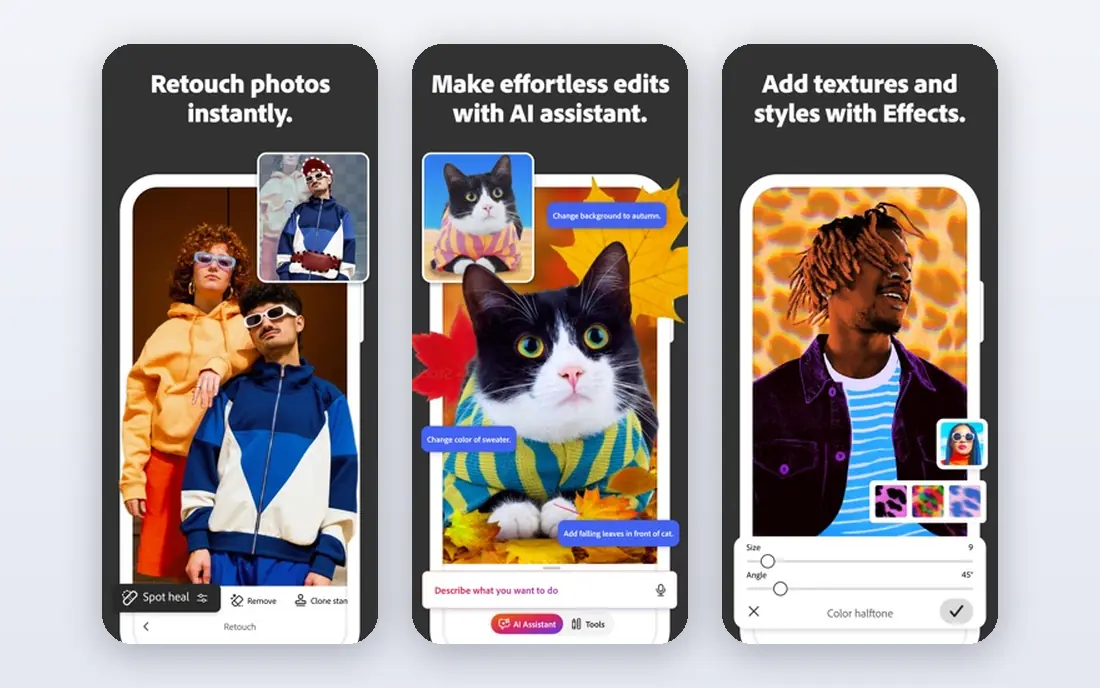
Photoshop suits artists who also edit photos, design graphics, and prepare files for print or web. Brushes, layers, smart objects, and colour controls give deep control over an illustration, and the same app handles retouching and compositing without switching tools. The large tutorial base means most techniques have a clear guide somewhere.
The subscription is the main drawback. Over years, it costs far more than a one-time purchase, and users who only paint may pay for tools they never open. The interface can also overwhelm beginners. Still, for professionals who need one app for many image jobs, Photoshop remains the broadest option on PC.
- Widest toolset for image work
- Strong brush and layer controls
- Large tutorial library
- Subscription cost adds up
- More complex than painting-only apps
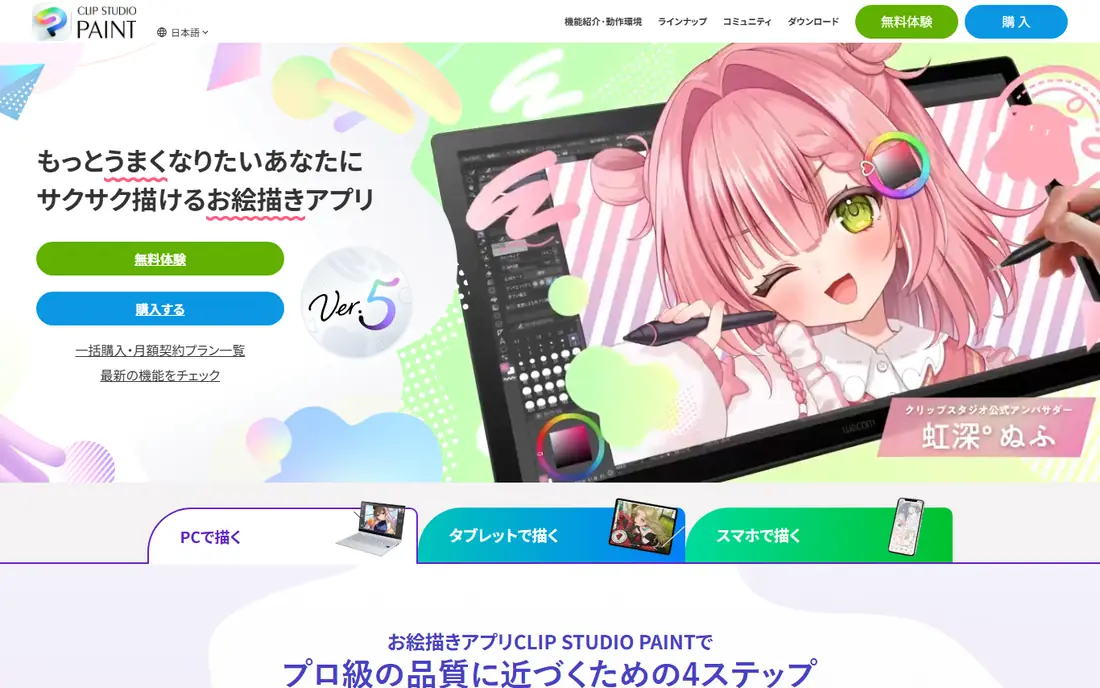
Clip Studio Paint is the first app to try for manga, comics, and webtoons on PC. Panel creation, speech balloons, screen tones, and page management are built for comic production, not bolted on. Inking brushes feel natural for line work, and 3D figure models help with poses and perspective when reference is hard to find.
Pricing needs a close look, because Clip Studio offers both subscription and perpetual licence options that differ by version and device. Check the current page for the exact PC licence before buying. The comic toolset also takes time to learn. For artists who draw comics often, that learning time pays back quickly in faster page production.
- Panel and page tools for comics
- Excellent inking brushes
- 3D models for posing
- Pricing models have changed over time
- Learning curve for comic features
Affinity, now part of Canva, covers vector illustration, photo editing, and page layout through its Designer, Photo, and Publisher apps. Designer handles logos and vector art, Photo handles raster painting and editing, and files move between them with ease. The interface is fast and tidy, which suits artists who want power without clutter.
The trade-off is the surrounding ecosystem. Plugin support and third-party integrations are thinner than Adobe, and teams built around Adobe file workflows may need conversion steps. Check the current pricing and free offer on the official site, since Affinity pricing has changed in recent years. For independent artists, it offers strong value.
- Vector and pixel tools in one suite
- One-time purchase history
- Clean, fast interface
- Smaller plugin range than Adobe
- Some users miss Adobe-only workflows
GIMP is best seen as a free photo editor that can also paint, rather than a painting-first app. It handles retouching, compositing, colour correction, and export for web and print with depth that rivals paid editors for many tasks. Plugins and scripts extend it further, and the open-source community keeps it updated.
For pure painting, Krita usually feels smoother, with better brush handling and a more painter-friendly layout. GIMP also has a learning curve, and its multi-window history can confuse new users until they set a single-window layout. If your PC work mixes photo editing with occasional illustration, GIMP is a strong free companion to Krita.
- Free and open source
- Strong photo editing tools
- Many plugins available
- Painting brushes feel less refined than Krita
- Interface takes getting used to
Inkscape is the free answer for vector work on PC. Logos, icons, diagrams, and illustrations stay sharp at any size, because shapes are defined by paths rather than pixels. Tools for nodes, gradients, text on paths, and boolean operations cover most logo and illustration jobs without paying for a vector suite.
It is not a painting app. Raster brushes, texture painting, and photo work belong in Krita, GIMP, or Photoshop. Very complex vector files with many nodes can also slow Inkscape down. For scalable design work on a budget, Inkscape pairs well with a painting app, giving a complete free toolkit across two apps.
- Full vector toolset free
- Scalable logos and diagrams
- Active community
- Not built for raster painting
- Performance can lag on complex files
MediBang Paint is a light, free option for manga and comic artists who want to start fast on PC. It includes panel tools, tones, and a solid brush set, and cloud sync lets work move between PC and mobile devices. The app runs well on modest hardware, which makes it a good choice for students and beginners.
Advanced painters may find its brush engine and colour tools less deep than Krita or Clip Studio Paint. Some cloud features also need an account, which is a small extra step. For free comic creation with simple sync, MediBang Paint is friendly and capable, and it works well as a first comic app before moving to Clip Studio Paint.
- Free comic tools and cloud sync
- Light on PC resources
- Good brush library
- Fewer advanced painting tools than Krita
- Cloud features need an account
Corel Painter aims to copy traditional media on a PC screen. Watercolour, oil, pastel, and charcoal brushes behave with texture and blending that suit fine-art styles and concept art with a hand-painted feel. Paper textures, grain, and brush customisation give painters room to build a personal style.
The price is higher than most apps here, and the interface packs many panels and options that take time to tame. Painter is also less focused on comic page management or vector work. For artists who want a digital canvas that feels like traditional media, and who will use those brushes daily, Painter justifies its cost.
- Realistic traditional media brushes
- Wide paper and texture options
- Good for fine art styles
- Higher price than many rivals
- Interface can feel dense
FireAlpaca is the simplest app on this list, and that is its strength. Beginners can open it, pick a brush, and start drawing clean lines without wading through menus. It runs fast on older PCs, supports layers, and includes basic comic tools such as panels and perspective guides.
The simplicity has limits. Brush variety, animation, and advanced colour tools are thinner than in Krita, and professionals will outgrow it for complex work. For school projects, sketches, and first steps in digital art, FireAlpaca removes friction. Many artists start here, then move to Krita when they need deeper brushes and animation.
- Very easy to learn
- Light and fast
- Good for clean line art
- Limited advanced features
- Fewer brushes than Krita
How we picked these
We compared official product pages, pricing, and public reviews for PC drawing apps available in October 2026. We required a real Windows version, a clear painting, comic, or vector purpose, and a current download or purchase page. We mixed free and paid apps, and we favoured apps with active updates. We did not claim hands-on testing we did not do, and we wrote See website where pricing varied by licence or region.
What to check before you choose
Start with the job, not the brand. Painters should weigh brush feel and layer tools, comic artists should weigh panel and tone tools, and logo designers should weigh vector tools and export options. Download free trials or free apps first, and test with your own tablet and canvas size.
Tablet and PC needs
Most apps here work with common pen tablets from Wacom, Huion, and XP-Pen, with pressure sensitivity as the key feature. A large screen tablet is not required to start. Check system needs on the vendor page, especially for Photoshop and Painter on older PCs, and keep drivers updated for best pen response.
File types and sharing
If you work with clients, check PSD, SVG, PDF, and PNG export before committing. Krita and Photoshop handle PSD well, Inkscape and Affinity handle SVG and PDF for vector work, and Clip Studio Paint handles comic page export. A mismatch here can cost more time than any brush difference.
Free versus paid
Free apps cover a large share of drawing work, and Krita plus Inkscape form a strong free pair for painting and vector art. Paid apps earn their price through comic production tools, traditional-media brushes, or photo editing depth. Pay when a specific tool saves you hours each week, not for features you may use once.
Frequently asked questions
What is the best free drawing software for PC?
Krita is our top free pick for painting, with Inkscape best for free vector work. Both are free, updated, and capable for hobby and freelance use. Try Krita first for painting and add Inkscape when you need logos or scalable art.
What is the best drawing app for PC free for beginners?
FireAlpaca is easiest to learn, while Krita offers more room to grow. Beginners who want instant results should start with FireAlpaca, then move to Krita when they want more brushes, layers, and animation tools.
Is Clip Studio Paint good for PC?
Yes, Clip Studio Paint has a full Windows version with comic, illustration, and animation tools. Check the current licence type on the official site, since subscription and perpetual options differ. It is a strong pick for manga and comic artists.
What is the best drawing app for PC for comics?
Clip Studio Paint leads for serious comic production, with MediBang Paint as the best free comic option. Both offer panels, tones, and inking tools, while Clip Studio adds deeper page management and 3D posing aids.
Do I need a drawing tablet for PC drawing software?
A mouse can work for simple shapes and vector work, but a pen tablet makes painting and inking far easier. Entry-level tablets with pressure sensitivity are enough to start, and you can upgrade later once you know your workflow.
Can I use these apps for professional work?
Yes, many professionals use Krita, Photoshop, Clip Studio Paint, Affinity, and Corel Painter for paid work. Free apps are not trial versions with watermarks, and paid apps add production tools that speed up client jobs. Choose by output needs, not by price alone.
Sources
See where you really rank - block by block
ProMapRanker scans Google Maps across a grid of your service area. Simple monthly plans from $19, white-label on every plan.
Start freeKeep reading
 best resource management software
Best Resource Management Software in 2026
We compared the best resource management software for scheduling, capacity and utilization, with current pricing and free trials, to help teams choose well.
Read → best reporting tools
Best Reporting Tools in 2026
Compare the best reporting tools for dashboards, scheduled reports, and business insights, from Power BI and Tableau to Looker Studio for every team size.
Read → best remote support software
Best Remote Support Software in 2026
Looking for the best remote support software? We compare 9 tools on price, security, session controls, and fit for helpdesks, MSPs, and small teams in 2026.
Read →