 ProMapRanker
Best Design Software for Beginners in 2026

Key takeaways
- Canva is the default beginner pick, with a useful free plan, a huge template library, and a gentle learning curve.
- Adobe Express suits branded social content at a lower premium price, with Adobe fonts and stock assets.
- Figma suits beginners who want to learn interface design, with a free Starter plan and strong collaboration.
- VistaCreate, Snappa, and Desygner undercut Canva on price for simple social graphics.
- GIMP is free and powerful for photo and image work, but it requires more learning than template tools.
Quick comparison
| Pick | Great for | Pricing starts at | Free tier | |
|---|---|---|---|---|
 Canva | All round beginner design | $18 per month | Yes | Visit |
 Adobe Express | Branded social content | $9.99 per month | Yes | Visit |
 Figma | Learning interface design | $16 per editor per month | Yes | Visit |
 VistaCreate | Affordable Canva alternative | $10 per month | Yes | Visit |
 Snappa | Fast social graphics | $10 per month | Yes | Visit |
 Pixlr | Browser photo editing | $1.99 per month | Yes | Visit |
 PicMonkey | Photo-first design | $7.99 per month | Free trial | Visit |
 Desygner | Budget all-in-one design | $4.95 per month | Yes | Visit |
 GIMP | Free advanced image editing | Free | Yes | Visit |
The best design software for beginners
We compared official pricing, template libraries, photo editing, collaboration, and learning curves for design tools that help non-designers create social graphics, presentations, posters, and simple interface designs.
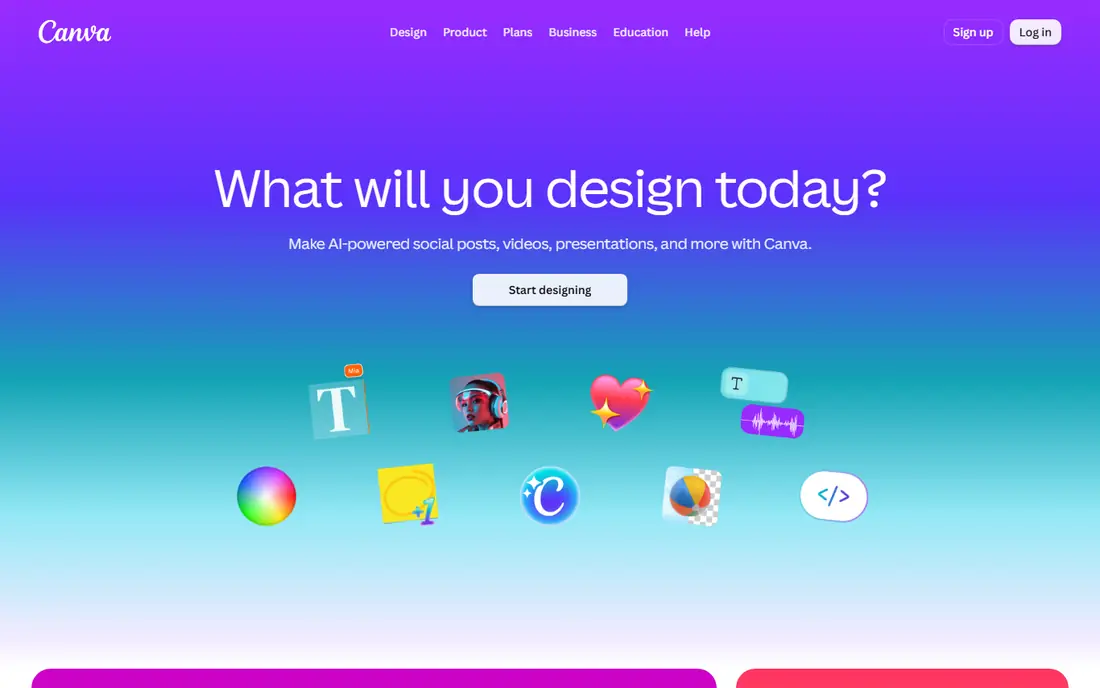
Canva is the safest first design tool for most beginners. Its drag-and-drop editor, template library, and stock photos make it possible to create a good-looking social post, presentation, flyer, or logo draft in minutes, even with no design training. Pro, at $18 per month billed monthly or $144 per year in recent comparisons, adds brand kits, background removal, scheduling, and more premium content.
The limits appear when you need precise typography, vector control, or complex production work. Canva is not a replacement for Illustrator or Photoshop for professional print or interface work. For everyday marketing, school, and small business design, however, it is the most complete beginner tool here.
- Huge template library
- Drag-and-drop editor
- Brand kit, scheduling, and print options on Pro
- Less precise control than specialist tools
- Pro content limits apply after cancellation
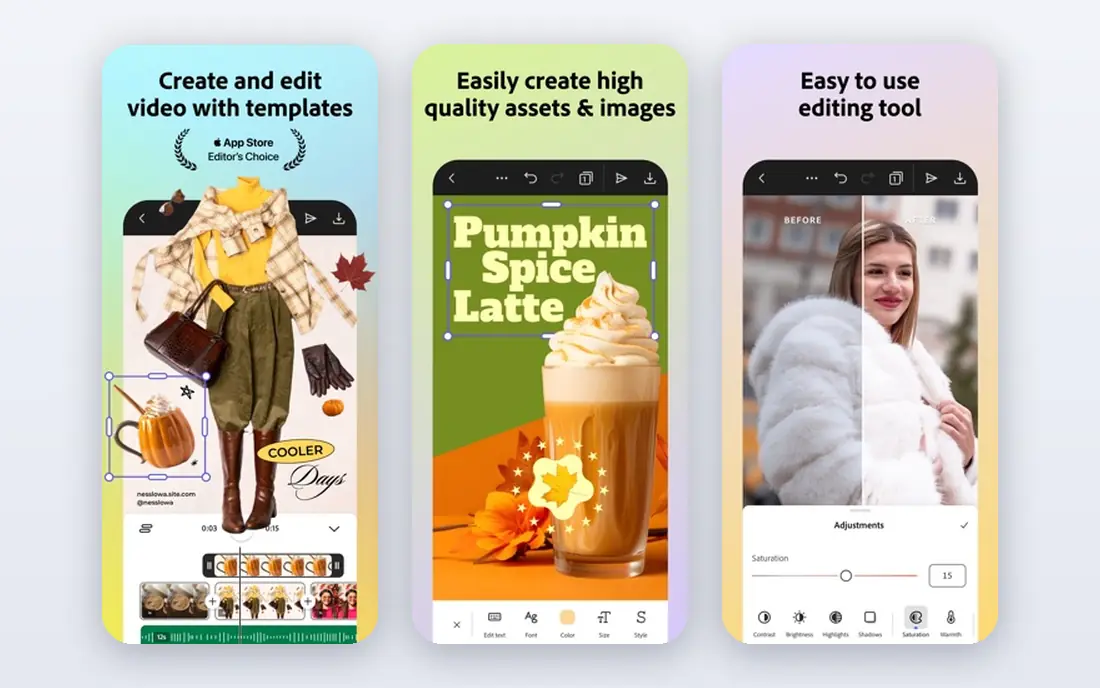
Adobe Express is the budget premium pick from a major vendor. At $9.99 per month, it offers Adobe templates, fonts, and stock assets, plus Firefly AI image features, in a simpler editor than full Creative Cloud apps. That makes it a strong choice for small businesses that want branded social posts, flyers, and short videos without learning Photoshop.
Collaboration is more limited than Canva or Figma, and it suits solo creators and small teams best. If you already use Adobe tools or value Adobe stock and fonts, Express gives you that ecosystem at a lower price than a full Creative Cloud plan.
- Adobe templates, fonts, and stock assets
- Firefly AI features
- Commercially focused asset library
- Fewer collaboration tools than Figma
- Template range is smaller than Canva for some formats
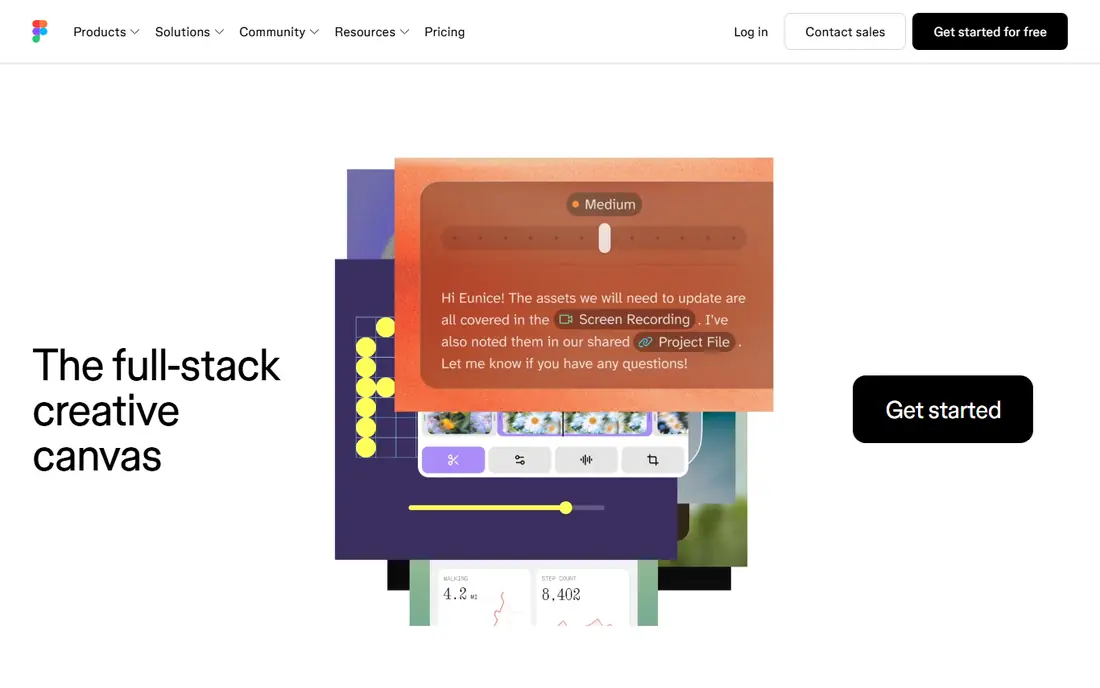
Figma is the beginner tool to choose if you want to learn interface design. Its free Starter plan covers learning projects, and its real-time collaboration, components, and prototyping tools are the standard for app and website design teams. Community files and plugins help beginners learn by studying real designs.
Figma is not a social media scheduler, and it is not a photo editor. Its strength is interface design, wireframes, and design systems. Professional Full seats cost $16 per editor per month billed annually in recent comparisons, but beginners can learn a lot on the free plan before paying.
- Free Starter plan for learning
- Real-time collaboration
- Strong community files and plugins
- Not built for social scheduling or photo editing
- Learning curve is steeper than Canva
VistaCreate, formerly Crello, offers a similar template-based workflow to Canva at a lower premium price, around $10 per month billed annually in recent comparisons. Social posts, animations, posters, and presentations are easy to build, and the free plan covers basic design work.
The ecosystem is smaller than Canva, with fewer integrations and less depth in brand management and scheduling. If price matters and you mainly need social graphics and simple print designs, VistaCreate is a strong alternative that does not feel like a compromise for basic work.
- Large template library
- Lower premium price than Canva
- Easy social and print formats
- Smaller ecosystem than Canva
- Fewer integrations and advanced features
Snappa is built for speed. Pick a platform size, choose a template or stock photo, edit text, and export. That focused workflow suits social media managers, bloggers, and small teams that need a steady stream of graphics without learning a larger design system. Paid plans start around $10 per month billed annually.
Snappa is less useful for presentations, multi-page documents, or complex brand systems. If your main job is fast social graphics, that focus is a strength. If you need a broader design tool, Canva or Adobe Express will cover more formats.
- Very fast social graphic workflow
- Preset sizes for platforms
- Simple editor for non-designers
- Template library is smaller than Canva
- Less suited to presentations or long documents
Pixlr is a browser-based photo editor that suits beginners who want to edit photos without installing software. The free plan covers basic editing, and paid plans start around $1.99 per month billed annually in recent comparisons. Layers, filters, and AI tools help with retouching, background changes, and social image edits.
Pixlr is not a template library in the same way Canva is, so social graphic creation takes more manual work. For photo-first beginners who want a cheap, capable editor in a browser, Pixlr is one of the best value options here.
- Very low premium price
- Browser based photo editing
- Layers and AI tools on paid plans
- Less template depth than Canva
- Interface can feel busy for pure beginners
PicMonkey combines photo editing with design templates, which suits bloggers, sellers, and small businesses that work with product photos and lifestyle images. Touch-up tools, collages, and branding features help create consistent social and shop graphics from real photos.
PicMonkey offers a free trial rather than a permanent free plan, with paid plans starting around $7.99 per month in recent comparisons. If your design work starts with photos rather than blank templates, PicMonkey is a practical middle ground between Pixlr and Canva.
- Photo editing plus design templates
- Branding tools
- Touch-up and collage features
- No permanent free plan
- Less interface design depth than Figma
Desygner is the cheapest premium option in this list, at $4.95 per month billed annually in recent comparisons, with a free plan for basic work. It covers social graphics, posters, documents, and simple brand materials in one app, which suits budget-conscious beginners who want one tool for many formats.
The trade-off is depth. Template quality and range, integrations, and advanced features lag behind Canva and Adobe Express. For simple, everyday design on a tight budget, Desygner is still a solid pick, especially for mobile-first users.
- Very low premium price
- Templates for social, print, and documents
- Mobile and web apps
- Smaller template library than Canva
- Fewer advanced features and integrations
GIMP is the free, open-source alternative to Photoshop for image editing. It handles layers, masks, retouching, and complex image work at no cost, and a large community offers tutorials and plugins. For beginners who want to learn real image editing without paying, GIMP is the most capable free tool here.
The learning curve is real. GIMP has no Canva-style template library, and its interface takes time to learn. Choose GIMP when you want to grow into serious photo editing, and pair it with Canva or Adobe Express for fast social templates if you need both skills.
- Completely free
- Powerful photo and image editing
- Large plugin and community support
- Steep learning curve
- No template library like Canva
- Interface feels dated to some users
How we picked these
We compared official pricing pages, free plan limits, template libraries, photo editing depth, and learning curves for design tools available now on web and mobile. We favored tools with a real free plan or trial, a gentle start for non-designers, and a clear path to more advanced work. We did not claim hands-on testing, and we treated third-party pricing comparisons as a starting point to verify with each vendor.
What to check before you choose
Start with your main output
Social graphics suit Canva, Adobe Express, Snappa, and Desygner. Photo editing suits Pixlr, PicMonkey, and GIMP. Interface design suits Figma. Presentations suit Canva and VistaCreate. Pick the tool that matches the output you create most often.
Test the free plan with a real project
Create a real post, flyer, or presentation on the free plan, including export and sharing. Check whether watermarks, export limits, or premium templates block your workflow. A free plan that looks generous but blocks your main export format is not a good fit.
Keep brand basics simple
Pick two fonts, a small color set, and a consistent logo placement, and use them across every design. Brand kits in Canva and Adobe Express help enforce that consistency, but even a simple note with your colors and fonts will improve results more than any premium feature.
Learn one advanced skill at a time
Beginners often try to learn layers, masks, typography, and animation at once. Pick one skill, such as clean text hierarchy or photo cropping, practice it for a few projects, then add the next skill. That steady path works better than jumping between tools every week.
Frequently asked questions
What are the best graphic design tools for beginners?
Canva is the best all-round beginner tool, Adobe Express is the best budget premium pick for branded content, and Figma is the best pick for learning interface design. VistaCreate, Snappa, and Desygner offer cheaper template-based alternatives for social graphics.
Is Canva free enough for beginners?
Yes, for many beginners. The free plan covers a large template library, basic editing, and exports for social and print work. Pro adds brand kits, background removal, premium content, and scheduling, so pay only when those features save you real time each week.
Is Figma good for beginners?
Figma is good for beginners who want to learn interface design, with a free Starter plan and strong community resources. It is less suited to quick social graphics or photo editing, where Canva or Pixlr will feel faster. Choose Figma when your goal is app or website design.
What is the best free design software?
Canva offers the best free template-based design, GIMP offers the best free advanced image editing, and Figma offers the best free interface design starter plan. Pixlr and Desygner also offer useful free plans for photo and social work. The best free pick depends on your main output.
Do I need Adobe Creative Cloud as a beginner?
No, most beginners do not need full Creative Cloud. Adobe Express covers branded social and simple design work at a lower price, and Canva covers broader template work. Move to Creative Cloud only when you need Photoshop, Illustrator, or other specialist tools regularly.
How long does it take to learn design software?
Template tools such as Canva can feel comfortable within hours, while photo editors such as GIMP and interface tools such as Figma take weeks of regular practice to feel fluent. Short, regular projects teach faster than long tutorials, so design something real each week.
Sources
See where you really rank - block by block
ProMapRanker scans Google Maps across a grid of your service area. Simple monthly plans from $19, white-label on every plan.
Start freeKeep reading
 best virtual meeting platform
Best Virtual Meeting Platforms in 2026
Searching for the best virtual meeting platform? We compare 9 video meeting tools on price, free plans, capacity, and features for teams of all sizes.
Read → best social media reporting tools
Best Social Media Reporting Tools in 2026
Compare the best social media reporting tools in 2026, with pricing and free plans, and the right pick for creators, agencies, and large marketing teams.
Read → best social media platforms for business
Best Social Media Platforms for Business in 2026
We compared the best social media platforms for business, from Facebook and Instagram to LinkedIn and TikTok, with ad strengths and who each platform suits.
Read →