 ProMapRanker
Best Content Creation Apps in 2026

Key takeaways
- Canva is the easiest all-round starting point, with a free plan that covers many everyday design jobs.
- Adobe Express is the lower-cost paid option for creators who want strong fonts and stock assets.
- CapCut and Descript suit video-first creators, while InVideo and Lumen5 suit script-to-video work.
- Check the free plan limits before you pay, since templates, exports, and AI credits differ a lot.
Quick comparison
| Pick | Great for | Pricing starts at | Free tier | |
|---|---|---|---|---|
 Canva | Everyday social and brand design | Free | Yes | Visit |
 Adobe Express | Polished design with Adobe fonts and stock | $9.99 per month | Yes | Visit |
 CapCut | Short-form social video | See website | Yes | Visit |
 Descript | Podcasts and talking-head video | $16 per month | Yes | Visit |
 InVideo | Script-to-video marketing clips | $20 per month | Yes | Visit |
 Lumen5 | Turning articles into social video | See website | Yes | Visit |
 Animoto | Simple slideshow and promo video | See website | Yes | Visit |
 Visme | Presentations, infographics, and documents | See website | Yes | Visit |
The best content creation apps for most people
We compared official pricing pages, feature lists, and public reviews to build this list. The picks below cover different budgets and workflows, so the right choice depends on what you publish, how often, and what you are willing to pay. Start with the comparison table, then read the two or three entries that match your main job.
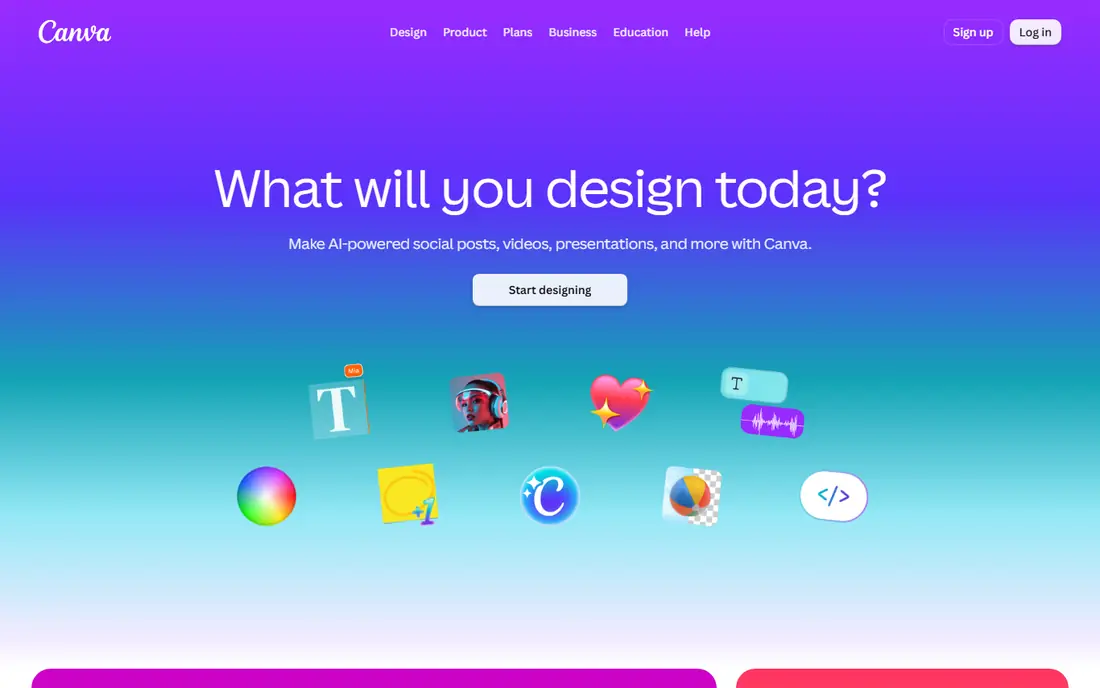
For many creators, Canva is the first app to open when a post, flyer, or presentation is due. Its strength is speed. Templates, stock assets, and one-click resizing turn a blank page into a finished design in minutes, and brand kits keep colors and fonts consistent across posts. The free plan is useful, but premium elements are marked and AI use is limited, so heavy users will feel the cap. A typical workflow is to pick a size, apply a brand kit, swap in your own text and photos, and export for each channel. Pick Canva if you publish often, work alone or in a small team, and want one app for graphics, slides, and short video.
- Large template library
- Easy brand kits
- Scheduling on paid plans
- Premium assets can carry a watermark on the free plan
- AI use is capped
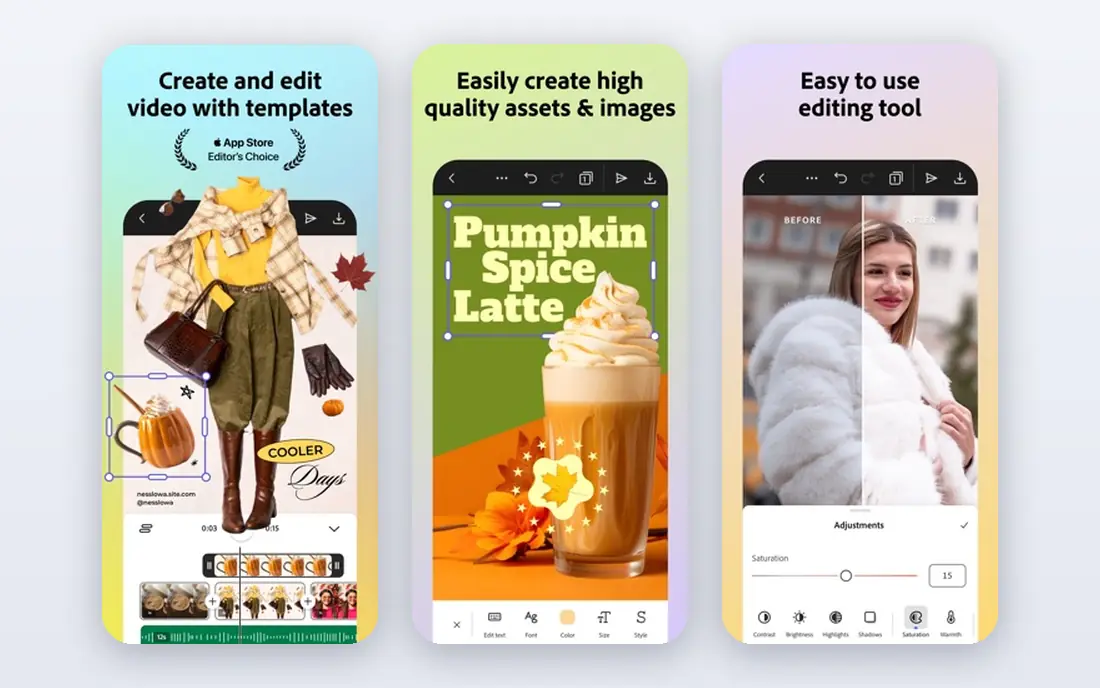
Adobe Express appeals to creators who care about type and image quality. Its strength is polish. Adobe Fonts and stock assets give designs a finished look, and Firefly tools help with image edits and background removal without opening desktop software. The trade-off is performance. Complex canvases can feel slower on modest hardware, and the social scheduling tools are not the main focus. A typical workflow is to start from a template, refine the type and image, and export a clean file for social or print. Pick Adobe Express if you already use Adobe tools, want strong fonts, and value a lower monthly paid price than Canva Pro.
- Large Adobe font library
- Firefly image tools
- 100GB storage on Premium
- Heavier on older computers
- Scheduling is less central than in Canva
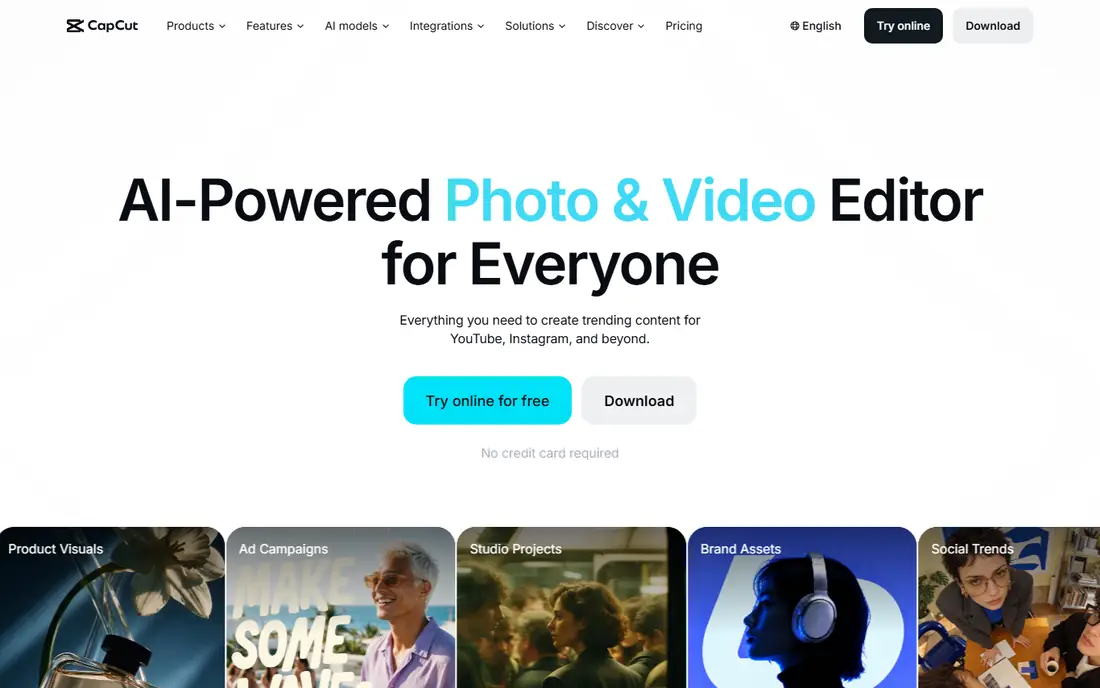
CapCut is built for the pace of TikTok, Reels, and Shorts. Its strength is momentum. Templates, captions, and effects are close at hand, so a rough clip can become a publishable short video in one sitting. The trade-off is pricing clarity. Published prices vary by region and by app store versus web checkout, so check your own upgrade screen before you budget. A typical workflow is to trim clips, add captions and music, apply a template or effect, and export in vertical format. Pick CapCut if short video is your main output and you want a fast phone-first editor with a usable free tier.
- Fast short-form editing
- Auto-captions
- Trend templates
- Paid prices vary by region and platform
- Advanced AI tools need a paid plan
Descript changes editing by letting you edit words instead of waveforms. Its strength is cutting. Delete a sentence in the transcript and the audio and video follow, which makes trimming interviews and podcasts much faster than scrubbing a timeline. The trade-off is scope. It is not a full motion-graphics editor, and the free plan caps transcription time and export quality. A typical workflow is to transcribe, cut filler words, clean the audio, add captions, and export clips for social. Pick Descript if you publish podcasts or talking-head video and spend more time cutting than adding effects.
- Transcript-based editing
- Filler-word removal
- Studio Sound audio cleanup
- Free exports are watermarked and limited to 720p
- Long projects can feel slow
InVideo suits creators who start with a script and need a finished video draft fast. Its strength is assembly. It turns text prompts or scripts into a structured video with stock clips, voiceover, and captions, which you can then edit on a timeline. The trade-off is originality. Stock-based drafts can look familiar, so plan time to swap clips and adjust pacing for your brand. A typical workflow is to paste a script, pick a style, review the draft, and replace weak clips before export. Pick InVideo if you need regular marketing videos and want a draft in minutes rather than a blank timeline.
- Prompt and template video creation
- Stock library
- Timeline editing on paid plans
- Free exports carry a watermark
- Credit limits shape how much you can make
Lumen5 is useful when you already have written content and want video versions of it. Its strength is repurposing. It pulls text from an article, suggests scenes and stock footage, and formats the result for social feeds. The trade-off is control. Automated scene choices still need review, and free plan branding and resolution limits may push regular users to a paid plan. A typical workflow is to paste an article link, edit the scene text, choose visuals, and export square or vertical versions. Pick Lumen5 if you run a blog or newsletter and want steady social video without filming new footage each week.
- Blog-to-video workflow
- Stock media
- Brand styling
- Free plan limits resolution and branding options
- Pricing is not a single public figure for all plans
Animoto keeps video creation simple for people who do not want a full editor. Its strength is clarity. You add photos and clips, pick a style and music, add text, and get a clean slideshow or promo video without learning a timeline. The trade-off is depth. If you need precise cuts, layered audio, or complex effects, you will outgrow it sooner than a full editor. A typical workflow is to upload media, arrange the order, set the pace and music, and share the finished video. Pick Animoto if you make promos, recaps, or family and business slideshows and want a gentle learning curve.
- Easy drag-and-drop video builder
- Licensed music
- Simple branding
- Less suited to detailed timeline editing
- Advanced features need a paid plan
Visme is a better fit when your content is a deck, report, or infographic rather than a social post. Its strength is structure. Templates for presentations, reports, and data visuals help you present numbers and ideas in a clear, readable layout. The trade-off is focus. It is not a video-first editor, and free plan download limits matter if you publish often. A typical workflow is to pick a presentation or infographic template, add your data and charts, apply brand colors, and export or share a link. Pick Visme if you create decks, reports, and visual documents and want charts and layouts in the same tool.
- Templates for presentations and infographics
- Charts and data visuals
- Brand tools
- Free plan limits downloads and premium assets
- Video editing is not its focus
How we picked these
We checked each vendor official feature page, pricing page, and app store listing where available, and we read privacy policies and public reviews for context. We only listed products that are available in October 2026 and that truly fit the topic. Where a price could not be confirmed as a single public figure, we wrote See website rather than guessing. We did not claim hands-on testing, and we treated free plans, trials, and paid tiers as different things, since they often are. We also weighed fit over fame. A well-known tool that does not match the topic was left out, and a smaller tool that does the job well was kept in. Prices change, so check the vendor site before you buy, and test the free plan or trial on a real task before committing to a paid plan. A final check matters as much as the feature list. Read the plan limits for seats, storage, exports, and monthly credits, and confirm how support works when something goes wrong. A tool that fits your budget but caps the exact job you do every day will cost more in workarounds than a slightly pricier plan that covers that job. Keep notes from your trial, compare the total at your real team size, and only then choose a plan that you can keep for at least a year.
How to choose a content creation app
Start with the format you publish most. If most of your work is social graphics, a template app will save more time than a video editor. If most of your work is talking-head video, a transcript editor or a short-form editor will matter more than a large template library. Make a short list of three jobs you do every week, then test each app on one real job, not on a demo project. Look at export quality, watermark rules, and how long the finished file takes to share. Paid plans are worth it when they remove a repeated step, such as resizing, captioning, or brand formatting. They are less useful when you only publish a few times a month. Keep your brand files in one place, and check whether the app lets you export in the formats your channels need. Set a review date after the first month. Check whether you used the paid features, whether the reports or exports matched what you needed, and whether anyone on your team struggled with the tool. If the answer is no on two of those points, try the next pick on your shortlist before the renewal date. A good tool should feel easier after a month, not harder, and it should save time on the jobs you repeat most often.
Frequently asked questions
Do I need a paid plan to start creating content?
No. Most apps on this list have a free plan that covers basic design or editing. Paid plans add premium templates, higher export quality, and more AI credits, so start free and upgrade only when a limit slows your work.
Which app is best for short social videos?
CapCut is a strong choice for short vertical video, with templates and captions built for that format. Descript is better when you edit by transcript and want to cut filler words from longer talking-head clips.
Can I use these apps on a phone and a computer?
Most of them work on both, though the feature set can differ. Canva, Adobe Express, and CapCut have solid mobile apps, while Descript and Visme are more comfortable on a desktop for longer projects.
Are free plans really free?
Yes, but they have limits. Some free exports carry a watermark, some cap export quality, and some limit premium templates or AI use. Read the free plan details on the vendor site before you build a large project around it.
What should I check before subscribing?
Check the monthly and annual price, the renewal terms, and what happens to premium assets if you cancel. Also check whether the plan you want includes commercial use for the channels where you publish.
Sources
See where you really rank - block by block
ProMapRanker scans Google Maps across a grid of your service area. Simple monthly plans from $19, white-label on every plan.
Start freeKeep reading
 free alternatives to grok imagine
Free Alternatives to Grok Imagine in 2026
We compared the best free alternatives to grok imagine for image generation, from fast daily credits to design tools, so you can create without paying.
Read → best tools for instagram content creation
Best Tools for Instagram Content Creation in 2026
Compare the best tools for Instagram content creation, from Canva and CapCut to Later and Buffer, on design, video, planning, scheduling, and price in 2026.
Read → best tool to split pdf files
Best Tool to Split PDF Files in 2026
We compared the best tool to split pdf files on split modes, file limits, privacy and price, so you can split a PDF cleanly and keep every page in one go.
Read →