 ProMapRanker
Best CAD Software for Home Use in 2026

Key takeaways
- FreeCAD is the strongest free all-round choice for home mechanical parts, while LibreCAD and QCAD suit pure 2D drafting.
- Fusion for personal use and Onshape Free suit hobby 3D work, but both carry non-commercial limits that matter if you later sell designs.
- SketchUp Free and Tinkercad are the easiest starts for room layouts and simple 3D prints, with clear limits on precision and export.
- OpenSCAD suits people who like code-driven parametric parts, while nanoCAD Free suits Windows users who want an AutoCAD-like 2D feel.
- Check export formats before committing, since a tool that cannot export DXF, DWG, or STL cleanly can trap a finished project.
Quick comparison
| Pick | Great for | Pricing starts at | Free tier | |
|---|---|---|---|---|
 FreeCAD | Free parametric 3D and 2D work | Free | Yes | Visit |
 LibreCAD | Free 2D drafting | Free | Yes | Visit |
 QCAD | Clean 2D drafting | Free | Yes | Visit |
 Fusion | Personal 3D design and printing | See website | Yes | Visit |
 SketchUp Free | Room and furniture layouts | Free | Yes | Visit |
 Onshape Free | Browser-based parametric CAD | Free | Yes | Visit |
 Tinkercad | Simple first 3D models | Free | Yes | Visit |
 OpenSCAD | Code-driven parametric parts | Free | Yes | Visit |
 nanoCAD Free | AutoCAD-like 2D DWG work | Free | Yes | Visit |
The best cad software for home use
Home CAD covers several different jobs: a floor plan, a dimensioned part for a 3D printer, a furniture layout, or a simple 2D drawing for a workshop. No one tool is best for all of them. We compared official feature pages, pricing and licence pages, documentation, and public reviews, with a focus on cost, export, and learning curve.
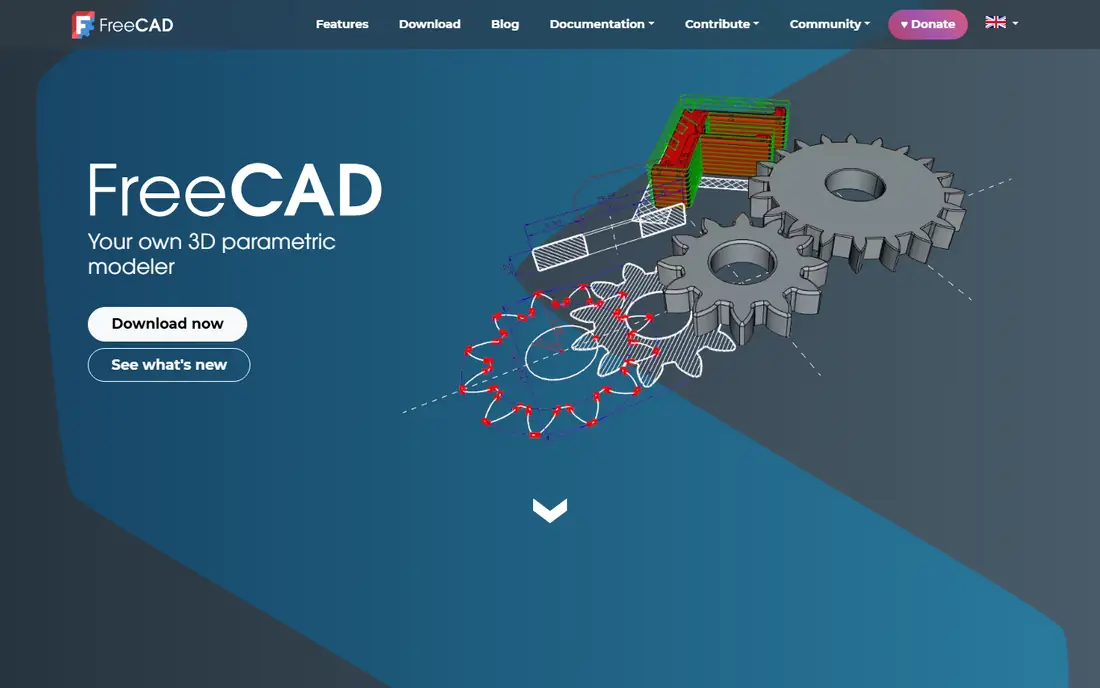
FreeCAD is the most capable free CAD tool for home use, and it costs nothing. Its parametric approach means a dimension can be changed later and the model updates, which matters when a printed part needs a second version with a slightly larger hole or a thinner wall. Workbenches cover sketching, part design, architecture, CAM toolpaths, and more, so one install can grow with a hobby.
The learning curve is honest. FreeCAD does not hold your hand the way a simple browser tool does, and new users should expect tutorial time before a first polished part. For a home maker who wants real CAD without a subscription, that effort is worth it. For a quick room sketch, a simpler tool will be faster.
- Fully free and open source
- Parametric modelling with workbenches
- 2D drawings from 3D models
- Interface can feel complex for beginners
- Some workbenches need time to learn
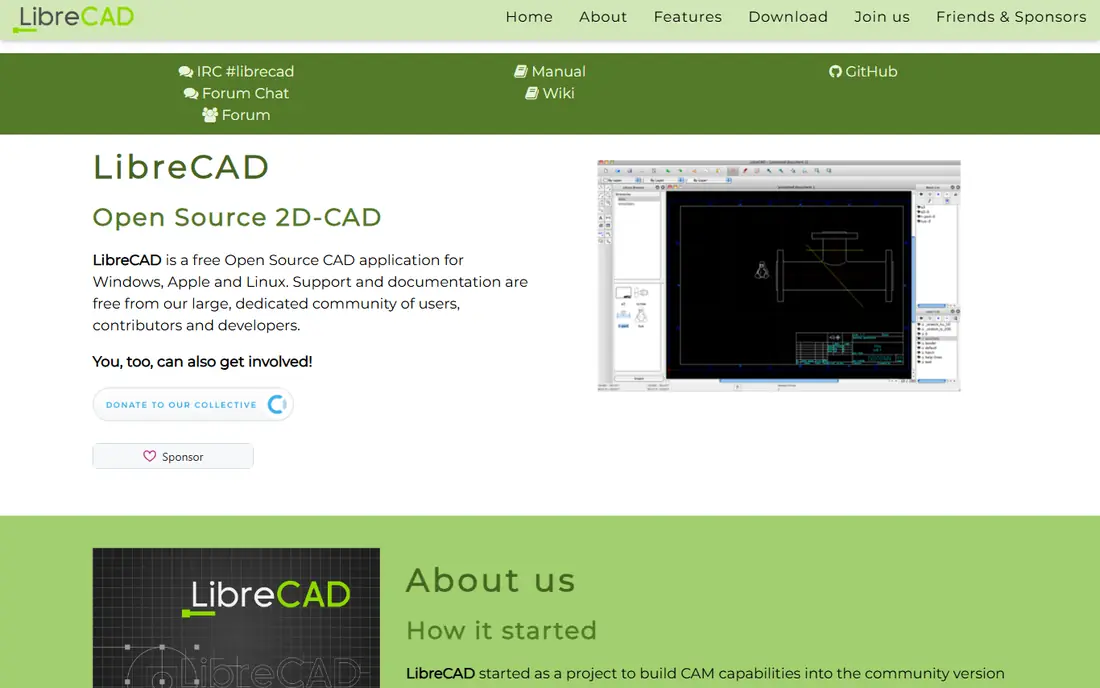
LibreCAD answers a narrow question well: how do I draw a clean 2D plan for free. It handles lines, dimensions, layers, and annotations, and it reads and writes DXF, which suits laser cutting, workshop drawings, and simple floor plans. It runs on Windows, Mac, and Linux, and it stays light on older machines.
It offers no 3D, no parametric modelling, and no BIM features, so it is not a substitute for FreeCAD or Fusion when a part must be printed. That narrow focus is also its strength. A home user who only needs 2D drafting gets a fast, honest tool with no licence, no trial clock, and no subscription.
- Completely free and open source
- Lightweight and fast
- Strong for plans and DXF work
- 2D only, with no 3D modelling
- DWG handling relies on conversion
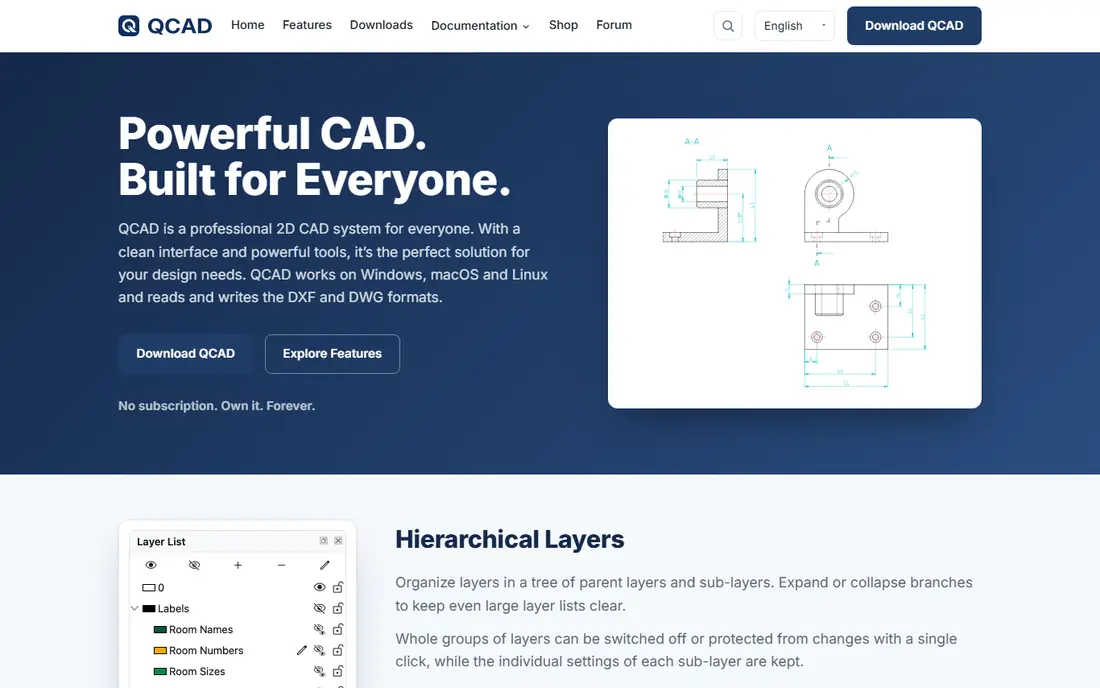
QCAD Community Edition feels more polished than LibreCAD for many users, with a clean interface and a straightforward drafting workflow. It suits floor plans, workshop drawings, and technical layouts where precision matters more than 3D visualisation. The free edition covers core 2D work well.
DWG is the detail to check. The free community edition focuses on DXF, while DWG support is part of the paid QCAD Professional version. If you exchange files regularly with AutoCAD users, confirm which format your workflow needs before choosing between QCAD and LibreCAD. For DXF-led home work, QCAD is a tidy, dependable pick.
- Polished 2D interface
- Community edition is free
- Good for floor plans and technical drawings
- Community edition is DXF-focused
- DWG support sits in the paid Pro version
Fusion for personal use brings professional-grade modelling into a home workshop at no cost for qualifying non-commercial use. Parametric parts, assemblies, CAM toolpaths, and 2D drawings sit in one workflow, which helps when a home project moves from a printed prototype to a machined part. The tool is widely taught, so tutorials and community help are easy to find.
Licence limits matter. Personal use is non-commercial, with limits on active documents and on some export options, and those terms should be read before a project grows. If you later sell designs, a paid plan will be needed. For hobby parts, home CNC, and 3D printing, Fusion remains one of the strongest free routes to professional methods.
- Professional-grade parametric modelling
- CAM and 2D drawing tools
- Strong for 3D printing and CNC
- Personal use is non-commercial with limits
- Some exports are restricted in the free tier
SketchUp Free is the fastest way to see a room or a furniture idea in 3D. Its push-pull method lets a beginner draw a shape, pull it into a solid, and move walls or furniture around without learning CAD jargon. Because it runs in a browser, it works on most home computers without an install.
Precision and export are the limits. The free version is for personal, non-commercial use, and its export options are narrower than a paid desktop CAD tool. It is not the right choice for a dimensioned machine part. It is an excellent choice for a kitchen layout, a shed plan, or a first visualisation to discuss with family or a builder.
- Very easy push-pull modelling
- Browser-based
- Good for rooms, furniture, and concepts
- Free version is browser-only with limited exports
- Not a precision engineering tool
Onshape Free offers full parametric CAD without installing software, which suits home users on a Chromebook, a tablet, or a shared computer. Models update from sketches and features in the usual parametric way, and collaboration is built in, so a friend or a maker group can view and comment on a design. That browser approach removes most hardware barriers.
The catch is privacy. Documents on the free plan are public, which means designs are visible to others. That is fine for open hobby projects and learning, but not for a private invention or a gift you want to keep secret. If public documents are acceptable, Onshape Free is one of the most capable free CAD options available.
- Full parametric CAD in a browser
- Strong collaboration
- Runs on almost any device
- Free plan documents are public
- Non-commercial limits apply
Tinkercad is where many home makers start, and its simplicity is deliberate. Shapes are dragged, combined, and sized in a browser, and a finished model can be exported for 3D printing. Children, beginners, and anyone who wants a quick bracket, holder, or prototype can succeed in a single sitting.
Depth is the limit. Tinkercad does not offer parametric history, dimension-driven sketches, or engineering tolerances in the way FreeCAD or Fusion do. Treat it as a first step and a teaching tool, not as a long-term engineering platform. When a project needs precise fits, move to FreeCAD, Fusion, or Onshape.
- Extremely beginner-friendly
- Browser-based
- Good for kids and first prints
- Very basic precision and modelling depth
- Not suited to engineering parts
OpenSCAD takes a different path to CAD: you write code, and the model follows. A part defined by variables can be resized by changing a number, which makes it ideal for parametric prints such as boxes, mounts, and enclosures in many sizes. The results are precise, repeatable, and easy to share as a short script.
The workflow is the barrier. There is no click-and-drag modelling, so visual designers may find it slow at first. Programmers and technically minded makers often love it for exactly that reason. If you enjoy code and want a library of adjustable parts, OpenSCAD is a powerful, free home tool.
- Free and open source
- Precise code-driven parametric design
- Excellent for repeatable prints
- No interactive mouse modelling
- Code workflow puts off visual designers
nanoCAD Free suits Windows users who want a familiar AutoCAD-like experience without paying. Its interface, commands, and DWG handling feel close to AutoCAD for 2D drafting, which shortens learning time for anyone who has used AutoCAD before. For home DWG viewing and editing on Windows, it is a practical free option.
Limits need checking. The free version is for non-commercial use, it runs on Windows only, and its DWG support reflects older format versions, so very new DWG files may need conversion. Mac and Linux users should choose LibreCAD, QCAD, or FreeCAD instead. Windows users with older DWG files will find nanoCAD Free a comfortable fit.
- Familiar AutoCAD-like interface
- Native DWG 2D work
- Windows desktop drafting
- Windows only
- Free version is non-commercial with older DWG limits
How we picked these
We compared official feature pages, licence and pricing pages, documentation, and public reviews for CAD tools that work for home projects in 2026. We kept tools that are live, that cover 2D drafting, parametric 3D, room planning, or code-driven design, and that offer a genuinely free tier or free edition. We used See website where a vendor does not publish a simple home price, and we noted non-commercial limits where they affect home use.
How to choose for your home project
Match the tool to the output, not to the brand. For a floor plan or a workshop drawing, start with LibreCAD or QCAD. For a printed or machined part, start with FreeCAD or Fusion for personal use. For a room layout, start with SketchUp Free. For a browser-based parametric model, test Onshape Free, and remember its public-document rule.
Check export before you invest hours. Confirm that your chosen tool exports the format your printer, cutter, builder, or collaborator needs, whether that is DXF, DWG, STL, or PDF. Also check licence terms if you might sell a design later, since several free tiers are non-commercial. A short test project, from sketch to export, answers both questions faster than reading feature lists.
Frequently asked questions
What is the best CAD software for home use?
FreeCAD is the best free all-round choice for home mechanical and 3D work, while LibreCAD is the best free choice for pure 2D drafting. SketchUp Free suits room layouts, and Fusion for personal use suits hobby 3D printing and CNC. The best pick depends on whether your project is 2D, 3D, a room, or a printed part.
What is the best free 2D drafting software?
LibreCAD and QCAD Community Edition are the strongest free 2D drafting options. LibreCAD is fully open source and DXF-friendly, while QCAD offers a polished interface with DXF focus in its free edition. nanoCAD Free is a good Windows alternative for AutoCAD-like DWG work, within its non-commercial limits.
Can I use Fusion for free at home?
Yes, Autodesk offers Fusion for personal use at no cost for qualifying non-commercial projects, with limits on active documents and some exports. Read the current personal-use terms before starting, since limits change. If you start selling designs, you will need a paid plan.
Is SketchUp Free enough for a home renovation plan?
SketchUp Free is enough for a concept layout, furniture placement, and visual discussion with a builder. It is not enough, on its own, for a full construction drawing set with precise dimensions and permits. For that stage, a dimensioned 2D tool such as LibreCAD or QCAD, or a professional drawing, is a safer route.
Which free CAD tool is best for 3D printing?
FreeCAD and Fusion for personal use are the strongest free choices for precise, printable parts, while Tinkercad suits simple first prints and learning. OpenSCAD suits code-driven parametric parts. Choose by precision needs: simple shapes favour Tinkercad, fitted parts favour FreeCAD or Fusion.
Sources
See where you really rank - block by block
ProMapRanker scans Google Maps across a grid of your service area. Simple monthly plans from $19, white-label on every plan.
Start freeKeep reading
 wpforms alternatives
Best WPForms Alternatives in 2026
We compare 9 wpforms alternatives for WordPress forms, with free and paid options, current pricing notes, and honest limits for small business sites in 2026.
Read → windows task scheduler alternatives
Best Windows Task Scheduler Alternatives in 2026
Looking for Windows Task Scheduler alternatives? We compare 9 schedulers for Windows and cross-platform work, from free tools to enterprise automation.
Read → which ai video service is best
Which AI Video Service Is Best in 2026
which ai video service is best? We compare 10 legitimate AI video services on price, avatars, editing and output quality to help you pick the right tool.
Read →