 ProMapRanker
Best CAD Software for 3D Printing in 2026


Serious functional parts and near-pro CAD · Pricing starts at: Free
Key takeaways
- For functional parts, parametric CAD beats mesh sculpting, because you can change a dimension and rebuild the part.
- Tinkercad, FreeCAD, Blender, and OpenSCAD are free, while Fusion, Onshape, and SketchUp offer free tiers with limits.
- Fusion is the best bridge to professional work, FreeCAD is the best fully free parametric tool, and Blender is best for organic shapes.
- Check export options before you commit, because a good model still needs a clean STL or 3MF file for your slicer.
- Start with the simplest tool that can make your part, then move up only when a project demands it.
Quick comparison
| Pick | Great for | Pricing starts at | Free tier | |
|---|---|---|---|---|
| Autodesk Fusion | Serious functional parts and near-pro CAD | Free | Yes | Visit |
 Tinkercad | Absolute beginners and first prints | Free | Yes | Visit |
 FreeCAD | Fully free parametric modeling | Free | Yes | Visit |
 Blender | Organic shapes, sculpting, and art models | Free | Yes | Visit |
 Onshape | Browser-based parametric CAD for teams | Free | Yes | Visit |
 SketchUp | Fast concept and boxy models in a browser | Free | Yes | Visit |
 Shapr3D | Tablet and stylus modeling | Free | Yes | Visit |
 OpenSCAD | Code-based parametric functional parts | Free | Yes | Visit |
The best cad software for 3d printing
CAD for 3D printing means designing a model that a slicer can turn into printable layers. The tools below cover the full range, from block-based beginners to professional engineering CAD, with a focus on models that actually print well.
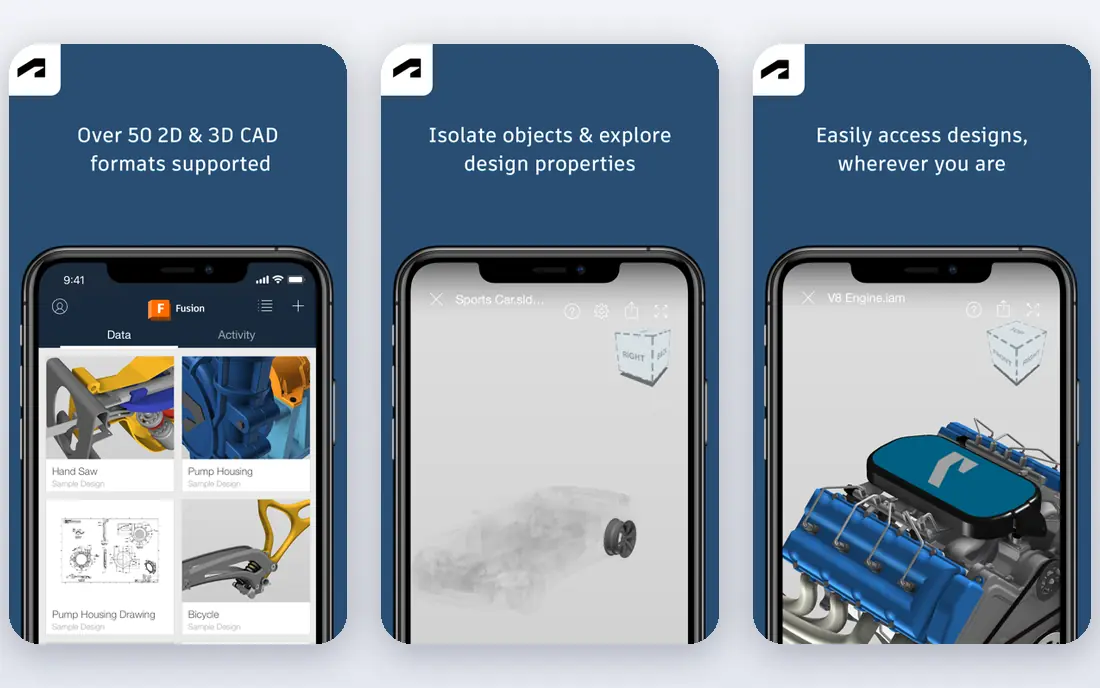
Fusion is the tool most serious hobbyists graduate to. Parametric sketches, constraints, and assemblies let you design a bracket, an enclosure, or a mechanical part with real dimensions, then change one measurement and rebuild the model. The personal use tier is free for non-commercial projects, while paid plans were listed from $680 per year in comparisons.
The personal tier limits documents and some import and export types, and commercial use needs a paid plan. Fusion also needs periodic internet checks for licensing. For functional printing, though, no other tool on this list balances professional CAD depth and a free entry point as well.
- Full parametric CAD with assemblies and drawings
- Free personal use tier
- Strong STL and 3MF export
- Personal tier has document and feature limits
- Needs periodic online license checks
- Learning curve is real
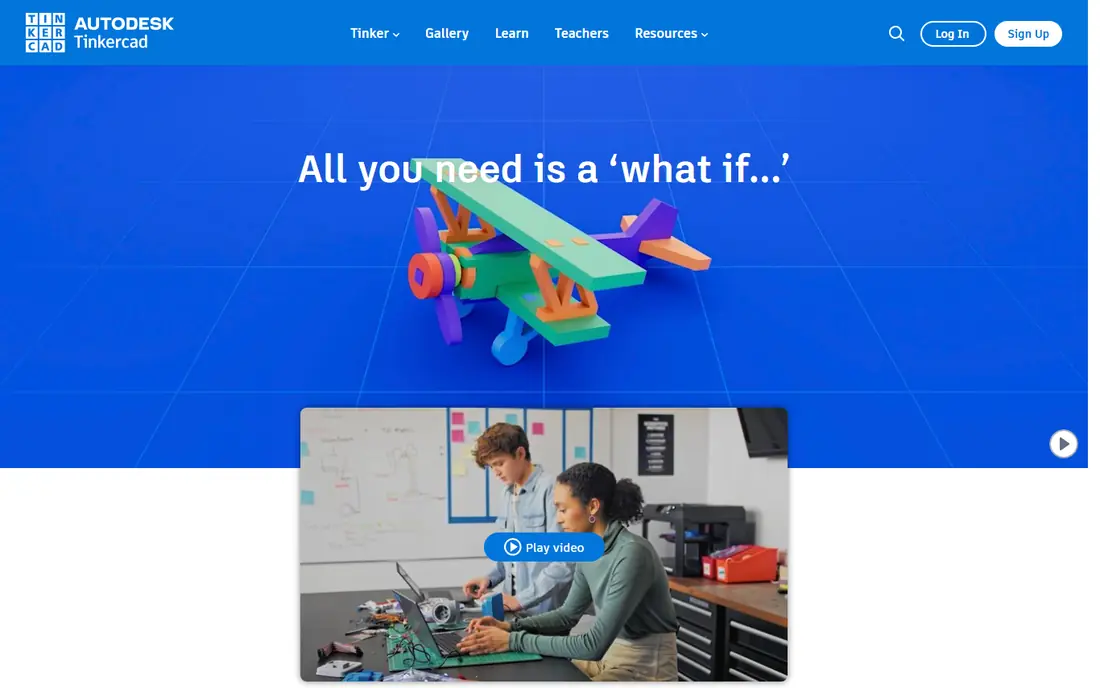
Tinkercad is where a first print should start. You drag basic shapes onto a workplane, combine or cut them, and export an STL for your slicer. A free Autodesk account is all you need, and there is no software to install, which makes it ideal for classrooms and first-time makers.
The simplicity is also the ceiling. Tinkercad cannot handle precise parametric parts, complex assemblies, or detailed engineering work. Use it to learn the basics and print simple parts, then move to Fusion or FreeCAD when a project needs real dimensions and revisions.
- Free browser tool with no install
- Drag and drop shapes
- Fast path to a first STL
- Very limited for complex or precise parts
- No real parametric history
- Browser only
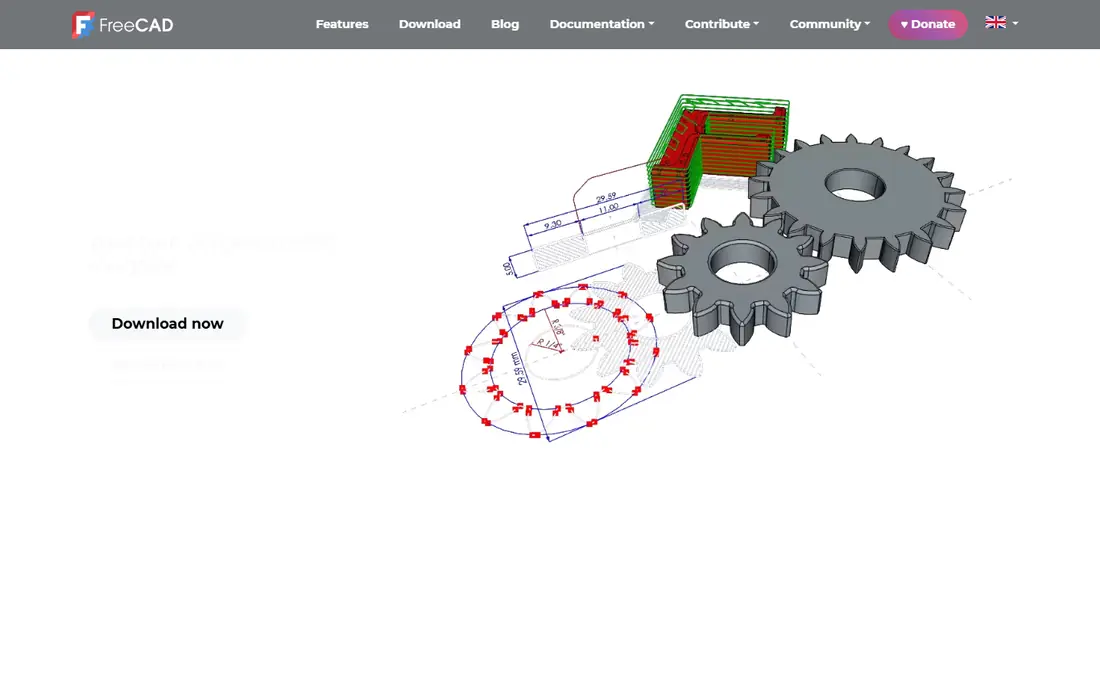
FreeCAD is the best fully free parametric CAD tool on this list. It is open source, with no commercial restriction and no expiring license, and it supports sketches, constraints, assemblies, and STEP and STL export. For a maker who wants professional-style parametric work without a subscription, FreeCAD is the clear pick.
The interface is less polished than Fusion, and some tasks take more steps or need community add-ons. New users should follow a structured tutorial for the first few parts, because the workflow is powerful but not obvious at first glance. Once it clicks, FreeCAD can handle serious functional printing.
- Open source and fully free, including commercial use
- True parametric modeling
- STEP, STL, and OBJ export
- Interface feels less polished
- Learning curve is steeper than Tinkercad
- Some workflows need add-ons
Blender is the tool for characters, miniatures, cosplay parts, and organic art. Sculpting, mesh editing, and texturing are far ahead of CAD tools for those shapes, and the software is free and open source, with commercial use allowed for what you create.
Blender is not a good choice for a bracket that must fit a bolt hole exactly. It lacks parametric sketches and dimension-driven history, so changing a size means editing mesh by hand. Use Blender for art and organic forms, and use Fusion or FreeCAD for functional parts that must fit.
- Free and open source
- Best sculpting and organic modeling
- Strong mesh editing and STL export
- Not parametric CAD
- Poor choice for precise mechanical dimensions
- Steep learning curve
Onshape brings professional parametric CAD to a browser. No install is needed, teams can work on the same model with version history, and export includes STL, STEP, and Parasolid formats. That makes it a strong choice for classrooms, teams, and makers on Chromebooks or tablets.
The free tier catch is privacy: free documents are public. If you need private commercial work, a paid plan is required. Onshape also needs an internet connection, unlike FreeCAD and Blender. For collaborative parametric work, it is still one of the best tools on this list.
- Full parametric CAD in a browser
- Strong collaboration and version history
- STL, STEP, and Parasolid export
- Free documents are public, not private
- Needs internet
- Paid plans needed for private professional work
SketchUp is the fastest way to model a boxy idea. Push and pull tools let you shape rooms, furniture, enclosures, and simple brackets in a browser, and the free web version is enough for many personal projects. Paid plans were listed from $129 per year in comparisons.
SketchUp is not a mechanical CAD tool. Precise parametric parts, assemblies, and engineering drawings are weaker here than in Fusion, FreeCAD, or Onshape. It also limits commercial use on the free version. Use SketchUp for fast concepts and simple prints, not for parts with tight tolerances.
- Fast and easy to learn
- Free web version
- Good for rooms, furniture, and boxy forms
- Free version is personal use only
- Weaker for precise mechanical parts
- STL export needs care on free tier
Shapr3D is the standout for tablet modeling. Drawing with an Apple Pencil on an iPad feels direct in a way that mouse-based CAD does not, and the app also runs on Windows and macOS. That makes it a good choice for makers who sketch ideas by hand and want to turn them into printable models.
The free Basic plan is limited to two designs, and Pro was listed at $299 per year in comparisons. Free STL export is also lower resolution in some descriptions, so check current terms before relying on it. For iPad-first makers, Shapr3D is still the most natural modeling experience here.
- Excellent iPad and stylus workflow
- Direct modeling feels natural
- STL export for printing
- Free Basic plan limited to two designs
- Pro was listed at $299 per year
- Desktop depth is less than Fusion
OpenSCAD is CAD for people who like code. You write a script that defines shapes, holes, and dimensions, and the model rebuilds exactly when you change a number. That makes it ideal for parametric brackets, mounts, enclosures, and other functional parts that need precise, repeatable sizes.
The trade-off is that there is no drag-and-drop modeling or sculpting. If you do not like writing code, OpenSCAD will feel slow and abstract. For programmers and engineers who print many variants of the same part, it is one of the most reliable free tools available.
- Free and open source
- Models are code, so dimensions are exact and repeatable
- Excellent for brackets and mounts
- No visual dragging or sculpting
- Code learning curve
- Slow for organic or artistic shapes
How we picked these
We compared official product pages, documentation, and current CAD guides for tools that exist and work in October 2026. We kept only tools that can design a model and export a printable mesh or CAD file, and we left out slicers such as PrusaSlicer, Bambu Studio, and Cura, which prepare a model for printing but do not design it. Where a free tier had limits, we noted them rather than calling the tool fully free. We did not claim hands-on testing.
How to choose CAD software for 3D printing
Match the tool to the part, not the hype
A simple keychain needs Tinkercad, a bracket needs Fusion, FreeCAD, or OpenSCAD, and a character needs Blender. Starting with a professional tool for a simple part wastes learning time, while starting with a simple tool for a precise part wastes print time.
Check the export path first
Confirm that the tool exports STL or 3MF cleanly to your slicer, and that the free tier does not limit export resolution or format. A beautiful model that exports badly will fail in the slicer or print with defects. Test one small part end to end before a large project.
Think about revisions
Parametric tools let you change a dimension and rebuild. Mesh tools force manual edits. If a part will go through several versions, such as a mount that must fit a real object, choose a parametric tool from the start, even if it takes longer to learn.
Use free tiers to learn, then pay only for privacy or commercial use
Tinkercad, FreeCAD, Blender, and OpenSCAD are fully free. Fusion, Onshape, SketchUp, and Shapr3D offer free tiers with limits on documents, privacy, or commercial use. Learn on a free tier, and pay when a project needs private documents, commercial rights, or full features.
Frequently asked questions
What is the best CAD software for 3D printing for beginners?
Tinkercad is the best starting point, because it is free, browser based, and fast to learn. Once you can make simple parts confidently, move to FreeCAD or Fusion for parametric work, or Blender for organic shapes.
What is the best free CAD software for 3D printing?
FreeCAD is the best fully free parametric CAD tool, with no commercial restriction. Blender is the best free tool for organic models, and OpenSCAD is the best free tool for code-based functional parts. Tinkercad is the best free tool for absolute beginners.
Is Fusion 360 free for 3D printing?
Fusion offers a free personal use tier for non-commercial projects, with limits on documents and some features. Commercial work needs a paid plan, listed from $680 per year in comparisons. Check the current Autodesk terms before building a commercial workflow on the free tier.
Can I use Blender for 3D printing?
Yes, Blender exports STL and other mesh formats for slicers, and it is excellent for organic and artistic models. It is weaker for precise mechanical parts, because it lacks parametric sketches and dimension-driven history. Use Blender for art, and Fusion or FreeCAD for parts that must fit.
What file format should CAD software export for 3D printing?
STL is the most widely supported format, and 3MF is a newer format that can carry more model data. Most slicers accept both. Confirm that your CAD tool exports a clean, manifold mesh, and check the sliced preview for errors before printing.
Do I need CAD software, or can I download models?
You can download models from sites such as Printables and Thingiverse and print them without CAD. CAD becomes necessary when you need to customize a size, fix a fit, or design an original part. Learning basic CAD turns a printer from a copy machine into a design tool.
Sources
- https://www.autodesk.com/products/fusion-360/overview
- https://www.tinkercad.com
- https://www.freecad.org
- https://www.blender.org
- https://www.onshape.com
- https://www.sketchup.com
- https://www.shapr3d.com
- https://openscad.org
- https://rankite.com/blog/best-3d-cad-software-for-hobbyist
- https://www.meshy.ai/blog/best-free-3d-modeling-software
See where you really rank - block by block
ProMapRanker scans Google Maps across a grid of your service area. Simple monthly plans from $19, white-label on every plan.
Start freeKeep reading
 best resource management software
Best Resource Management Software in 2026
We compared the best resource management software for scheduling, capacity and utilization, with current pricing and free trials, to help teams choose well.
Read → best reporting tools
Best Reporting Tools in 2026
Compare the best reporting tools for dashboards, scheduled reports, and business insights, from Power BI and Tableau to Looker Studio for every team size.
Read → best remote support software
Best Remote Support Software in 2026
Looking for the best remote support software? We compare 9 tools on price, security, session controls, and fit for helpdesks, MSPs, and small teams in 2026.
Read →