 ProMapRanker
Best Backup Software in 2026


Backup plus security in one package · Pricing starts at: $49.99 per year
Key takeaways
- Imaging tools such as Macrium Reflect and Acronis restore a whole PC, while cloud tools such as Backblaze protect files off-site.
- Veeam Agent, AOMEI Backupper and EaseUS Todo Backup offer capable free options for local backup.
- Backblaze is the simplest hands-off cloud backup for one PC, with unlimited storage on its personal plan.
- Always test a restore and your rescue media, since a backup you cannot restore is not a backup.
- Our pick for most home users is Acronis for a complete package, with Macrium close behind for imaging quality.
Quick comparison
| Pick | Great for | Pricing starts at | Free tier | |
|---|---|---|---|---|
| Acronis Cyber Protect Home Office | Backup plus security in one package | $49.99 per year | Free trial | Visit |
 Macrium Reflect Macrium Reflect | Reliable Windows imaging | $49.99 per year | Free trial | Visit |
 Backblaze Computer Backup Backblaze Computer Backup | Hands-off cloud backup | $99 per year | No | Visit |
 EaseUS Todo Backup EaseUS Todo Backup | Simple imaging for beginners | $29.95 per year | Yes | Visit |
 AOMEI Backupper AOMEI Backupper | Budget imaging with free tier | $39.95 per year | Yes | Visit |
 Veeam Agent for Windows Veeam Agent for Windows | Free whole-PC imaging | Free | Yes | Visit |
 IDrive IDrive | Multi-device cloud backup | See website | Yes | Visit |
 Carbon Copy Cloner Carbon Copy Cloner | Mac cloning and scheduling | $49.99 | Free trial | Visit |
The best backup software
Backup software covers two different jobs. Imaging copies a whole drive so you can restore Windows or macOS exactly as it was after a crash. File and cloud backup copies documents, photos and other files to an external drive or to the cloud, so you can recover them after deletion, ransomware or theft. The best setup often combines both: a local image for fast recovery, plus a cloud copy for off-site protection. The tools below cover that range.
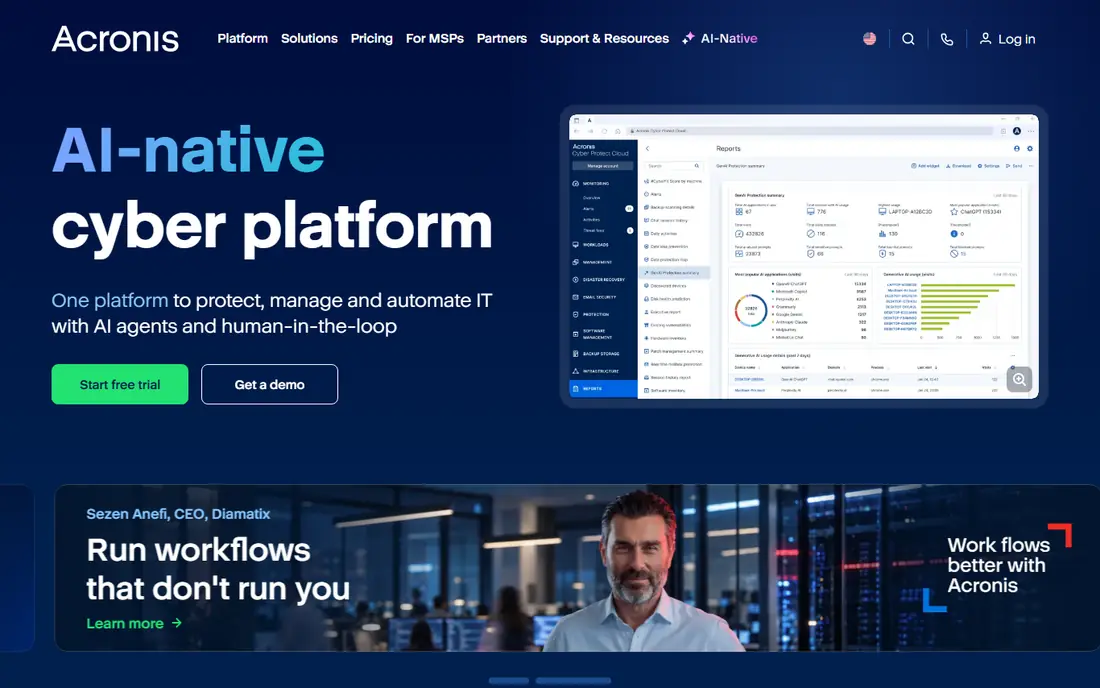
Acronis Cyber Protect Home Office, formerly True Image, is the most complete home backup package in this list. It creates full disk images, file and folder backups, and cloud copies, with scheduling, versioning and rescue media for bare-metal recovery. It also adds anti-malware, anti-ransomware and web protection, which suits households that want backup and security in one subscription rather than separate tools. Cloud storage is available on higher plans, so a local image can be paired with an off-site copy.
That breadth comes with a subscription and a busy interface. Users who only want a simple weekly image may find Acronis more than they need, and cloud storage limits vary by plan. Still, for a household that wants one product to cover imaging, file backup, cloud backup and basic security, Acronis is the strongest all-round choice. Test the rescue media once after installing, as you should with any imaging tool.
- Full disk imaging plus file backup
- Anti-malware and anti-ransomware features
- Optional cloud storage
- Subscription pricing
- Interface has many features for simple users
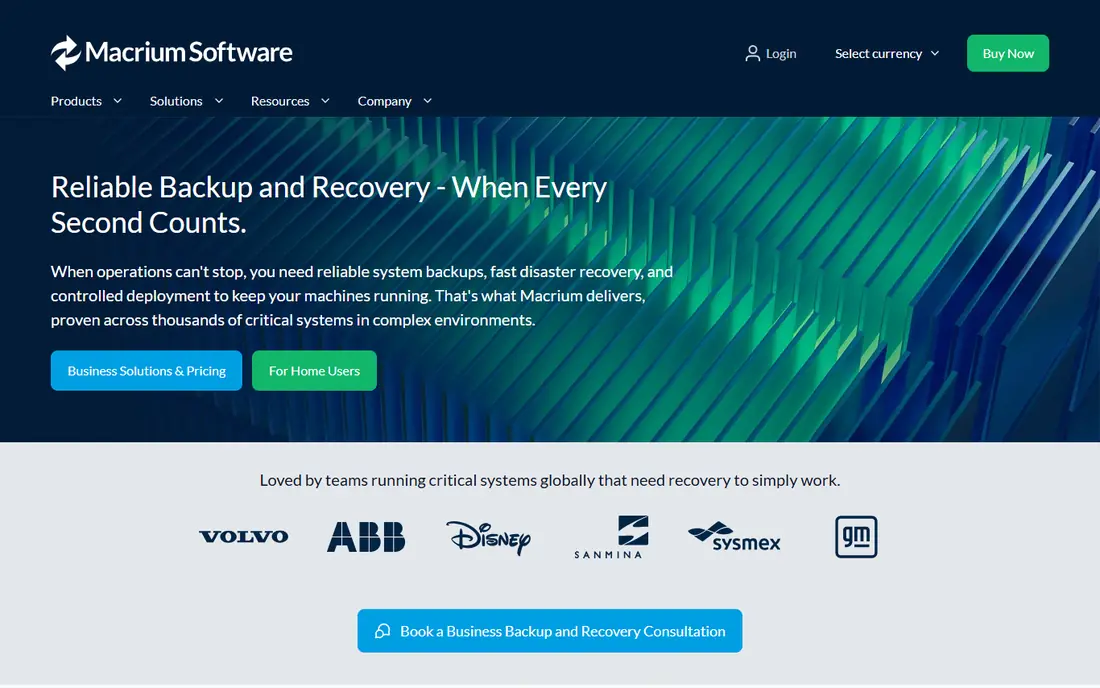
Macrium Reflect X Home is known for imaging quality and restore reliability on Windows. It creates full, incremental and differential images, schedules them automatically, and builds rescue media on USB so you can restore a PC that will not boot. Its interface is focused on imaging, which makes it easier to understand than a suite with many extra features. For a Windows user whose main fear is a dead drive or a failed update, Macrium is a dependable choice.
It does not include bundled cloud storage, so off-site protection needs a separate cloud tool or a drive kept elsewhere. It is also Windows only, so Mac users should look at Carbon Copy Cloner or a cloud tool instead. If your priority is a local image you can trust, with clear scheduling and a tested rescue USB, Macrium Reflect is our imaging pick.
- Reliable scheduled imaging
- Fast incremental backups
- Rescue media builder
- No bundled cloud storage
- Windows only
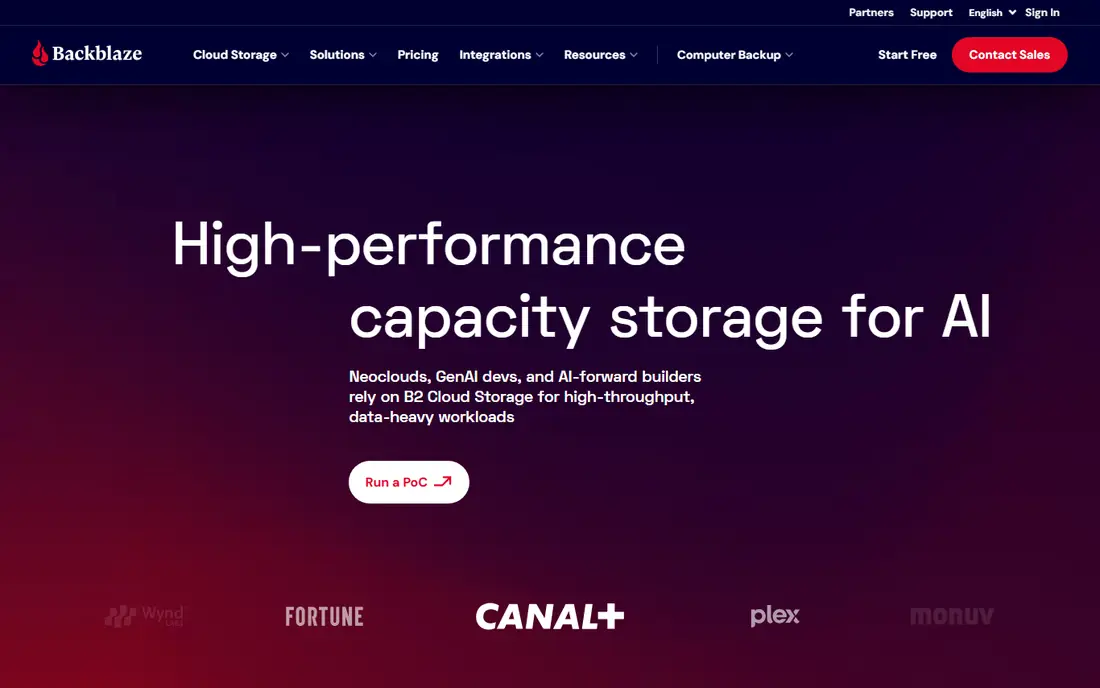
Backblaze Computer Backup is the simplest cloud backup for a single PC or Mac. Once installed, it backs up user files continuously to the cloud, with unlimited storage on the personal plan, and you can restore files by download or by ordering a shipped drive. There is little to configure, which suits users who want backup to happen without thinking about schedules, drives or image files. Version history lets you recover an earlier version of a file, which helps after accidental edits or ransomware.
Backblaze is not a disk imaging tool, so it will not restore Windows or macOS exactly as it was, with apps and settings intact. You would reinstall the system, then restore files from Backblaze. Per-PC pricing also adds up for households with many computers. For off-site file protection with minimal effort, Backblaze is the easiest option in this list, and it pairs well with a local image tool.
- Unlimited storage for one PC
- Automatic and continuous backup
- Simple restore by download or drive shipment
- No disk imaging for full system restore
- Per-PC pricing adds up for many computers
EaseUS Todo Backup suits beginners who want imaging without a technical manual. Its interface explains backup types clearly, it covers disk imaging, partition backup and file backup, and it supports scheduling and rescue media. The free edition covers basic imaging and file backup, which is enough for many home users with an external drive. Paid plans add more features, such as faster incremental backups and cloud options.
It is not as deep as Macrium for imaging specialists, and its cloud offering is less complete than Backblaze or Acronis. For a first imaging tool, that simplicity is a plus, since a backup tool you actually set up beats a powerful tool you never configure. If you want a low-cost, easy start with a free tier, EaseUS Todo Backup is a sensible choice.
- Easy interface
- Disk imaging and file backup
- Free edition for basic use
- Some advanced features need paid plans
- Cloud options are limited compared with Acronis
AOMEI Backupper is a budget-friendly all-rounder with a genuinely useful free edition. Backupper Standard covers system backup, disk imaging, disk cloning, file backup and scheduling, which is more than many free tools offer. That makes it a good pick for a home user who wants free imaging plus free cloning when upgrading to a new drive. Paid plans add features such as universal restore, faster backups and more scheduling options.
The interface is functional rather than polished, and some advanced features sit behind paid plans. AOMEI also relies on external drives or cloud folders for off-site copies, rather than bundled cloud storage. For free local backup and cloning, AOMEI Backupper is one of the best values in this list, especially for Windows users on a tight budget.
- Strong free Standard edition
- Disk cloning and imaging
- System backup and scheduling
- Interface is less polished than some rivals
- Some features need paid plans
Veeam Agent for Windows brings enterprise backup DNA to a free home tool. The free edition creates whole-PC images, volume-level backups and file backups, with scheduling to a local drive, external drive or network location. It is reliable and well documented, and it suits users who want a solid free image without paying for a suite. Paid per-workload licences add central management and more features for businesses.
The interface is more technical than EaseUS or AOMEI, and the free edition has no bundled cloud storage. Veeam Agent is best for a technically comfortable user who wants free, dependable imaging, or for a small office that already uses Veeam elsewhere. For a simple home setup, pair it with an external drive and test the recovery media, as with any imaging tool.
- Free whole-PC imaging
- Enterprise-grade reliability
- Scheduled backups to local or network targets
- Interface is more technical
- No bundled cloud storage on free edition
IDrive is a cloud backup service built for households and small businesses with many devices. One account can back up PCs, Macs, phones and tablets, with storage shared across devices, file versioning and sharing features. That multi-device model suits a family with several computers and phones, where a per-PC tool would cost more in total. IDrive also offers a free plan with limited storage for testing, and paid plans with larger storage tiers.
Unlike Backblaze personal backup, IDrive storage is capped by plan, so a household with very large photo or video libraries should check the storage tier carefully. Pricing also varies by promotion, so check the current IDrive pricing page before buying. If you need one cloud account for many devices, rather than unlimited backup for one PC, IDrive is the better fit.
- Backs up many devices under one account
- File versioning and sharing
- Mobile backup options
- Storage is capped by plan, unlike unlimited single-PC tools
- Pricing varies by promotion
Carbon Copy Cloner is the Mac user's answer to imaging, with a focus on bootable clones. It copies a Mac drive to an external drive in a form you can boot from, which makes recovery after a drive failure much faster than reinstalling macOS and restoring files. Scheduling, automation and task history are clear, and it handles incremental updates efficiently. For Mac owners who want more control than Time Machine offers, Carbon Copy Cloner is a well-regarded choice.
It is Mac only, and it does not include bundled cloud storage, so off-site protection needs a separate cloud tool or a drive kept elsewhere. Pricing is a one-time purchase for the personal version, with a trial available, though terms should be checked on the Bombich site. If you use a Mac and want a bootable clone you can trust, Carbon Copy Cloner is our Mac pick.
- Bootable Mac clones
- Flexible scheduling and automation
- Clear task history
- Mac only
- No bundled cloud storage
How we picked these
We compared official pricing pages, feature documentation and public reviews, and we favoured tools that are actively sold in October 2026 and clearly cover imaging, file backup or cloud backup for home and small business users. We mixed free, paid and cloud options, and Windows and Mac tools, so readers can match a tool to their system and budget. Prices are entry-level list prices where we could verify them, and we used See website where pricing varies by promotion or storage tier. We did not claim hands-on testing, and we based our notes on published features and documentation.
Building a backup plan that actually works
Follow a simple rule: keep three copies of important data, on two different types of storage, with one copy off-site. In practice, that means a local image or file backup on an external drive, plus a cloud backup for off-site protection. A local copy gives fast recovery after a drive failure, while a cloud copy protects against theft, fire or flood. Either copy alone leaves a gap.
Test your plan before you need it. Create rescue media, boot from it once, and restore a few files to a test folder to confirm the backup is readable. Check that scheduled backups are actually running, and watch for warnings about a full drive or a failed job. Set a reminder to review backup storage every few months, since photo and video libraries grow faster than expected. A backup plan that is tested, scheduled and off-site is worth far more than a powerful tool that was never configured.
Frequently asked questions
What is the best backup software for PC?
For a Windows PC, Acronis Cyber Protect Home Office is the most complete package, Macrium Reflect is best for imaging quality, and Backblaze is best for hands-off cloud backup. Veeam Agent, AOMEI Backupper and EaseUS Todo Backup offer strong free local options. The best choice depends on whether you need a full system image, a cloud copy, or both.
What is the best backup software for Mac?
Carbon Copy Cloner is best for bootable Mac clones, while Backblaze and IDrive cover cloud backup for Macs. Time Machine, built into macOS, is a useful free starting point for local backup. For full protection, pair a local clone or Time Machine backup with a cloud copy off-site.
What is the best local backup software?
Macrium Reflect, Acronis, AOMEI Backupper, EaseUS Todo Backup and Veeam Agent are all strong local backup tools, with imaging to an external drive or network location. AOMEI and Veeam offer capable free editions, while Macrium and Acronis offer more polished paid imaging. Always test rescue media, since a local image you cannot boot from will not help after a crash.
Is free backup software enough?
Free backup software is enough for many home users, especially for local imaging and file backup to an external drive. Veeam Agent, AOMEI Backupper Standard and EaseUS Todo Backup Free all cover basic imaging at no cost. Free tools usually lack bundled cloud storage, so add a cloud service or an off-site drive if you want protection against theft or fire.
How often should I back up?
Back up important files continuously or daily if you use a cloud tool, and run a full image at least weekly for a PC you depend on. Schedule incremental images daily or weekly, depending on how often your files change, and keep several versions so you can recover from a mistake made days ago. Check backup reports regularly to catch failed jobs early.
What is the difference between imaging and file backup?
Imaging copies a whole drive, including the operating system, apps and settings, so you can restore a PC to its previous state after a crash. File backup copies selected documents, photos and other files, which is simpler and uses less storage, but requires reinstalling the system and apps first. Many users need both: an image for fast system recovery, and a cloud file backup for off-site protection.
Sources
See where you really rank - block by block
ProMapRanker scans Google Maps across a grid of your service area. Simple monthly plans from $19, white-label on every plan.
Start freeKeep reading
 zoom alternatives
Best Zoom Alternatives in 2026
Compare Zoom alternatives in 2026, with free meeting limits and prices, so you can pick the best alternative to Zoom for your team, class, or community.
Read → which software is best for remote work
Which Software Is Best for Remote Work in 2026
Answering which software is best for remote work, we compare Slack, Zoom, Asana, Notion, Teams and more, with pricing and honest tradeoffs in 2026 now.
Read → which ai tool is best for content writing
Which AI Tool Is Best for Content Writing in 2026
Wondering which ai tool is best for content writing? We compare ChatGPT, Claude, Jasper, Grammarly, and more on price, quality, and best use in 2026 now.
Read →