 ProMapRanker
Best App to Scan Old Photos in 2026

Key takeaways
- Google PhotoScan is the best free start for small batches, thanks to its guided multi-shot glare control.
- Photomyne is the fastest choice for large albums, since it can capture several prints in one shot.
- Pic Scanner Gold suits iPhone users who want a one-time purchase instead of another subscription.
- SlideScan and FilmBox handle slides and negatives, which general photo scanners do not cover well.
- Keep an untouched copy of every scan before editing, so a filter or crop never becomes your only version.
Quick comparison
| Pick | Great for | Pricing starts at | Free tier | |
|---|---|---|---|---|
 Google PhotoScan | Free scans with glare control | Free | Yes | Visit |
 Photomyne | Digitizing whole albums fast | See website | Yes | Visit |
 SlideScan | Scanning slides at home | See website | Free trial | Visit |
 FilmBox | Previewing old negatives | See website | Free trial | Visit |
 Pic Scanner Gold | iPhone scanning without a subscription | See website | No | Visit |
 Unfade | Quick scans on the go | See website | Yes | Visit |
 FamilySearch Memories | Attaching scans to a family tree | Free | Yes | Visit |
 Heirloom | Sending prints for professional scanning | See website | No | Visit |
 PhotoScanRestore | Repairing scans after capture | See website | Yes | Visit |
The best app to scan pictures
We compared apps that are still available in October 2026, that handle printed photos rather than documents only, and that state their pricing or free limits plainly. Our pick for most people is Google PhotoScan for a handful of prints, with Photomyne as the better choice for a full album.
Google PhotoScan is the safest first app to try because it costs nothing and solves the most common phone-scan problem: glare. The app guides you to take one main shot plus four angled shots, then combines them into a single image with reflections reduced. That process takes longer than a single tap, but the result is cleaner than a plain camera photo of a glossy print.
The limits are speed and editing. Scanning one photo at a time gets slow with a shoebox of prints, and there is no tool for repairing tears or faded color. For a small set of prints you want to share with family, PhotoScan is the best free option. For a large archive, pair it with a faster batch scanner or accept a slower pace.
- Free with no subscription
- Guided multi-shot capture reduces glare
- Saves directly into Google Photos
- Scans one photo at a time
- No built-in restoration tools
- No album organization beyond Google Photos
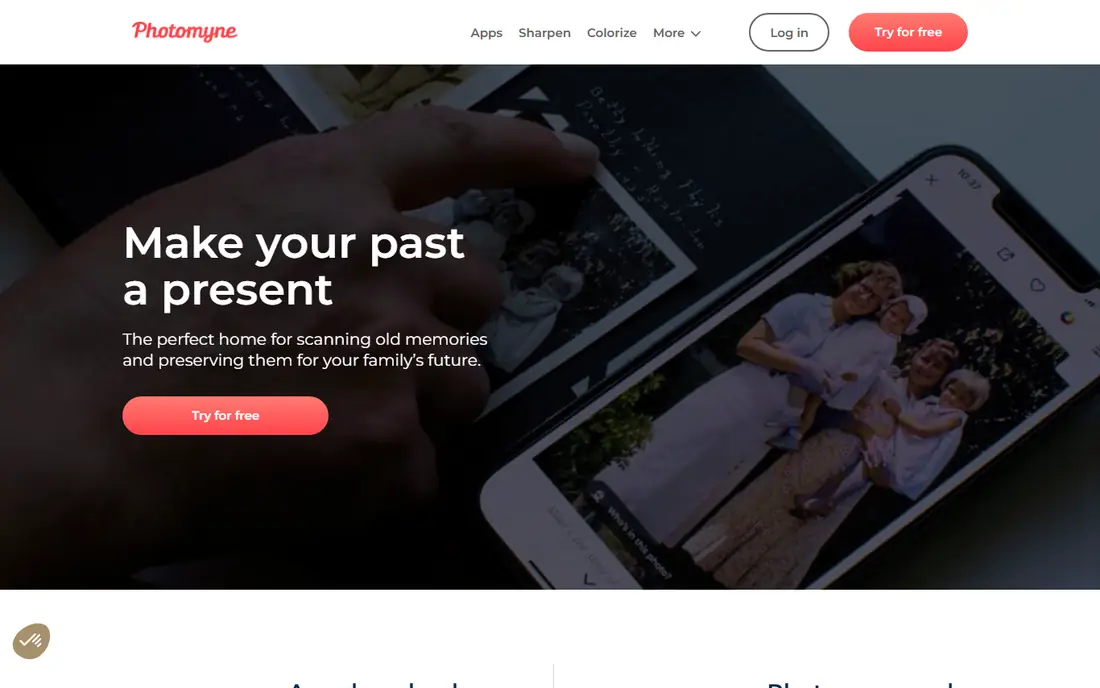
Photomyne is built for volume. Point your phone at an album page or a group of loose prints, and it detects each photo, crops it, rotates it, and saves it into a digital album. That multi-photo capture is what makes it practical for hundreds of prints, where a one-by-one scanner would take many weekends to finish.
The free download lets you test the workflow, but unlimited scanning, high-resolution exports, and cloud backup sit behind a membership, with annual pricing reported around $59.99 per year. Check the in-app checkout before subscribing, since prices vary by platform and region. If you have a large family archive, the time saved often justifies the cost.
- Captures several prints in one shot
- Auto crop, rotation, and color correction
- Albums, dates, and names help organize scans
- Full features need a paid membership
- Glossy prints still need careful lighting
- Advanced AI repair uses separate credits
SlideScan, from the Photomyne team, fills a gap that print scanners leave open. Old slides are small, transparent, and hard to photograph well, and this app guides you through capturing them against a light source so the image comes out bright and readable. It is a practical way to preview a slide collection before deciding which frames deserve a professional scan.
The app works best as a companion to Photomyne rather than a standalone archive tool. Unlimited scanning needs a membership, and results still depend on steady hands and even lighting. For a box of family slides, it is a fast first pass that can reveal images you had forgotten.
- Designed for slides rather than prints
- Guided capture with a light source
- Saves slides into organized albums
- Needs a membership for unlimited use
- Slide quality depends on backlight and alignment
- Separate app from Photomyne
FilmBox answers a question many families face when they find a box of negatives: what is actually on these strips. Hold a negative up to a light source, and the app shows a positive preview in real time, with color options for black and white and color film. That preview alone can save you from paying to develop or scan strips that hold little of value.
It is not a replacement for a flatbed film scanner when you want a high-resolution archive copy. Think of FilmBox as a triage tool: find the frames that matter, save previews, and send the best strips for a careful scan. For that job, it is simple, fast, and genuinely useful.
- Turns negatives into positive previews on your phone
- Live preview helps frame each strip
- Simple editing tools included
- Unlimited scanning needs a subscription
- Output quality is below a dedicated film scanner
- Handling strips takes patience
Pic Scanner Gold appeals to people who want to scan a family box once and never think about a subscription again. You pay once, capture several photos in a shot, and get automatic cropping plus straightforward export options. Processing on the device is a plus for families who prefer not to upload every print to a cloud service.
The trade is a narrower toolset. There is no Android version, and faded or damaged photos will still need a separate restoration app or service. Check the current App Store price before buying, since it varies by region. For a moderate archive on an iPhone, it is one of the best value choices here.
- One-time purchase instead of a monthly fee
- Multi-photo capture with auto crop
- On-device processing keeps scans private
- IPhone and iPad only
- No built-in restoration layer
- Feature set is smaller than subscription apps
Unfade keeps the scanning job simple: hold the phone over a print, let the app find the edges and fix the perspective, and save the result. That low-friction flow suits people who want to scan a few photos at a family gathering or while sorting a box, without learning a full archive system first.
It is not the best choice for a thousand-print project or for heavily damaged photos. Organization and restoration tools are lighter than those in Photomyne or PhotoScanRestore. Use Unfade when speed and simplicity matter more than deep editing, and keep your original scans safe before applying any enhancement.
- Simple capture flow for printed photos
- Automatic edge detection and perspective correction
- Easy sharing from the phone
- Smaller feature set than Photomyne
- Restoration depth is limited
- Pricing and limits should be checked in the app
FamilySearch Memories is less about scan quality and more about what happens after the scan. A photo you capture can be tagged with relatives, dated, and attached to a person in your family tree, so future relatives can find it in context rather than in a random camera roll. You can also add written stories and audio notes to explain who is in the picture.
The scanning itself is basic, with no glare removal or repair tools to match PhotoScan or Photomyne. If genealogy is your main reason for scanning, the free tree integration outweighs that limit. If you only want clean digital copies, start with a dedicated scanner and import the results into FamilySearch later.
- Free to use
- Scans attach directly to people in a family tree
- Stories and audio can sit beside each photo
- Image quality depends on your lighting and phone
- No automated restoration
- Best value only for genealogy users
Heirloom is not a phone app in the usual sense; it is a mail-in service for people who would rather trust fragile prints to professionals than scan them one by one. You send prints, albums, slides, or other media, and the service returns organized digital files, with photo prints scanned at 600 DPI as JPG images. Groupings such as banded stacks or envelopes are kept as separate folders.
The cost is time and trust: shipping originals always carries some risk, and turnaround is slower than scanning at home. For fragile albums, large collections, or prints you do not want to handle repeatedly, a professional service can still be the safer choice. Check the current order pricing on the site before sending anything.
- Professional scanning at 600 DPI
- Prints, albums, slides, and other media accepted
- Organized digital folders match your groupings
- Mail-in service takes longer than app scanning
- Pricing depends on order size and media type
- You must ship originals
PhotoScanRestore fits after the scanning step, when a photo is digitized but still shows fading, stains, or torn areas. You upload a scan from your phone or computer, preview a restoration, and then choose a pack or plan if you like the result. That workflow keeps the focus on the handful of photos that matter most, rather than asking you to restore an entire archive.
It will not replace a scanner, and a poor original scan limits what any restore can recover. Scan carefully first, with even lighting and a steady hand, then use this service for the keepers. For family photos with real damage, it is a more targeted spend than a second subscription scanner.
- Restoration focused on fading, cracks, and damage
- Free demo lets you preview a restore
- Private family sharing options
- It is a restore tool, not a bulk scanner
- Best results need a good original scan
- Paid packs or plans apply for full restores
How we picked these
We compared official feature pages, pricing pages, and app store listings for tools still available in October 2026, and we kept only products that handle printed photos, slides, or negatives rather than documents alone. We favoured a mix of free, one-time purchase, and subscription options, plus one mail-in service and one restoration tool, so readers can match the tool to the size and condition of their collection. We did not claim hands-on testing; our comparisons rest on published features, pricing, and public reviews.
Scanning old photos without damaging them
Work in a clean, well-lit room and handle prints by the edges, since fingerprints and dust show up clearly in a scan. Use daylight or two lamps at an angle to reduce glare on glossy prints, and place each print flat on a plain, non-reflective surface. Scan the back of a photo too when it carries a date or a handwritten note, and keep that image with the front scan.
Build a simple archive as you go
Name files with a year and a short description, such as 1978-family-picnic, and store the untouched scan separately from any edited copy. Back up the archive in two places, for example an external drive and a cloud account, so one failure does not erase a family collection. Add names, dates, and places while you still remember them, because that context is what turns a folder of images into a family history.
Know when to stop and get help
If a print is stuck to glass, torn through a face, or badly curled, do not force it flat or peel it apart. A local archive service or a professional scanning service can handle fragile items with tools that a phone app cannot match. Spending a little on the most fragile pieces is better than losing them to a rushed home scan.
Frequently asked questions
What is the best app to scan old photos for free?
Google PhotoScan is the best free option for small batches, thanks to its glare control and direct saving to Google Photos. Photomyne also offers a free download for testing, but unlimited scanning and full exports need a membership.
What is the best app to scan pictures in bulk?
Photomyne is the best bulk choice, since it captures several prints in one shot and organizes them into albums. Pic Scanner Gold is a good one-time purchase alternative on iPhone, though it is slower for very large archives than Photomyne.
Can I scan slides and negatives with a phone app?
Yes, with limits. SlideScan handles slides and FilmBox previews negatives, and both are useful for finding the frames worth a careful scan. For high-resolution archive copies of film, a dedicated film scanner or a professional service will give better results.
How do I avoid glare when scanning old photos?
Use soft, angled light rather than a direct flash, place the print flat on a matte surface, and try PhotoScan guided capture for glossy prints. If glare persists, move the lamps further to the side and reshoot rather than trying to edit the reflection out later.
Should I keep the original prints after scanning?
Yes, whenever you have the space to store them safely. A digital copy is easy to share and back up, but the original still holds detail, color, and notes that a phone scan may miss. Store originals flat, dry, and away from direct light.
What resolution should I scan old photos at?
For phone scans, use the highest quality setting your app offers and keep an untouched master copy. For mail-in services, 600 DPI is a good standard for prints you may want to reprint, while a lower resolution is fine for sharing on a phone or social feed.
Sources
See where you really rank - block by block
ProMapRanker scans Google Maps across a grid of your service area. Simple monthly plans from $19, white-label on every plan.
Start freeKeep reading
 wpforms alternatives
Best WPForms Alternatives in 2026
We compare 9 wpforms alternatives for WordPress forms, with free and paid options, current pricing notes, and honest limits for small business sites in 2026.
Read → windows task scheduler alternatives
Best Windows Task Scheduler Alternatives in 2026
Looking for Windows Task Scheduler alternatives? We compare 9 schedulers for Windows and cross-platform work, from free tools to enterprise automation.
Read → which ai video service is best
Which AI Video Service Is Best in 2026
which ai video service is best? We compare 10 legitimate AI video services on price, avatars, editing and output quality to help you pick the right tool.
Read →