 ProMapRanker
Best App to Insert PDFs on My Phone in 2026


Full PDF editing and signing on mobile · Pricing starts at: $14.99 per month
Key takeaways
- Adobe Acrobat and PDFelement are the safest picks when you need to insert pages, edit text, and sign on a phone.
- PDFgear and Xodo cover the basics for free, which suits occasional edits and form filling.
- PDF Expert is a strong iPhone pick, but it does not cover Android phones.
- Inserting a page is different from merging two files, so check that the app offers page management on mobile, not just on desktop.
- Check cloud storage and sign-in needs before you start, since some apps need an account to sync files across devices.
Quick comparison
| Pick | Great for | Pricing starts at | Free tier | |
|---|---|---|---|---|
| Adobe Acrobat | Full PDF editing and signing on mobile | $14.99 per month | Yes | Visit |
 PDF Expert | iPhone PDF editing and page tools | See website | Yes | Visit |
 Foxit PDF Editor | Cross-platform PDF editing | See website | Yes | Visit |
 PDFelement | AI-assisted PDF editing | $79.99 per year | Yes | Visit |
 Xodo | Free annotation and page edits | Free | Yes | Visit |
 PDFgear | Free PDF editing with no subscription | Free | Yes | Visit |
 Smallpdf | Quick web and mobile PDF tasks | Free | Yes | Visit |
 iLovePDF | Simple merges, splits, and page tools | Free | Yes | Visit |
The best apps to insert PDFs on your phone in 2026
"Insert" can mean several things on a phone, such as adding a new page, inserting an image or a signature, or combining two PDFs into one file. The apps below all let you work on PDFs from a phone, but they differ in which insert jobs they handle on mobile and which ones need a desktop app. Check the mobile feature list, not just the desktop list, before you pay.
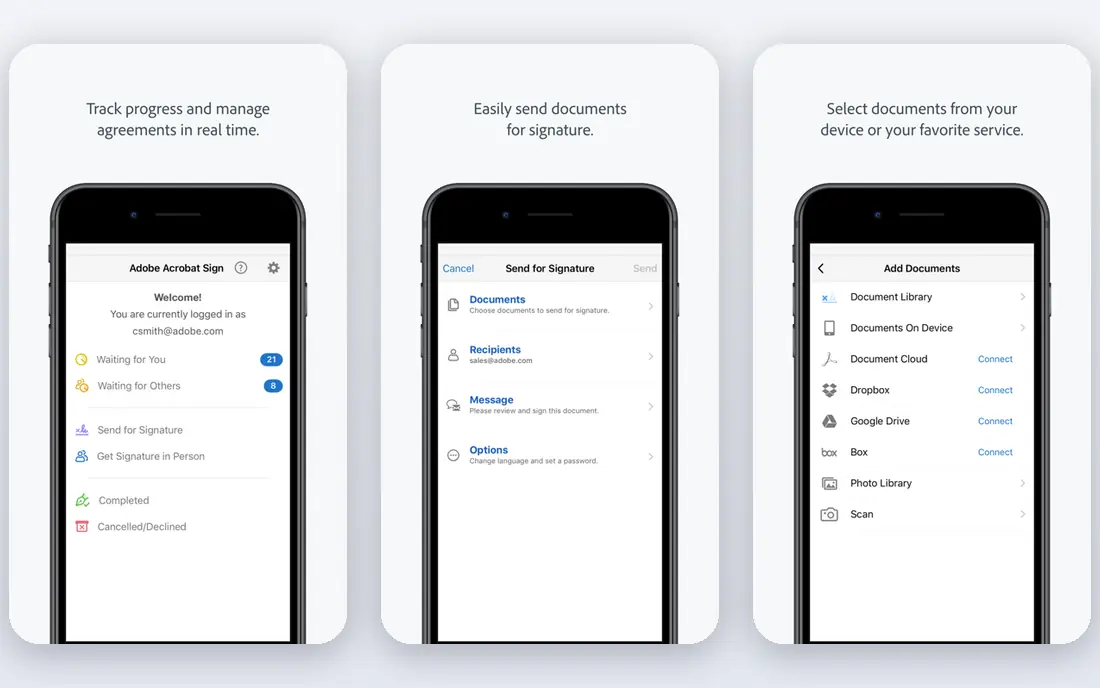
Adobe Acrobat on mobile lets you view, annotate, edit text and images, organise pages, and sign documents from your phone. Standard costs $14.99 per month on an annual plan, while Pro costs more and adds bulk signature sending, web forms, and templates. The free Reader app covers viewing and basic annotation, so you can test the mobile workflow before paying. The strength is completeness. Page insertion, text edits, image placement, and signature capture all live in the same app, and files sync through Adobe cloud storage or linked services such as Google Drive and Dropbox. The weakness is price. If you only insert a page now and then, a free app will do the same job. Pay for Acrobat when you edit PDFs every week and need the edits to hold up when clients open them in Acrobat on desktop.
- Strong mobile page and text editing
- E-signatures and form filling
- Wide cloud storage links
- Full features need a paid plan
- Subscription cost is higher than free rivals
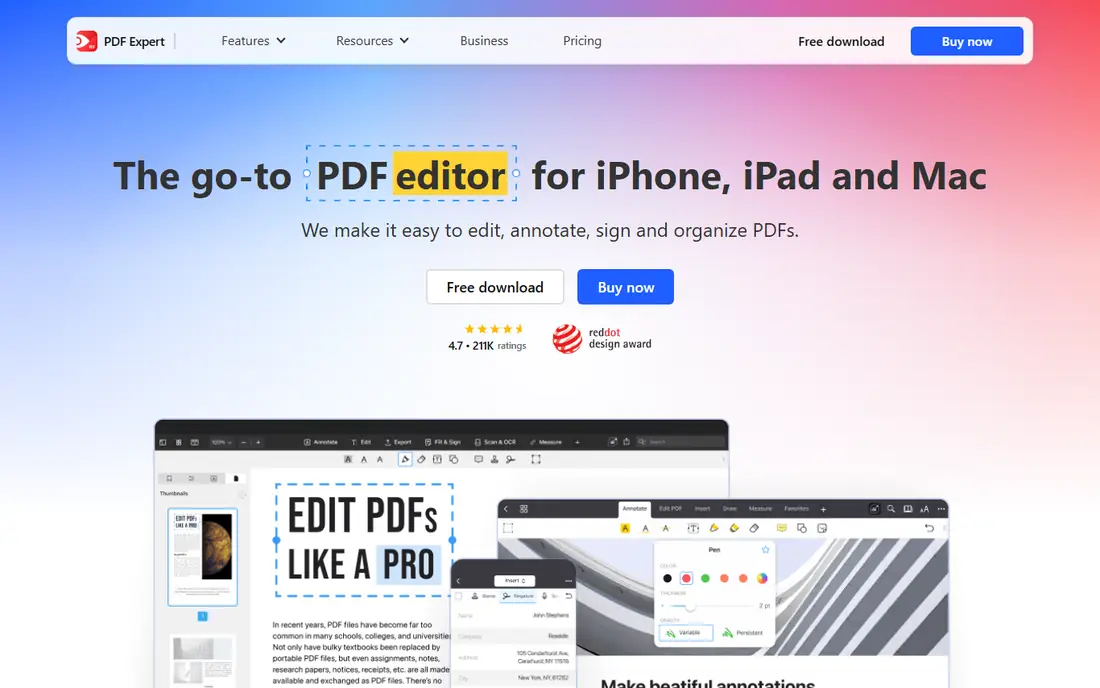
PDF Expert, from Readdle, is a well-regarded PDF editor for iPhone, iPad, and Mac. On a phone you can annotate, fill forms, sign, edit text and images, and manage pages, including inserting and reordering pages in a document. The interface is clean and fast, and it works well with a stylus on iPad, though phone use is mainly touch-based. The main limit is platform. PDF Expert does not offer an Android app, so Android users need a different pick from this list. Pricing varies by plan and storefront, with yearly and one-time options listed, so check the current price inside the app or on the official site before buying. For iPhone users who edit PDFs often, it is one of the smoothest mobile editors available.
- Fast and clean on Apple devices
- Page management and annotation
- Good Apple Pencil support
- No Android version
- Some advanced features need a paid plan
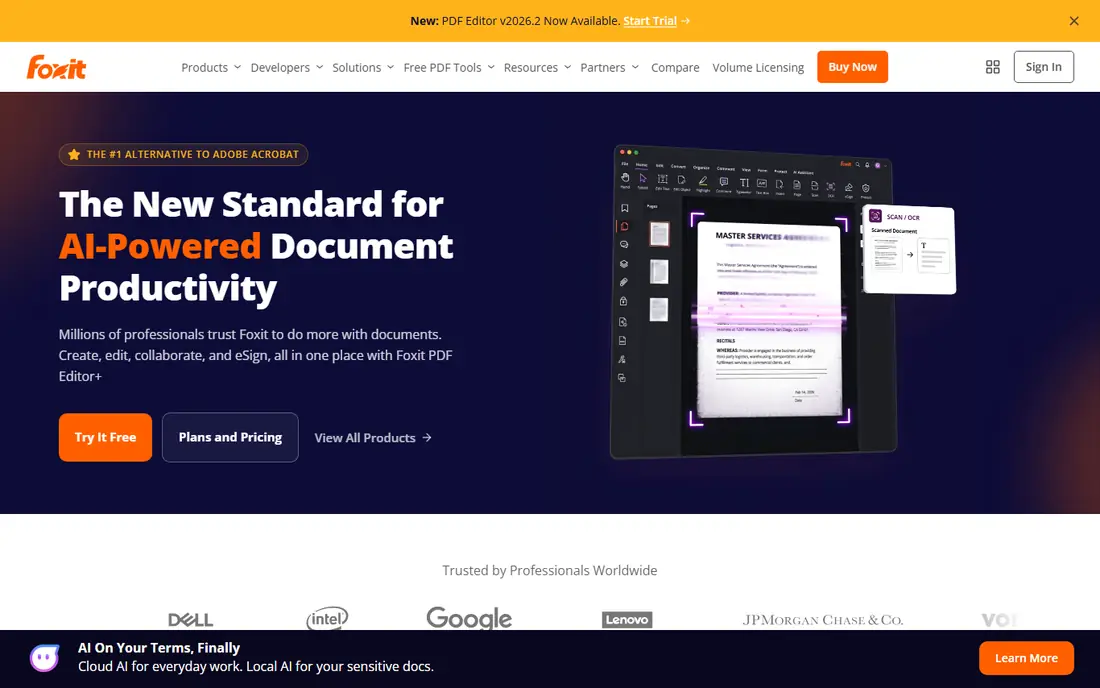
Foxit PDF Editor covers Windows, Mac, iOS, and Android, so you can start an edit on a phone and finish it on a computer. The mobile app supports annotation, form filling, signing, and page tools, along with text and image edits for common jobs. That cross-platform reach is useful for teams where some people use iPhones and others use Android phones. The trade is that the mobile app does not include every desktop feature, and pricing varies by platform and plan, so the price you see for desktop may not match the mobile subscription. Check the mobile plan details in the app store listing before you pay. Foxit suits users who want one PDF editor across devices and do not want to be tied to a single phone platform.
- Works on mobile and desktop
- Page, text, and image editing
- Form and signature tools
- Mobile feature set is smaller than desktop
- Pricing varies by platform
PDFelement, from Wondershare, is a full PDF editor with apps for Windows, Mac, iOS, Android, and the web. On a phone you can edit text and images, manage pages, fill forms, and sign, while the desktop app adds deeper batch tools. The yearly single-platform plan starts at $79.99, with multi-platform plans that add mobile and web access at a higher yearly price. A useful extra is OCR, which turns a scanned page into searchable and editable text, and an AI sidebar that can summarise or translate a document. AI use is limited per plan, with extra credits available, so heavy AI users should check the allowance. PDFelement suits users who work with scanned documents and contracts on a phone and want OCR in the same app as page editing.
- Text, image, and page editing on mobile
- OCR for scanned pages
- AI sidebar for summaries
- Mobile features are narrower than desktop
- AI use has limits on each plan
Xodo lets you edit, annotate, sign, and share PDFs on desktop, mobile, and the web. On a phone you can fill forms by typing into fields, tap to sign with a finger or stylus, add comments, and manage pages for common jobs. The core app is free, which makes it a good first try for anyone who only needs occasional edits. The limit is depth. Xodo covers the daily jobs well, but advanced text editing, OCR, and batch tools sit behind paid plans or are handled better by Acrobat or PDFelement. For inserting a page, adding a signature, or filling a form on a phone, Xodo is often enough, and the lack of a subscription for core use is a clear advantage over paid-only editors.
- Free core editing on mobile, desktop, and web
- Annotation and signing
- Form filling
- Advanced editing features need a paid plan
- Interface is simpler than Acrobat
PDFgear is a free PDF editor that covers editing, annotation, conversion, and page management without a subscription for its core features. On a phone you can open a PDF, add text or images, annotate, sign, and organise pages, then save and share the result. The app also runs on desktop, so you can move a file between phone and computer without paying for a second tool. The strength is value. Reviewers often cite PDFgear as a way to avoid a subscription for essential PDF work, and the free model suits students and casual users. The weakness is ecosystem size. It does not match Adobe for enterprise integrations or for large-team admin tools. For personal use and small-team edits on a phone, that gap rarely matters, and the price is hard to argue with.
- Free editing, conversion, and page tools
- Works on mobile and desktop
- No subscription for core features
- Smaller support and integration ecosystem than Adobe
- AI features are newer
Smallpdf started as a web tool for quick PDF jobs and now offers mobile apps as well. It is best for simple insert-style tasks, such as merging two PDFs into one, splitting a file, compressing a large file, or converting a file to another format. The interface is simple, with one job per tool, which helps when you need a result fast on a phone browser. The limit is free use. The free tier has daily limits on tasks, and deeper editing, OCR, and batch work need a paid plan, with pricing listed on the official site. Smallpdf suits occasional jobs where you already have the file on your phone and just need to combine, split, or compress it. For heavy text editing or page-by-page work, Acrobat, PDFelement, or PDF Expert fit better.
- Simple merge, split, and compress tools
- Works in a browser and on mobile
- Easy file sharing
- Free use has daily limits
- Deeper editing needs a paid plan
iLovePDF offers a set of focused PDF tools, including merge, split, compress, convert, and page organisation, through its website and mobile apps. On a phone, the merge tool is the closest match to inserting one PDF into another, since you can combine files and reorder pages before saving the result. The interface is plain and task-based, so you do not need to learn a full editor to finish a job. The free tier covers basic tasks with limits, while Premium adds higher limits and extra features. The weakness is editing depth. iLovePDF will not replace a full editor for changing text inside a scanned contract or for complex form work. Use it when your job is to combine, split, or tidy pages, and use a full editor from this list when you need to change the content inside the pages themselves.
- Clear merge, split, and page tools
- Mobile app and web tools
- Simple interface
- Free tier has limits
- Advanced editing is limited compared with full editors
How we picked these
We checked each official site and app store listing for mobile availability, page management, text and image editing, form filling, and signing in October 2026. We kept apps that are live now on iOS or Android, that clearly support inserting or combining PDF content from a phone, and that a user can start for free or on a clear paid plan. Desktop-only editors were left out, even when they are strong on a computer.
How to insert a PDF on your phone without losing quality
First, decide what "insert" means for your job. If you need to add a whole PDF into another file, use a merge tool such as Smallpdf or iLovePDF, or the page tools in Acrobat or PDFgear. If you need to add a new blank page, a scanned page, or an image into a file, use a full editor such as Acrobat, PDF Expert, or PDFelement, and check that the mobile app offers that exact page tool. Save a copy of the original file before you edit, and check the result on a larger screen before you send it. Page order, image size, and signature placement can look fine on a small phone screen and wrong on a desktop page. Export or share from the app itself, rather than taking a screenshot, so the file stays a real PDF with searchable text where possible.
Frequently asked questions
Can I insert a page into a PDF on my phone for free?
Yes, for basic jobs. PDFgear and Xodo cover core page and annotation work for free, and Smallpdf and iLovePDF cover merges and page organisation on free tiers with limits. Full text editing and OCR usually need a paid plan, so check the free limits in the app before you start a large file.
What is the difference between merging PDFs and inserting a page?
Merging combines two or more whole PDFs into one file, while inserting a page adds a single page, blank or scanned, inside an existing file. Merge tools suit combining reports, while page tools suit adding a cover page, a scanned form, or a missing page. Most full editors in this list do both, but some simple tools only do merges.
Which app is best for signing a PDF on a phone?
Adobe Acrobat, PDF Expert, Foxit, and Xodo all support signing on a phone with a finger or stylus. Acrobat is best when the signature must hold up in a formal workflow, while Xodo and PDFgear are enough for everyday forms and approvals. Save your signature in the app so future documents take one tap.
Do I need an account to edit a PDF on my phone?
It depends on the app. Some apps let you edit a local file without an account, while others need an account to sync files or to use cloud storage. If you work with private documents, check whether the app uploads the file to a server or edits it on the device, and prefer on-device editing for sensitive files.
Can I insert a scanned page into a PDF on my phone?
Yes, if the app supports page insertion and your phone can scan. Take a clear scan with good light, insert it as a page in Acrobat, PDF Expert, or PDFelement, and use OCR if you need the scanned text to be searchable. Check the page order and rotation after inserting, since scans often come in upside down.
Which PDF app works on both iPhone and Android?
Adobe Acrobat, Foxit PDF Editor, PDFelement, Xodo, PDFgear, Smallpdf, and iLovePDF all offer both iPhone and Android access, through apps or the web. PDF Expert is the exception here, since it is Apple-only. If your team mixes phone types, pick a cross-platform app so files and edits stay consistent.
Sources
See where you really rank - block by block
ProMapRanker scans Google Maps across a grid of your service area. Simple monthly plans from $19, white-label on every plan.
Start freeKeep reading
 free alternatives to grok imagine
Free Alternatives to Grok Imagine in 2026
We compared the best free alternatives to grok imagine for image generation, from fast daily credits to design tools, so you can create without paying.
Read → best tools for instagram content creation
Best Tools for Instagram Content Creation in 2026
Compare the best tools for Instagram content creation, from Canva and CapCut to Later and Buffer, on design, video, planning, scheduling, and price in 2026.
Read → best tool to split pdf files
Best Tool to Split PDF Files in 2026
We compared the best tool to split pdf files on split modes, file limits, privacy and price, so you can split a PDF cleanly and keep every page in one go.
Read →